


 ממיר וידאו אולטימטיבי
 מקליט מסך
 תיקון וידאו
 הורדה מאובטחת
כיצד להמיר MOV ל-GIF: מדריך מקיף להגברת הנוכחות המקוונת
שמירה על תשומת הלב של הקהל שלך בעולם הדיגיטלי המהיר של היום דורשת יצירת תוכן ויזואלי מרתק. קובצי GIF מונפשים נמצאים בשימוש נרחב בגלל יכולתם להעביר מושגים מורכבים, רגשות ומסרי מותג בצורה מהנה ובלתי נשכחת. אבל לא כל פורמטי הווידאו נגישים דרך פלטפורמות והתקנים מרובים. כדי לעשות זאת, אתה יכול להשתמש בממיר MOV ל-GIF.
אנימציה קלה ואיכותית שניתן לשתף בקלות באתר שלך, ברשתות החברתיות ובאפליקציות מסרים, יכולה להיווצר על‑ידי המרת קובצי MOV ל‑GIF מונפש. תוכל לשפר עוד יותר את האפקט השיווקי של קובצי ה‑GIF שלך על‑ידי הוספת טקסט, מסננים ומיתוג. המרה מ‑MOV ל‑GIF עשויה להיראות מורכבת, אך קיימות תוכנות המרה רבות, מקוונות ולא‑מקוונות, שמפשטות את התהליך. מאמר זה יראה לך כיצד להמיר MOV ל‑GIF ויעמיק ביתר פירוט ביתרונות שבכך.

חלק 1. המר MOV ל-GIF לא מקוון
בעוד שכלים לא מקוונים דורשים התקנה חד פעמית, הם מציעים גמישות ושליטה רבה יותר על תהליכי המרת קבצים. חשוב לבחור ספק תוכנה בעל מוניטין ולשמור על עדכון התוכנה כדי להבטיח ביצועים ואבטחה מיטביים. עם זאת, סיפקנו כאן רשימה של תוכניות שיעזרו לך להמיר MOV ל-GIF ב-Mac, Windows ו-iPhone. בדוק אותם כדי ללמוד עוד.
FVC Free Video Converter מסוגל להמיר קובצי וידאו בפורמט MOV לקובצי תמונה בפורמט GIF. הוא מקל על התהליך באמצעות ממשק פשוט ואינטואיטיבי לבחירת קובץ ה‑MOV שלך ולהגדרת הגדרות הפלט עבור קובץ ה‑GIF. בעת המרת MOV ל‑GIF באמצעות FVC Free Video Converter, תוכל להגדיר את גודל הפלט ואיכותו של קובץ ה‑GIF, וכן את קצב הפריימים והגדרות נוספות. התוכנה מספקת גם פונקציית תצוגה מקדימה המאפשרת לך לצפות בקובץ ה‑GIF לפני השמירה. בסך הכול, FVC Free Video Converter הוא כלי שימושי לכל מי שמעוניין להמיר סרטוני MOV לתמונות GIF למגוון מטרות. למד עוד על התוכנית הזו על‑ידי עיון בתכונות המפתח שלה.
תכונות מרכזיות:
◆ המר מספר סרטונים בו זמנית.
◆ המרה במהירות גבוהה עם טכנולוגיות האצה.
◆ תוכנן כך שיהיה קל לשימוש על ידי משתמשים.
שלב 1. השג את התוכנית למחשב שלך
כדי לשלוט בצורה טובה בהמרת MOV ל‑GIF, הורד והתקן בבקשה את FVC Free Video Converter במחשב שלך. תוכל לקבל את התוכנית הזו על‑ידי לחיצה על כפתור ה‑Free Download למטה. ניתן לבחור בין מתקין ל‑Mac ובין מתקין ל‑Windows.
הורדה חינמיתעבור Windows 7 או גרסה מאוחרת יותרהורדה מאובטחת
הורדה חינמיתעבור MacOS 10.7 או גרסה מאוחרת יותרהורדה מאובטחת
שלב 2. הוסף את קובצי ה‑MOV הרצויים
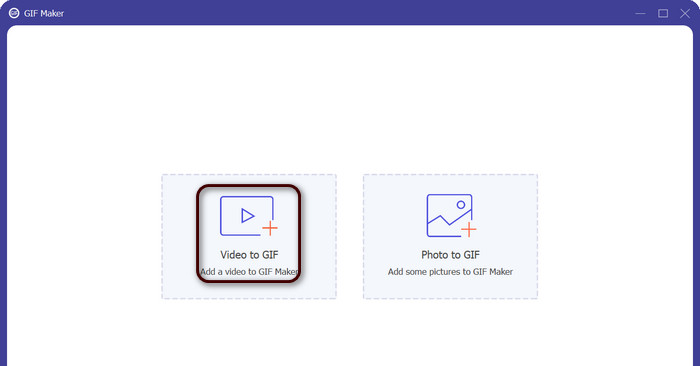
הפעל את התוכנית כדי לראות את הממשק הראשי. מכאן, עבור ללשונית Toolbox ולחץ על כלי GIF Maker. לאחר מכן לחץ על כפתור Video to GIF כדי להוסיף את קובצי ה‑MOV הרצויים.
שלב 3. ערוך את הווידאו
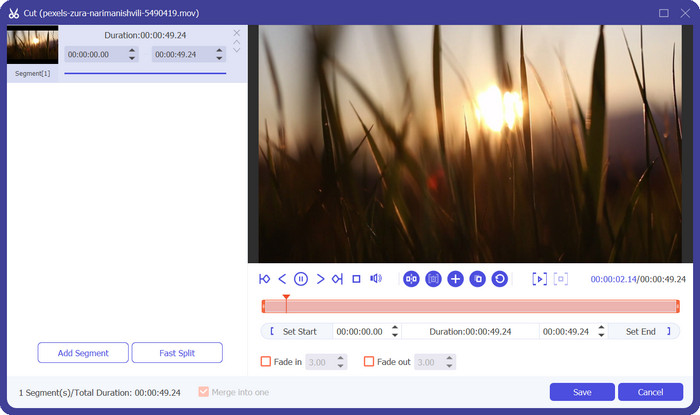
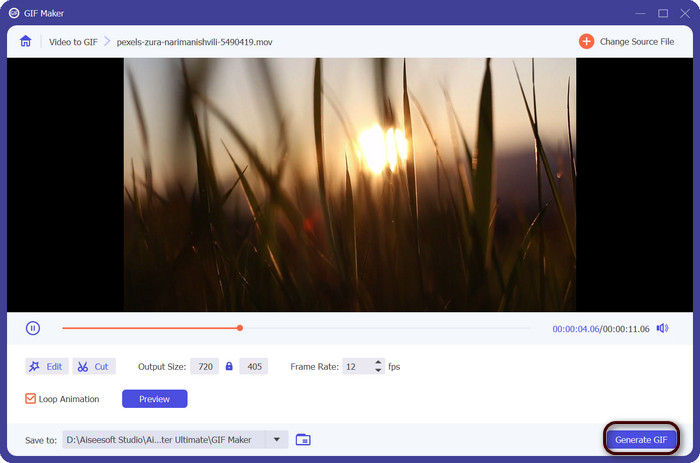
אם ברצונך לחתוך חלקים מסוימים מהווידאו, לחץ על כפתור Cut. כעת השתמש בסרגל ההזזה או הזן זמני התחלה וסיום מדויקים כדי לבחור את החלק מהווידאו שברצונך להשתמש בו ל‑GIF. לאחר מכן התאם אישית את הגדרות ה‑GIF, כולל גודל הפלט, קצב הפריימים והאיכות. תוכל גם להוסיף טקסט או מדבקות ל‑GIF על‑ידי לחיצה על כפתור Edit.
שלב 4. המר MOV ל‑GIF
צפה ב‑GIF בתצוגה מקדימה כדי לוודא שהוא נראה כפי שאתה רוצה. לחץ על כפתור Generate GIF כדי ליצור את ה‑GIF. קובץ ה‑GIF יישמר במחשב שלך במיקום שציינת בהגדרות הפלט.
2. FFmpeg
FFmpeg הוא כלי תוכנה רב תכליתי וחזק המספק למפתחים, אנשי מדיה וחובבים מגוון תכונות לעבודה עם קובצי אודיו ווידאו. עם התאימות בין הפלטפורמות שלו, אתה יכול להשתמש ב-FFmpeg במערכות הפעלה שונות, מה שהופך אותו לפתרון אידיאלי עבור פרויקטים הדורשים גמישות ורבגוניות. אחת התכונות הבולטות של FFmpeg היא היכולת שלו להתמודד עם פורמטים שונים של קבצי אודיו ווידאו, כולל פורמטים פופולריים כמו MP4, MOV, AVI ועוד. למד כיצד להפוך MOV ל-GIF באמצעות ההוראות הבאות.
תכונות מרכזיות:
◆ המרה והמרת קידוד.
◆ תמיכה במגוון רחב של פורמטי וידאו ואודיו.
◆ סטרימינג ושידור.
◆ ממשק שורת הפקודה.
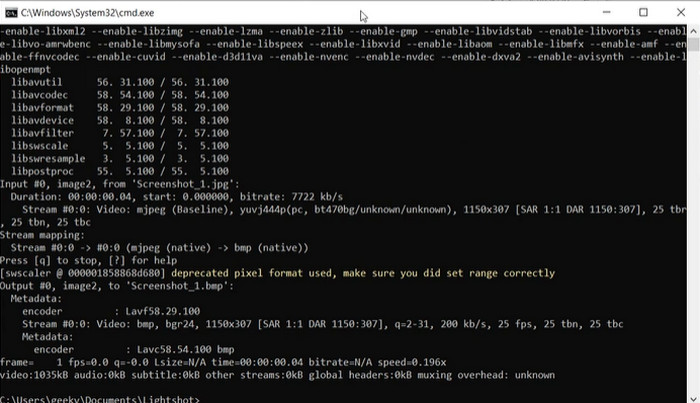
שלב 1. הפעל חלון שורת פקודה (Command Prompt) או טרמינל במחשב שלך. לאחר מכן נווט לתיקייה שבה נמצא קובץ ה‑MOV שלך כדי להתחיל את ההמרה של MOV ל‑GIF באמצעות FFmpeg.
שלב 2. הקלד את הפקודה הבאה: ffmpeg -i input.mov output.gif. החלף את input.mov בשם קובץ ה‑MOV שלך, ואת output.gif בשם הרצוי לקובץ ה‑GIF. באופן אופציונלי, תוכל להתאים את הפלט על‑ידי הוספת דגלים נוספים לפקודה. לדוגמה, תוכל להגדיר את קצב הפריימים של קובץ ה‑GIF על‑ידי הוספת הדגל -r, כך: ffmpeg -i input.mov -r 10 output.gif. פעולה זו תקבע את קצב הפריימים ל‑10 פריימים לשנייה.
שלב 3. לחץ על Enter כדי להריץ את הפקודה. FFmpeg ימיר את קובץ ה‑MOV שלך ל‑GIF, והקובץ שנוצר יישמר באותה תיקייה שבה נמצא קובץ המקור. כך ממירים MOV ל‑GIF.
3. פוטושופ
פוטושופ של Adobe Systems היא תוכנה סטנדרטית בתעשייה לעריכה ועיצוב תמונות דיגיטליות. אנשי מקצוע רבים בתחומי הצילום, העיצוב הגרפי והאמנות מסתמכים עליו כדי ליצור ולשנות תמונות דיגיטליות, גרפיקה ויצירות אמנות. למרבה המזל, הכלים הרבים של Photoshop מקלים על הפיכת סרטוני MOV לקובצי GIF. חלק מהדגשים כוללים את הדברים הבאים:
תכונות מרכזיות:
◆ תכונת ציר זמן וידאו לייבוא קבצי וידאו.
◆ ייצוא קובצי GIF בגדלים ורזולוציות שונות.
◆ צור אנימציות מסגרת אחר מסגרת עם פאנל הנפשה.
שלב 1. פתח את Photoshop במחשב שלך ועבור אל File > Import > Video Frames to Layers. בתיבת הדו‑שיח Import Video to Layers בחר את קובץ ה‑MOV שלך ולחץ על Open.
שלב 2. בתיבת הדו‑שיח Video Layer, בחר From Beginning to End אם ברצונך להשתמש בכל הווידאו או Selected Range Only אם ברצונך להשתמש רק בחלק מהווידאו. לאחר מכן לחץ על OK.
שלב 3. Photoshop ייבא את פריימי הווידאו כשכבות. עבור אל Window > Timeline כדי לפתוח את חלונית האנימציה. בחלונית האנימציה לחץ על כפתור Create Frame Animation.
שלב 4. לחץ על סמל התפריט בפינה הימנית העליונה של חלונית האנימציה ו‑select Make Frames From Layers. בחלונית האנימציה תוכל להתאים את משך כל פריים על‑ידי לחיצה על הזמן מתחת לכל פריים והזנת ערך חדש.
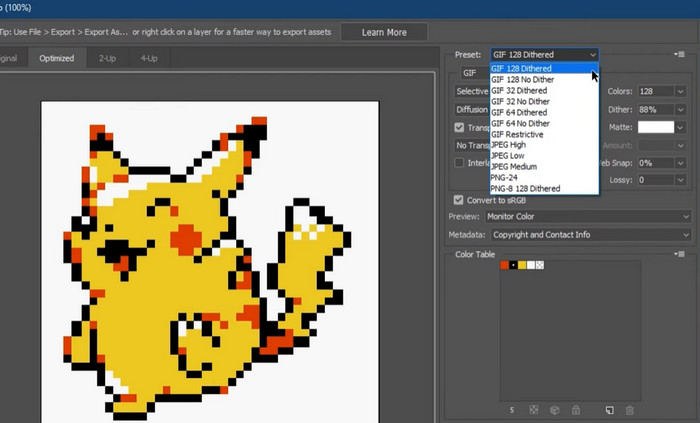
שלב 5. כשתהיה מרוצה מה‑GIF, עבור אל File > Export > Save for Web (Legacy). בתיבת הדו‑שיח Save for Web בחר GIF כסוג הקובץ. התאם את ההגדרות לפי העדפותיך, כגון הגודל, פלטת הצבעים ואפשרויות האופטימיזציה. לחץ על Save כדי לשמור את קובץ ה‑GIF. כך מייצאים MOV ל‑GIF ב‑Photoshop.
חלק 2. המר MOV ל-GIF באינטרנט
שימוש בתוכנות מקוונות להמרת קבצים מציע דרך נוחה ונגישה להמרת קבצים מבלי להתקין תוכנה כלשהי או לנווט בממשקים מסובכים. אם אתה סקרן באיזו תוכנית להשתמש, אתה יכול להסתכל על ממירי MOV ל-GIF המקוונים הטובים ביותר למטה.
1. ממיר וידאו חינם באינטרנט
Free Video Converter Online מבית FVC מציע ממשק פשוט וידידותי למשתמש, המאפשר למשתמשים להמיר במהירות ובקלות את קובצי הווידאו שלהם. המשתמשים יכולים לבחור את קובץ הקלט ואת פורמט ואיכות הפלט הרצויים. הכלי מאפשר גם התאמה אישית של הגדרות שונות, כולל רזולוציית וידאו, קצב סיביות (bitrate) וקצב פריימים.
שלב 1. התחל בפתיחת דפדפן אינטרנט ונווט לאתר FVC Free Video Converter Online.
הורד את גרסת הדסקטופ כדי להמיר קבצים במצב אצווה.
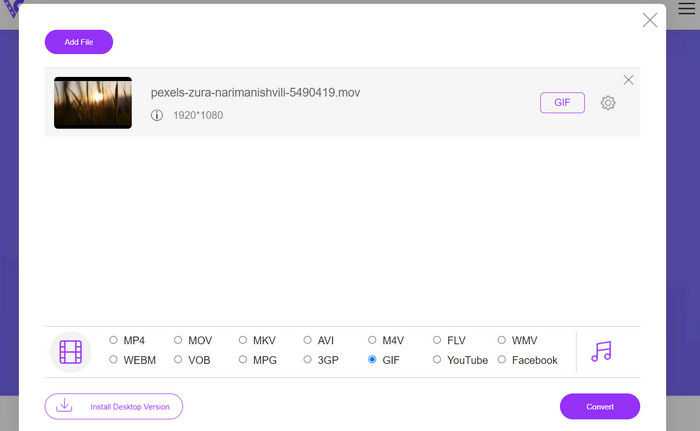
שלב 2. כעת לחץ על כפתור Add Files to Convert כדי להעלות את קובץ הווידאו בפורמט MOV שברצונך להמיר. באפשרותך גם לגרור ולשחרר את הקובץ לאזור הייעודי.
שלב 3. בחר את פורמט הפלט על‑ידי לחיצה על כפתור הבחירה GIF. לחץ על כפתור Convert כדי להתחיל בתהליך ההמרה.
2. CloudConvert
CloudConvert היא אפליקציית אינטרנט להמרת קבצים מקוונת המאפשרת למשתמשים להמיר סוגים שונים של קבצים, כולל סרטונים, תמונות, מסמכים ועוד. הוא מציע מגוון רחב של אפשרויות המרה, התומך ביותר מ-200 פורמטים של קבצים, כולל פורמטים פופולריים כגון MP4, MOV, GIF ואחרים.
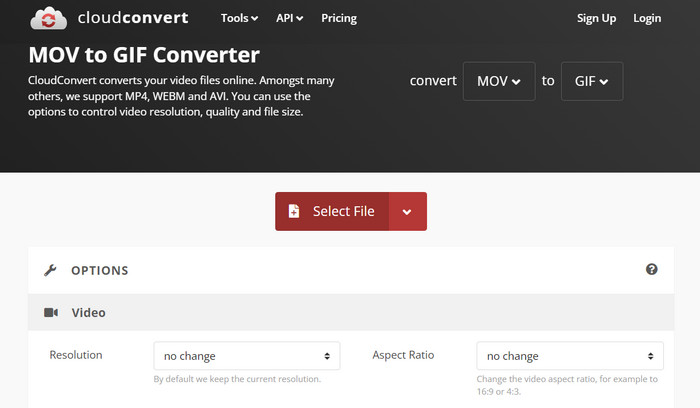
שלב 1. כדי להשתמש ב‑CloudConvert להמרת MOV ל‑GIF, פתח דפדפן אינטרנט ונווט לאתר CloudConvert. לחץ על כפתור Select Files כדי להעלות את קובץ ה‑MOV שלך.
שלב 2. לאחר שהקובץ הועלה, בחר GIF כפורמט הפלט מתפריט הבחירה. באופן אופציונלי, תוכל להתאים את הגדרות הפלט, כגון קצב הפריימים וגודל התמונה.
שלב 3. לחץ על כפתור Convert כדי להתחיל בתהליך ההמרה. עם סיום התהליך, תוכל להוריד את קובץ ה‑GIF שהומר למחשב שלך. כך פועל הכלי המקוון החינמי הזה להמרת MOV ל‑GIF.
3. EZGIF
EZGIF היא אפליקציית אינטרנט גמישה המציעה מגוון רחב של אפשרויות לעבודה עם קובצי GIF. התוכנית היא משאב חינמי ליצירה, עריכה ואופטימיזציה של קובצי GIF מקבצי וידאו, תמונות סטילס ואפילו קובצי GIF אחרים. היכולת של EZGIF להפוך במהירות קבצי וידאו לקובצי GIF היא אחת מנקודות המכירה המושכות ביותר שלה. משתמשים יכולים להעלות סרטונים בפורמטים כמו MP4, AVI או MOV ולהמיר אותם לקובצי GIF עם הגדרות כמו קצב פריימים וגודל תמונה שהם יכולים להתאים לטעמם. השתמש ב-EZGIF להמרת MOV ל-GIF על ידי ביצוע השלבים שלהלן.
שלב 1. פתח את הדפדפן שלך ועבור ל‑EZGIF כדי להמיר את הווידאו שלך ל‑GIF מונפש.
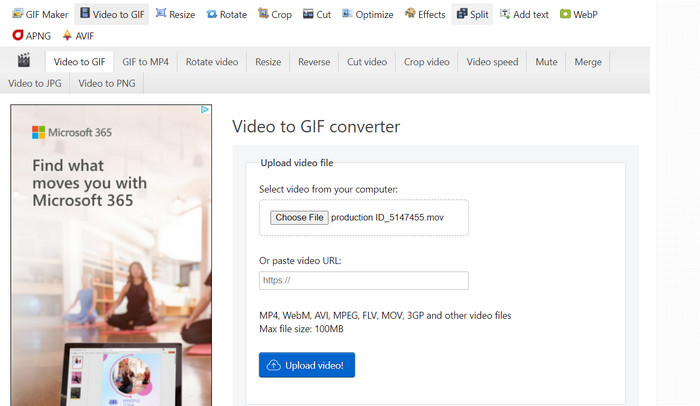
שלב 2. כדי לשנות MOV ל‑GIF, פשוט לחץ על Choose File ואתר את הקובץ שברצונך לשנות.
שלב 3. השתמש במחוונים (sliders) שסופקו כדי להגדיר את זמני ההתחלה והסיום עבור ה‑GIF לאחר שהקובץ הועלה. ניתן גם לשנות את הגודל והכיתוב של ה‑GIF. כדי להתחיל בהמרה, בחר באפשרות Convert to GIF.
לקריאה נוספת
[חינם ואונליין] 4 שיטות להמרת MOV ל‑MP4
יצירת לולאה לקובצי GIF בעזרת לופר ה‑GIF המונפש הטוב ביותר ל‑Windows ול‑Mac
MOV לעומת GIF
ניתן להשתמש בפורמט MOV לאחסון סרט, תוכנית טלוויזיה, וידאו קליפ קצר או סרט ביתי. הוא נשמר למעשה בפורמט הקובץ QuickTime (QTFF), אשר הוצג על ידי אפל בשנת 1991. קבצי MOV משמשים לעתים קרובות כאשר אנשים רוצים לשמור סרטון וידאו באיכות גבוהה.
GIF הוא פורמט תמונה נפוץ עבור גרפיקת אינטרנט. מלבד שמירת תמונות קטנות ותמונות המכילות טקסט, GIF יכול גם להכיל ולהציג אנימציות בסיסיות באתרי אינטרנט. זהו פורמט ללא אובדן, ודחיסת ה-GIF אינה פוגעת בבהירות התמונה.
חלק 3. שאלות נפוצות לגבי MOV ל-GIF
באילו הגדרות עלי להשתמש בעת המרת MOV ל-GIF?
ההגדרות שבהן עליך להשתמש בעת המרת MOV ל-GIF יהיו תלויות בצרכים הספציפיים שלך. באופן כללי, תרצה להתאים את קצב הפריימים, גודל התמונה ועומק הצבע כדי לייעל את ה-GIF לשימוש המיועד שלך.
האם אני יכול להמיר חלק מקובץ MOV ל-GIF?
כן, רוב הכלים מאפשרים לך לבחור חלק מסוים מקובץ MOV להמרה ל-GIF. זה יכול להיות שימושי אם רק אתה רוצה
מהם כמה שימושים נפוצים לקובצי GIF שנוצרו מקובצי MOV?
קובצי GIF שנוצרו מקובצי MOV יכולים לשמש למגוון רחב של מטרות, כולל פוסטים במדיה חברתית, אנימציות באתר וקמפיינים שיווקיים בדוא"ל.
סיכום
המרת MOV ל‑GIF יכולה להיות תהליך שימושי למגוון רחב של מטרות, החל מיצירת תוכן מושך לרשתות החברתיות ועד להדגמת תכונות מוצר או יצירת מדריכים. ישנם כלים רבים זמינים לביצוע המרה זו, החל מכלים מקוונים כמו EZGIF ו‑CloudConvert ועד ליישומי שולחן עבודה מתקדמים יותר כמו Photoshop ו‑Adobe After Effects.
-
 5 הדרכים הטובות ביותר לשנות תמונה ל-GIF מונפש [עודכן 2023]
 צריך תמונת ממיר ל-GIF? מאמר זה יספק את חמשת הממירים הטובים ביותר שאנו יכולים למצוא בשוק. אז בואו נגלה את הכלים האלה על ידי קריאת מאמר זה.
-
 המר בקלות MOV ל-WMV באמצעות הממירים המדהימים האלה
 רוצה להמיר את קובץ ה-MOV שלך לקובץ WMV? להלן הדרכים הפשוטות להמיר בקלות MOV ל-WMV באמצעות הממירים המקוונים והלא מקוונים שבהם אנו ממליצים להשתמש.
-
 המדריך הטוב ביותר כיצד לחתוך קובצי GIF כדי לתבל את התוכן שלך
 אל תפספסו את מדריך חובה זה. למד כיצד לחתוך ולחתוך קובצי GIF כדי למשוך את תשומת הלב של הקהל שלך עם חותכי GIF מעולים באינטרנט ובאופן לא מקוון.
