


 ממיר וידאו אולטימטיבי
 מקליט מסך
 תיקון וידאו
 הורדה מאובטחת
6 הדרך היעילה ביותר לשנות גודל תמונה באינטרנט ובשולחן העבודה
עם מיליארדי תמונות יוקרתיות שאנחנו יכולים להוריד, רובנו מצלמים תמונות יפות, ובכל זאת יש מקרים שבהם הגודל שלהם לא מה שאנחנו הכי מעדיפים. משתמשים ניסו לשנות את גודל התמונה שהייתה להם על ידי התאמת הגובה, הרוחב ויחס הגובה-רוחב של התמונה באמצעות העורך, ששינה את ה-PPI של התמונה. התוצאה היא לא מה שכולם ציפו; תמונות בחדות גבוהה הופכות לפוקסלות.
למה? משום שהעורך שבו השתמשו כדי לשנות את גודל התמונה לא יכול ליצור או למלא את הפער של הפיקסלים בגרסה שגודלה שונה. לכן השאלות בנושא הזה נעשו נפוצות, ואנחנו כאן כדי לעזור לך לפתור את הבעיה. בפוסט בלוג זה ניתן לך ניסיון מעשי על איך לשנות גודל של תמונה בלי להשאיר עיוות כלשהו בתוצאה הסופית.

חלק 1. מגני התמונות הטובים ביותר שאתה יכול לגשת באינטרנט כדי לשנות את גודל התמונה באינטרנט [3 כלים בחינם]
הכלים המקוונים האלה שאנו מוסיפים כאן זמינים בדפדפני אינטרנט שונים שיש לך במכשיר שלך. כמו כן, אלה הם ללא תשלום, אך יש כלי שתצטרך לרכוש כדי להשתמש בו ללא כל הגבלה. עם זאת, אלו הם כלים מקוונים בעלי יכולת גישה אליהם תוכל להתחיל לשנות את גודל התמונה שיש לך. קרא את השלבים כדי לדעת כיצד להשתמש בהם.
1. FVC Free Image Upscaler - שינוי גודל התמונה הטוב ביותר באינטרנט [אפשרות חיובית]
עם FVC Free Image Upscaler Online הוא כלי אינטרנט מבוסס בינה מלאכותית שיכול לשנות במהירות את גודל התמונות בלי לאבד איכות. למעשה, כלי האינטרנט משנה אוטומטית את גודל כל קובץ תמונה שתעלה כאן. למרות שהוא כלי מקוון, הביצועים שלו בשינוי גודל מהירים ויעילים. כל תמונה שתעלה לכאן נמחקת אוטומטית מהשרת לאחר שינוי הגודל. בנוסף, יש לו את הממשק הנקי והגמיש ביותר לשינוי גודל שתצטרך; גם אם אתה משתמש במכשירים שונים, תוכל לגשת לכלי אינטרנט זה כל עוד יש לך חיבור אינטרנט. רוצה לראות איך התוכנה הזו מתפקדת במשימה הזאת? אם כן, קרא את השלבים הבאים והעתק אותם כדי לשנות את גודל התמונה במהירות וביעילות.
איך לשנות גודל תמונה באמצעות FVC Free Image Upscaler:
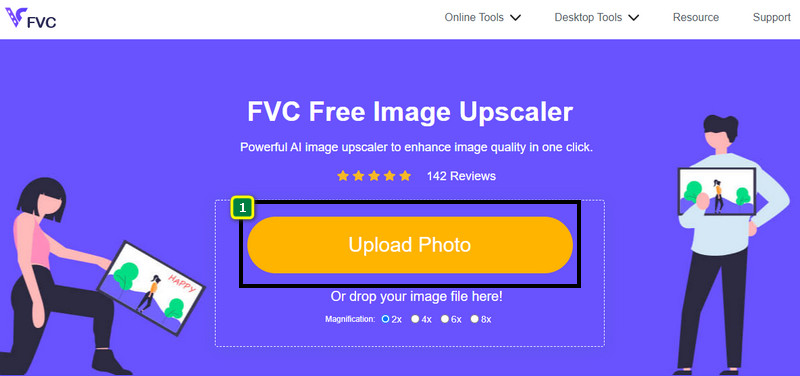
שלב 1. כדי לגשת לכלי המקוון, באפשרותך ללחוץ על הקישור, שיוביל אותך אוטומטית לאתר הרשמי של משנה הגודל.
שלב 2. לחץ על Add Image כך שתיקייה תופיע על המסך שלך, בחר את קובץ התמונה שברצונך להעלות ולחץ על Open.
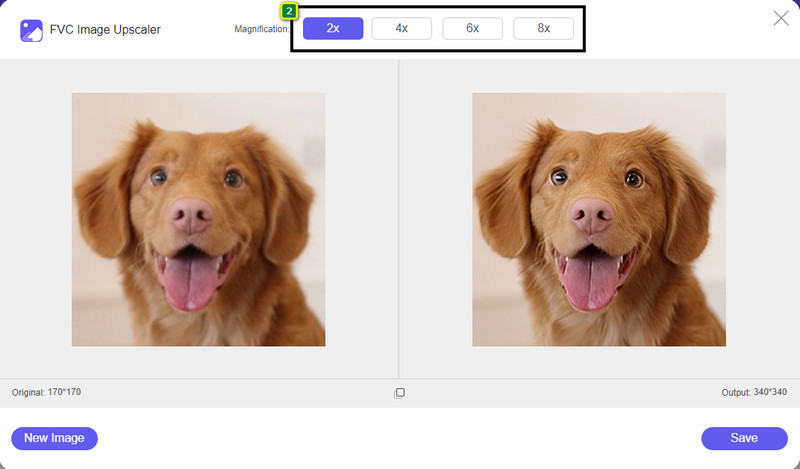
שלב 3. כדי לשנות את גודל התמונה, עליך לבחור איזה סוג של הגדלה להחיל על התמונה שלך. תוכל לראות שממדיה הכוללים של התמונה משתנים ברגע שתנסה ותלחץ על 2x, 4x, 6x ו־8x.
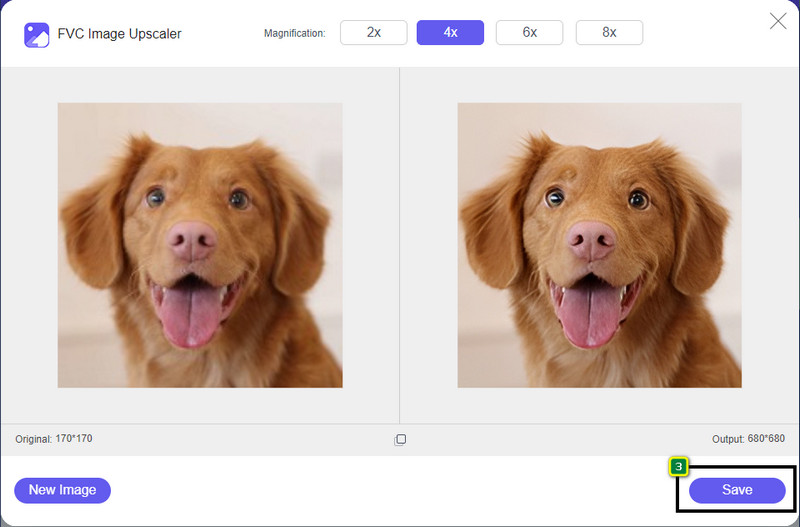
שלב 4. אחרי שבחרת את ההגדלה שברצונך להחיל, וולה, כעת תוכל ללחוץ על Save כדי להוריד את הגרסה שגודלה שונה אל כונן桌 העבודה שלך.
2. Be Funky - עורך תמונות [חינם ובתשלום]
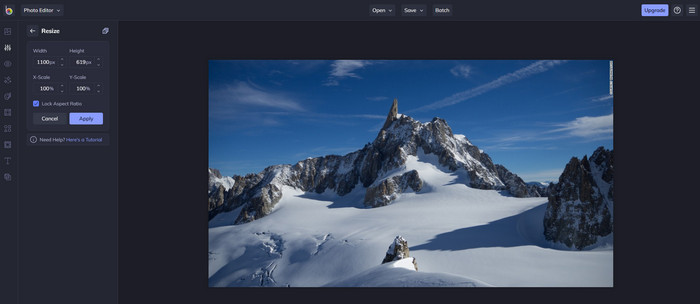
Be Funky - Photo Editor היא פלטפורמה יצירתית שניתן להשתמש בה כדי לעשות דברים יוצאי דופן בתמונות שלך. היא יכולה לשנות גודל של BMP בלי לאבד איכות. כלי זה נחשב לאחד מעורכי התמונות הטובים ביותר שניתן לגשת אליהם אונליין. למרות שיש לו ממשק דומה לפוטושופ, התכונות שהוא מציע פשוטות וקלות להבנה, ולכן אפשר לומר שהוא גם ידידותי למשתמש. אז אם ברצונך לנסות להשתמש בכלי האינטרנט הזה כדי לשנות בקלות את גודל התמונה שלך, עקוב אחר השלבים שהוספנו כאן.
איך לשנות גודל תמונה באמצעות Be Funky:
שלב 1. חפש את שמו בדפדפן האינטרנט שלך ואז לחץ על Get Started and Edit Photo.
שלב 2. לחץ על Open כדי להעלות את קובץ ה‑BMP או כל תמונה אחרת שברצונך לשנות את גודלה כאן.
שלב 3. עבור אל Edit ולחץ על האפשרות Resize.
שלב 4. כאן תוכל לשנות בחופשיות את הרוחב והגובה או את קנה המידה x ו‑y של התמונה. לאחר מכן לחץ על Apply כדי לראות איך נראית הגרסה שגודלה שונה.
3. שינוי גודל תמונה פשוט [ללא תשלום]
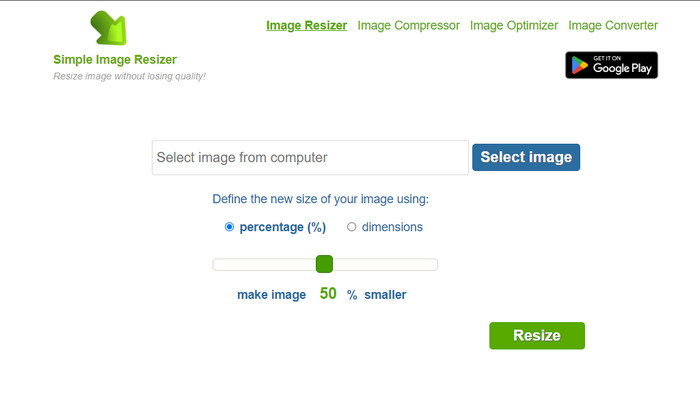
Simple Image Resizer מאפשר לך לשנות את גודל התמונה על‑ידי הגדרת הגודל החדש של התמונה באמצעות שינוי האחוז או המידה. זהו משנה גודל התמונות האחרון שהוספנו למאמר זה. הממשק הפשוט שלו וקלות השימוש הפכו לגורם העיקרי שבגללו הוספנו אותו. בנוסף לפונקציית שינוי הגודל, תוכל גם לבצע מיטוב, דחיסה והמרה של התמונה שלך כאן בחינם, אך עם פרסומות מציקות באתר. לכן, אם תרצה לנסות להשתמש במשנה הגודל הזה באופן מקוון, עקוב אחרי השלבים שלהלן.
איך לשנות גודל תמונה באמצעות Simple Image Resizer:
שלב 1. בעזרת דפדפן האינטרנט שלך, חפש את שמו כדי להתחיל להשתמש במשנה הגודל המקוון הזה.
שלב 2. לחץ על Select Image כדי להוסיף את התמונה שברצונך לשנות את גודלה כאן.
שלב 3. בחר באיזו שיטה אתה מעדיף להשתמש לשינוי הגודל, ושנה את האחוז או המידה. כך או כך, הן עושות את אותו הדבר.
שלב 4. לחץ על Resize כדי לשמור את התוצאה הסופית על שולחן העבודה שלך.
חלק 2. כיצד לשנות גודל תמונה ב-Windows וב-Mac [בתשלום ובחינם במצב לא מקוון]
בניגוד לכלי המקוון הראשון שהוזכרו 3, הכלים הבאים שהצגנו אינם תלויים באינטרנט, מה שאומר שגם אם אין לך אינטרנט, אתה יכול להשתמש בהם מבלי להיתקל בבעיות. שכן הם ניתנים להורדה או שכבר מותקנים מראש על שולחן העבודה שלך. למד כיצד להשתמש בהם היום על ידי קריאת המידע שאנו מוסיפים לכל אחד מהם.
1. Adobe Photoshop [Windows ו-Mac]
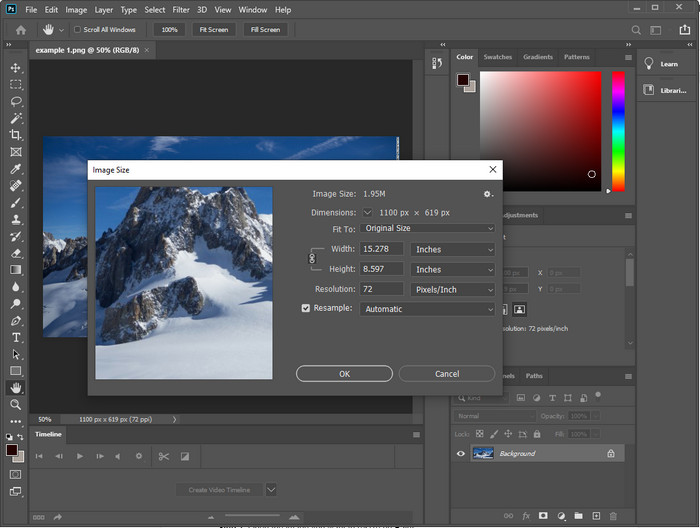
בבחירה הראשונה שלנו לכלי שינוי גודל תמונות לא מקוון שתוכל להוריד למכשיר שלך היא Adobe Photoshop. למה? משום שהוא יוצר נתוני פיקסלים חדשים ברגע שאתה משנה את הגודל, וכך נמנע מפלט באיכות נמוכה בסוף התהליך. בנוסף, התוכנה הזו ידועה כעורך תמונות מקצועי שיכול לעבד בקלות כל תמונה רסטרית או וקטורית. למרות שההתוכנה היא כלי מקצועי, היא עדיין מעט מוגזמת לרכישה אם אתה מתכוון להשתמש בה רק לשינוי גודל. אבל אם אתה מעוניין לדעת איך לשנות גודל תמונה בפוטושופ.
איך לשנות גודל תמונה באמצעות Adobe Photoshop:
שלב 1. הורד והתקן את התוכנה על שולחן העבודה שלך על‑ידי ביקור באתר הרשמי שלה.
שלב 2. לחץ על File, ואתר את התמונה בתיקייה לאחר שתלחץ על Open.
שלב 3. לחץ על תפריט Image בחלק העליון ואז בחר Image Size.
שלב 4. שנה את המידות של רוחב וגובה לפי ההעדפות שלך ואז לחץ על OK כדי להחיל את השינויים.
שלב 5. חזור אל File ושמור את התמונה על שולחן העבודה שלך.
2. צבע [אפליקציית ברירת מחדל ב-Windows]
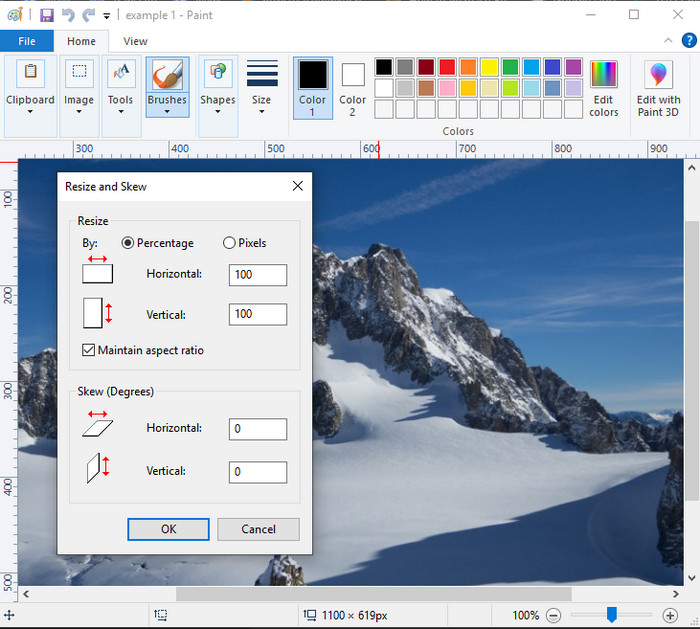
Paint ידועה כאפליקציה שניתן לצייר בה על בד ריק. משתמשים שונים של Windows נוהגים להשתמש בה כדי ליצור משהו על דף ריק, להוסיף פרטים לתמונות ולשנות את גודלן בהתאם. אף על פי שהיא אינה עורך ייעודי, היא עדיין יכולה לשנות את גודל כל תמונת רסטר שיש לך בכונן המקומי. היתרון בשימוש בה הוא שאין צורך להוריד את התוכנה על Windows שלך כי היא מותקנת מראש. לכן, אם אתה רוצה לדעת איך לשנות גודל של תמונות ברזולוציה נמוכה באמצעות אפליקציה זו, קרא את המדריך שהוספנו למטה.
איך לשנות גודל תמונה באמצעות Paint:
שלב 1. פתח ב‑Paint את התמונה שברצונך לשנות את גודלה.
שלב 2. לאחר פתיחת התמונה, לחץ על סמל הtwo-squares כדי להתחיל לשנות את גודל התמונה שפתחת כאן.
שלב 3. כדי לשנות את גודל התמונה, אפשר לשנות לפי אחוזים או לפי פיקסלים. לאחר ששינית את המספר, לחץ על OK כדי להחיל את השינויים.
שלב 4. לחץ על סמל הsave כדי לייצא את התמונה שגודלה שונה כאן.
3. תצוגה מקדימה של [אפליקציה ברירת מחדל ב-Mac]
Preview היא אפליקציה ייעודית שעליה תוכל לסמוך ושיכולה להדריך אותך איך לשנות גודל תמונה ב‑Mac. אם אינך אוהב להוריד אפליקציות ב‑macOS שלך, עדיף שתשתמש באפליקציה הזו. זהו פתרון שלא זוכה להערכה מספקת, אך הוא יכול לשנות את גודל התמונה שלך על שולחן העבודה. ללמוד איך להשתמש בה יכול להיות יתרון גדול עבורך כדי למצות את מלוא הפוטנציאל של התוכנה. אם אתה מעוניין לדעת איך הכלי הזה עובד, המשך למידע שהוספנו בהמשך.
איך לשנות גודל תמונה באמצעות Preview:
שלב 1. לחץ לחיצה ימנית על התמונה ב‑Mac שלך, לחץ על Open with ואז לחץ על Preview.
שלב 2. בחלק העליון, לחץ על Tools ואז בחר Adjust Size.
שלב 3. שנה את מידות התמונה בהתאם לצרכים שלך ואז לחץ על OK כדי לשמור את השינויים שביצעת.
חלק 3. נוסף: Top Image Resizer אתה יכול להוריד באנדרואיד ואייפון
1. שינוי גודל התמונות והתמונות [אנדרואיד]
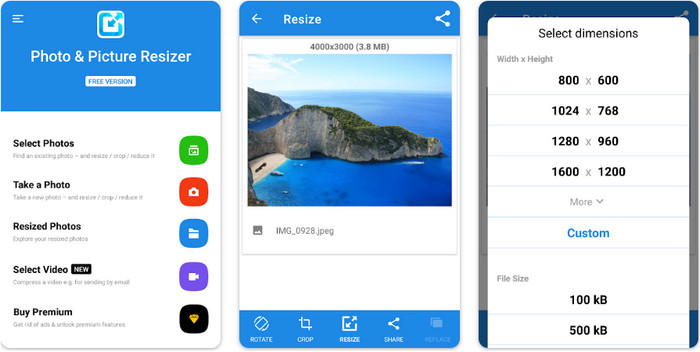
Photo & Picture Resizer היא אחת הדרכים המהירות והקלות ביותר לשנות את גודל התמונה שיש לך במכשיר ה‑Android שלך. גם משתמשים חסרי ניסיון שרוצים לשנות גודל יכולים להוריד ולהשתמש בזה כמשנה הגודל שלהם. האפליקציה חינמית, ולכן אם תרצה להשתמש בתכונות נוספות, תצטרך לרכוש אותן. בסך הכול, יכולות שינוי הגודל שלה מצוינות, ותוכל להשתלט עליה בניסיון הראשון.
2. Image Resizer חינם [iPhone]
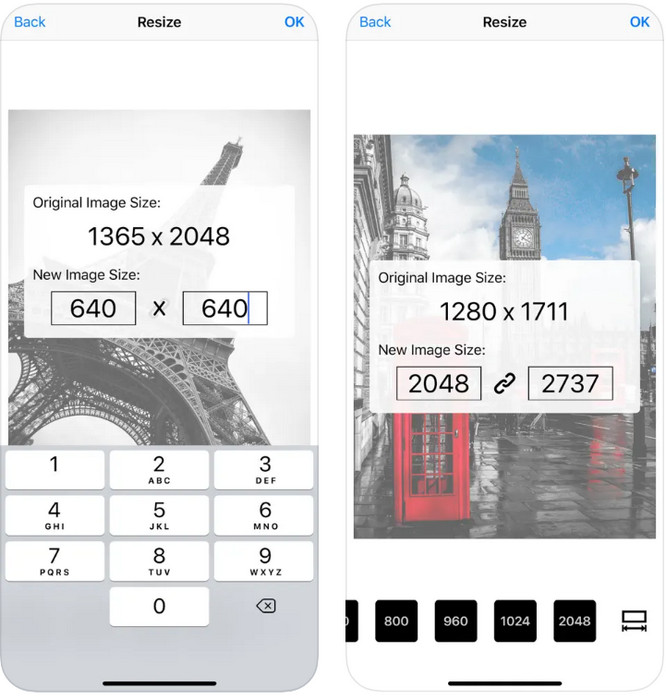
Image Resizer Free היא אפליקציה מבוססת iOS שניתן להוריד על iOS 7.0 או גרסה חדשה יותר. אפליקציה זו היא משנה גודל תמונה ממוקד שמרבית משתמשי iOS משתמשים בו. אין לה תכונות נוספות מלבד הפונקציה המרכזית שלה – שינוי גודל. למרות שהכלי ידידותי למשתמש, משתמשים רבים מתלוננים שהוא אינו יכול להחליף את התמונה המקורית בגרסה שגודלה שונה.
חלק 4. שאלות נפוצות על איך לשנות את גודל התמונה
איזה פורמט עדיף לשנות גודל, רסטר או וקטור?
פורמטים של רסטר מורכבים מפיקסלים זעירים כדי ליצור את המראה של התמונה, וכאשר אתה משנה את הגודל או הממד שלה, הפיקסלים הללו נמתחים ונראים לעין. שלא כמו אם תשנה את גודל התמונה הווקטורית, היא מיועדת במיוחד לשינוי גודל והגדלת קנה המידה של התמונה מבלי ליצור עליה בלגן.
האם אני יכול לשנות את גודל BMP באינטרנט?
כן, אתה יכול לשנות את גודל ה-BMP באמצעות הפתרון המקוון שאנו מוסיפים כאן. עם זאת, כאשר אתה מגדיל את התמונה, BMP נוטה להפוך לפיקסלים מכיוון שהם תמונות רסטר. לכן, אם אתה רוצה להימנע מהבעיה של שינוי גודל קובץ ה-BMP, כדאי שתבחר ב-FVC Free Image Upscaler Online, כי הוא לא משאיר פיקסלציה על הפלט הסופי של ה-BMP שגודלו שונה.
האם גודל הקובץ גדל לאחר שינוי גודל התמונה?
כן זה כן. בעיקר בגלל שהתמונה ששיניתם מוסיפה נתוני פיקסלים נוספים על הפלט בפועל. עם זאת, גודל הקובץ שלו אינו שונה בהרבה מגודל הקובץ המקורי שלו.
סיכום
באיזו טכניקת שינוי גודל תמונה אתה חושב שהכי יתאים לך? בחר מבין משני הגודל שהוספנו כאן. אם יש לך בעיות בבחירה בגלל חיבור אינטרנט, אנחנו ממליצים בחום להשתמש בFVC Free Image Upscaler Online בגלל הביצועים שלו בשינוי גודל. לא תהיה שום קושי בשינוי גודל אם תשתמש במשנה הגודל הזה ברשת.
-
 תמונה 1440p - מידע הכל כלול שתזדקק לו [2022 עודכן]
 האם אתה רוצה לדעת על תמונות 1440p? או איפה אפשר להשיג? להפוך את התמונה שלך ל-1440p? קרא את זה כדי להכיר את כולם.
-
 מדריך לביטול פיקסלים של תמונה באמצעות ה-3 Best Photo Unpixelator
 האם אתה מתקשה להתמודד עם תמונות מפוקסלות? היום פתרנו את הבעיה ותוכלו להשתמש בכלים שאנו מוסיפים כאן.
-
 כיצד לחדד את התמונה בתמונה באמצעות 3 דרכים [מדריך מהיר]
 בעיה עם התמונה הלא מחודדת? כאן, נציג כיצד לחדד תמונות בפוטושופ באמצעות שלוש הדרכים שאנו מוסיפים.
