


 ממיר וידאו אולטימטיבי
 מקליט מסך
 תיקון וידאו
תהליך המרת קובץ WebM ל-MOV: שיטות ללא טרחה שכדאי להכיר
כשזה מגיע להפקה והזרמה, לא כל פורמט וידאו תואם לכל פלטפורמה דיגיטלית. כאשר מנסים להזין, לייצר, להעלות או להוריד קבצים רלוונטיים, הדבר עלול לגרום לבעיות גדולות. אפל, למשל, לא משתמשת בדפדפנים המסורתיים שאליהם גדלנו בעבר - יש לה פלטפורמה משלה בשם Safari. זו הסיבה שפורמטי וידאו הנתמכים רק על ידי Google Chrome, Mozilla Firefox, Opera ו- Microsoft Edge לא תמיד נגישים למשתמשי Mac מבחינת הדפדפן.
אחד מהם הוא וידאו בפורמט WebM, שהוא פורמט המספק דחיסת וידאו פתוחה עבור HTML5. אם אתה משתמש מק, תצטרך נגן מדיה של צד שלישי כדי לצפות בו. עם זאת, פורמט הקובץ MOV הוא מה שאתה מחפש אם אתה רוצה להפעיל את הסרטונים שלך בלי שום טרחה, משום שזהו פיתוח מקורי של אפל עבור Apple QuickTime Player. לכן, מה שאתה רוצה הוא להמיר WebM ל‑MOV במק שלך, ובמאמר זה אנו מציגים את הדרכים הטובות ביותר לעשות זאת.
חלק 1. סקירה כללית: WebM ו-MOV
אם נחשפת לצריכת וידאו והזרמת וידאו כבר די הרבה זמן, בטח צפית בהרבה סרטונים בפורמטים שונים באמצעות פלטפורמות שונות. אולי תהיתם פעם מה מייצגות סיומות קבצים אלו או במה הן שונות זו מזו. בטח שניסית להפעיל סרטון מסוים בדפדפן שלך אבל זה לא יעשה זאת, אומר שהוא לא נתמך. WebM למשל נתמך רק על ידי מספר דפדפנים מודרניים כמו Chrome, Firefox ו-Edge מכיוון שהוא מוטמע בדרך כלל בדפי אינטרנט באמצעות HTML5
חלק 2. הממיר הטוב ביותר שעוזר להמיר WebM ל-MOV
המרת קובצי וידאו אינה קשה כפי שאתה עשוי לחשוב. למרות שקיימות תוכנות רבות שיכולות לעזור לך, יש אחת מהן שמבצעת את העבודה במהירות ובפשטות. FVC Video Converter Ultimate היא תוכנה חינמית להורדה שחוסכת ממך את הזמן בחיפוש אינסופי באינטרנט אחר ממיר מקוון טוב. כוונתנו להביא אליך את הטוב ביותר. אינך צריך לדאוג לגבי הפורמט של הווידאו שאתה רוצה להמיר, משום שהתוכנה תומכת במגוון פורמטים, ולצד זאת מציעה אפשרויות רבות לעריכת הווידאו במהלך ההמרה עצמה. אלה הם השלבים שעליך לבצע כדי להשתמש בתוכנה זו:
שלב 1: לפני תהליך ההמרה, עליך קודם להוריד את התוכנה, ותוכל לעשות זאת על‑ידי לחיצה על כפתור Free Download. ניתן לבחור בגרסת Windows או Mac. במקרה זה, בחר For Mac OS. המתן לסיום הורדת קובץ ה‑.exe ופתח אותו לאחר שההורדה הסתיימה כדי להתחיל בהתקנה.
שלב 2: לאחר שהתוכנה סיימה להתקין, הפעל אותה ותופיע בפניך ממשק. ברירת המחדל לאחר פתיחת התוכנה היא שתגיע ללשונית Converter. אם לא, לחץ עליה.
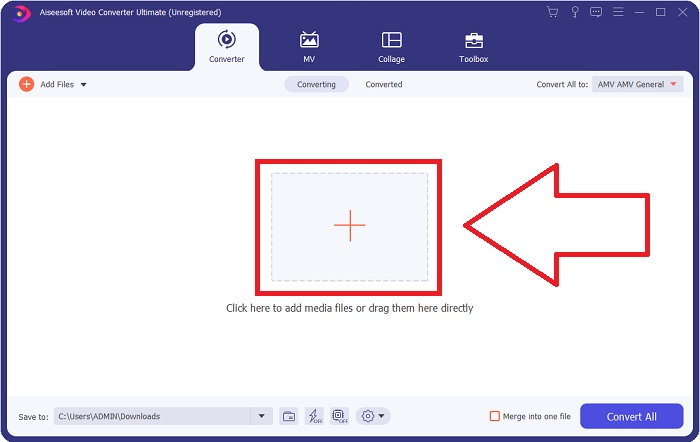
שלב 3: במרכז הממשק יהיה כפתור + שלחיצה עליו תאפשר לך לייבא את קובץ הווידאו שאתה רוצה להמיר. בנוסף, ניתן פשוט לגרור ולשחרר את הסרטונים בקלות.
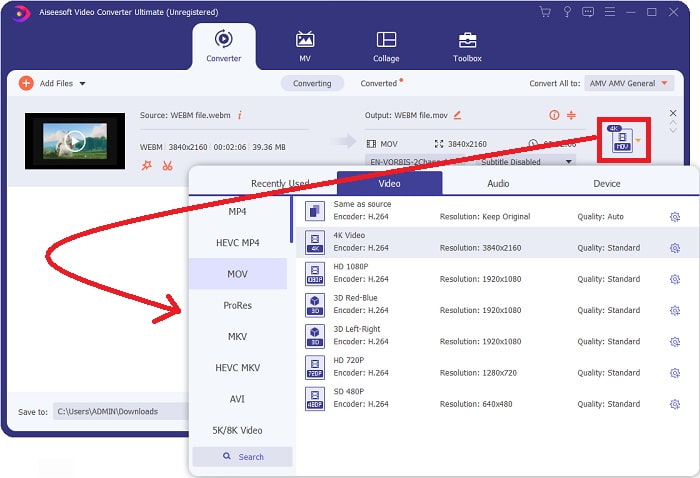
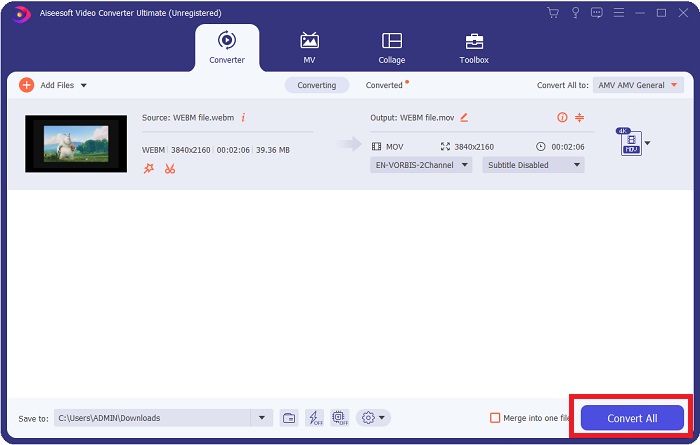
שלב 4: לאחר שהווידאו ייובא בהצלחה, יופיע ממשק נוסף. שם, בצד ימין, תוכל לראות באיזה פורמט הווידאו שלך נמצא כעת. לידו יש חץ נפתח; לחץ עליו ותופיע רשימה של אפשרויות. תוכל לבחור כל פורמט שתרצה להמיר אליו את הווידאו, אך במקרה זה בחר MOV. ישנן אפשרויות לבחירת רזולוציה ואיכות שמע. לקבלת אפשרויות נוספות, לחץ על סמל ההילוך שליד איכות או הרזולוציה שבחרת, ותוכל לערוך עוד את הווידאו בהתאם לצרכים שלך. כדי לשמור את השינויים, לחץ על Create New.
שלב 5: לאחר שסיימת ואתה מרוצה מהשינויים, מצא את כפתור Convert All בפינה הימנית התחתונה של הממשק ולחץ עליו כדי לייצא את הווידאו שהומר.
חלק 3. טיפים לבונוס: ממירים מקוונים אחרים הממירים WebM ל-MOV
שיטה 1: השתמש בהמרה בחינם
אם אינך רוצה להוריד תוכנה יותר ופשוט להמשיך בתהליך ההמרה כבר, נוכל להראות לך חלופות עבור זה. זה נעשה באופן מקוון בלבד בזמן שהוא עדיין מציע לך את התכונות שאתה צריך לצרכי העריכה שלך. אם אתה רוצה שיטה נטולת טרחה, כלי אינטרנט זה הוא דרך אחת ללכת.
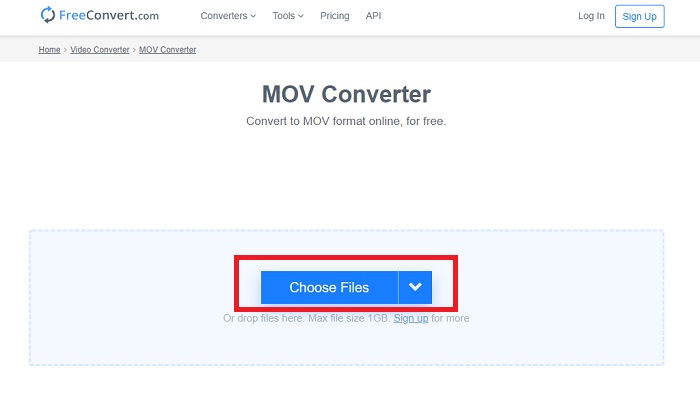
שלב 1: עבור לאתר עצמו ותראה ממשק שבו כפתור Choose Files נמצא במרכז העמוד. לחץ עליו כדי לייבא את קובץ הווידאו שברצונך להמיר.
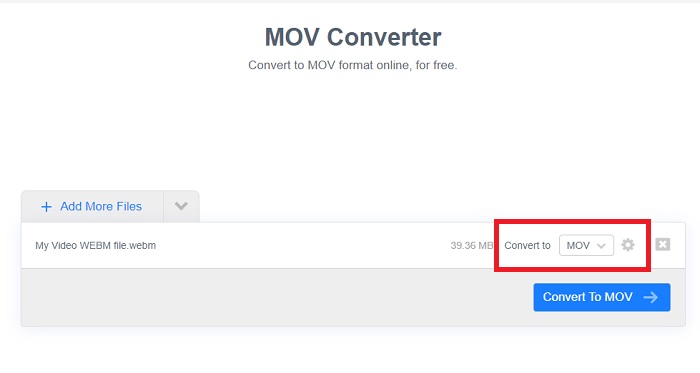
שלב 2: כמו בתוכנה עצמה, ניתן לראות בצד ימין את הפורמט הנוכחי של הווידאו, ולידו חץ נפתח. לחץ עליו ובחר באיזה פורמט תרצה שהווידאו יומר. לאפשרויות נוספות, לחץ על סמל ההילוך כדי לערוך עוד את הווידאו. לחץ על הכפתור Apply Settings כדי לשמור את השינויים שביצעת.
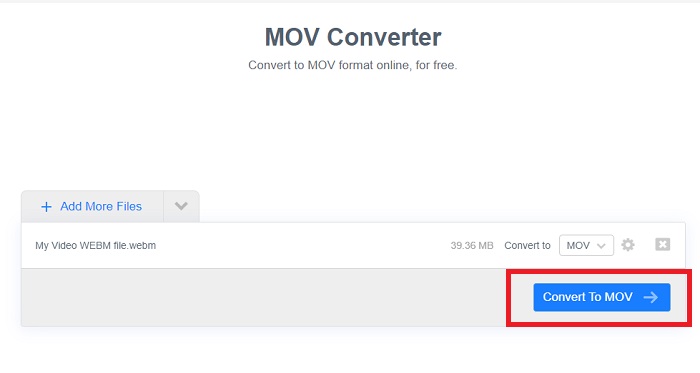
שלב 3: אם סיימת עם כל השינויים, תוכל להתחיל את ההמרה על‑ידי לחיצה על כפתור Convert to MOV שמתחת, והמתן לסיום. לאחר מכן תוכל לייצא את הווידאו שהומר על‑ידי לחיצה על Download MOV.
שיטה 2: השתמש ב-Cloud Convert
כלי אינטרנט זה מציע כמה אפשרויות נוספות עבורך בזמן שאתה ממיר את קובץ ה-WebM שלך ל-MOV באופן מקוון. אתה יכול לא רק לערוך את הרזולוציה או את איכות השמע אלא גם fps, כתוביות ועוד רבים אחרים. בצע את השלבים הקלים הבאים כדי להשתמש בממיר מקוון זה:
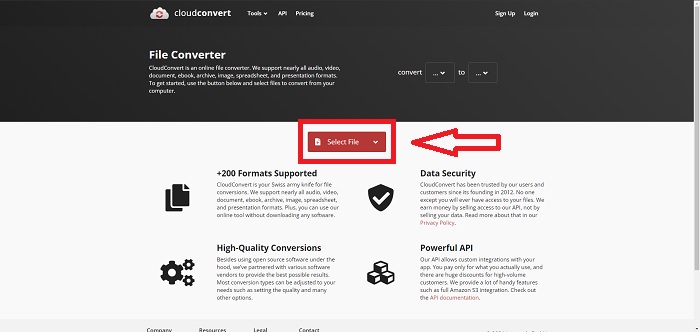
שלב 1: תחילה עליך לייבא את קובץ הווידאו שברצונך להמיר על‑ידי לחיצה על כפתור Select File במרכז העמוד. אם ברצונך להמיר מספר קבצים בו‑זמנית, לחץ על Add more Files.
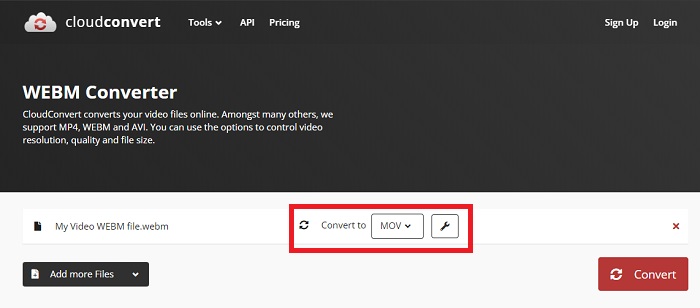
שלב 2: לצד הקובץ תוכל לבחור באיזה פורמט וידאו להשתמש על‑ידי לחיצה על החץ הנפתח. בנוסף, לחץ על סמל המפתח (הבורג‑מפתח) לקבלת אפשרויות נוספות. שם תוכל לערוך היבטים מסוימים של הווידאו ושל השמע. לאחר מכן לחץ על אישור (OK) כדי לשמור את השינויים.
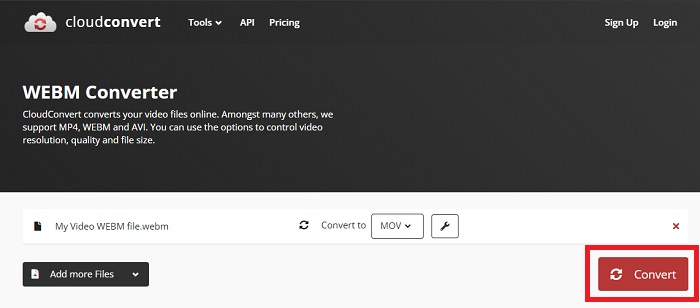
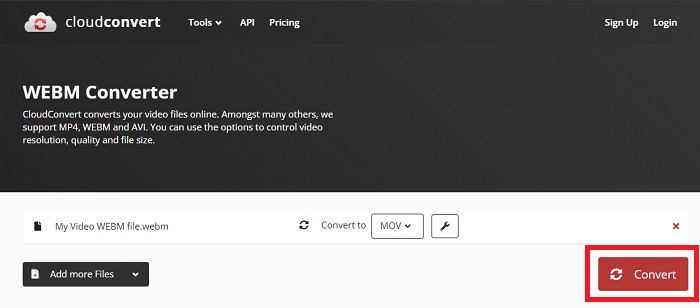
שלב 3: לאחר שסיימת את כל העריכות, לחץ על כפתור Convert המודגש באדום והמתן לסיום. לבסוף, לחץ על Download המודגש בירוק כדי לייצא את הווידאו שהומר במלואו.
שיטה 3: השתמש ב-ZamZar Convert
כלי אינטרנט זה מציע פחות אפשרויות עבור הסרטון שלך מכיוון שהוא ממיר רק את פורמט הווידאו והשמע. עם זאת, זה עושה את העבודה מהר יותר מהשיטות האחרות שהוזכרו. כדי להשתמש בממיר מקוון זה, בצע את השלבים שסופקו:
שלב 1: במרכז העמוד יש רק שלושה כפתורים שעליך ללחוץ עליהם כדי להמיר את הווידאו. תחילה לחץ על Add files כדי לייבא את קובץ הווידאו שלך.
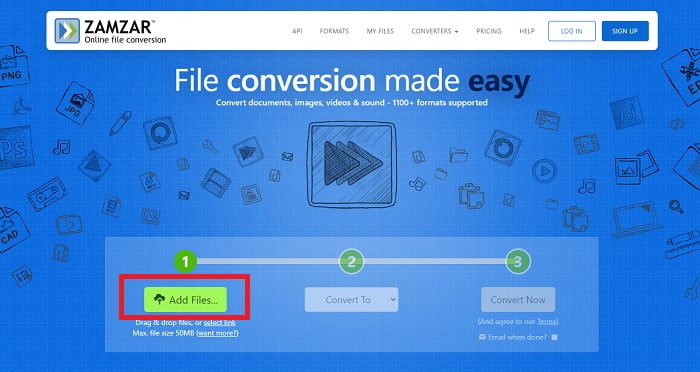
שלב 2: באמצעות הכפתור השני תוכל לבחור באילו פורמטי וידאו ושמע להשתמש עבור הווידאו שלך. במקרה זה, בחר בפורמט MOV.
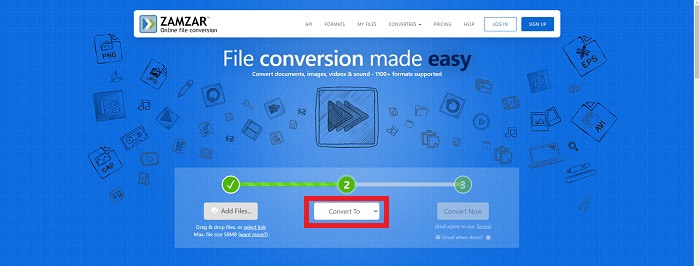
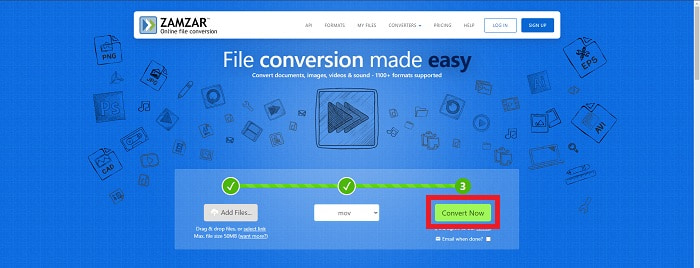
שלב 3: לבסוף, לחץ על הכפתור השלישי והאחרון, Convert Now, כדי להתחיל את תהליך ההמרה והמתן לסיום. לאחר שזה יסתיים, לחץ על Download כדי לייצא סופית את הווידאו למחשב שלך.
חלק 4. שאלות נפוצות לגבי המרת WebM ל-MOV
מהו בעצם פורמט WebM?
WebM הוא פורמט קובץ מדיה פתוח ספציפי לאינטרנט הכולל זרמי וידאו דחוסים עם רכיבי קודקים וידאו VP8 או VP9, זרמי שמע דחוסים עם רכיבי Codec שמע Vorbis או Opus וטקסטים של WebVTT. מבנה הקבצים של WebM מבוסס על מיכל המדיה של Matroska. רוב דפדפני האינטרנט מקבלים קבצי WebM מכיוון שהם משמשים לעתים באתרי HTML5 להפעלת סרטים מקוונים. לדוגמה, יוטיוב משתמש בפורמט הקובץ WebM Video עבור כל הסרטונים בדף שלהם, החל מ-360p ועד איכויות גבוהות במיוחד אחרות. ויקימדיה וסקייפ זהים.
אילו נגני מדיה אני צריך כדי להפעיל סרטוני WebM למקרה שאני לא רוצה להמיר אותו ל-MOV?
קיימת חלופה אם אינך רוצה לעבור את כל תהליך ההמרה כדי להפעיל את קובץ ה‑WebM שלך. אפשר להשתמש ביישום צד שלישי, או מה שנקרא פתרון חוצה‑פלטפורמות. כמה מנגני המדיה האלו הם VLC, KM Player, Media Player Classic, Winamp, jetAudio Basic, Moovidia, Persian ו‑XBMC, שניתן להוריד מהאתרים הרשמיים שלהם כדי להפעיל קובצי WebM.
האם MOV איכותי או נמוך?
השמעת וידאו די באיכות גבוהה עם קבצי MOV. MOV שימושי במיוחד מכיוון שהוא יכול להחזיק מדיה מעורבת כמו תמונות, סרטונים ואנימציות של 360 מעלות. הוא מכיל גם את כל מידע הווידאו והשמע. זה הופך את עריכת הקובץ להרבה יותר פשוטה.
סיכום
אכן יש הרבה כלים שבהם אתה יכול להשתמש כדי להמיר את הסרטון שלך מפורמט אחד למשנהו בין אם זה באמצעות תוכנה או באמצעות כלי אינטרנט שתוכל למצוא באינטרנט. עם זאת, הם עדיין הולכים יד ביד מבחינת האפשרויות או הנוחות שהם מציעים. חלקם פשוט עושים את העבודה וחלקם מספקים אפשרויות שונות לבחירתכם. מאמר זה מתמקד בכך כדי לעזור לך לדעת באיזה מהם עליך להשתמש בהתאם לצרכים שלך. לכן אנו ממליצים הכי הרבה על Video Converter Ultimate מכיוון שהוא מציע את כל האפשרויות הנוספות שאולי לעולם לא תדע מתי תזדקק לו. עדיף שתהיה לך תוכנה זו לצידך כל הזמן כדי לחסוך לך את כל הטרחה של מציאת ממיר באינטרנט בכל פעם שאתה צריך אחד.
-
 כיצד לשנות GIF לפורמט WebM מבלי לאבד את איכות הקבצים
 המר את ה- Gif שלך לפורמט וידאו WebM כדי שיהיה לו תג וידאו HTML5. סמך על הכלי הזה למטה כדי לדעת איזה מהם הוא הטוב ביותר לתפקיד.
-
 3 דרכים להמיר WebM ל-MP3 מבלי לאבד את איכות הקול
 נתקלת בבעיה בגלל שלא ניתן להשתמש בקבצי WebM להפעלת האודיו שאתה שומר? לאחר מכן קרא את המאמר הזה כאשר אנו מספקים סיוע יעיל על ידי המרת WebM ל-MP3.
-
 3 תוכנות מדהימות המשמשות להמרת קובץ WebM לפורמט AVI
 אין לך מושג איך להמיר WebM ל-AVI? אז בואו נתחיל לקרוא את המאמר הזה. כפי שאנו מציינים את כל הפרטים על WebM ושלושת הממירים שבהם אתה יכול להשתמש כדי להמיר.
