


 ממיר וידאו אולטימטיבי
 מקליט מסך
 תיקון וידאו
 הורדה מאובטחת
4 הדרכים המובילות בחינם להמיר MP4 ל- MOV
MP4 הוא אחד מפורמטי הווידאו הפופולריים ביותר, הנתמך במידה רבה ברוב הנגנים, העורכים והמכשירים. אבל במקרים מסוימים עדיין תצטרך להמיר MP4 ל‑MOV. האם אתה יודע איך לשנות MP4 ל‑MOV?

כשאתה מחפש בגוגל איך להמיר MP4 ל‑MOV באינטרנט, תוכל לראות שמגוון ממירי וידאו יכולים לעזור לך לבצע את ההמרה, כולל כמה כלים חינמיים להמרה מקוונת. בפוסט הזה נציג 4 דרכים חינמיות שיעזרו לך להמיר MP4 ל‑MOV בקלות.
חלק 1. כיצד להמיר MP4 חינם ל- MOV ב- Mac / PC ללא אובדן איכות
למרות שיש מספר רב של תוכנות להמרת MP4 ל‑MOV הזמינות בשוק, רבות מהן מאבדות חלק מאיכות התמונה והסאונד במהלך ההמרה. אם אתה רוצה להמיר MP4 ל‑MOV בלי אובדן איכות, עליך לבחור בFree Video Converter.
ממיר וידאו בחינם תוכנן במיוחד כדי להתמודד עם כל מיני המרות וידאו ושמע. זה מאוד תומך כמעט בכל פורמטי הווידאו / שמע כולל MP4, MOV, MKV, FLV, AVI, WMV, MP3, AAC, FLAC, ועוד. זה מאפשר לך להמיר MP4 בחינם ל- MOV במחשב Mac או Windows תוך שמירה על האיכות המקורית.
הורדה חינמיתל‑Windows 7 ומעלההורדה מאובטחת
הורדה חינמיתל‑macOS 10.7 ומעלההורדה מאובטחת
שלב 1. לחץ פעמיים על כפתור ההורדה שמעל ולאחר מכן פעל לפי ההוראות כדי להתקין ולהפעיל את ממיר ה‑MP4 ל‑MOV החינמי הזה ב‑Mac/PC שלך. ודא שאתה מוריד את הגרסה המתאימה למערכת שלך.
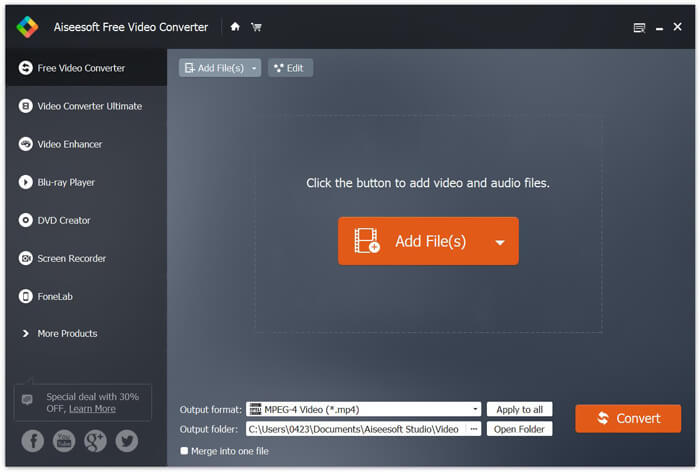
שלב 2. לאחר שתיכנס לחלון הראשי, תוכל ללחוץ על Add File(s) כדי לייבא את קובצי ה‑MP4 שברצונך להמיר. ממיר MP4 ל‑MOV חינמי זה מצויד בפונקציית המרה באצווה, המאפשרת לך להמיר קובץ MP4 אחד או יותר בבת אחת.
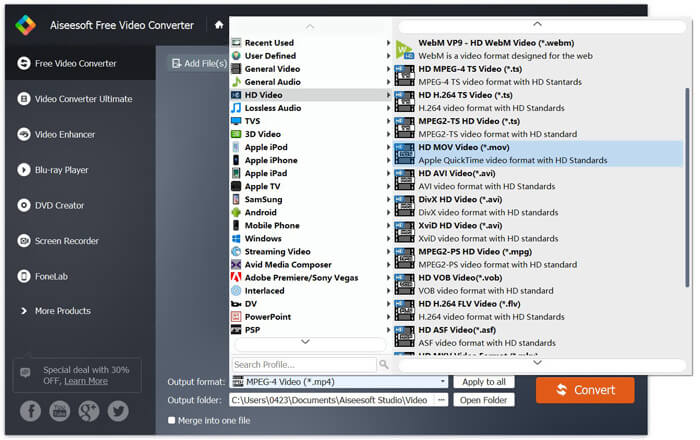
שלב 3. לחץ על Output format ובחר MOV כפורמט היעד שלך מהרשימה הנפתחת. כעת תוכל פשוט ללחוץ על כפתור Convert כדי להתחיל את ההמרה מ‑MP4 ל‑MOV.
רק כמה שניות לאחר מכן, ה- MP4 המקורי יומר לפורמט MOV. מלבד MOV, אתה יכול גם להמיר MP4 ל- MKV, FLV, AVI וכו 'באיכות גבוהה. ממיר וידאו חינמי זה כולל גם כמה תכונות עריכה בסיסיות. לפני המרת ה- MP4 האחרונה ל- MOV, תוכלו להשתמש בהם לעריכת סרטוני ה- MP4 שלכם.
חלק 2. כיצד לשנות MP4 ל- MOV חינם עם ממיר וידאו מקוון
כפי שצוין לעיל, ישנם ממירי וידאו מקוונים רבים בחינם המוצעים בשוק שיכולים לעזור לך להפוך MP4 ל- MOV. כאן בפוסט זה, נציג 2 שיטות כיצד לשנות MP4 ל- MOV באופן מקוון.
1. ממיר וידאו מקוון חינם של FVC
אם אתה רוצה להמיר MP4 ל‑MOV אונליין בחינם, FVC Free Online Video Converter תהיה הבחירה הטובה ביותר עבורך. בשלושה שלבים פשוטים תוכל להשלים את ההמרה ולקבל את הקובץ המומר ללא אובדן איכות בתוך שניות.
שלב 1. לחץ על הקישור למעלה ועבור אל FVC Free Online Video Converter. לאחר מכן לחץ על Add Files to Convert במרכז הבאנר. לאחר מכן הורד והתקן את FVC launcher במחשב שלך.
הורד את גרסת הדסקטופ כדי להמיר קבצים במצב אצווה.

שלב 2. לאחר שתבחר ותעלה את הווידאו שברצונך להמיר, עליך לבחור MOV כפורמט הפלט עבור קובץ הווידאו המומר.
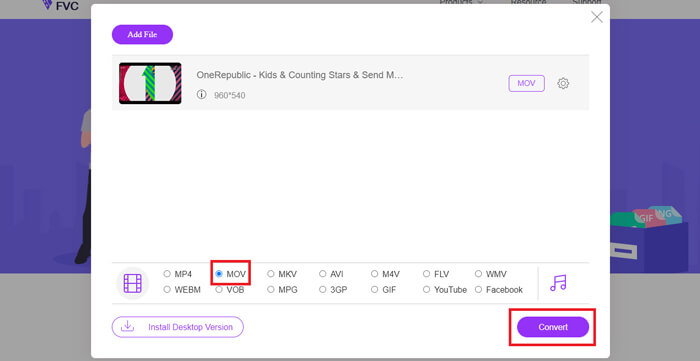
שלב 3. לחץ על Convert. באפשרותך לבחור לשמור את הקובץ המומר על שולחן העבודה שלך. לאחר מכן, פשוט המתן זמן‑מה כדי לקבל את סרטון ה‑MOV שלך.
2. CloudConvert
CloudConvert הוא כלי הפיכת וידאו מקוון פופולרי מאוד וקל לשימוש. יש לו את היכולת להמיר מעל 200 פורמטים, כולל פורמטי שמע, וידאו, מסמך, ספר אלקטרוני, ארכיון, תמונה, גיליון אלקטרוני או מצגת. יתר על כן, ממיר מקוון ראוי לאמון זה יגן על הנתונים והפרטיות שלך.
שלב 1. פתח את הדפדפן שלך ועבור לאתר הרשמי של CloudConvert. הוא מעוצב בממשק תמציתי שיכול להציע לך חוויית המרה נעימה.
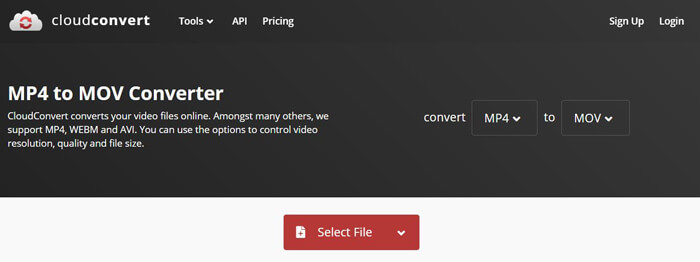
שלב 2. לחץ על כפתור Select File כדי להעלות את קובץ ה‑MP4 שברצונך להמיר. כאן תוכל להוסיף קובץ מהמחשב, מ‑URL, מ‑Google Drive, מ‑OneDrive או מ‑Dropbox. בשלב זה מותר לך להוסיף קבצים נוספים להמרה.
דבר אחד שעליך לדאוג הוא שממיר MP4 ל- MOV זה בחינם מאפשר לך להמיר סרטון פחות מ -1 GB. עליך לקנות חבילה להמרת קבצים גדולים יותר.
שלב 3. לחץ על כפתור Convert כדי להתחיל להעלות ולהמיר את קובץ ה‑MP4 שלך. לאחר מכן תוכל ללחוץ על כפתור Download כדי לשמור את סרטון ה‑MOV המומר במחשב שלך.

באמצעות CloudConvert כדי להמיר MP4 ל- MOV באופן מקוון, עליכם להקדיש זמן רב יותר לתהליך העלאת, המרת והורדת הווידיאו, במיוחד כאשר אתם ממירים קובץ גדול.
חלק 3. כיצד להמיר MP4 ל- MOV עם נגן המדיה VLC
VLC Media Player הוא נגן מולטימדיה פופולרי וקוד פתוח. מעבר להיותו רק נגן מדיה, VLC יכול גם לשמש ככלי להמרת וידאו כדי לעזור לך לבצע המרות וידאו שונות. אם התקנת VLC במחשב שלך, תוכל להסתמך עליו כדי להמיר את קובץ ה‑MP4 שלך לווידאו בפורמט MOV.
שלב 1. פתח את VLC Media Player במחשב שלך. אם אין לך VLC, באפשרותך להיכנס לאתר הרשמי שלו כדי להוריד אותו בחינם.
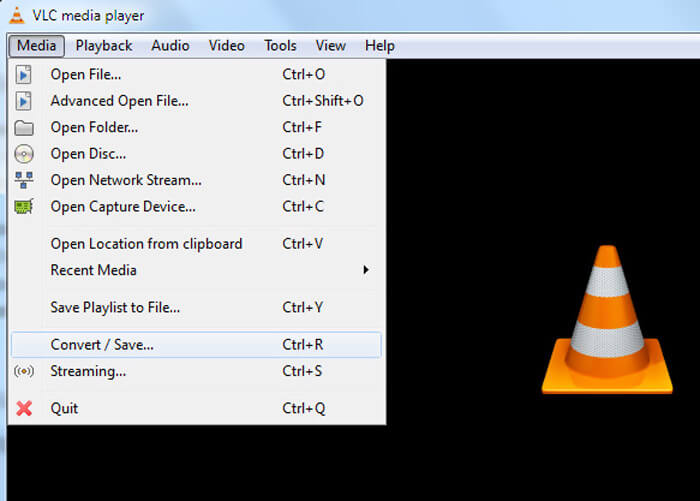
שלב 2. לחץ על כפתור Media בשורת התפריטים ולאחר מכן בחר באפשרות Convert/Save מהרשימה הנפתחת.
שלב 3. חלון חדש בשם Open Media יקפוץ. כאן תוכל ללחוץ על File > Add כדי לייבא את קובץ ה‑MP4 שברצונך להמיר.
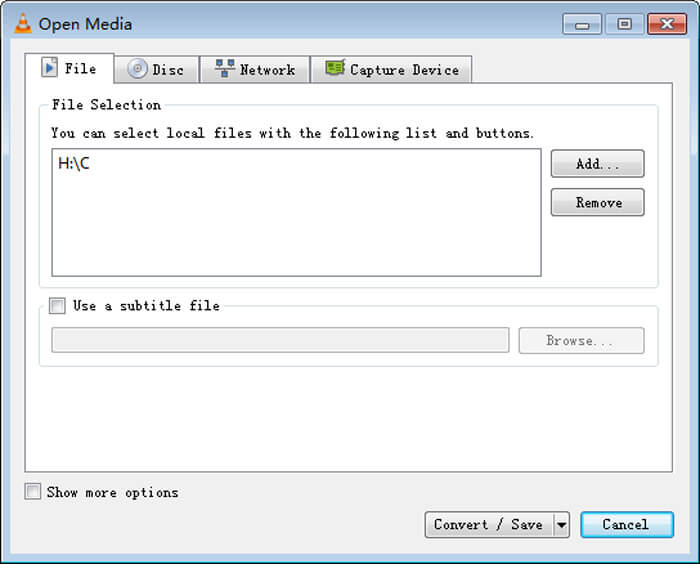
שלב 4. לחץ על כפתור Convert/Save בתחתית כדי לאשר את הפעולה. לאחר מכן תועבר לחלון Convert שבו תוכל לבחור את תיקיית היעד ופורמט הפלט עבור הווידאו המומר.
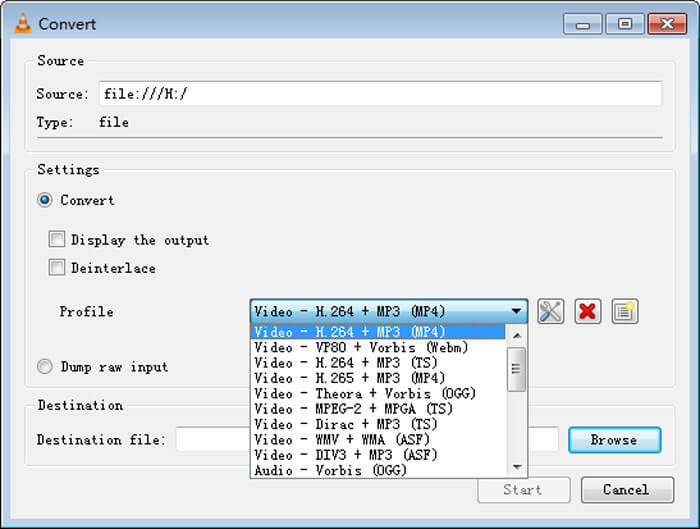
שלב 5. בחר MOV כפורמט הפלט מתוך רשימת הProfile הנפתחת. לאחר מכן לחץ על Start כדי לבצע את המרת הווידאו מ‑MP4 ל‑MOV ב‑VLC.
MP4 לעומת MOV
פורמט MP4 שוחרר על ידי Moving Picture Experts Group (MPEG) בשנת 2001, ופורמט MP4 יכול לעזור לך לשמור נתוני וידאו, אודיו, כתוביות ותמונה ברצועות נפרדות. זה קיצור של MPEG-4 Part 14. בנוסף, זהו אחד הפורמטים הפופולריים ביותר המשמשים להזרמת ושיתוף סרטונים.
ניתן להשתמש בפורמט MOV לאחסון סרט, תוכנית טלוויזיה, וידאו קליפ קצר או סרט ביתי. הוא נשמר למעשה בפורמט הקובץ QuickTime (QTFF), אשר הוצג על ידי אפל בשנת 1991. קבצי MOV משמשים לעתים קרובות כאשר אנשים רוצים לשמור סרטון וידאו באיכות גבוהה.
חלק 4. שאלות נפוצות של המרת MP4 ל- MOV
שאלה 1. האם QuickTime יכול להמיר MP4 ל- MOV?
כאשר יש לך צורך להמיר MP4 ל- MOV ב- Mac, אתה יכול לנסות את QuickTime. אתה יכול לפתוח וידאו MP4 עם נגן QuickTime. לאחר מכן לחץ על כפתור הייצוא ובחר בתבנית MOV. אתה יכול לשנות את שם הקובץ, לבחור מיקום ורזולוציית וידאו. לאחר מכן תוכל ללחוץ על כפתור הייצוא כדי להמיר MP4 בחינם להמרה ב- Mac.
שאלה 2. מה עדיף, MOV או MP4?
MP4 הוא אחד מפורמטי האחסון הנפוצים ביותר לקובצי מולטימדיה. זהו קובץ מיכל דיגיטלי, שהוא רק מעטפת סביב הווידאו, לא הווידאו עצמו. בדומה ל‑MP4, גם MOV הוא קובץ מיכל דיגיטלי. MOV מקודד באמצעות המקודד MPEG-4.ההבדל העיקרי בין MOV ל‑MP4 הוא ש‑MOV משמש ברובו בסביבות Mac. MOV מיועד במיוחד ל‑QuickTime. MP4 הוא תקן בינלאומי שיכול להיות נתמך על ידי רוב נגני המדיה והמערכות. באופן כללי, וידאו בפורמט MOV הוא לעיתים קרובות באיכות גבוהה יותר ובגודל גדול יותר. קובץ MP4 בדרך‑כלל דחוס יותר וקטן יותר בנפח. לכן אי אפשר פשוט לומר ש‑MOV טוב יותר מ‑MP4, או ש‑MP4 הוא הטוב יותר.
שאלה 3. האם המרת MOV ל MP4 מאבדת את האיכות?
כאשר ברצונך להמיר MOV ל- MP4, או לשנות MP4 ל- MOV, עליך לבחור ממיר וידאו מקצועי כלשהו. ברוב המקרים לא תראה אובדן איכות לאחר ההמרה.
שאלה 4. האם יש ממיר MP4 ל- MOV בחינם?
יש הרבה ממירי וידאו בחינם המוצעים באינטרנט שיכולים לעזור לך להמיר MP4 ל- MOV. מלבד CloudConvert המומלץ, אתה יכול גם להסתמך על FFmpeg, בלם יד, ZAMZAR, Convert Files ועוד כדי להפוך את גרסת ההמרה.
-
 כיצד להמיר קבצי וידיאו MP4 לתמונות GIF מונפשות ללא אובדן איכות
 מחפש את הדרך הטובה ביותר להמיר את סרטון ה- MP4 שלך ל- GIF מונפש? להלן מדריך מפורט לעשות זאת בפוטושופ, Windows Movie Maker, ממיר וידאו מקוון ועוד.
-
 MOV VS MP4 - איזה מהם טוב יותר
 MOV VS MP4, איזה מהם עדיף? פוסט זה מציג את ההבדל בין MP4 ל- MOV, כך שתוכל לקבל את הבחירה הטובה יותר לשימוש בקבצי הווידאו שלך.
-
 כיצד להמיר MOV ל MP4 מבלי לאבד איכות
 רוצה להמיר קבצי MOV (Apple QuickTime Movie) ל- MP4? הודעה זו חולקת 4 שיטות חינם להמרת קבצי הווידאו MOV שלך לפורמט MP4 ב- Windows 10/8/7 / XP וב- Mac OS X.

