


 ממיר וידאו אולטימטיבי
 מקליט מסך
 תיקון וידאו
כיצד להוסיף במהירות תמונות לסרטון בפחות מדקה
ישנן סיבות רבות מדוע אתה צריך להוסיף תמונות לווידאו. לדוגמה, עורכים מסוימים גילו שהוספת תמונות לסרטונים שלהם יוצרת אינטראקציה חדשה עבור המשתמשים האחרים. בדרך זו, תוכלו להשתמש בזה כדי לייצג את המיתוג שלכם או ליצור מצגת חזותית מעולה ולעזור לסרטון שלכם להעביר את המסר הנכון למשתמשים. אבל האם ידעת שכלים רבים מבצעים את אותה העבודה? אנו יודעים שקשה לבחור איזה כלי יתאים לך ביותר. אז היום, כבר סיננו את שלושת הכלים שמצאנו עם ביצועים טובים. לאחר שתקרא את המאמר הזה, תלמד להוסיף תמונות לסרטונים שלך.

חלק 1. מדריך שלב אחר שלב להוספת תמונה לווידאו עם Video Converter Ultimate
רוצה להוסיף תמונה לסרטון בעזרת הכלי האולטימטיבי? במקרה כזה, השתמש ב-Video Converter Ultimate. בעזרת הכלי האולטימטיבי הזה תוכל בקלות להטמיע (overlay) את התמונה על גבי הווידאו, גם אם אינך מקצוען בתחום העריכה. מעבר ליכולת ההטמעה על וידאו, תוכל להשתמש בכלי הזה בקלות כדי להוסיף מוזיקת רקע, להוסיף כתוביות ועוד. הוא ידוע בתור פתרון הכול-באחד לרוב הבעיות הקשורות לווידאו. רוצה לדעת מה היתרונות של השימוש בו? אם כן, תוכל לקרוא את הפרטים המוצגים למטה.

ממיר וידיאו אולטימטיבי
5,689,200+ הורדות- מספק ביצועים יוצאי דופן בהמרה ועריכה.
- ערוך וצור סרטון פנטסטי תוך כמה קליקים.
- הוא תומך ב-200+ פורמטים, כגון MP4, MOV, FLV, WMV, AVI, MTV וכו'.
- זמין להורדה בכל הפלטפורמות החוצות, כגון Windows ו-Mac.
הורדה חינמיתל-Windows 7 ומעלההורדה מאובטחת
הורדה חינמיתל-MacOS 10.7 ומעלההורדה מאובטחת
זה לא מדהים מה הם הדברים שאתה יכול לעשות עם הכלי? כן, אנחנו יודעים שהכלי מרשים במובנים רבים. אם הכלי הזה משך את תשומת הלב שלך ואתה רוצה ללמוד איך להוסיף תמונה לסרטון עם הכלי הזה, אתה יכול לקרוא את המדריך למטה.
שלב 1. לחץ על כפתור ההורדה למטה כדי להוריד אותו ישירות לכונן שלך, עקוב אחר תהליך ההתקנה והפעל אותו. לפני הכול, נשמח אם תתנסה מעט בממשק הכלי כדי שתוכל לזהות בקלות את שלבי ההמשך.
הורדה חינמיתל-Windows 7 ומעלההורדה מאובטחת
הורדה חינמיתל-MacOS 10.7 ומעלההורדה מאובטחת
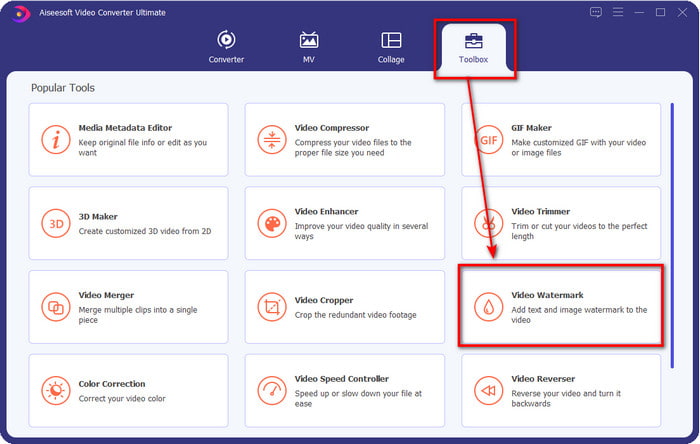
שלב 2. לאחר שהכלי פועל במערכת, לחץ על Toolbox; תחתיו מצא את Video Watermark ופתח אותו.
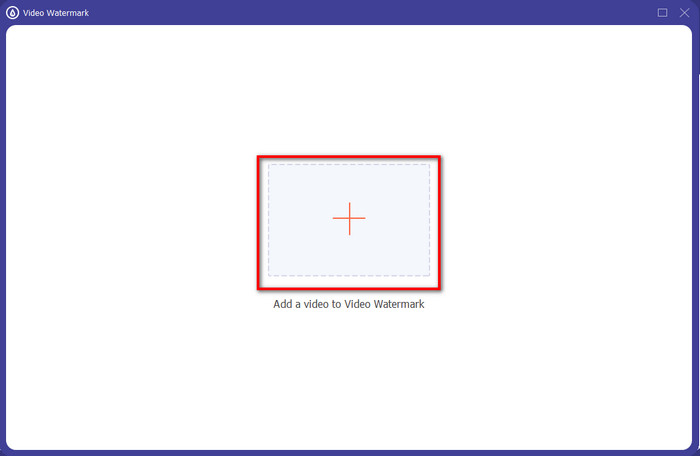
שלב 3. לאחר שלחצת על כפתור ה-+, תיקיית קבצים תופיע על המסך; אתר את הקובץ ולחץ על Open אם זהו קובץ הווידאו הרצוי.
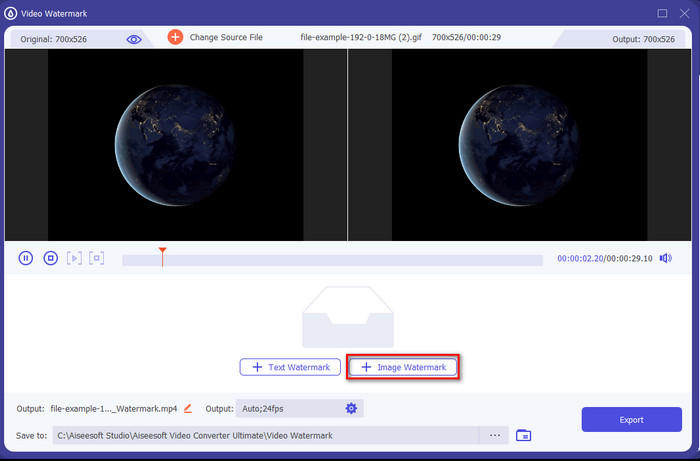
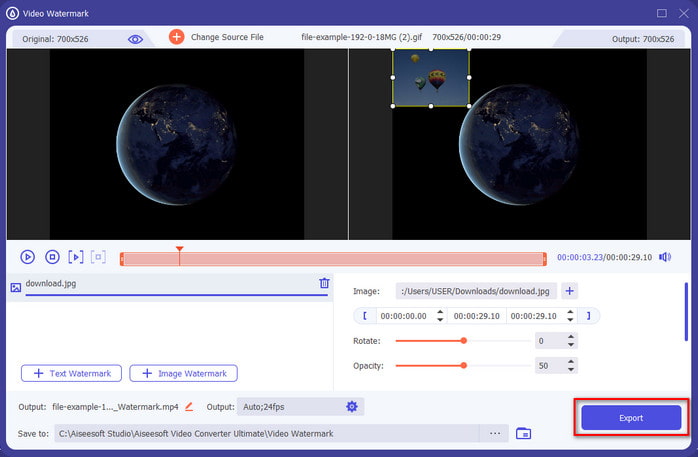
שלב 4. חלון חדש יופיע, לחץ על Image Watermark, ואז תופיע שוב תיקייה, אך בפעם הזו תבחר את התמונה שברצונך להוסיף לסרטון ולחץ על Open.
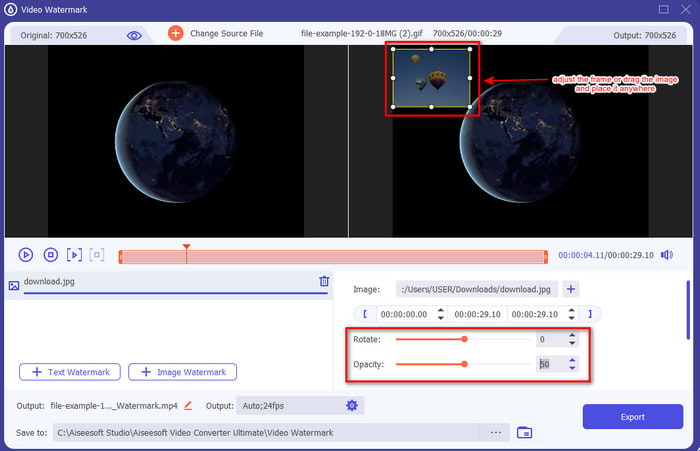
שלב 5. התאם את גודל התמונה שהכנסת לסרטון ואת המיקום שלה על ידי גרירת המסגרת של התמונה. באפשרותך למקם אותה בכל מקום שתרצה על ידי לחיצה ממושכת וגרירה של התמונה. בנוסף, ניתן להתאים את שקיפות התמונה על ידי שינוי ערך ה-Opacity. כמו כן, אפשר לסובב את התמונה על ידי גרירת המחוון של Rotate.
שלב 6. אם סיימת לערוך את התמונה, זה הזמן ללחוץ על Export.
קשור:
חלק 2. כיצד לצרף תמונות לסרטונים באינטרנט בחינם
חותך וידאו מקוון - הוסף תמונה לסרטון
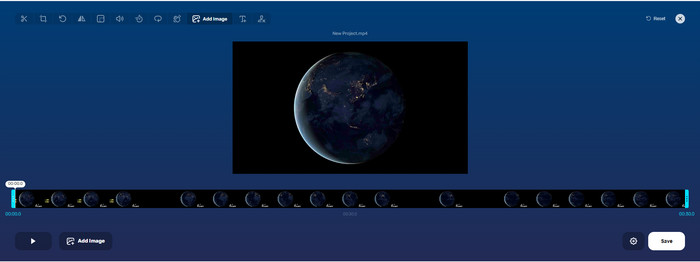
אם ברצונך להטמיע תמונות אונליין, תוכל להשתמש ב-Online Video Cutter – Add Image to a Video. כלי אינטרנטי זה מספק דרך פשוטה אך יעילה להוספת תמונות לכל וידאו. למרות שהכלי נוח לשימוש, עדיין יש מעט טרחה בהעלאת הווידאו משום שהדבר תלוי בחיבור האינטרנט שלך. בנוסף, אינך יכול להוסיף כאן שתי תמונות, מפני שהתכונה אינה נתמכת. אך אם אתה רוצה להשתמש בכלי, תוכל לעקוב אחר השלבים למטה.
שלב 1. פתח את הדפדפן וחפש את כלי הרשת בתיבת החיפוש, ולאחר מכן פתח אותו.
שלב 2. לחץ על Open File כדי להעלות את הווידאו, ואז לחץ על Add Image כדי להעלות את התמונה שבחרת.
שלב 3. גרור את התמונה כדי לשנות את מיקומה, לחץ על Save כדי לקודד ולשמור אותה במחשב שלך.
יתרונות
- חינם לשימוש, ולא תצטרך להוריד אותו.
- זה תומך בתכונות עריכה בסיסיות עבור המשתמשים.
- אין לו סימן מים על הפלט הסופי.
חסרונות
- זה לא יכול להוסיף עד 2 תמונות או יותר בסרטון.
- העלאת התמונה והסרטון לוקחת זמן לטעון.
Flixier
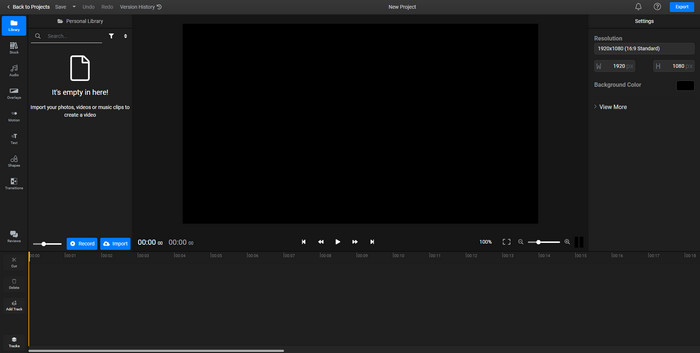
באפשרותך להשתמש ב-Flixier כדי להוסיף תמונה לסרטון אונליין בחינם. בנוסף, ניתן לערוך את תבנית הווידאו שלך בעזרת כלי אונליין זה, כולל הוספת תמונות. הכלי מספק יכולות עריכה מובנות מרשימות שתוכל להשתמש בהן כדי לשפר את מראה הווידאו. למרות שכלי הרשת מציע לך את הפונקציה הייחודית הזו, בעת הייצוא תופיע סימן מים על הפלט הסופי משום שהשימוש בו בחינם. עם זאת, באפשרותך לרכוש את הגרסה המלאה כדי להסיר את סימן המים.
שלב 1. פתח את מנוע החיפוש, חפש את שם הכלי ולחץ על Choose File.
שלב 2. לחץ על Import כדי להעלות את הווידאו והתמונות, גורר את הווידאו ואת התמונה לציר הזמן (Timeline), וודא שהתמונה נמצאת מעל רצועת הווידאו. שנה את מיקום התמונה על ידי גרירתה בתוך אזור הווידאו.
שלב 3. לחץ על Export, ואז על Export and Download כדי לשמור אותו בכונן המחשב שלך.
יתרונות
- ללא עלות ונגיש באינטרנט.
- הוא מספק יותר תכונות עריכה מהכלי המקוון הראשון.
- זה תומך בהוספת תמונות מרובות לסרטון שלך.
חסרונות
- לפלט הסופי יש סימן מים בסוף מכיוון שהוא בחינם.
- הוא צריך לרכוש את גרסת ה-VIP כדי להסיר את סימן המים בפלט הווידאו.
חלק 3. שאלות נפוצות לגבי הוספת תמונות לווידאו
האם הוספת תמונות לסרטון משפיעה על האיכות?
איכות הווידאו לא תשפיע על התמונה שתוסיף. כדי לפשט, להוספת תמונות אין איכות וידאו משמעותית, גם אם תוסיף תמונות רבות. עם זאת, אם אתה מייצא את הסרטון בעורך שבו השתמשת ומגדיר אותו באיכות נמוכה, צפה לפלט הווידאו למטה.
מדוע התמונות שאני מוסיף לסרטון הופכות מטושטשות?
הסיבה העיקרית שזה הפך היא שהתמונה כבר מטושטשת מההתחלה. כדי למנוע בעיה זו, עליך לבדוק תחילה את התמונה ולוודא שהיא אינה מטושטשת לפני השימוש בה בסרטון שלך.
האם אני יכול להוסיף מעבר לתמונה בסרטון?
עם עורכים מסוימים, הוספת מעבר לתמונה שלך אפשרית. למרות שישנם מעברים מונפשים רבים ושונים, חיתוך, דהייה, ניגוב והמסה הם הנפוצים ביותר. למרות שאלו הנפוצים ביותר, זה עדיין אידיאלי להוספת מעבר לתמונה כדי להפוך את הסרטון למקצועי ומרגש יותר.
סיכום
לאחר שקראת את המדריך הזה, לימוד כיצד להוסיף תמונות לסרטון נעשה קל יותר להבנה, במיוחד אם קראת את המאמר במלואו עם הכלים השונים אונליין ואופליין. למרות שהצגנו סטים שונים של כלים, אנו עדיין ממליצים לכל משתמש להשתמש בכלי האולטימטיבי לביצוע המשימה הזו. Video Converter Ultimate מספק ממשק קל להבנה המסייע למשתמשים לבצע את העבודה ביעילות. עדיין לא בטוח אם הוא מתאים לך? ובכן, הורדת הכלי היא הדרך היחידה לוודא שהוא אכן מתאים לצרכים שלך.
-
 5 ממירי OGV ל-WMV מועילים להמרת קבצי OGV שלך
 ישנם 5 ממירי OGV ל-WMV שונים שבהם אתה יכול להשתמש כדי להמיר את קבצי OGV. מאמר זה מספק עובדה חזקה על 5 ממירי ogv הזמינים.
-
 הדרכה עבור 2 תוכנות הממיר AMV ל-WMV הטובות ביותר [2022]
 האם אתה רוצה להמיר AMV ל-WMV? אם כן, עליך לקרוא מאמר זה כדי לקבל מושג על מה זה AMV וכיצד להמיר את הקובץ לפורמט WMV.
-
 הכלים השימושיים ביותר להמרת SWF ל-WMV (מקוון ולא מקוון)
 האם אתה מתקשה למצוא נגן עבור קבצי ה-SWF שלך? אתה לא צריך לדאוג כי אתה יכול פשוט להמיר אותו לפורמט WMV לחוויה טובה יותר של צריכת וידאו. קרא מאמר זה כדי לדעת יותר על תהליך המרה זה.
