


 ממיר וידאו אולטימטיבי
 מקליט מסך
 תיקון וידאו
4 השיטות הקלות ביותר כיצד לשנות רזולוציית וידאו עם שלבים מקיפים
יש סיבות רבות לכך שאתה צריך לשנות את רזולוציית הווידאו. אחת הסיבות יכולה להיות חיסכון במקום אחסון עבור הווידאו. לא משנה מהי הסיבה שלך, מדריך זה ילמד אותך ארבע שיטות להקטין את איכות הווידאו או להפוך אותה לגבוהה. בלי לעכב יותר, בוא נצלול אל ממירי רזולוציית הווידאו שאפשר להשתמש בהם כדי לשנות את הרזולוציה של הווידאו שלך.

חלק 1. שיטה ראשונה: כלי שולחן העבודה האולטימטיבי לשינוי רזולוציית וידאו ב-Windows וב-macOS
Video Converter Ultimate הוא הכלי המושלם למשימה הזו, משום שהוא יכול לעזור לך להמיר לא רק את פורמט הווידאו אלא גם את איכות הווידאו בכמה קליקים בודדים. הכלי תומך בתהליך המרה מהיר במיוחד כדי להמיר בקלות את איכות הווידאו שלך לרזולוציית וידאו גבוהה במיוחד או סטנדרטית. זה לא נהדר להשתמש בתוכנה הזאת? רוצה לדעת עוד? אם כן, הכלי הזה תומך בשתי פלטפורמות שולחניות. למרות שהוא תומך גם ב‑Windows וגם ב‑Mac, כל מה שתראה בתכונות של Windows זמין גם בתכונות של Mac ולהפך. אנחנו יודעים שלכלים יש משהו מיוחד, ולכן הוספנו אותו לרשימה הזו. כעת, אם אתה רוצה מדריך צעד‑אחר‑צעד, תוכל לעקוב אחר ההדרכה הכתובה למטה כדי ללמוד כיצד לשנות רזולוציית וידאו בהצלחה.
שלב 1. לחץ על הכפתור המתאים כדי להוריד את התוכנית לכונן שלך בהצלחה. פתח את הקובץ שהורד ועקוב אחר תהליך ההתקנה שיופיע על המסך. לאחר שהתקנת אותו בהצלחה, פתח את ממיר רזולוציית הווידאו והמשך לשלב הבא.
הורדה חינמיתל-Windows 7 ומעלההורדה מאובטחת
הורדה חינמיתל-MacOS 10.7 ומעלההורדה מאובטחת
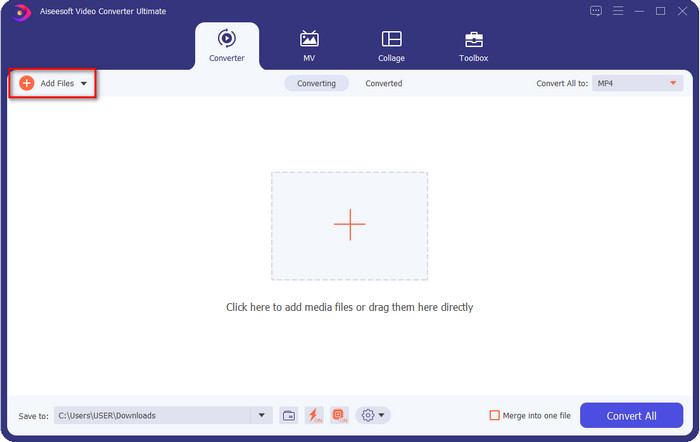
שלב 2. כדי להוסיף את קובץ הווידאו שרזולוצייתו תרצה לשנות, לחץ על הכפתור Add File. אתר את הקובץ בחלון תיקיות המחשב שיופיע, לחץ עליו ואז לחץ על Open.
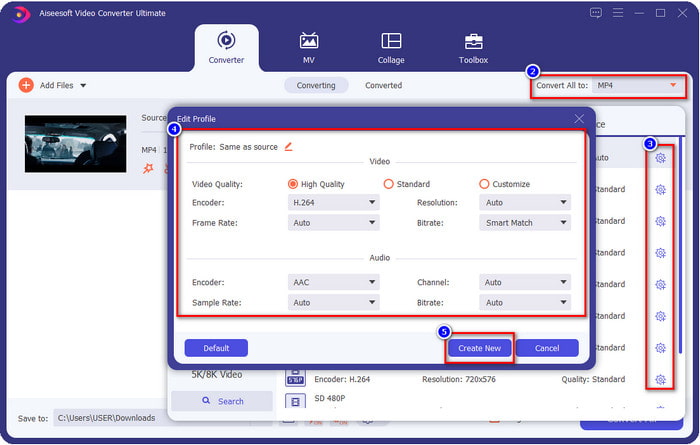
שלב 3. הסתכל בחלק הימני‑עליון ולחץ על כפתור הרשימה הנפתחת בממשק הראשי. בחר את פורמט הווידאו שבו תרצה להשתמש; MP4, MOV, AVI, MKV, FLV ויותר מ‑200 פורמטים נוספים זמינים כאן. לאחר שבחרת את הפורמט, לחץ על כפתור הגלגל השיניים כדי לערוך את פרופיל הפורמט. כאן תוכל להעלות או להוריד את הרזולוציה, לשנות את המקודד (encoder), האיכות, קצב הסיביות (bitrate) ועוד, כדי להעלות את רזולוציית הווידאו או שלא. כדי לשמור את השינויים, לחץ על Create New.
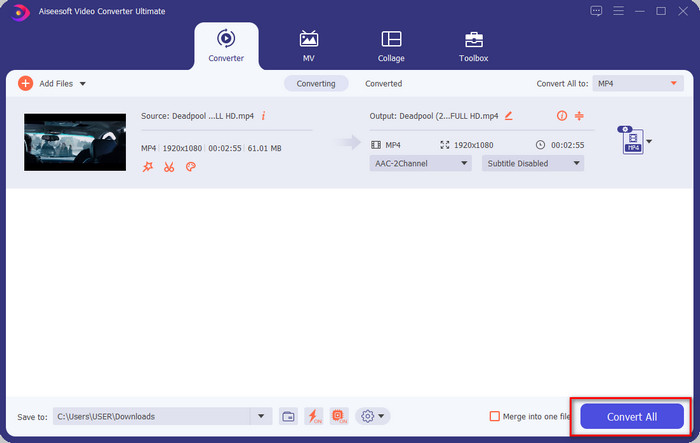
שלב 4. לבסוף, בלחיצה על Convert All, תהליך המרת הרזולוציה יתחיל. בכך, כעת המרת את רזולוציית הווידאו בעזרת Video Converter Ultimate.
חלק 2. שיטה 2: השיטה הפשוטה והחינמית לשינוי רזולוציית וידאו באינטרנט
רוצה לשנות רזולוציית וידאו אונליין? במקרה כזה, עליך להשתמש בגרסה המקוונת והחינמית של הכלי המושלם, FVC Free Video Converter Online. כלי זה יכול לעזור לך להמיר את רזולוציית הווידאו שלך בחינם. זהו כלי אונליין, לכן צפה לכך שהוא זקוק לחיבור אינטרנט כדי לפעול. בנוסף, כלי זה לא תומך בכל פורמטי הווידאו, כך שיש הגבלה על הפורמטים שניתן להוסיף כאן. עכשיו בוא ננסה להשתמש בכלי כדי לשנות את הרזולוציה באמצעות ביצוע השלבים הבאים.
שלב 1. כדי לפתוח את ממיר רזולוציית הווידאו אונליין, לחץ על קישור זה כדי לפתוח את הכלי ישירות.
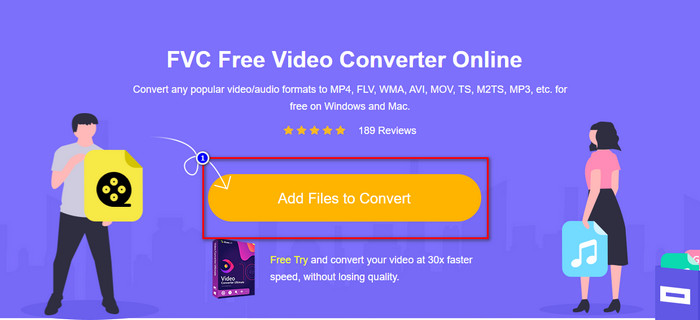
שלב 2. לחץ על Add Files to Convert כדי להוריד את המשגר בפעם הראשונה, ולאחר שהורדת את תוכנת ההתקנה לחץ עליו שוב. לאחר שלחצת, יופיע חלון תיקיות; אתר את קובץ הווידאו בתיקייה ולחץ על Open.
שלב 3. לחץ על כפתור גלגל השיניים כדי לפתוח חלון חדש שבו ניתן לשנות את רזולוציית הווידאו. בראש החלון החדש לחץ על Resolution, בחר את רזולוציית הווידאו הרצויה ולחץ על OK כדי לשמור.
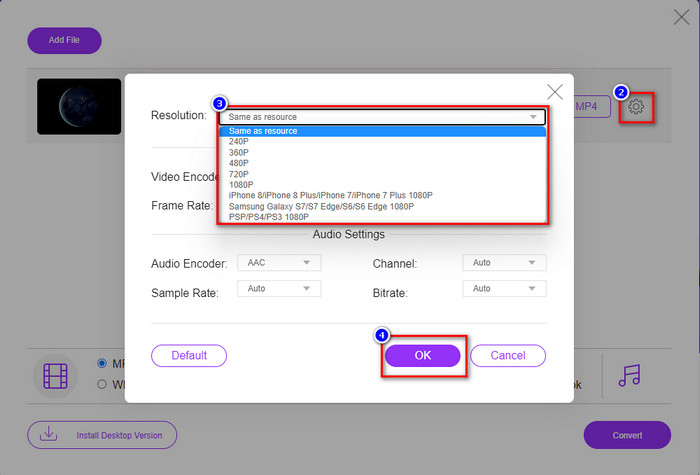
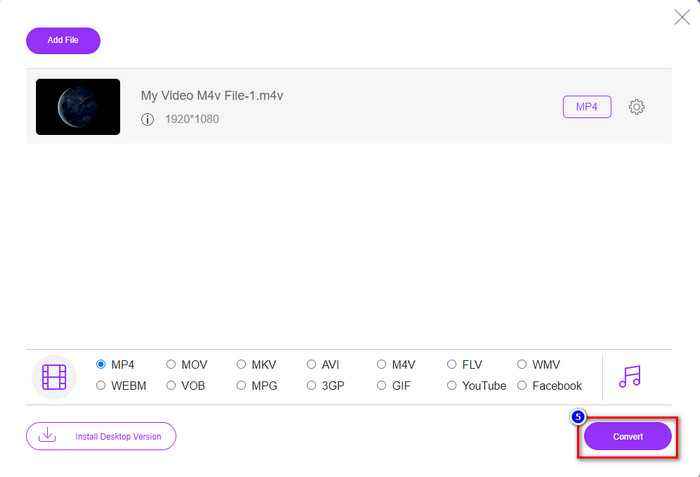
שלב 4. בחר את הפורמט מתוך הרשימה המוגדרת ולחץ על Convert כדי להתחיל בתהליך המרת הרזולוציה.
קשור:
חלק 3. שיטה שלישית: דרך מבוססת נייד לשינוי רזולוציית וידאו באייפון ובאנדרואיד
שיטות אלה אינן יכולות להמיר את רזולוציית הווידאו שלך, אבל אתה יכול לצלם סרטון ברזולוציה נמוכה יותר או גבוהה יותר. יתר על כן, בואו נראה כיצד נוכל לשנות את רזולוציית הווידאו בזמן שאנו מצלמים את הסרטון.
1. רזולוציית וידאו מובנית של אייפון
אם אתה משתמש iOS, אתה יכול לשנות את רזולוציית הווידאו שאתה מצלם אם תרצה. עם זאת, אתה לא יכול למצוא אותו במצלמה, אז אם אתה לא מוצא אותו, אתה יכול לבצע את השלבים שלהלן כדי לדעת איך לשנות את רזולוציית הווידאו באייפון לפני שאתה מצלם סרטון.
השלבים האלה נלקחו מדגם ה-iPhone X כך שהשלבים עשויים להיות שונים במקצת מהגירסאות האחרות של שם או פונקציות דמויי אייפון.
שלב 1. פתח את ההגדרות (Settings) של האייפון שלך.
שלב 2. מתחת לכך, מצא את Camera ולחץ עליה.
שלב 3. לחץ על Record Video ובחר איזו רזולוציה תרצה שתהיה בעת צילום הווידאו. חזור למסך הבית, עבור למצלמה וצלם את הווידאו ברזולוציה שהגדרת קודם בהגדרות.
2. רזולוציית וידאו מובנית של אנדרואיד
עבור משתמשי אנדרואיד, אתה יכול לגשת ישירות לרזולוציית הווידאו במצלמה שלך. השלבים שאנו מספקים אינם מסובכים כמו עבור iPhone מכיוון שלא תצטרך להגדיר את ההגדרות. אז עכשיו, כדי לשנות את רזולוציית הווידאו באנדרואיד, עקוב אחר ההוראות שלהלן.
השלבים האלה נלקחו מ-Redmi 10, כך שהשלבים עשויים להיות קצת שונים עם כמה מכשירי אנדרואיד אחרים כמו שם או פונקציונליות.
שלב 1. בטלפון שלך, לחץ על אפליקציית הCamera כדי לפתוח אותה.
שלב 2. לאחר שהיא נפתחת, עבור אל Video, לחץ על שלושת הקווים המקבילים ובחר את רזולוציית הווידאו הרצויה.
שלב 3. לחץ על הכפתור האדום כדי להקליט וידאו ברזולוציית הווידאו שנקבעה.
חלק 4. שאלות נפוצות לגבי שינוי רזולוציית וידאו
מהי רזולוציית הוידאו?
מספר הפיקסלים הכלולים לכל מסגרת הוא מה שאנו מכנים רזולוציית וידאו. זה גם שולט בפרטים שאתה יכול לראות בסרטון בודד, כמו כמה ברורה יותר התמונה יכולה להיות. יתר על כן, ישנם סוגים שונים של רזולוציית וידאו; אנו קוראים לרזולוציה גבוהה יותר החל מ-HD ומעלה שמשתמשת ביותר פריימים איכותיים לשנייה. בעוד שהרזולוציה הנמוכה יותר מתחילה מ-SD ומטה, רזולוציית הווידאו הזו מקבלת פחות רוחב פס מהרזולוציה הגבוהה יותר, אבל יש לה מסגרת באיכות קטנה יותר לשנייה.
האם 1080 היא רזולוציית הווידאו הטובה ביותר?
זה מייצר את אחד מהמשתמשים ברזולוציית הווידאו הנבחרים ביותר שנבחרו בדרך כלל ב-YouTube ובאפליקציות אחרות להזרמת וידאו. אבל לא תמיד זו הבחירה הטובה ביותר לצפות בסרטון וידאו באיכות גבוהה, כי יכול לקחת יותר זמן לחצץ את הסרטון מאשר 720. לכן, בפעם הבאה שאתה צופה בסרטון באינטרנט, אנו מעדיפים להשתמש ב-720 מאשר ב-1080 כדי לטעון את וידאו הרבה יותר מהיר, ואין שינוי משמעותי באיכות שתיהן אם תשנה אותו.
האם הפחתת הרזולוציה משפיעה על האיכות?
כן, יהיה שינוי לאחר שתוריד את איכות הווידאו. לדוגמה, אם הסרטון שלך ב-HD, אתה משנה אותו ל-SD, האיכות תשתנה באופן דרסטי. לכן, אם תשנה את רזולוציית הווידאו, תראה שינוי פתאומי, אבל הוא עדיין ניתן לצפייה גם לאחר מכן.
סיכום
סוף סוף נוכל לשנות את רזולוציית הווידאו בהתאם לרצוננו. למרות שאתה יכול להשתמש בכלים רבים ושונים כדי לשנות את איכות הווידאו, אנחנו עדיין מציגים את הכלים המקוונים, הלא מקוונים והמובנים הבטוחים והטובים ביותר. אנו מקווים שמאמר זה יעזור לך לשנות את הרזולוציה; אם יש לך שאלות נוספות, תוכל להשאיר תגובה למטה, ואכן נשיב להערותיך.
-
 סקירה של תוכנת ממיר הווידאו HD המובילה (חינם ומסחרית)
 קרא והשוו כדי לקבל את תוכנת ממיר הווידאו HD הטובה ביותר מ-10 המלצות. להלן הביקורות המפורטות על כל ממיר וידאו HD עבור ריבוי פלטפורמות.
-
 הנחיות כיצד להמיר M4A ל-WAV [PC ו-Mac]
 למד עוד על איך להמיר M4A ל-WAV עם שלבים מפורטים וכלים שונים לבחירתך.
-
 בחירה מצוינת להמיר MKV לפורמט AVI
 אמן כיצד להמיר סרטוני MKV עם שלבים פשוטים הניתנים בלעדית עבורך. רוצה לדעת איך? לאחר מכן לחץ על קישור זה למידע נוסף.
