


 ממיר וידאו אולטימטיבי
 מקליט מסך
 תיקון וידאו
5 חותכי MP4 הטובים ביותר: למד כיצד לצלם סרטונים במחשב, Mac ומכשירים ניידים
אם אתה וולוגר או שואף, צילום וידאו שלך הוא כל כך נפוץ. זה ידרוש הרבה מאמץ וביטחון, כמו גם שאתה מצלם מול מצלמה. כמו כן, הדבר הנפוץ ביותר שכל המקצוענים והחדשים בבלוגים הם הטעויות שאתה עושה. במקום לצלם מחדש את הסרטון, הם נוטים לחתוך אותו ולהתמזג לסרטונים המקוריים. כדי ליצור סרטון חדש לגמרי שמורכב מזוויות שונות, צפיות, מונטאז'ים ועוד, הם חותכים אותו מסרטונים שונים ומוסיפים אותו לאחד. אבל בתור חדש בעבודה מסוג זה או אפילו מקצוען, בחירת הגוזם הנכון היא קשה. כי לא כל הפונקציות כמו שאמרו בפרסומת של הכלי לא נמצאות בכלים. במקום ללכת למאמר השני ולקרוא את ההמלצה, למה שלא תלמד מזה קודם. כפי שאספנו רק את הראיות האמיתיות לרווחתך. אז, כאן ברשימה הם חותכי MP4 שבהם אתה יכול להשתמש כדי להתחיל לעשות בלוגים. הישאר בפוקוס כדי לדעת מהם הגוזמים הטובים ביותר שאתה יכול להשתמש בהם המספקים מבט פשוט אך מקצועי לסרטונים שלך.

חלק 1. הורד את תוכנת ה-MP4 Video Cutter הטובה ביותר במחשב וב-Mac
אם אנחנו עומדים לדבר על הטוב ביותר, אז עליך לתת עדיפות לקרוא זאת קודם. כפי שנאמר קודם, יצירת וולוגים קשה הרבה יותר ממה שציפינו, ולא מדובר רק בביטחון לעמוד מול המצלמה ולהעלות את הסרטון. עליך גם לשקול שימוש בכלי רב־תכליתי, שמספק וידאו מושך יותר לעין של כל צופה. FVC Video Converter Ultimate מספק יכולות עריכה מרשימות ופונקציות המרה שיכולים לשמש כל מי שרוצה. בין אם אתה מתחיל ובין אם מקצוען, עלינו לשקול לבחור בטובים ביותר בשוק. למרות שזהו כלי בתשלום, הוא עדיין מספק את האיכות הגבוהה שתרצה לקבל. ואם תבחר בזה כבחירה האישית שלך, אז עתיד מזהיר מחכה לך. רוצה להתחיל ליצור וולוגים היום? אז עקוב אחרי הצעדים הבאים כדי ללמוד איך להשתמש בחותך וידאו MP4 הזה.
שלב 1. לחץ על כפתור ההורדה שלמטה והתקן אותו במחשב ה‑PC או ה‑Mac שלך. עקוב אחר תהליך ההתקנה של הכלי ולחץ על "סיום" כדי להפעיל את התוכנה.
הורדה חינמיתל-Windows 7 ומעלההורדה מאובטחת
הורדה חינמיתל-MacOS 10.7 ומעלההורדה מאובטחת
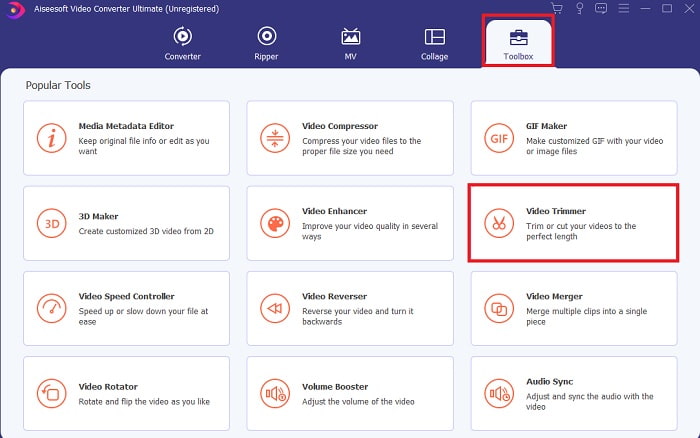
שלב 2. אם זה מופיע על המסך שלך, לחץ על Toolbar וחפש למטה את Video Trimmer.
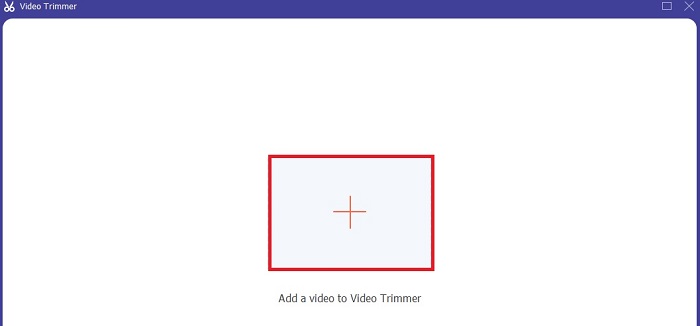
שלב 3. לחץ על כפתור הפלוס כדי להוסיף את הקובץ. בחר את הקובץ בכונן שברצונך לחתוך ולחץ על open כדי להכניס את הווידאו.
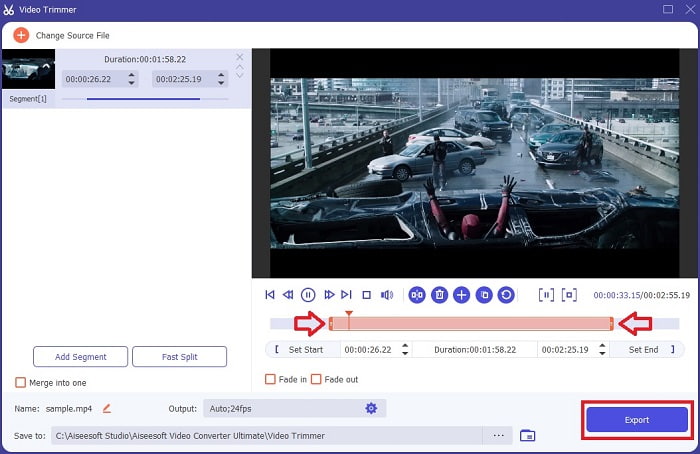
שלב 4. כדי לכוונן את נקודת ההתחלה והסיום של הסרטון שלך, גע והזז את playback in and out כדי לקבוע את משך הזמן הרצוי. הוסף אפקטי fade in ו‑fade out אם תרצה. בנוסף, ניתן לשנות גם את פורמט הפלט אם תלחץ על כפתור הcog. כשתסיים, לחץ על כפתור הExport כדי להתחיל את תהליך החיתוך.
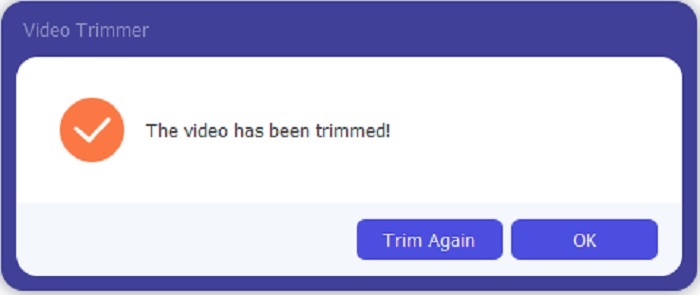
שלב 5. המתן רגע קצר בלבד ועכשיו הסרטון שלך כבר נחתך. לאחר מכן לחץ על OK או על Trim Again אם עליך לחתוך סרטון נוסף. אם ברצונך לשפר את הווידאו שזה עתה יצרת, לחץ שוב על סרגל הכלים וחפש את כלי שיפור הווידאו (video enhancer).
היתרון של כלי מיזוג המסופק על ידי FVC Video Converter Ultimate with Steps
שלא כמו כל אפליקציה אחרת, מיזוג סרטונים ב-FVC Video Converter Ultimate הוא סופר קל לביצוע. זוהי תכונת בונוס אם אתה רוכש את הכלי הזה. כאמור, הכלי הזה הוא רב-תכליתי אז ללא עיכובים נוספים בואו נתחיל למזג סרטונים שונים לאחד.
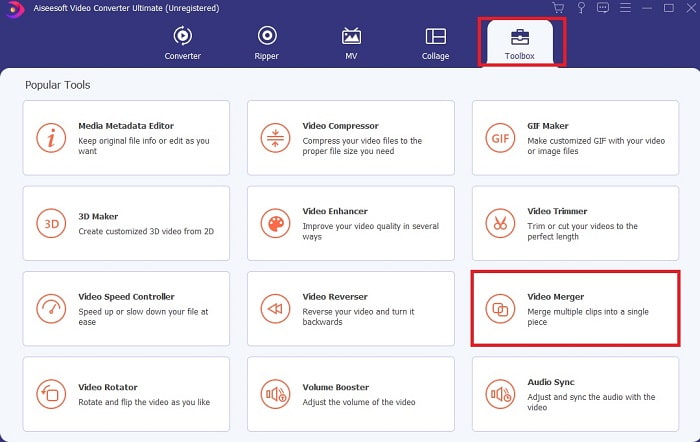
שלב 1. פתח את התוכנה, עבור אל ה‑Toolbar ואז מצא את Video Merger ולחץ עליו.
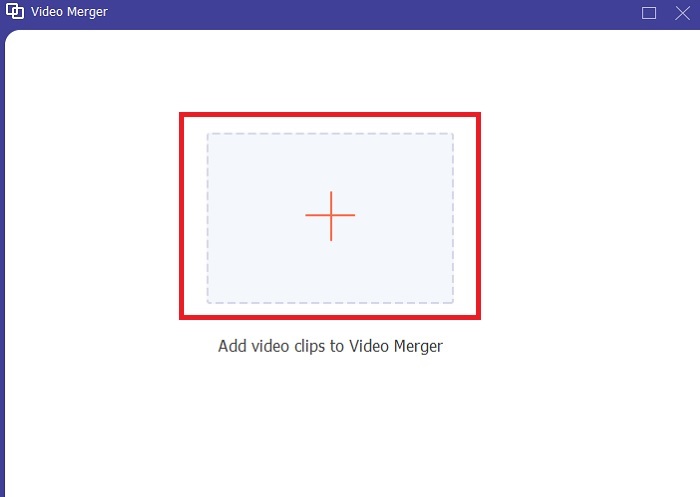
שלב 2. לחץ על כפתור הadd ובחר את הווידאו שברצונך למזג, ולאחר מכן לחץ על open כדי להמשיך. לאחר בחירת הקובץ הראשון, לחץ על סימן הפלוס כדי להוסיף את הקובץ הנוסף שברצונך למזג.
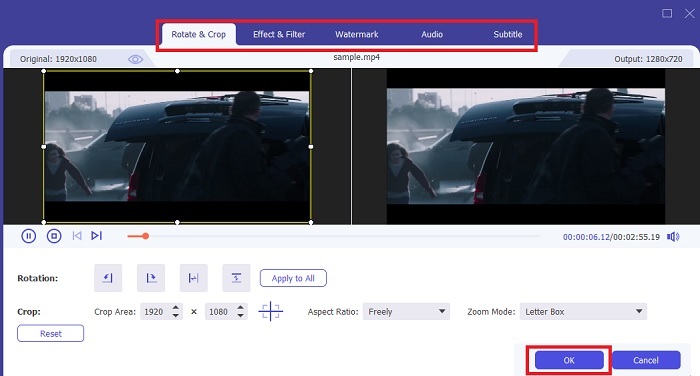
שלב 3. בממשק, לחץ על כפתור הwand כדי להוסיף אפקטים, לשפר את האודיו, לסובב או לחתוך ולהוסיף כתוביות גם כן. כדי לשמור את העריכות שביצעת, לחץ על OK. בצע את אותה פעולה גם עם הסרטונים האחרים אם תרצה.
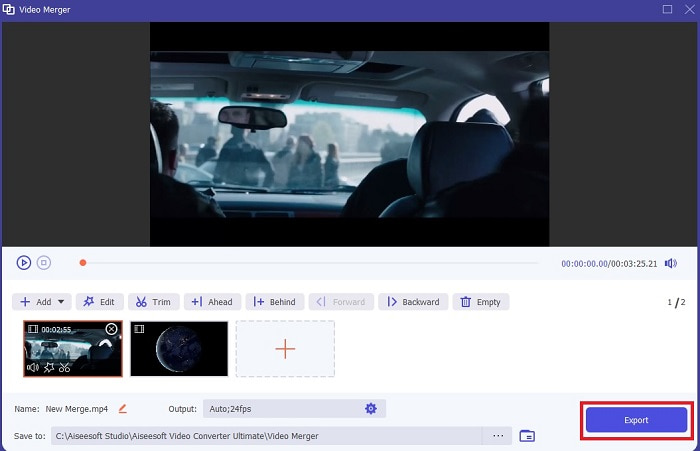
שלב 4. אם אתה מוכן להתחיל את התהליך, לחץ על Export. לאחר סיום הייצוא, מנהל קבצים יקפוץ על המסך שלך. כדי לצפות בסרטון שיוצא, פשוט לחץ עליו ותיהנה.
חלק 2. חותכי MP4 הטובים ביותר באינטרנט
זה בהחלט חותך טוב, אבל הוא לא הטוב ביותר כמו FVC Video Converter Ultimate. אבל לפחות שווה לנסות להשתמש בחותכי MP4 מקוונים אלה.
1. חותך וידאו מקוון 123Apps
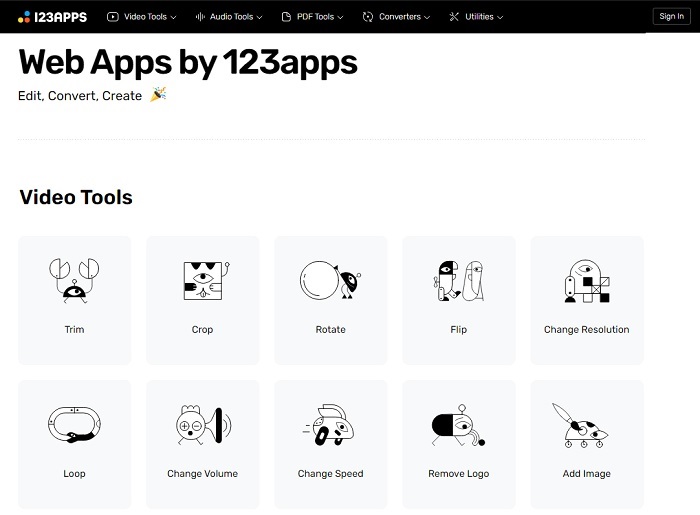
הכלי המקוון הראשון הזה נועד לשפר את הסרטונים שלך. זה יכול להתאים את משך הסרטון, לחתוך, להוסיף טקסט ועוד. אבל הכלי הזה לוקח הרבה מזמנך לייצוא. לאחר הייצוא עליך להוריד אותו, ותהליך זה יהיה תלוי במהירות האינטרנט שלך. כמו כן, אינך יכול להתאים את איכות הסרטונים שלך. לכן, אם הסרטון שלך קצת מטושטש וצריך להתאים את ה-fps שלו, אתה לא יכול לעשות את זה כאן. אבל בכל זאת, שווה לנסות.
2. קלידאו
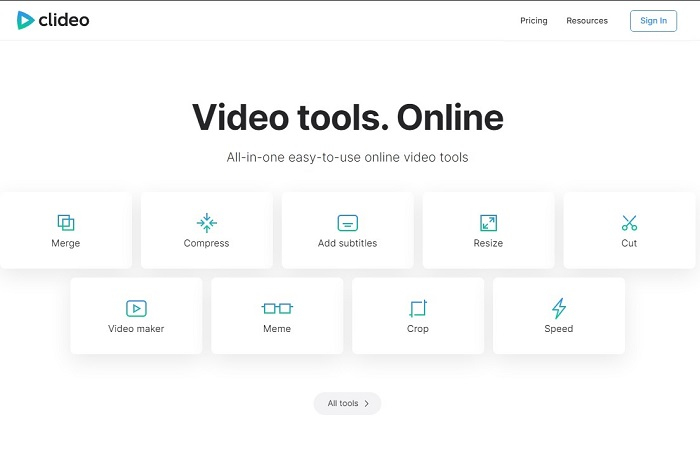
אם נדבר על חיתוך, אז גם זו יכולה להיות בחירה טובה. Clideo הוא אחד מחותכי ה‑MP4 המקוונים הטובים שתוכל למצוא. כמו הכלי המקוון הראשון שהוזכר קודם, גם כלי זה מספק יכולות עריכה בסיסיות. אף על פי שהוא תומך בעריכה בסיסית, זה עדיין לא מספיק אם אתה יוצר וידאו שבאמת תופס את העין. אבל אתה יכול לנסות אותו אונליין בלי דאגה, הוא גם חינמי וגם בטוח.
חלק 3. 3 האפליקציות הטובות ביותר ל-MP4 Cutter באנדרואיד וב-iOS
מה אם אין לך שולחן עבודה להשתמש בכלים שלמעלה ואתה רוצה להיות וולוגר האם זה עדיין אפשרי? אם יש לך טלפון כמו אנדרואיד או iOS, תוכל להשתמש באפליקציות האלה כדי לבצע עריכה בטלפונים שלך. אבל יש כמה תכונות הזמינות למעלה שאינן כאן. אז, המשך לקרוא להלן כדי לדעת מהם הכלים הללו ולבחור מהם.
1. iMovie עבור iOS
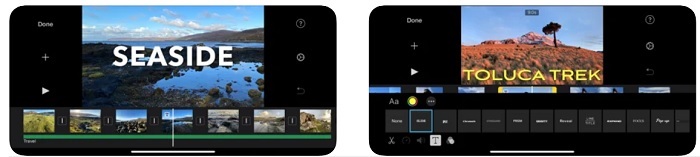
אם אתה רוצה להוסיף לסרטון שלך אווירה בסגנון הוליוודי, אז iMovie היא התוכנה המתאימה. אפליקציית חותך MP4 זו נוצרה רק עבור משתמשי iOS. אך למרות שהכלי מספק יכולות עריכה מתקדמות, חלק מהבאגים שבו עדיין לא תוקנו. במקרים מסוימים, האפליקציה קורסת בכל פעם שאתה מנסה לערוך, והמסך נהיה שחור. לפעמים הווידאו והאודיו אינם מסונכרנים בגלל התקלות. אלו כמה דוגמאות לבאגים – ייתכן שהם נראים פשוטים, אבל הם מאוד מעצבנים ברוב הזמן. אז אם תרצה לנסות את iMovie, אתה עדיין יכול להוריד אותה מה‑App Store.
2. עורך ויוצר וידאו - Viva Video עבור אנדרואיד
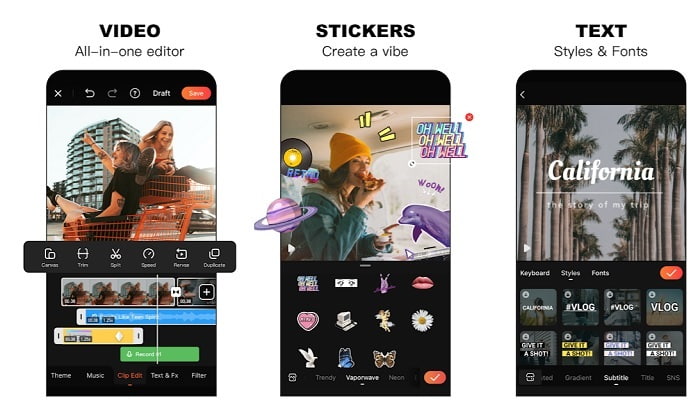
אחד מחותכי ה‑MP4 החינמיים הטובים ביותר באנדרואיד הוא Video Editor & Maker – Viva Video. כמו הכלי שמעליו, שניהם מספקים יכולות עריכה מעולות בטלפון, כמו מעברי וידאו, אפקטי glitch ועוד, אך זהו כלי בתשלום. יש מקרה שבו החוויה פחות טובה, מפני שאין כפתור ביטול מנוי באפליקציה. אז הפתרון שנראה הכי הגיוני הוא למחוק את האפליקציה כדי להפסיק את המנוי – אבל המנוי לא ייפסק, והוא ימשיך לחייב את כרטיס האשראי שלך אם בחרת בשיטת תשלום זו. אבל בסך הכול, הכלי הוא ברמה A, לא יותר ולא פחות.
חלק 4. שאלות נפוצות על MP4 Cutter
מה זה MP4?
MP4 ידוע גם בתור פורמט המדיה הרב-תכליתי. במקום לאחסן קוד, הוא מאחסן נתונים של סרטונים, תמונות סטילס, כתוביות או טקסטים. כמו כן, זהו הפורמט הנפוץ ביותר של וידאו בכל רחבי העולם.
האם MP4 אובדן או חסר אובדן?
בהיותו פורמט רב תכליתי, MP4 הוא דחיסה מאבדת.
מהו הפורמט הטוב ביותר מלבד MP4?
ישנם פורמטים מסוימים שמספקים איכות פלט טובה יותר מ‑MP4, אבל הם לא גמישים כמוהו. לדוגמה, WMV – פורמט זה מספק גודל קובץ קטן יותר מ‑MP4, אך הוא לא תואם למכשירי Apple, מפני שהוא מיועד להיות פורמט מקומי של Windows Media Player. באפשרותך להמיר את קובצי ה‑MP4 שלך ל‑WMV לצורך ניגון טוב יותר.
סיכום
לסיכום, עכשיו קל יותר להבין את ההבדלים בין כל אחד מהכלים לשימושך. אך כפי שנאמר קודם, לא כולם מספקים יכולות חיתוך מצוינות כמו FVC Video Converter Ultimate. במיוחד אם אתה רוצה ליצור וידאו מושך יותר לעין כדי להשיג יותר צפיות וגם רווח. אז במקום להסתפק בפתרון זמני, מדוע שלא תיקח את FVC Video Converter Ultimate כדי להתמודד עם העתיד ולקבל את הגרסה הטובה ביותר בשבילך.
-
 מדריך כיצד להמיר RMVB ל- MP4 ב- Windows / Mac (3 דרכים חינם)
 רוצה להמיר RMVB ל-MP4 להשמעה קלה במחשב או בטלפון הנייד? תמצא דרכים פשוטות להמיר קבצי RMVB שלך ל-MP4 במדריך זה.
-
 4 ממירי ה- MP4 הטובים ביותר ל- M4V כדי להפוך קטעי וידאו MP4 ל- M4V בקלות
 כאשר עליך לשנות קבצי MP4 לקבצי M4V, עליך ללמוד פרטים נוספים על ההבדלים בין שני הפורמטים, כמו גם על ממירי MP4 ל- M4V הטובים ביותר מתוך המאמר.
-
 ממיר AMV - 3 השיטות הטובות ביותר להמיר MP4 ל- AMV ב- Win / Mac
 מהם ממירי ה- MP4 ל- AMV הטובים ביותר כדי להפוך את הסרטונים ל- Amine Music Video, תוכלו ללמוד עוד על 3 שיטות יעילות ביותר להשיג את הסרטונים הרצויים בקלות מהמאמר.
