


 ממיר וידאו אולטימטיבי
 מקליט מסך
 תיקון וידאו
דרכים פשוטות להוסיף תמונה בווידאו ב-iMovie במהירות
הוספת תמונות לסרטון הפכה לאחת הדרכים הטובות ביותר להעברת המסר לקהל בצורה ברורה עוד יותר. רוב תוכנות עריכת הווידאו יכולות לעזור לך להוסיף במהירות שכבת־על של תמונה על סרטון, ואם אתה משתמש אפל, ייתכן שכבר נתקלת ב‑iMovie. הוא נחשב לאחד מעורכי הווידאו הטובים ביותר שאפשר להשתמש בהם במכשירי אפל. עם זאת, משתמשי אפל ממוצעים רבים מתקשים להשתמש ב‑iMovie מפני שאין להם ניסיון קודם בעבודה איתו. אם גם אתה משתמש אפל שנתקל בקושי להשתמש בתוכנה ורוצה להוסיף תמונה לסרטון, תוכל לקרוא את המאמר הזה — ללמוד איך להוסיף תמונות לסרטון ב‑iMovie זה פשוט אם תקרא את הפרטים שלהלן.

חלק 1. כיצד לשכב תמונה על סרטון ב-iMovie [Mac]
אם יש לך iMovie ב-Mac, תוכל להשתמש בו ולהוסיף את התמונה לסרטון. אז עכשיו, אם אתה רוצה ללמוד איך לשים תמונה בווידאו iMovie, השלבים שלהלן יעזרו לך.
שלב 1. חפש את iMovie ב‑Finder ואז לחץ עליו כדי לפתוח אותו.
שלב 2. בחלק העליון‑שמאלי של iMovie לחץ על כפתור Import כדי לייבא בקלות את הסרטון והתמונה. גרור והנח את קובץ המדיה שהכנסת על גבי Timeline.
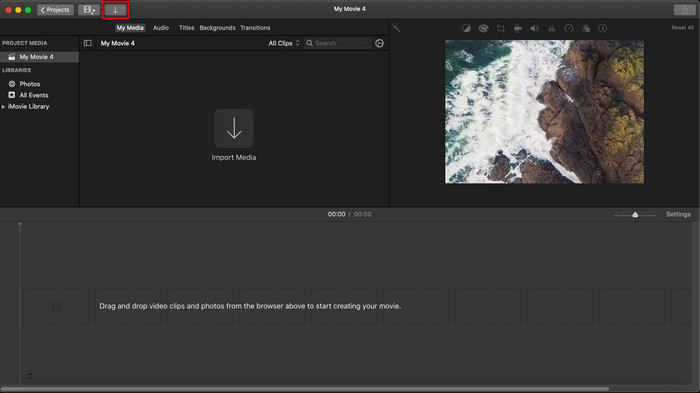
שלב 3. התאם את התמונה שייבאת ואת משך ההופעה שלה. לאחר מכן לחץ על Export כדי להוריד את הקובץ למחשב שלך.
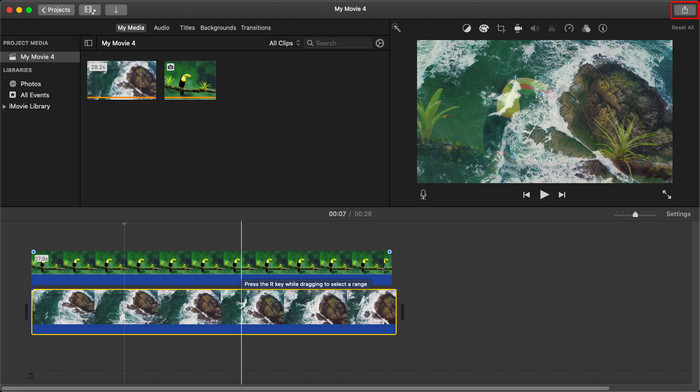
השלבים שהצגנו כאן הם מהחוויה המעשית של השימוש ב-iMovie. השלבים עשויים להשתנות אם יש עדכון בכלי או ששינויים מסוימים מתרחשים בקרוב.
חלק 2. כיצד להוסיף תמונות בווידאו עם iMovie [iOS]
מה אם אתה משתמש במכשיר iOS וברצונך להשתמש ב-iMovie כעורך כדי להוסיף תמונה לסרטון? האם זה אפשרי? ובכן, כן, זה כן. נוכל ללמד אותך איך לשים תמונה בסרטון iMovie באייפון על ידי קריאת הפרטים למטה עם השלבים שסיפקנו.
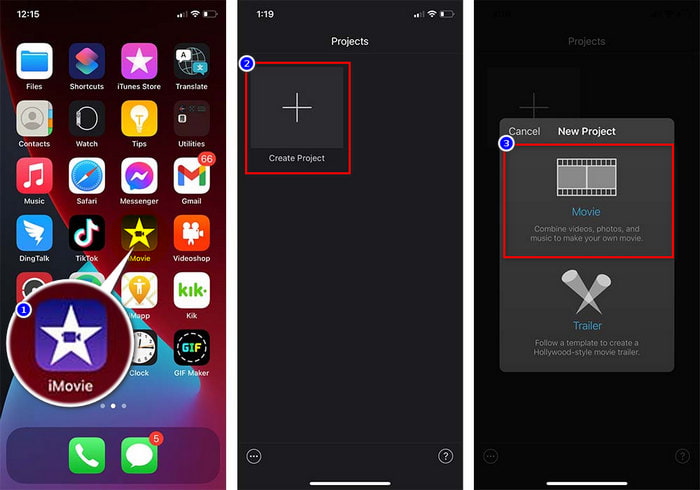
שלב 1. הפעל את אפליקציית iMovie במכשיר ה‑iOS שלך, לחץ על Create Project ואז על Movie. הוסף את הסרטון שנמצא בספרייה שלך.
שלב 2. לחץ על כפתור + כדי להוסיף סימן מים של תמונה לסרטון. חפש אותה בספרייה, לחץ עליה, לחץ על three-dotted line ואז על Green/Blue Screen. גע בתמונה כדי להסיר אוטומטית את הרקע.
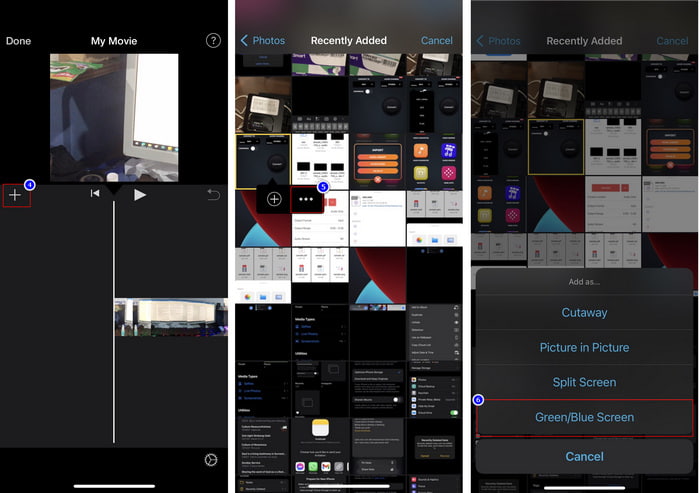
שלב 3. לחץ על Done, אחר כך על Export ואז על Save Videos.
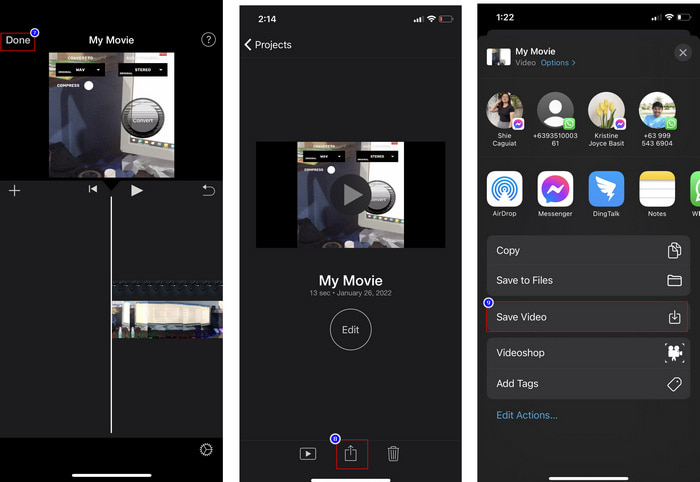
כל השלבים שהצגנו כאן הם מהחוויה המעשית של השימוש ב-iMovie ב-iOS. אבל חלק מהשלבים עשויים להשתנות אם יתרחש עדכון באפליקציית העורך בקרוב.
חלק 3. הפתרון הקל ביותר להכנסת תמונה לווידאו עם תוכנת סימן המים הטובה ביותר ב-Mac
האם יש לך אותן ק困难ות בהוספת תמונות על גבי וידאו ב‑iMovie? נסה להשתמש ב‑Video Converter Ultimate מפני שזהו הכלי הטוב ביותר כתחליף ל‑iMovie. הביצועים הכוללים שלו כבר זכו לשבחים ממיליוני משתמשים שניסו אותו. גם כאשר יש להם בעיות שונות בסרטונים שלהם, הם עדיין בוחרים בכלי האולטימטיבי כדי לפתור אותן. נוסף על כך, בעזרת הכלי הזה אפשר כמעט לעשות הכול שקשור לווידאו, כמו חיתוך, הוספת תמונות, מיזוג, חיתוך פריימים ועוד. לא משנה מה הבעיה, זהו הפתרון הכול‑באחד. רוצה לפתור את הבעיה? עקוב אחר השלבים שכתבנו להלן כדי שתוכל לעקוב בקלות.
תכונות:
◆ הכלי האולטימטיבי תומך במספר פורמטים, כך שהעלאת הפורמט שלך לא תהיה קשה.
◆ הוא תומך בממשק קל להבנה כדי להוסיף במהירות תמונות לכל סרטון תוך מספר שניות.
◆ זה תומך בפלטפורמות שונות כמו Mac ו-Windows כדי לאפשר למשתמשים ליהנות בכל הפלטפורמות.
שלב 1. תוכל להוריד את הכלי על‑ידי לחיצה על כפתור ההורדה למטה, להתקין אותו מיד לאחר מכן ולפתוח אותו בסיום ההתקנה.
הורדה חינמיתל-Windows 7 ומעלההורדה מאובטחת
הורדה חינמיתל-MacOS 10.7 ומעלההורדה מאובטחת
שלב 2. לאחר פתיחת התוכנה לחץ על כפתור + שמופיע כדי לייבא את קובץ הווידאו. לאחר מכן תיפתח תיקייה שבה תאתר את קובץ הווידאו ולחץ על Open.
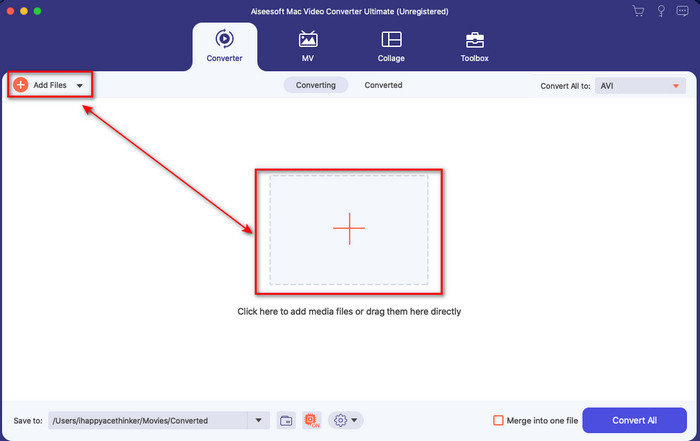
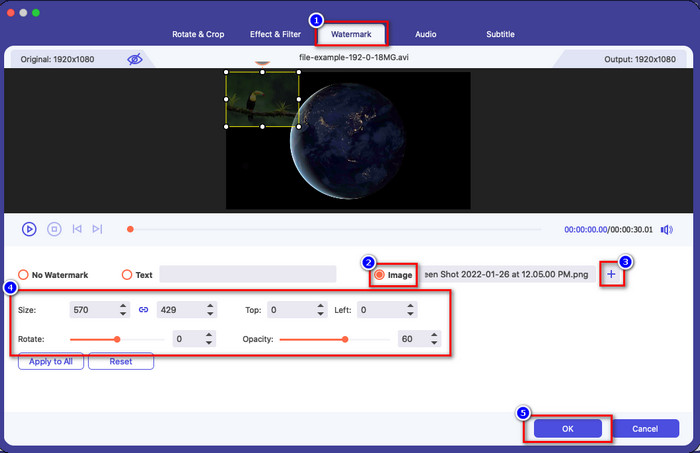
שלב 3. לחץ על כפתור ה‑wand כדי לפתוח את חלון העריכה של הממיר. עבור אל Watermark, לחץ על התמונה ואז על add כדי להעלות את התמונה. באפשרותך גם לערוך את שקיפות התמונה או לסובב אותה לפי הצורך, וכדי להחיל את השינויים לחץ על OK.
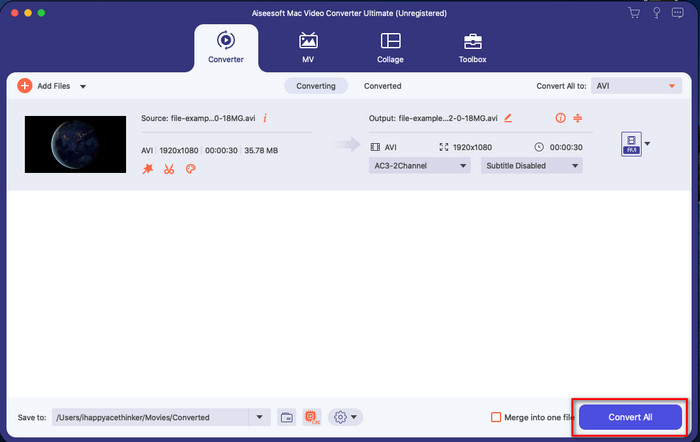
שלב 4. לחץ על כפתור Convert All כדי לייצא את קובץ הווידאו. לאחר סיום תהליך הייצוא הקובץ יישמר בתיקייה במחשב שלך, ובקלות כבר יהיה לך סימן מים של תמונה על הווידאו. אז עכשיו, האם אתה מאמין ביכולות של Video Converter Ultimate? הוספת כבר סימן מים של תמונה לסרטון שלך במהירות כזו.
קשור:
חלק 4. שאלות נפוצות לגבי הוספת תמונות בווידאו ב-iMovie
האם יש מגבלות על מספר התמונות שנוספו בסרטוני iMovie?
עד כה, לא חווינו אי נוחות בהוספת תמונות מרובות לסרטון בזמן השימוש ב-iMovie. עם זאת, תהליך הייצוא לוקח זמן אם תוסיף יותר מדי תמונות לסרטון, אך הוא לא יקרוס, לפי הניסיון.
מהם פורמטי התמונות שבהם אני יכול להשתמש ב-iMovie?
יש תומכים רבים בפורמטים של תמונת סטילס ב-iMovie כמו BMP, PNG, JPG או JPEG, HEIF, PSD, RAW TIFF ו-TGA, אבל אם אתה רוצה תמונה מונפשת, אתה יכול להשתמש ב-GIF. למרות שהפורמטים האלה הם הרבה, הוא עדיין לא תומך בכל פורמטי התמונה כמו EXIF, WebP וכדומה.
מדוע עלי להשתמש ב-iMovie?
עבור משתמשי אפל, iMovie היא אחת האפשרויות הטובות ביותר ליצירת סרט קצר, פרסומת, וולוגים ועוד; כל אלה בחינם. העורך מספק ממשק חצי מתקדם כדי לעזור למשתמשים לחוות חוויה מעשית כיצד נראים ממשק או כלי מתקדמים. כמו כן, התוכנה פחות טכנית, אבל היא מתמחה. זה לא נפוץ לראות עורך שמספק פחות טכני איך להשתמש, אבל זה יכול לעזור לך להיות מקצוען ולהוסיף כמה טכניקות מיוחדות שיש לכלים מתקדמים.
סיכום
לבסוף, אפשר לומר שכבר רכשנו מספיק ידע כדי להוסיף בקלות תמונות על גבי וידאו ב‑iMovie. בעזרת הכלי הטוב ביותר של אפל ניתן לבצע כאן אפילו עריכה מורכבת. עם זאת, לא כל הפונקציות שאתה צריך נמצאות ב‑iMovie, אבל תוכל להשתמש ב‑Video Converter Ultimate כדי לקבל עורך נוח לשימוש בכל הפלטפורמות. אולי אתה תוהה, מדוע עליך להשתמש בכלי האולטימטיבי? אין צורך בהרבה הסברים כשמדברים על הכלי הזה, מפני שהצגנו את הראיות למעלה. אז מה עליך לעשות? תוכל ללחוץ על כפתור ההורדה כדי להתנסות בעצמך בכלי האולטימטיבי ולפתור את הבעיה.
-
 5 אפליקציות מקליט האודיו המובחרות ביותר באנדרואיד ו-iOS [2022 עודכנו]
 לא יודע באיזו אפליקציית מקליט אודיו כדאי להשתמש? אם כן, מאמר זה יעזור לך לבחור איזו אפליקציה תעזור לך במשימת הקלטת האודיו שלך.
-
 תזכיר קולי ב-iOS - יתרונות, חסרונות, תכונות וארבעה ההחלפות הטובות ביותר
 מה זה תזכיר קולי? האם זה מקליט האודיו הטוב ביותר ב- iOS? האם אתה מחפש תשובה לשאלה הזו? לכן, קרא את ההיקף המלא של מאמר זה כדי לדעת יותר.
-
 7 ממירי MOD בחינם אחרונים לשנות קובץ MOD לפורמט חדש
 מהם ממירי MOD שבהם אתה יכול להשתמש? חושבים על אותה שאלה? אז הנה אנחנו, מספקים את שבעת הכלים שבהם אתה יכול להשתמש כדי להמיר את קבצי ה-MOD שלך.
