


 वीडियो कनवर्टर अंतिम
 स्क्रीन अभिलेखी
 वीडियो मरम्मत
 सुरक्षित डाउनलोड
निर्यातित परियोजनाओं/वीडियो पर आसानी से फिल्मोरा वॉटरमार्क कैसे हटाएं
Wondershare Filmora को एक मिड-टियर वीडियो एडिटर माना जाता है, जिसका उपयोग आप जिस प्रोजेक्ट पर काम कर रहे हैं, उसके लिए एक फाइन-ट्यूनिंग बनाने के लिए कर सकते हैं। मध्य स्तरीय संपादक होने के बावजूद, इसमें व्यापक विशेषताएं हैं जिनका आप उपयोग करना पसंद करेंगे, जैसे कि प्रभाव, टेम्पलेट्स, प्लग-इन इत्यादि। निस्संदेह, यह आपके लिए एक विकल्प हो सकता है।
Due to its user-friendliness, many users have tried and produced a video using it, and the result is terrific, but there is a product watermark. One way to remove the watermark is by purchasing a plan monthly, annually, or per perpetual; what if you don’t have money to buy it? Here, we will teach you how to remove the Filmora watermark on every exported video.

भाग 1. बिना वीडियो का आकार बदले फिल्मोरा वॉटरमार्क कैसे हटाएं
FVC Video Converter Ultimate is the ultimate video editor you can download that can edit videos' watermarks even if they are in 4k resolution. Windows and Mac users can enjoy using this editor not because it is available on their OS but because of its features and functions. It might not be at the rank 1 video editor, but its power in removing the watermark on video is surprisingly impressive.
भले ही आपको सॉफ्टवेयर खरीदने की आवश्यकता होगी, हम फिल्मोरा की तुलना में इसकी कीमत को सस्ता मानते हैं। क्या आपको फिल्मोरा वॉटरमार्क रिमूवर की जरूरत है? यह आपका पसंदीदा है, और वीडियो पर वॉटरमार्क या स्टैम्प को हटाने में इस वॉटरमार्क रिमूवर को प्रभावी ढंग से हटाने के चरण यहां दिए गए हैं।
Step 1. Download the official version of this editor by clicking the download button we added below. Install it, open the software, and an attractive GUI will appear on your screen.
फ्री डाउनलोडWindows 7 या बाद के संस्करण के लिएसुरक्षित डाउनलोड
फ्री डाउनलोडMacOS 10.7 या बाद के संस्करण के लिएसुरक्षित डाउनलोड
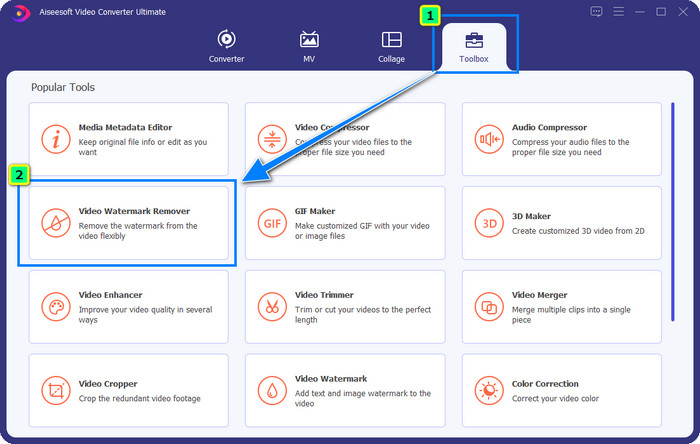
Step 2. Now that the editor is opened, four options are available in this software. To be able to remove the watermark, open the Toolbox. Select the Video Watermark Remover that is under the Toolbox menu.
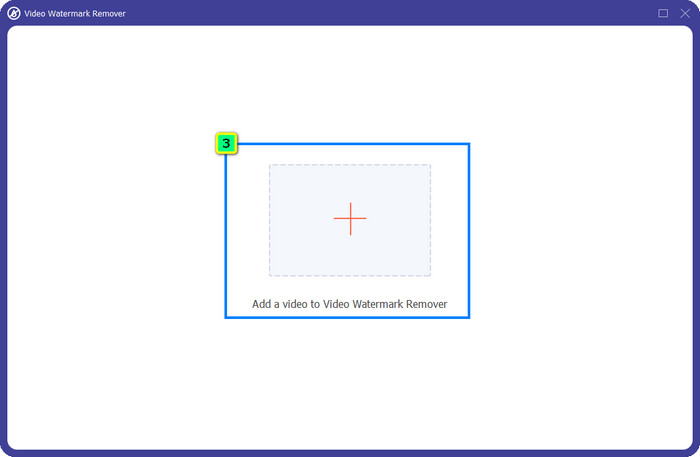
Step 3. After you’ve clicked it, a new window will show on your screen. At the center, click the plus icon to add the file you want to remove the Wondershare Filmora watermark.
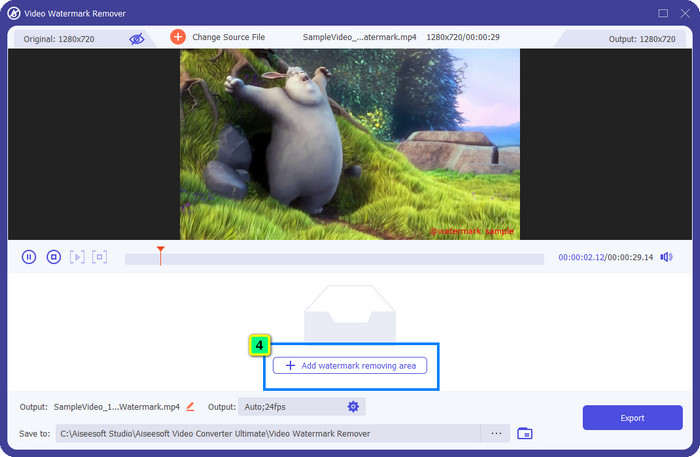
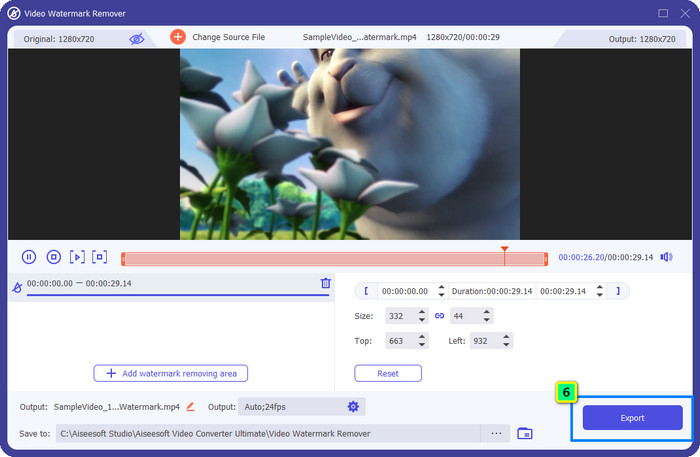
Step 4. Next, click the Add Watermark Removing Area to start using this tool's watermark removal feature.
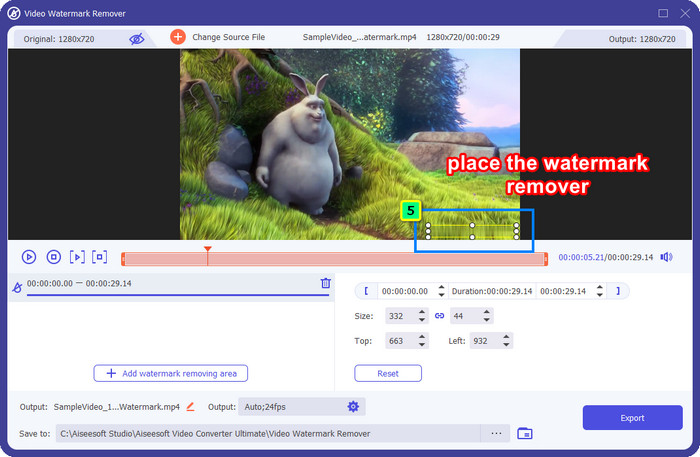
Step 5. Now, all you need to do is place the box on the watermark and make sure that the watermark you want to remove is inside the box. If not, you can adjust the box by dragging the dots from the edges to resize it.
Step 6. To start taking off the watermark bound on your video, click Export, and the final output will be ready in a matter of seconds, as easy as that.
भाग 2। वॉटरमार्क को क्रॉप आउट करके फिल्मोरा वॉटरमार्क को कैसे हटाएं
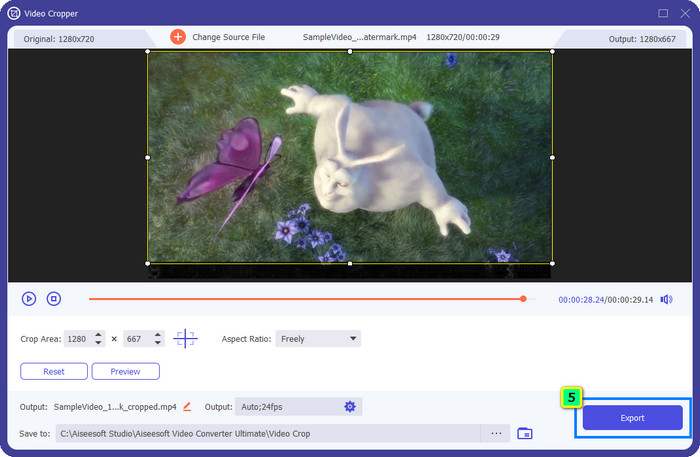
Since the watermark remover that we introduce first is effective, you might as well need a different approach with this Filmora video editor watermark remover, and that is by cropping. FVC Video Converter Ultimate supports an AI-powered video cropper that you can use to resize the video and remove the attached watermark. Though this way provides fewer steps compared to the watermark remover, it is still considered an option and not the first choice. Why? Because it's cutting the dimension of the image and some parts of the video.
फिर भी, यदि आप इसका उपयोग करने का प्रयास करना चाहते हैं, तो आप इसे तब प्राप्त कर सकते हैं जब आपके डिवाइस पर अंतिम उपकरण हो।
फ्री डाउनलोडWindows 7 या बाद के संस्करण के लिएसुरक्षित डाउनलोड
फ्री डाउनलोडMacOS 10.7 या बाद के संस्करण के लिएसुरक्षित डाउनलोड
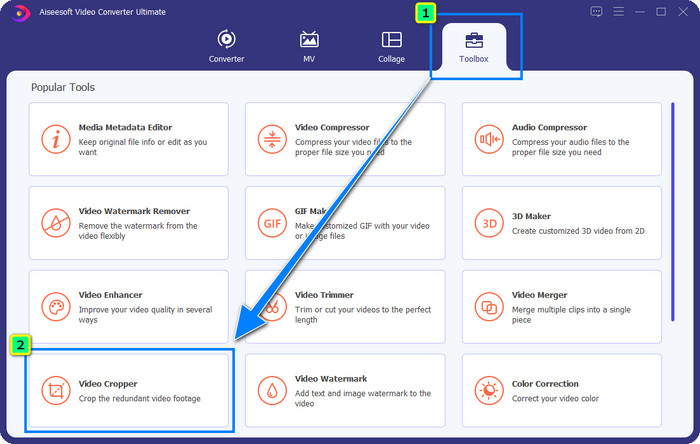
Step 1. After downloading the software, click Toolbox and locate the Video Cropper.
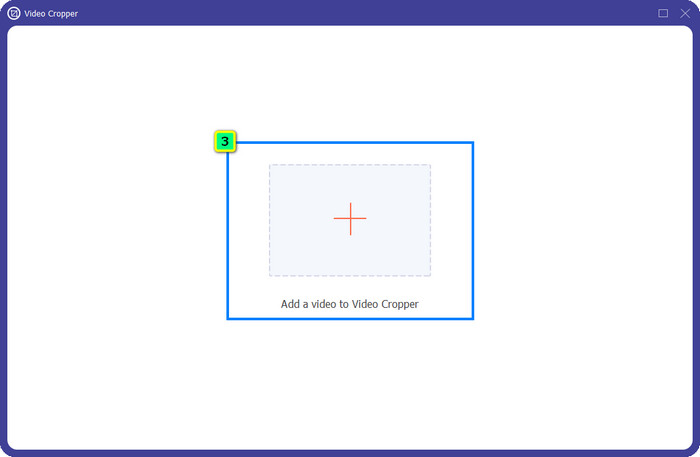
Step 2. Add the video you want to crop here by clicking the plus sign.
Step 3. You can change the frame by dragging the dots based on your preferences.
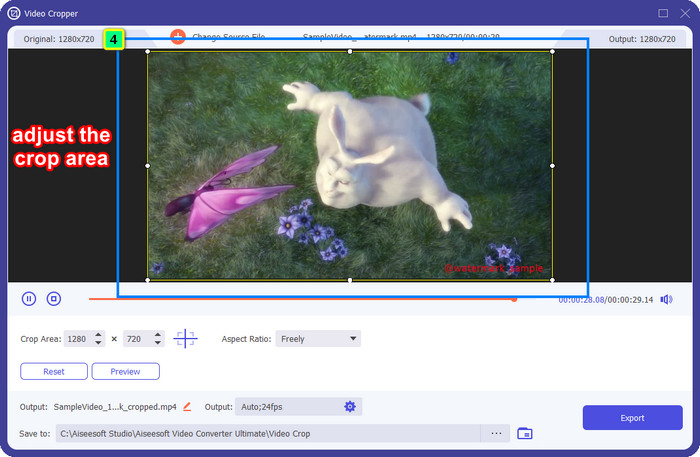
Step 4. If satisfied with the cropped version, click Export, and the AI will crop the video automatically.
भाग 3. मुफ्त में फिल्मोरा वॉटरमार्क ऑनलाइन कैसे निकालें
How to remove the Filmora logo without downloading software? You can try using the Video Watermark Remover Online. It is an online solution for those who need to do a quick watermark removal on the video without downloading any software. Flexible, we add this watermark remover in this article because you can access it on different web browsers you have on your device.
एक ऑनलाइन उपकरण होने के कारण, कुछ सीमाएँ हैं, जैसे कि आप कितनी बार वॉटरमार्क हटा सकते हैं, वीडियो इनपुट प्रारूपों की एक छोटी श्रृंखला और प्रसंस्करण गति। लेकिन अगर आपको इन पर कोई आपत्ति नहीं है, तो आप चरणों का पालन करना शुरू कर सकते हैं।

Step 1. Open your favorite web browser, search its name, and click the result's name to directly lead you to the main domain of this watermark remover.
Step 2. Click the upload icon, or you can drag and drop the video file with a watermark.
Step 3. Wait for the tool to process the video because it traces the watermark. Then press Remove Watermark.
भाग 4. फिल्मोरा लोगो को हटाने के बारे में अक्सर पूछे जाने वाले प्रश्न
फिल्मोरा से वॉटरमार्क कैसे हटाएं?
फिल्मोरा से वॉटरमार्क हटाने का आधिकारिक तरीका मासिक, वार्षिक या स्थायी योजना खरीदना है। ताकि हर बार जब आप यहां बनाई गई परियोजना को निर्यात करते हैं तो अंतिम आउटपुट पर वॉटरमार्क नहीं छोड़ेंगे। यदि आप कोई योजना खरीदना पसंद नहीं करते हैं तो आप वेब पर उपलब्ध विभिन्न निःशुल्क पंजीकरण कोड का उपयोग कर सकते हैं।
क्या Wondershare Filmora का फटा संस्करण डाउनलोड करना सुरक्षित है?
नहीं, ऐसा नहीं है! इस सॉफ़्टवेयर को किसी तृतीय-पक्ष वेबसाइट पर डाउनलोड करने की हम अनुशंसा नहीं करते हैं, क्योंकि कुछ वेबसाइटों तक पहुँचना सुरक्षित नहीं होता है, और उनके क्रैक किए गए संस्करण आपके कंप्यूटर में मैलवेयर ला सकते हैं। दुर्भावनापूर्ण तृतीय-पक्ष वेबसाइटों तक पहुँचने और उनसे डाउनलोड करने से बचें ताकि आप किसी भी मरम्मत न होने वाली क्षति को रोक सकें।
Filmora के लिए सबसे अच्छा वैकल्पिक वीडियो संपादक कौन सा है?
For Windows users, you better read the information we add in this article, as we include top 5 Windows video editor you can download or use on your OS that works better or similarly with Filmora. But if you are using a Mac device, then you can know what are the best Mac video editor alternatives for Wondershare Filmora that work best on macOS.
निष्कर्ष
सब शामिल है! Filmora वॉटरमार्क कैसे हटाएं इसकी जानकारी इस लेख में जोड़ी गई है। तो आप हमारे द्वारा जोड़े गए टूल के बारे में क्या सोचते हैं? भले ही आपके पास वॉटरमार्क हटाने का अनुभव नहीं है, फिर भी आप हमारे द्वारा जोड़े जाने वाले प्रत्येक टूल पर ट्यूटोरियल का अनुसरण कर सकते हैं। आज, आप बिना कोई योजना खरीदे फिल्मोरा पर बनाए गए प्रोजेक्ट को देखने का आनंद लेना शुरू कर सकते हैं। इस लेख को दूसरों के साथ साझा करें, ताकि हम उनकी मदद कर सकें! साझा करना ही देखभाल है!
-
 Wondershare DVD Creator से वॉटरमार्क आसानी से कैसे निकालें?
 यह आलेख Wondershare DVD Creator से वॉटरमार्क निकालने के तरीके के बारे में जानकारी को कवर करता है। आपको आवश्यक सभी जानकारी प्राप्त करने के लिए इसे पढ़ना आवश्यक है।
-
 Movavi वॉटरमार्क को मुफ्त में हटाने का तरीका जानें [होना चाहिए!]
 Movavi पर एक वीडियो या छवि निर्यात करने से वॉटरमार्क निकल जाएगा, लेकिन क्या इसे हटाना संभव है? वॉटरमार्क को मुफ्त में हटाने का तरीका सिखाने के लिए इसे पढ़ें।
-
 विंडोज और मैक पर Fiverr वॉटरमार्क हटाने के 3 आसान तरीके
 यदि आप एक ऐसे ऐप की तलाश में हैं जो Fiverr वॉटरमार्क को हटा सके तो आप सही पेज पर हैं। Fiverr वॉटरमार्क कैसे आसानी से हटा सकते हैं, यह जानने के लिए इस पोस्ट को पढ़ें।
