


 वीडियो कनवर्टर अंतिम
 स्क्रीन अभिलेखी
 वीडियो मरम्मत
आईफोन, एंड्रॉइड और कंप्यूटर पर फोटो ऑनलाइन में पृष्ठभूमि जोड़ने के 3 तरीके
किसी तस्वीर को एडिट करते समय आपको अक्सर उसके मूल बैकग्राउंड को हटाकर कोई दूसरा बैकग्राउंड जोड़ने की ज़रूरत पड़ती है। अगर तस्वीर का बैकग्राउंड पारदर्शी (ट्रांसपेरेंट) है, तो आप किसी भी इमेज एडिटर की मदद से आसानी से बैकग्राउंड बदल सकते हैं। अधिकतर मामलों में आपको पहले मौजूदा बैकग्राउंड हटाना पड़ता है और उसके बाद फोटो में नया बैकग्राउंड जोड़ना होता है। क्या आप ऐसी अच्छी इमेज एडिटर ऐप ढूंढ रहे हैं जिससे आप किसी फोटो में बैकग्राउंड जोड़ सकें?
यह पोस्ट किसी फोटो में बैकग्राउंड जोड़ने के 3 प्रभावी तरीके बताती है। आप चाहे तो सीधे ऑनलाइन फोटो में सफेद बैकग्राउंड जोड़ना चाहते हैं, आईफोन पर फोटो में बैकग्राउंड जोड़ना चाहते हैं, या एंड्रॉइड डिवाइस पर इमेज बैकग्राउंड बदलना चाहते हैं, आप ऐसा करने के लिए विशिष्ट विधि का पालन कर सकते हैं।

भाग 1. मुफ्त में किसी फोटो में पृष्ठभूमि कैसे जोड़ें ऑनलाइन
फोटो में जल्दी से बैकग्राउंड जोड़ने के लिए आप पहले कुछ ऑनलाइन इमेज एडिटर ट्राई कर सकते हैं। हम आपको उपयोग में आसान Free Background Remover Online का मज़बूती से सुझाव देते हैं, जिसकी मदद से आप अपनी तस्वीर का मूल बैकग्राउंड हटा सकते हैं और कोई दूसरा बैकग्राउंड जोड़ सकते हैं। यह मुफ्त इमेज बैकग्राउंड बदलने वाला टूल JPG, PNG, GIF और अन्य सभी प्रचलित इमेज फ़ॉर्मैट को सपोर्ट करता है। यह आपको फोटो में सफेद बैकग्राउंड जोड़ने या मौजूदा बैकग्राउंड को किसी दूसरी तस्वीर से बदलने का आसान तरीका देता है।.
स्टेप 1. अपने वेब ब्राउज़र जैसे Chrome, Safari, Yahoo, IE या Firefox को खोलें और इस फ्री फोटो बैकग्राउंड चेन्जर साइट पर जाएँ। जब पेज खुल जाए, तो आप बस Upload Portrait बटन पर क्लिक करके अपनी फोटो चुनें और आगे की एडिटिंग के लिए अपलोड करें।.

स्टेप 2. उन्नत AI तकनीक की मदद से यह आपके द्वारा अपलोड की गई तस्वीर में मुख्य ऑब्जेक्ट को अपने‑आप चुन लेगा। उसके बाद आप Keep या Erase फीचर का इस्तेमाल करके आगे की एडिटिंग कर सकते हैं।.
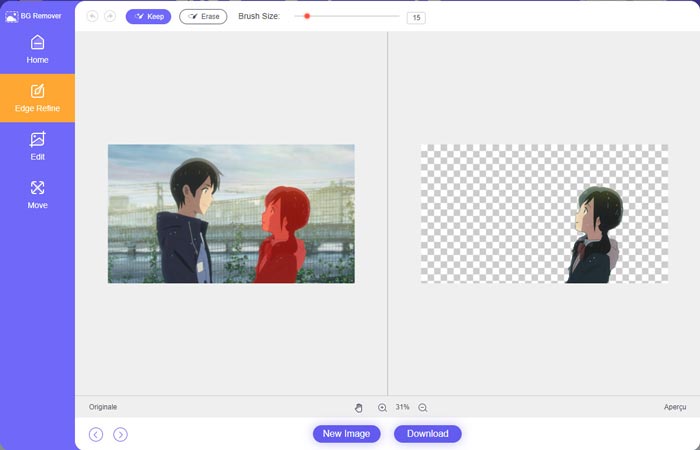
स्टेप 3. बाएँ तरफ दिए गए Edit विकल्प पर क्लिक कीजिए, और फिर आप या तो बैकग्राउंड का रंग बदल सकते हैं या फोटो में कोई नया बैकग्राउंड जोड़ सकते हैं। इसी चरण में आप उसके Crop फीचर पर भरोसा करके अपनी ज़रूरत के अनुसार इमेज का साइज़ कस्टमाइज़ कर सकते हैं।.
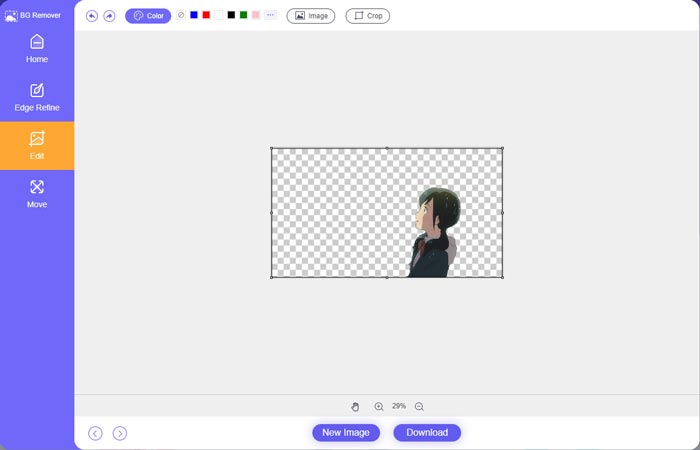
स्टेप 4. जब आप फोटो में उपयुक्त बैकग्राउंड जोड़ लें, तो उसे अपने कंप्यूटर पर सेव करने के लिए Download बटन पर क्लिक करें। आपकी एडिट की हुई इमेज फ़ाइल डिफ़ॉल्ट रूप से PNG फ़ॉर्मैट में सेव होगी।.
भाग 2. Adobe Photoshop का उपयोग करके किसी फ़ोटो में पृष्ठभूमि कैसे जोड़ें
Adobe Photoshop सबसे प्रसिद्ध छवि संपादकों में से एक है जो आपके लिए चित्रों, कस्टम प्रभावों को संपादित करने और अन्य कार्यों को करने के लिए कई सुविधाएँ प्रदान करता है। यदि आपके कंप्यूटर पर फोटोशॉप इंस्टॉल है, तो आप फोटोशॉप में फोटो में बैकग्राउंड जोड़ना चुन सकते हैं।
स्टेप 1. अपने कंप्यूटर पर Photoshop सॉफ़्टवेयर खोलें और उसमें अपनी फोटो ऐड करें। आप Adobe की आधिकारिक वेबसाइट से Photoshop का नवीनतम वर्ज़न मुफ़्त में डाउनलोड कर सकते हैं। ध्यान रहे, Adobe आपको Photoshop इस्तेमाल करने के लिए केवल 7‑दिन का फ्री ट्रायल देता है।.
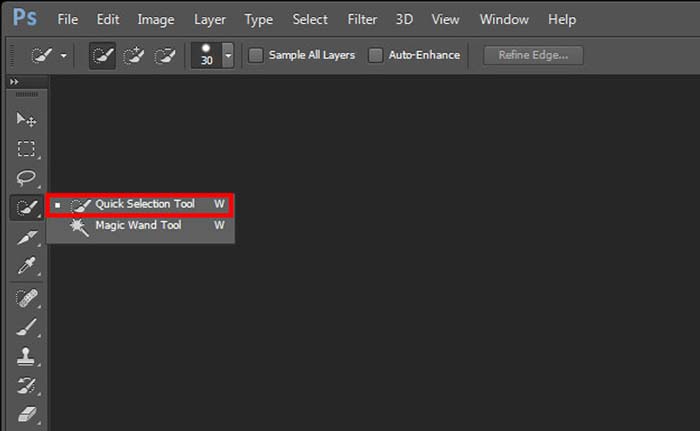
स्टेप 2. जब आपकी फोटो Photoshop में लोड हो जाए, तो आप बाएँ टूलबॉक्स में दिए गए Quick Selection Tool या Magic Wand Tool के आइकन पर क्लिक करके उस बैकग्राउंड को चुन सकते हैं जिसे आप बदलना चाहते हैं।.
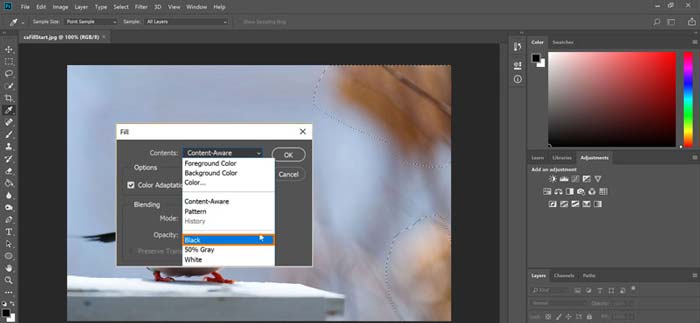
स्टेप 3. फोटो का बैकग्राउंड चुन लेने के बाद, उस पर राइट‑क्लिक कीजिए और Fill विकल्प चुनिए। अब आप फोटो में आसानी से सफेद बैकग्राउंड जोड़ सकते हैं या बैकग्राउंड को काला, नीला, ग्रे या अपनी ज़रूरत के अनुसार किसी भी दूसरे रंग में बदल सकते हैं।.
स्टेप 4. अगर आप बैकग्राउंड के रूप में कोई नई तस्वीर जोड़ना चाहते हैं, तो पहले चुने गए बैकग्राउंड को हटाना होगा। मौजूदा बैकग्राउंड हटाने के लिए आप कीबोर्ड पर Delete कुंजी दबा सकते हैं। इसके बाद आप नई इमेज फ़ाइल को Photoshop में ऐड करें और उसकी लेयर को बैकग्राउंड लेयर के नीचे ड्रैग कर दें। ऐसा करने से आप मूल बैकग्राउंड को आसानी से नई तस्वीर से बदल सकते हैं।.
स्टेप 5. Photoshop में फोटो में बैकग्राउंड जोड़ लेने के बाद, ऊपर दिए गए File मेन्यू पर क्लिक करें और ड्रॉप‑डाउन सूची से Save As विकल्प चुनें। इस फोटो के लिए सही इमेज फ़ॉर्मैट चुनें और उसे अपने कंप्यूटर पर सेव कर लें।.
भाग 3. आईफोन और एंड्रॉइड फोन पर फोटो में पृष्ठभूमि कैसे जोड़ें
जब आप किसी आईफोन, आईपैड या एंड्रॉइड फोन पर किसी फोटो में बैकग्राउंड जोड़ना चाहते हैं, तो आपको एक अच्छा इमेज बैकग्राउंड एडिटर ऐप ढूंढना होगा।
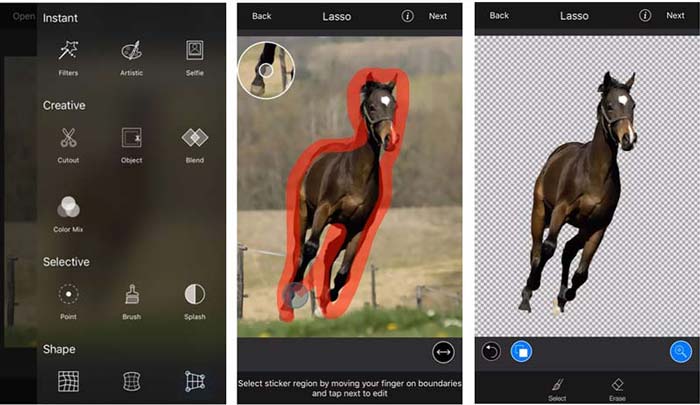
LightX iOS और Android दोनों यूज़र्स के लिए एक ऑल‑फ़ीचर्ड फोटो एडिटर ऐप है। यह अवांछित बैकग्राउंड हटाने, फोटो में नया बैकग्राउंड जोड़ने, अलग‑अलग इफेक्ट्स लगाने, हाई‑क्वालिटी सेल्फी बनाने आदि के लिए आपके फ़ोन पर ही सुविधाजनक तरीका देता है। LightX ऐप में कई उन्नत इमेज एडिटिंग टूल्स दिए गए हैं, जैसे कलर मिक्सिंग, कस्टमाइज़्ड फोटो सैचुरेशन, कॉन्ट्रास्ट, ह्यू, कर्व्स और बहुत कुछ। आप इसे App Store या Google Play Store से डाउनलोड कर सकते हैं।.
स्टेप 1. अपने iPhone, iPad या Android फ़ोन पर LightX ऐप इंस्टॉल करके खोलें। इस ऐप को आपके डिवाइस की फ़ोटो तक पहुँच की अनुमति दें। उसके बाद अपनी फोटो इसमें ऐड करें ताकि आप आगे बैकग्राउंड एडिट कर सकें।.
स्टेप 2. मौजूदा फोटो बैकग्राउंड को हटाकर उसकी जगह कुछ और लगाने के लिए, आप स्क्रीन पर बाएँ स्वाइप करके कई अलग‑अलग विकल्प दिखा सकते हैं। Creative सेक्शन के अंतर्गत, आप Cutout फीचर चुनकर फोटो में बैकग्राउंड जोड़ सकते हैं। अब आपको मुख्य ऑब्जेक्ट को मैन्युअल रूप से चुनना होगा और मूल बैकग्राउंड मिटाना होगा।.
स्टेप 3. बैकग्राउंड हटाने के बाद, आगे बढ़ने के लिए ऊपर‑दाएँ कोने में दिए गए Next पर टैप करें। फिर आप इसके Crop फीचर का उपयोग करके तस्वीर का साइज़ बदल सकते हैं। अपनी कार्रवाई की पुष्टि करने के लिए Done पर टैप करें। उसके बाद, फोटो में अलग बैकग्राउंड जोड़ने के लिए नीचे की ओर दिए गए BG Image पर टैप करें। आप अपनी ज़रूरत के अनुसार नए बैकग्राउंड के इफेक्ट्स को स्वतंत्र रूप से समायोजित कर सकते हैं।.
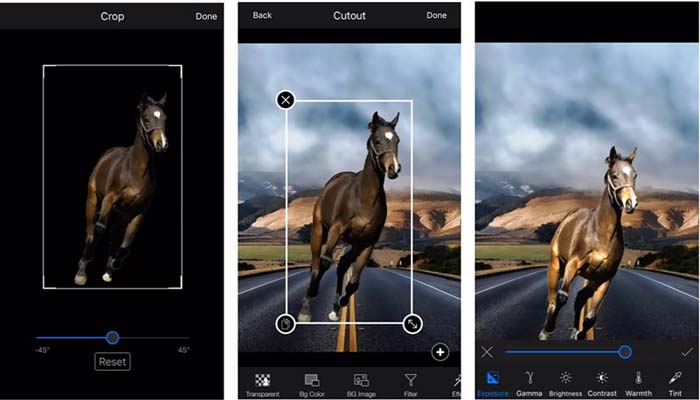
चाहे आप आईओएस या एंड्रॉइड डिवाइस का उपयोग कर रहे हों, आप लाइटएक्स ऐप का उपयोग करके फोटो में पृष्ठभूमि जोड़ने के लिए समान चरणों का पालन कर सकते हैं। ध्यान दें कि, एक iOS उपयोगकर्ता के रूप में, आपको इस पृष्ठभूमि जोड़ने वाले ऐप के लिए $3.99 का भुगतान करना होगा। अगर आप एंड्राइड यूजर हैं तो इसे गूगल प्ले स्टोर से इंस्टाल कर सकते हैं। प्रीमियम संस्करण में अपग्रेड करने के लिए, आपको समान कीमत चुकानी होगी।
संबंधित:
वीडियो रेज़ोल्यूशन क्या है: रेज़ोल्यूशन और उससे जुड़ी अन्य बातों की गहन जानकारी
Snapchat पर 6 पसंदीदा एनिमेटेड Snapchat फ़िल्टर के विकल्प
भाग 4. किसी फ़ोटो में पृष्ठभूमि कैसे जोड़ें के अक्सर पूछे जाने वाले प्रश्न
मेरे मैक पर एक तस्वीर में एक अलग पृष्ठभूमि कैसे जोड़ें?
Mac पर आप पहले बताए गए 2 तरीकों से आसानी से अपनी फोटो का बैकग्राउंड बदल सकते हैं। सुझाए गए Free Background Remover Online और Adobe Photoshop के अलावा, आप कुछ अन्य इमेज एडिटर पर भी भरोसा कर सकते हैं, जिनकी मदद से आप अपनी फोटो में नया बैकग्राउंड जोड़ सकते हैं।.
आईफोन पर वॉलपेपर कैसे बदलें?
आईओएस आईफोन या आईपैड पर वॉलपेपर बदलने का एक आसान तरीका प्रदान करता है। आप सेटिंग ऐप में जा सकते हैं, वॉलपेपर विकल्प पर टैप करें और फिर एक नया वॉलपेपर चुनें पर टैप करें।
क्या मैं अपने आईफोन पर लाइव फोटो में पृष्ठभूमि जोड़ सकता हूं?
नहीं, iPhone आपको लाइव फ़ोटो की पृष्ठभूमि बदलने का सीधा तरीका प्रदान नहीं करता है। आपको केवल इसे क्रॉप करने, फ़िल्टर लागू करने, प्रभावों को समायोजित करने और इसे स्थिर छवि में बदलने की अनुमति है।
निष्कर्ष
यह पोस्ट फोटो में बैकग्राउंड जोड़ने के लिए 3 उपयोगी तरीके साझा करता है। जब आपको मूल फोटो पृष्ठभूमि को हटाने और उसमें एक नया जोड़ने की आवश्यकता होती है, तो आप ऐसा करने के लिए अपने पसंदीदा छवि संपादक का चयन कर सकते हैं।
-
 सर्वश्रेष्ठ जीआईएफ संपादकों के साथ जीआईएफ पर फिल्टर जोड़ने के शीर्ष 3 तरीके [पसंदीदा]
 क्या आप जानना चाहते हैं कि GIF को बेहतर बनाने के लिए फ़िल्टर कैसे जोड़ें? इस ब्लॉग में, आप आसानी से अपने GIF में फ़िल्टर जोड़ने की विभिन्न तकनीकों को सीखेंगे।
-
 ऑनलाइन और ऑफलाइन GIF में वॉटरमार्क जोड़ने के 3 सबसे आसान तरीके
 यदि आप सही टूल का सही उपयोग करते हैं तो GIF में वॉटरमार्क जोड़ना 1-2-3 जितना आसान हो सकता है। बाजार में उपकरण बहुत व्यापक हैं, लेकिन हम उन तीन उपकरणों को पेश करेंगे जिन पर आप निर्भर हो सकते हैं।
-
 छवि को एनिमेटेड GIF में बदलने के 5 सर्वोत्तम तरीके [अपडेट किया गया 2022]
 GIF में कन्वर्टर इमेज चाहिए? यह लेख पांच सर्वश्रेष्ठ कन्वर्टर्स प्रदान करेगा जो हम बाजार में पा सकते हैं। तो, आइए इस लेख को पढ़कर इन उपकरणों के बारे में जानें।
