


 वीडियो कनवर्टर अंतिम
 स्क्रीन अभिलेखी
 वीडियो मरम्मत
छवि से पृष्ठभूमि हटाने के लिए 6 निःशुल्क उपकरण: तेज़ और सटीक
इतनी आसानी से तस्वीरों की पृष्ठभूमि हटाना फोटो एडिटिंग उद्योग के लिए एक गेम‑चेंजर बन गया है। इसके साथ ही, अपनी ज़रूरतों के अनुरूप सही टूल ढूँढना, जो आपकी आवश्यकताओं को पूरा भी करे, आप जैसे उपयोगकर्ता के लिए प्राथमिकता होनी चाहिए; ज़रा सोचिए, एक ऐसा इनोवेटिव टूल जो उपयोगकर्ताओं को बिना मेहनत के इमेज बैकग्राउंड हटाने की शक्ति दे, ताकि वे बाद में उन्हें विजुअल रूप से प्रभावशाली मास्टरपीस में बदल सकें। तो, इस लेख में हम बैकग्राउंड हटाने की कला पर गहराई से नज़र डालेंगे और सबसे लोकप्रिय से लेकर कम पहचाने गए तक ऐसे छह बेहतरीन बैकग्राउंड रिमूवर टूल्स की खोज करेंगे। साथ ही, हम उनके फीचर्स और आसान स्टेप्स को समझेंगे, ताकि आप प्रभावी ढंग से सीख सकें कि कैसे उन्हें इस्तेमाल करें और अपने लिए सही टूल चुनें। तो फिर किस बात का इंतज़ार है? आज ही यह लेख पढ़ना शुरू कीजिए और तस्वीरों से बैकग्राउंड हटाने के पीछे छिपी उस रूपांतरकारी शक्ति को जानिए, जो पूरे प्रोसेस को बेहद सुगम और समय‑बचत बना देती है।.

भाग 1. किसी छवि से पृष्ठभूमि कैसे हटाएँ
FVC फ्री बैकग्राउंड रिमूवर
FVC फ्री बैकग्राउंड रिमूवर उन उपयोगकर्ताओं के लिए तैयार किया गया एक वेब टूल है जो कम लागत में बैकग्राउंड हटाने का समाधान चाहते हैं। यह उपयोग में आसान टूल सीमित बजट वाले उपयोगकर्ताओं के लिए है, जो ऐसे फीचर्स देता है जो कई बार पेड विकल्पों के बराबर या उनसे बेहतर होते हैं। FVC अपने सीधे‑सादे इंटरफ़ेस के लिए जाना जाता है, जो हर तरह के यूज़र को सहज अनुभव देता है। यह टूल एक्सेसिबिलिटी को प्राथमिकता देता है, ताकि अलग‑अलग डिवाइस और प्लेटफॉर्म पर उपयोगकर्ता इसे इस्तेमाल कर सकें। इसके अलावा, FVC फ्री बैकग्राउंड रिमूवर सुरक्षा पर भी विशेष ज़ोर देता है, और उपयोगकर्ताओं को एक भरोसेमंद व सुरक्षित माहौल प्रदान करता है, जहाँ वे निश्चिंत होकर अपनी तस्वीरों को बेहतर बना सकें। नीचे FVC फ्री बैकग्राउंड रिमूवर के फीचर्स और इसे इस्तेमाल करने के चरण दिए गए हैं।.
◆ ऑटोमैटिक एआई बैकग्राउंड रिमूवर। यह एआई का उपयोग करके तस्वीरों से बैकग्राउंड हटाता है, जिससे यह ऐसा टूल बन जाता है जो अपने‑आप तस्वीर को प्रोसेस करता है और बुद्धिमानी से यह पहचानता है कि इमेज का कौन‑सा हिस्सा हटाया जाना चाहिए। एआई को बार‑बार कठोर टेस्टिंग से गुज़ारा जाता है ताकि परिणाम जितने हो सके उतने परफेक्ट मिलें।.
◆ बैकग्राउंड रिमूवर और चेंजर। केवल बैकग्राउंड हटाने के अलावा, यह इमेज की पृष्ठभूमि को किसी सॉलिड रंग में भी बदल सकता है। इस तरह यह इस्तेमाल के लिए एक बहुमुखी टूल बन जाता है।.
◆ एडिटिंग सपोर्ट। यह उपयोगकर्ता‑अनुकूल टूल यूज़र्स को आसानी से इमेज क्रॉप करने, घुमाने (रोटेट) और उलटने (फ्लिप) जैसी एडिटिंग करने देता है। ये छोटी‑छोटी डिटेल फीचर्स मिलकर आपकी प्रोसेस की गई तस्वीरों के कुल परिणाम को बेहतर बनाते हैं, और यूज़र्स को प्रीव्यू व एडिट करने की सुविधा देते हैं।.
◆ क्वालिटी डाउनलोड। हमारे बैकग्राउंड रिमूवल फीचर का इस्तेमाल करते समय उच्च आउटपुट क्वालिटी का अनुभव कीजिए। एक बार जब आपकी तस्वीर से बैकग्राउंड हट जाए, तो एडिटेड रिज़ल्ट सेव करते समय उसकी मूल गुणवत्ता को बरकरार रखिए।.
◆ मल्टिपल‑फॉर्मेट सपोर्टेड। यह JPG, JPEG और PNG फॉर्मेट में इनपुट इमेज सपोर्ट करता है और आउटपुट PNG में देता है, ताकि डेस्कटॉप पर इमेज सेव करते समय लॉसलेस क्वालिटी बनी रहे।.
स्टेप 1. सबसे पहले FVC फ्री बैकग्राउंड रिमूवर वेबसाइट पर जाएँ और अपनी मनचाही इमेज को उस फ़ील्ड में अपलोड करें जिस पर Upload Image लिखा हो।.
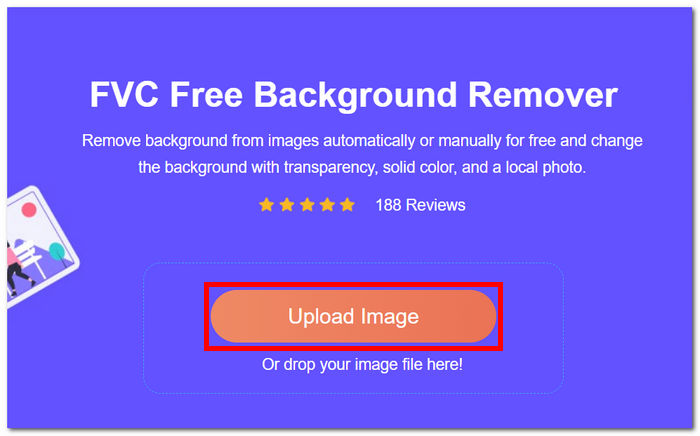
स्टेप 2. एआई की शक्ति का इस्तेमाल करते हुए, टूल को अपने आप आपकी अपलोड की गई इमेज का बैकग्राउंड पहचानकर हटाने दें और कुछ देर प्रतीक्षा करें।.
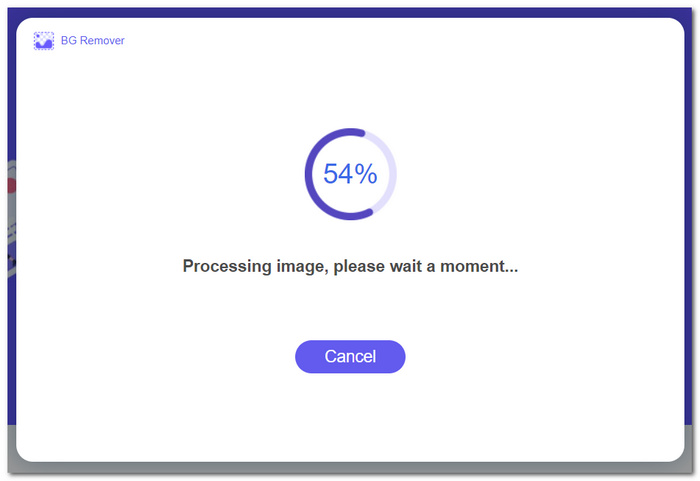
स्टेप 3. बैकग्राउंड हटने की प्रक्रिया पूरी हो जाने पर, Download बटन पर क्लिक करके अपनी बैकग्राउंड‑रिमूव्ड इमेज को सेव कर लें।.
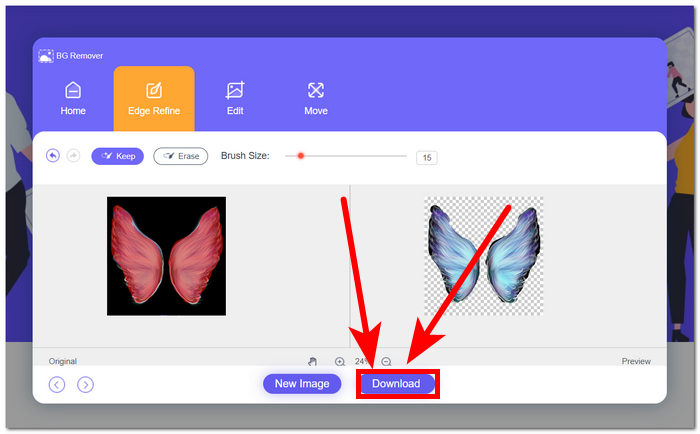
FVC फ्री बैकग्राउंड रिमूवर एक अंडररेटेड टूल के रूप में सामने आता है, जिसे अक्सर कई उपयोगकर्ता अनदेखा कर देते हैं। अपनी कम-ज्ञात स्थिति के बावजूद, यह छिपा हुआ रत्न एक मूल्यवान और निःशुल्क सेवा प्रदान करता है, जो इसकी क्षमताओं को खोजने वाले उपयोगकर्ताओं के रचनात्मक प्रयासों में योगदान देता है। सादगी और दक्षता को अपनाते हुए, यह छवि संपादन प्रक्रिया में एक समर्पित सहयोगी बना हुआ है।
Canva
कैनवा, जहाँ रचनात्मकता की कोई सीमा नहीं है! इसका सहज ज्ञान युक्त प्लेटफ़ॉर्म उपयोगकर्ताओं को आसानी से अपनी छवियों से पृष्ठभूमि हटाने की सुविधा देता है, जिससे डिज़ाइन की संभावनाओं की एक दुनिया खुल जाती है। कैनवा में छवियों से पृष्ठभूमि हटाना उन उपयोगकर्ताओं के लिए चुनौतीपूर्ण हो सकता है जो इंटरफ़ेस से परिचित नहीं हैं; ऐसा इसलिए है क्योंकि कैनवा एक संपादन सॉफ़्टवेयर है, जिसका अर्थ है कि छवि पृष्ठभूमि हटाने वाले सॉफ़्टवेयर में बहुत सारे उपकरण मौजूद हैं जो उपयोगकर्ताओं को परेशान कर सकते हैं। इसलिए, इसका बैकग्राउंड रिमूवर सॉफ़्टवेयर श्रेणी में शीर्ष स्तर का माना जाता है क्योंकि AI टूल को चलाता और संचालित करता है। नीचे बैकग्राउंड हटाने में इसकी कुछ विशेषताएं और कैनवा का उपयोग करने के चरण दिए गए हैं।
◆ बैकग्राउंड रिमूवर। इसका बैकग्राउंड रिमूवल फीचर झट‑पट काम करता है और इसके साथ मैजिक इरेज़र व मैजिक रिप्लेसमेंट जैसे अतिरिक्त टूल भी मिलते हैं, जिनसे आप टूल के भीतर ही अपनी तस्वीरों को बारीकी से पॉलिश कर सकते हैं।.
◆ एआई इंटीग्रेटेड टेक्नोलॉजी। इसका एआई इतना शक्तिशाली है कि यह आपकी इमेज में मौजूद डिस्टर्ब करने वाले एलिमेंट्स को पहचानकर तुरंत हटा देता है।.
◆ मल्टी‑एडिटर सॉफ़्टवेयर। यह ऐसा टूल है जिसमें आप लगभग सब कुछ कर सकते हैं: प्रेज़ेंटेशन बनाना, फोटो और वीडियो एडिट करना, डॉक्यूमेंट तैयार करना और बैकग्राउंड रिमूवल करना।.
स्टेप 1. अपने डेस्कटॉप पर Canva डाउनलोड और इंस्टॉल करें, या फिर सॉफ़्टवेयर का वेब वर्ज़न खोलें।.
स्टेप 2. मेन इंटरफ़ेस पर, अपनी स्क्रीन पर दिए गए फ़ील्ड में अपनी इमेज Upload करें।.
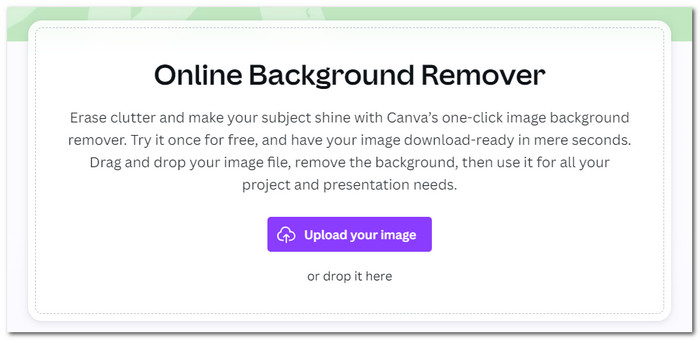
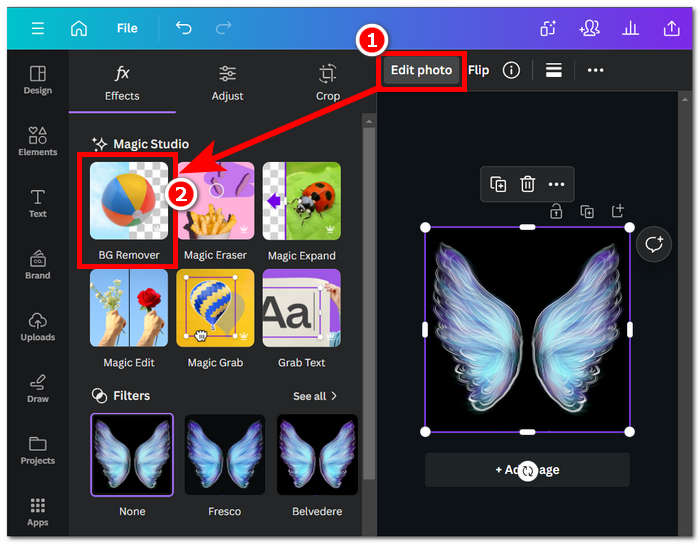
स्टेप 3. जैसे ही आपकी इमेज Canva में लोड हो जाए, BG Remover पर क्लिक करें, ताकि इमेज का बैकग्राउंड तुरंत हट जाए।.
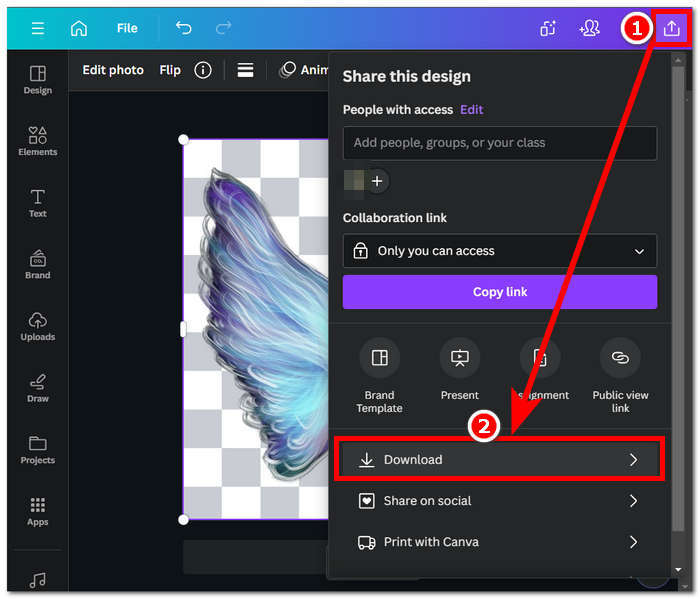
स्टेप 4. प्रोसेस पूरा होने पर, अपनी स्क्रीन के ऊपर‑दाएँ कोने में स्थित शेयर आइकन पर क्लिक करें और फिर Download पर क्लिक करके इमेज को अपने डेस्कटॉप पर सेव कर लें।.
Canva के इंटरफ़ेस को एक्सप्लोर करने में आपको बैकग्राउंड रिमूवल के लिए समय लग सकता है, लेकिन उस प्रभावशाली सॉफ़्टवेयर क्षमता का अनुभव करने के लिए यह प्रयास करने लायक है। हालाँकि, मुफ़्त उपयोगकर्ता बैकग्राउंड रिमूवल में Canva की क्षमता को अधिकतम नहीं कर सकते हैं क्योंकि सॉफ़्टवेयर सशुल्क सदस्यता प्रदान करता है और सॉफ़्टवेयर के मुफ़्त उपयोग पर सीमित वॉटरमार्क है।
एडोब एक्सप्रेस
एडोब क्रिएटिव क्लाउड सूट के भीतर एक गतिशील सुविधा, एडोब एक्सप्रेस, अपनी शक्तिशाली पृष्ठभूमि हटाने की क्षमताओं के साथ छवि संपादन को फिर से परिभाषित करती है। उपयोगकर्ता के अनुकूल पहुँच के लिए डिज़ाइन किया गया, यह टूल आपकी छवियों से पृष्ठभूमि को आसानी से हटाने के लिए एक सहज अनुभव प्रदान करता है।
◆ प्रोफेशनल ग्रेड बैकग्राउंड रिमूवर। यह टूल आपकी तस्वीरों का बैकग्राउंड पेशेवर अंदाज़ में, तेज़ और बेहद स्मूद तरीके से हटाता है।.
◆ सीधा‑सादा इंटरफ़ेस। इसका सिंपल इंटरफ़ेस इस टूल को इस्तेमाल करने में बेहद आसान बनाता है। Adobe सॉफ़्टवेयर का कोई गहरा बैकग्राउंड होना ज़रूरी नहीं है।.
◆ कटआउट बैकग्राउंड। यह आपकी इमेज में मौजूद सब्जेक्ट को हाइलाइट करता है, जिससे इमेज का बैकग्राउंड बहुत ही सटीक तरीके से कटआउट हो जाता है।.
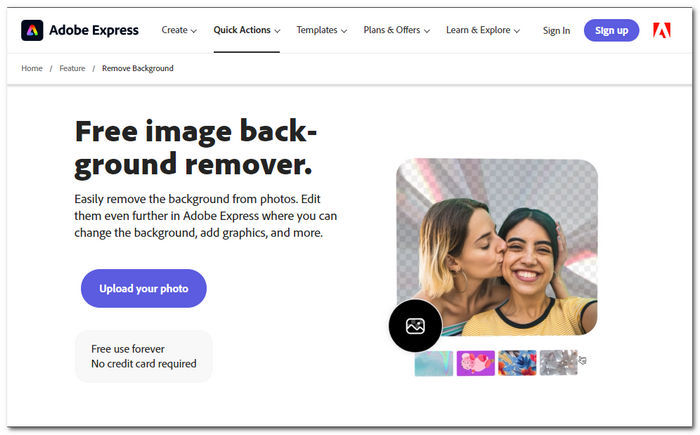
स्टेप 1. अपने लोकल ब्राउज़र में Adobe Express Background Remover वेबसाइट पर जाएँ और वेबसाइट के इंटरफ़ेस में मौजूद “Upload your photo” पर क्लिक करें।.
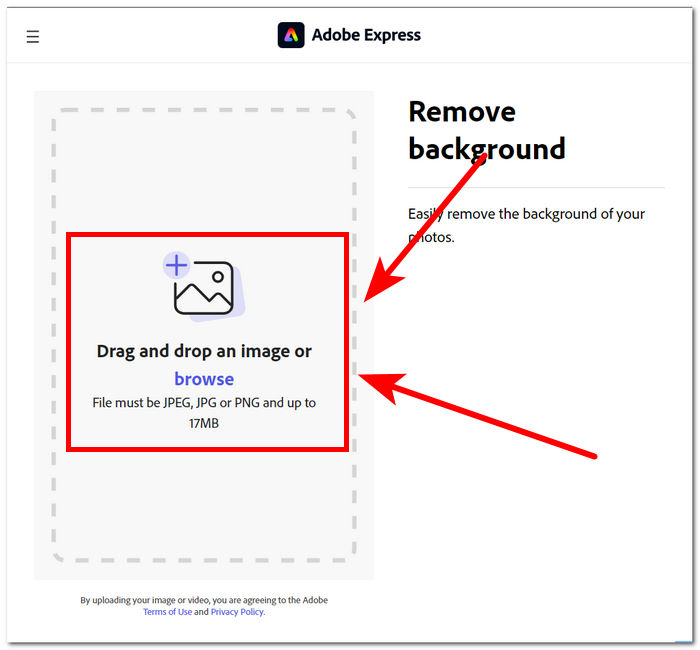
स्टेप 2. “Upload your photo” पर क्लिक करने के बाद, ब्राउज़ इमेज वाले फ़ील्ड पर क्लिक करके अपनी इमेज टूल में अपलोड करें।.
स्टेप 3. जैसे‑ही आपकी इमेज अपलोड होगी, टूल अपने‑आप आपकी इमेज का बैकग्राउंड हटा देगा।.
स्टेप 4. अपनी इमेज को डेस्कटॉप पर सेव करने के लिए, इमेज के ठीक बगल में स्थित Download पर क्लिक करें।.
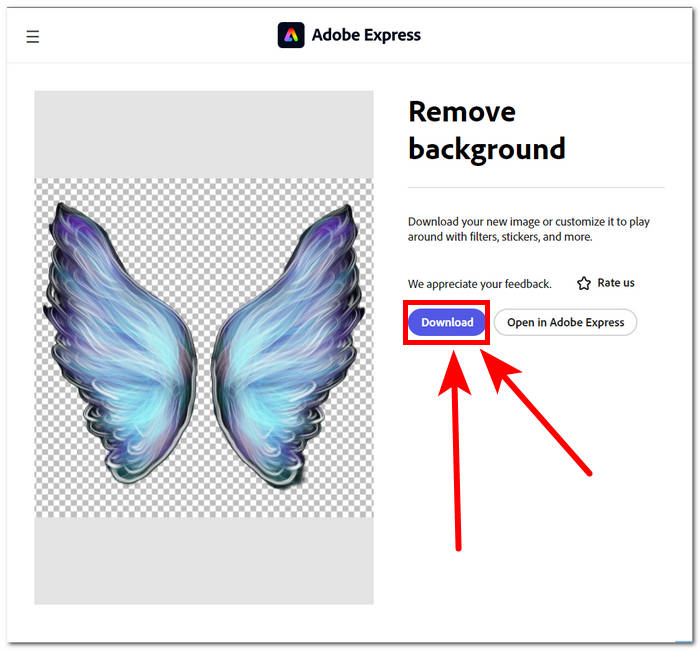
निष्कर्ष में, Adobe Express एक पेशेवर-ग्रेड टूल के रूप में उभरता है जो आपकी छवियों की पृष्ठभूमि में सबसे छोटे विवरणों को हटाने के लिए पर्याप्त शक्तिशाली है। इस टूल में पृष्ठभूमि हटाने की प्रक्रिया के लिए इसके इंटरफ़ेस में एक सीधा दृष्टिकोण हो सकता है, लेकिन इसके लिए आपको अपनी छवि को अपने डेस्कटॉप पर सहेजने में सक्षम होने के लिए साइन अप करना होगा।
भाग 2. डेस्कटॉप से छवियों की पृष्ठभूमि कैसे हटाएँ
एडोब फोटोशॉप
Adobe Photoshop इमेज मैनिप्युलेशन के क्षेत्र में, खासकर तस्वीरों से बैकग्राउंड हटाने के मामले में, सबसे बेहतरीन सॉफ़्टवेयर में से एक के रूप में उभरकर सामने आया है। यह उपयोगकर्ताओं को शक्तिशाली टूल्स और फीचर्स की एक विस्तृत रेंज देता है, जिससे वे एक ही सॉफ़्टवेयर में लगभग हर तरह का काम कर सकते हैं। बेदाग बैकग्राउंड रिमूवल की शुरुआत हमेशा आपके सब्जेक्ट और बैकग्राउंड के बीच सही कटआउट सिलेक्शन से होती है; इसलिए यह भी ज़रूर सीखें कि Photoshop में कटआउट का उपयोग कैसे करें, ताकि आप बैकग्राउंड रिमूवल में Photoshop की क्षमता का पूरा लाभ उठा सकें।.
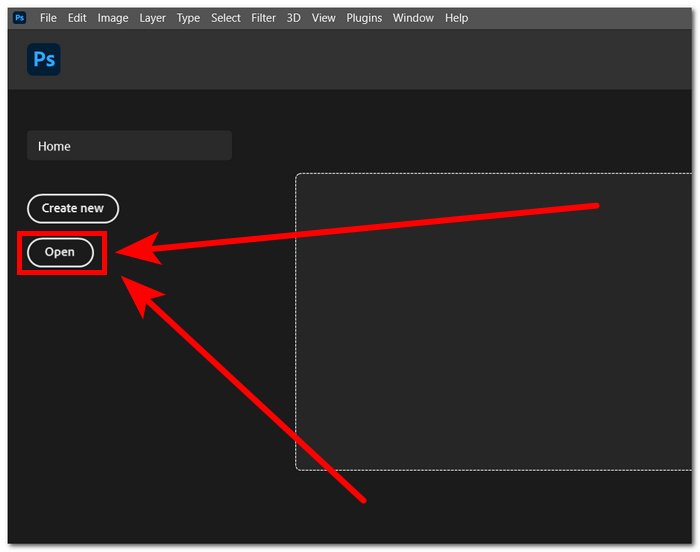
स्टेप 1. अपने डेस्कटॉप पर Adobe Photoshop खोलें, और सॉफ़्टवेयर के इंटरफ़ेस में स्थित Open बटन पर क्लिक करके अपनी फोटो अपलोड करें।.
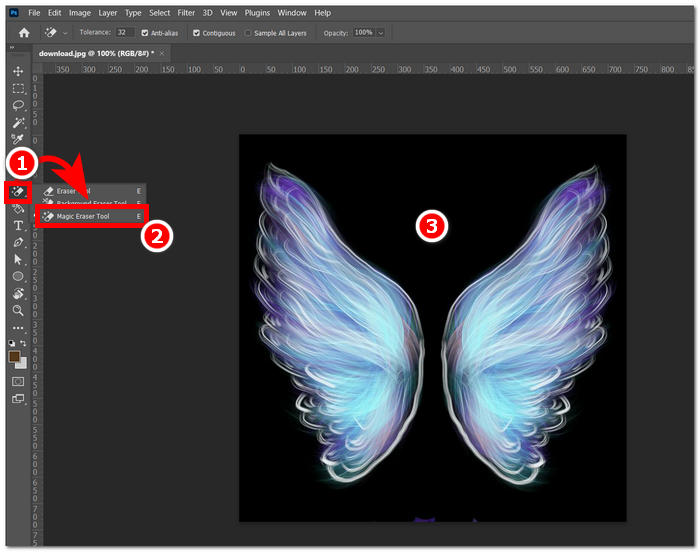
स्टेप 2. जैसे ही इमेज सॉफ़्टवेयर में लोड हो जाए, बाएँ तरफ दिए गए नेविगेशन टूलबार में Eraser Tool खोजें और उसमें से Magic Eraser Tool चुनें।.
स्टेप 3. Magic Eraser Tool सेलेक्ट होने के बाद, अपनी इमेज के बैकग्राउंड वाले हिस्से पर क्लिक करें, ताकि बैकग्राउंड अपने‑आप हट जाए।.
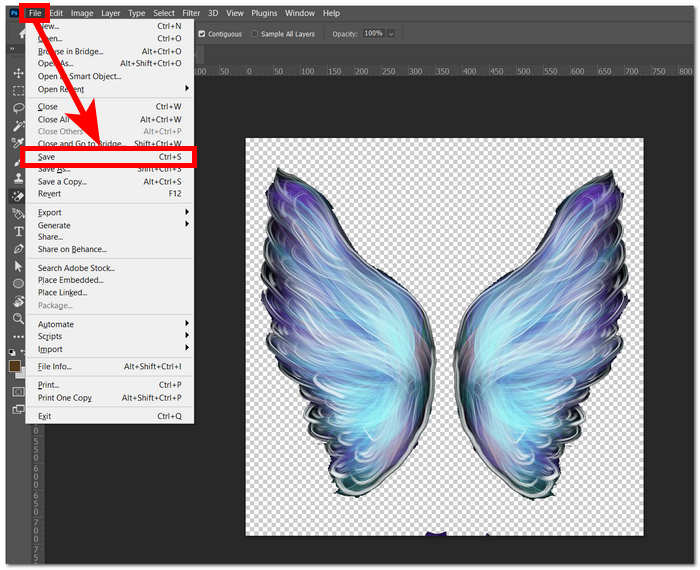
स्टेप 4. जब इमेज से बैकग्राउंड हट जाए, तो स्क्रीन के ऊपर‑बाएँ कोने में मौजूद File सेक्शन में जाएँ और Save या Export पर क्लिक करके इमेज को अपने डेस्कटॉप पर डाउनलोड कर लें।.
उन्नत प्रौद्योगिकी और सुविधाओं के संयोजन के माध्यम से, फ़ोटोशॉप प्रत्येक उपयोगकर्ता में आंतरिक निर्माता को सशक्त और उन्मुक्त करता है। एडोब अपने सहज ज्ञान युक्त इंटरफ़ेस के साथ छवियों से पृष्ठभूमि को हटाता है, यह सुनिश्चित करता है कि एडोब सॉफ़्टवेयर में कोई भी कठिन कार्य संभव नहीं है।
तार से पुष्ट किया हुआ फ़ीता
GIMP एक ओपन-सोर्स एप्लीकेशन है जो उपयोगकर्ताओं को छवियों से सफ़ेद पृष्ठभूमि या किसी भी अवांछित पृष्ठभूमि को हटाने की अनुमति देता है, जो इसे ग्राफिक उत्साही और छवि संपादन में नए लोगों के लिए एक आदर्श विकल्प बनाता है। अपनी पृष्ठभूमि हटाने की विशेषताओं से परे, GIMP में उपकरणों और कार्यात्मकताओं का एक बहुमुखी सेट है, और GIMP की क्षमताओं में गहराई से जाने से पृष्ठभूमि हटाने में अधिकतम और उत्कृष्टता प्राप्त करने में मदद मिल सकती है और दृश्य वृद्धि और हेरफेर के व्यापक स्पेक्ट्रम की सुविधा भी मिलती है।
स्टेप 1. GIMP सॉफ़्टवेयर खोलें, फिर अपनी स्क्रीन के ऊपर‑बाएँ कोने में मौजूद File सेक्शन से Open पर क्लिक करके अपनी इमेज इम्पोर्ट करें।.
स्टेप 2. जैसे ही इमेज सॉफ़्टवेयर में दिखाई दे, नीचे‑दाएँ हिस्से में जाएँ, लेयर को सेलेक्ट करें, लेयर पर राइट‑क्लिक करें और सेटिंग्स में से Add Alpha Channel चुनें।.
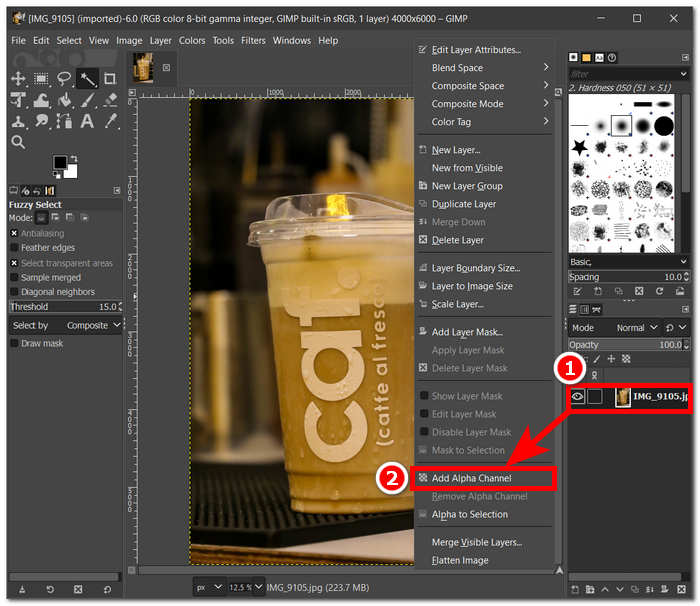
स्टेप 3. ऊपर‑बाएँ कोने में मौजूद Fuzzy Select टूल पर क्लिक करें। इसे सेलेक्ट करने के बाद, उस एरिया पर ड्रैग करें जिसे आप इमेज से हटाना चाहते हैं।.
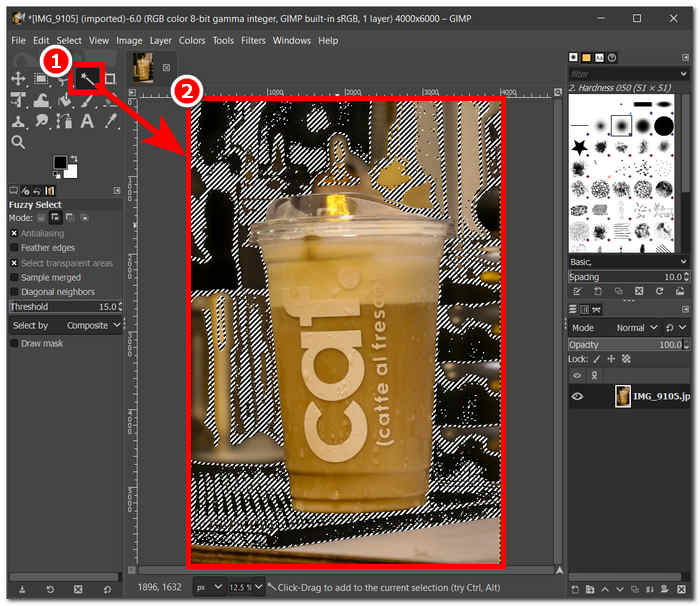
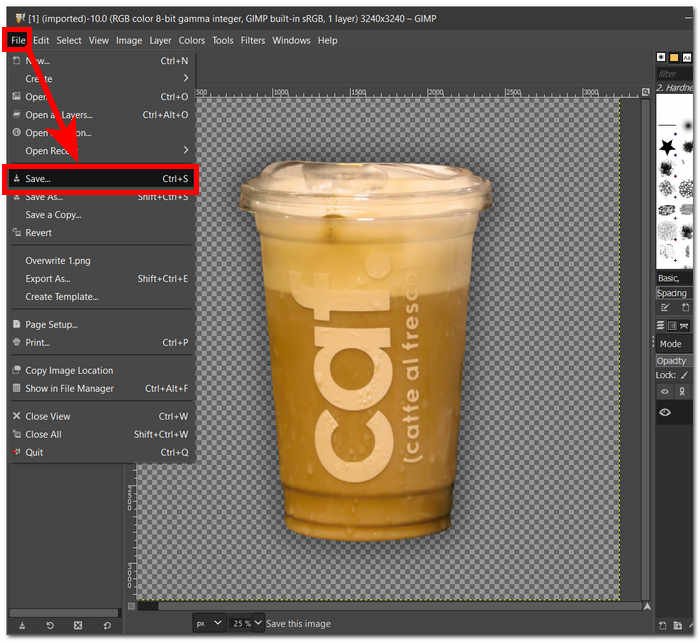
स्टेप 4. चुने गए एरिया के चारों ओर डॉटेड आउटलाइन दिखाई देगी; अब बैकग्राउंड हटाने के लिए कीबोर्ड पर Del कुंजी दबाएँ। जब आप परिणाम से संतुष्ट हों, तो स्क्रीन के ऊपर‑बाएँ हिस्से में File सेक्शन में जाकर Save चुनें और इमेज को अपने डेस्कटॉप पर डाउनलोड कर लें।.
GIMP अपने उपयोगकर्ता‑अनुकूल इंटरफ़ेस की बदौलत अनुभवी प्रोफ़ेशनल्स और शुरुआत करने के इच्छुक दोनों तरह के यूज़र्स के लिए एक आदर्श टूल के रूप में उभरकर सामने आया है। इसमें आपकी पसंद के अनुसार बैकग्राउंड हटाने के लिए कई तरह के विकल्प मौजूद हैं। इसमें कलर टूल्स, पाथ टूल्स, लेयर मास्किंग और फ़ज़ी टूल जैसे फ़ीचर्स हैं, जो इसे बेहद बहुमुखी सॉफ़्टवेयर बनाते हैं।.
फोटो कला
पिक्सआर्ट एक नौसिखिया उपकरण है जो मोबाइल डिवाइस पर अपने एप्लिकेशन संस्करण के लिए लोकप्रिय है। इसके रिमूवर टूल में सीधा और तुरंत परिणाम मिलता है। बैकग्राउंड हटाने में इसकी सटीकता और इसे हटाने के तेज़, कुशल तरीके इसके द्वारा उपयोग किए जाने वाले AI से आए हैं। बैकग्राउंड हटाने के अलावा इसकी एक विशेषता यह है कि यह आपकी छवियों से बैकग्राउंड को बदल सकता है या जोड़ सकता है, जो इस टूल को पसंद करने योग्य बनाता है। किसी छवि का बैकग्राउंड कैसे हटाएं? अब चिंता न करें और नीचे सूचीबद्ध आसान चरणों का पालन करें।
स्टेप 1. अपने लोकल ब्राउज़र में Picsart Background Remover टूल पर जाएँ और अपनी इमेज अपलोड करने के लिए Browse Files पर क्लिक करें।.
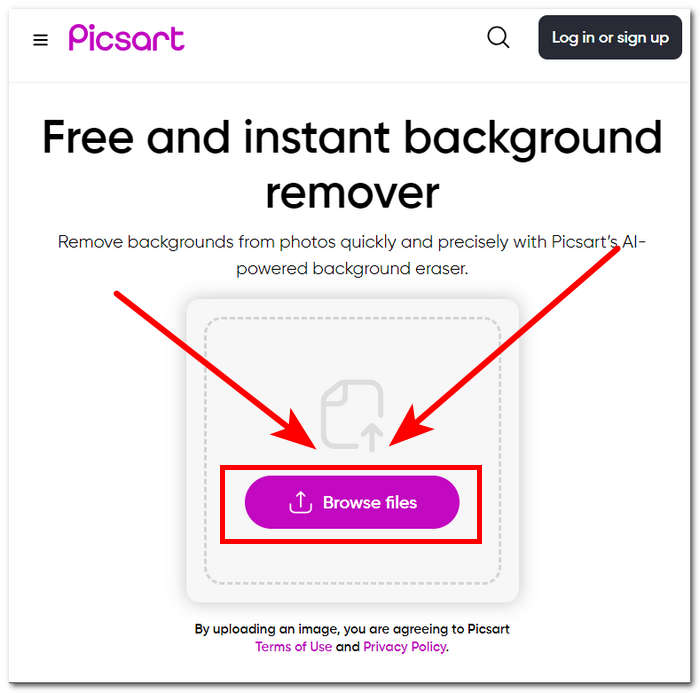
स्टेप 2. अपलोड शुरू होते ही टूल आपकी इमेज को अपने‑आप पहचानकर एनालाइज़ करेगा और इसी प्रक्रिया के दौरान बैकग्राउंड हटा देगा।.
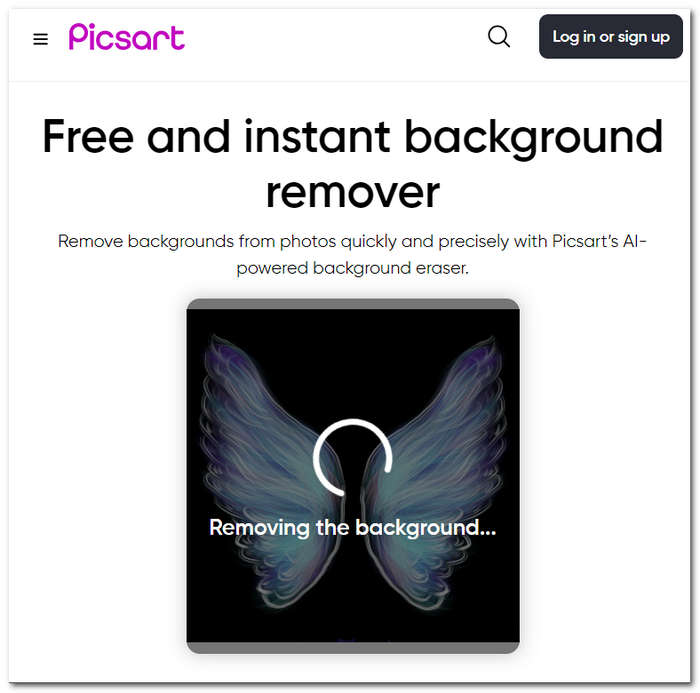
स्टेप 3. प्रोसेस पूरा होने पर, टूल आपको इमेज का प्रीव्यू और एडिट करने की सुविधा देगा; और जैसे ही आप परिणाम से संतुष्ट हों, Download बटन पर क्लिक करके अपनी इमेज सेव कर लें।.
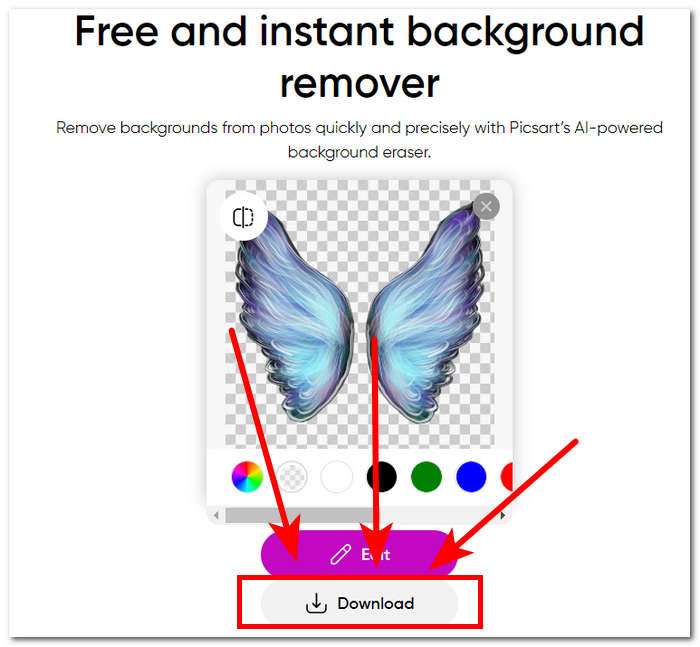
निष्कर्ष में, छवि संपादन के लिए एक एप्लिकेशन के रूप में पिक्सआर्ट की लोकप्रियता ने इस उपकरण को सभी प्रकार की दृश्य संपादन आवश्यकताओं को पूरा करने के लिए अनुकूलित और निवेश किया है। इसका बैकग्राउंड रिमूवर निश्चित रूप से सटीकता के साथ एक पल में अपना काम करता है। इसलिए, आपको अपनी छवि को पूरी तरह से उच्च रिज़ॉल्यूशन में डाउनलोड करने में सक्षम होने के लिए अभी भी साइन अप करने की आवश्यकता होगी। अन्यथा, आप कम-रिज़ॉल्यूशन परिणामों के साथ फंस जाएंगे।
भाग 3. किसी छवि से पृष्ठभूमि हटाने के बारे में अक्सर पूछे जाने वाले प्रश्न
क्या आप छवि की पृष्ठभूमि स्वचालित रूप से हटा सकते हैं?
हां, FVC फ्री बैकग्राउंड रिमूवर, एडोब एक्सप्रेस और कैनवा सहित कई उन्नत छवि संपादन उपकरण छवियों से पृष्ठभूमि का पता लगाने और स्वचालित रूप से हटाने के लिए कृत्रिम बुद्धिमत्ता एल्गोरिदम का उपयोग करते हैं। यह सुविधा संपादन प्रक्रिया को सुव्यवस्थित करती है, जिससे यह उपयोगकर्ताओं के लिए तेज़ और अधिक कुशल बन जाती है।
क्या आप छवि की पृष्ठभूमि को स्वचालित रूप से हटा सकते हैं?
हां, FVC फ्री बैकग्राउंड रिमूवर, एडोब एक्सप्रेस और कैनवा सहित कई उन्नत छवि संपादन उपकरण छवियों से पृष्ठभूमि का पता लगाने और स्वचालित रूप से हटाने के लिए कृत्रिम बुद्धिमत्ता एल्गोरिदम का उपयोग करते हैं। यह सुविधा संपादन प्रक्रिया को सुव्यवस्थित करती है, जिससे यह उपयोगकर्ताओं के लिए तेज़ और अधिक कुशल बन जाती है।
क्या आप JPG छवियों की पृष्ठभूमि हटा सकते हैं?
बिल्कुल, बैकग्राउंड रिमूवर टूल JPG इमेज फॉर्मेट को सपोर्ट करते हैं। टूल की बहुमुखी प्रतिभा विभिन्न इमेज फॉर्मेट में फैली हुई है, जिससे यह सुनिश्चित होता है कि उपयोगकर्ता अपनी JPEG फ़ाइलों को आसानी से संपादित और बेहतर बना सकते हैं। इसलिए, यह अभी भी इस बात पर निर्भर करता है कि आप कौन से टूल या सॉफ़्टवेयर का उपयोग कर रहे हैं क्योंकि कुछ को JPG फॉर्मेट और इस तरह के बैकग्राउंड को हटाने में सक्षम होने के लिए सदस्यता की आवश्यकता होती है।
क्या PNG एकमात्र छवि प्रारूप है जो पारदर्शी पृष्ठभूमि का समर्थन करता है?
जबकि PNG पारदर्शी पृष्ठभूमि वाली छवियों के लिए आम तौर पर इस्तेमाल किया जाने वाला प्रारूप है, GIF और TIFF जैसे अन्य प्रारूप भी पारदर्शिता का समर्थन करते हैं। हालाँकि, ऊपर बताए गए समान उपकरण अक्सर PNG के साथ इष्टतम परिणाम प्रदान करते हैं क्योंकि पारदर्शिता सेटिंग्स के साथ इसकी व्यापक रूप से स्वीकृत संगतता है।
किसी छवि की पृष्ठभूमि हटाने के लिए मैं क्या उपयोग कर सकता हूँ?
आप Adobe Express और Photoshop जैसे समर्पित इमेज एडिटिंग सॉफ़्टवेयर या FVC Free Background Remover जैसे विशेष ऑनलाइन टूल का उपयोग कर सकते हैं। ये टूल आम तौर पर उपयोगकर्ता के अनुकूल इंटरफेस और उन्नत सुविधाएँ प्रदान करते हैं, जिससे आप सटीक और पेशेवर दिखने वाले परिणाम प्राप्त कर सकते हैं।
निष्कर्ष
संक्षेप में, किसी तस्वीर का बैकग्राउंड हटाने की प्रक्रिया किसी एक ख़ास एप्लिकेशन, सॉफ़्टवेयर या टूल पर निर्भर नहीं करती। इसकी प्रभावशीलता इस बात पर निर्भर करती है कि उपयोगकर्ता उपलब्ध टूल्स की सुविधाओं को कितनी कुशलता से समझकर उनका पूरा इस्तेमाल कर पाता है। अंततः बैकग्राउंड रिमूवल में सफलता किसी प्रोजेक्ट को सफलतापूर्वक पूरा करने में निहित है, जो यह बात उजागर करती है कि टूल का चुनाव उपयोगकर्ता की पसंद और काम करने के तरीके के अनुरूप होना चाहिए, भले ही इस्तेमाल किया गया टूल कोई भी हो।.
-
 पिकविश फोटो एन्हांसर समीक्षा और आजमाने लायक वैकल्पिक उपकरण
 उस जादू की खोज करें जो पिकविश इमेज एनहांसर फोटो संपादन की दुनिया में लाता है। एक गहन समीक्षा और आपके प्रयास के लिए व्यवहार्य विकल्प तलाशना।
-
 विंडोज़/मैक/ऑनलाइन पर छवि से टेक्स्ट कैसे हटाएं
 अपनी छवियों में ध्यान भटकाने वाले टेक्स्ट को अलविदा कहें! टेक्स्ट हटाने के लिए सहजता से डिज़ाइन किए गए इन आसान समाधानों के साथ छवियों से टेक्स्ट को मिटाने का तरीका जानें।
-
 बैकग्राउंड रिमूवर और फोटो एन्हांसर के लिए फ़ोटोर समीक्षा
 फ़ोटोर बैकग्राउंड रिमूवर और फ़ोटो एन्हांसर के बारे में आपको जो कुछ जानने की ज़रूरत है। इसकी कुछ विशेषताओं को देखें और सुझाए गए विकल्प को देखें जो आपकी आवश्यकताओं के अनुरूप हो।
