


 वीडियो कनवर्टर अंतिम
 स्क्रीन अभिलेखी
 वीडियो मरम्मत
Mac पर OGV फ़ाइलों को कनवर्ट करने के लिए OGV से MOV कन्वर्टर में सबसे ऊपर
वेब पेजों पर वीडियो सामग्री स्टोर करने के लिए अक्सर उपयोग किए जाने वाले सबसे अच्छे लॉसी वीडियो फ़ॉर्मैट्स में से एक OGV है। इस फ़ॉर्मैट की संरचना लगभग OGG फ़ाइलों जैसी ही होती है, लेकिन इसमें वीडियो होता है। हालाँकि यह फ़ॉर्मैट मीडिया फ़ाइलों को स्टोर कर सकता है और उन्हें इंटरनेट पर प्रेषित भी कर सकता है, फिर भी इसे सभी मीडिया प्लेयर्स और एडिटर्स का व्यापक समर्थन नहीं मिला है। Mac पर वीडियो प्लेयर या एडिटर के मानकों से फ़ॉर्मैट को मिलाने के लिए, आपको OGV फ़ाइलों को MOV जैसे स्वीकृत फ़ॉर्मैट में कनवर्ट करना होगा। सौभाग्य से, हम ऐसे चरण प्रदान करते हैं जिनकी मदद से आप इसकी गुणवत्ता बदले बिना आसानी से OGV को MOV में कनवर्ट कर सकते हैं।.

भाग 1. मैक पर सर्वश्रेष्ठ OGV से MOV कनवर्टर के साथ OGV को MOV में बदलें
क्या आप जानना चाहते हैं कि Mac पर अंतिम/सबसे बढ़िया OGV से MOV कनवर्टर कौन‑सा है? अगर आप यही चाहते हैं, तो FVC Video Converter Ultimate का उपयोग करें। क्यों? क्योंकि यह एक शानदार कनवर्टर है, जिससे आप OGV की एन्कोडिंग और डिकोडिंग को 1‑2‑3 जितना आसान बना सकते हैं। साथ ही, आप अन्य ऑनलाइन और ऑफलाइन कनवर्टर्स की तुलना में एक मिनट से भी कम समय में, या कुछ ही सेकंडों में कनवर्ज़न पूरा कर सकते हैं।.
सिर्फ इतना ही नहीं, आप अपने वीडियो को एडिट कर सकते हैं, उन्हें मर्ज कर सकते हैं, GIF बना सकते हैं, वीडियो को तेज़ या धीमा कर सकते हैं, और भी बहुत कुछ कर सकते हैं। निस्संदेह, यह एक बेहतरीन कनवर्टर है, जिसने पहले ही बहुत‑से उपयोगकर्ताओं की मदद की है, और अगला नंबर आपका है। आपकी समस्या को हल करने के लिए, अब कनवर्टर का उपयोग कैसे करें, इस पर ट्यूटोरियल पर आगे बढ़ते हैं।.
स्टेप 1. इस टूल को अपने Mac पर इस्तेमाल करने के लिए, पहले इसे डाउनलोड करें, फिर इंस्टॉल करें। इन प्रक्रियाओं के बाद एक वेलकम विंडो दिखाई देगी, उस पर Start Now पर क्लिक करें।.
फ्री डाउनलोडWindows 7 या बाद के संस्करण के लिएसुरक्षित डाउनलोड
फ्री डाउनलोडMacOS 10.7 या बाद के संस्करण के लिएसुरक्षित डाउनलोड
स्टेप 2. अपनी .ogv फ़ाइल को यहाँ ट्रांसफर करें, फिर Add Files या + पर क्लिक करके फ़ोल्डर में उसे ढूँढ़ें।.
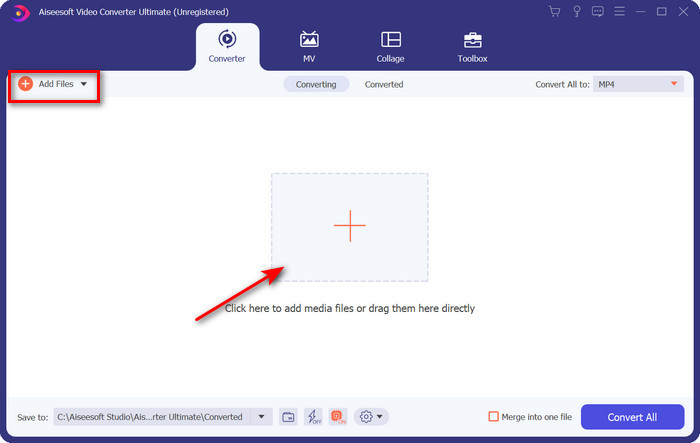
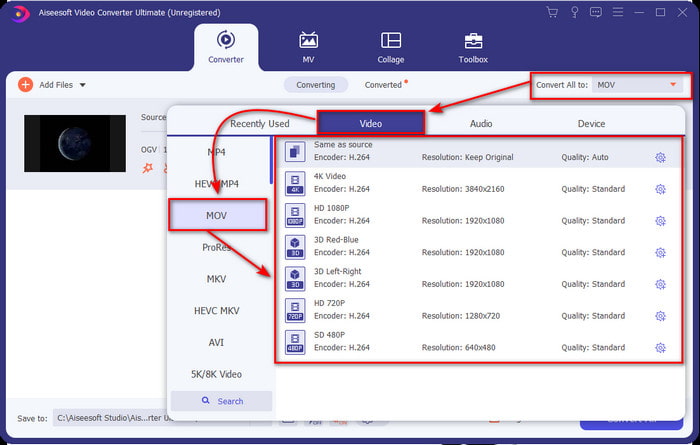
स्टेप 3. फ़ाइल अपलोड करने के बाद, आपको Convert All के अंतर्गत फ़ॉर्मैट को बदलकर MOV करना होगा।.
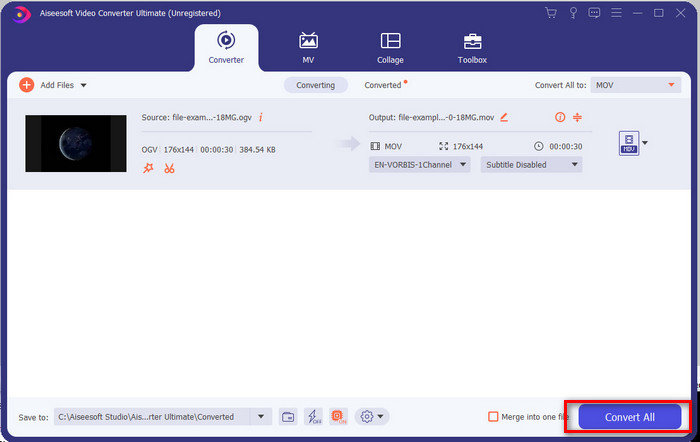
स्टेप 4. Convert All बटन पर क्लिक करके कनवर्ट करने की प्रक्रिया शुरू करें।.
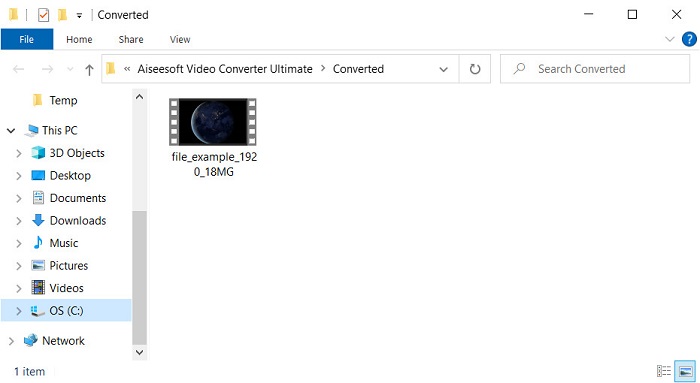
स्टेप 5. जब OGV को MOV में कनवर्ट करना पूरा हो जाए, तो एक और फ़ोल्डर दिखाई देगा, जिसमें आपकी फ़ाइल होगी। अब आप नई MOV फ़ॉर्मैट वाली इस मीडिया फ़ाइल को देखने या एडिट करने के लिए उस पर स्वतंत्र रूप से क्लिक कर सकते हैं।.
पेशेवरों
- अगले स्तर के कनवर्टर का उपयोग आप मैक या पीसी पर भी कर सकते हैं।
- टूलबॉक्स में एडिटिंग, मर्जिंग, कटिंग, क्रॉपिंग और बहुत कुछ जैसी उन्नत सुविधाएँ हैं।
- यह सॉफ़्टवेयर कितना हल्का है, इस वजह से हमेशा रूपांतरण करने वाले उपयोगकर्ताओं द्वारा अनुकूल विकल्प।
- बैच अपने OGV, MOV, AVI, MKV, MP4, 200+ अधिक प्रारूप को यहां रूपांतरित करें।
विपक्ष
- सॉफ्टवेयर का उपयोग करने के लिए भुगतान करें।
भाग 2. नि:शुल्क और उपयोग में आसान कनवर्टर के साथ OGV को MOV ऑनलाइन में बदलें
डाउनलोड, इंस्टॉलेशन और कनवर्टर सेट‑अप के झंझट में नहीं पड़ना चाहते? तो सभी सर्च इंजनों पर उपलब्ध इस ऑनलाइन OGV से MOV कनवर्टर का उपयोग करें। FVC Free Video Converter Online एक आधुनिक ऑनलाइन वीडियो कनवर्टर है, जिसका उपयोग असमर्थित फ़ॉर्मैट को चलने योग्य फ़ॉर्मैट में बदलने के लिए किया जाता है। बहुत‑से इंटरनेट उपयोगकर्ता पहले से ही इस वेब टूल के समग्र प्रदर्शन का आनंद ले रहे हैं। इसके अलावा, इस टूल का उपयोग करने से पहले किसी रजिस्ट्रेशन की ज़रूरत नहीं पड़ती और न ही वेबसाइट पर ऐसे परेशान करने वाले विज्ञापन हैं जो आपके कनवर्ज़न में बाधा डालें। लेकिन, यदि आपके पास इंटरनेट कनेक्शन नहीं है, तो आप इसका उपयोग नहीं कर सकते। तो अब, अगर आप अपना सामान्य कनवर्टर बदलना चाहते हैं, तो इसका उपयोग करें और नीचे दिए गए चरणों का पालन करें।.
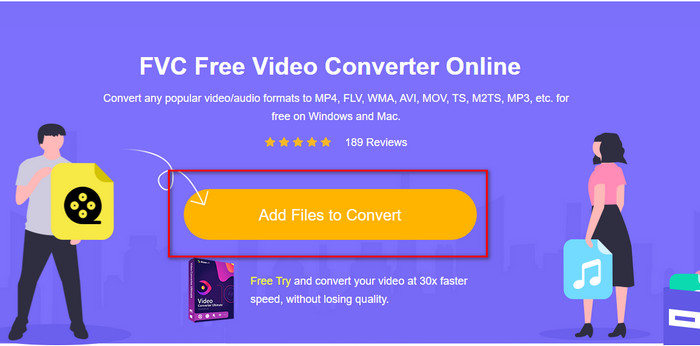
स्टेप 1. इस वेब टूल की वेबसाइट पर जाने के लिए इस FVC Free Video Converter Online पर क्लिक करें।.
स्टेप 2. वेब इंटरफ़ेस पर Add Files to Convert पर क्लिक करें, और वह फ़ोल्डर दिखाई देगा जहाँ आप OGV फ़ाइल ढूँढ़ सकते हैं, फिर Open पर क्लिक करें।.
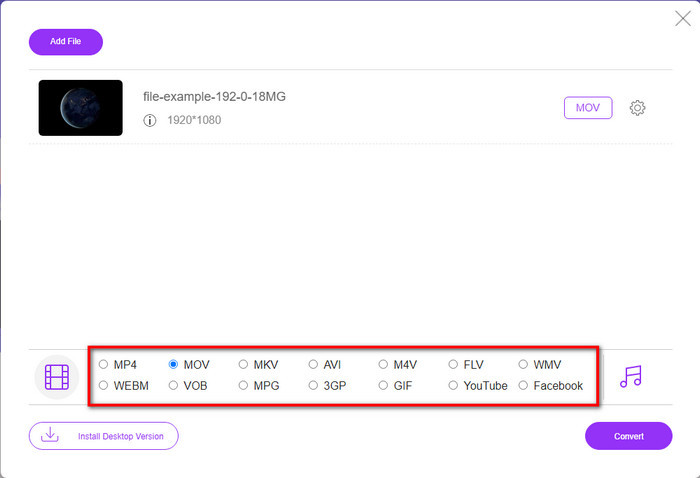
स्टेप 3. नीचे दिए गए विकल्पों में से MOV फ़ॉर्मैट या अपनी इच्छित अंतिम आउटपुट फ़ॉर्मैट चुनें।.
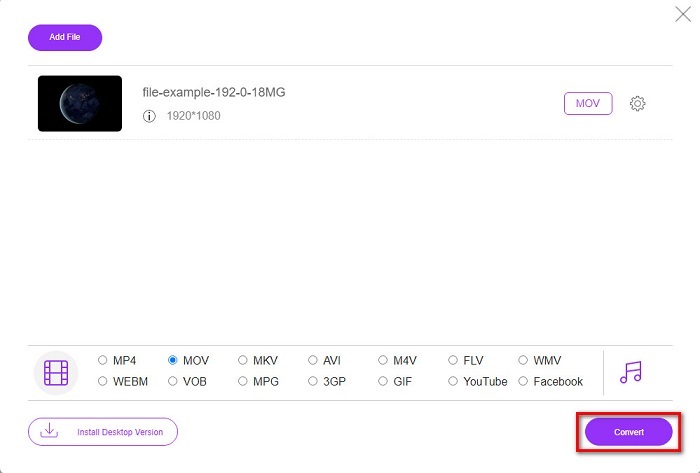
स्टेप 4. कन्वर्ज़न की प्रक्रिया शुरू करने के लिए Convert पर क्लिक करें।.
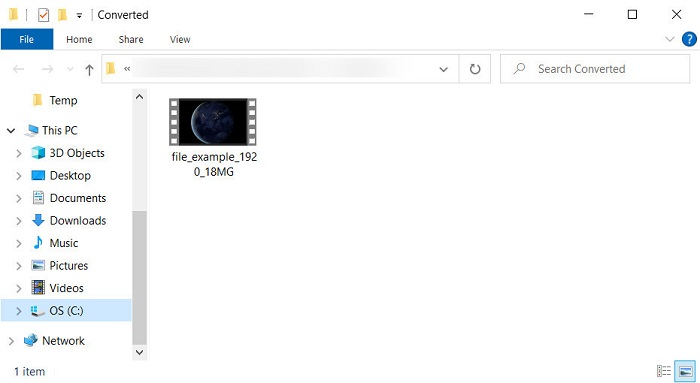
स्टेप 5. कन्वर्ज़न के बाद अगली बार फ़ाइल एक्सप्लोरर दिखाई देगा; वहाँ आपकी कनवर्ट की गई फ़ाइल होगी; उसे देखने के लिए उस पर क्लिक करें।.
पेशेवरों
- मध्यम-श्रेणी के प्रारूप का समर्थन करता है और सभी वेब ब्राउज़रों में संगत है।
- उपयोग करने के लिए नि: शुल्क और कोई साइन अप की आवश्यकता नहीं है।
- वेब टूल में और कनवर्ट करते समय पेस्की विज्ञापन प्रस्तुत नहीं किए जाते हैं।
विपक्ष
- इंटरनेट पर निर्भर।
- बैच रूपांतरण का समर्थन नहीं करता।
भाग 3. ओजीवी बनाम एमओवी
OGV एक मल्टीमीडिया फ़ाइल स्वरूप है जो HTML 5 वीडियो टैग के लिए Theora, Dirac, या Daala जैसे कई कोडेक का उपयोग करता है। लेकिन जब आप इसे HTML पर उपयोग करते हैं, तो इसे .ogg कहा जाता है, भले ही फ़ाइल में वीडियो सामग्री हो। चूंकि यह एक वेबसाइट पर है, इसलिए प्रारूपों की अनूठी संरचना और कई कोडेक के कारण इसे डिफ़ॉल्ट मीडिया प्लेयर पर चलाना चुनौतीपूर्ण है। लेकिन अगर आप अपनी वेबसाइट पर एक उत्कृष्ट दृश्य और ऑडियो जोड़ना चाहते हैं, तो यह एक जरूरी उपयोग है।
MOV ऑडियो, वीडियो और उपशीर्षक की गुणवत्ता को संरक्षित करते हुए कई ट्रैक और मीडिया डेटा को संग्रहीत करने के लिए Apple द्वारा बनाया गया प्रारूप है। साथ ही, आप उन मीडिया ट्रैक्स को सिंक्रोनाइज़ कर सकते हैं जो MPEG-4 या अन्य कोडेक्स में एन्कोडेड हैं। भले ही प्रारूप क्विकटाइम के लिए है, फिर भी आप इसे विंडोज मीडिया प्लेयर पर चला सकते हैं क्योंकि यह समर्थित है।
इसे पूरा करने के लिए, यदि आप अपनी वेबसाइट पर एक वीडियो और ऑडियो सम्मिलित करना चाहते हैं और डेटा को तेज़ी से स्थानांतरित करना चाहते हैं, तो ओजीवी के साथ जाएं। लेकिन अगर आप पहले वीडियो को संपादित करना चाहते हैं और इसे अपने मैक पर चलाना चाहते हैं, तो ओजीवी का उपयोग न करें क्योंकि यह असमर्थित है। इसके बजाय, MOV का उपयोग करें क्योंकि यह सभी Apple उपकरणों के साथ संगत है, चाहे वह Mac, iPhone, iPod या iPad हो। अपने OGV को MOV में कनवर्ट करना क्विकटाइम प्लेयर, iMovie या अन्य टूल्स के साथ संगतता होना आवश्यक है जो आप Apple पर पा सकते हैं।
भाग 4. OGV से MOV रूपांतरण के बारे में अक्सर पूछे जाने वाले प्रश्न
क्या मैं OGV को कंप्रेस कर सकता हूँ?
फ़ाइल को कंप्रेस करना ज़रूरी होता है, ख़ासकर जब आप उसे ईमेल के ज़रिए भेजना चाहते हैं, क्योंकि यहाँ मीडिया फ़ाइल भेजने की एक सीमा होती है। तो अब, अगर आप अपनी फ़ाइल का आकार छोटा बनाना चाहते हैं, तो यह जानने के लिए यह लेख पढ़ें कि OGV फ़ाइलों को कैसे कंप्रेस करें।.
क्या वीएलसी खेलने के लिए ओजीवी फाइलों का समर्थन करता है?
हालांकि इस प्रारूप का उद्देश्य एचटीएमएल 5 टैग पर होना है, फिर भी आप डाउनलोड की गई ओजीवी फाइलों को देखने के लिए वीएलसी प्लेयर का उपयोग कर सकते हैं। लेकिन क्या आप जानते हैं कि इस प्रारूप को चलाने के लिए आप अन्य वीएलसी विकल्पों का उपयोग कर सकते हैं? यदि आप जानना चाहते हैं कि वीएलसी के लिए मीडिया प्लेयर के विकल्प क्या हैं, तो इस लिंक पर क्लिक करें।
क्या परिवर्तित होने के बाद OGV की गुणवत्ता बदल जाएगी?
OGV फ़ाइल को परिवर्तित करने के बाद, इसकी गुणवत्ता मूल के समान ही रहनी चाहिए। लेकिन आप FVC वीडियो कन्वर्टर अल्टीमेट की मदद से वीडियो रेट को ज्यादा या ज्यादा कर सकते हैं। अन्य कन्वर्टर्स के विपरीत जो आपकी इच्छा में गुणवत्ता में हेरफेर प्रदान नहीं करते हैं। साथ ही, यदि आप हाई डेफिनिशन वीडियो चाहते हैं तो आप इसे 1080 या 4k पर सेट कर सकते हैं।
निष्कर्ष
निष्कर्षों के परिणामस्वरूप, आपके खेलने या संपादित करने से पहले डाउनलोड की गई OGV फ़ाइल को परिवर्तित करना आवश्यक है। इस बार यह आपके हाथ में है कि आप किस तरीके का उपयोग करें और अपनी OGV फ़ाइलों को MOV में बदलें। एक संक्षिप्त पुनर्कथन करने के लिए, यदि आप फ़ाइलों को मुफ्त में और बिना किसी गड़बड़ी के ऑनलाइन कनवर्ट करना चाहते हैं, तो FVC फ्री वीडियो कन्वर्टर ऑनलाइन के साथ जाएं। हालाँकि, यदि आप रूपांतरण की नई ऊंचाइयों का अनुभव करना चाहते हैं, तो आपको FVC वीडियो कन्वर्टर अल्टीमेट डाउनलोड करना होगा। सबसे अच्छा कनवर्टर चुनें जो ओजीवी प्रारूप के साथ आपकी समस्या में सहायता करेगा।
-
 DivX को MOV में मुफ्त में बदलने के 4 तरीके [ऑनलाइन और ऑफलाइन]
 क्या आप डिवएक्स की सीमाओं के साथ संघर्ष करते हैं, या क्या आपके पास इस प्रारूप में वीडियो तक पहुंचने के लिए मीडिया प्लेयर नहीं हैं? यदि आप इसे MOV प्रारूप में बदलना चाहते हैं, तो अंतराल को भरने के लिए इस लेख को पढ़ना जारी रखें।
-
 मुफ्त M4V से MOV कन्वर्टर - M4V को MOV में कैसे बदलें
 यदि आपका मीडिया प्लेयर M4V का समर्थन नहीं करता है, तो क्या आपने कभी अपने iPhone पर मूवी देखने के लिए संघर्ष किया है? इस लेख का मुख्य विषय इसे MOV वीडियो फ़ाइल में बदलना है।
-
 एमपीईजी को एमओवी में बदलने के 3 प्रभावी तरीके [ऑफ़लाइन और ऑनलाइन]
 क्या आप अपने एमपीईजी वीडियो प्रारूप को चलाने के लिए मीडिया प्लेयर ढूंढकर थक गए हैं? इसे अन्य प्रारूपों में बदलने का प्रयास करें, जो विशेष रूप से मैक पर चलने की संभावना है, उदाहरण के लिए, एक एमओवी वीडियो प्रारूप। अधिक जानने के लिए इस लेख को पढ़ें।
