


 वीडियो कनवर्टर अंतिम
 स्क्रीन अभिलेखी
 वीडियो मरम्मत
 सुरक्षित डाउनलोड
iPhone पर वीडियो न चलने की समस्या को ठीक करने के 5 समाधान
क्या आपने कभी iPhone पर वीडियो न चलने की समस्या का सामना किया है? जब आप अपना कॉन्टेंट तैयार कर लेते हैं और उसे अपने फ़ोन की हाई‑रेज़ोल्यूशन स्क्रीन पर देखने वाले होते हैं, तभी यह एरर विंडो सामने आ जाती है। यह समस्या वाकई बहुत झुंझलाहट पैदा करती है। दिक्कत वीडियो में है या डिवाइस में? इसे ठीक करने के लिए क्या किया जा सकता है?
हम इस समस्या को हल करने में आपकी मदद करने के लिए प्रतिबद्ध हैं। कुल पाँच संभावित समाधान हैं, और यहाँ दो सर्वश्रेष्ठ तृतीय-पक्ष टूल की अनुशंसा की जाएगी। हमें विश्वास है कि यहाँ दी गई मार्गदर्शिका आपके वीडियो को जल्दी से सामान्य स्थिति में लाने में आपकी मदद करेगी।

भाग 1. असमर्थित वीडियो प्रारूपों को परिवर्तित करें
वीडियो के न पढ़े जाने और न ही चलाए जाने का सबसे संभावित कारण यह है कि आपका फ़ाइल फ़ॉर्मेट iPhone के साथ संगत नहीं है। कृपया ध्यान दें कि iPhone वर्तमान में MP4, MP3, MPEG-4, MOV, AAC, M4A, इत्यादि सहित वीडियो फ़ॉर्मेट का समर्थन करता है। आपके वीडियो के लिए इस्तेमाल किया जाने वाला कोडेक H.264 या H.265 हो सकता है।
यदि आप जो वीडियो खोलना चाहते हैं वह उपरोक्त प्रारूपों में नहीं है, तो आपको iPhone पर फोटो में वीडियो न चलने की समस्या का सामना करना पड़ सकता है।
कृपया सबसे पहले फ़ाइल को एक अनुकूल (कम्पैटिबल) फ़ॉर्मेट में बदलें। इस चरण को पूरा करने के लिए, आपको एक प्रोफेशनल फ़ॉर्मेट कन्वर्टर की ज़रूरत पड़ सकती है। हम FVC Video Converter Ultimate की सलाह देते हैं। यह हज़ार तक मल्टीमीडिया फ़ॉर्मेट्स को सपोर्ट करता है। हार्डवेयर ऐक्सेलरेशन फीचर की मदद से आप किसी भी ऐसी फ़ाइल को, जो iPhone के साथ कम्पैटिबल नहीं है, 30 गुना तेज़ गति से कनवर्ट कर सकते हैं। प्रीव्यू और एडिटिंग फीचर भी इस प्लेटफ़ॉर्म में उपलब्ध हैं। आप वीडियो को अपनी पसंद के अनुसार क्रॉप, मर्ज, रोटेट कर सकते हैं, या कन्वर्ज़न पूरा होने के बाद टेक्स्ट, वॉटरमार्क, फ़िल्टर आदि जोड़ सकते हैं।.
फ्री डाउनलोडWindows 7 या बाद के संस्करण के लिएसुरक्षित डाउनलोड
फ्री डाउनलोडMacOS 10.7 या बाद के संस्करण के लिएसुरक्षित डाउनलोड
यहां बताया गया है कि FVC वीडियो कनवर्टर अल्टीमेट के साथ वीडियो कैसे परिवर्तित करें।
स्टेप 1. अपने कंप्यूटर पर FVC Video Converter Ultimate डाउनलोड और इंस्टॉल करें। अपना टार्गेट वीडियो अपलोड करने के लिए Add Files पर क्लिक करें।.

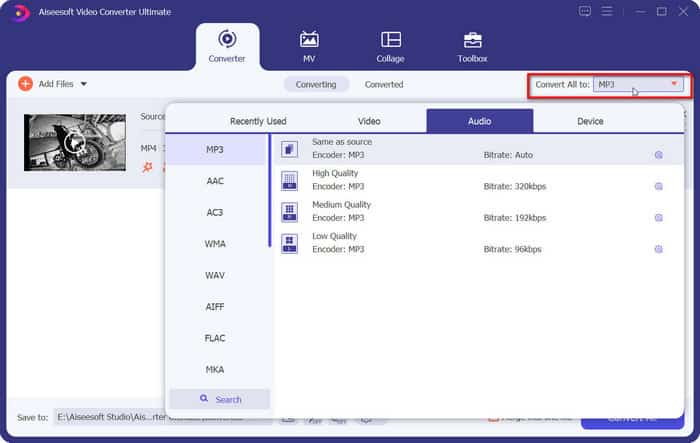
स्टेप 2. Convert All to पर क्लिक करें और ड्रॉप‑डाउन सूची को खोलें। iPhone के साथ कम्पैटिबल कोई फ़ॉर्मेट चुनें, जैसे MP4।.
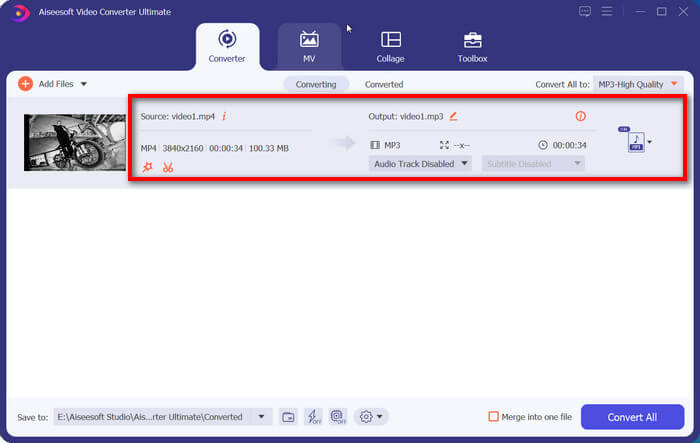
स्टेप 3. मुख्य इंटरफ़ेस पर वापस आएं। अपलोड किए गए वीडियो का चयन करें। अंत में, Convert All पर क्लिक करें।.
भाग 2. दूषित वीडियो सुधारें
फ़ॉर्मेट बेमेल होने के कारण iPhone वीडियो चलाने से रोक सकता है। लेकिन अगर आपको लगता है कि iPhone वीडियो PC पर नहीं चल रहे हैं और कई प्लेयर बदलने से समस्या हल नहीं होती है, तो इसका मतलब है कि वीडियो में कुछ गड़बड़ है। शूटिंग, स्टोरेज या ट्रांसमिशन के दौरान आपकी फ़ाइलें दूषित होने की संभावना है।
हमने इस स्थिति के लिए भी एक समाधान तैयार किया है। FVC Video Repair किसी भी परिस्थिति में आपके करप्ट (खराब) वीडियो को ठीक कर देगा। आपको सिर्फ़ एक ऐसा सैंपल वीडियो अपलोड करना है जो निर्धारित आवश्यकताओं को पूरा करता हो। यह प्लेटफ़ॉर्म नवीनतम AI एल्गोरिदम का इस्तेमाल करके सामान्य तस्वीर (वीडियो क्वॉलिटी) को बहाल कर देगा। बेहद आसान स्टेप्स और बहुत अधिक सक्सेस रेट के कारण यह बहुत से यूज़र्स के लिए एक भरोसेमंद प्रोडक्ट है।.
Free DownloadWindows 7 या उससे नए वर्ज़न के लिएसुरक्षित डाउनलोड
Free DownloadMacOS 10.7 या उससे नए वर्ज़न के लिएसुरक्षित डाउनलोड
FVC वीडियो रिपेयर के साथ टूटे हुए iPhone वीडियो को ठीक करने का तरीका यहां बताया गया है।
स्टेप 1. अपने खराब (ब्रोकन) वीडियो को कंप्यूटर पर ट्रांसफ़र करें। अपने डिवाइस पर FVC Video Repair डाउनलोड और इंस्टॉल करें।.
स्टेप 2. खराब वीडियो जोड़ने के लिए लाल प्लस बटन पर क्लिक करें। सैंपल वीडियो जोड़ने के लिए बैंगनी प्लस बटन पर क्लिक करें।.
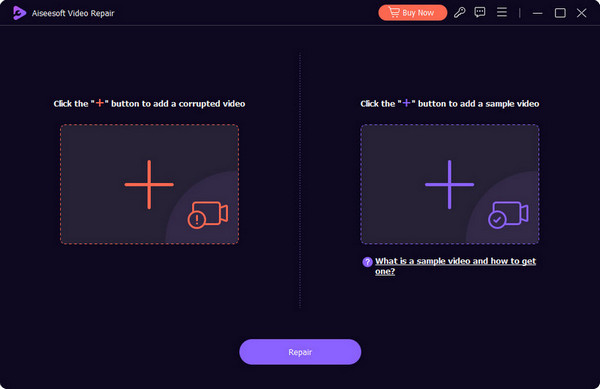
सैंपल वीडियो को क्षतिग्रस्त वीडियो के समान प्रारूप में होना चाहिए, और पैरामीटर जितने करीब होंगे, उतना बेहतर होगा। अधिमानतः, दोनों एक ही डिवाइस या प्लेटफ़ॉर्म से होने चाहिए।
स्टेप 3. फ़िक्सिंग शुरू करने के लिए Repair पर क्लिक करें।.
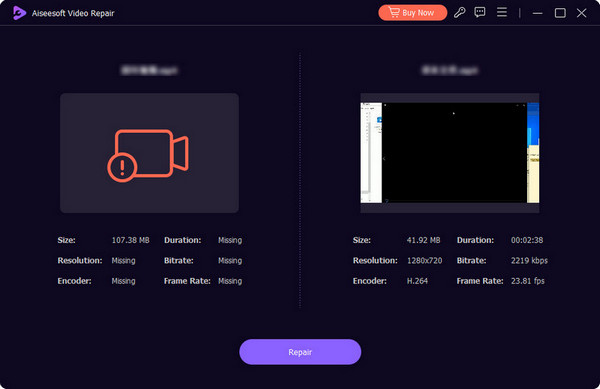
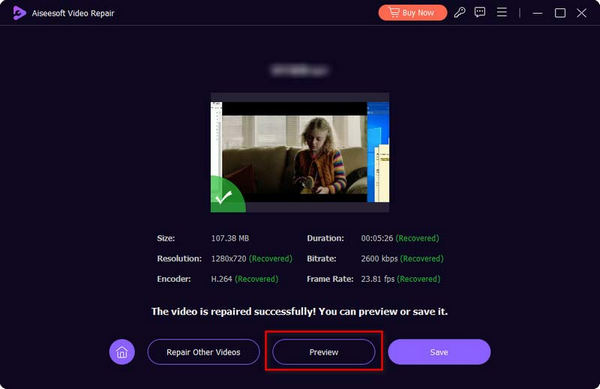
रीपेयर पूरा होने के बाद, आप Preview पर क्लिक करके ठीक किए गए वीडियो को जांच सकते हैं। अंत में, Save पर क्लिक करें।.
भाग 3. इंटरनेट कनेक्शन जांचें
iPhone पर HDR वीडियो न चलने की समस्या सिर्फ़ स्थानीय वीडियो चलाने तक ही सीमित नहीं है। लोगों ने बताया है कि जब वे iPhone के ज़रिए YouTube, TikTok, Instagram आदि जैसे ऑनलाइन प्लैटफ़ॉर्म से वीडियो देखते हैं, तो उन्हें अक्सर प्लेबैक विफलताओं का सामना करना पड़ता है।
ऐसा इस तथ्य के कारण हो सकता है कि आप जिस नेटवर्क से वर्तमान में जुड़े हुए हैं, वह ऑनलाइन वीडियो को पूरी तरह से लोड करने के लिए पर्याप्त स्थिर नहीं है। आप जाँच सकते हैं कि आपका फ़ोन स्थिर WiFi या डेटा नेटवर्क से जुड़ा है या नहीं। फिर, नेटवर्क से डिस्कनेक्ट करके फिर से कनेक्ट करने का प्रयास करें। उसके बाद, वीडियो को फिर से चलाने का प्रयास करें।
यदि यूट्यूब पर वीडियो आईफोन पर नहीं चल रहे हैं, तो समस्या अभी भी हल नहीं हुई है; किसी अन्य नेटवर्क कनेक्शन का प्रयास करें।
भाग 4. वीडियो ऐप को बलपूर्वक बंद करें
यदि आप पाते हैं कि iPhone पर वीडियो में आवाज़ नहीं आ रही है, या वीडियो रुक‑रुक कर चल रहा है, तो यह मानें कि किसी अज्ञात कारण से iPhone वीडियो प्लेयर या ऐप में कोई त्रुटि है। इस समय, उसे रीस्टार्ट करना सबसे तेज़ विकल्प है।.
आप सबसे पहले Home पेज पर वापस जाने वाले विकल्प को दो बार दबाकर शुरू कर सकते हैं, जब तक कि कई विंडो न दिखाई देने लगें जो आपके चल रहे एप्लीकेशन दिखाती हैं। वीडियो ऐप को खोजें और उसे स्वाइप करके बंद कर दें। फिर, ऐप को दोबारा खोलें और वीडियो चलाकर देखें।.
भाग 5. पुराने iOS संस्करण को अपडेट करें
नेटवर्क, वीडियो और ऐप समस्याओं का निवारण, एक और समस्या है जिसके कारण iPhone पर कैमरा रोल वीडियो नहीं चलते हैं, जिसके बारे में हमें पता होना चाहिए। यदि आपका डिवाइस सिस्टम के नवीनतम संस्करण में अपडेट नहीं किया गया है, तो इसमें कभी-कभी बग हो सकते हैं जो आपके सामान्य उपयोग को प्रभावित कर सकते हैं।
आप अपने iPhone पर Settings ऐप में जा सकते हैं और देख सकते हैं कि कोई नया सिस्टम वर्ज़न उपलब्ध है या नहीं। अगर है, तो दिए गए निर्देशों के अनुसार डाउनलोड और अपडेट पूरा करें।.
भाग 6. iPhone पर वीडियो न चलने के बारे में अक्सर पूछे जाने वाले प्रश्न
मेरा iPhone वीडियो पर ध्वनि क्यों नहीं बजाता?
यह भी संभव है कि वीडियो फ़ाइल में मौजूद ऑडियो ऐसे कोडेक्स में हो जिन्हें iPhone सपोर्ट नहीं करता। आप फ़ाइल के ऑडियो कोडेक या फ़ॉर्मेट को बदल सकते हैं, उदाहरण के लिए, WMA से MP3, AAC या किसी अन्य लोकप्रिय फ़ॉर्मेट में।.
मेरा iPhone पृष्ठभूमि में वीडियो क्यों नहीं चला रहा है?
यह समस्या तब हो सकती है जब iPhone में पावर कम हो या जब बैकग्राउंड में बहुत सारे प्रोग्राम चल रहे हों। आप अपने डिवाइस को पूरी तरह से चार्ज कर सकते हैं और फिर चल रहे ऐप्स को बंद कर सकते हैं। यह जांचना न भूलें कि आपके फोन में ब्लूटूथ हेडसेट कनेक्ट है या नहीं।
मेरा iPhone वीडियो लोड करने में असमर्थ क्यों है?
अपने डिवाइस को पुनः आरंभ करने का प्रयास करें और फिर इसे किसी अन्य नेटवर्क कनेक्शन से बदलें। ऐसा करने से आपको कुछ सिस्टम त्रुटियों और अन्य समस्याओं से निपटने में मदद मिल सकती है।
निष्कर्ष
iPhone पर वीडियो न चलने की समस्या के लिए कई समाधान हैं। वीडियो की तरफ़ से शुरू करते हुए, आप फ़ॉर्मेट कन्वर्ट करने और करप्ट वीडियो को रीपेयर करने की कोशिश कर सकते हैं; डिवाइस की तरफ़ से, आप iPhone को फ़ोर्स रीस्टार्ट कर सकते हैं और फिर इंटरनेट कनेक्शन बदल सकते हैं। यदि आप किसी वीडियो ऐप का इस्तेमाल कर रहे हैं, तो उसे रीस्टार्ट करें और देखें कि समस्या हल हुई या नहीं।.
-
 एंड्रॉइड डीवीडी प्लेयर - एंड्रॉइड मोबाइल पर डीवीडी वीडियो कैसे चलाएं
 एंड्रॉइड मोबाइल पर डीवीडी फाइल कैसे चलाएं? क्या कोई Android DVD प्लेयर हैं? इस लेख में, आप बाहरी ड्राइवर के साथ या उसके बिना एंड्रॉइड मोबाइल पर डीवीडी वीडियो चलाने के 3 तरीकों के बारे में जानेंगे।
-
 [समाधान] Chromebook 2025 पर MP4 फ़ाइलें चलाएं
 क्या आप Chromebook पर वीडियो चला सकते हैं? Chromebook पर USB से MP4 फ़ाइलें कैसे चलाएं? यह पोस्ट Chromebook पर MP4 चलाने के 3 तरीके साझा करती है।
-
 वीडियो चलाने में असमर्थ त्रुटि 150 को ठीक करने के लिए त्वरित समाधान
 क्या आपने कभी अपने वीडियो देखने के अनुभव के दौरान वीडियो चलाने में निराशाजनक असमर्थता त्रुटि 150 का सामना किया है? चिंता न करें क्योंकि हमने आपको बताया है कि इसे कैसे ठीक किया जाए।
