


 वीडियो कनवर्टर अंतिम
 स्क्रीन अभिलेखी
 वीडियो मरम्मत
 सुरक्षित डाउनलोड
iPhone पर MP4 रिकॉर्ड कैसे करें: सेटिंग्स और सर्वोत्तम समाधान जानें
क्या iPhone MP4 में रिकॉर्ड करता है? आमतौर पर iPhone वीडियो को MOV फ़ॉर्मेट में रिकॉर्ड करते हैं, जो ज़्यादातर समय ठीक काम करता है। लेकिन अगर आप ये iPhone वीडियो ऐसे डिवाइस पर शेयर करना चाहते हैं जो MOV सपोर्ट नहीं करते, तो दिक्कतें आ सकती हैं। इसलिए, चाहे आप अपने iPhone पर वीडियो देख रहे हों, शूट कर रहे हों या एडिट कर रहे हों, उसके वीडियो फ़ॉर्मेट्स को समझना ज़रूरी है। यह समझ या जानकारी आपको सही फ़ाइल टाइप और कोडेक्स का इस्तेमाल करके प्लेबैक से जुड़ी समस्याओं से बचा सकती है। इसी वजह से, इस लेख में मैं आपको iPhone पर MP4 में वीडियो रिकॉर्ड करने के तीन आसान तरीके दिखाऊँगा, ताकि आपके वीडियो प्लेबैक और एडिटिंग के लिए पूरी तरह अनुकूल हो जाएँ।.

भाग 1. क्या iPhone MP4 में वीडियो रिकॉर्ड करता है?
बहुत से लोग, खास तौर पर गैर-आईफोन उपयोगकर्ता, आश्चर्य करते हैं कि क्या आईफोन MP4 प्रारूप में रिकॉर्ड करता है। खैर, इसका त्वरित उत्तर यह है कि आईफोन दो प्रारूपों में वीडियो रिकॉर्ड कर सकता है। लेकिन यह अभी भी सेटिंग्स पर निर्भर करता है। डिफ़ॉल्ट विकल्प MOV है, जो Apple डिवाइस के लिए व्यापक रूप से इस्तेमाल किया जाने वाला प्रारूप है जो कुछ डिवाइस पर अच्छा चलता है। हालाँकि, iPhones उच्च दक्षता या HEVC नामक एक स्थान-बचत विकल्प भी प्रदान करते हैं। यह एक अलग प्रारूप का उपयोग करता है, लेकिन आप अभी भी उन रिकॉर्डिंग को सीधे अपने iPhone पर देख सकते हैं।
अब, स्क्रीन रिकॉर्डिंग के बारे में, iPhone का बिल्ट-इन स्क्रीन रिकॉर्डर केवल MOV फ़ॉर्मेट में रिकॉर्डिंग को सेव करता है। इस प्रकार, यदि आपको MP4 रिकॉर्डिंग की आवश्यकता है और यदि आप इन MP4 वीडियो को सीधे अपने iPhone पर संपादित करना चाहते हैं, तो आपको ऐप स्टोर में सीमाओं के कारण अपने कंप्यूटर पर एक पेशेवर स्क्रीन रिकॉर्डर या संपादन सॉफ़्टवेयर का सहारा लेना होगा।
भाग 2. बिना रूपांतरण के iPhone पर MP4 कैसे रिकॉर्ड करें
iPhone पर MP4 में वीडियो रिकॉर्ड करने के संदर्भ में, यहाँ एक प्रोफेशनल सॉफ़्टवेयर है जिसका नाम है FVC Screen Recorder, जो आपके iPhone पर दिखने वाली हर चीज़, यहाँ तक कि वीडियो भी, स्क्रीन रिकॉर्ड कर सकता है और उनसे MP4 आउटपुट तैयार कर सकता है। FVC Screen Recorder में कई तरह के रिकॉर्डर हैं, जिनमें iPhone के लिए एक अलग रिकॉर्डर भी शामिल है। यह आपके फ़ोन की स्क्रीन को मिरर करता है और फिर उस पर चल रही हर चीज़, सिस्टम साउंड सहित, रिकॉर्ड करता है। इसे ख़ास बनाता है इसके एनोटेशन टूल्स, जिनसे आप अपनी रिकॉर्डिंग को पर्सनलाइज़ कर सकते हैं। सच कहें तो, इस FVC Screen Recorder के साथ आपको सिर्फ़ बेहतरीन MP4 वीडियो क्वालिटी पाने के लिए iPhone वीडियोज़ को कन्वर्ट करने की ज़रूरत ही नहीं पड़ेगी। आपको बस नीचे दिए गए iPhone पर MP4 रिकॉर्ड करने के तरीक़े को फ़ॉलो करना होगा, और काम हो जाएगा।.
स्टेप 1. सबसे पहले आपको अपने कंप्यूटर के लिए यह रिकॉर्डर प्राप्त करना होगा। आप नीचे दिए गए Download बटन पर क्लिक करके इसे डेस्कटॉप या Mac पर डाउनलोड कर सकते हैं। टिप: आप अभी से ही अपना iPhone तैयार कर लें और उसे उसी WLAN से कनेक्ट कर दें जिससे आपका कंप्यूटर जुड़ा हुआ है।.
Free DownloadWindows 7 या बाद के वर्ज़न के लिएसिक्योर डाउनलोड
Free DownloadMacOS 10.7 या बाद के वर्ज़न के लिएसिक्योर डाउनलोड
स्टेप 2. स्क्रीन रिकॉर्डर लॉन्च करें और Phone रिकॉर्डिंग टूल पर क्लिक करें। फिर iOS विकल्प चुनें। अपने कंट्रोल पैनल में जाएँ, Screen Mirroring फीचर पर टैप करें, और वहाँ से Screen Recorder विकल्प चुनें। इससे आपके दोनों डिवाइस कनेक्ट हो जाएँगे और रिकॉर्डिंग शुरू हो सकेगी।.
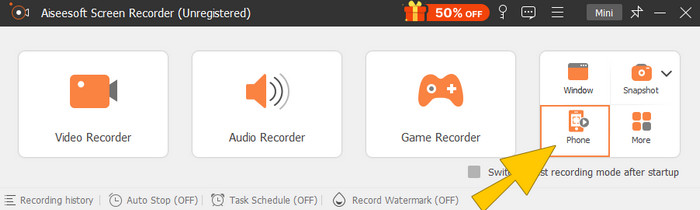
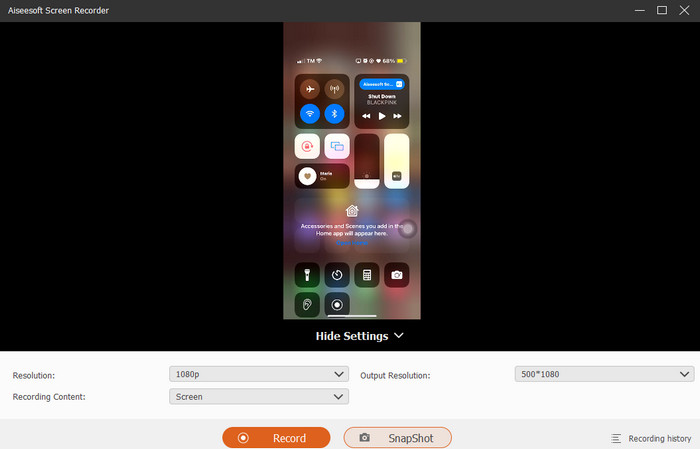
स्टेप 3. कनेक्ट होने के बाद, अब आप Record बटन पर क्लिक कर सकते हैं। काम पूरा होने पर Stop बटन पर क्लिक करें।.
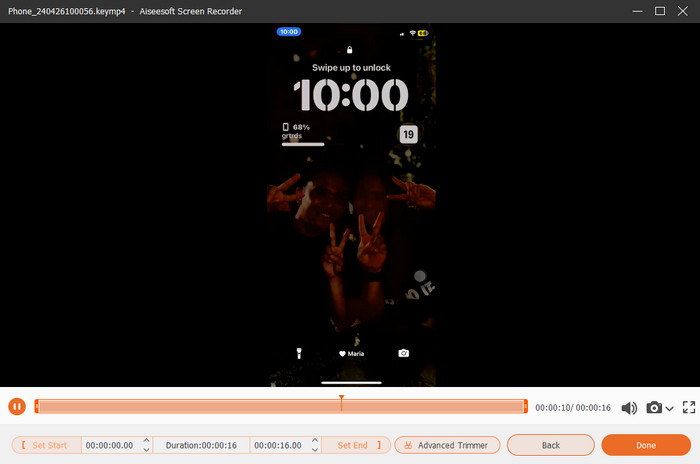
स्टेप 4. रिकॉर्डिंग के बाद यह टूल आपको सेविंग सेक्शन में ले जाएगा, जहाँ आप कच्ची रिकॉर्डिंग को एडिट कर सकते हैं। एडिटिंग में साउंड वॉल्यूम बदलना, ट्रिमिंग, और स्क्रीन कैप्चर शामिल हैं। अन्यथा, रिकॉर्ड की हुई MP4 फ़ाइल को सेव करने के लिए Done बटन पर क्लिक करें।.
भाग 3. iPhone सेटिंग्स के माध्यम से MP4 रिकॉर्ड कैसे करें
आम तौर पर, आपके iPhone से शूट किए गए वीडियो MP4 फ़ाइलों के रूप में संग्रहीत नहीं होते हैं। हालाँकि, यदि आप उन्हें MP4 फ़ॉर्मेट में चाहते हैं, तो आपको सेटिंग्स में बदलाव करना होगा, जो शायद ऐसा करने का सबसे आसान तरीका है। लेकिन रुकिए, यह ध्यान रखना ज़रूरी है कि MP4 पर स्विच करने से आपके फ़ोन का बहुत सारा स्टोरेज खत्म हो सकता है। इसलिए, सेटिंग्स में बदलाव करने से पहले, विचार करें कि क्या यह कोशिश करने लायक है। अन्यथा, नीचे दिए गए चरणों को देखें।
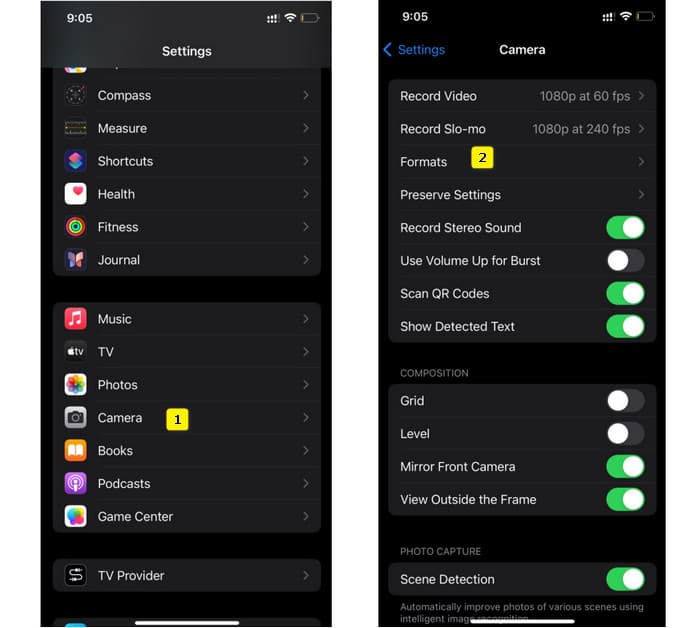
स्टेप 1. अपने फ़ोन की Settings ऐप में जाएँ और Camera ऐप को ढूँढकर उस पर टैप करें।.
स्टेप 2. अब Format सेक्शन में जाएँ और उस पर टैप करें। फिर इसे Most Compatibility विकल्प पर सेट करें, ताकि डिफ़ॉल्ट रूप से MP4 मिले।.
स्टेप 3. इसके बाद, आप अपने iPhone की इनबिल्ट स्क्रीन रिकॉर्डर का उपयोग करके रिकॉर्डिंग शुरू कर सकते हैं।.
भाग 4. iPhone रिकॉर्डिंग को मुफ्त में ऑनलाइन MP4 में बदलें
माने या न माने, जब MP4 में रिकॉर्ड करना आपकी पहली पसंद नहीं होता, तो आखिरी उपाय कन्वर्ज़न ही बचता है। ऐसे में आप अपने वीडियो के लिए एक तेज़ और आसान समाधान पाने के लिए किसी मुफ़्त ऑनलाइन कन्वर्टर का इस्तेमाल कर सकते हैं। मिलिए FVC Free Video Converter Online से, जो एक मुफ़्त प्रोग्राम है और आपके वीडियो व म्यूज़िक को अलग-अलग फ़ॉर्मेट में कन्वर्ट करने देता है। यह लोकप्रिय वीडियो और ऑडियो फ़ाइलों के साथ काम करता है और उन्हें MP4, FLV, AVI, WMV, MOV, MKV व अन्य कई फ़ॉर्मेट्स में बदल सकता है। यहाँ तक कि हाई-डेफ़िनिशन वीडियोज़ भी तेज़ी से, बिना क्वालिटी खोए कन्वर्ट की जा सकती हैं! आप एक साथ कई वीडियोज़ को भी बदल सकते हैं, जिससे कन्वर्ज़न में आपका समय और बचेगा। इसे और सुविधाजनक बनाता है यह तथ्य कि यह आपसे कन्वर्ट की गई फ़ाइलों को अलग से डाउनलोड करने को नहीं कहेगा, बल्कि सिर्फ़ आपसे फ़ाइल डेस्टिनेशन चुनने को कहेगा, जहाँ आपके आउटपुट सीधे सेव हो जाएँगे! तो आइए, इस शानदार टूल को आज़माएँ और अपने iPhone वीडियोज़ को जल्दी से कन्वर्ट करें!
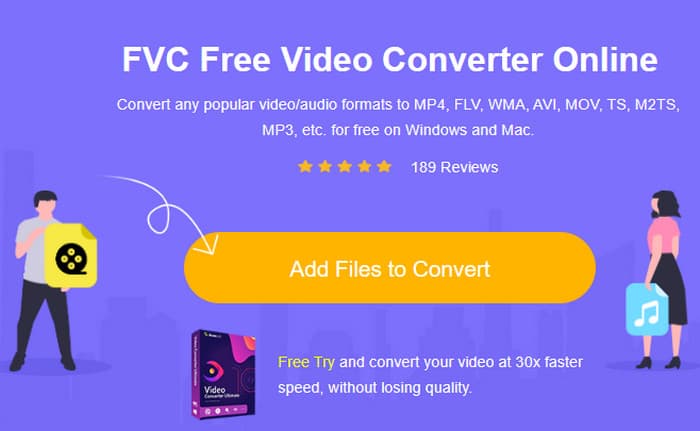
स्टेप 1. अपने डेस्कटॉप ब्राउज़र पर इस टूल की आधिकारिक वेबसाइट पर जाएँ। फिर Add Files to Convert बटन पर क्लिक करके लॉन्चर डाउनलोड करें। लॉन्चर मिल जाने के बाद, बटन पर दोबारा क्लिक करके अपने iPhone वीडियोज़ अपलोड करें।.
स्टेप 2. मुख्य इंटरफ़ेस पर पहुँचने के बाद, अगर आप और iPhone वीडियोज़ कन्वर्ट करने के लिए जोड़ना चाहते हैं, तो बस Add File बटन पर क्लिक करें। फिर फ़ाइलों को MP4 पर सेट करने के लिए उन पर क्लिक करें और नीचे दिए गए फ़ॉर्मेट पर टैप करें।.
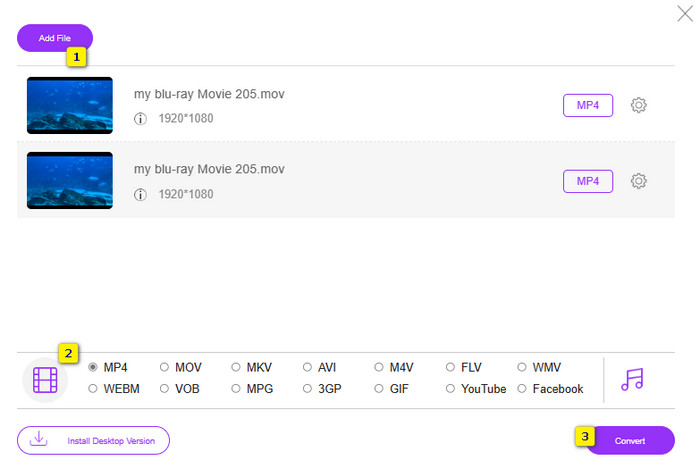
स्टेप 3. सब सेट हो जाने पर, Convert बटन पर क्लिक करें और अपनी फ़ाइल डेस्टिनेशन चुनें। स्थान चुनते ही कन्वर्ज़न प्रक्रिया तुरंत शुरू हो जाएगी।.
ऊपर दिए गए स्टेप्स के साथ, आप आसानी से iPhone के MOV वीडियोज़ को मुफ़्त में MP4 में कन्वर्ट कर सकते हैं।.
भाग 5. iPhone MP4 वीडियो रिकॉर्डिंग के बारे में अक्सर पूछे जाने वाले प्रश्न
क्या मैं अपने iPhone पर रिकॉर्ड किए गए MP4 वीडियो को संपादित कर सकता हूँ?
हां, आप अपने iPhone पर MP4 वीडियो संपादित कर सकते हैं। ऐसा करने के लिए, अपने ऐप स्टोर पर उपलब्ध विभिन्न वीडियो संपादन ऐप्स का उपयोग करें। अन्यथा, आप वीडियो को अपने कंप्यूटर पर स्थानांतरित कर सकते हैं और पेशेवर वीडियो संपादन सॉफ़्टवेयर का उपयोग करके उन्हें संपादित कर सकते हैं।
मैं अपने iPhone से MP4 वीडियो को PC में कैसे स्थानांतरित कर सकता हूँ?
अपने वीडियो को iPhone से PC में ट्रांसफ़र करने के लिए आप कई तरीके अपना सकते हैं। आप USB केबल का इस्तेमाल कर सकते हैं, वीडियो को क्लाउड स्टोरेज पर अपलोड कर सकते हैं या ऐसे सॉफ़्टवेयर का इस्तेमाल कर सकते हैं जो उन्हें ट्रांसफ़र करने में आपकी मदद करेगा।
आईफोन MP4 में किस गुणवत्ता और रिज़ॉल्यूशन का वीडियो रिकॉर्ड करता है?
यह आपके iPhone के मॉडल पर निर्भर करता है। iPhone आमतौर पर MP4 प्रारूप में विभिन्न रिज़ॉल्यूशन और गुणवत्ता विकल्पों के साथ वीडियो रिकॉर्ड करते हैं। विकल्प मानक परिभाषा से लेकर उच्च परिभाषा और नए मॉडल पर 4K तक होते हैं।
निष्कर्ष
ये वे तरीके हैं जो आपको अपने iPhone पर आसानी से MP4 रिकॉर्ड करने के बारे में मार्गदर्शन देते हैं। जो आपके लिए सबसे उपयुक्त होगा उसे चुनें और इसे अपने दोस्तों के साथ भी साझा करें!
-
 मैक / पीसी / ऑनलाइन पर MOV के लिए MP4 कन्वर्ट करने के लिए कैसे
 मैक पर MOV करने के लिए MP4 कन्वर्ट करने के लिए कैसे? क्या बिना गुणवत्ता नुकसान के MP4 को MOV में बदलने का कोई मुफ्त तरीका है? यह पोस्ट मैक, विंडोज पीसी और ऑनलाइन पर MP4 से MOV तक वीडियो रूपांतरण करने में आपकी सहायता करने के लिए 4 सरल तरीके साझा करता है।
-
 ट्यूटोरियल - एक नया एक में iPhone पर वीडियो मर्ज करने के लिए 4 नि: शुल्क तरीके
 क्या आप अपने iPhone पर वीडियो को एक में संयोजित करना चाहते हैं? पढ़ें और सभी iPhone मॉडलों और iOS संस्करणों के साथ 4 आसान तरीके प्राप्त करें।
-
 [हल] विस्तृत चरणों के साथ iPhone पर नहीं चल रहे वीडियो को कैसे ठीक करें
 गैलरी पर स्थानीय वीडियो डिफ़ॉल्ट वीडियो प्लेयर के माध्यम से आपके iPhone पर नहीं चलाए जा सकते हैं? IPhone पर नहीं चलने वाले ऑनलाइन YouTube वीडियो हमेशा होते हैं? इस लेख में आपकी मदद करने के लिए यहां 5 समाधान दिए गए हैं।
