


 वीडियो कनवर्टर अंतिम
 स्क्रीन अभिलेखी
 वीडियो मरम्मत
 सुरक्षित डाउनलोड
WhatsApp पर वीडियो रिकॉर्ड करना: PC/Android/iPhone पर रिकॉर्ड करने के 3 तरीके
आज भले ही WhatsApp सबसे लोकप्रिय मैसेजिंग ऐप्स में से एक हो, लेकिन यह वीडियो कॉल को सीधे रिकॉर्ड नहीं कर सकता। चाहे वह काम से जुड़ी मीटिंग हो, ऑनलाइन क्लास हो या अपनों के साथ कोई खास बातचीत, ऐसे पलों को सहेज कर रखना बेहद उपयोगी साबित हो सकता है।
अच्छी बात क्या है? आपको इससे वंचित नहीं रहना पड़ेगा। आपके पास चाहे जो भी डिवाइस हो, WhatsApp वीडियो कॉल्स को रिकॉर्ड करने के सुरक्षित और प्रभावी तरीके मौजूद हैं। इस गाइड में, हम आपको PC, Android और iPhone पर WhatsApp वीडियो कॉल रिकॉर्ड करने के तीन प्रमाणित तरीके दिखाएँगे। इसलिए, अगर आप कभी भी किसी वीडियो कॉल बातचीत को दोबारा देखना चाहते हैं या किसी महत्वपूर्ण कॉल की कॉपी संभालकर रखना चाहते हैं, तो शुरुआत यहीं से करनी चाहिए।.

भाग 1. क्या आप व्हाट्सएप वीडियो कॉल की स्क्रीन को सीधे रिकॉर्ड कर सकते हैं?
जैसा कि पहले बताया गया है, WhatsApp में वीडियो कॉल रिकॉर्ड करने का फ़ीचर नहीं है। इसका मुख्य कारण गोपनीयता और सुरक्षा है। WhatsApp एंड-टू-एंड एन्क्रिप्शन का उपयोग करता है, जिसका मतलब है कि कॉल में मौजूद लोग ही बातचीत को देख और सुन सकते हैं।
इसी वजह से, ऐप में सीधे रिकॉर्डिंग की सुविधा नहीं है ताकि आपकी निजी बातचीत सुरक्षित रहे। इसलिए, अगर आप WhatsApp में रिकॉर्डिंग बटन ढूंढने की कोशिश भी करेंगे, तो भी आपको वह नहीं मिलेगा। ऐप में वीडियो कॉल रिकॉर्डिंग की सुविधा ही नहीं है।
भाग 2. लैपटॉप/मैक/पीसी पर व्हाट्सएप से वीडियो कैसे रिकॉर्ड करें [मुफ्त]
अब जबकि आप जानते हैं कि व्हाट्सएप वीडियो कॉल को सीधे रिकॉर्ड करने का कोई तरीका नहीं है, फिर भी ऐसा करने का सबसे अच्छा तरीका स्क्रीन रिकॉर्डर टूल का उपयोग करना है।
FVC Screen Recorder एक मुफ़्त और उपयोग में आसान स्क्रीन रिकॉर्डिंग टूल है, जो आपको लैपटॉप, Mac या PC पर साफ़ वीडियो और ऑडियो क्वालिटी के साथ WhatsApp वीडियो कॉल रिकॉर्ड करने देता है। चाहे आप कोई महत्वपूर्ण ऑनलाइन मीटिंग रिकॉर्ड कर रहे हों या निजी बातचीत, FVC Screen Recorder इस प्रक्रिया को आसान बना देता है। आप पूरा स्क्रीन या सिर्फ़ WhatsApp कॉल विंडो रिकॉर्ड कर सकते हैं, साउंड सोर्स समायोजित कर सकते हैं, और अगर ज़रूरत हो तो अपना वेबकैम भी शामिल कर सकते हैं।.
मुख्य विशेषताएं:
• व्हाट्सएप वीडियो कॉल को फुल स्क्रीन, चयनित विंडो या कस्टम क्षेत्र में रिकॉर्ड करें।
• वीडियो कॉल, मीटिंग और ऑनलाइन चैट को स्पष्ट रूप से रिकॉर्ड करें।
• रिकॉर्डिंग के दौरान टेक्स्ट, लाइनें, हाइलाइट्स और आकृतियाँ जोड़ें।
• सिस्टम की ध्वनि और माइक्रोफोन की आवाज दोनों को रिकॉर्ड करें।
• रिकॉर्डिंग को विभिन्न वीडियो और ऑडियो फॉर्मेट में सेव करें।
• एचडी क्वालिटी में वीडियो रिकॉर्ड करें।
• विंडोज और मैकओएस के लिए उपलब्ध है।
लैपटॉप/मैक/पीसी पर व्हाट्सएप वीडियो कॉल रिकॉर्ड करने के तरीके:
कदम 1. अपने कंप्यूटर पर FVC Screen Recorder डाउनलोड और इंस्टॉल करें।.
मुफ़्त डाउनलोडWindows 7 या उससे बाद के लिएसुरक्षित डाउनलोड
मुफ़्त डाउनलोडMacOS 10.7 या उससे बाद के लिएसुरक्षित डाउनलोड
कदम 2. प्रोग्राम लॉन्च करें और Video Recorder पर क्लिक करें, फिर WhatsApp खोलें और वीडियो कॉल शुरू करें।.
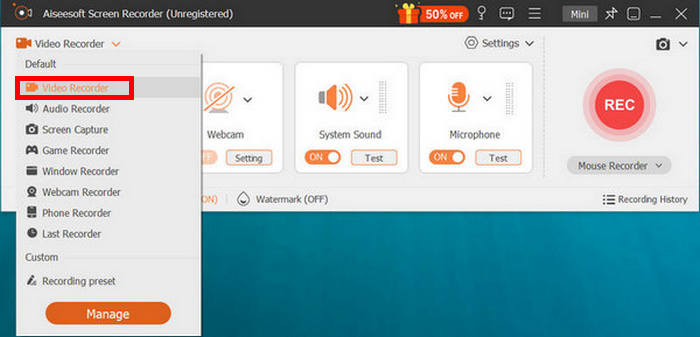
कदम 3. अब, जैसे ही WhatsApp पर वीडियो कॉल शुरू हो जाए और आपने Video Recorder पर क्लिक कर लिया हो, आप स्क्रीन के लिए रिकॉर्डिंग एरिया समायोजित कर सकते हैं। ऑडियो सोर्स के रूप में सिस्टम ऑडियो या माइक्रोफ़ोन में से चुनें।.
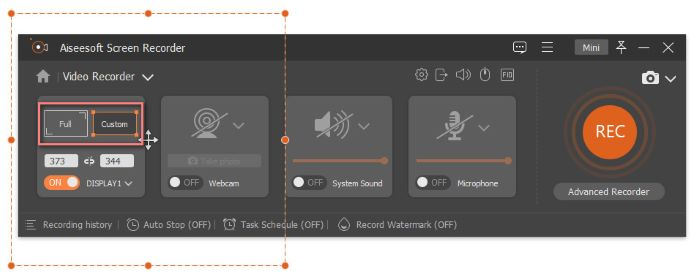
नोट: Duration फीचर का उपयोग किसी निश्चित समय तक वीडियो कॉल रिकॉर्ड करने के लिए किया जाता है।.
कदम 4. यदि वीडियो कॉल के दौरान WhatsApp रिकॉर्ड वीडियो मोड में आपका काम पूरा हो गया है, तो बस Stop बटन पर क्लिक करें।.
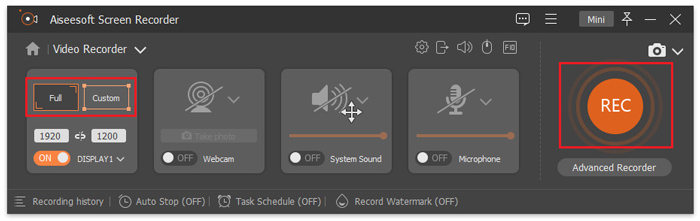
देखिए, FVC स्क्रीन रिकॉर्डर की मदद से हम किसी भी तरह की स्थिति को आसानी से रिकॉर्ड कर सकते हैं, यहां तक कि व्हाट्सएप वीडियो कॉल को भी। बस कुछ क्लिक्स में आप रिकॉर्डिंग शुरू कर सकते हैं और अपनी वीडियो कॉल सेव कर सकते हैं।
भाग 3. WhatsApp फ़ोन पर वीडियो कैसे रिकॉर्ड करता है?
अगर आप अपने फ़ोन पर WhatsApp वीडियो कॉल करना पसंद करते हैं, तब भी आप अपने डिवाइस की इन‑बिल्ट सुविधाओं का उपयोग करके उन्हें आसानी से रिकॉर्ड कर सकते हैं। अब iPhone और Android दोनों डिवाइसों में ऐसे स्क्रीन रिकॉर्डिंग टूल मौजूद हैं, जो सिर्फ़ कुछ टैप्स में आपकी WhatsApp वीडियो कॉल्स को स्क्रीन रिकॉर्ड कर सकते हैं।.
आईफोन पर व्हाट्सएप वीडियो कॉल कैसे रिकॉर्ड करें:
कदम 1. अपने iPhone पर Settings ऐप खोलें, Control Center पर जाएँ, और Customize Controls चुनें। वहाँ से Screen Recording को जोड़ें, ताकि वह आपके Control Center में दिखाई दे।.
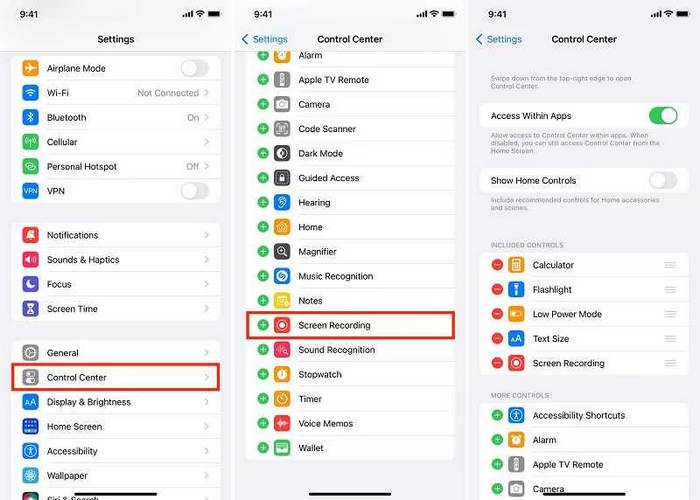
कदम 2. यह हो जाने के बाद, स्वाइप करके Control Center खोलें और रिकॉर्डिंग शुरू करने के लिए Screen Recording पर टैप करें। फिर WhatsApp खोलें और वह वीडियो कॉल शुरू करें जिसे आप कैप्चर करना चाहते हैं।.
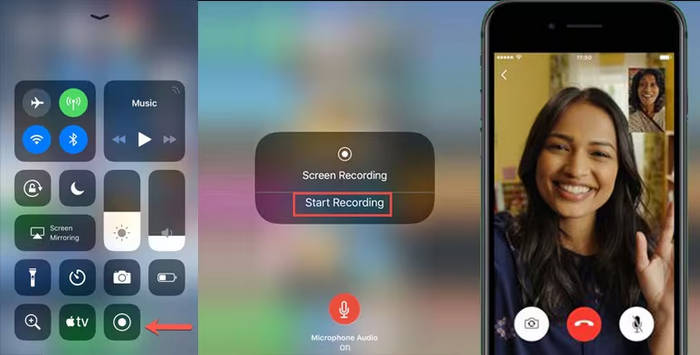
नोट: स्क्रीन के ऊपर एक लाल पट्टी दिखाई देगी, जो यह दर्शाती है कि रिकॉर्डिंग जारी है।.
कदम 3. जब आप काम पूरा कर लें, तो लाल पट्टी पर टैप करें और Stop चुनें। वीडियो रिकॉर्डिंग अपने‑आप आपके Photos ऐप में सेव हो जाएगी।.
एंड्रॉइड पर व्हाट्सएप वीडियो कॉल कैसे रिकॉर्ड करें:
एंड्रॉइड उपयोगकर्ता एंड्रॉइड स्क्रीन रिकॉर्डर ऐप का उपयोग कर सकते हैं। यह एप्लिकेशन एंड्रॉइड डिवाइस पर स्क्रीन रिकॉर्ड करने का एक कुशल और सरल तरीका प्रदान करता है, जिसमें व्हाट्सएप वीडियो कॉल भी शामिल हैं। ऐसा करने के लिए, नीचे दिए गए चरणों का पालन करें:
कदम 1. सबसे पहले आपको ऐप डाउनलोड और इंस्टॉल करनी होगी। उसके बाद, यह टूल खोलें।.
कदम 2. कैप्चर करने के विकल्प सेट करें। यहाँ आप वीडियो साइज, बिट रेट, अवधि आदि को समायोजित कर सकते हैं।.
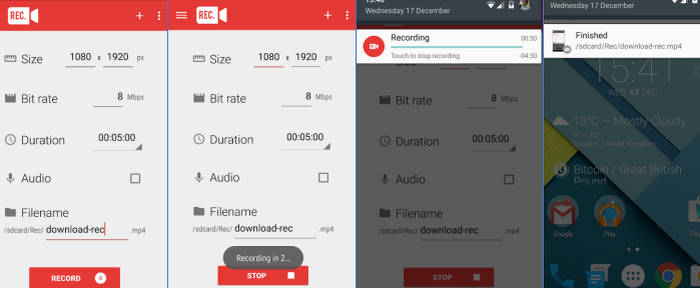
कदम 3. इसके बाद, जब आप WhatsApp वीडियो कॉल पर हों, तो ऐप में Record बटन पर क्लिक करके अपनी वीडियो कॉल की रिकॉर्डिंग शुरू करें।.
कदम 4. काम पूरा होने पर, आप अपने Android पर सेव हुई वीडियो कॉल को पा सकते हैं।.
भाग 4. व्हाट्सएप कॉल से वीडियो रिकॉर्ड करते समय आपको किन बातों का ध्यान रखना चाहिए
व्हाट्सएप वीडियो कॉल रिकॉर्ड करने से पहले, इन महत्वपूर्ण बातों को ध्यान में रखें:
• रिकॉर्डिंग करने से पहले हमेशा दूसरे व्यक्ति की सहमति लें।
• सुनिश्चित करें कि आपके डिवाइस में रिकॉर्डिंग के लिए पर्याप्त स्टोरेज स्पेस हो।
• सुनिश्चित करें कि आपके माइक्रोफ़ोन और कैमरा की अनुमतियाँ सक्षम हैं।
• खराब वीडियो या ऑडियो गुणवत्ता से बचने के लिए अपने इंटरनेट कनेक्शन को स्थिर रखें।
• रिकॉर्डिंग के दौरान लैग या रुकावट से बचने के लिए अनावश्यक ऐप्स बंद कर दें।
• रिकॉर्डिंग के बाद, गोपनीयता की सुरक्षा के लिए अनावश्यक फाइलों की समीक्षा करें और उन्हें हटा दें।
अगर आप रुचि रखते हैं, तो Facebook कॉल रिकॉर्डर के बारे में और जानने के लिए यहाँ क्लिक करें।.
भाग 5. व्हाट्सएप वीडियो रिकॉर्ड करने के बारे में अक्सर पूछे जाने वाले प्रश्न
क्या वीडियो कॉल रिकॉर्ड करने पर WhatsApp दूसरों को सूचित करता है?
नहीं, वीडियो कॉल रिकॉर्ड करने पर WhatsApp कोई नोटिफिकेशन या अलर्ट नहीं भेजता है। हालांकि, दूसरे व्यक्ति की निजता का सम्मान करने के लिए रिकॉर्डिंग से पहले अनुमति लेना हमेशा बेहतर होता है।
मैं सीधे ऐप में ही व्हाट्सएप वीडियो कॉल रिकॉर्ड क्यों नहीं कर सकता?
WhatsApp में रिकॉर्डिंग की सुविधा नहीं है क्योंकि यह एंड-टू-एंड एन्क्रिप्शन का उपयोग करता है, जिससे यह सुनिश्चित होता है कि कॉल में शामिल लोग ही रिकॉर्डिंग की सामग्री देख सकते हैं। यह डिज़ाइन सभी उपयोगकर्ताओं की गोपनीयता और डेटा सुरक्षा बनाए रखने में मदद करता है।
मेरे व्हाट्सएप वीडियो रिकॉर्डिंग में आवाज क्यों नहीं आ रही है?
अगर आपकी रिकॉर्डिंग में आवाज़ नहीं आ रही है, तो इसका कारण यह हो सकता है कि WhatsApp वीडियो रिकॉर्डिंग के दौरान माइक्रोफ़ोन या सिस्टम ऑडियो चालू नहीं था। सुनिश्चित करें कि आपके रिकॉर्डर ऐप को ऑडियो एक्सेस करने की अनुमति है और कॉल शुरू करने से पहले माइक्रोफ़ोन चालू है।
निष्कर्ष
सीधे WhatsApp ऐप के अंदर वीडियो कॉल रिकॉर्ड करना संभव नहीं हो सकता, लेकिन जैसा कि यह WhatsApp रिकॉर्ड ए वीडियो गाइड दिखाता है, इसे करने के आसान और प्रभावी तरीके मौजूद हैं। चाहे आप PC, Mac, iPhone या Android का उपयोग कर रहे हों, FVC Screen Recorder जैसे टूल और इन‑बिल्ट स्क्रीन रिकॉर्डर आपको साफ़ वीडियो और ऑडियो के साथ महत्वपूर्ण कॉल्स को कैप्चर करने में मदद कर सकते हैं।.
बस हमेशा सहमति लेना याद रखें, सुनिश्चित करें कि आपका डिवाइस तैयार है और सर्वोत्तम परिणाम प्राप्त करने के लिए सही चरणों का पालन करें। सही तरीके से आप आसानी से व्हाट्सएप वीडियो कॉल रिकॉर्ड कर सकते हैं।
-
 माउस कर्सर को आसानी से कैप्चर करने के लिए 8 सर्वश्रेष्ठ माउस रिकॉर्डर
 क्या आप अपने माउस की गतिविधियों को रिकॉर्ड करने के लिए माउस रिकॉर्डर की तलाश में हैं? आपकी उत्पादकता और कार्यप्रवाह को बेहतर बनाने में मदद करने के लिए यहां 8 सर्वश्रेष्ठ माउस रिकॉर्डर टूल दिए गए हैं।
-
 VLC का उपयोग करके आसानी से स्क्रीन रिकॉर्ड कैसे करें [संपूर्ण गाइड]
 अगर आप सोच रहे हैं कि VLC स्क्रीन रिकॉर्ड फ़ीचर का इस्तेमाल करके अपनी स्क्रीन कैसे रिकॉर्ड करें, तो चिंता न करें! यह लेख आपको इसे एक पेशेवर की तरह करने के चार आसान तरीके सिखाएगा।
-
 बिना नोटिफिकेशन के आप स्नैपचैट की स्क्रीन रिकॉर्ड कैसे कर सकते हैं?
 बिना नोटिफिकेशन ट्रिगर किए स्नैपचैट स्क्रीन रिकॉर्ड करना चाहते हैं? यह जानने के लिए कि क्या यहाँ दिए गए तीन समाधानों में से कोई भी आपकी समस्या का आसानी से समाधान कर सकता है, इस गाइड को पढ़ें।
