


 वीडियो कनवर्टर अंतिम
 स्क्रीन अभिलेखी
 वीडियो मरम्मत
 सुरक्षित डाउनलोड
MP4 वीडियो को आसानी से ट्रिम कैसे करें [Mac और Windows समाधान
आजकल, किसी वीडियो को ट्रिम या स्प्लिट करना बहुत उपयोगी काम है, खासकर जब आप किसी लम्बे वीडियो से गैरज़रूरी और बोरिंग हिस्सों को हटाना चाहते हैं। अगर आप ऐसे व्यक्ति हैं जो MP4 ट्रिम करना चाहते हैं, लेकिन नहीं जानते कि कैसे और कौन‑से टूल इस्तेमाल करें, तो आपके लिए समाधान यहाँ है! इस लेख में, आप 6 ऐसे वीडियो कटर टूल्स के बारे में जानेंगे जो Windows और Mac पर अवांछित वीडियो हिस्सों को आसानी से काटने में आपकी मदद करेंगे।.

भाग 1: पूर्ण-विशेषताओं वाले MP4 ट्रिमर के साथ Windows और macOS पर MP4 ट्रिम कैसे करें
यदि आप Windows या macOS यूज़र हैं और एक फुल‑फीचर्ड MP4 ट्रिमर वीडियो टूल से वीडियो को काटना चाहते हैं, तो FVC Video Converter Ultimate आपके लिए एकदम सही है। यह एक वीडियो कनवर्टर टूल है, लेकिन इसके साथ बहुत‑सी सुविधाएँ आती हैं, जिनमें वीडियो ट्रिमर भी शामिल है। इस फीचर की मदद से यूज़र किसी भी MP4 वीडियो को स्प्लिट या कट कर सकते हैं, खासकर वे जो बहुत ज़्यादा लम्बे हों या जिनमें गैरज़रूरी हिस्से या सेगमेंट शामिल हों। इसके अलावा, आप मैन्युअली उस हिस्से को चुन सकते हैं जिसे आप काटना चाहते हैं, या फिर इसके फास्ट स्लिप फीचर से सेगमेंट को ऑटोमेटिकली ट्रिम कर सकते हैं। अंत में, यह शक्तिशाली टूल विभिन्न वीडियो फॉर्मैट का सपोर्ट करता है ताकि MP4, MKV, MOV, FLV, AVI, MP3 आदि जैसे वीडियो इनपुट के साथ कम्पैटिबिलिटी बनी रहे। इसलिए, चाहे आप गैरज़रूरी फुटेज हटा रहे हों, किसी खास सेगमेंट को निकाल रहे हों, या टाइमिंग को रिफ़ाइन कर रहे हों, FVC Video Converter Ultimate Windows और macOS दोनों सिस्टम पर MP4 वीडियो को बिना किसी रुकावट के ट्रिम करने के लिए एक बेहतरीन टूल है।.
स्टेप 1. अपने Windows या Mac कंप्यूटर पर FVC Video Converter Ultimate डाउनलोड और इंस्टॉल करें।.
फ्री डाउनलोडWindows 7 या बाद के संस्करण के लिएसुरक्षित डाउनलोड
फ्री डाउनलोडMacOS 10.7 या बाद के संस्करण के लिएसुरक्षित डाउनलोड
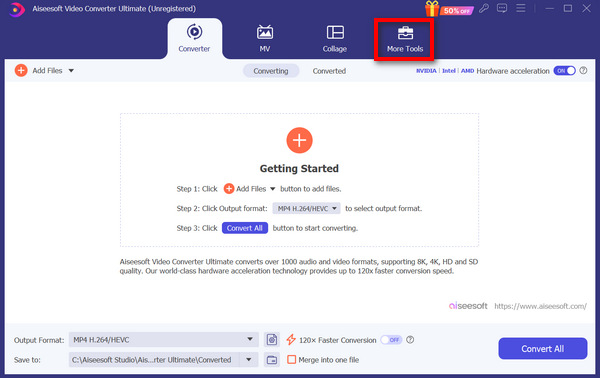
स्टेप 2. इसके बाद, Toolbox पर क्लिक करें और Video Trimmer को ढूँढें।.
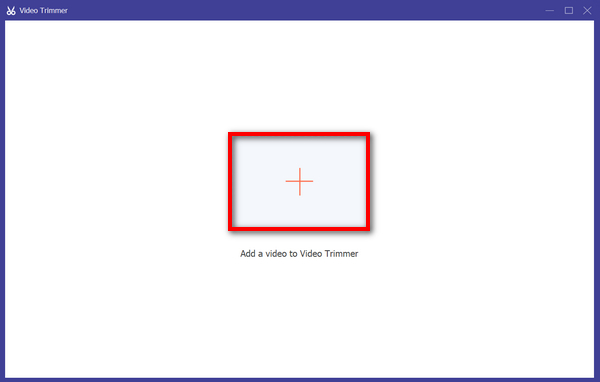
स्टेप 3. अब वहाँ से, MP4 फ़ाइल जोड़ने के लिए जिसको आप ट्रिम करना चाहते हैं, Add a Video to Video Trimmer बटन पर क्लिक करें।.
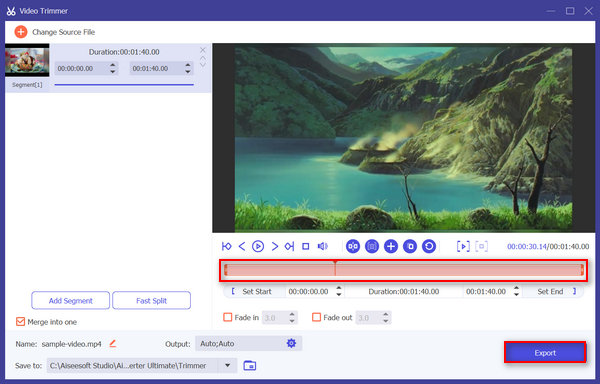
स्टेप 4. वीडियो को ट्रिम करने के लिए, आप इसे मैन्युअली कर सकते हैं—क्लिप पर स्टार्ट और एंड बार को आसानी से समायोजित या मूव करके, बाएँ से दाएँ ड्रैग करके, या फिर जिस हिस्से को आप ट्रिम करना चाहते हैं, उसका स्टार्ट और एंड टाइम टाइप करके।.
यह प्रक्रिया स्वचालित रूप से उस समय के आधार पर वीडियो के उस हिस्से को काट देती है जब आप ट्रिमिंग शुरू और समाप्त करना चाहते हैं।
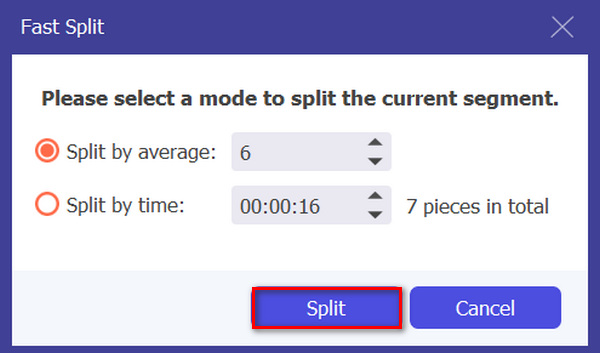
वहीं, अगर आप Fast slip trimmer फीचर से कट करना चाहते हैं, तो आपको सिर्फ Add Segment बटन के बगल में मौजूद Fast Slip बटन पर क्लिक करना होगा। फिर वह मोड चुनें जिसमें आप सेगमेंट को स्प्लिट करना चाहते हैं। अगर आप इसे एवरेज के हिसाब से स्प्लिट करना चुनते हैं, तो संख्या दर्ज करें, और अगर समय के आधार पर स्प्लिट करना चाहते हैं, तो समय दर्ज करें। इसके बाद Split बटन पर क्लिक करें।.
स्टेप 5. अंत में, ट्रिम किए गए वीडियो को एक्सपोर्ट करने के लिए Export बटन पर क्लिक करें।.
जब MP4 वीडियो फ़ाइलों को ट्रिम करने की बात आती है, तो FVC Video Converter Ultimate वास्तव में एक बेहतरीन समाधान है। इसका सहज इंटरफ़ेस यह सुनिश्चित करता है कि आप आसानी से और सटीक रूप से अपने MP4 वीडियो को आसानी से काट सकते हैं, और इसके विभिन्न ट्रिमिंग विकल्प आपको यह लचीलापन देते हैं कि आप अपने वीडियो को आसानी से कैसे काटना चाहते हैं।
पेशेवरों
- वीडियो इनपुट प्रारूपों की एक विस्तृत श्रृंखला का समर्थन करता है।
- सटीक ट्रिमिंग.
- सहज संपादन इंटरफ़ेस.
- ट्रिम किए गए वीडियो की गुणवत्ता बनाए रखता है।
- एक सुविधा में विलय कर दिया गया है.
विपक्ष
- इसके निःशुल्क संस्करण का उपयोग करने पर इसकी सम्पूर्ण सुविधाओं तक पहुंच सीमित हो सकती है।
भाग 2: MP4 को ऑनलाइन निःशुल्क ट्रिम कैसे करें
अगर आप MP4 वीडियो को ऑनलाइन ट्रिम करने का तरीका खोज रहे हैं, तो ऐसे मुफ़्त और सुलभ उपकरण हैं जिनका आप उपयोग कर सकते हैं। खैर, ऑनलाइन वीडियो ट्रिमर का उपयोग करना बेहद उपयोगी हो सकता है, खासकर अगर आपको विशेष सॉफ़्टवेयर या डाउनलोड की आवश्यकता के बिना अपने वीडियो को जल्दी से संपादित करने की आवश्यकता है। बिना किसी देरी के, इस वर्ष 2025 के पाँच मुफ़्त ऑनलाइन वीडियो ट्रिमर निम्नलिखित हैं:
एज़्गिफ़
Ezgif एक मुफ़्त और सरल टूलसेट है जो यूज़र्स को ऑनलाइन और फ्री में GIF ट्रिम करने और MP4 ट्रिम करने की सुविधा देता है। साथ ही, इसका इंटरफ़ेस बहुत सरल और यूज़र‑फ्रेंडली है। हालाँकि, कभी‑कभी इसका इंटरफ़ेस थोड़ा बिखरा‑बिखरा लग सकता है और नए यूज़र्स के लिए थोड़ा भारी पड़ सकता है। फिर भी, जब आप छोटे वीडियो ट्रिम करना चाहते हैं, तो यह टूल काफ़ी अच्छा है।.
स्टेप 1. सबसे पहले, उनकी आधिकारिक वेबसाइट पर जाएँ।.
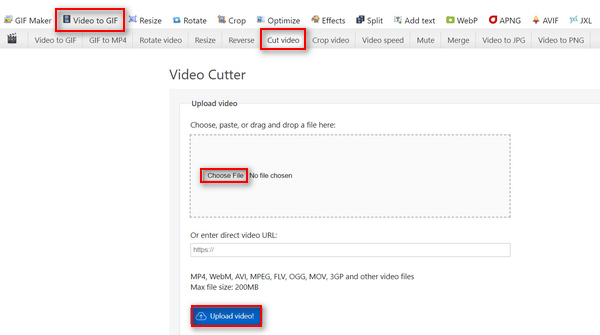
स्टेप 2. Video to GIF पर क्लिक करें, फिर Cut Video चुनें, और Choose File बटन पर क्लिक करके अपनी डिवाइस से वह MP4 वीडियो अपलोड करें जिसे आप ट्रिम करना चाहते हैं, या फिर नीचे दिए गए स्थान पर उस MP4 वीडियो का URL पेस्ट करें।.
स्टेप 3. अब, जब वीडियो अपलोड हो जाए, तो अपने वीडियो को ट्रिम करें। ध्यान रखें कि जिस वीडियो हिस्से को आप ट्रिम करना चाहते हैं, उसके स्टार्ट और एंड टाइम सेट करें।.
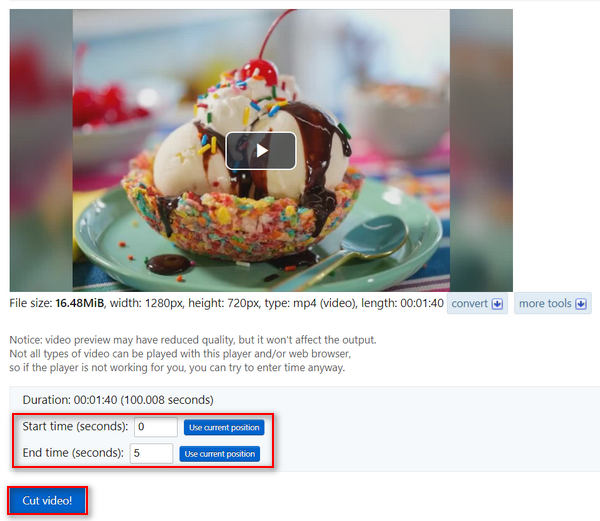
स्टेप 4. जब आप उस वीडियो के लिए स्टार्ट और एंड टाइम सेट कर लें जिसे आप ट्रिम करना चाहते हैं, तो Cut the Video बटन पर क्लिक करें।.
जब आप MP4 वीडियो ट्रिम करना चाहते हैं, तो Ezgif वीडियो कटर एक बेहतरीन टूल है, जिसमें जटिल ट्रिमिंग की आवश्यकता नहीं होती है। इसलिए, यदि आपको अधिक उन्नत और जटिल MP4 ट्रिमर की आवश्यकता है, तो यह आपके लिए नहीं है।
पेशेवरों
- उपयोग में सरल.
- MP4, WebM, AVI, MPEG, FLV, OGG, MOV, और 3GP जैसे कई प्रारूपों का समर्थन करता है।
- यूआरएल पर काम करता है.
विपक्ष
- मैला इंटरफ़ेस.
- आकार सीमा केवल 200 एमबी तक है।
फास्ट्रील
Fastreel एक सरल ऑनलाइन वीडियो संपादन उपकरण है जिसका उपयोग इसके उपयोगकर्ता-अनुकूल और सहज इंटरफ़ेस के कारण MP4 वीडियो को आसानी से ट्रिम करने के लिए किया जा सकता है। उपयोगकर्ता आसानी से टूल को नेविगेट कर सकते हैं, और उन्हें बस अपनी फ़ाइलों को खींचने और छोड़ने की ज़रूरत है और फिर आसानी से उन हिस्सों को हटा दें जिन्हें वे नहीं चाहते हैं। इसके अलावा, यह टूल MP4, MOV, MKV, AVI और WMV फ़ाइलों जैसे विभिन्न वीडियो प्रारूपों का समर्थन करता है। अंत में, इस टूल के साथ, आप अपने संपादित वीडियो को निःशुल्क सहेज और डाउनलोड कर सकते हैं।
स्टेप 1. उनकी आधिकारिक वेबसाइट पर जाएँ।.
स्टेप 2. जिस MP4 वीडियो को आप ट्रिम करना चाहते हैं उसे अपलोड करने के लिए Add Files बटन पर क्लिक करें।.
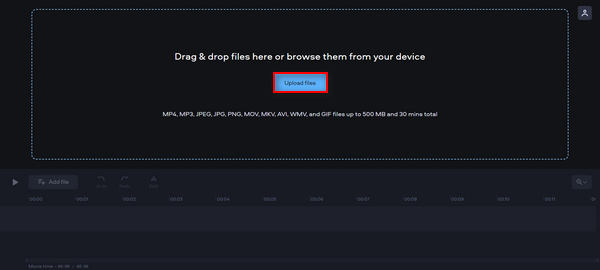
स्टेप 3. अब, MP4 वीडियो को ट्रिम करने के लिए, लाल मार्कर को उस जगह पर ले जाएँ जहाँ आप कट करना चाहते हैं और Scissors आइकन पर क्लिक करें।.
स्टेप 4. अंत में, MP4 वीडियो को ट्रिम करने के बाद, उसे सेव करने के लिए Export बटन पर क्लिक करें।.
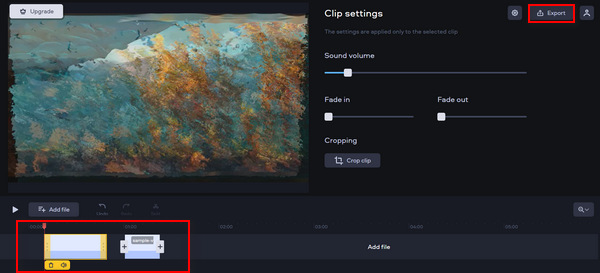
यह टूल MP4 वीडियो को अविश्वसनीय रूप से आसानी से ट्रिम कर सकता है। हालाँकि, कभी-कभी, जिस वीडियो को आप ट्रिम करना चाहते हैं उसे अपलोड करने में समय लगता है।
पेशेवरों
- उपयोगकर्ता के अनुकूल और सहज इंटरफ़ेस.
- सटीक संपादन.
- एकाधिक वीडियो प्रारूपों का समर्थन करता है.
विपक्ष
- वीडियो अपलोड करना धीमा है.
- सहेजे गए वीडियो पर वॉटरमार्क होगा।
- आकार सीमा केवल 500 एमबी तक है।
ऑनलाइन वीडियो कटर
Online Video Cutter एक ऑनलाइन वीडियो एडिटिंग टूल है जिसका उपयोग आप MP4 वीडियो ऑनलाइन ट्रिम करने के लिए कर सकते हैं। इस टूल से आप आसानी से MP4 वीडियो ट्रिम कर सकते हैं और इसकी अन्य एडिटिंग सुविधाओं से वीडियो को और एडिट भी कर सकते हैं। इसके अलावा, दूसरे मुफ़्त MP4 ट्रिमिंग टूल्स की तुलना में यह फ्री ऑनलाइन MP4 ट्रिमर कहीं ज़्यादा बड़े वीडियो साइज को संभाल सकता है, यानी अधिकतम 4GB तक की वीडियो फ़ाइल को सपोर्ट करता है।.
स्टेप 1. उनकी आधिकारिक वेबसाइट पर जाएँ।.
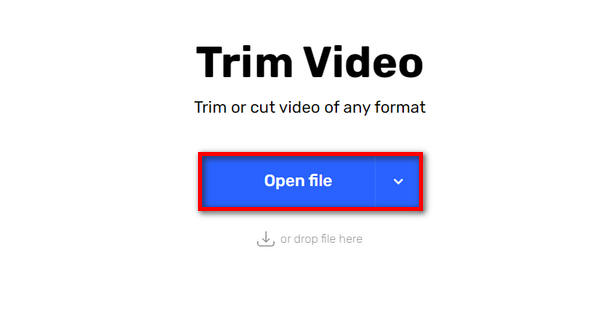
स्टेप 2. जिस MP4 वीडियो को आप ट्रिम करना चाहते हैं उसे जोड़ने के लिए Open File बटन पर क्लिक करें।.
स्टेप 3. अब, इस टूल का उपयोग करके MP4 वीडियो ट्रिम करने के लिए, ऊपर दिए गए Trim or Cut मेनू पर क्लिक करें, फिर स्टार्ट और एंड दोनों इंडिकेटर को एडजस्ट करके उस हिस्से का चयन करें जिसे आप बदलना/काटना चाहते हैं। सेट हो जाने पर, नीचे दिए गए Trim or Cut बटन पर क्लिक करें और फिर वीडियो को एक्सपोर्ट करने के लिए Save पर क्लिक करें।.
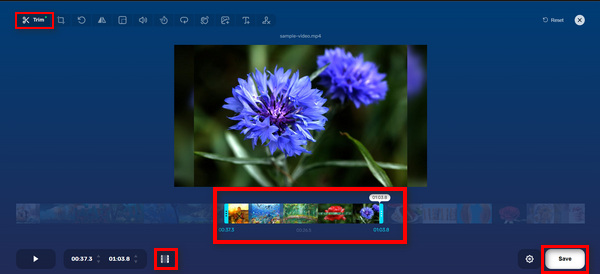
अपनी बड़ी आकार सीमा, सरल इंटरफ़ेस और अन्य संपादन सुविधाओं के साथ, ऑनलाइन वीडियो कटर वास्तव में एक आशाजनक मुफ्त ऑनलाइन MP4 ट्रिमर टूल है।
पेशेवरों
- 5 सेकंड के लिए वीडियो का पूर्वावलोकन कर सकते हैं.
- कम से कम अधिकतम 4GB वीडियो आकार फ़ाइल का समर्थन करता है।
- वीडियो ट्रिमिंग इंटरफ़ेस के भीतर अन्य संपादन सुविधाएँ भी हैं।
विपक्ष
- वीडियो अपलोड करना धीमा है.
- सहेजे गए वीडियो पर वॉटरमार्क होगा।
- आकार सीमा केवल 500 एमबी तक है।
कपविंग
Kapwing एक उपयोगकर्ता के अनुकूल ऑनलाइन वीडियो संपादन उपकरण है जिसका उपयोग आसानी से MP4 वीडियो ट्रिम करने के लिए किया जा सकता है। इस उपकरण की एक असाधारण विशेषता यह है कि यह YouTube वीडियो का समर्थन करता है, जिससे उपयोगकर्ता सिस्टम में इसका URL पेस्ट करके YouTube से MP4 वीडियो को सीधे ट्रिम कर सकते हैं।
स्टेप 1. उनकी आधिकारिक वेबसाइट पर जाएँ।.
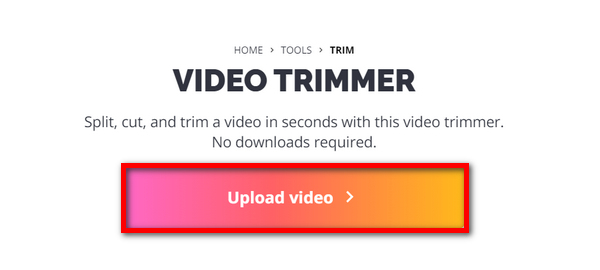
स्टेप 2. इसकी मुख्य इंटरफ़ेस पर जाने के लिए Upload Video बटन पर क्लिक करें।.
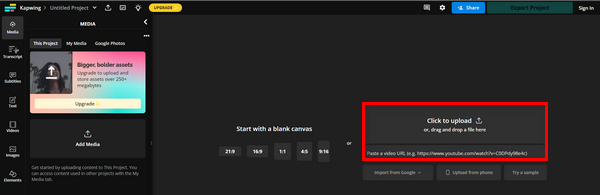
स्टेप 3. वहाँ से, आपके पास फ़ाइल जोड़ने के दो विकल्प होंगे। या तो आप Click to Upload बटन पर क्लिक करके MP4 वीडियो अपलोड करें, या फिर अगर जिस वीडियो को आप ट्रिम करना चाहते हैं वह YouTube से है, तो उसका YouTube URL पेस्ट करें।.
स्टेप 4. अब, Trim मेनू पर क्लिक करें ताकि आप उस दूसरे विंडो पर पहुँच जाएँ जहाँ आप वीडियो ट्रिम कर सकते हैं।.
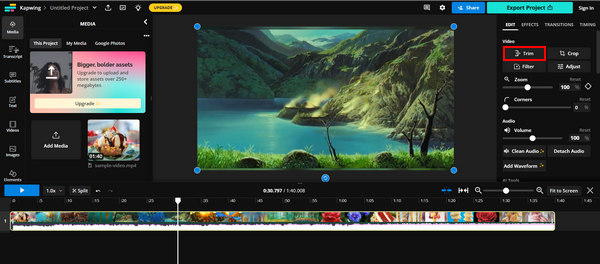
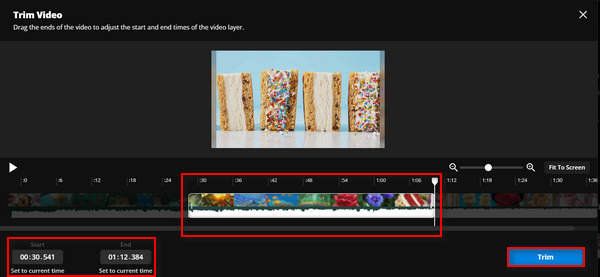
स्टेप 5. अपना वीडियो ट्रिम करने के लिए, बस ट्रिम इंडिकेटर को वहाँ तक ले जाएँ जहाँ से आप ट्रिम शुरू करना चाहते हैं और जहाँ इसे ख़त्म करना चाहते हैं, या फिर आप सीधे वह समय टाइप कर सकते हैं जहाँ से और जहाँ तक आप ट्रिम करना चाहते हैं। इसके बाद, Trim बटन पर क्लिक करें।.
स्टेप 6. फ़ाइल को सेव करने के लिए Export Project पर क्लिक करें।.
सुनिश्चित करें कि आपने अपने ट्रिम किए गए वीडियो को निर्यात करने के लिए एक खाता बनाया है।
पेशेवरों
- प्रयोग करने में आसान।
- MP4 फ़ाइलें, MOV वीडियो, WMV, आदि जैसे लोकप्रिय वीडियो प्रारूपों का समर्थन करता है।
- निःशुल्क जोड़ें.
विपक्ष
- साइन अप करने की आवश्यकता है.
- केवल 250MB तक की अनुमति देता है.
FreeConvert
FreeConvert.com एक ऑनलाइन वीडियो एडिटिंग प्लेटफ़ॉर्म है जो विभिन्न मल्टीमीडिया कन्वर्शन और एडिटिंग टूल्स प्रदान करता है। इसकी प्रमुख विशेषताओं में से एक वीडियो ट्रिमर है, जो यूज़र्स को MP4 और अन्य वीडियो फ़ॉर्मैट को 1GB तक की साइज में ट्रिम करने की सुविधा देता है। साथ ही, इसके सहज और सरल इंटरफ़ेस की वजह से यूज़र्स के लिए अपने वीडियो को ट्रिम करने की पूरी प्रक्रिया में नेविगेट करना काफ़ी आसान हो जाता है।.
स्टेप 1. उनकी आधिकारिक वेबसाइट पर जाएँ।.
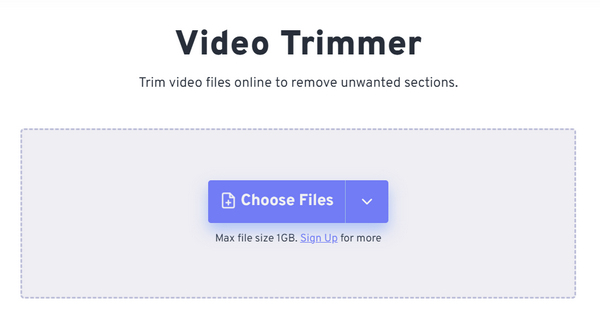
स्टेप 2. Choose Files ड्रॉप‑डाउन बटन पर क्लिक करें और Device, Dropbox या Google Drive से वह MP4 वीडियो जोड़ें जिसे आप ट्रिम करना चाहते हैं। आप सीधे उस वीडियो का लिंक भी पेस्ट कर सकते हैं जिसे आप ट्रिम करना चाहते हैं।.
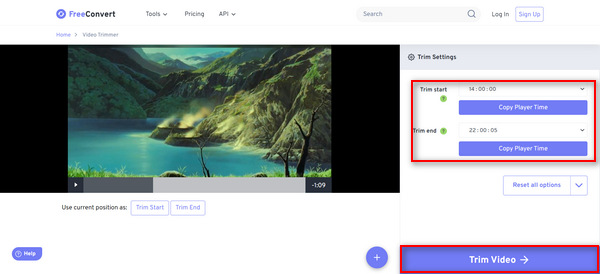
स्टेप 3. अब, वीडियो को ट्रिम करने के लिए, बस वह समय दर्ज करें जहाँ से आप ट्रिम शुरू करना चाहते हैं और जहाँ आप ट्रिम समाप्त करना चाहते हैं। इसके बाद Trim Video बटन पर क्लिक करें।.
FreeConverter एक बेहतरीन मुफ़्त ऑनलाइन MP4 टूल है जो आजकल उपलब्ध है। हालाँकि यह मुफ़्त है, लेकिन इस टूल में विज्ञापनों से निपटना मुश्किल है। इसलिए, अगर आप ऐसा नहीं चाहते हैं, तो यह टूल आपके लिए नहीं है।
पेशेवरों
- कोई वॉटरमार्क नहीं।
- किसी भी पंजीकरण की आवश्यकता नहीं है.
- MP4, MOV, AVI, और WebM सहित 40 से अधिक वीडियो प्रारूपों का समर्थन करता है।
विपक्ष
- बहुत सारे विज्ञापन हैं.
भाग 3: MP4 ट्रिमर के बारे में अक्सर पूछे जाने वाले प्रश्न
वीडियो को ट्रिम करने और वीडियो को विभाजित करने में क्या अंतर है?
वीडियो ट्रिमिंग तब होती है जब आप वीडियो के आरंभ या अंत का कोई भाग हटाते हैं। दूसरी ओर, वीडियो को विभाजित करना तब होता है जब आप किसी वीडियो क्लिप को दो अलग-अलग टुकड़ों में काटते हैं।
क्या मुझे अपने वीडियो ट्रिम करने के लिए सॉफ्टवेयर का भुगतान करना चाहिए?
यह वास्तव में आपकी विशिष्ट आवश्यकताओं और प्राथमिकताओं पर निर्भर करता है। जबकि उन्नत सुविधाओं के साथ कई सशुल्क वीडियो संपादन सॉफ़्टवेयर विकल्प उपलब्ध हैं, ऐसे मुफ़्त ऑनलाइन टूल भी हैं जो भुगतान की आवश्यकता के बिना बुनियादी ट्रिमिंग क्षमताएँ प्रदान करते हैं। हालाँकि, यदि आप अधिक उन्नत संपादन सुविधा चाहते हैं, तो सशुल्क वीडियो ट्रिमिंग सॉफ़्टवेयर में निवेश करना इसके लायक हो सकता है।
क्या वीडियो को ट्रिम करने से गुणवत्ता कम हो जाती है?
यह इस्तेमाल किए जा रहे ट्रिमिंग टूल पर निर्भर करता है। वीडियो को ट्रिम करने से इसकी गुणवत्ता में कोई खास कमी नहीं आती, बशर्ते कि ट्रिमिंग प्रक्रिया सही तरीके से की गई हो और वीडियो को उसी फॉर्मेट और रिज़ॉल्यूशन में सेव किया गया हो। हालांकि, अगर ट्रिम किए गए MP4 वीडियो को फिर से एनकोड किया जाता है या कम रिज़ॉल्यूशन में सेव किया जाता है, तो वीडियो की गुणवत्ता कम हो जाएगी।
निष्कर्ष
MP4 ट्रिम करना अब हममें से अधिकतर के लिए आम बात हो गई है, खासकर वीडियो को एडिट और एन्हांस करने के मामले में। इसलिए, चाहे आप एक शुरुआत करने वाले हों या अनुभवी यूज़र, यह सीखना कि वीडियो ट्रिम करने से आप कैसे फ़ायदा उठा सकते हैं, आपके वीडियो आउटपुट की क्वॉलिटी को काफ़ी बेहतर बना सकता है, विशेष रूप से आज के डिजिटल दौर में। अगर आप इस हुनर में महारत हासिल करना चाहते हैं, तो झिझकिए मत और आज ही अपने वीडियो ट्रिम करना शुरू कीजिए!
-
 किसी भी ऑडियो को आसानी से काटने के लिए 5 MP3 कटर [2025 अपडेट]
 क्या आपको ऑडियो ट्रिम करने के लिए एमपी3 कटर की आवश्यकता है? उस स्थिति में, इस लेख को पढ़ें क्योंकि हम आसान ऑडियो-कटिंग के लिए निर्भर रहने के लिए उपकरण प्रदान करते हैं।
-
 TikTok के साथ वीडियो को कैसे ट्रिम करें [विस्तृत निर्देश]
 क्या आप जानना चाहते हैं कि टिकटॉक के साथ वीडियो को छोटा कैसे करें? फिर, हम आसान तरीके प्रदान करेंगे। साथ ही, आप ऑफ़लाइन एप्लिकेशन/कार्यक्रमों का उपयोग करके अन्य तरीके सीखेंगे।
-
 Android पर वीडियो ट्रिम करने के 3 बेहतरीन तरीके
 क्या आप वीडियो काटने के लिए अपने Android डिवाइस का उपयोग करना चाहते हैं? तो यह पोस्ट आपके लिए है। हम Android पर वीडियो को छोटा करने के तरीके के बारे में मूल्यवान तरीकों पर चर्चा करेंगे।
