


 वीडियो कनवर्टर अंतिम
 स्क्रीन अभिलेखी
 वीडियो मरम्मत
 सुरक्षित डाउनलोड
कुछ ही क्लिक में Adobe Premiere Pro में एक वीडियो से लोगो कैसे निकालें
Adobe Premiere Pro, Adobe Inc. द्वारा बनाया गया एक वीडियो संपादन सॉफ्टवेयर एप्लिकेशन है। यह एप्लिकेशन आपके वीडियो को बेहतर बना सकता है क्योंकि इसमें कई एडिटिंग टूल हैं जिनका आप इस्तेमाल कर सकते हैं। इस तरह, यदि आप यह जानना चाहते हैं कि Adobe Premiere Pro में वीडियो से वॉटरमार्क कैसे हटाएँ, तो आप इस पोस्ट से सीख सकते हैं। इसके अलावा, हमने कई एप्लिकेशन का परीक्षण किया है और आपको आपके वीडियो से लोगो या वॉटरमार्क हटाने के लिए एक विकल्प भी दे सकते हैं। यह लेख आपको आपके वीडियो से लोगो या वॉटरमार्क हटाने के सबसे तेज़ और आसान तरीके सिखाएगा।.

भाग 1: एडोब प्रीमियर प्रो में एक वीडियो से वॉटरमार्क कैसे निकालें?
आप कुछ ही क्लिक में Adobe Premiere Pro का उपयोग करके अपने वीडियो से वॉटरमार्क हटा सकते हैं। यदि आपके पास यह एप्लिकेशन है, तो आपको इस बारे में सोचना नहीं पड़ेगा कि अपने वीडियो से वॉटरमार्क या लोगो कैसे हटाएँ, क्योंकि यह आपकी समस्या का समाधान कर देगा। इसके अलावा, आप इस एप्लिकेशन का उपयोग अपने वीडियो को बेहतर बनाने के लिए भी कर सकते हैं। Adobe Premiere Pro में कई फ़ीचर हैं, जैसे कि एक साथ कई प्रोजेक्ट्स पर काम करना, VR एडिटिंग, ट्रांज़िशन, इफेक्ट्स, लेबल्स, कई प्रकार के वीडियो, मल्टीपल वीडियो सपोर्ट, डायरेक्ट पब्लिशिंग, मोशन ग्राफिक्स टेम्पलेट्स, आदि। हालाँकि, यदि आप इसे खरीदते हैं, तो यह एप्लिकेशन काफी महँगा है। साथ ही, यह मुख्य रूप से एडवांस्ड यूजर्स के लिए उपयुक्त है, यानी शुरुआती लोगों के लिए इस एप्लिकेशन को चलाना कठिन हो सकता है। आपको एक हाई मेमोरी कार्ड की भी आवश्यकता होगी, क्योंकि अच्छे प्रदर्शन के लिए इसे अधिक मेमोरी चाहिए। यदि आप अपने वीडियो से लोगो हटाने के लिए Adobe Premiere Pro का उपयोग करना चाहते हैं, तो नीचे दिए गए सरल चरणों का पालन करें।.
चरण 1: सबसे पहले आपको अपने डिवाइस पर Adobe Premiere Pro डाउनलोड करना होगा। आप फ्री ट्रायल वर्जन का उपयोग कर सकते हैं या एप्लिकेशन खरीद सकते हैं। इंस्टॉलेशन प्रक्रिया के बाद एप्लिकेशन चलाएँ।.
चरण 2: एप्लिकेशन में लोगो वाले अपने वीडियो को File > Open पर क्लिक करके खोलें। फिर वीडियो को कॉपी करें और उसे अपने मुख्य वीडियो के ऊपर वाले हिस्से में ड्रैग करें।.
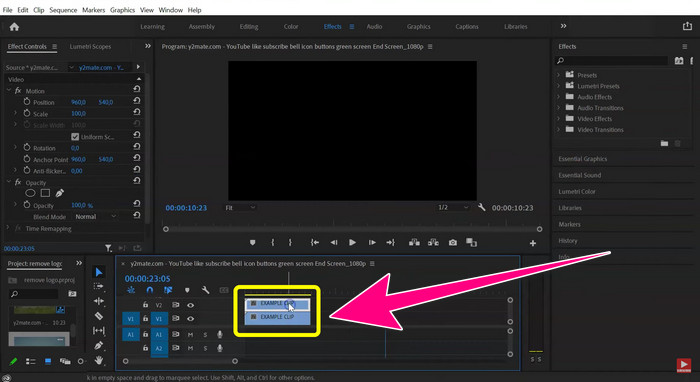
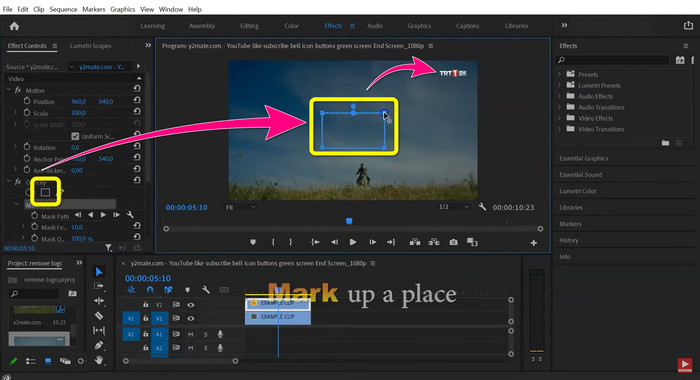
चरण 3: पॉलीगॉन मास्क पर क्लिक करें। जब बॉक्स आपकी स्क्रीन पर दिखाई दे, तो Motion टूल का इस्तेमाल करके बॉक्स को लोगो पर ड्रैग करें। लोगो हटाने का काम पूरा हो जाने पर आप File > Save पर जा सकते हैं और अपना वीडियो देखकर आनंद लें।.
भाग 2: वीडियो से वॉटरमार्क हटाने के लिए प्रीमियर का उपयोग करने का सबसे अच्छा वैकल्पिक तरीका
यदि आप एक शुरुआती हैं और अपने वीडियो से लोगो या वॉटरमार्क हटाने के लिए Adobe Premiere Pro का उपयोग करने में मुश्किल महसूस कर रहे हैं, तो चिंता न करें। हमारे पास आपके लिए सबसे अच्छे विकल्प मौजूद हैं। हम आपको आपके वीडियो से परेशान करने वाली चीज़ों को हटाने का एक बहुत आसान तरीका दे सकते हैं। यह है Video Converter Ultimate। यह आपको वीडियो से वॉटरमार्क या लोगो हटाने के दो बेहतरीन तरीके देता है: Video Watermark Remover टूल और Video Cropper टूल। यह सॉफ्टवेयर Adobe Premiere Pro की तुलना में उपयोग करने में आसान है। इसलिए, बिना किसी अनुभव वाला शुरुआती भी इससे लोगो या वॉटरमार्क आसानी से हटा सकता है। साथ ही, यदि आप Mac या Windows उपयोगकर्ता हैं, तो भी आप इस सॉफ्टवेयर का उपयोग कर सकते हैं। इसके अलावा, आप इस एप्लिकेशन को मुफ्त में भी इस्तेमाल कर सकते हैं, और इसकी सभी सुविधाओं का आनंद लेने के लिए इसे खरीद भी सकते हैं। यह Adobe Premiere Pro से सस्ता है। नीचे दिए गए चरणों का पालन करके आप अपने वीडियो से लोगो या वॉटरमार्क हटा सकते हैं।.
वीडियो वॉटरमार्क रिमूवर फंक्शन का उपयोग करना
चरण 1: नीचे दिए गए Download बटन पर क्लिक करके Video Converter Ultimate का आधिकारिक संस्करण डाउनलोड करें। इसे अपने Windows या Mac पर इंस्टॉल करें। सॉफ्टवेयर चलाएँ।.
फ्री डाउनलोडWindows 7 या बाद के संस्करण के लिएसुरक्षित डाउनलोड
फ्री डाउनलोडMacOS 10.7 या बाद के संस्करण के लिएसुरक्षित डाउनलोड
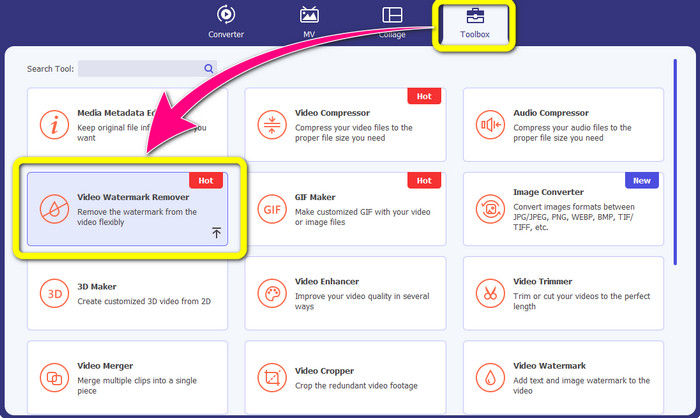
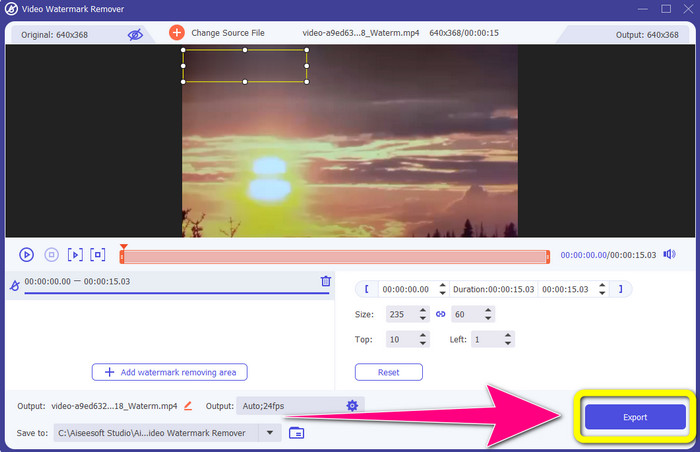
चरण 2: जब सॉफ्टवेयर खुल जाएगा, तो ऊपर आपको चार विकल्प दिखेंगे: Converter, MV, Collage और Toolbox। Toolbox पैनल चुनें और Toolbox पैनल के अंतर्गत Video Watermark Remover पर क्लिक करें।.
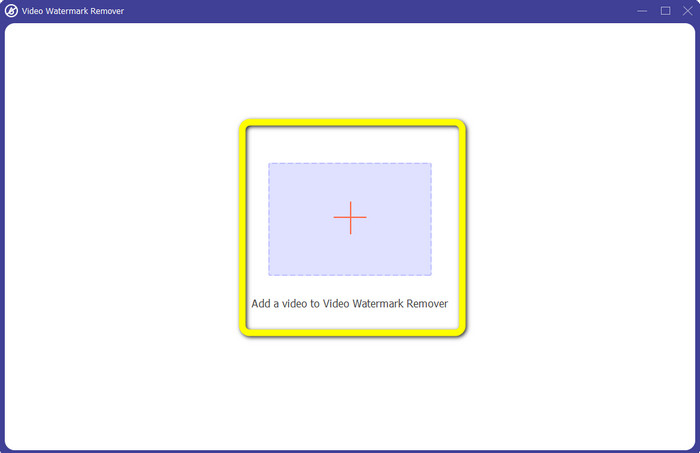
चरण 3: आपकी स्क्रीन पर एक नई विंडो दिखाई देगी। वॉटरमार्क वाले अपने वीडियो को इम्पोर्ट करने के लिए इंटरफ़ेस के बीच में मौजूद + चिन्ह पर क्लिक करें।.
चरण 4: Add Watermark Removing Area पर क्लिक करें। स्क्रीन पर दिखने वाले बॉक्स को ड्रैग करें और उसे अपने वीडियो के वॉटरमार्क को कवर करने के लिए स्थानांतरित करें।.
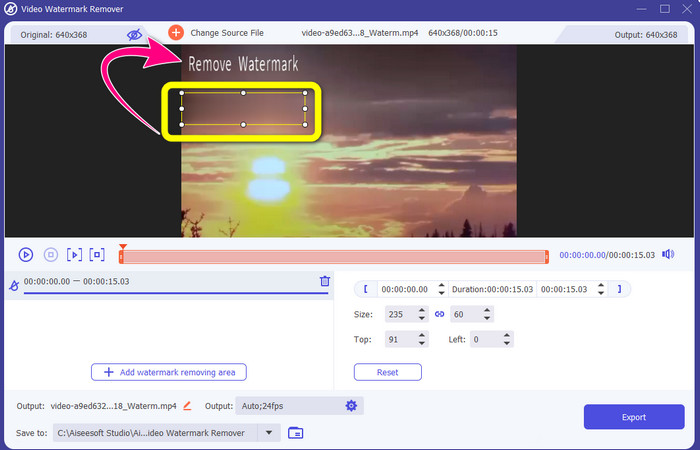
चरण 5: आख़िरी चरण सबसे आसान है। आपको बस Export बटन पर क्लिक करना है और अपने अंतिम आउटपुट को सेव करना है। कुछ पल इंतज़ार करें, और आपका अंतिम वीडियो पूरी तरह तैयार हो जाएगा।.
वीडियो क्रॉपर फ़ंक्शन का उपयोग करना
यदि वॉटरमार्क आपके वीडियो के किनारे पर है, तो आप अपने वीडियो से वॉटरमार्क हटाने के लिए इस वीडियो क्रॉपर फ़ंक्शन का उपयोग कर सकते हैं।
चरण 1: अपने Windows या Mac कंप्यूटर पर एप्लिकेशन लॉन्च करें। Toolbox पैनल के अंतर्गत Video Cropper बटन पर क्लिक करें।.
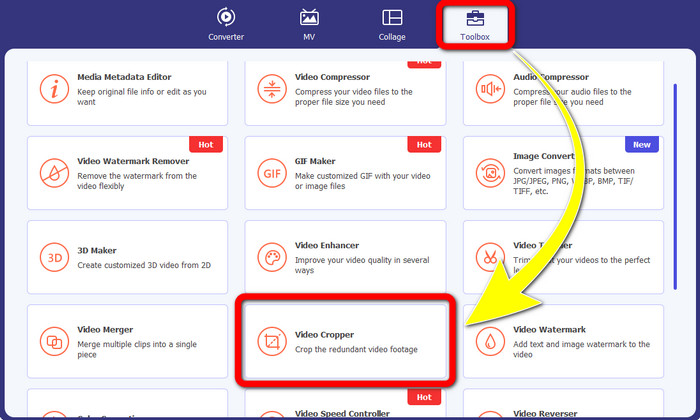
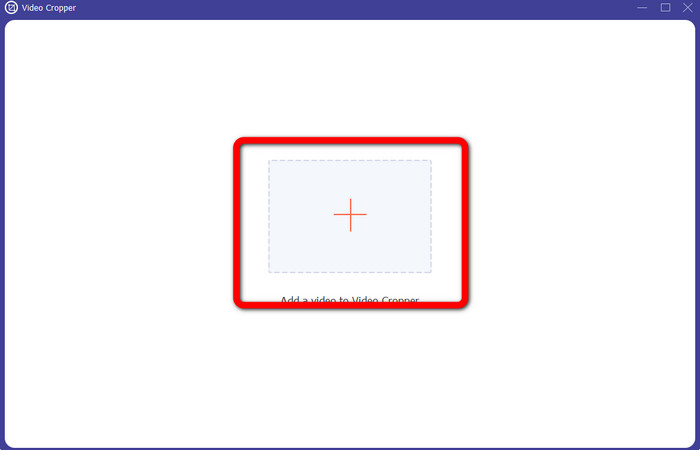
चरण 2: स्क्रीन पर एक और नई विंडो दिखाई देगी। उस वीडियो को इन्सर्ट करने के लिए जिसमें वह वॉटरमार्क है जिसे आप हटाना चाहते हैं, + आइकन पर क्लिक करें।.
चरण 3: इस भाग में, आप डॉट्स को मूव करके अपना वीडियो पहले से ही क्रॉप कर सकते हैं ताकि वॉटरमार्क हट सके।
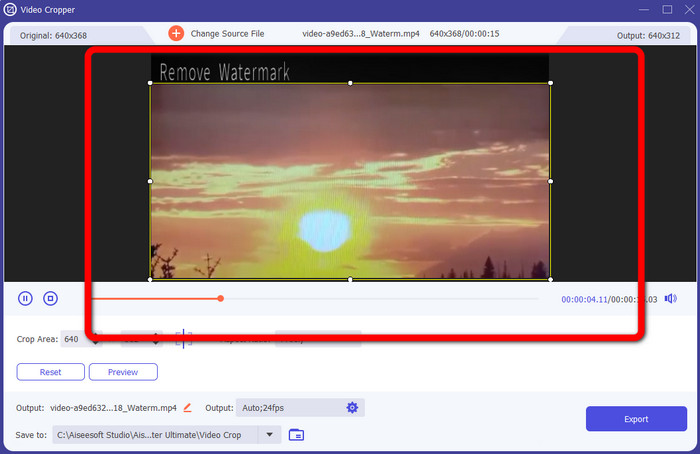
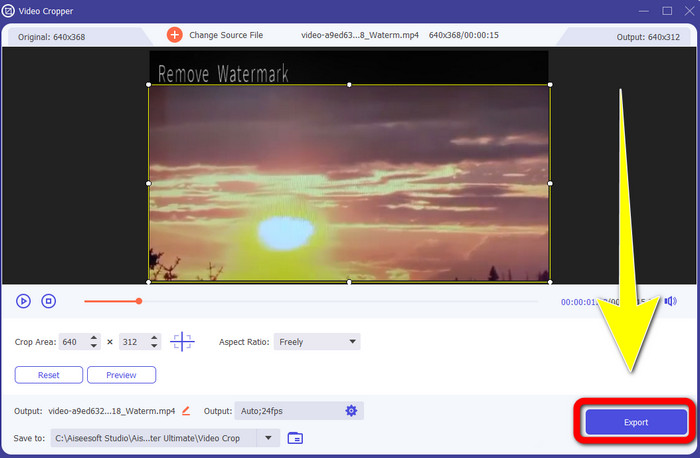
चरण 4: यदि आप अपने वीडियो से वॉटरमार्क हटाने के बाद किए गए काम से संतुष्ट हैं, तो Export बटन पर क्लिक करें और अपना वीडियो सेव करें।.
भाग 3: Premiere Pro में वीडियो से वॉटरमार्क हटाने के बारे में अक्सर पूछे जाने वाले प्रश्न
Premiere Pro का उपयोग करके बिना ब्लर के वीडियो से वॉटरमार्क कैसे निकालें?
Adobe Premiere Pro आपके वीडियो से वॉटरमार्क को बिना ब्लर किए हटा सकता है। इस तरह आप अपने वीडियो की क्वालिटी का मज़ा ले सकते हैं। नीचे दिए गए चरणों का पालन करें।
1. अपनी फ़ाइल को Adobe Premiere Pro में जोड़ें।
2. अपने वीडियो को कॉपी करें और उसे ओरिजिनल वीडियो के ऊपर ड्रैग करें।
3. पॉलीगॉन मास्क टूल पर क्लिक करें।
4. वॉटरमार्क को कवर करें और अपने अंतिम आउटपुट को सेव करें।.
मैं किसी वीडियो से ब्रांड का लोगो कैसे हटाऊं?
आपको अपने वीडियो से ब्रांड लोगो हटाने के लिए वीडियो कन्वर्टर अल्टीमेट जैसा लोगो रिमूवर डाउनलोड करना होगा। यह ऑफ़लाइन सॉफ़्टवेयर आपके वीडियो से परेशान करने वाले तत्वों को तुरंत हटा सकता है, जैसे कि लोगो, वॉटरमार्क, दिनांक स्टैम्प, टेक्स्ट, और बहुत कुछ।
मैं किसी वीडियो के धुंधले हुए बिना उसका लोगो कैसे निकालूं?
सबसे अच्छा उपाय है कि आप अपने डेस्कटॉप पर वीडियो कन्वर्टर अल्टीमेट डाउनलोड करें। आपके वीडियो से लोगो और किसी भी अवांछित वस्तु को हटाने के बाद, क्षेत्र धुंधला नहीं होगा।
एडोब प्रीमियर प्रो का उपयोग करने के क्या नुकसान हैं?
यह एक सदस्यता-आधारित मॉडल है। लगातार आवेदन का उपयोग करने के लिए आपको मासिक या वार्षिक भुगतान करना होगा। इसके अलावा, यह एक उच्च रैम उपयोग है, जिसमें यदि आप जटिल और लंबी फुटेज के साथ संपादन कर रहे हैं तो आप स्मृति से बाहर हो सकते हैं। अंत में, इसका उपयोग करना जटिल है। इस एप्लिकेशन को सीखने में एक महीने का समय लगता है। यहां तक कि पेशेवर भी मानते हैं कि वे अभी भी एडोब प्रीमियर प्रो का उपयोग करना सीख रहे हैं।
अपने वीडियो से वॉटरमार्क हटाने के लिए मैं किन सबसे विश्वसनीय एप्लिकेशन का उपयोग कर सकता हूं?
अपने वीडियो से वॉटरमार्क हटाने के लिए आप जिन एप्लिकेशन का उपयोग कर सकते हैं, वे हैं वीडियो कन्वर्टर अल्टीमेट, एइसेसॉफ्ट फ्री वॉटरमार्क रिमूवर ऑनलाइन, हिटपॉ रिमूव वॉटरमार्क ऑनलाइन, बीकट और एडोब प्रीमियर प्रो। इन अनुप्रयोगों का परीक्षण किया जाता है और प्रयास करने योग्य होता है।
निष्कर्ष
जैसा कि आप ऊपर देख सकते हैं, आप Premiere Pro में वीडियो से लोगो हटा सकते हैं। इसके अलावा, आप Adobe Premiere Pro का एक बेहतरीन विकल्प Video Converter Ultimate भी उपयोग कर सकते हैं। यह आपको अपने वीडियो से वॉटरमार्क या लोगो आसानी से हटाने देता है।.
-
 Adobe Premiere में स्लो-मोशन वीडियो बनाने के सिद्ध तरीके
 Adobe के सबसे अच्छे सॉफ़्टवेयर में से एक Premiere है; यह वीडियो को अगले स्तर तक बढ़ाने पर अधिक कार्य करता है, जैसे धीमी गति वाले वीडियो बनाना। Adobe Premiere और इसकी सहायक विशेषताओं के बारे में अधिक जानने के लिए इस लेख को पढ़ें।
-
 Adobe Premiere Pro में ऑडियो और वीडियो को सिंक करने के तेज़ और आसान तरीके
 क्या आप जानना चाहते हैं कि Premiere Pro में ऑडियो और वीडियो को कैसे सिंक किया जाए? तो यह लेख आपकी आवश्यकताओं के अनुरूप होगा। जैसा कि हम अपने लिए यह कोशिश करते हैं कि केवल वास्तविक और सरल चरणों को प्रदान करने के लिए कैसे सिंक किया जाए।
-
 प्रीमियर प्रो में और इसके विकल्पों के साथ वीडियो को कैसे गति दें
 क्या आप जानना चाहते हैं कि वीडियो को गति देने के लिए प्रीमियर प्रो का उपयोग कैसे करें? फिर आप सही लेख में हैं क्योंकि हम कदम और अन्य किफायती विकल्प प्रदान करते हैं।
