


 वीडियो कनवर्टर अंतिम
 स्क्रीन अभिलेखी
 वीडियो मरम्मत
 सुरक्षित डाउनलोड
बेहतरीन टूल से वीडियो को छोटा करने का सबसे तेज़ और आसान तरीका
किसी वीडियो को ट्रिम करना या छोटा करना महत्वपूर्ण है क्योंकि यह आपके वीडियो से केवल आवश्यक क्लिप को हाइलाइट करता है। वीडियो को ट्रिम करने का अर्थ है वीडियो क्लिप के अंत की शुरुआत को हटाना। संपादन का यह मूलभूत तत्व आवश्यक है ताकि आप अपने दर्शकों का ध्यान न खोएं। इसलिए, यदि आप अपने लंबे वीडियो को ट्रिम या छोटा करना चाहते हैं, तो आप इस लेख में वीडियो को छोटा करने के तरीके सीखेंगे।

भाग 1. सर्वश्रेष्ठ ऐप का उपयोग करके ट्रिमर पर वीडियो को छोटा करने के 2 तरीके
FVC Video Converter Ultimate आपका वीडियो ट्रिम करने के लिए सबसे अच्छा डेस्कटॉप टूल है। इस टूल का सॉफ्टवेयर इंटरफ़ेस सहज (इंट्यूटिव) है और इसे मुफ़्त में इस्तेमाल किया जा सकता है। यह ऑफ़लाइन कन्वर्टर आपको अपने वीडियो फ़ाइल में सेगमेंट जोड़ने की सुविधा देता है। इसके अलावा, इसमें एक फ़ीचर है जिससे आप अपने वीडियो को तेज़ी से अपनी पसंद के अलग‑अलग हिस्सों में बाँट (स्प्लिट) सकते हैं। और अगर आप ऐसा टूल ढूंढ रहे हैं जो कई फ़ाइल‑फ़ॉर्मेट को मिलाकर एक कर सके, तो यह एप्लिकेशन आपके लिए वह काम भी कर सकती है।.
इसके अलावा, यह टूल कई उन्नत फ़ीचर उपलब्ध कराता है, जैसे GIF मेकर, वीडियो मर्जर, वीडियो वॉटरमार्क रिमूवर आदि। और इससे भी बेहतर बात यह है कि यह MP4, WMV, FLV, AVI, MPG, WebM, MKV और 1000+ से ज़्यादा अन्य फ़ॉर्मेट सहित अनेक फ़ाइल फ़ॉर्मेट को सपोर्ट करता है। तो, अगर आप इस ऐप का उपयोग करके अपना वीडियो छोटा करना चाहते हैं, तो हमारे पास आपके लिए पालन करने के दो तरीके हैं।.
विधि 1. FVC के वीडियो ट्रिमर का उपयोग करें
Step 1. सबसे पहले, नीचे दिए गए Download बटन पर क्लिक करके FVC Video Converter Ultimate डाउनलोड करें। इंस्टॉलेशन प्रक्रिया को फ़ॉलो करें, फिर ऐप रन करें।.
फ्री डाउनलोडWindows 7 या बाद के संस्करण के लिएसुरक्षित डाउनलोड
फ्री डाउनलोडMacOS 10.7 या बाद के संस्करण के लिएसुरक्षित डाउनलोड
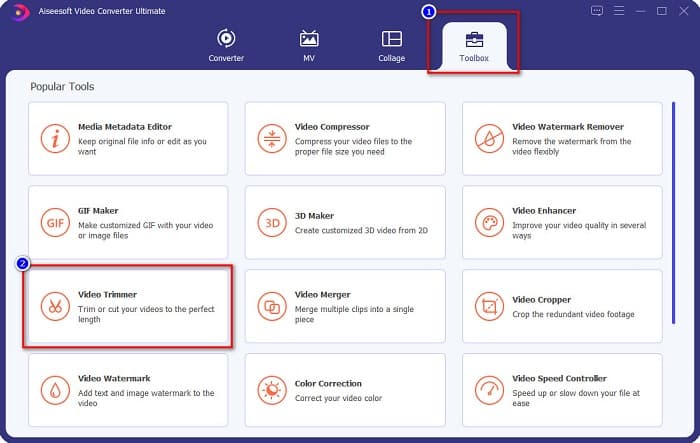
Step 2. अगला, सॉफ्टवेयर इंटरफ़ेस के ऊपर स्थित Toolbox पैनल को चुनें। फिर, टूलबॉक्स पैनल पर Video Trimmer पर क्लिक करें।.
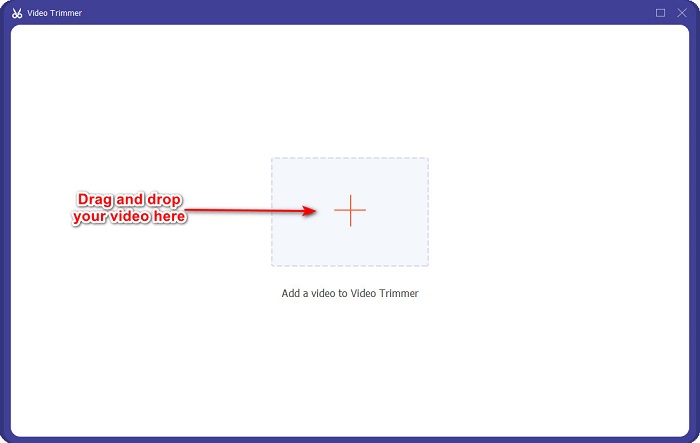
Step 3. और फिर, अगली इंटरफ़ेस पर + साइन बटन पर क्लिक करें या अपना वीडियो ड्रैग और ड्रॉप करके + साइन पर छोड़ें।.
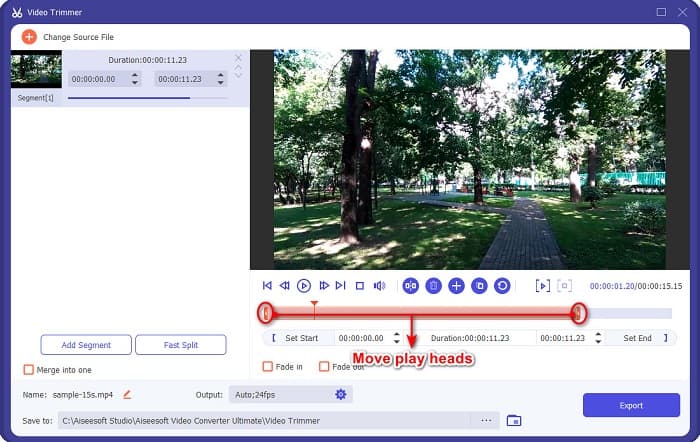
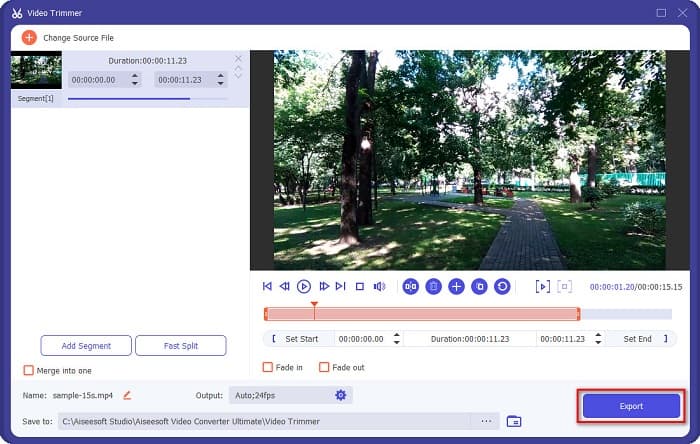
Step 4. फिर, अपनी इच्छित लंबाई तक प्ले हेड बटन को मूव करें। एरोहेड आपके वीडियो के प्रीव्यू की लोकेशन को दर्शाता है। और प्ले हेड आपके वीडियो की लंबाई को दर्शाते हैं। आप प्रीव्यू में अपने वीडियो में हुए अस्थायी बदलाव देख सकते हैं।.
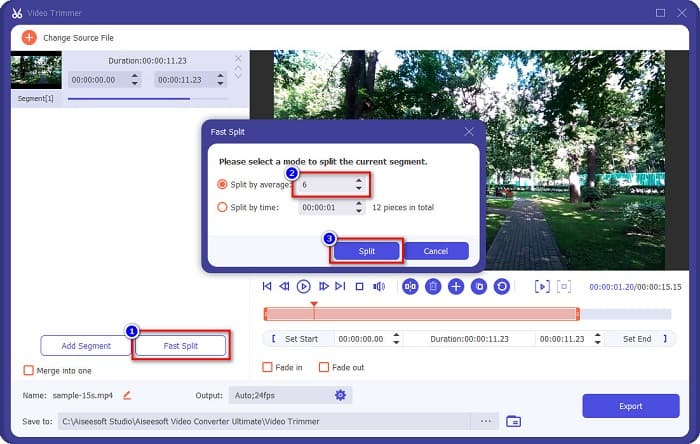
Optional. अगर आप अपने वीडियो को सेगमेंट्स में बाँटने का एक सरल तरीका चाहते हैं:
1. Fast Split बटन पर क्लिक करें।.
2. अपने वीडियो में जितने स्प्लिट करना चाहते हैं, उनकी संख्या चुनें, फिर Split दबाएँ।.
3. यदि आप अपने वीडियो को विभाजित नहीं करना चाहते हैं, तो अगले चरण पर आगे बढ़ें।
Step 5. अंत में, अपने वीडियो पर किए गए बदलाव लागू करने के लिए Export बटन पर क्लिक करें। इसके बाद आपका आउटपुट अपने‑आप आपके कंप्यूटर की फ़ाइलों में सेव हो जाएगा।.
विधि 2. FVC के वीडियो गति परिवर्तक का उपयोग करें
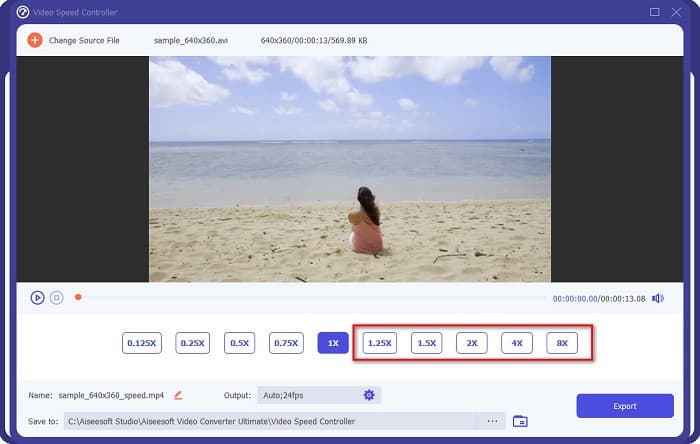
FVC वीडियो कन्वर्टर अल्टीमेट में एक विशेषता भी है जहाँ आप अपने वीडियो की गति को 0.125x, 0.25x, 0.5x, 0.75x, 1.25x, 1.5x, 2x, 4x और 8x गति से बदल सकते हैं। और अगर आप अपने वीडियो की लंबाई कम करना चाहते हैं, तो अपने वीडियो को तेज गति से समायोजित करें। अधिक विस्तृत चरणों के लिए, नीचे दी गई मार्गदर्शिका का पालन करें।
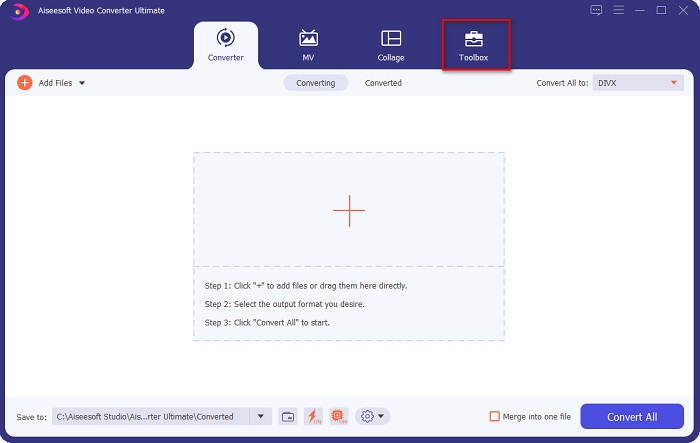
Step 1. FVC Video Converter Ultimate खोलें। और सॉफ्टवेयर के मुख्य इंटरफ़ेस पर Toolbox विकल्प पर क्लिक करें।.
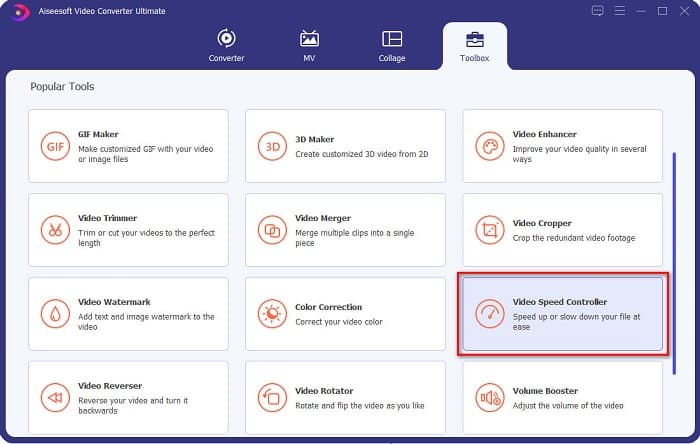
Step 2. फिर, Video Speed Controller पर क्लिक करें और अगले स्टेप पर जाएँ।.
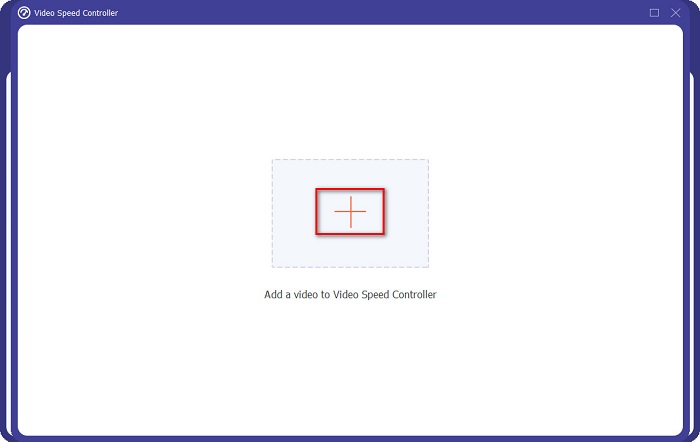
Step 3. अगला, जिस वीडियो को आप ट्रिम करना चाहते हैं उसे अपलोड करने के लिए + साइन बटन पर क्लिक करें। आपके कंप्यूटर के फ़ोल्डर खुलेंगे, जहाँ से आप वीडियो चुनकर सॉफ्टवेयर के इंटरफ़ेस पर अपलोड करेंगे।.
Step 4. अपना वीडियो छोटा करने के लिए, 1.25x से 8x तक की स्पीड में से कोई एक स्पीड चुनें।.
Step 5. आख़िरी स्टेप के लिए, अपने वीडियो पर किए गए बदलावों को सेव करने के लिए Export बटन पर क्लिक करें। इसके बाद आपका आउटपुट अपने‑आप आपके कंप्यूटर की फ़ाइलों में सेव हो जाएगा।.
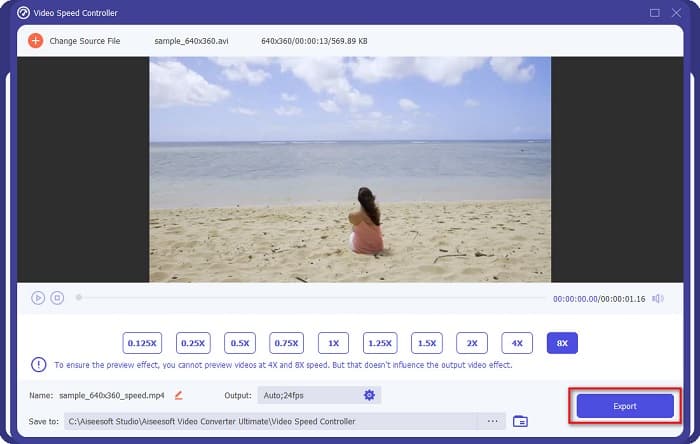
कम वीडियो अवधि के लिए, 8x गति का चयन करें।
पेशेवरों
- यह MOV, MKV, AVI, MP4, WMV, WMA, MPEG, और 1000+ स्वरूपों सहित कई फ़ाइल स्वरूपों का समर्थन करता है।
- इसमें उपयोग में आसान सॉफ्टवेयर इंटरफेस है।
- यह आपको कुछ ही क्लिक के साथ अपने वीडियो को तेज़ी से विभाजित करने की अनुमति देता है।
- विंडोज, मैक और लिनक्स जैसे सभी क्रॉस-मीडिया प्लेटफॉर्म पर डाउनलोड करने योग्य।
विपक्ष
- इसकी अन्य सुविधाओं तक पहुँचने से पहले ऐप को पहले ख़रीदें।
भाग 2। 2 कोशिश करने के लिए ऑनलाइन वीडियो ट्रिमर
यदि आप अपने वीडियो को बिना कुछ डाउनलोड किए ट्रिम करना चाहते हैं, तो ऑनलाइन वीडियो ट्रिमर हैं जिनका आप उपयोग कर सकते हैं। हमने सबसे अच्छे ऑनलाइन वीडियो ट्रिमर सूचीबद्ध किए हैं जिनका उपयोग बहुत से लोग इस भाग में करते हैं।
ट्रिम वीडियो
Trim Video एक ऑनलाइन वीडियो ट्रिमिंग टूल है, जिसे इसके सहज उपयोगकर्ता इंटरफ़ेस के कारण इस्तेमाल करना आसान है। यह एक उपयोगी टूल है क्योंकि इसे अन्य ऑनलाइन टूल्स की तरह इंस्टॉलेशन की ज़रूरत नहीं पड़ती। इसके अलावा, इसमें एक फ़ीचर है जिसके ज़रिए आप अपने वीडियो को 90, 180 या 270 डिग्री तक घुमा (रोटेट) सकते हैं। साथ ही, आपको अपने डेटा की सुरक्षा पर संदेह करने की ज़रूरत नहीं है क्योंकि यह टूल प्राइवेसी प्रोटेक्टेड है। हालाँकि, चूँकि यह एक वेब‑आधारित एप्लिकेशन है, इसमें विज्ञापन (ऐड्स) होते हैं जो आपको विचलित कर सकते हैं।.
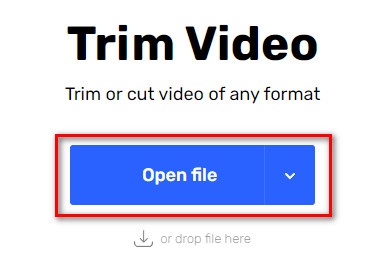
Step 1. अपने ब्राउज़र पर ऑनलाइन वीडियो ट्रिमर सर्च करें। फिर, Trim Video साइट पर क्लिक करें। सॉफ्टवेयर के मुख्य इंटरफ़ेस पर Open File बटन पर क्लिक करें।.
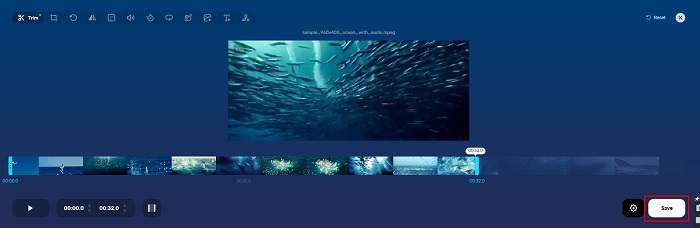
Step 2. फिर, प्ले हेड बटन को अपनी इच्छित लंबाई तक एडजस्ट करें।.
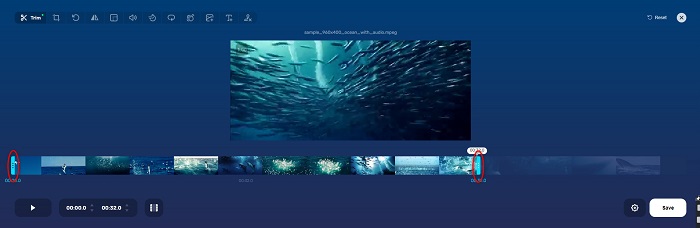
Step 3. अपने वीडियो की लंबाई बदलने के लिए Save बटन पर क्लिक करें।.
पेशेवरों
- इसमें उपयोग में आसान GUI है।
- इसमें आपके वीडियो को क्रॉप और रोटेट करने की विशेषताएं हैं।
- इसका उपयोग करना सुरक्षित है।
विपक्ष
- इसमें pesky विज्ञापन शामिल हैं।
- इसकी लोडिंग और अपलोडिंग प्रक्रिया धीमी है।
Clideo
एक और ऑनलाइन वीडियो ट्रिमर टूल है Clideo। यह ऑनलाइन टूल साधारण यूज़र इंटरफ़ेस वाला है, जिससे यह एक उपयोगकर्ता‑अनुकूल (यूज़र‑फ्रेंडली) टूल बन जाता है। यह AVI, MP4, VOB, MPG, MOV आदि जैसे ज़्यादातर मानक फ़ाइल फ़ॉर्मेट को भी सपोर्ट करता है। इसके अलावा, यह टूल उच्च स्तर की सुरक्षा लागू करता है, जिसका मतलब है कि आपका डेटा सुरक्षित है और अन्य लोग उसे नहीं देख पाएँगे। साथ ही, Clideo में कोई ऐसे विज्ञापन नहीं हैं जो आपको विचलित कर सकें।.
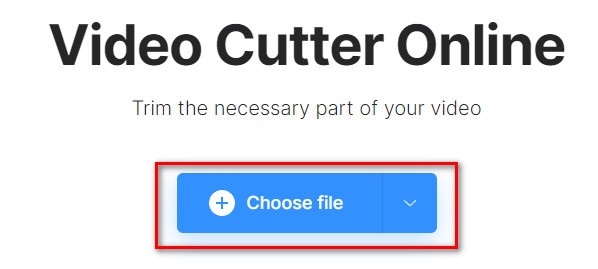
Step 1. जिस ब्राउज़र का आप उपयोग करते हैं, उस पर Clideo video trimmer सर्च करें। और सॉफ्टवेयर के पहले इंटरफ़ेस पर Choose File बटन पर क्लिक करें। आपके कंप्यूटर के फ़ोल्डर खुलेंगे, जहाँ से आप वह वीडियो चुनेंगे जिसे आप छोटा करना चाहते हैं।.
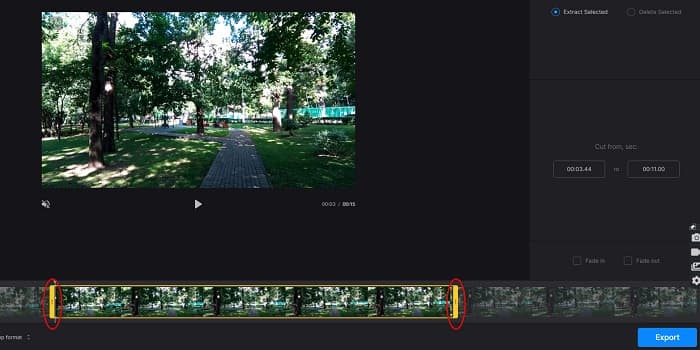
Step 2. प्ले हेड बटन को उस लंबाई तक मूव करें, जितनी लंबाई का आप अपना वीडियो रखना चाहते हैं।.
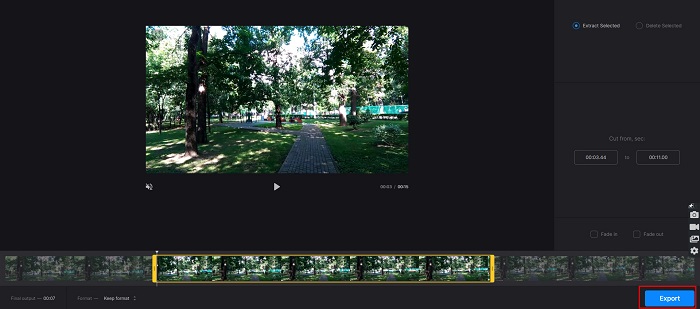
Step 3. आख़िरी स्टेप के लिए, अपने वीडियो की लंबाई बदलने के लिए Export बटन पर क्लिक करें।.
पेशेवरों
- इसमें उपयोग में आसान इंटरफ़ेस है।
- इसका उपयोग करना सुरक्षित है।
- इसमें कोई विज्ञापन नहीं है।
विपक्ष
- जब आपका इंटरनेट कनेक्शन धीमा हो, तो आपको धीमी प्रक्रिया का अनुभव हो सकता है।
भाग 3. वीडियो को छोटा कैसे करें के बारे में अक्सर पूछे जाने वाले प्रश्न
कैसे iPhone पर वीडियो छोटा करने के लिए?
सबसे पहले फोटो ऐप खोलें और उस वीडियो को चुनें जिसे आप ट्रिम करना चाहते हैं। फिर संपादित करें टैप करें। इसके बाद, स्लाइडर्स को अपनी वांछित वीडियो लंबाई में ले जाएं और अपने वीडियो से परिवर्तनों को सहेजने के लिए पूर्ण टैप करें।
क्या आपके वीडियो को ट्रिम करने से गुणवत्ता प्रभावित होती है?
नहीं। अधिकांश ट्रिमिंग टूल आपके वीडियो की गुणवत्ता को प्रभावित नहीं करते हैं। लेकिन अगर आप एक ऐसे टूल का आश्वासन दे रहे हैं जो आपके वीडियो को छोटा करने पर गुणवत्ता को प्रभावित नहीं करता है, तो एफवीसी वीडियो कन्वर्टर अल्टीमेट का उपयोग करें।
क्या आपके वीडियो को छोटा करने से फ़ाइल का आकार प्रभावित होता है?
हाँ। आपका वीडियो जितना छोटा होगा, उसका फ़ाइल आकार उतना ही कम होगा। इसके विपरीत, यदि आपका वीडियो लंबा है, तो इसमें एक विशाल फ़ाइल आकार होता है।
निष्कर्ष
यही था कि ट्रिमर और वीडियो स्पीड चेंजर का उपयोग करके वीडियो को कैसे छोटा किया जाए। ऊपर सूचीबद्ध सभी टूल बेहतरीन परिणाम दिखाते हैं और आपको सर्वोत्तम प्रदर्शन का भरोसा दिलाते हैं। लेकिन अगर आप ऐसे सबसे अच्छे टूल की तलाश में हैं जिसमें बहुत से फ़ीचर हों और जो वीडियो छोटा करने के लिए बेहद लोकप्रिय हो, तो FVC Video Converter Ultimate आपके लिए सबसे उपयुक्त टूल है।.
-
 गाने ऑनलाइन कैसे कट और मर्ज करें - 4 बेहतरीन तरीके जो आपको जानना चाहिए
 जब आप संगीत का एक टुकड़ा बनाने के लिए गीतों को ऑनलाइन काटना और मर्ज करना चाहते हैं, तो आप गीतों को क्लिप करने और लेख से फ़ाइलों को संयोजित करने के लिए 4 सर्वश्रेष्ठ ऑनलाइन टूल के बारे में अधिक जान सकते हैं।
-
 प्रक्रिया और जानकारी के साथ सर्वश्रेष्ठ MP4 ट्रिमर की खोज करें
 क्या आप सीखना चाहते हैं कि आपके द्वारा देखे जाने वाले व्लॉगर्स जैसे वीडियो कैसे काटें? फिर यह जानने के लिए इस पोस्ट को पढ़ना जारी रखें कि आप किन MP4 ट्रिमर का उपयोग कर सकते हैं।
-
 किसी भी ऑडियो को आसानी से काटने के लिए 5 एमपी3 कटर [2022 अपडेटेड]
 क्या आपको ऑडियो ट्रिम करने के लिए MP3 कटर की आवश्यकता है? उस स्थिति में, इस लेख को पढ़ें क्योंकि हम वे उपकरण प्रदान करते हैं जिन पर आप निर्भर हो सकते हैं जो ऑडियो के लिए आसान कटिंग प्रदान करते हैं।
