


 वीडियो कनवर्टर अंतिम
 स्क्रीन अभिलेखी
 वीडियो मरम्मत
 सुरक्षित डाउनलोड
जानें कि वॉटरमार्क क्या है | प्रकार और कारण वीडियो पर इसकी आवश्यकता क्यों है
आजकल वीडियो अपलोड करना हर किसी की पहुँच में आ गया है, चाहे वह कामकाजी हों, छात्र हों, बुज़ुर्ग हों या युवा, यहाँ तक कि उन्हें अन्य सोशल मीडिया प्लेटफ़ॉर्म पर दोबारा पोस्ट करना भी आसानी से किया जा सकता है। हालाँकि यह सब मुफ़्त है, फिर भी कुछ लोग दूसरों के वीडियो का फ़ायदा उठाकर पैसे कमाते हैं और उस पर अपना मालिकाना हक़ जताने लगते हैं। इसलिए, किसी को आपके बनाए काम को चुराने से रोकने के लिए आपको वीडियो पर वॉटरमार्क ज़रूर लगाना चाहिए। लेकिन इसे जोड़ने की ज़रूरत क्यों है? इसका उद्देश्य क्या है? वीडियो का वॉटरमार्क कैसे जोड़ा या हटाया जाए? आपके मन में उठ रहे इन सभी सवालों का जवाब पाने के लिए आपको यह लेख पढ़ते रहना चाहिए, ताकि आप जान सकें कि वीडियो पर वॉटरमार्क क्या होता है।.

भाग 1. वीडियो वॉटरमार्क क्या है
वॉटरमार्क को वेब पर अपलोड किए गए वीडियो जैसी अधिकांश डिजिटल सामग्री का हिस्सा माना जाता है। यह नेट पर वीडियो को किसी के द्वारा चुराए जाने और अपने लाभ के लिए उपयोग किए जाने से बचाता है। इसके अलावा, यह किसी को भी यह जानने में सक्षम बनाता है कि उक्त वीडियो का मालिक या स्रोत कहां है या कौन है। हालाँकि किसी के पास सुरक्षा या प्रचार करने के लिए वॉटरमार्क जोड़ने की पहुँच है, फिर भी आपको अपने वॉटरमार्क को अद्वितीय और विशिष्ट बनाने की आवश्यकता है ताकि कोई भी इसे जान सके। लेकिन वीडियो संपादन में वॉटरमार्क क्या है जिसका आपको उपयोग करने की आवश्यकता है? आमतौर पर वीडियो पर कई तरह के वॉटरमार्क देखे जाते हैं; ये क्या हैं, यह जानने के लिए आपको इस लेख को पढ़ते रहना चाहिए।
भाग 2. वीडियो वॉटरमार्क के प्रकार क्या हैं?
चार प्रकार के वीडियो वॉटरमार्किंग हैं जिनका उपयोग आप अपने वीडियो में जोड़ने के लिए कर सकते हैं। इसके प्रकारों को जानने के लिए, आपको किस प्रकार के वॉटरमार्क का उपयोग करना चाहिए, यह जानने में आपकी सहायता के लिए आपको नीचे दिए गए विवरणों को पढ़ते रहना चाहिए।
वॉटरमार्किंग के 4 प्रकार आप वीडियो पर लागू कर सकते हैं:
◆ दृश्य वॉटरमार्क – नाम से ही स्पष्ट है, यह दिखाई देने वाला वॉटरमार्क होता है, यानी जिसे हम नंगी आँखों से देख सकें, उसे दृश्य (विज़िबल) वॉटरमार्क माना जाता है। कोई भी व्यक्ति इन्हें आसानी से पहचान सकता है क्योंकि वे साफ़ दिखाई देते हैं। इन्हें आमतौर पर किसी ब्रांड को प्रमोट करने के लिए इस्तेमाल किया जाता है।.
◆ अदृश्य वॉटरमार्क – यह दृश्य वॉटरमार्किंग के बिलकुल विपरीत होता है। यह वॉटरमार्किंग उन सबके लिए आदर्श है जो उस चोर को पकड़ना चाहते हैं जो वीडियो चुराने की कोशिश करता है। क्योंकि अगर वॉटरमार्क अदृश्य हो, तो आप भी उसे नंगी आँखों से नहीं देख सकते।.
◆ सार्वजनिक वॉटरमार्क - एक निश्चित एल्गोरिद्म के साथ, कोई भी व्यक्ति अपनी पसंद के अनुसार वॉटरमार्क को बदल सकता है। हालाँकि यह सबके लिए पारदर्शी होता है, फिर भी इसे वॉटरमार्क जोड़ने का सबसे सुरक्षित तरीका नहीं माना जाता।.
◆ नाज़ुक वॉटरमार्क - यह वॉटरमार्किंग की सबसे संवेदनशील डिज़ाइन मानी जाती है। यह उन लोगों के लिए सबसे उपयुक्त है जो नहीं चाहते कि कोई भी धोखेबाज़ उनकी सामग्री में बदलाव कर सके। साथ ही, वीडियो के डेटा में ज़रा-सा बदलाव करने से ही यह आसानी से नष्ट भी हो सकता है।.
भाग 3. अपनी वीडियो सामग्री में वॉटरमार्क क्यों जोड़ें
इसके साथ, उपयोगकर्ता और यहां तक कि आप भी आसानी से पहचान सकते हैं कि अपलोड किए गए वीडियो में उनके द्वारा उपयोग किए गए स्वामी, वेबसाइट या सॉफ़्टवेयर कौन हैं। साथ ही, वॉटरमार्क का उपयोग वेब पर सूक्ष्म ब्रांडिंग के लिए किया जा सकता है, जैसे लोगो को जोड़ना, ब्रांड का नाम, टैग लाइन, और बहुत कुछ। वॉटरमार्क मुख्य रूप से ब्रांड और सुरक्षा को पहचानने के लिए उपयोग किए जाते हैं। वॉटरमार्क जोड़ने में आपका उद्देश्य जो भी हो, सभी को वॉटरमार्क जोड़ना चाहिए, खासकर अगर हम इसे वेब पर अपलोड करने वाले हैं।
वीडियो पर उपयोग किए जाने वाले अधिकांश वॉटरमार्क पारदर्शी होते हैं क्योंकि इन्हें हटाना सबसे कठिन होता है, खासकर अगर बीच में रखा गया हो। भले ही वॉटरमार्क पारदर्शी है, वॉटरमार्क वाला वीडियो देखना उतना अप्रिय नहीं है जितना आप सोचते हैं। हालांकि यह मदद कर सकता है, वॉटरमार्किंग के संबंध में अभी भी नुकसान हैं, विशेष रूप से अनुभव देखने वाले उपयोगकर्ताओं पर। यह जानने के लिए भाग 4 पढ़ें कि आपके द्वारा उपयोग किया जा सकने वाला सबसे अच्छा मुफ्त वॉटरमार्क सॉफ़्टवेयर कौन सा है।
भाग 4। अपने वीडियो में वॉटरमार्क कैसे जोड़ें और निकालें
क्या आप अपने वीडियो पर वॉटरमार्क जोड़ना या हटाना चाहते हैं? सौभाग्य से, FVC Video Converter Ultimate यह समस्या वॉटरमार्क हटाने और जोड़ने दोनों तरह से हल कर सकता है। यह सॉफ़्टवेयर वीडियो पर वॉटरमार्क लगाने के मामले में बेहतरीन तरीके से काम करता है। पेशेवरों के लिए तो यह सबसे अच्छा विकल्प है ही, लेकिन शुरुआती उपयोगकर्ताओं के लिए भी यह एक बढ़िया विकल्प हो सकता है, क्योंकि इसका इंटरफ़ेस उपयोगकर्ता‑अनुकूल है, जो आपको कुछ ही मिनटों में वॉटरमार्क जोड़ने और हटाने में माहिर बना देता है।.
जैसा कि शुरुआती विवरण निर्दिष्ट करते हैं कि वॉटरमार्क क्या है और इसे कैसे बनाया जाता है। यह हमारे लिए नीचे दिए गए चरण-दर-चरण ट्यूटोरियल को पढ़कर आपके वीडियो को जोड़ने और हटाने का समय है। लेकिन सबसे पहले, आपको नीचे दिए गए डाउनलोड बटन पर क्लिक करके अपने डेस्कटॉप पर सॉफ्टवेयर डाउनलोड करना होगा। स्थापना और सेट-अप प्रक्रिया का पालन करें, फिर टूल लॉन्च करें, और अब आप चरणों पर आगे बढ़ सकते हैं।
फ्री डाउनलोडWindows 7 या बाद के संस्करण के लिएसुरक्षित डाउनलोड
फ्री डाउनलोडMacOS 10.7 या बाद के संस्करण के लिएसुरक्षित डाउनलोड
वीडियो में वॉटरमार्क कैसे जोड़ें:
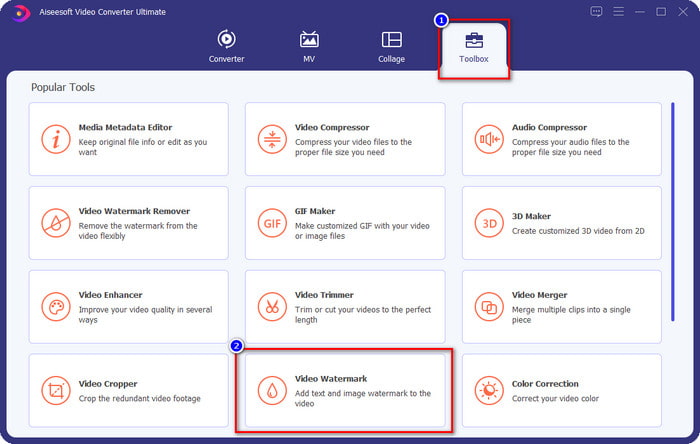
चरण 1. सॉफ़्टवेयर खोलने के बाद, आपको Toolbox में जाना है और Video Watermark ढूँढकर उस पर क्लिक करना है।.
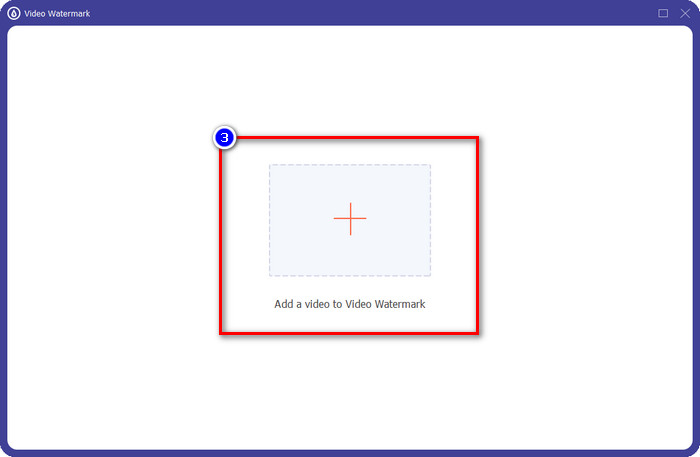
चरण 2. जिस वीडियो में आप वॉटरमार्क जोड़ना चाहते हैं, उसे अपलोड करने के लिए + बटन दबाएँ। जो फ़ोल्डर खुलेगा उसमें से अपनी वीडियो फ़ाइल चुनें और आगे बढ़ने के लिए Open दबाएँ।.
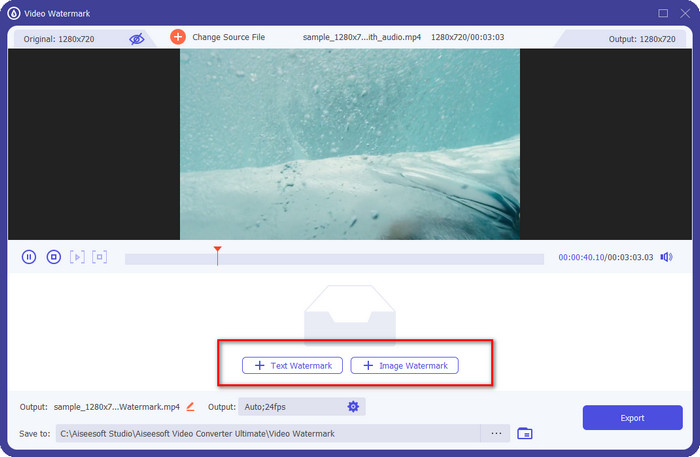
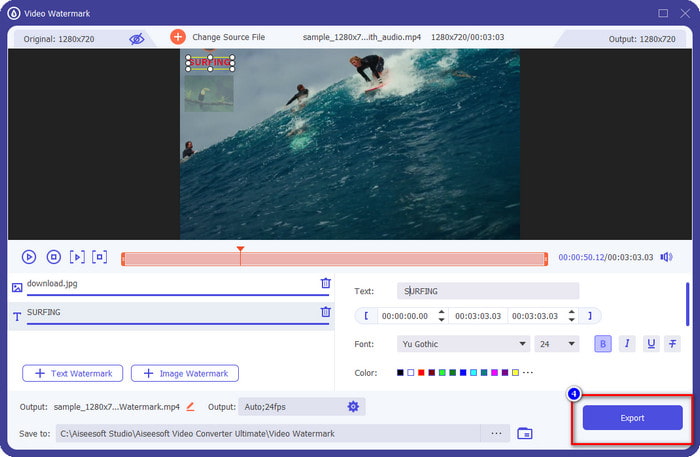
चरण 3. यहाँ दो विकल्प उपलब्ध हैं: अगर आप टेक्स्ट जोड़ना चाहते हैं, तो आपको Text Watermark पर क्लिक करना होगा, लेकिन अगर आप लोगो या इमेज जोड़ना चाहते हैं, तो आपको Image Watermark पर क्लिक करना होगा।.
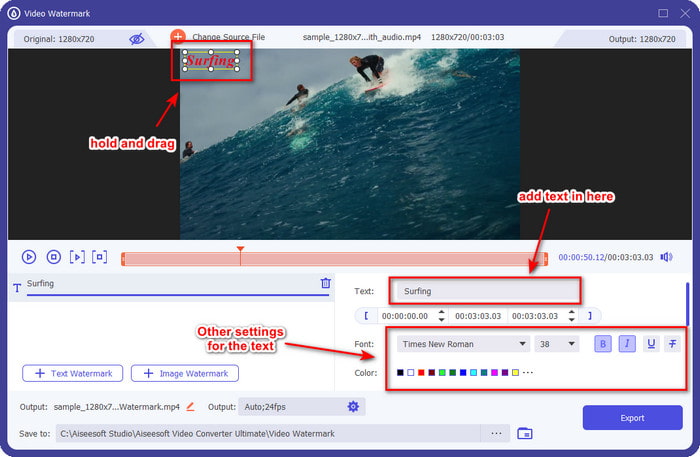
टेक्स्ट वॉटरमार्क के लिए:
इस भाग में आप जो वॉटरमार्क जोड़ना चाहते हैं, उसे टाइप करें, और फिर आप टेक्स्ट वॉटरमार्क के फ़ॉन्ट रंग और शैली को अपनी आवश्यकताओं के अनुसार बदल सकते हैं। वीडियो पर टेक्स्ट को वीडियो पर कहीं भी रखने के लिए उसे खींचें।
छवि वॉटरमार्क के लिए:
Image Watermark पर क्लिक करें और जिस इमेज फ़ाइल को वॉटरमार्क के रूप में इस्तेमाल करना चाहते हैं, उसे चुनें। सुनिश्चित करें कि जिस इमेज को आप इस्तेमाल करना चाहते हैं, वह पहले से ही ड्राइव में मौजूद हो। अब आप इस हिस्से में इमेज की अन्य सेटिंग्स बदल सकते हैं। इमेज वॉटरमार्क को पूरे वीडियो पर खींचकर सही जगह पर रखें।.
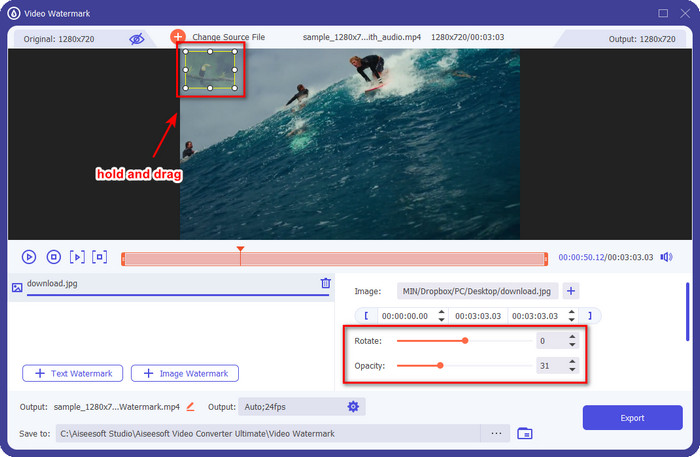
चरण 4. वीडियो को वॉटरमार्क सहित सेव करने के लिए अब आप Export बटन पर क्लिक कर सकते हैं।.
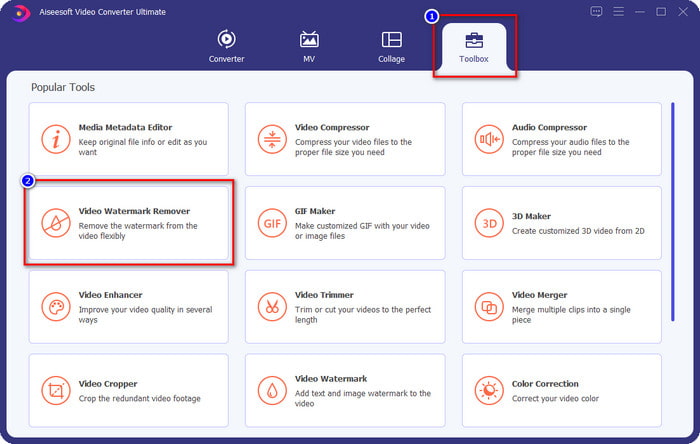
वीडियो से वॉटरमार्क कैसे हटाएं:
चरण 1. Toolbox में जाकर Video Watermark Remover ढूँढें और उसे खोलें।.
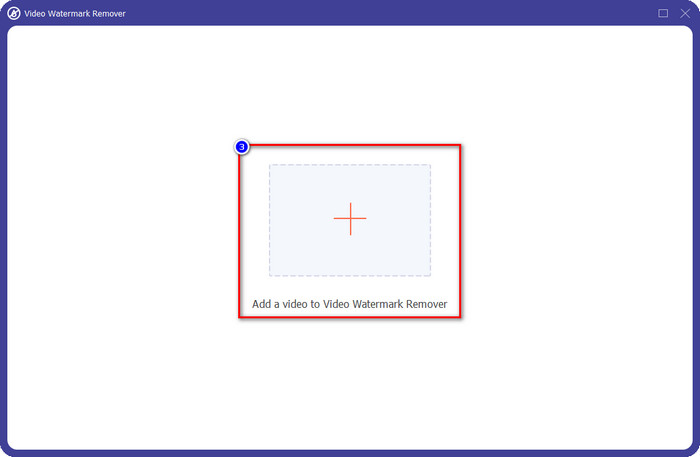
चरण 2. वॉटरमार्क वाले वीडियो को अपलोड करने के लिए + आइकन पर क्लिक करें, और निर्णय हो जाने पर Open दबाएँ।.
चरण 3. अपने वीडियो से वॉटरमार्क हटाने के लिए Add Watermark Removing Area दबाएँ।.
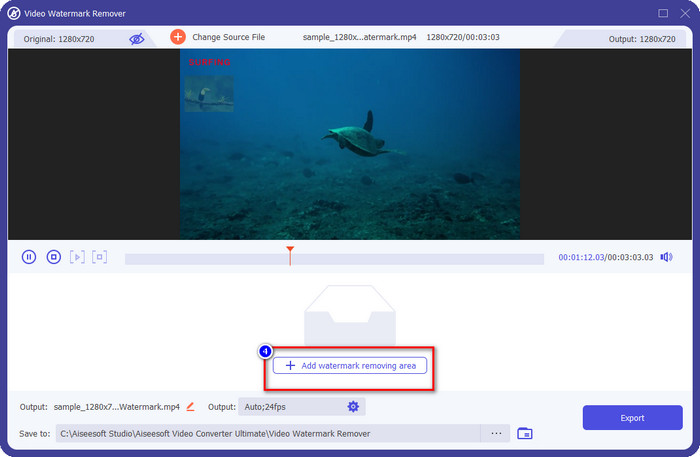
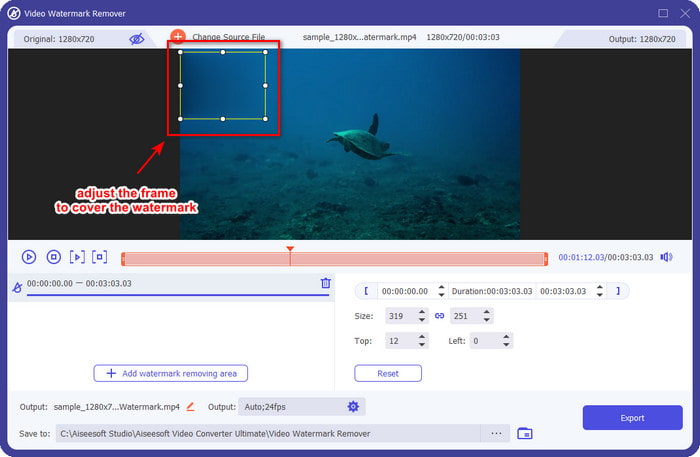
चरण 4. वॉटरमार्क हटाने वाले फ़्रेम को वॉटरमार्क पर ले जाकर रखें। आप अपने वीडियो पर इसकी स्थिति और आकार को स्वतंत्र रूप से बदल सकते हैं।.
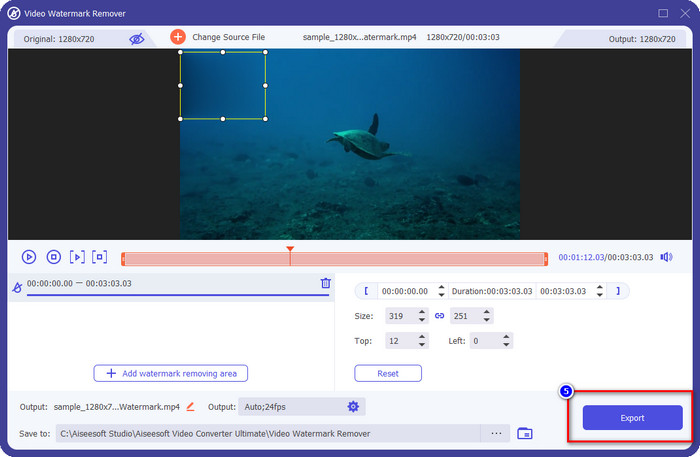
चरण 5. अब जबकि वॉटरमार्क धुँधला (ब्लर) हो चुका है, आप Export पर क्लिक करके वीडियो को बिना वॉटरमार्क के सेव कर सकते हैं। कितना आसान है न।.
संबंधित:
भाग 5. वीडियो पर वॉटरमार्क के बारे में अक्सर पूछे जाने वाले प्रश्न
क्या मैं एक ही समय में टेक्स्ट और इमेज दोनों तरह के वॉटरमार्क जोड़ सकता हूँ?
बिल्कुल हाँ। आप जिस वीडियो के साथ काम कर रहे हैं, उस पर टेक्स्ट और इमेज वॉटरमार्क जोड़ सकते हैं। ऐसा करने के लिए, आप पाठ और एक छवि का उपयोग करके वॉटरमार्क जोड़ने के लिए ऊपर दिए गए चरणों का पालन कर सकते हैं।
क्या वॉटरमार्क लगाने से वीडियो की फ़ाइल साइज़ बढ़ जाती है?
हालांकि वॉटरमार्क वाले वीडियो का फ़ाइल आकार बिना वॉटरमार्क वाले वीडियो से अलग नहीं है, वॉटरमार्क वाले वीडियो का फ़ाइल आकार बिना वॉटरमार्क वाले वीडियो से थोड़ा अलग है। फिर भी, हम कह सकते हैं कि वीडियो के फ़ाइल आकार के साथ या उसके बिना समान होने की संभावना है।
मेरी ज़रूरतों के लिए कौन‑सी वॉटरमार्किंग सबसे उपयुक्त है?
इससे पहले कि आप जिस वीडियो के साथ काम कर रहे हैं उसमें वॉटरमार्क जोड़ें, विभिन्न प्रकार के वॉटरमार्क को जानना जरूरी है। कृपया ऊपर दी गई जानकारी को पढ़ें क्योंकि हमने यह निर्धारित करने के लिए व्यक्तिगत रूप से उन पर चर्चा की थी कि आपको किसका उपयोग करना चाहिए।
निष्कर्ष
आख़िरकार, अब हम जान गए हैं कि वॉटरमार्क लोगो क्या होता है और उसे अपने वीडियो में कैसे जोड़ा जाता है। तो, अगर आप वॉटरमार्क से जुड़ी हर ज़रूरत—चाहे हटाने की हो या जोड़ने की—के लिए एक ही जगह समाधान चाहते हैं, तो FVC Video Converter Ultimate आपके लिए उपयोगी होगा। यदि आप जानना चाहते हैं कि यह टूल और क्या‑क्या कर सकता है, तो आप इसे अभी अपने डेस्कटॉप पर डाउनलोड करें और ख़ुद अनुभव करें।.
-
 विंडोज और मैक पर फोटोशॉप में वीडियो में वॉटरमार्क कैसे जोड़ें का सबसे अच्छा तरीका
 जानना चाहते हैं कि फोटोशॉप पर वीडियो में वॉटरमार्क कैसे जोड़ें? उस स्थिति में, यह लेख आपको वह चीज़ प्रदान करेगा जो आपको जानना आवश्यक है।
-
 टिकटोक वीडियो से टिकटॉक वॉटरमार्क हटाने के 4 प्रभावी तरीके
 क्या आपको अपने निर्यात किए गए टिकटोक वीडियो से टिकटोक वॉटरमार्क हटाने की आवश्यकता है? आप इसे यहां हमारे द्वारा प्रस्तुत टूल की सहायता से कर सकते हैं; आप इसे आसानी से कर सकते हैं।
-
 मैक पर iMovie में एक वीडियो में वॉटरमार्क कैसे जोड़ें [सभी आलिंगन]
 क्या आप iMovie में किसी वीडियो में वॉटरमार्क जोड़ने के रहस्य जानना चाहते हैं? चाय किसी पर न गिराएं, और इस लेख को पढ़कर सीखें।
