


 Video Converter Ultimate
 Snimač zaslona
 Video popravak
Kako jednostavno dodati vodeni žig u video | 3 najbolje metode
Vodeni žigovi igraju ključnu ulogu u našem objavljenom digitalnom sadržaju, jer služe kao identitet i dodatni sloj zaštite od neovlaštene uporabe. Stoga, ako ste autor sadržaja koji objavljuje videozapise i želite spriječiti da se vaši videozapisi koriste bez vašeg dopuštenja ili navođenja izvora, dodavanje vodenog žiga jednostavno je, ali učinkovito rješenje. Zato ćemo vam u ovom članku pomoći da na tri različita načina dodate vodeni žig u video. Ako ste spremni, krenimo.

1. dio. Dodavanje vodenog žiga videozapisu | Konačno rješenje
Konačno rješenje za dodavanje vodenog žiga u video jest korištenje alata FVC Screen Video Converter Ultimate. Pomoću tog alata korisnici mogu jednostavno dodati vodeni žig svojim videozapisima putem alata Video Watermark. Da, ovaj alat za pretvorbu videa ima Toolbox (skup alata) koji sadrži razne alate koje korisnici mogu upotrijebiti kad god im je potrebno rješenje za bilo koji audio ili video problem na koji naiđu.
Glavne značajke
• Podržava više od 1000 ulaznih formata, što omogućuje prikaz gotovo svih vrsta videozapisa.
• Omogućuje korisnicima dodavanje vodenog žiga slike videozapisu.
• Omogućuje korisnicima dodavanje tekstualnog vodenog žiga videozapisu.
• Omogućuje prilagodbu i osnovno uređivanje dodanog vodenog žiga.
• Podržava razne opcije video izlaza.
Evo kako dodati vodeni žig videozapisu pomoću FVC Video Converter Ultimate:
Korak 1. Prvo morate preuzeti i instalirati FVC Video Converter Ultimate na svoje računalo. Imajte na umu da je kompatibilan i s Windowsom i s macOS-om.
Besplatno preuzimanjeZa Windows 7 ili novijiSigurno preuzimanje
Besplatno preuzimanjeZa MacOS 10.7 ili novijiSigurno preuzimanje
2. korak. Pokrenite alat, kliknite karticu Toolbox, a zatim odaberite Video Watermark.
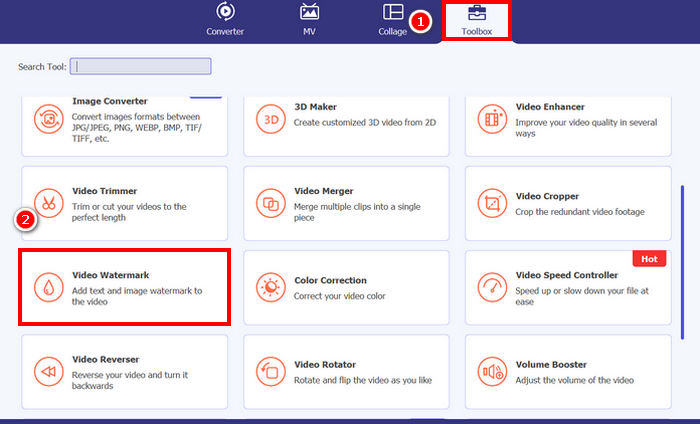
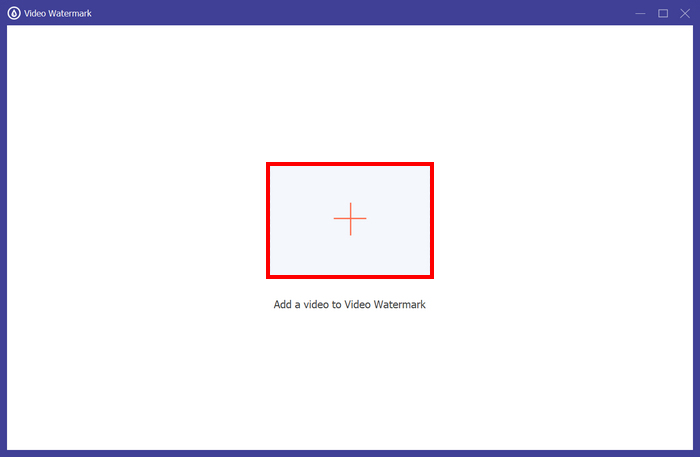
3. korak. Nakon toga kliknite na Add a Video to Video Watermark i odaberite videozapis kojem želite dodati slikovni vodeni žig.
4. korak. Sada odaberite + Image Watermark kako biste dodali sliku koju želite koristiti kao vodeni žig za svoj video. Zatim je možete prilagoditi. Kada završite, kliknite gumb Export.
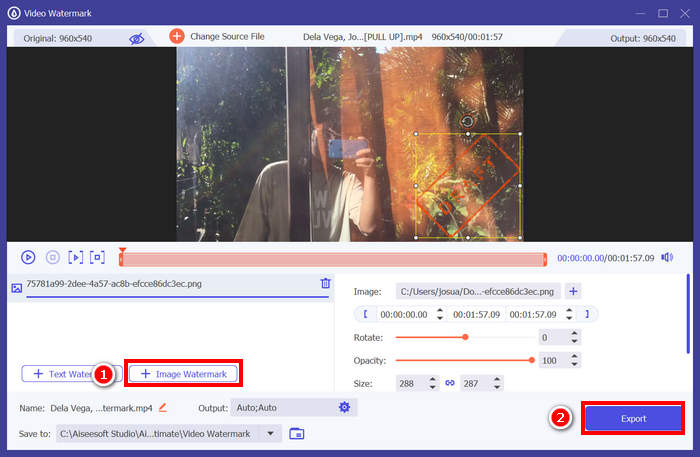
Pomoću FVC Video Converter Ultimate možete jednostavno dodati vodeni žig videozapisu, i imajte na umu da možete dodati tekstualni ili slikovni vodeni žig. Također, ima osnovne značajke uređivanja gdje možete prilagoditi neprozirnost, veličinu, pa čak i rotirati. Konačno, sučelje je vrlo jednostavno i intuitivno, tako da čak i početnici mogu lako naučiti kako ga koristiti.
Dio 2. Kako dodati vodeni žig videozapisu u Canvi?
Canva je popularan alat za uređivanje i sigurno ste već čuli za njega. Ali jeste li znali da se ovim alatom može dodati vodeni žig u video? Da, zahvaljujući svom korisnički prilagođenom sučelju i moćnim funkcijama povlačenja i ispuštanja, Canva omogućuje jednostavno učitavanje vašeg logotipa ili prilagođenog vodenog žiga i postavljanje točno ondje gdje želite na videu. U nastavku slijedi detaljan vodič korak po korak kako dodati vodeni žig u video pomoću Canve:
1. korak. Prvo morate imati Canva račun. Možete se registrirati ili prijaviti putem svog Google računa.
2. korak. Zatim otvorite Canvu, kliknite na Create a Design i odaberite opciju Upload kako biste uvezli videozapis koji želite označiti vodenim žigom.
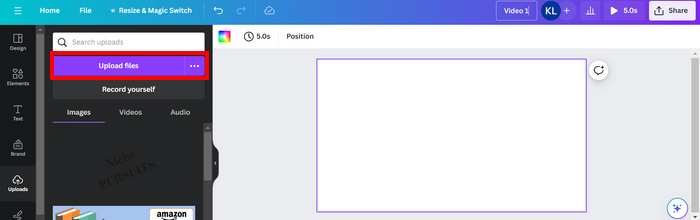
3. korak. Sada učinite isto sa svojim vodenim žigom: učitajte ga i povucite na video. Kada ga postavite na željeno mjesto, možete povećati ili smanjiti vodeni žig te urediti boju i prozirnost.
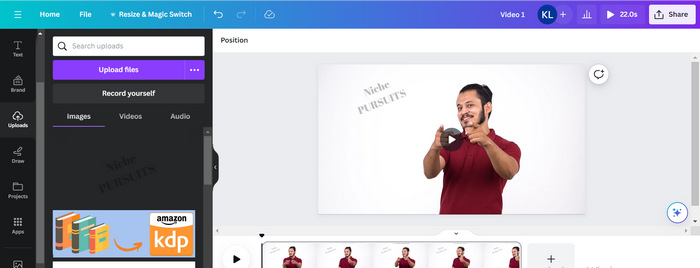
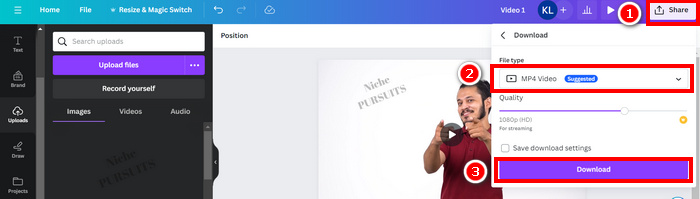
4. korak. Reproducirajte video kako biste provjerili prikazuje li se vodeni žig u videu. Ako je sve u redu, kliknite gumb Share i preuzmite datoteku kao MP4 video file klikom na gumb Download.
Napomena: Ako je slika vašeg vodenog žiga previše upadljiva ili tamna za vaš video, možete prilagoditi njezinu prozirnost kako bi se prirodnije uklopila u snimku, bez dominiranja vizualima ili odvlačenja pozornosti gledatelja.
Dio 3. Dodajte tekstualni vodeni žig videozapisu online [besplatno]
Ako preferirate web-baziranu i besplatnu metodu za dodavanje vodenog žiga videozapisu, echowave.io bi mogao biti izvrstan izbor. Ovaj online alat platforme nudi intuitivne značajke koje korisnicima omogućuju stvaranje, uređivanje i vizualizaciju audio i video sadržaja. Osim toga, uz ovaj alat korisnici mogu iskoristiti njegovu značajku uređivanja, gdje mogu dodati tekstualni vodeni žig. U nastavku slijedi detaljan vodič o tome kako dodati tekstualni vodeni žig videozapisu online:
1. korak. Najprije u Chromeu potražite echowave.io.
2. korak. Zatim, kada se nađete na sučelju alata, kliknite Create Watermarked Video.

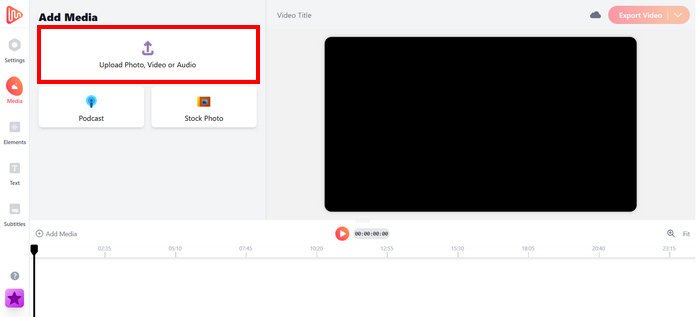
3. korak. Nakon toga kliknite na Upload Photo, Video, or Audio kako biste učitali video koji želite označiti vodenim žigom.
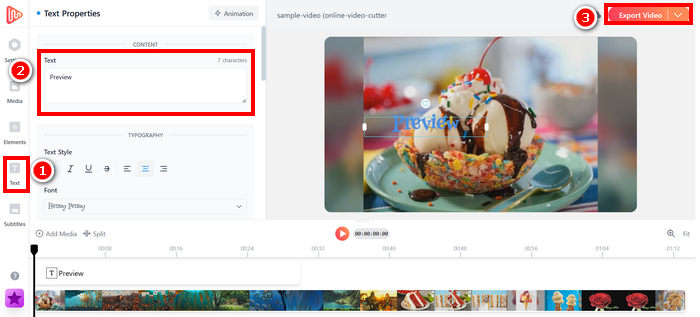
4. korak. Na kraju, na lijevoj strani zaslona kliknite na Text kako biste dodali i sastavili tekstualni vodeni žig koji želite izraditi. Najprije morate odabrati format koji želite koristiti. Nakon toga upišite tekst. Kada završite, možete prilagoditi mjesto na koje želite postaviti vodeni žig, a kad ste zadovoljni, kliknite gumb Export za spremanje datoteke.
Iako je dodavanje vodenog žiga videozapisu pomoću echowave.io jednostavno i prilagođeno početnicima, alat ponekad može zaostajati, čak i pri obradi kratkih videozapisa ili datoteka male veličine.
Kliknite ovdje kako biste pročitali više o dodavanju vodenog žiga GIF-u, ako vas zanima.
Dio 4. Često postavljana pitanja o dodavanju vodenog žiga videozapisu
Je li ilegalno prekriti vodeni žig?
Da, to je ilegalno. Vodeni žigovi se često koriste kao oblik zaštite autorskih prava, označavajući vlasništvo ili autorstvo sadržaja. Namjerno skrivanje ili uklanjanje vodenih žigova može kršiti zakone o autorskim pravima i može dovesti do pravnih posljedica, posebno ako se izmijenjeni sadržaj redistribuira, prenamijeni ili koristi u komercijalne svrhe.
Kako dodati vodeni žig u video u DaVinci Resolve?
Za dodavanje vodenog žiga u DaVinci Resolve, uvezite videozapis i sliku ili tekst vodenog žiga. Postavite videozapis na vremensku crtu, a zatim povucite vodeni žig iznad njega na zasebnoj traci. Pomoću ploče Inspektor promijenite veličinu, pomaknite i prilagodite neprozirnost. Kada sve izgleda ispravno, izvezite videozapis s uključenim vodenim žigom.
Kako dodati vodeni žig na video u Lightroomu?
Da biste dodali vodeni žig videozapisu u Lightroomu, prvo otvorite Lightroom i odaberite sliku na koju želite dodati vodeni žig. Zatim kliknite karticu Lightroom na vrhu zaslona i odaberite Uredi vodene žigove iz padajućeg izbornika. U prozoru Uređivač vodenih žigova koji se pojavi upišite željeni tekst vodenog žiga u okvir ispod slike pregleda. Odatle možete prilagoditi i stil, font, veličinu i položaj vodenog žiga.
Zaključak
Dodavanje vodenog žiga u video doista je važno, a znati kako to učiniti ključno je za zaštitu vašeg sadržaja i isticanje vlasništva. Iako postoji mnogo dostupnih alata, FVC Video Converter Ultimate nudi jednostavan i učinkovit način za dodavanje vodenog žiga u video. Doista je praktičan izbor za početnike koji žele brzo rješenje, ali istraživanje drugih alata poput Canve ili mrežnih uređivača također može biti korisno, ovisno o vašim potrebama.
-
 5 načina za uklanjanje vodenog žiga s videa na profesionalan način
 Trebate ukloniti vodeni žig s videozapisa kako bi izgledao profesionalno? Pa, pročitajte ovaj članak dok dodajemo vodič o tome kako to učiniti!
-
 2 sjajne aplikacije koje možete koristiti za uklanjanje vodenog žiga s MP4 videozapisa
 Ovaj će vam članak ponuditi jednostavne i najlakše načine za uklanjanje vodenog žiga s MP4 videozapisa pomoću uređaja poput Windowsa i Maca
-
 Uklonite vodeni žig Animotica na izvezenim videozapisima na 3 dokazana načina
 Jeste li se ikada zapitali je li moguće ukloniti vodeni žig Animotica na videozapisima koje ste izvezli? Ovaj članak daje upute kako to učiniti.
