


 Video Converter Ultimate
 Snimač zaslona
 Video popravak
4 najlakša načina za promjenu brzine reprodukcije videa na stolnom računalu, webu i telefonima
Većina korisnika pronađe učinkovit način da odgleda jednosatni videozapis za manje od sat vremena. Jedino rješenje koje može riješiti ovaj problem jest promjena brzine reprodukcije videa koji trenutačno gledate. Većina video uređivača koje ćete pronaći na tržištu može vam pomoći obaviti taj zadatak, ali pitanje je: jesu li pouzdani? Tijekom istraživanja svakog od njih otkrili smo da možete promijeniti brzinu videa na računalima, putem interneta, kao i na iOS i Android uređajima. Ako želite znati kako to učiniti, nastavite čitati ovaj blog jer u nastavku navodimo alate i aplikacije koji vam mogu pomoći.

Dio 1. Najbolji preporučeni način za promjenu brzine videa na Windows i Mac bez napora
Da biste lako promijenili brzinu videa, morate odabrati najbolji alat koji pruža vrhunske rezultate u samo nekoliko jednostavnih klikova – predstavljamo FVC Video Converter Ultimate. Ovaj alat učinkovito mijenja brzinu vašeg videa bilo kada i bilo gdje. Također možete promijeniti brzinu videa čak i ako su formati MP4, MOV, AVI, FLV, TS, RMVB i više od 1000 drugih formata; učitavanje datoteke ovdje je brzo i jednostavno. Čak i ako ste korisnik sustava Windows ili Mac, preuzimanje softvera na taj operativni sustav može vam pomoći da u nekoliko klikova završite zadatak promjene brzine reprodukcije.
Osim funkcije kontrolera brzine videa, alat također ima ponosno višenamjenski Toolbox koji može pomoći drugim zadacima. Kao što je dodavanje metapodataka, stvaranje GIF-a, uklanjanje vodenih žigova i još mnogo toga. Iako se alat može preuzeti, tijekom korištenja primijetit ćete da vam neće trebati puno iskustva u uređivanju, jer je jednostavan za korištenje. Postoje funkcije i značajke koje još nismo napisali koje će istaknuti ovaj proizvod. Ali ako želite naučiti kako promijeniti brzinu videa, pročitajte pojedinosti kako biste saznali kako.
Prednosti korištenja vrhunskog softvera kao mjenjača brzine videa:
◆ Intuitivno sučelje, tako da će naučiti kako ga koristiti za nekoliko minuta.
◆ Prenesite 1000+ videozapisa kako biste ubrzali reprodukciju koju ima.
◆ Prijatan za korisnike kako bi pomogao korisnicima da dožive većinu toga.
◆ Ostale funkcije su na Toolboxu, kao što su osnovno i napredno uređivanje videa.
◆ To je prvi izbor od gotovo milijun korisnika koji ga preuzimaju.
◆ Dostupno za Windows i Mac za preuzimanje alata bez napora.
Koraci o tome kako promijeniti brzinu videa pomoću softvera Ultimate:
Korak 1. Softver Ultimate možete imati i na Windows i na Mac sustavu tako da kliknete gumb za preuzimanje. Dovršite instalaciju nakon što kliknete datoteku koju ste preuzeli, zatim pokrenite softver kako biste nastavili.
Besplatno preuzimanjeZa Windows 7 ili novijiSigurno preuzimanje
Besplatno preuzimanjeZa MacOS 10.7 ili novijiSigurno preuzimanje
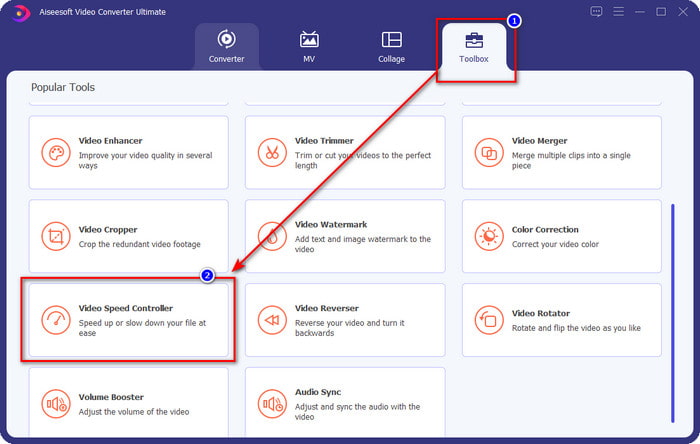
Korak 2. Kada otvorite softver, prijeđite na odjeljak Toolbox, a zatim pod njim otvorite Video Speed Controller. Ne trebate brinuti; za korištenje alata nećete morati preuzimati dodatne resurse.
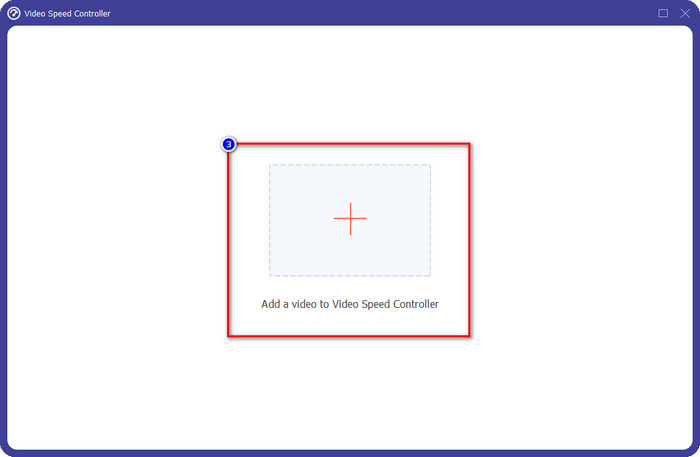
Korak 3. Pritisnite ikonu +, dodajte datoteku koju imate u mapi, kliknite je i pritisnite Open kako biste učitali svoj videozapis.
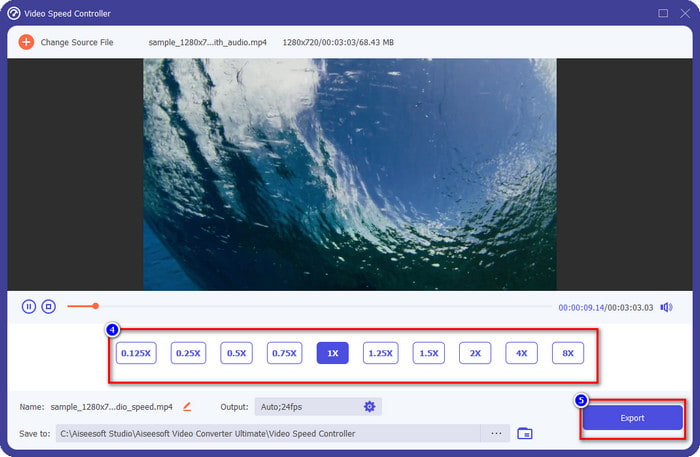
Korak 4. Na popisu odaberite brzinu reprodukcije koju želite postići – svi želimo različite brzine reprodukcije. Kliknite Export kako biste spremili konačan rezultat videa kojem ste promijenili brzinu. Za manje od minute već ste promijenili brzinu svog videa. Sada ga možete gledati za kraće vrijeme.
Dio 2. Najbolji besplatni način za promjenu brzine videa na webu
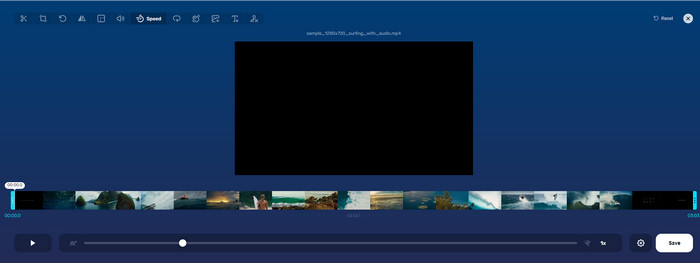
Uz pomoć alata Online Video Cutter možete besplatno promijeniti brzinu videa online. Za razliku od prvog alata, nećete morati preuzimati dodatne resurse ili instalacijski program na svoje računalo da biste koristili ovaj web-alat. Osim funkcije promjene brzine, ovim se alatom možete koristiti i za osnovno uređivanje. Iako je alat odličan, ne možete učitati sve formate koje imate jer su podržani formati ograničeni. Da biste ga koristili, slijedite korake u nastavku.
Korak 1. Otvorite preglednik koji želite koristiti i potražite ovaj web-alat.
Korak 2. Otvorite web-alat, kliknite Open File, pronađite svoj videozapis i učitajte ga.
Korak 3. Povucite klizače lijevo ili desno i promijenite brzinu; kliknite gumb Save ako ste zadovoljni postavljenom brzinom.
Dio 3. Najbolji video Editor na iOS-u za besplatno mijenjanje brzine videa
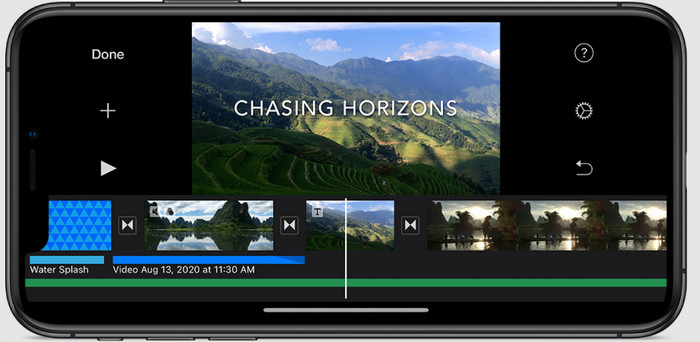
Za korisnike iOS-a možete koristiti iMovie kako biste besplatno naučili kako promijeniti brzinu videa na iPhoneu. Iako je alat izvorni video uređivač na Macu, još uvijek imate izbor preuzeti aplikaciju na svoj uređaj ili ne. Ovaj izbor dokazuje da korisnici iOS-a mogu zadržati uređivač ili ne, kako bi uštedjeli prostor na svojoj pohrani. Ali ako imate aplikaciju na svom iPhoneu, možete slijediti korake koje dodajemo u nastavku da biste saznali kako ovaj alat funkcionira.
Korak 1. Preuzmite i otvorite aplikaciju na svom iPhoneu, zatim u Project kliknite znak +, a potom kliknite Movie.
Korak 2. Dodirnite video koji želite ubrzati, zatim na dnu zaslona dodirnite Create Movie kako biste ga postavili na vremensku traku.
Korak 3. Tako da dodirnete snimku koju ste učitali, kliknite ikonu speed controller i prilagodite brzinu videa povlačenjem klizača na svom iPhoneu. Kliknite Done kako biste ga spremili, a zatim ga po želji izvezite.
Dio 4. Najbolji način za promjenu brzine reprodukcije videa na Android uređajima pomoću ugrađenog uređivača
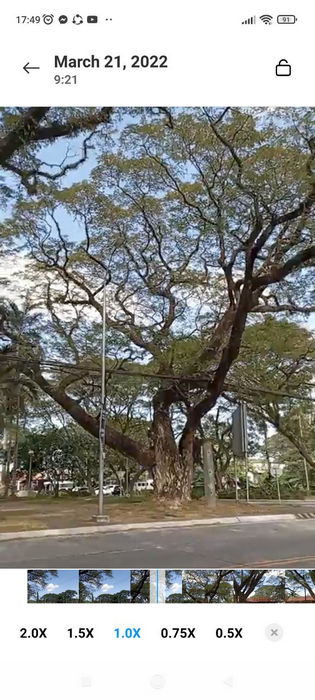
Preuzimanje aplikacije nije slučaj ako ste korisnik Androida; promijenite brzinu videa na svom telefonu pomoću ugrađenog video uređivača. Pomoću ovog uređivača možete izvršiti osnovnu montažu koja je potrebna na vašem videozapisu kako bi izgledao bolje nego prije. Ovaj uređivač možete pronaći u Galeriji ili Albumu na svom Androidu. Ako želite znati kako ga koristiti, sljedeće informacije će vam pomoći.
Korak 1. Otvorite Galeriju ili Album, a zatim dodirnite video kojem želite promijeniti brzinu.
Korak 2. Kliknite Edit za nastavak.
Korak 3. Dodirnite odjeljak Playback Speed, zatim promijenite brzinu prema svojim potrebama.
Dio 5. Često postavljana pitanja o promjeni brzine videa
Mogu li promijeniti brzinu na YouTubeu?
Apsolutno da, možete promijeniti reprodukciju videozapisa na YouTubeu čak i ako ne preuzmete softver za to. Slijedite korake da biste saznali kako promijeniti brzinu videozapisa na YouTubeu. Prvo otvorite YouTube, pronađite video koji želite gledati u izmijenjenom pokretu, kliknite ikonu zupčanika, a ispod nje Brzina reprodukcije, odaberite brzinu koju želite postići i uživajte.
Da li promjena brzine skraćuje trajanje videa?
Ovisi kako mijenjate brzinu; ako usporite video, očekujte da će njegovo trajanje trajati jer ga reproducirate u sporom načinu rada. Ali ako promijenite brzinu na visoku, trajanje videa koji reproducirate bit će kraće od originala. Da biste saznali više o promjeni brzine videa, morate pročitati sljedeće pojedinosti koje smo dodali iznad.
Nakon promjene brzine, hoće li kvaliteta utjecati?
Ovisno o brzini videozapisa koju ste postavili, kvaliteta bi se mogla smanjiti ili ostati. Ako reproducirate videozapis osam puta ili više, očekujte videozapis koji ćete reproducirati. Međutim, ne biste primijetili veliku razliku osim u reprodukciji, što se tiče kvalitete, ona će ostati ista.
Zaključak
Sada kada znamo kako promijeniti brzinu videa na računalima, online i na telefonima, vrijeme je da odlučimo što ćemo koristiti. Ako ne želite preuzimati softver na svoje računalo kako biste uštedjeli prostor i izbjegli postupak instalacije, tada morate pročitati drugi dio ovog članka. No ako ste iOS ili Android korisnik, treći i četvrti dio namijenjeni su vama. Ako želite koristiti najbolji video editor na Windows i Mac sustavima, morate preuzeti FVC Video Converter Ultimate. To je najbolji kontroler brzine videa za jednostavnu promjenu brzine reprodukcije videa na vašem računalu. Što čekate? Preuzmite ga sada i iskoristite našu posebnu promociju upravo za vas!
-
 Kako ubrzati video u Premiere Pro i s njegovim alternativama
 Želite li znati kako koristiti Premiere Pro za ubrzavanje videozapisa? Onda ste na pravom članku jer nudimo korake i druge pristupačne alternative.
-
 2 jednostavna načina kako ubrzati video na TikToku
 Želite li znati tajnu kako ubrzati video na TikToku? Zatim pročitajte ovaj članak da biste dobili ideju kako to učiniti i koja su druga 2 alata koja će vam pomoći.
-
 Izvrsni savjeti za 2021.: Kako ubrzati video na iMovieu
 Vaš prijatelj predlaže iMovie da vam pomogne s vašim problemom kako ubrzati video pomoću operacijskog sustava iOS, ali ne znate što učiniti? Vidite više o tome dok čitate više kroz ovaj članak.
