


 Video Converter Ultimate
 Snimač zaslona
 Video popravak
Postupci za izrezivanje dijelova videa na iPhoneu
Možda ste u slobodno vrijeme snimili prekrasan video svojim iPhoneom ili iPadom i želite ga podijeliti s prijateljima ili objaviti na društvenim mrežama. No prije toga bi bilo dobro urediti dijelove videa koje ne želite poslati. U takvoj situaciji brzo možete urediti snimke pomoću svojih alata tako da ih skratite ili izrežete. Dakle, kako skratiti video na iPhoneu? U ovom ćete članku vidjeti najbolje pristupe. Ako želite naučiti sve korake, pročitajte sve informacije u nastavku.

Dio 1. Učinkoviti postupci za rezanje videa na iPhoneu
Korištenje aplikacije Fotografije
Ako ste korisnik iPhonea i želite skratiti duljinu svog videa, aplikacija Photos bi vam mogla pomoći. Aplikacija Fotografije nije dobra samo za prikazivanje slika i videozapisa. Uz pomoć ove unaprijed izgrađene aplikacije, također možete izrezati ili obrezati svoj video. Budući da se radi o jednostavnoj aplikaciji na iPhoneu, video možete skratiti na samo nekoliko dodira. Na taj način svi korisnici, a posebno početnici, mogu koristiti aplikaciju. Osim toga, budući da se radi o unaprijed izgrađenoj aplikaciji, instalacija nije potrebna. Međutim, iako je praktična aplikacija za rezanje videozapisa, aplikacija Fotografije ima neka ograničenja. Aplikacija nije prikladna ako želite napredne alate za uređivanje za poboljšanje videozapisa osim skraćivanja duljine videozapisa. Aplikacija za fotografije može ponuditi samo osnovne funkcije uređivanja poput rezanja, dodavanja filtara i više. Ako želite znati kako obrezati video na iPhoneu, slijedite korake u nastavku.
Korak 1. Otključajte svoj iPhone i pokrenite aplikaciju Fotografije.
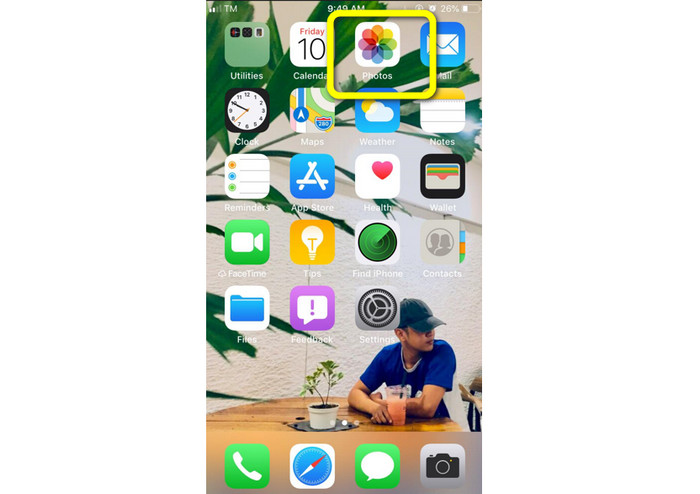
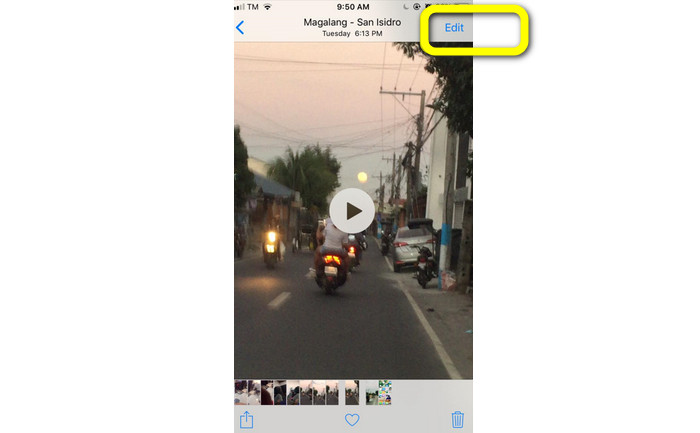
Korak 2. Nakon toga dodirnite video koji želite skratiti. Zatim pritisnite gumb Uredi u desnom kutu zaslona.
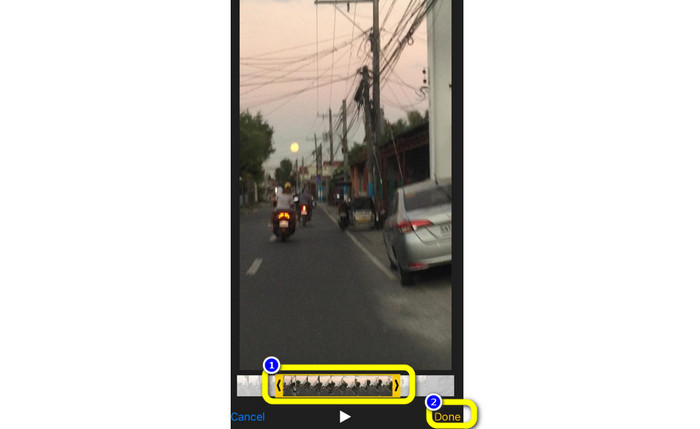
Korak 3. Zatim već možete skratiti video povlačenjem rubova trake videa. Možete povlačiti lijevi i desni rub. Nakon što izrežete video, dodirnite gumb Gotovo kako biste ga spremili na telefon.
Korištenje iMoviea
Želite li urediti neke od snimki koje ste zabilježili iPhoneom, možda kako biste izrezali nepotrebne dijelove, skratili ih ili ih učinili vizualno privlačnijima? To je jednostavan i lagan postupak kada koristite program iMovie, koji je dostupan za iOS uređaje. Ugrađeni video‑uređivač u zadanoj aplikaciji Fotografije dovoljan je za većinu korisnika, ali njime ne možete pristupiti naprednijim funkcijama, poput praćenja vremenske linije, primjene prijelaza, spajanja više snimki itd. U takvoj situaciji koristan je specijalizirani program za video montažu kao što je iMovie. Appleov iMovie je superioran u odnosu na druge alate za uređivanje videa na App Storeu. Također možete sinkronizirati zvuk i video pomoću iMoviea. Međutim, iMovie ima i neke nedostatke. iMovie je dostupan samo na iPhone uređajima. To znači da, ako ste Android korisnik, trebate upotrijebiti neku drugu aplikaciju za obrezivanje videa.
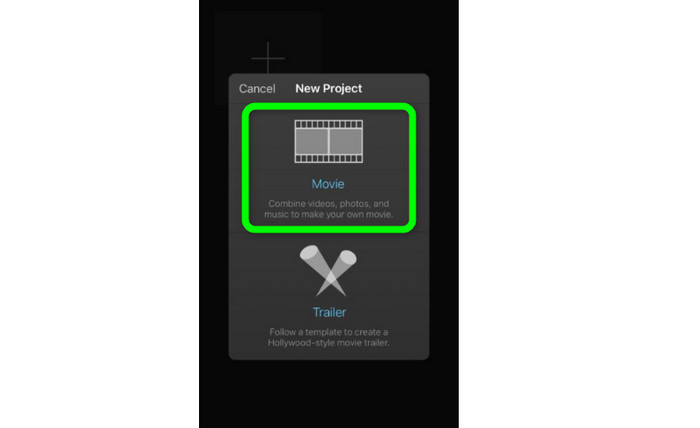
Korak 1. Preuzmite i instalirajte aplikaciju iMovie na svoj iPhone. Zatim pokrenite aplikaciju. Kada se sučelje pojavi na zaslonu, dodirnite opciju Create Project > Movie i dodajte video.
Korak 2. Odabrani će se video sada pojaviti u iMovie vremenskoj liniji. Zadano je pokazivač na kraju isječka, ali ga možete postupno povući udesno i ondje zaustaviti ako želite izrezati video.
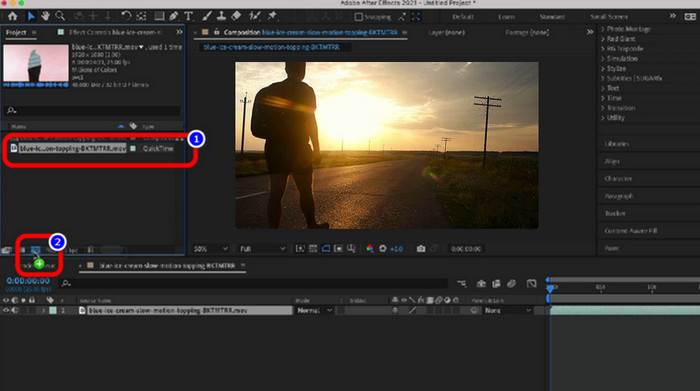
Korak 3. Sada možete koristiti nekoliko značajki koje iMovie nudi. Kao što je prikazano u nastavku, ikona Škare označava odabir alata za rezanje. Odaberite alat Split iz izbornika kako biste izrezali videoisječak točno na mjestu koje ste označili.
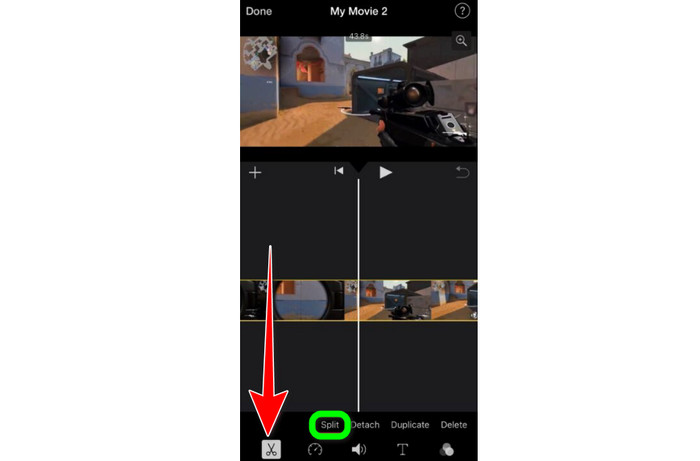
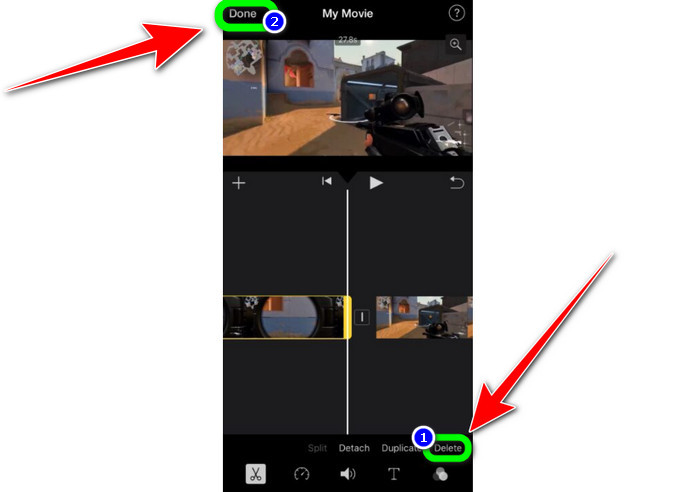
Korak 4. Zatim kliknite opciju Delete kako biste uklonili nepotreban dio videa. Kada završite s obrezivanjem videa, dodirnite gumb Done.
Dio 2. Kako skratiti videozapise na iPadu
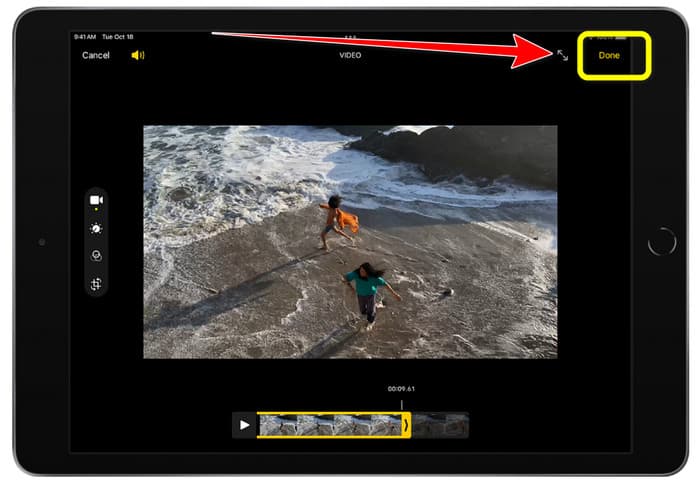
Ako želite rezati ili skratiti video pomoću iPada, više ne morate tražiti aplikaciju za preuzimanje. Kao i na iPhoneu, možete skratiti ili izrezati svoj video koristeći aplikaciju Fotografije. Aplikacija Fotografije ipak ima određena ograničenja kada se koristi na iPadu. Ako vam je cilj samo skratiti video, ona je dovoljna. No ne možete je koristiti ako želite napredne alate za uređivanje. Slijedite dolje navedene korake kako biste izrezali ili skratili video na iPadu.
Korak 1. Pokrenite aplikaciju Fotografije na svom iPadu, dodirnite videoisječak koji želite urediti i kliknite opciju Uredi.
Korak 2. Povucite rub preglednika kadrova kako biste skratili trajanje videa i započeli obrezivanje.
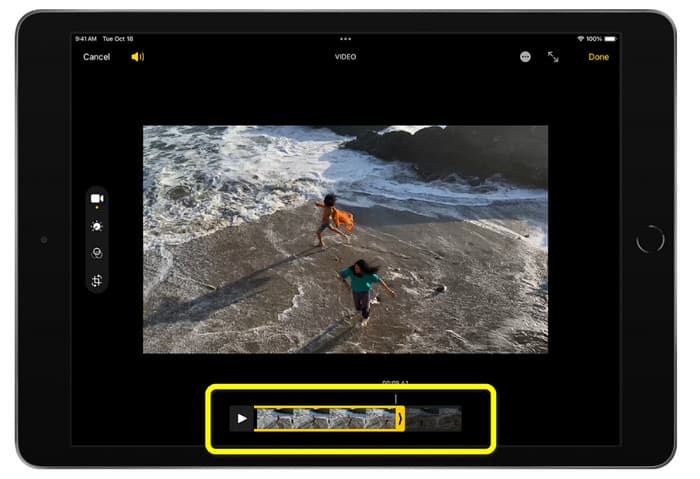
Korak 3. Kada završite s obrezivanjem videa, dodirnite gumb Gotovo.
Dio 3. Kako izrezati iPhone videozapise na računalu
Tražite li najbolji način za rezanje iPhone videa na računalu? Ako je tako, upotrijebite Video Converter Ultimate. Uz pomoć ovog izvanmrežnog softvera možete bez napora skratiti svoj iPhone video. Također pruža jednostavno sučelje s jasnim postupcima, pa je idealan za sve korisnike, posebno početnike. Možete dodatno prilagoditi razne parametre u postavkama izlaza. Mogu se mijenjati rezolucija, jasnoća i broj sličica u sekundi videa. Također možete prilagoditi bitrate zvuka, frekvenciju uzorkovanja i druge aspekte. Završni rezultat možete spremiti u različitim formatima, kao što su MP4, MOV, AVI, MKV i tako dalje. To je korisno za korisnike jer je Video Converter Ultimate dostupan i može se koristiti na Windows i Mac računalima. Štoviše, aplikacija neće dodavati vodeni žig na uređeni video, tako da možete gledati snimku bez ometajućih oznaka.
Besplatno preuzimanjeZa Windows 7 ili novijiSigurno preuzimanje
Besplatno preuzimanjeZa MacOS 10.7 ili novijiSigurno preuzimanje
Korak 1. Preuzmite Video Converter Ultimate na svoje računalo. Kliknite gumb Download u nastavku kako biste jednostavno pristupili programu.
Korak 2. Nakon preuzimanja, pokrenite program da biste vidjeli glavno sučelje. Provjerite je li iPhone video već prenesen na računalo. Zatim, kada se sučelje pojavi, kliknite Toolbox > Video Trimmer Tool.
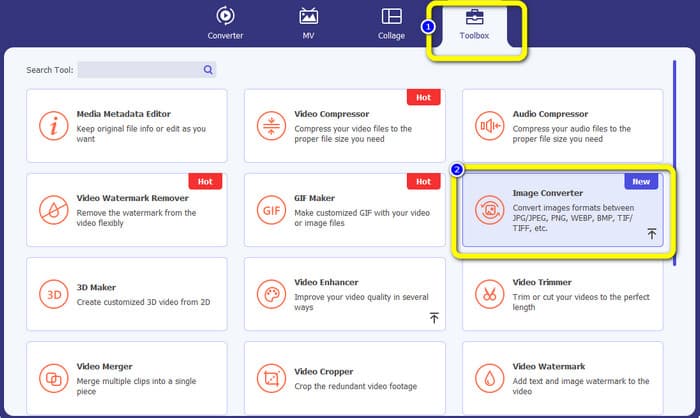
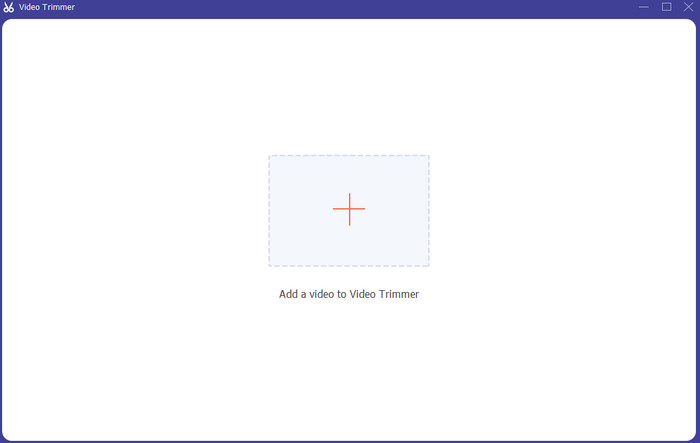
Korak 3. Kada se na zaslonu pojavi novo sučelje, kliknite znak + kako biste dodali iPhone video.
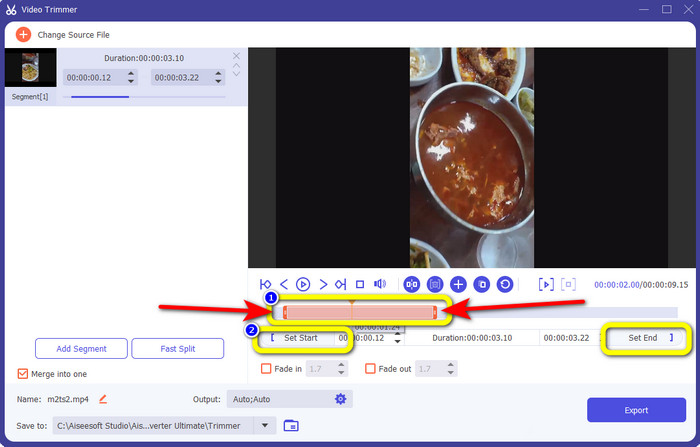
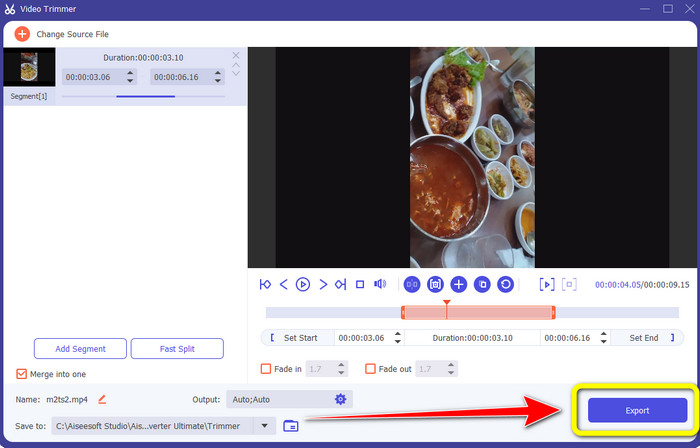
Korak 4. Zatim već možete podesiti rub videa kako biste ga skratili. Također možete koristiti opcije Set Start and Set End za ručno obrezivanje videa.
Korak 5. Na kraju kliknite gumb Export kako biste spremili video nakon obrezivanja.
Dio 4. Često postavljana pitanja o tome kako skratiti video na iPhoneu
Kako obrezati sredinu videa na iPhoneu?
Ako želite obrezati središnji dio svog videa pomoću iPhonea, još uvijek možete koristiti gore navedene metode. Aplikacija Photos i iMovie također mogu obrezati središnji dio videozapisa.
Kako obrezati video na Android telefonu?
Možete otići u aplikaciju Galerija. Zatim otvorite video i kliknite opciju Uredi. Nakon toga već možete obrezati video povlačenjem rubova videa.
Kako prenijeti video na iPhone s računala?
Možete koristiti mnoge alate za prijenos videozapisa s računala na iPhone. Možete koristiti iPhone Transfer Pro, Dropbox, AirDrop itd.
Zaključak
Skraćivanje videa je korisno kada želite podijeliti ili učitati videoisječak. U tom smislu, ovaj informativni članak objašnjava kako skratiti video na iPhoneu. Osim toga, ako želite skratiti trajanje iPhone videa pomoću računala, možete koristiti Video Converter Ultimate. Uz pomoć ovog izvanmrežnog programa, iPhone video možete jednostavno i brzo izrezati na računalu.
-
 [4 rješenja] Kako usporiti video na iPhoneu kao profesionalac
 Imate li problema s usporavanjem videa na iPhoneu? Ako naiđete na ovaj problem, ne brinite više, jer ćemo vam pomoći da ga riješite čitanjem ovog članka.
-
 Kako premotati videozapis naprijed na iPhoneu – Podesite brzinu videa
 Kako mogu premotati videozapis naprijed na svom iPhoneu? Kako premotati videozapis naprijed na iPhoneu koristeći iMovie? Naučite 3 načina za ubrzanje videozapisa na iPhone i iPad uređajima.
-
 Vodič - 4 besplatna načina za spajanje videozapisa na iPhoneu u novi
 Pročitajte i nabavite 4 jednostavna načina za spajanje videozapisa na iPhoneu. Podržani su svi modeli iPhonea i iOS verzije. Možete brzo kombinirati 2 i više videozapisa na iPhoneu u novi videozapis.
