


 Video Converter Ultimate
 Snimač zaslona
 Video popravak
3 načina za dodavanje pozadine fotografiji na mreži, na iPhoneu, Androidu i računalu
Dok uređujete sliku, često trebate ukloniti izvornu pozadinu i dodati joj neku drugu. Za sliku s prozirnom pozadinom lako možete promijeniti pozadinu pomoću uređivača slika. U većini slučajeva, međutim, najprije morate ukloniti trenutačnu pozadinu, a zatim fotografiji dodati novu. Tražite li dobru aplikaciju za uređivanje slika kojom možete dodati pozadinu fotografiji?
Ovaj post govori o 3 učinkovite metode za dodavanje pozadine na fotografiju. Bilo da želite dodati bijelu pozadinu fotografiji izravno na mreži, dodati pozadinu fotografiji na iPhoneu ili promijeniti pozadinu slike na Android uređaju, možete slijediti određenu metodu da to učinite.

Dio 1. Kako besplatno dodati pozadinu fotografiji na mreži
Kako biste brzo dodali pozadinu fotografiji, možete najprije isprobati neke mrežne uređivače slika. Ovdje vam toplo preporučujemo jednostavan za korištenje Besplatni online alat za uklanjanje pozadine kojim možete ukloniti izvornu pozadinu svoje slike i dodati joj neku drugu. Ovaj besplatni alat za promjenu pozadine slike podržava sve često korištene formate slika, kao što su JPG, PNG, GIF i druge. Nudi vam jednostavan način da dodate bijelu pozadinu fotografiji ili zamijenite trenutačnu pozadinu nekom drugom slikom.
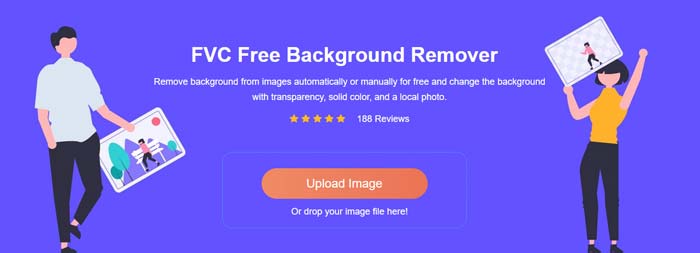
Korak 1. Otvorite svoj web-preglednik kao što je Chrome, Safari, Yahoo, IE ili Firefox i posjetite ovu stranicu za besplatnu promjenu pozadine fotografija. Kada dođete na stranicu, jednostavno možete kliknuti gumb Upload Portrait kako biste odabrali i dodali svoju fotografiju za kasnije uređivanje.
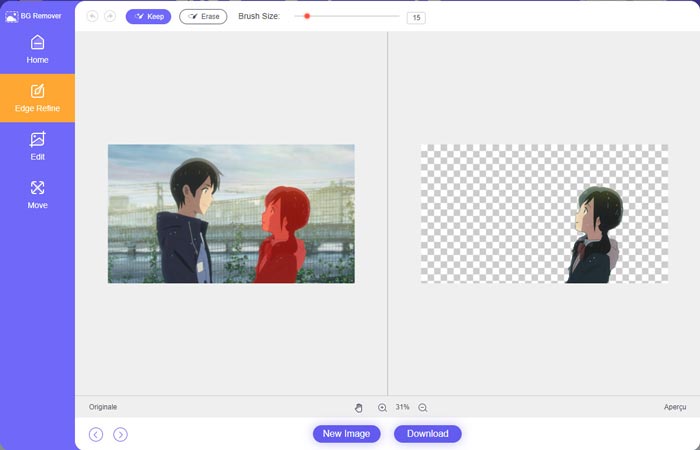
Korak 2. Zahvaljujući naprednoj tehnologiji umjetne inteligencije, alat će automatski odabrati glavni objekt s učitane slike. Zatim možete upotrijebiti funkciju Keep or Erase za dodatno uređivanje.
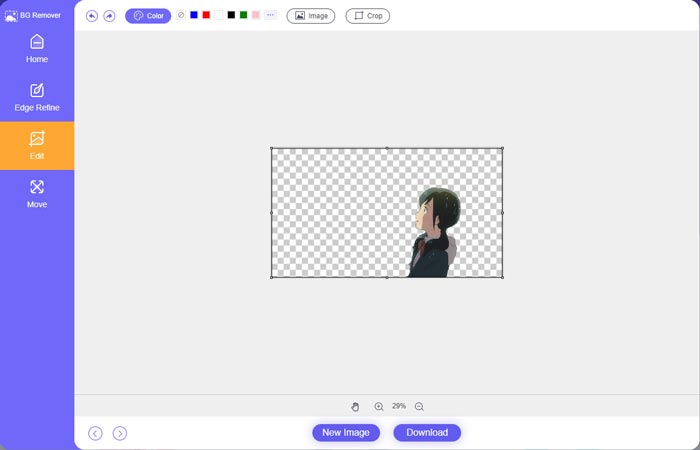
Korak 3. Kliknite opciju Edit s lijeve strane, a zatim možete odabrati promjenu boje pozadine ili dodavanje pozadine fotografiji. Tijekom ovog koraka možete se osloniti i na funkciju Crop kako biste prilagodili veličinu slike prema svojim potrebama.
Korak 4. Nakon što dodate odgovarajuću pozadinu fotografiji, možete kliknuti gumb Download da biste je spremili na svoje računalo. Vaša uređena slika bit će zadano spremljena u PNG formatu.
Dio 2. Kako dodati pozadinu fotografiji pomoću Adobe Photoshopa
Adobe Photoshop jedan je od najpoznatijih uređivača slika koji sadrži mnoge značajke za uređivanje slika, prilagođenih efekata i drugih operacija. Ako imate instaliran Photoshop na računalu, možete odabrati dodavanje pozadine fotografiji u Photoshopu.
Korak 1. Otvorite Photoshop na svom računalu i dodajte mu svoju fotografiju. Najnoviju verziju Photoshopa možete besplatno preuzeti s službene Adobeove web-stranice. Imajte na umu da Adobe nudi samo 7-dnevno besplatno probno razdoblje za korištenje Photoshopa.
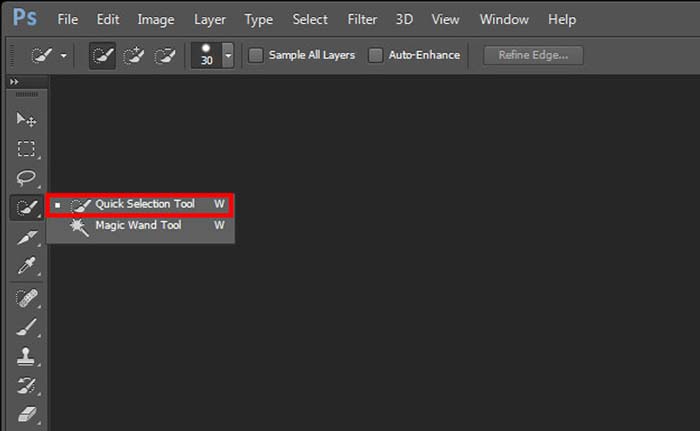
Korak 2. Kada se vaša fotografija učita u Photoshop, možete kliknuti ikonu alata Quick Selection Tool or Magic Wand Tool u lijevom alatnom okviru kako biste odabrali pozadinu koju želite promijeniti.
Korak 3. Nakon što odaberete pozadinu fotografije, možete kliknuti desnom tipkom miša na nju i odabrati opciju Fill. Sada jednostavno možete dodati bijelu pozadinu fotografiji ili promijeniti pozadinu u neku drugu boju, poput crne, plave, sive ili bilo koje druge koju trebate.
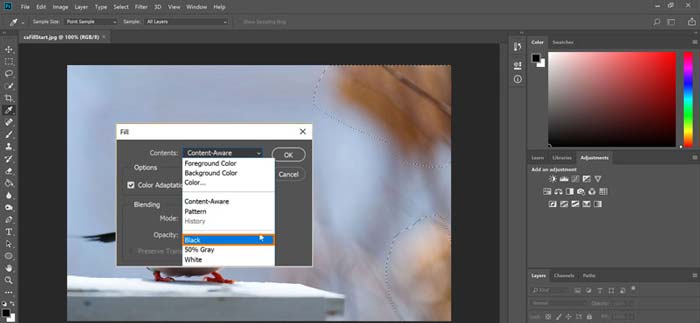
Korak 4. Ako želite dodati novu sliku kao pozadinu, najprije morate ukloniti odabranu pozadinu. Možete pritisnuti tipku Delete na tipkovnici kako biste se riješili trenutačne pozadine. Zatim možete dodati slikovnu datoteku u Photoshop i povući njezin sloj ispod pozadinskog sloja. Na taj način lako možete zamijeniti izvornu pozadinu novom slikom.
Korak 5. Nakon što dodate pozadinu fotografiji u Photoshopu, možete kliknuti na gornji izbornik File, a zatim s padajućeg popisa odabrati opciju Save As. Odaberite odgovarajući format slike za tu fotografiju i spremite je na svoje računalo.
Dio 3. Kako dodati pozadinu fotografiji na iPhone i Android telefonu
Kada želite dodati pozadinu fotografiji na iPhone, iPad ili Android telefonu, morate pronaći dobru aplikaciju za uređivanje pozadine slika.
LightX je potpuno opremljena aplikacija za uređivanje fotografija za korisnike iOS-a i Androida. Nudi praktičan način za uklanjanje neželjene pozadine, dodavanje nove pozadine fotografiji, dodavanje različitih efekata, izradu visokokvalitetnih selfija i još mnogo toga, izravno na vašem telefonu. U aplikaciji LightX ugrađeni su mnogi napredni alati za uređivanje slika, poput miješanja boja, prilagodljive zasićenosti fotografija, kontrasta, nijanse, krivulja i drugih. Možete je preuzeti iz App Storea ili Google Play Storea.
Korak 1. Instalirajte i otvorite aplikaciju LightX na svom iPhoneu, iPadu ili Android telefonu. Dajte ovoj aplikaciji dopuštenje za pristup fotografijama na vašem uređaju. Dodajte joj svoju fotografiju za daljnje uređivanje pozadine.
Korak 2. Kako biste uklonili trenutačnu pozadinu fotografije i promijenili je u nešto drugo, možete povući ulijevo kako biste otvorili mnogo različitih opcija. U odjeljku Creative možete odabrati funkciju Cutout za dodavanje pozadine fotografiji. Sada morate ručno označiti glavni objekt i izbrisati izvornu pozadinu.
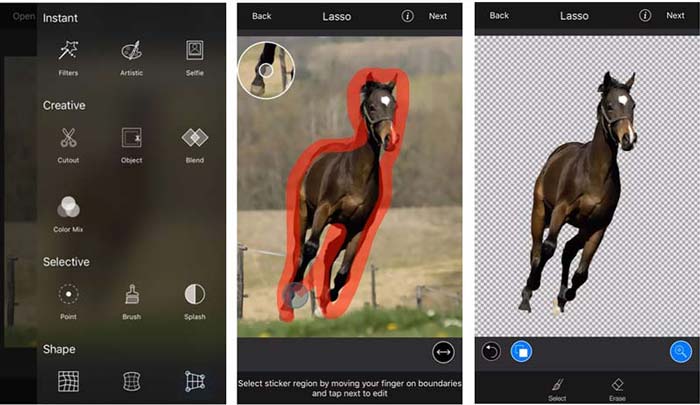
Korak 3. Nakon što uklonite pozadinu, možete dodirnuti Next u gornjem desnom kutu za nastavak. Zatim možete upotrijebiti funkciju Crop za promjenu veličine slike. Dodirnite Done da biste potvrdili radnju. Nakon toga možete dodirnuti BG Image na dnu zaslona kako biste dodali drugačiju pozadinu fotografiji. Efekte nove pozadine možete slobodno prilagoditi prema svojim potrebama.
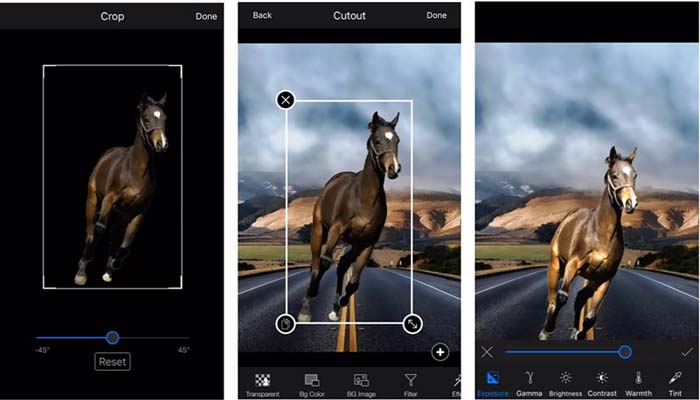
Bez obzira na to koristite li iOS ili Android uređaj, možete slijediti slične korake da dodate pozadinu fotografiji pomoću aplikacije LightX. Imajte na umu da, kao korisnik iOS-a, morate platiti $3,99 za ovu aplikaciju za dodavanje u pozadini. Ako ste korisnik Androida, možete ga instalirati iz trgovine Google Play. Za nadogradnju na premium verziju morate platiti istu cijenu.
Povezano:
Što je video rezolucija: detaljan uvid u rezoluciju i više
6 omiljenih animiranih Snapchat filtara na Snapchatu
Dio 4. Često postavljana pitanja o tome kako dodati pozadinu fotografiji
Kako dodati drugu pozadinu na fotografiju na mom Macu?
Prve dvije metode možete iskoristiti za jednostavnu promjenu pozadine fotografije na Macu. Osim preporučenog alata Besplatni online alat za uklanjanje pozadine i Adobe Photoshopa, možete se osloniti i na neke druge uređivače slika kako biste dodali novu pozadinu svojoj fotografiji.
Kako promijeniti pozadinu na iPhoneu?
iOS nudi jednostavan način za promjenu pozadine na iPhoneu ili iPadu. Možete otići u aplikaciju Postavke, dodirnuti opciju Pozadina, a zatim dodirnuti Odaberi novu pozadinu.
Mogu li dodati pozadinu živoj fotografiji na svom iPhoneu?
Ne. iPhone vam ne nudi izravan način za promjenu pozadine fotografije uživo. Smijete ga samo izrezati, primijeniti filtre, prilagoditi efekte i promijeniti u statičnu sliku.
Zaključak
Ovaj post dijeli 3 korisne metode za dodavanje pozadine fotografiji. Kada imate potrebu ukloniti izvornu pozadinu fotografije i dodati joj novu, možete odabrati željeni uređivač slika da to učinite.
-
 3 najbolja načina za dodavanje filtara na GIF s najboljim GIF uređivačima [Favorite]
 Želite li znati kako dodati filtar u GIF da bi bio bolji? U ovom ćete blogu lako naučiti različite tehnike dodavanja filtara vašim GIF-ovima.
-
 3 najlakša načina za dodavanje vodenog žiga u GIF online i izvan mreže
 Dodavanje vodenog žiga GIF-u može biti jednostavno kao 1-2-3 ako pravilno koristite pravi alat. Alati na tržištu su preširoki, ali mi ćemo vam predstaviti tri alata na koja se možete osloniti.
-
 5 najboljih načina za promjenu slike u animirani GIF [Ažurirano 2022.]
 Trebate sliku za pretvaranje u GIF? Ovaj članak će pružiti pet najboljih pretvarača koje možemo pronaći na tržištu. Dakle, otkrijmo ove alate čitajući ovaj članak.
