


 Video Converter Ultimate
 Snimač zaslona
 Video popravak
Iznimna praksa koja govori o tome kako pretvoriti M4V u MOV
Kao ekstenzija datoteke MPEG-4, M4V je sličan MP4 formatu. Film ili videozapis iz Apple iTunes trgovine može se kodirati ovim formatom. Glavna razlika između M4V i MP4 jest u tome što je M4V zaštićen i može se reproducirati samo na računalu s iTunes licencom. Ali što ako ga trebate pretvoriti u MOV kako biste ga mogli gledati na svom video reproduktoru? Što ćete učiniti? Ovdje su najbolji i najpopularniji prijedlozi koje biste trebali pogledati kako biste pretvorili M4V u MOV.
Dio 1. Pregled M4V i MOV
Apple je stvorio video format M4V, koji se koristi za distribuciju videozapisa putem iTunesa u izvornom formatu. Osim mogućnosti uključivanja Appleove DRM zaštite, praktično je identičan MP4 videu. iTunes pohranjuje video materijale poput TV serija, filmova i glazbenih spotova, koji su dobro zaštićeni ovim video formatom. M4V datoteke također omogućuju izradu informacija o poglavljima. Osim iTunesa i Apple QuickTime playera, većina video reproduktora može reproducirati M4V datoteke bez DRM zaštite. Video Studio Pro također može otvoriti M4V datoteke, pružajući široke mogućnosti uređivanja.
Međutim, MOV je QuickTime video format koji je razvio Apple i koristi se u QuickTime okviru za Mac OS X. Platforma Windows također podržava mogućnost ovog multimedijskog kontejnera da pohrani više zapisa, od kojih svaki sadrži određenu vrstu podataka (zvuk, video, titlovi). Programi za uređivanje videa mogu uvelike profitirati od razdvajanja medijskih podataka od pomaka medija, apstraktnih referenci na podatke i popisa uređivanja zapisa. Uobičajena je praksa distribuirati filmove i videozapise putem interneta u MOV kontejnerskom formatu.
Dio 2. Kako promijeniti M4V u MOV izvan mreže
Ako tražite najbolji pretvarač koji možete koristiti izvan mreže, ovaj je softver ono što želite. Video Converter Ultimate je najbolji i najpreporučljiviji softver koji možete koristiti za pretvaranje formata kao što je M4V u MOV. Dostupan je i za Windows i za Mac. Također, besplatan je za preuzimanje. To je najbrži pretvarač koji možete zamisliti jer može pretvarati velike veličine video datoteka, što drugi softver i internetski pretvarači ne mogu. Također podržava različite formate, uključujući i najrjeđe video formate koje možete pronaći samo u ovom softveru. Uz izvrsnu kvalitetu izlaza i mnoge dodatne alate za poboljšanje vašeg videa, svi bi ga trebali koristiti. Bez daljnjeg odgađanja, evo postupaka koje biste trebali razmotriti:
Korak 1. Za početak jednostavno kliknite ikonu Free Download s desne strane kako biste započeli preuzimanje. Nakon što je preuzimanje završeno, možete odabrati preuzimanje softvera za Windows ili Mac. Najprije morate instalirati softver na radnu površinu svog računala, a zatim kliknuti Start Now da biste ga počeli koristiti.
Besplatno preuzimanjeZa Windows 7 ili novijiSigurno preuzimanje
Besplatno preuzimanjeZa MacOS 10.7 ili novijiSigurno preuzimanje
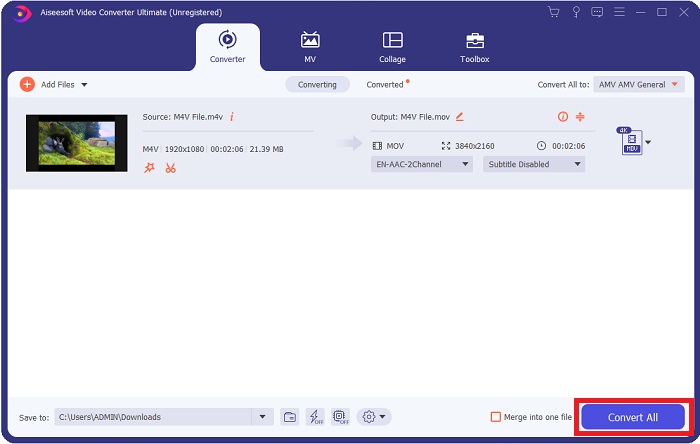
Korak 2. Otvorite softver koji ste upravo preuzeli. Kada prvi put otvorite softver, prikazat će se prozor s Converter sučeljem. Uvezite svoj videozapis ovdje i započnite proces pretvorbe.
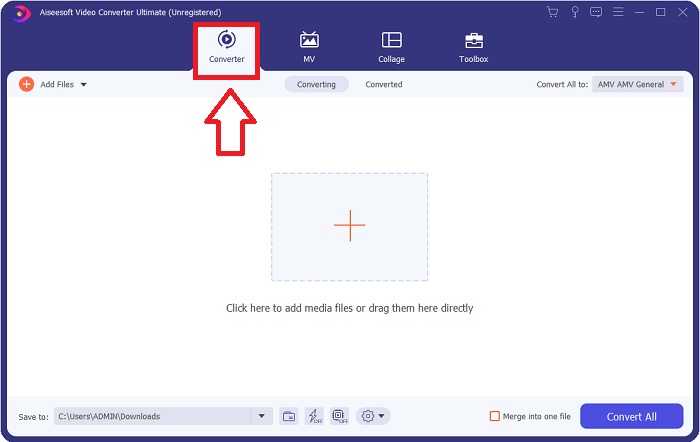
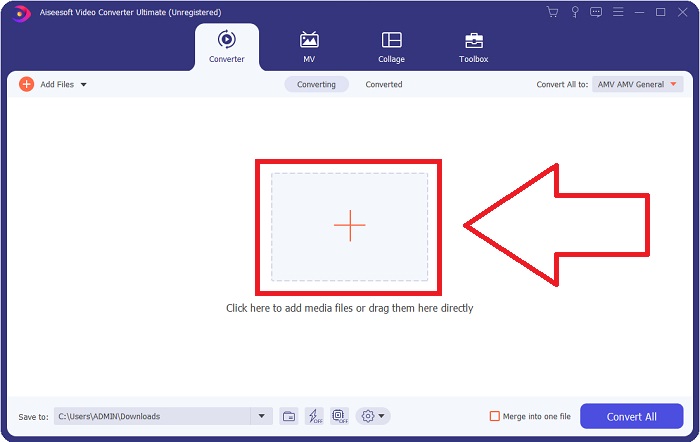
Korak 3. Započnite proces pretvaranja tako da uvezete svoje datoteke u pretvarač. Video datoteku koju želite pretvoriti možete povući i ispustiti na ikonu +.
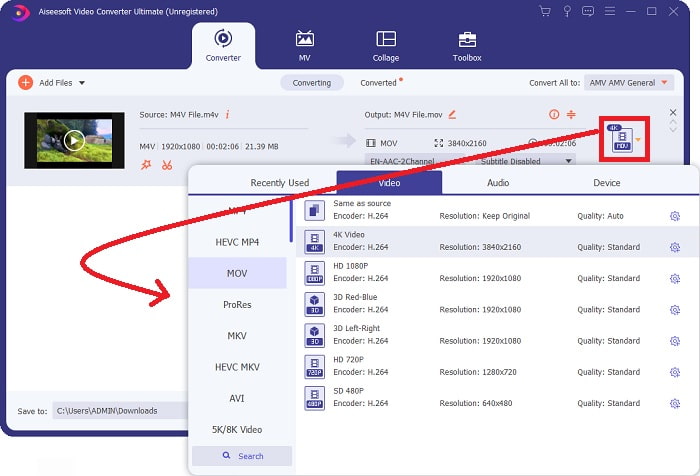
Korak 4. U gornjem desnom kutu zaslona pojavljuje se izbornik s opcijama; kliknite na video format s popisa kako biste ga odabrali. Odaberite MOV format iz padajuće opcije. Nakon što ste odabrali MOV datoteku, na raspolaganju vam je raznovrstan izbor kvalitete videa. No ako vaš željeni izlazni video nije naveden, možete promijeniti postavke kvalitete tako da odgovaraju vašim zahtjevima. Ikona zupčanika omogućuje vam promjenu rezolucije prikaza, broja sličica u sekundi i kvalitete zvuka. Kliknite gumb Create New kako biste spremili svoje izmjene.
Korak 5. Da biste započeli prijenos videozapisa na svoje računalo, odaberite Convert All kada završite s uređivanjem videa i on bude spreman za pretvorbu.
Dio 3. Drugi načini za pretvaranje M4V u MOV na mreži
Metoda 1. Koristite Free Video Converter
Ako nemate vremena za preuzimanje softvera, upotrijebite ovu internetsku verziju Video Converter Ultimate. Na internetu je FVC Free Video Converter Online najbolja web-aplikacija za brzo i jednostavno transkodiranje između mnogih različitih vrsta video formata. Preporučuje se novim korisnicima jer nema ograničenja u pogledu formata datoteka koje može podržati, za razliku od drugih mrežnih pretvarača. Slijedite ove korake kako biste saznali više o ovom internetskom alatu.
Korak 1. Klikom na ovu poveznicu bit ćete preusmjereni na glavnu web-stranicu alata FVC Free Video Converter Online.
Korak 2. Kako biste preuzeli pokretač (launcher) za svoje računalo, kliknite opciju Add Files to Convert s desne strane ako ga koristite prvi put. Kada se drugi put preuzme, automatski će se pokrenuti. Nakon što je datoteka drugi put preuzeta, pronađite je u svojoj mapi i kliknite Open kako biste je otvorili.
Preuzmite desktop verziju za skupno pretvaranje datoteka.
Korak 3. Odabirom formata MOV iz izbornika Video ispod i klikom na njega, započet će proces pretvorbe i prije samog pokretanja.
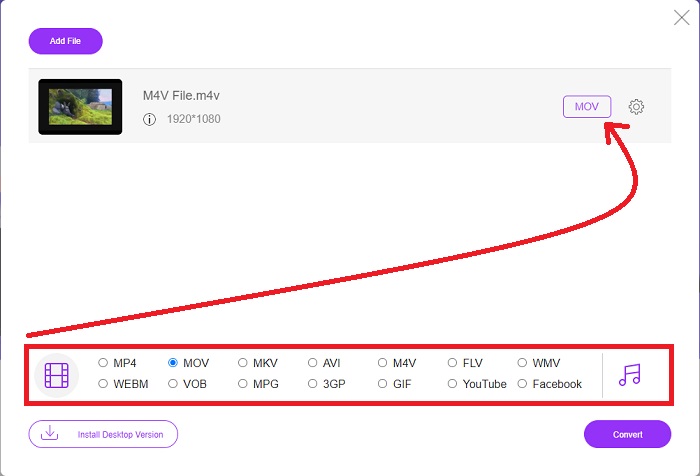
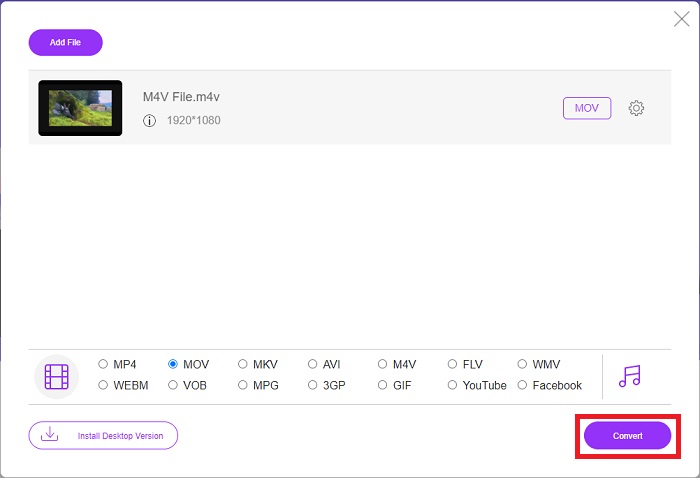
Korak 4. Kliknite Convert kako biste započeli proces pretvaranja jednog formata u drugi nakon što ste odabrali format u koji želite pretvoriti.
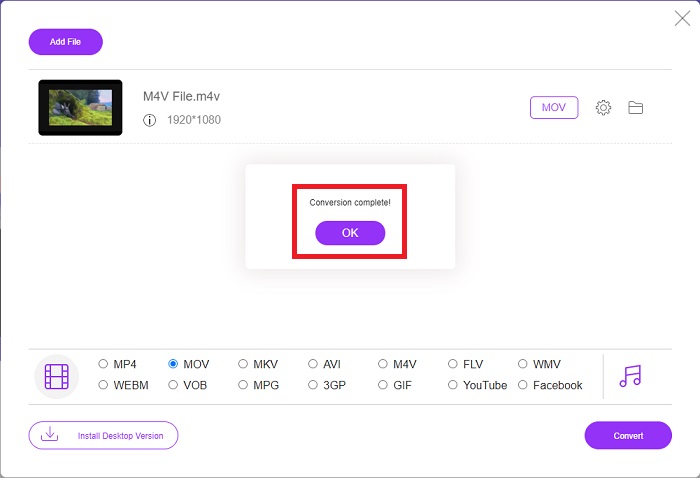
Korak 5. Trebat će samo nekoliko minuta da se konvertirana datoteka pojavi u mapi, koju zatim možete otvoriti i početi gledati.
Metoda 2. Koristite ConvertFiles
ConvertFiles moćan je mrežni pretvarač datoteka koji može pretvarati različite formate datoteka između različitih formata. Podržani su dokumenti, fotografije, prezentacije, arhive, audio i video datoteke u više od 200 formata. Ovdje su navedeni koraci koje trebate naučiti o ovom mrežnom alatu.
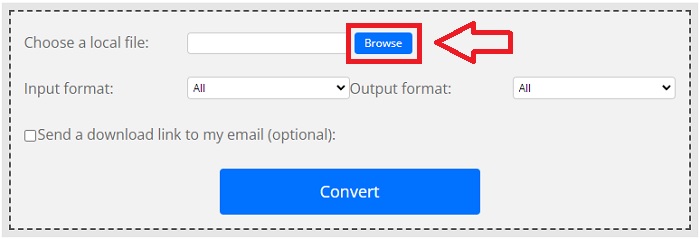
Korak 1. U bilo kojem web-pregledniku potražite ConvertFiles, a zatim kliknite na glavnu web-stranicu. Nakon što kliknete, bit ćete prebačeni na sučelje web-stranice. Kliknite Browse kako biste pronašli datoteke s lokalnog diska koje trebate pretvoriti.
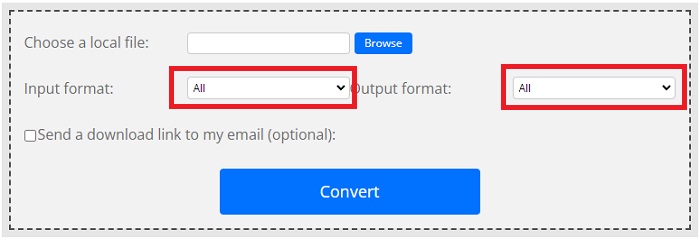
Korak 2. Postavite ulazni i izlazni format video datoteke.
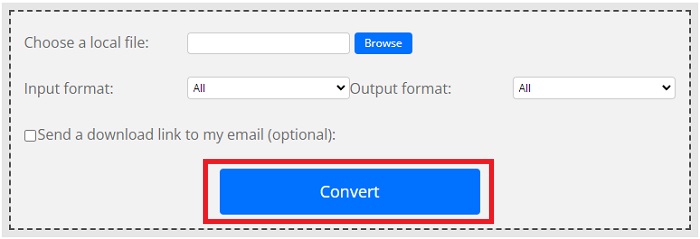
Korak 3. Da biste pretvorili svoju datoteku, kliknite Convert i pričekajte da proces završi, zatim kliknite Download.
M4V u odnosu na MOV
M4V je razvio Apple, koji također koristi MPEG 4. M4V datoteke se često koriste za pohranu onih videozapisa preuzetih iz Apple iTunes trgovine, poput glazbenih videa, TV epizoda, itd. Možda ćete pronaći neke M4V datoteke zaštićene od kopiranja jer koristi Appleova FairPlay DRM zaštita autorskih prava.
MOV format može se koristiti za pohranjivanje filma, TV emisije, kratkog videoisječka ili kućnog filma. Zapravo se sprema u QuickTime File Format (QTFF), koji je uveo Apple 1991. MOV datoteke se često koriste kada ljudi žele spremiti video visoke kvalitete.
Dio 4. Često postavljana pitanja o pretvorbi M4V u MOV
Što je bolje, MP4 ili MOV?
Datoteke u MP4 formatu često su jače komprimirane i manjeg su kapaciteta, dok su datoteke u MOV formatu obično veće kvalitete, ali i veće veličine. MOV datoteke su poželjnije za uređivanje videa na Macu, budući da su prvenstveno namijenjene za QuickTime, za razliku od drugih video formata. Nastavite učiti više detalja o MP4 vs MOV.
Zašto je MOV datoteka tako velika?
QuickTime je uređiv kodek koji iMovie stvara konverzijom iz izvornog medija. Podaci koje koristi kamera iznimno su komprimirani, što ih u većini slučajeva čini neprikladnima za obradu u postprodukciji. Format i kodek koji se koristi zahtijevaju znatno veći protok podataka i mnogo više prostora za pohranu. Kliknite ovdje kako biste saznali kako komprimirati MOV datoteke.
Za što se MOV koristi?
U slučaju datotečnog nastavka MOV, odnosi se na datoteku Apple QuickTime Movie koja je smještena u datoteku spremnika QuickTime File Format (QTFF) (datoteka spremnika). MOV datoteka može sadržavati audio, video i tekst u istoj datoteci koristeći različite zapise ili zapisi mogu ukazivati na podatke koji su spremljeni u drugoj datoteci koja nije uključena u MOV datoteku.
Zaključak
Sve u svemu, unatoč svim gore navedenim internetskim alatima, problemi s povezivanjem jedan su od glavnih razloga zbog kojih se proces pretvaranja videa može prekinuti. Zato je korištenje softvera koji je besplatan za preuzimanje, poput Video Converter Ultimate, najbolja preporuka koju biste trebali razmotriti. Ovaj pretvarač nudi mnoštvo dodatnih alata, osim iznimno brze konverzije video datoteka. Osim toga, podržava ogroman broj video formata, tako da ne morate brinuti o pretvaranju nepoznatih datoteka i možete maksimalno uživati u videu uz najbolju moguću kvalitetu izlaza.
-
 6 načina za besplatno Pretvorite M4V u MP4
 Ovaj je post detaljan vodič za pretvaranje M4V u MP4 za bilo kojeg igrača. Možete promijeniti M4V u MP4, čak i zaštićene M4V datoteke, tako da možete reproducirati M4V videozapise bez ograničenja.
-
 M4V u MP3 Converter - 4 najbolje metode za izdvajanje MP3 iz M4V datoteka
 Kada želite s lakoćom izdvojiti MP3 audio iz M4V videozapisa, iz članka možete saznati više o 4 najbolja pretvarača M4V u MP3 kako biste preuzeli željene audio datoteke.
-
 [Vodič] Kako pretvoriti M4V videozapise u animirane GIF-ove na Windows/Mac
 Ako želite napraviti animirane GIF datoteke od svojih omiljenih M4V videozapisa, možete naučiti o 2 jednostavna i učinkovita načina za pretvaranje M4V videozapisa u GIF -ove s prilagođenim postavkama.

