


 Video Converter Ultimate
 Snimač zaslona
 Video popravak
Kako pretvoriti MP3 u MP4 sa slikom na Windowsima 10 i Mac
MP3 je standardni audio format koji je razvila Moving Picture Experts Group. Koristi MPEG-1 i MPEG-2 standardizaciju. MP3 se smatra najčešćim audio formatom na web mjestima i u multimedijskim uređajima. Pa, MP4 je najpopularniji video format među korisnicima svih dobnih skupina.
For many times, you want to add a matched picture to the MP3 file as a background. Here are 3 free and quick solutions to convert MP3 to MP4 on Windows and Mac. After that, you can upload and share the converted video to YouTube or Facebook.
Dio 1. Kako besplatno pretvoriti MP3 u MP4 Online
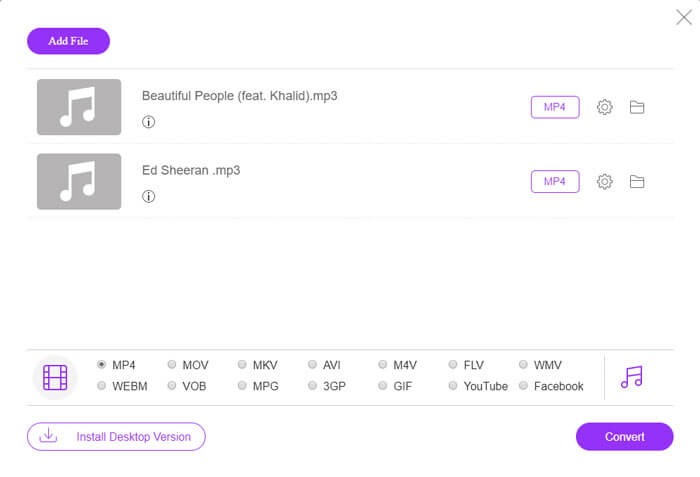
FVC Free Online Video Converter can easily convert any audio or video file to MP4, MOV, MKV, AVI, M4V, FLV, WMV, WEBM, VOB, etc. for free on Windows and Mac. It also allows you to batch convert MP3 to MP4 by uploading multiple MP3 files. This free online tool also supports adjusting video encoder, frame rate, resolution, bitrate, audio encoder and channel. It’d be your best choice if you don’t want to install the third-party software.
Step 1. Click Add Files to Convert button to download the launcher. In the pop up window, select and upload your MP3 files. You can upload more than one MP3 files.
Step 2. Select MP4 at the bottom of this online MP3 converter. You can click the gear icon to set the video and audio settings.
Step 3. After all preferences are set, click Convert button and select the output folder. Then the MP3 to MP4 conversion will start automatically.
Nakon uspješne pretvorbe, mapa za izlaz iskočit će se odjednom kako biste mogli pregledati ili podijeliti pretvorenu datoteku kako želite. Ovaj besplatni program čini MP4 datoteku crnom pozadinom.
Dio 2. Kako pretvoriti MP3 u MP4 pomoću VLC-a
VLC Media Player je besplatni multimedijski uređaj s otvorenim kodom koji reproducira sve multimedijske datoteke poput DVD-a, VCD-a, raznih video i audio datoteka. Također je besplatni pretvarač MP3 u MP4 za Windows, Mac, Linux, Android, kao i za iOS korisnike. Ovdje ćemo vam pokazati kako pretvoriti MP3 u MP4 pomoću VLC Media Player-a.
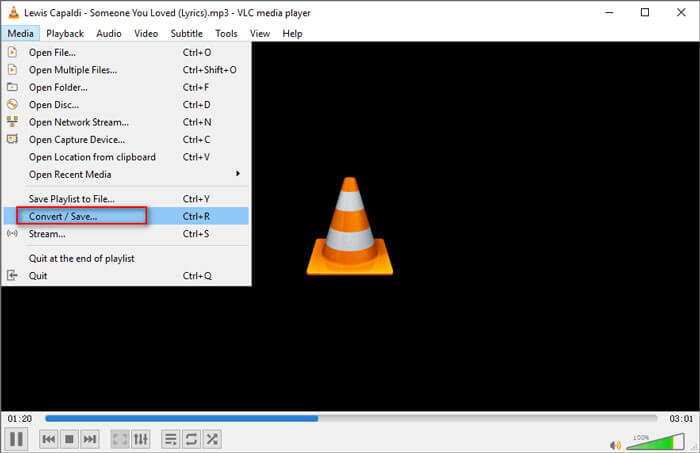
Step 1. Open VLC on your computer. Click Media, then click Open File and import your MP3 file.
Step 2. Click Media, then click Convert/Save. In the pop up window, select Convert under the drop-down button of Convert/Save.
Step 3. Click the drop-down button next to Profile, and select Video - H.264 + MP3 (MP4) as the output format.
Step 4. Click Browse button to select the output folder. Then click Start button to begin converting MP3 to MP4 with black background for free. (How to convert MP4 to MP3?)
Dio 3. Profesionalni način pretvaranja MP3 u MP4 sa slikom
The above methods bring a black background to your MP3 file after conversion. If you want to add a cover to the converted MP4 file, you can use a professional MP3 to MP4 converter. FVC Free MP3 to MP4 Converter provides a more professional way to convert your MP3 music to MP4 with colorful picture.

Besplatni pretvarač MP3 u MP4
113.435+ preuzimanja- Pretvorite MP3 glazbenu datoteku u MP4, AVI, MOV, MKV, WMV i više.
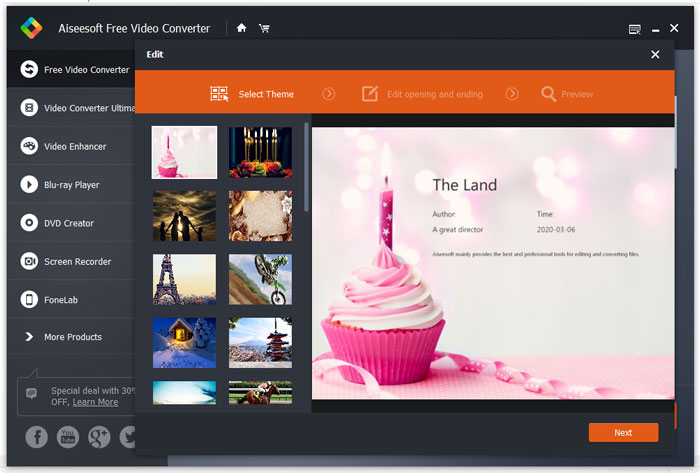
- Osigurajte šarene teme za svoju MP3 datoteku, prilagodite otvaranje i završetak.
- Pregledajte pretvorene MP4 datoteke prije pretvorbe pomoću ugrađenog playera.
- Podržava batch pretvaranje MP3 u MP4 datoteke s visokom kvalitetom video zapisa.
Free DownloadFor Windows 7 or laterSecure Download
Free DownloadFor MacOS 10.7 or laterSecure Download
Korak 1. Dodajte MP3 datoteku
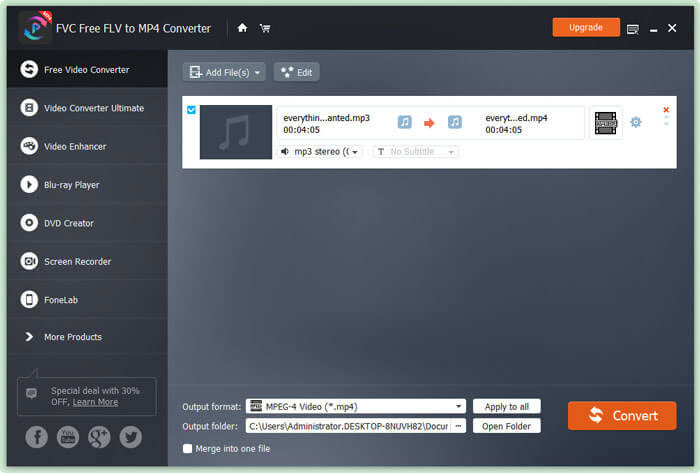
Free download, install and launch this MP3 to MP4 converter on your Windows computer. Click Add File(s) button to import the MP3 file to this converter. This free MP3 to MP4 converter is equipped with a batch conversion feature which allows you to convert one or more MP3 files at a time.
Korak 2. Odaberite temu
Select your MP3 file and click Edit button to add the theme. Here are several different types of themes for you to choose from. Then click Next button to edit the opening and ending of the video.
Korak 3. Pretvorite MP3 u MP4
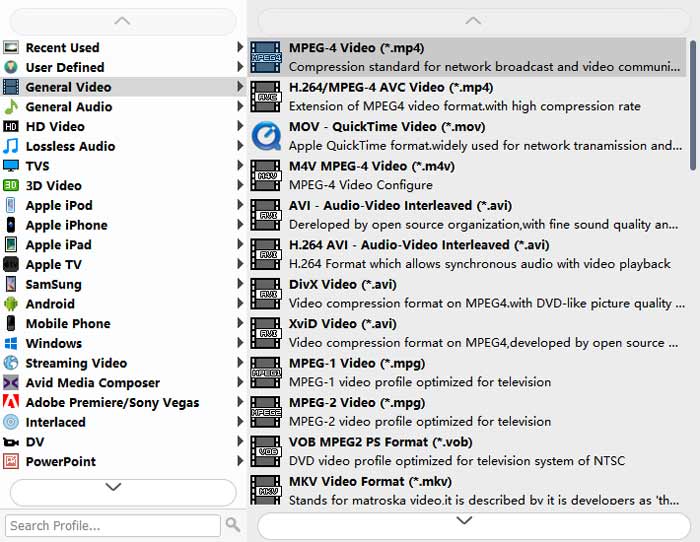
Select MP4 as your target format from the drop-down list of Output format. Then click Convert button to start converting MP3 to MP4 with picture for free.
With the adoption of the latest accelerate technology, it enables you to convert MP3 to MP4 in a super-fast converting speed. What’s more, it guarantees that there won’t be any quality loss during the audio conversion. (Find more MP4 players)
Dio 4. Česta pitanja o pretvaranju MP3 u MP4
Mogu li izvesti iTunes u MP3?
Da. Otvorite iTunes i idite na Uredi ›Postavke. Na kartici Općenito pronađite i kliknite Uvezi postavke. Zatim odaberite MP3 Encoder u padajućem gumbu pored Import Using i kliknite OK da spremite promjene. Označite glazbu koju želite pretvoriti i idite na Datoteka ›Pretvori› Stvori MP3 verziju. Tada će se iTunes glazba pretvoriti u MP3.
Jesu li iTunes pjesme MP3 ili MP4?
Nijedno od njih. Glazba koju ste kupili iz iTunesa je formata AAC (m4a). Možete pretvoriti AAC format u MP3 za reprodukciju na drugim uređajima.
Mogu li pretvoriti MP3 u MP4 pomoću Audacity?
Da. Sama Audacity ne podržava izvoz MP4-a iz MP3-a. Međutim, možete instalirati opcijsku knjižnicu FFmpeg za izvoz više audio formata poput AC3, MP4, M4A, WMA, AMR.
Može li HandBrake izvesti MP4 iz MP3-a?
Ne. HandBrake je video transkoder otvorenog koda koji pretvara u i iz mnogih audio i video formata. Nažalost, ne podržava konverziju samo sa zvukom, poput pretvorbe MP3 u MP4.
Zaključak
We mainly introduced 3 free ways to convert MP3 to MP4 with image on Windows and Mac. FVC Free Online Video Converter is the most convenient way to change MP3 music file to MP4. If you have any better suggestions, please don’t hesitate to leave us a comment.
-
 MOV VS MP4 - Koji je bolji
 MOV VS MP4, koji je bolji? Ovaj post govori o razlici između MP4 i MOV, tako da možete dobiti bolji izbor za korištenje za svoje video datoteke.
-
 Kako pretvoriti MOV u MP4 bez gubitka kvalitete
 Želite pretvoriti MOV (Apple QuickTime Movie) datoteke u MP4? Ovaj post dijeli 4 besplatne metode za pretvorbu MOV video datoteka u MP4 format na Windowsima 10/8/7 / XP i Mac OS X.
-
 4 najbolja načina za pretvaranje WMA u MP3
 Je li moguće pretvoriti WMA u MP3 s Windows Media Playerom? Kako pretvoriti WMA u MP3 besplatno? Ovaj post dijeli 4 jednostavne metode koje će vam pomoći da napravite audio pretvorbu iz WMA u MP3 na Mac, Windows PC i online.
