


 Video Converter Ultimate
 Snimač zaslona
 Video popravak
Kako pretvoriti WAV u MP3 pomoću 5 najboljih besplatnih konvertera
WAV je glavni format koji se koristi u sustavima Windows za neobrađeni i nekomprimirani audio i CD-ove. Na suprotnim krajevima WAV-a, MP3 je komprimiran i male veličine. Štoviše, prihvatljiviji je od WAV-a u streamingu ili drugim playerima.
Imajući to na umu, dolazite na pravo mjesto.
Ova je stranica detaljan vodič za pretvorbu WAV-a u MP3 pomoću top 5 besplatnih pretvarača.

Dio 1. Besplatno pretvori WAV u MP3 Online
Dostupno je mnogo programa za pretvorbu, a prvi na popisu je Free Audio Converter. To je mrežni alat za pretvaranje WAV u MP3. U usporedbi s drugim internetskim WAV u MP3 konverterima, ovaj besplatni program je potpuno besplatan i bez oglasa na Windows i Mac računalima. Od ovog softvera za pretvaranje WAV u MP3 možete imati sljedeće koristi:
- 1. Pretvorite WAV u MP3 bez ograničenja veličine i broja.
- 2. Besplatno pretvorite WAV u MP3 bez registracije.
- 3. Skupno promijenite WAV u MP3 kako biste uštedjeli vrijeme.
- 4. Prilagodite brzinu prijenosa za komprimiranje veličine izlazne datoteke.
- 5. Izdvojite pozadinski zvuk iz YouTube videozapisa i drugih filmova.
Koraci transkodiranja WAV-a u MP4 prilično su jednostavni.
Korak 1. Otvorite ovu stranicu na svom računalu. Kliknite Add Files to Convert i preuzmite te instalirajte pokretač konvertera, koji može objediniti cijeli proces pretvorbe s procesom preuzimanja.
Preuzmite desktop verziju za skupno pretvaranje datoteka.
Korak 2. Nakon uspješne instalacije pojavit će se dijaloški okvir Open (Otvori) i trebate odabrati WAV datoteku ili datoteke na svom računalu kako biste ih dodali u ovaj besplatni program.
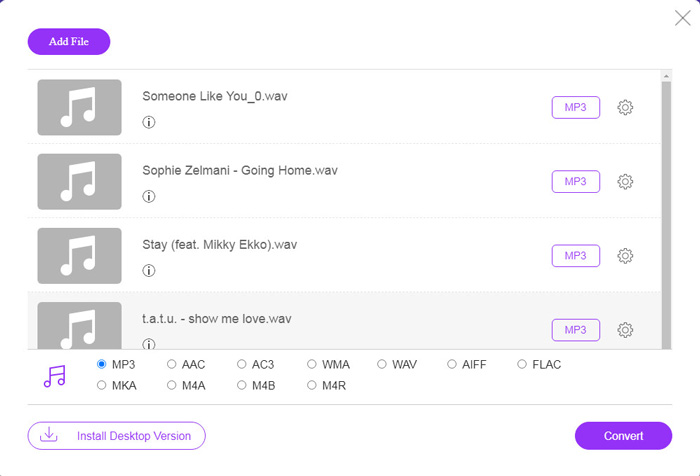
Korak 3. Odaberite potvrdni okvir MP3 na dnu kao izlazni format i kliknite Convert kako biste izabrali odredišnu putanju za spremanje konvertiranih MP3 datoteka. Zatim ponovno kliknite Convert da biste započeli internetsku pretvorbu WAV u MP3.
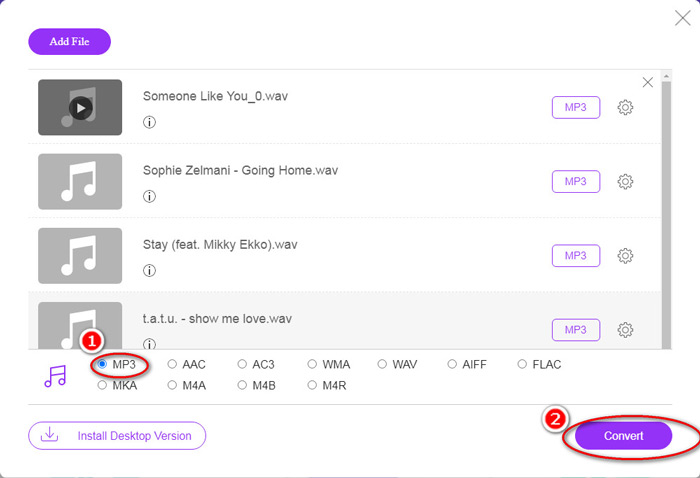
Ako želite komprimirati MP3 datoteku, samo kliknite ikonu zupčanika i prilagodite vrijednost brzine prijenosa od 96 do 320 kbps.
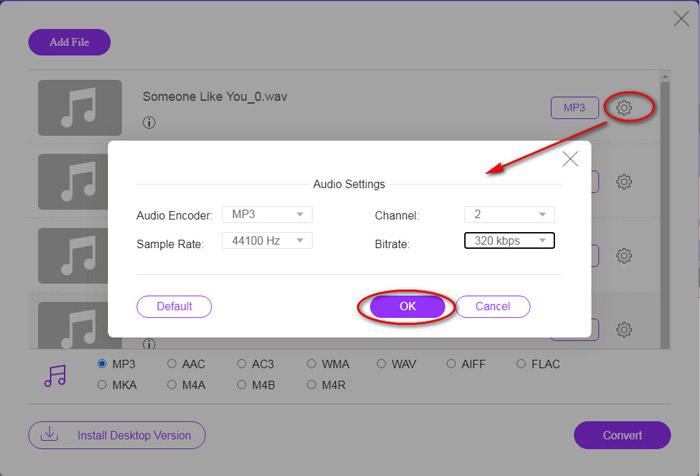
Dodatna prednost ove metode je što možete pretvoriti video u MP3 kako biste besplatno izdvojili bilo koju pozadinsku glazbu.
Dio 2. Besplatno pretvorite WAV u MP3 u iTunes
iTunes je još jedan besplatni program za pretvaranje WAV-a u MP3. Ovim programom možete jednostavno pretvoriti WAV u MP3, AAC, AIFF i Apple Lossless. Naprotiv, MP3, AAC, AIFF, itd. Može pretvoriti u WAV.
Slijedite jednostavne korake navedene u nastavku da biste saznali kako.
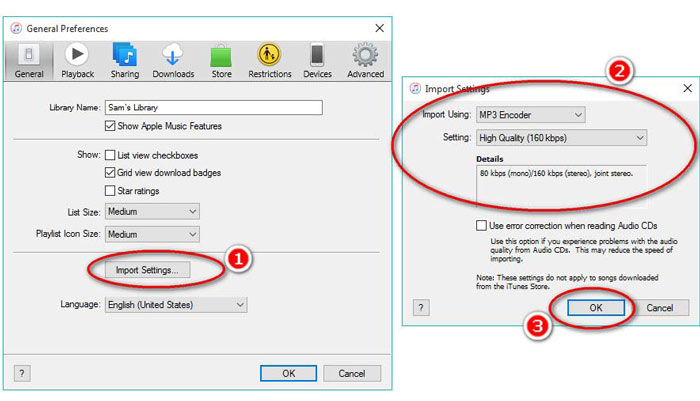
Korak 1. Pokrenite iTunes na Windows ili Mac računalu. Kliknite Edit u izborniku i odaberite Preferences. Kliknite Import Settings kako biste podesili izlazne MP3 postavke.
Odaberite MP3 Encoder u padajućem izborniku Import Using.
Odaberite MP3 kvalitetu u padajućem izborniku Settings (od 16 do 320 kbps).
Kliknite OK da biste spremili i zatvorili postavke.
Korak 2. Povucite i ispustite WAV datoteke u iTunes knjižnicu. Odaberite WAV pjesmu ili pjesme koje želite pretvoriti u MP3, u izborniku odaberite File, zatim Convert, pa Create MP3 Version.
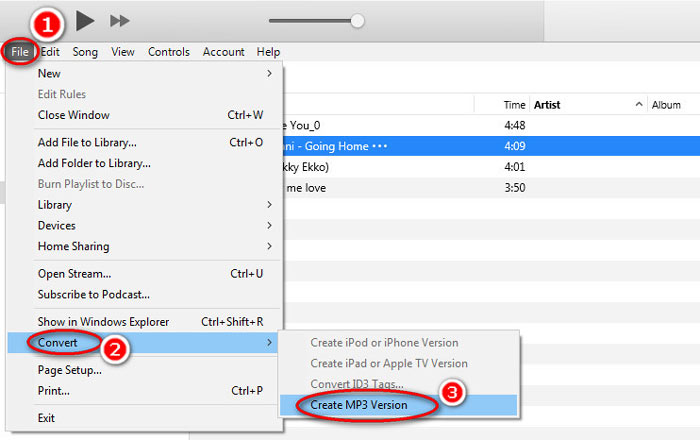
To je to! Nove MP3 datoteke pjesama pojavit će se u vašoj knjižnici pokraj izvornih WAV datoteka. Dvije verzije možete razlikovati desnim klikom na datoteku i odabirom Get Info.
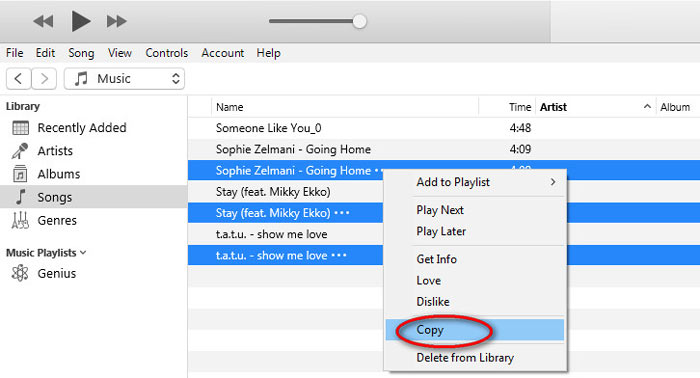
Korak 3. Zatim možete kopirati stvorene MP3 pjesme (desni klik na pjesme i odaberite Copy) u iTunes knjižnici i zalijepiti ih na druga mjesta na svom računalu.
Važno je zapamtiti da iTunes ne obrađuje nikakve glazbene datoteke zaštićene autorskim pravima.
Dio 3. Besplatno pretvaranje WAV-a u MP3 putem Windows Media Player-a
Windows Media Player, kao ugrađeni player na računalu sa sustavom Windows, može izravno otvoriti WAV datoteke. Ovdje izvodi MP3 pretvorbu. Osim pretvorbe u WAV u MP3, podržava i CD-ove koji sadrže WAV pretvorbu zvuka u MP3.
Evo kako započeti:
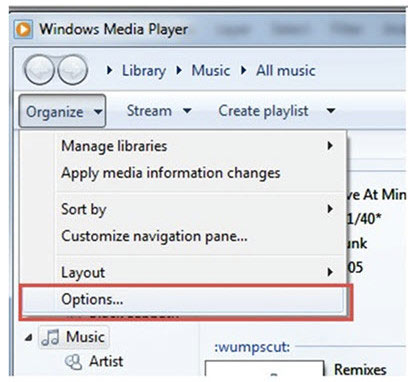
Korak 1. Pokrenite Windows Media Player na računalu, pronađite WAV datoteke koje ste učitali na bočnoj traci. Kliknite Organize na lijevom panelu zaslona i potom Options.
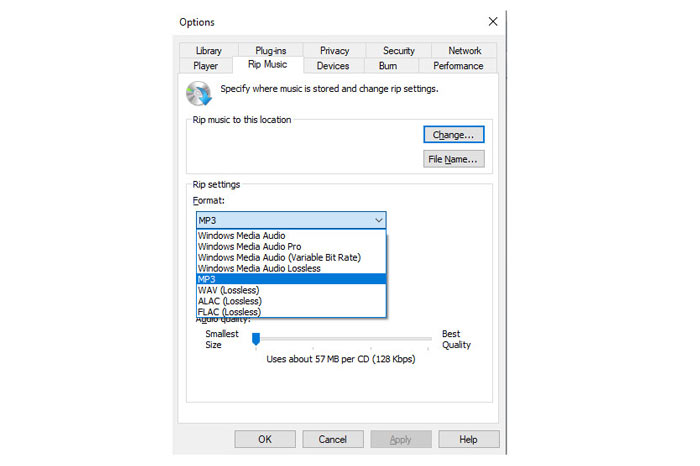
Korak 2. Idite na karticu Rip Music i odaberite MP3 pod Format u odjeljku Rip settings.
Korak 3. Po želji prilagodite kvalitetu zvuka i kliknite Apply kako biste započeli pretvaranje WAV u MP3.
Zatim će Windows Media Player započeti pretvorbu, a konvertirane MP3 datoteke bit će spremljene na lokaciji navedenoj u izborniku Rip music to this location unutar kartice Rip Music.
Postoji samo jedna napomena: Ova metoda pretvorbe WAV u MP3 dostupna je samo korisnicima Windows 10/8/7, jer Windows Media Player radi samo na Windows računalima.
Dio 4. Besplatno pretvaranje WAV-a u MP3 s VLC-om
VLC, možda ste ga koristili kao media player za otvaranje WAV datoteka. Međutim, može raditi i kao WAV pretvarač poput Windows Media Player. Koraci pretvorbe WAV-a u MP3 razlikuju se od onih na Windows Media Playeru.
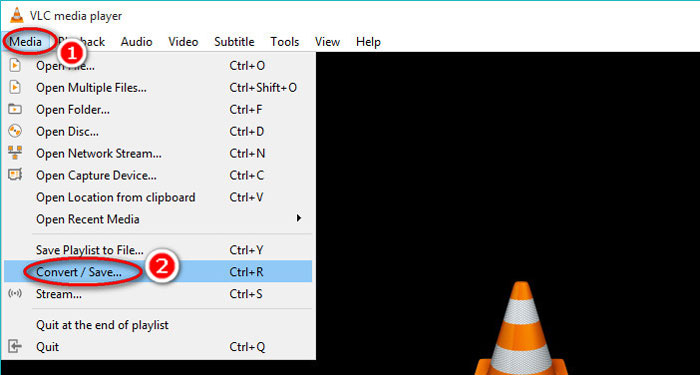
Korak 1. Pokrenite VLC na računalu, u gornjem izborniku pronađite Media i odaberite Convert / Save kako biste pokrenuli prozor Open Media.
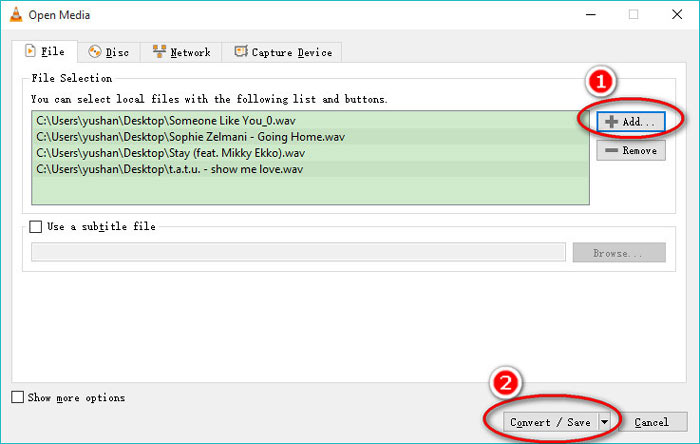
Korak 2. U prozoru Open Media kliknite Add za uvoz WAV datoteka koje želite pretvoriti u MP3. Kliknite Convert/Save za nastavak.
Korak 3. Kliknite strelicu prema dolje pokraj Profile i odaberite MP3 kao izlaznu datoteku.
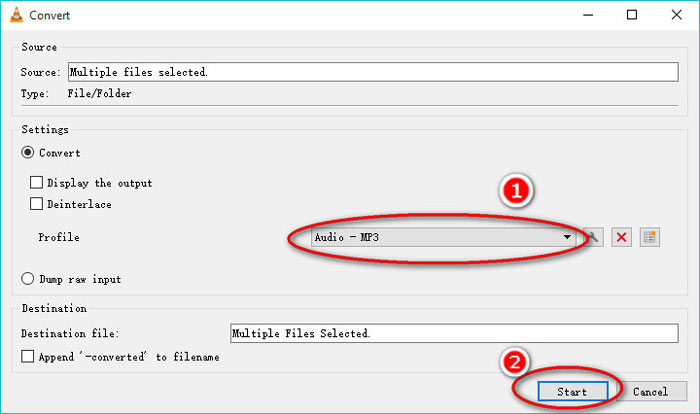
Dok koristite VLC, možete također pretvarati audio u Vorbis (OGG), FLAC i CD. Konvertirane MP3 datoteke nalazit će se u istoj mapi kao i izvorne WAV datoteke.
Da pojasnimo: Iako se VLC može koristiti na računalu i mobilnom telefonu, funkcija pretvorbe dostupna je samo korisnicima računala, pa ne možete pretvoriti WAV u MP3 na iPhoneu ili Android telefonu.
Dio 5. Besplatno pretvaranje WAV-a u MP3 s odvažnošću
Audacity je besplatni softver za uređivanje zvuka koji vam mora biti poznat. Osim moćnih značajki uređivanja, Audacity vam također može pomoći u izvozu WAV-a u MP3.
Utrošimo proces.
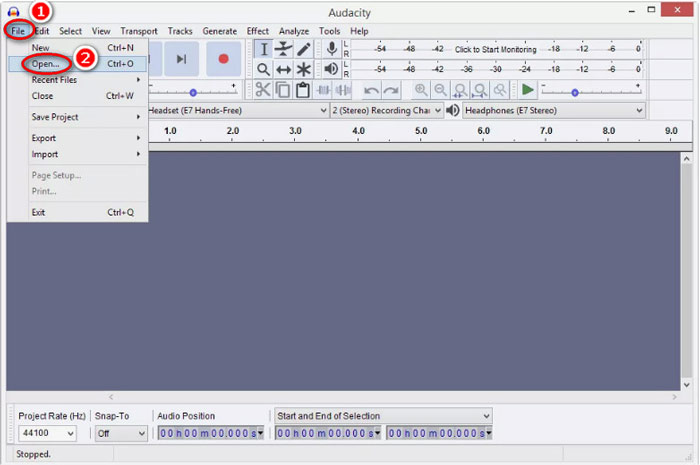
Korak 1. Preuzmite Audacity na svoje Windows ili Mac računalo. Idite u izbornik File na vrhu i odaberite Open kako biste odabrali WAV datoteku pohranjenu na računalu.
Korak 2. Ponovno kliknite File, odaberite Export i Export as MP3.
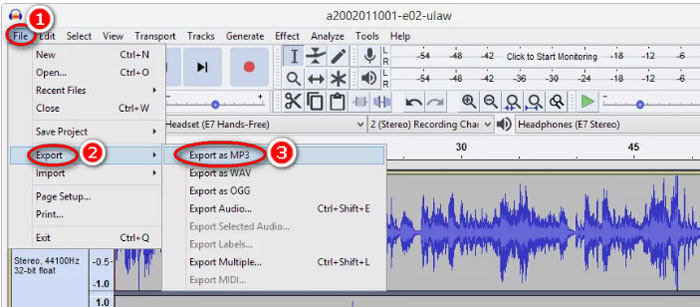
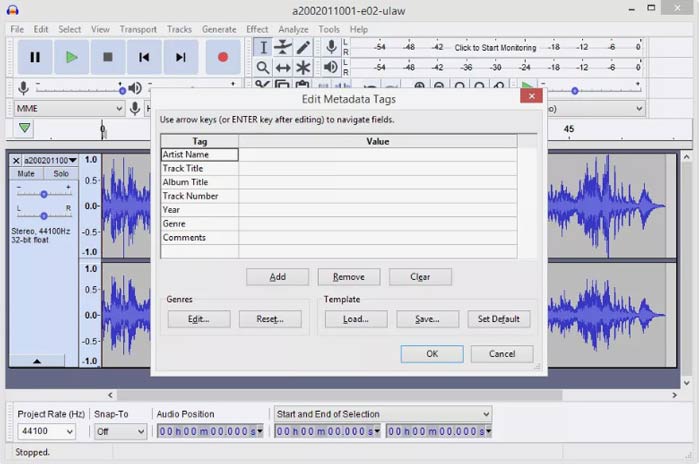
Korak 3. Odaberite mjesto za spremanje konvertirane MP3 datoteke, po želji uredite metapodatke i kliknite OK kako biste započeli pretvaranje WAV u MP3.
Jedna stvar koju biste trebali primijetiti da Audacity ne dopušta skupnu pretvorbu, a WAV morate pretvoriti u MP3 jedan po jedan.
WAV u odnosu na MP3
WAV, također poznat kao WAVE format, temelji se na formatu datoteke za razmjenu resursa (RIFF). Razvili su ga Microsoft i IBM zajedno početkom 1990-ih. To je opcija za spremanje sirovog, nekomprimiranog zvuka u sustavu Microsoft Windows. Stoga se WAV datoteke češće reproduciraju na Windows računalima.
Format MP3 objavio je 1993. godine Moving Picture Experts Group (MPEG). Bio je to standard za pohranjivanje glazbe jer je mogao komprimirati audio na mnogo manju veličinu od drugih nekomprimiranih formata. Danas se još uvijek široko koristi, posebno za distribuciju audiozapisa na internetu.
Dio 6. Česta pitanja o pretvaranju WAV-a u MP3
WAV VS MP3, koji je bolji?
Bolji format ovisi o tome što vam je potrebno.
1. Što se tiče veličine datoteke, WAV je veći od MP3-a.
2. Što se tiče kvalitete zvuka, WAV je bez gubitaka i nekomprimiran, dok je MP3 format s gubicima, pa WAV pruža bolju kvalitetu zvuka od MP3-a.
3. Što se kompatibilnosti tiče, MP3 se naširoko koristi na streaming servisima i reproduktorima, dok se WAV uglavnom koristi na Windows sustavu i CD-ovima.
Gubi li pretvaranje WAV-a u MP3 kvalitetu?
Da. Tijekom pretvaranja WAV datoteke bez gubitaka u MP3 datoteku s gubitkom, izgubit će kvalitetu.
Možete li čuti razliku između MP3 i WAV?
Ako MP3 datoteku s manjom brzinom uspoređujete s WAV datotekom s visokom brzinom prijenosa, čut ćete malu razliku. Međutim, nakon što preslušate MP3 datoteku s velikom brzinom i WAV datoteku s manjom brzinom prijenosa, možda nećete imati razlike u ušima.
Trebam li učitati MP3 ili WAV na YouTube?
WAV se preporučuje za prijenos YouTubea. Jer nakon što prenesete video ili audio datoteku na YouTube, ona će ponovo stisnuti prenijetu datoteku. Za jamčenje najbolje kvalitete zvuka preporučuje se WAV bez gubitaka u usporedbi s MP3-om.
Zaključak
I WAV i MP3 su audio datoteke s kojima se često susrećete. Zbog velike veličine WAV-a i manje popularne kompatibilnosti, mnogi od vas žele pretvoriti WAV u MP3. Na ovoj se stranici prikuplja 5 najboljih besplatnih WAV u MP3 pretvarača koji će vam pomoći pretvoriti WAV u MP3 na računalu.
Koji ćete besplatni WAV u MP3 pretvarač s ovog popisa prvo isprobati?
Želite li besplatnu internetsku konverziju?
Ili možda želite pretvoriti WAV u MP3 na Windows Media Playeru?
U svakom slučaju, javite mi u odjeljku za komentare u nastavku.
-
 Kako mogu besplatno pretvoriti MP4 u WAV Online
 Pokušavate li pretvoriti MP4 u WAV? Ne znate koji vam pretvarač može savršeno pomoći u tome, a da ne platite ni lipe? Pročitajte ovaj post i odgovorit će na sva vaša pitanja.
-
 Kako pretvoriti MP3 u MP4 sa slikom na Windowsima 10 i Mac
 Kako pretvoriti MP3 u MP4 u visokoj kvaliteti? Ovaj post prikazuje 3 učinkovite i besplatne metode za promjenu MP3 u MP4 sa slikama na sustavima Windows i Mac.
-
 Od 50 MB do 5 MB - Kako komprimirati MP4 datoteku u sekundi
 MP4 video je prevelik za prijenos? Želite smanjiti veličinu videozapisa? Evo 3 učinkovita načina za sažimanje MP4 datoteke u manju veličinu bez ograničenja.

