


 Video Converter Ultimate
 Snimač zaslona
 Video popravak
4 najbolja načina za besplatno pretvaranje MP4 u MOV
MP4 je jedan od najpopularnijih video formata koji je uvelike podržan od strane većine playera, uređivača i uređaja. No u nekim slučajevima ipak trebate pretvoriti MP4 u MOV. Znate li kako promijeniti MP4 u MOV?

Kad na Googleu tražite kako pretvoriti MP4 u MOV, vidjet ćete da mnogi video konverteri mogu pomoći pri pretvorbi videa, uključujući neke besplatne mrežne alate za konverziju. U ovom ćemo vam članku pokazati 4 besplatna načina kako lako pretvoriti MP4 u MOV.
Dio 1. Kako besplatno pretvoriti MP4 u MOV na Mac / PC-u bez gubitka kvalitete
Iako je na tržištu dostupno mnogo programa za pretvorbu iz MP4 u MOV, mnogi od njih tijekom konverzije gube na kvaliteti slike i zvuka. Ako želite pretvoriti MP4 u MOV bez gubitka kvalitete, trebali biste odabrati Free Video Converter.
Free Video Converter posebno je dizajniran za obradu svih vrsta video i audio pretvorbi. Iznimno podržava gotovo sve video / audio formate, uključujući MP4, MOV, MKV, FLV, AVI, WMV, MP3, AAC, FLAC i još mnogo toga. Omogućuje vam besplatno pretvaranje MP4 u MOV na Macu ili Windows PC-u zadržavajući izvornu kvalitetu.
Besplatno preuzimanjeZa Windows 7 ili novijiSigurno preuzimanje
Besplatno preuzimanjeZa MacOS 10.7 ili novijiSigurno preuzimanje
Korak 1. Dvaput kliknite gumb za preuzimanje iznad, a zatim slijedite upute za instalaciju i pokretanje ovog besplatnog MP4 u MOV konvertera na svom Macu/PC‑ju. Pazite da preuzmete odgovarajuću verziju na temelju svojeg sustava.
Korak 2. Kada uđete u glavni prozor, možete kliknuti Add File(s) kako biste uvezli MP4 datoteku(e) koju želite pretvoriti. Ovaj besplatni MP4 u MOV konverter opremljen je funkcijom skupne konverzije koja vam omogućuje pretvaranje jedne ili više MP4 datoteka odjednom.
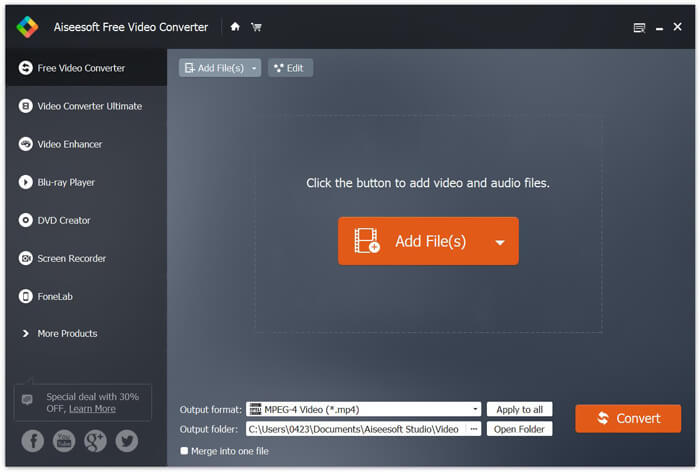
Korak 3. Kliknite Output format i iz padajućeg izbornika odaberite MOV kao ciljni format. Sada jednostavno možete kliknuti gumb Convert da biste pokrenuli pretvorbu iz MP4 u MOV.
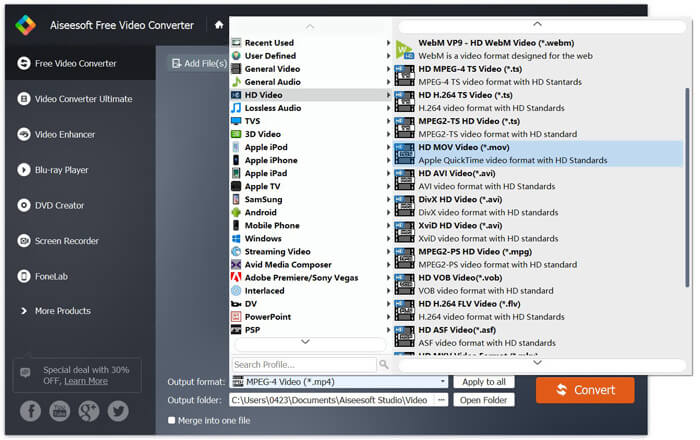
Samo nekoliko sekundi kasnije, izvorni MP4 pretvorit će se u MOV format. Osim MOV-a, također možete s visokom kvalitetom pretvoriti MP4 u MKV, FLV, AVI itd. Ovaj besplatni video pretvarač također sadrži neke osnovne značajke uređivanja. Prije konačne pretvorbe MP4 u MOV, možete ih koristiti za uređivanje vaših MP4 videozapisa.
Dio 2. Kako promijeniti MP4 u MOV Free pomoću mrežnog video pretvarača
Kao što je gore spomenuto, na tržištu se nudi mnogo besplatnih mrežnih video pretvarača koji vam mogu pomoći da MP4 pretvorite u MOV. Ovdje u ovom postu predstavit ćemo 2 metode kako promijeniti MP4 u MOV na mreži.
1. FVC Besplatni internetski video pretvarač
Ako želite besplatno pretvoriti MP4 u MOV na mreži, FVC Free Online Video Converter bit će vaš najbolji izbor. Uz 3 jednostavna koraka možete dovršiti konverziju i u nekoliko sekundi dobiti pretvorenu datoteku bez gubitka kvalitete.
Korak 1. Kliknite gornju poveznicu i otvorite FVC Free Online Video Converter. Zatim kliknite Add Files to Convert u sredini bannera. Potom preuzmite i instalirajte FVC launcher na svoje računalo.
Preuzmite desktop verziju za skupno pretvaranje datoteka.

Korak 2. Nakon odabira i učitavanja videa koji želite pretvoriti, trebate odabrati MOV kao izlazni format za pretvorenu video datoteku.
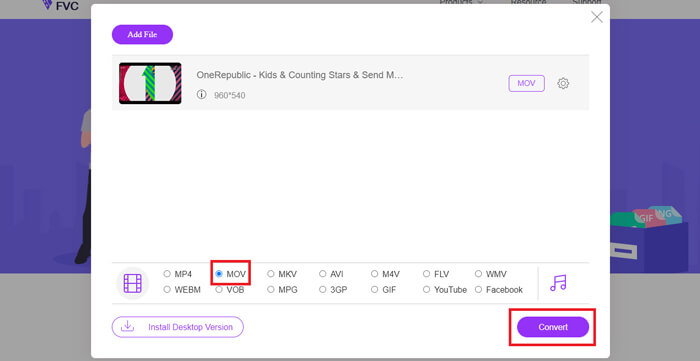
Korak 3. Kliknite Convert. Možete odabrati spremanje pretvorene datoteke na radnu površinu. Nakon toga samo pričekajte nekoliko trenutaka da dobijete svoj MOV video.
2. CloudConvert
CloudConvert vrlo je popularan i jednostavan alat za pretvorbu video zapisa u mreži. Ima mogućnost pretvorbe preko 200 formata, uključujući audio, video, dokumente, e-knjige, arhive, slike, proračunske tablice ili prezentacijske formate. Štoviše, ovaj mrežni pretvarač vrijedan povjerenja zaštitit će vaše podatke i privatnost.
Korak 1. Otvorite preglednik i idite na službenu stranicu CloudConverta. Dizajniran je s jednostavnim sučeljem koje vam može pružiti ugodno iskustvo konverzije.
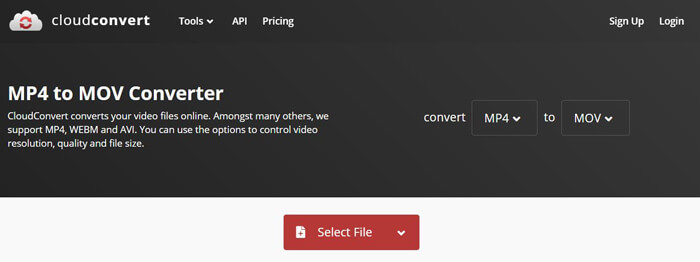
Korak 2. Kliknite gumb Select File da biste učitali MP4 datoteku koju želite pretvoriti. Ovdje možete dodati datoteku s računala, URL‑a, Google Drivea, OneDrivea ili Dropboxa. Tijekom ovog koraka možete dodati više datoteka za pretvorbu.
Jedna stvar koju biste trebali zabrinuti jest da vam ovaj besplatni pretvarač MP4 u MOV omogućuje pretvorbu videozapisa manjeg od 1 GB. Morate kupiti paket za pretvaranje većih datoteka.
Korak 3. Kliknite gumb Convert da biste pokrenuli učitavanje i pretvorbu svoje MP4 datoteke. Zatim možete kliknuti gumb Download kako biste spremili pretvoreni MOV video na svoje računalo.

Koristeći CloudConvert za mrežno pretvaranje MP4 u MOV, trebate potrošiti više vremena na postupak prijenosa, pretvorbe i preuzimanja videozapisa, posebno kada pretvarate veliku datoteku.
Dio 3. Kako pretvoriti MP4 u MOV pomoću VLC Media Player-a
VLC Media Player je popularan i open‑source multimedijski reproduktor. Osim što je media player, VLC može poslužiti i kao alat za pretvorbu videa koji vam pomaže u različitim video konverzijama. Ako imate instaliran VLC na računalu, možete se osloniti na njega za pretvorbu MP4 datoteke u MOV video.
Korak 1. Otvorite VLC Media Player na svom računalu. Ako nemate VLC, možete otići na njegovu službenu stranicu i besplatno ga preuzeti.
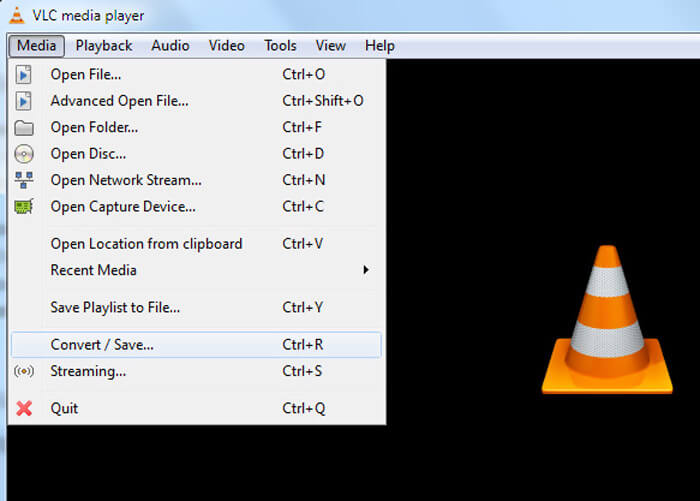
Korak 2. Kliknite gumb Media na traci izbornika, a zatim iz padajućeg izbornika odaberite opciju Convert/Save.
Korak 3. Pojavit će se novi prozor Open Media. Ovdje možete kliknuti File > Add kako biste uvezli MP4 datoteku koju želite pretvoriti.
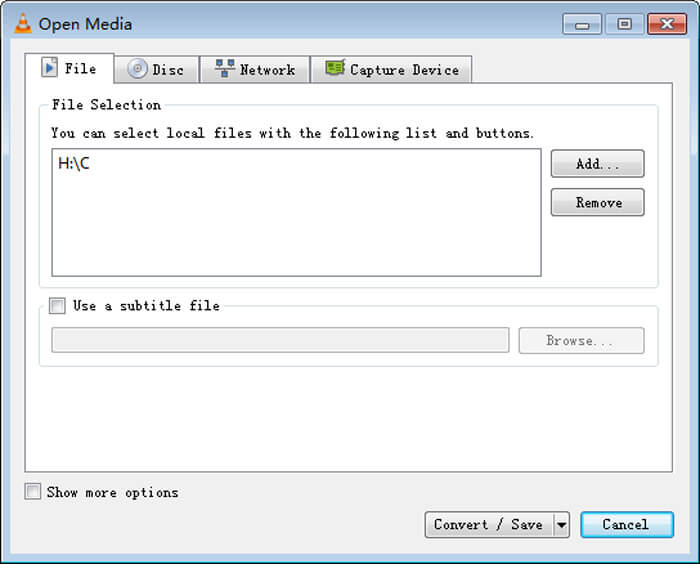
Korak 4. Kliknite gumb Convert/Save na dnu da biste potvrdili radnju. Zatim ćete biti preusmjereni u prozor Convert gdje možete odabrati odredišnu mapu i izlazni format za pretvoreni video.
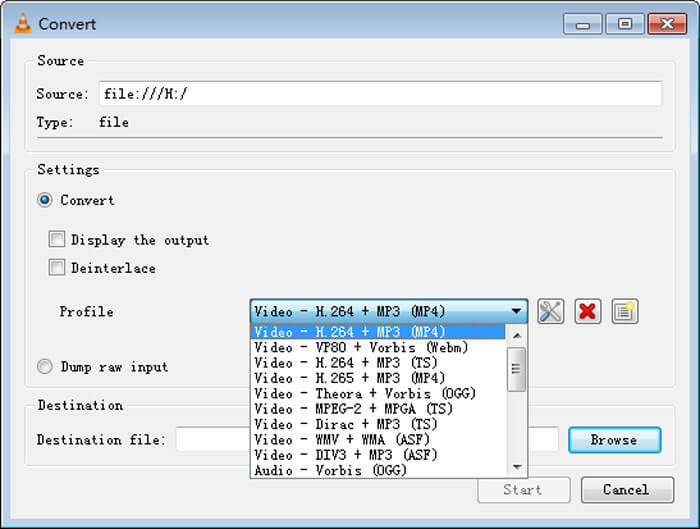
Korak 5. Odaberite MOV kao izlazni format iz padajućeg izbornika Profile. Zatim kliknite Start kako biste izvršili pretvorbu videa iz MP4 u MOV u VLC‑u.
MP4 u odnosu na MOV
Format MP4, koji je izdala Grupa stručnjaka za pokretne slike (MPEG) 2001., može vam pomoći u spremanju video, audio, titlova i slikovnih podataka u zasebne zapise. To je skraćenica od MPEG-4 Part 14. Osim toga, to je jedan od najpopularnijih formata koji se koristi za streaming i dijeljenje videozapisa.
MOV format može se koristiti za pohranjivanje filma, TV emisije, kratkog videoisječka ili kućnog filma. Zapravo se sprema u QuickTime File Format (QTFF), koji je uveo Apple 1991. MOV datoteke se često koriste kada ljudi žele spremiti video visoke kvalitete.
Dio 4. Česta pitanja o pretvaranju MP4 u MOV
Pitanje 1. Može li QuickTime pretvoriti MP4 u MOV?
Kad trebate pretvoriti MP4 u MOV na Macu, možete probati QuickTime. MP4 video možete otvoriti pomoću programa QuickTime Player. Zatim kliknite gumb Izvezi i odaberite format MOV. Možete preimenovati datoteku, odabrati mjesto i razlučivost video zapisa. Tada možete kliknuti gumb Izvoz da biste besplatno pretvorili MP4 u MOV na Macu.
Pitanje 2. Što je bolje, MOV ili MP4?
MP4 je jedan od najpopularnijih formata za pohranu multimedijskih datoteka. To je digitalna kontejnerska datoteka, samo omot oko videa, a ne sam video. Slično MP4‑u, MOV je također digitalna kontejnerska datoteka. MOV je kodiran MPEG‑4 kodekom.Glavna razlika između MOV‑a i MP4‑a jest u tome što se MOV najčešće koristi u Mac okruženjima. MOV je posebno dizajniran za QuickTime. MP4 je međunarodni standard koji podržava većina media playera i sustava. Općenito govoreći, MOV video je često veće kvalitete i veće veličine. MP4 datoteka je obično jače komprimirana i manje veličine. Stoga ne možete jednostavno reći da je MOV bolji od MP4 ili da je MP4 bolji od MOV‑a.
Pitanje 3. Gubi li pretvorba MOV u MP4 kvalitetu?
Kada želite pretvoriti MOV u MP4 ili promijeniti MP4 u MOV, trebali biste odabrati neki profesionalni video pretvarač. U većini slučajeva nećete primijetiti gubitak kvalitete nakon pretvorbe.
Pitanje 4. Postoji li besplatni pretvarač MP4 u MOV?
Na internetu se nudi mnoštvo besplatnih video pretvarača koji vam mogu pomoći u pretvaranju MP4 u MOV. Osim preporučene CloudConvert, za izradu verzije pretvorbe možete se osloniti i na FFmpeg, HandBrake, ZAMZAR, Convert Files i više.
-
 Kako pretvoriti vaše MP4 video datoteke u animirane GIF slike bez gubitka kvalitete
 Tražite li najbolji način za pretvaranje MP4 videozapisa u animirane GIF-ove? Evo detaljnog vodiča za to u Photoshopu, programu Windows Movie Maker, mrežnom video pretvaraču i mnogim drugim.
-
 MOV VS MP4 - Koji je bolji
 MOV VS MP4, koji je bolji? Ovaj post govori o razlici između MP4 i MOV, tako da možete dobiti bolji izbor za korištenje za svoje video datoteke.
-
 Kako pretvoriti MOV u MP4 bez gubitka kvalitete
 Želite pretvoriti MOV (Apple QuickTime Movie) datoteke u MP4? Ovaj post dijeli 4 besplatne metode za pretvorbu MOV video datoteka u MP4 format na Windowsima 10/8/7 / XP i Mac OS X.

