


 Video Converter Ultimate
 Snimač zaslona
 Video popravak
Pretvaranje WMV u MP4: Koja je od 4 metode bolja
WMV je najprikladniji za Windows. No ipak nije toliko kompatibilan kao formati poput MP4, MOV itd. Korisnici iPhonea, iPada ili Maca mogli bi imati problema pri otvaranju ove vrste datoteke. Korisnici iPhonea, iPada ili Maca možda uopće neće moći otvoriti WMV datoteke bez poteškoća, a iMovie i QuickTime Player ne podržavaju ovaj format. Kako bismo zaobišli ovo ograničenje i osigurali da se WMV datoteke mogu obrađivati na svakom uređaju i u svakom programu za montažu, moramo ih pretvoriti u format MP4. Mnogi alati mogu obaviti ovu radnju, a pitanje je samo kako ih odabrati i koristiti. U ovom vodiču pokazat ćemo vam sve što trebate znati. Preporučit ćemo najbolje desktop i online pretvarače za WMV u MP4, a na popisu će se naći i FFmpeg, koji radi na jedinstven način. Usporedit ćemo njihove performanse u svim aspektima u tablici i uz svaki alat priložiti detaljan ilustrirani vodič.

Dio 1. Pretvorite WMV u MP4 na Win/Mac s neograničenim vremenom
Od četiri alata za pretvorbu, onaj koji preporučujemo isprobati je FVC Video Converter Ultimate. Razlog je taj što je kompatibilan s gotovo svim popularnim formatima i prilagođen je i korisnicima Windowsa i Maca. Platforma ne služi samo za pretvaranje WMV u MP4, već nam omogućuje i razne vrste uređivanja i poboljšavanja videa koji ćemo izvesti. Na njegovom sučelju nalazimo alat za obrezivanje, poboljšavanje, kompresiju, uklanjanje šuma itd., a možemo dodati i razne filtre na sliku kako bismo osigurali da rezultat bude živopisniji. Vratimo se na posao pretvaranja formata: FVC Video Converter Ultimate koristi naprednu tehnologiju hardverskog ubrzanja, što mu omogućuje konverziju i do 30 puta brže, pri čemu se, naravno, nastoji da kvaliteta videa ne pretrpi nikakav gubitak. Uz FVC Video Converter Ultimate možemo mu povjeriti i sve zadatke obrade zvuka ili slika. Ovaj svestrani program koji podržava više od 1000 formata zasigurno je najbolji izbor za korisnike.
Besplatno preuzimanjeZa Windows 7 ili novijiSigurno preuzimanje
Free DownloadZa macOS 10.7 ili novijiSigurno preuzimanje
Evo kako pretvoriti WMV video u MP4 pomoću FVC Video Converter Ultimate.
Korak 1. Preuzmite i instalirajte FVC Video Converter Ultimate na svoj uređaj. Otvorite ga i kliknite na Add Files kako biste učitali pripremljeni WMV video.

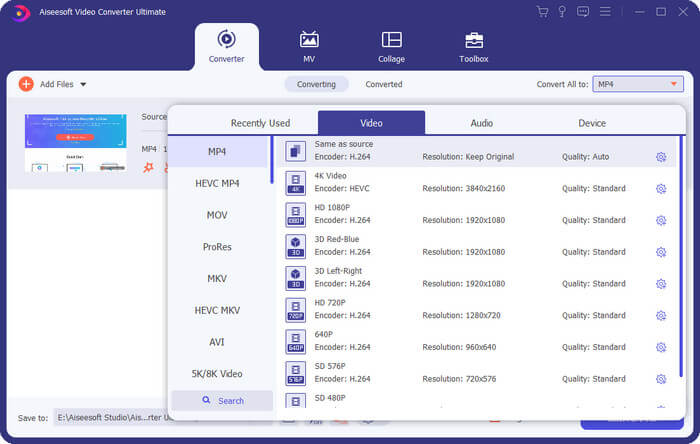
Korak 2. Idite na Convert All to i odaberite Video > MP4. Odaberite razinu kvalitete prema svojim potrebama.
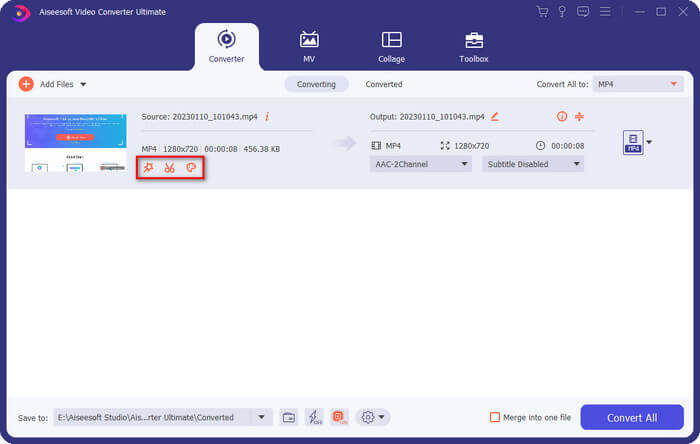
Ako želite urediti dodani video prije pretvorbe, kliknite Edit ili Cut.
Korak 3. Nakon što odredite put za spremanje, kliknite Convert All kako biste započeli pretvorbu između MP4 i WMV.
Dio 2. Besplatno pretvorite WMV u MP4 pomoću VLC Media
Igrač
Još jedan WMV u MP4 pretvarač treće strane koji vrijedi isprobati je VLC Media Player, čija je najistaknutija prednost otvoreni kod i besplatan. Bez obzira jeste li korisnik Windowsa, Maca ili Linuxa, možete ga preuzeti na svoj uređaj. Player je kompatibilan sa gotovo svim standardnim multimedijskim formatima na tržištu i ima neke bitne alate za uređivanje videa.
Evo kako besplatno pretvoriti WMV u MP4 pomoću VLC Media Playera.
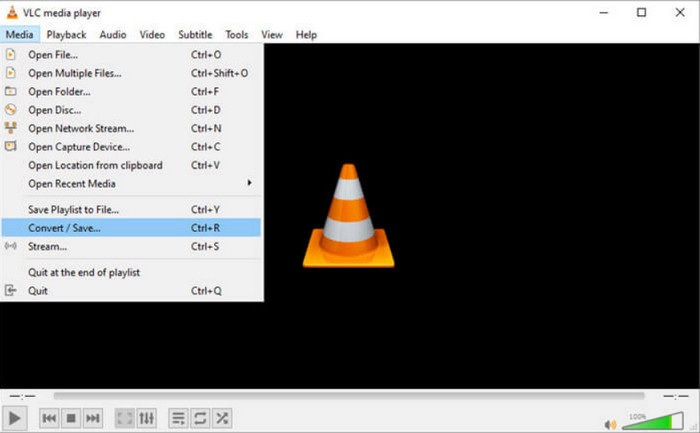
Korak 1. Preuzmite najnoviju verziju VLC Media Playera na svoje računalo. Pokrenite je i kliknite na Media u gornjem lijevom kutu. Na proširenom popisu odaberite Convert/Save.
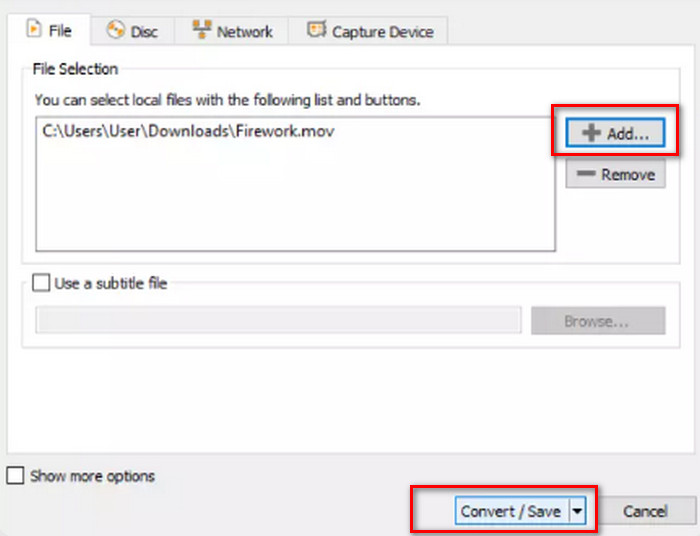
Korak 2. Pojavit će se novi skočni prozor. Idite na karticu File i kliknite +Add kako biste učitali ciljni WMV video. Zatim kliknite Convert/Save.
Korak 3. Sada ćete otvoriti novi prozor. Pronađite Profile i kao izlazni format odaberite Video - H.264 + MP3 (MP4).
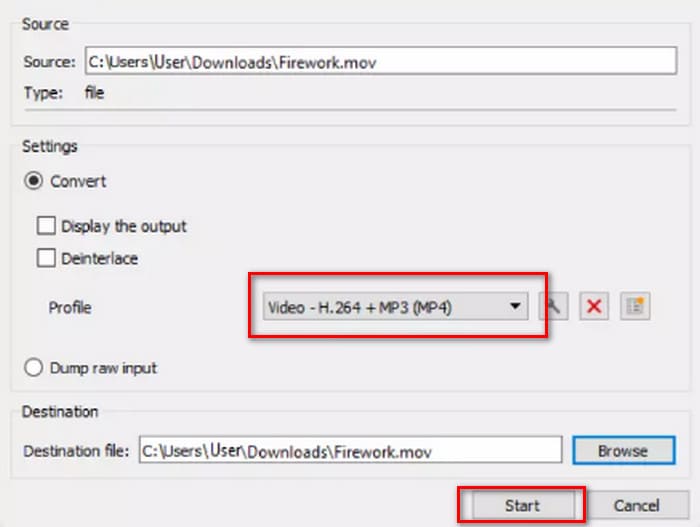
Korak 4. Odaberite odredišnu mapu i kliknite Start kako biste pretvorili WMV u MP4.
Iako je usluga VLC Media Playera potpuno besplatna, dostupno je premalo opcija za obradu videa. Ako trebate napraviti promjene u prenesenim videozapisima, i dalje preporučujemo profesionalni softver za uređivanje multimedijskih datoteka poput FVC Video Converter Ultimate.
Dio 3. Prijenos WMV-a u MP4 bez gubitka kvalitete putem FFmpeg-a
Uobičajeni načini pretvorbe WMV formata u MP4 često zahtijevaju da prvo prenesemo izvornu datoteku, odaberemo izlazni format, a zatim kliknemo gumb Start ili Pretvori. Ali FFmpeg je drugačiji. Iako može izvoditi i zadatke pretvorbe formata i uređivanja videa, nema uobičajenog sučelja i gumba; već se oslanja na kodne upute. Moramo pronaći predložak za odgovarajuću operaciju i ispuniti putanju pohrane i izlazni format videa kako bi FFmpeg radio. Ova platforma je također otvorenog koda i besplatna.
Evo kako pretvoriti WMV u MP4 pomoću FFmpega.
Korak 1. Instalirajte FFmpeg na svoje računalo. Zatim pomoću trake za pretraživanje računala pronađite aplikaciju Terminal.
Korak 2. Poslužite se sljedećim predloškom naredbe.
ffmpeg -i input.wmv output.mp4
Zamijenite ulaz s nazivom WMV datoteke koja sadrži putanju pohrane; zamijenite izlaz željenom izlaznom putanjom u istom formatu.
Primjer: /home/user/Desktop/XXX
Korak 3. Upišite uređenu naredbu i pritisnite tipku Enter na tipkovnici.
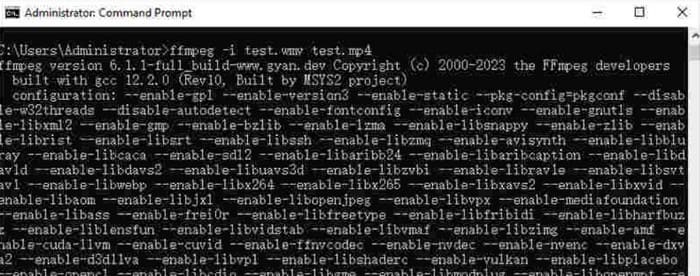
Za korisnike koji su upoznati s naredbama koda ili imaju iskustva u korištenju FFmpeg-a, ovo je najjednostavniji način za pretvaranje WMV-a u MP4 na Macu ili Windowsu. Ali za početnike je teško uređivati kod. Jedva možemo vidjeti značajan proces pretvorbe.
Dio 4. Jednostavna promjena WMV u MP4 online
Ako vam je korištenje softvera za stolna računala previše teško i tražite pojednostavljeniju i praktičniju metodu, preporučujemo promjenu WMV-a u MP4 online. Postoji mnogo takvih platformi, a Convertio je dobar izbor. Prednost ove platforme je što podržava prijenos videa iz oblaka i nudi neke jednostavne personalizirane postavke. Nema potrebe za instaliranjem nikakvog softvera ili dodataka; pronalazimo ga putem preglednika i možemo ga početi koristiti.
Evo kako pretvoriti WMV u MP4 pomoću programa Convertio.
Korak 1. U pregledniku otvorite Convertio. Kliknite Select File kako biste na ovu platformu dodali svoj WMV video.
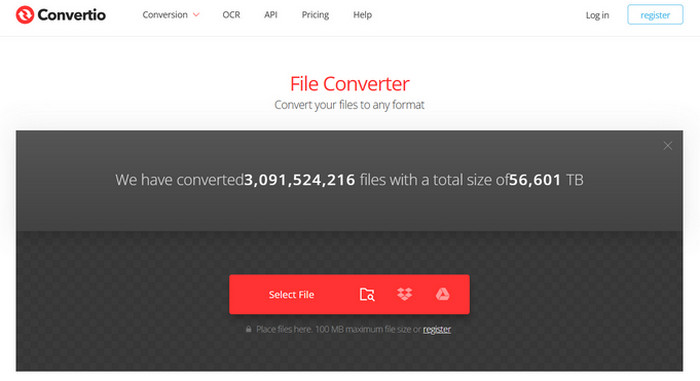
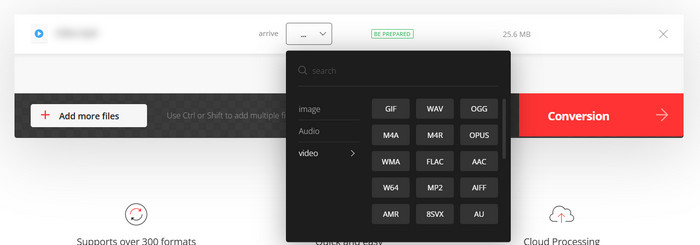
Korak 2. Odaberite Arrive > Video > MP4. Na kraju kliknite Conversion.
Convertio je prikladan za one koji imaju hitne zadatke pretvorbe ili ne žele da softver trećih strana zauzima memoriju računala. Međutim, platforma ima premalo značajki za uređivanje videa i može obraditi samo datoteke do 100 MB. Ako želite pretvoriti WMV u MP4 s neograničenim vremenom, ipak preporučujemo da isprobate nekoliko drugih načina.
Dio 5. Usporedite svaki način u tablici
Ako se mučite s odabirom između četiri pretvarača formata, pogledajte donju tablicu. Usporedit ćemo njihove performanse s nekoliko aspekata.
| Ubrzati | Platforma za podršku | Ograničenje veličine | Značajke uređivanja | Jednostavan za korištenje | |
| FVC Video Converter Ultimate | 30 puta brže | Windows i Mac | Ne | Razni | Vrlo jednostavno |
| VLC Media Player | Dobro | Windows, Mac i Linux | Ne | Neke osnovne postavke | Dobro |
| FFmpeg | Dobro | Windows, Mac i Linux | Ne | Razni | Teško |
| Convertio | Završite konverziju unutar 1-2 minute | Sve platforme uključuju stolna računala i mobilne uređaje | 100 MB | Vrlo malo | Vrlo jednostavno |
Dio 6. Često postavljana pitanja o pretvaranju WMV-a u MP4
Trebam li pretvoriti WMV u MP4?
Iako je kvaliteta videa u WMV formatu nešto viša nego kod MP4, MP4 je superioran u odnosu na WMV po pitanju kompatibilnosti i veličine datoteke. Ako vam je kvaliteta videa posebno važna, nakon pretvorbe možete koristiti i neki MP4 uređivač kako biste dodatno poboljšali kvalitetu ili prilagodili parametre poput bitratea.
Je li WMV zastario?
Iako se WMV pojavio vrlo rano, još uvijek se široko koristi i pogodan je za prijenos i dijeljenje videa. Jedino oko čega se trebate brinuti jest da WMV nije prikladan za iOS uređaje.
Kako pretvoriti video u MP4 na Windowsima?
Besplatni alati kao što su VLC Media Player i Handbrake dobar su izbor. Ipak, preporučujemo FVC Video Converter Ultimate, koji nije samo kompatibilan, već ima i najopsežnije alate za obradu videa te čak podržava dodavanje i uklanjanje vodenih žigova s videa.
Zaključak
Ovo je članak koji vas uči kako pretvoriti WMV u MP4. Nudimo četiri prikladna pretvarača: FVC Video Converter Ultimate, koji je najsvestraniji; VLC Media Player, koji je besplatan; FFmpeg, koji ima jedinstven način pokretanja; i Convertio, koji radi online. Nakon usporedbe njihovih performansi, vidjet ćete da je FVC najisplativiji izbor. Ne samo da nema ograničenja veličine datoteke, već ima i najopsežnije funkcije za uređivanje videa među sva četiri alata, a pritom nije toliko težak za korištenje kao FFmpeg.
-
 Besplatno | 3 najbolje metode za pretvaranje MP4 u WMV bez gubitka kvalitete
 Ovaj post dijeli kako pretvoriti MP4 video u WMV format na Macu ili Windowsu. Također ćemo vam ponuditi nekoliko opcija, uključujući softver za stolna računala i mrežne pretvarače putem weba. Jeste li spremni znati najbolje alate za pretvorbu MP4 u WMV?
-
 Pregled 10 najboljih WMV video playera u 2025. (računalo i telefon)
 Kako mogu reproducirati WMV? Reproducira li VLC WMV? Koja aplikacija reproducira WMV datoteke? Ovaj post prikazuje 10 najboljih WMV video playera za vas na Mac, Windows PC, Android i iPhone.
-
 3 najbolja načina za besplatno spajanje WMV datoteka na mreži (ažuriranje 2025.)
 Kako besplatno spojiti WMV video isječke na mreži? FVC Free Online Video Merger i Clideo WMV Joiner dva su snažna alata za spajanje WMV datoteka na mreži. Ovaj će vam članak predstaviti kako ih koristiti.

