


 Video Converter Ultimate
 Snimač zaslona
 Video popravak
3 načina za reprodukciju MKV datoteka u programu Windows Media Player
Ne možete otvoriti MKV datoteku u Windows Media Playeru?
MKV je jedna od popularnih video formata. Možda imate mnogo filmova visoke kvalitete, TV serija ili drugih videozapisa spremljenih u MKV formatu. Međutim, kao korisnik Windowsa, zadani video reproduktor, Windows Media Player, izvorno ne podržava razdvajanje (otvaranje) MKV spremnika. Vraćamo se sada na pitanje, kako reproducirati MKV datoteke u Windows Media Centeru?

Čak i nakon što nadogradite Windows Media Player na najnoviju verziju, ne postoji jamstvo da nećete naići na probleme s reprodukcijom MKV-a. S obzirom na to, ovaj post želi podijeliti 3 učinkovita načina za reprodukciju MKV datoteka na Windows računalu.
Dio 1. Kako otvoriti MKV datoteku u programu Windows Media Player
Windows Media Player ne može reproducirati MKV datoteke uglavnom zbog neusklađenosti kodeka. Trebali biste znati da je MKV zapravo medijski spremnik za video tokove, audio tokove, titlove i još mnogo toga. Morate Windows Media Playeru osigurati odgovarajući razdjelnik (splitter) za MKV te kodeke i filtere za video i audio datoteku. Ovaj će vas dio voditi kako reproducirati MKV datoteku u Windows Media Playeru.
Korak 1. Otvorite Windows Media Player i otvorite MKV datoteku njime. Ovdje također možete desnom tipkom miša kliknuti na MKV datoteku i odabrati Otvori pomoću WMP.
Korak 2. Sada ćete vidjeti poruku o pogrešci koja kaže da Windows Media Player ne može reproducirati datoteku. Kliknite opciju Pomoć na webu u dijaloškom okviru.
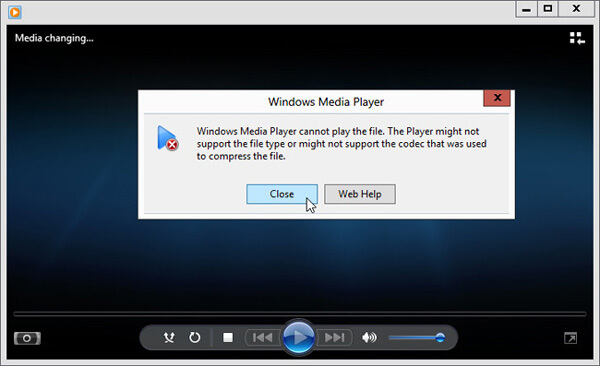
Korak 3. Kliknite na poveznicu za kodek ispod poruke Kodek nedostaje. Kopirajte i zalijepite poveznicu u svoj preglednik. To će vas uputiti kako preuzeti odgovarajući MKV kodek za Windows Media Player. Nakon preuzimanja, slijedite upute kako biste dovršili postupak instalacije MKV podrške u Windows Media Playeru.
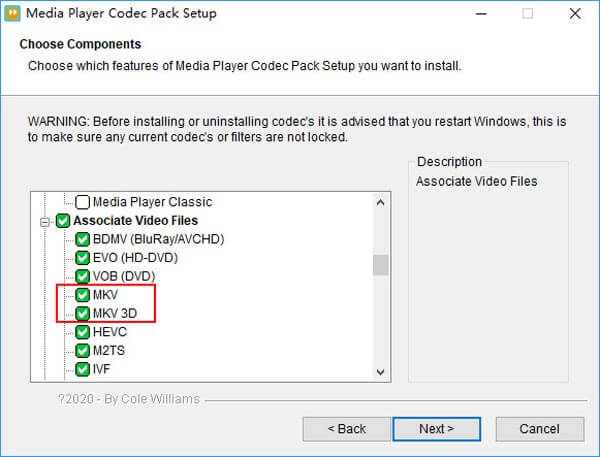
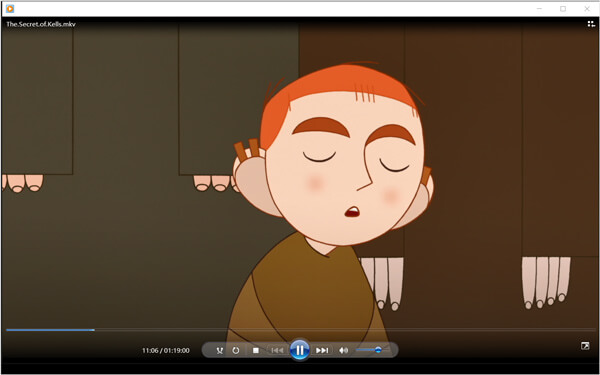
Korak 4. Ponovno pokrenite Windows Media Player i zatim ponovno pokušajte reproducirati svoju MKV datoteku.
Dio 2. Bolji način reprodukcije MKV datoteka u programu Windows Media Player
Pomoću odgovarajućeg MKV kodeka možete lako otvoriti MKV datoteku u programu Windows Media Player. Međutim, mnogi su korisnici izvijestili da još uvijek postoje neki drugi problemi s reprodukcijom tijekom igranja MKV-a s WMP-om. U tom slučaju možete odabrati alternativu Windows Media Playeru koja će vam pomoći u reprodukciji MKV datoteka.
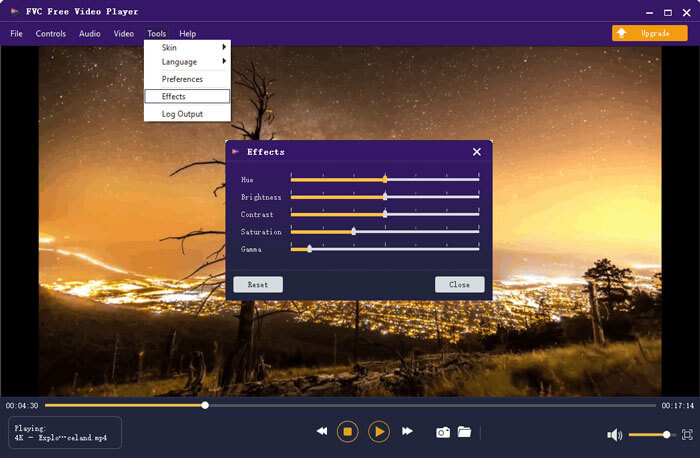
FVC Free MKV Player izvrstan je alat kao alternativa Windows Media Playeru. Izvorno podržava sve često korištene video i audio formate, kao što su MKV, MOV, MP4, FLV, AVI, RMVB, MPEG, AAC, MP3, M4A, WMA i drugi. Možete se osloniti na njega za gledanje MKV filmova u visokoj kvaliteti.

Korak 1. Otvorite svoj preglednik i idite na stranicu ovog besplatnog MKV playera. Kliknite gumb Play Now za instalaciju male pokretačke datoteke potrebne za reprodukciju MKV datoteka. Nakon toga će se na zaslonu pojaviti glavni prozor za reprodukciju MKV datoteka.

Korak 2. Kliknite gumb Open File kako biste pretražili i uvezli svoju MKV datoteku u program. Nakon toga će se video automatski reproducirati. Zahvaljujući primjeni napredne tehnologije video kodiranja, može glatko reproducirati MKV datoteku u visokoj kvaliteti. Osim toga, podržava DTS-HD i Dolby TrueHD.

Dobivate sve kontrole nad reprodukcijom MKV-a. Osim osnovnih operacija kao što su reprodukcija, pauza, natrag, naprijed, podešavanje glasnoće i još mnogo toga, omogućuje vam i podešavanje efekata, promjenu zvučnog zapisa i titla te prilagođene ostale postavke.
Dio 3. Pretvorba MKV za reprodukciju na Windows Media Playeru
Da biste reproducirali MKV datoteku u Windows Media Playeru, možete se odlučiti i za pretvaranje MKV-a u podržani video format kao što je MP4. Ovdje vam predstavljamo Free Online Video Converter koji vam pomaže pretvoriti MKV u MP4 bez gubitka kvalitete.
Korak 1. U pregledniku idite na ovu internetsku stranicu besplatnog MKV u MP4 pretvarača. Kompatibilna je sa svim popularnim web preglednicima, uključujući Chrome, IE, Safari i Firefox.
Korak 2. Kada dođete tamo, kliknite gumb Add File to Convert. Tijekom ovog koraka morate instalirati mali pokretač za pretvorbu MKV datoteka. Nakon toga će se na zaslonu pojaviti skočni prozor u kojem možete odabrati svoju MKV datoteku.
Korak 3. Vidjet ćete da su ondje navedeni mnogi popularni video formati poput MP4, MOV, AVI, MKV, FLV itd. Provjerite je li izlazni format MP4, a zatim kliknite gumb Convert.
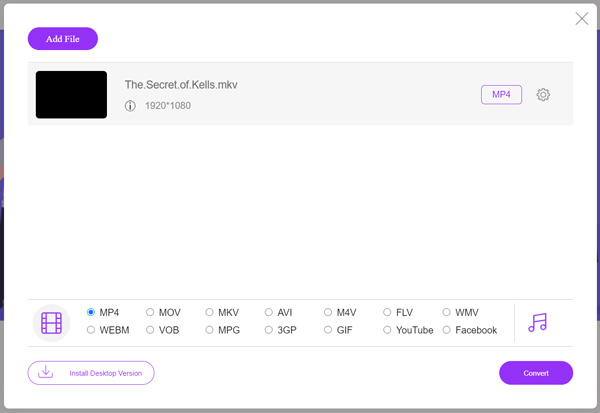
Nakon pretvaranja MKV u MP4, možete je reproducirati u Windows Media Playeru. Tijekom pretvorbe neće doći ni do kakvog gubitka kvalitete slike ili zvuka.
Dio 4. Česta pitanja o reprodukciji MKV-a u sustavu Windows Media Player
Pitanje 1. Kako mogu promijeniti format videozapisa na Windows Media Playeru?
Otvorite Windows Media Player i učitajte video datoteku koju želite pretvoriti. Kliknite malu strelicu ispod kartice Rip na gornjem izborniku. Odaberite Više opcija, a zatim kliknite padajući izbornik s nazivom Format. Ovdje možete odabrati prikladni izlazni format i započeti pretvorbu.
Pitanje 2. Koji je video format Windows Media Player?
Zadani format datoteke programa Windows Media Player je WMV, Windows Media Video i WMA, Windows Media Audio. Također, podržava napredni sistem formata i vlastiti format popisa za reprodukciju zasnovan na XML-u, Windows Playlist.
Pitanje 3. Može li Windows 10 reproducirati MKV datoteke?
Ne. Ugrađeni Windows Media Player 12 u sustavu Windows 10 ne može reproducirati MKV datoteke. Za reprodukciju morate instalirati MKV kodek.
Zaključak
Kada Windows Media Player ne može prepoznati MKV kodek, jednostavno prikazuje pogrešku. Da biste reproducirali MKV datoteku u Windows Media Playeru, morate instalirati odgovarajući kodek. Također, možete koristiti neki player treće strane ili pretvoriti MKV format radi reprodukcije. Ako još uvijek imate pitanja o tome kako otvoriti MKV datoteku u Windows Media Playeru, slobodno nam ostavite poruku.
-
 8 najboljih MKV igrača za reprodukciju MKV datoteka sa željenim titlom
 Kada želite reproducirati MKV video sa željenim titlom, možete saznati više o 8 najboljih MKV playera datoteka za PC / Mac i odabrati željeni prema vašim potrebama.
-
 MKV u MOV - Kako pretvoriti MKV u MOV
 Kako pretvoriti MKV u MOV na Macu? Može li iMovie čitati MKV? Što znači MOV format? Ovaj post govori o dva jednostavna načina pomoću kojih možete pretvoriti MKV u MOV pomoću besplatnih mrežnih i profesionalnih video pretvarača.
-
 AC3 Player - Pregled 10 najboljih besplatnih AC3 igrača od 2021
 Koji je najbolji igrač AC3? Može li MX Player otvoriti AC3? Ovaj post čini popis 10 besplatnih AC3 playera za Mac, Windows PC, iOS i Android uređaje.
