


 Video Converter Ultimate
 Snimač zaslona
 Video popravak
Tri najbolja načina za reprodukciju MP4-a na Chromebooku
Chromebook više ne reproducira MP4 videozapise? Nedavno su se mnogi korisnici žalili zbog problema s videozapisom koji se ne reproducira na Chromebooku. Suočavate li se s istom situacijom?
Chromebook je prijenosno računalo koje je proizveo Google. Pokreće operativni sustav Chrome OS i podržava mnoge vrste datoteka i usluge pohrane u oblaku. Može pohranjivati videozapise na Google Drive i u Googleovu pohranu u oblaku za pregledavanje. Znaš li kako reproducirati MP4 na Chromebooku?

Chromebook ima ugrađeni video reproduktor za puštanje multimedijskih datoteka. Međutim, neke MP4 datoteke se jednostavno ne mogu reproducirati. S obzirom na to, ovaj članak želi podijeliti 3 učinkovita načina koji će ti pomoći da reproduciraš MP4 datoteke na Chromebooku.
Dio 1. Kako reproducirati MP4 na Chromebooku s Google pogonom
Kada izvorni uređaj za reprodukciju videozapisa Chrome OS ne može pročitati vaš kodek spremnika MP4, ne može reproducirati MP4 na Chromebooku. U tom slučaju možete odabrati reprodukciju MP4 datoteka putem Google diska. Chromebook vam omogućuje pohranu MP4 videozapisa na Google pogon, Dropbox i druge usluge za pohranu u oblaku. Možete otvoriti MP4 videozapis putem Google diska na Chromebooku.
Kada želite reproducirati MP4 na Chromebooku, prvo trebate prenijeti MP4 datoteke na Google disk. Tada možete pronaći MP4 na Google disku i reproducirati ga.
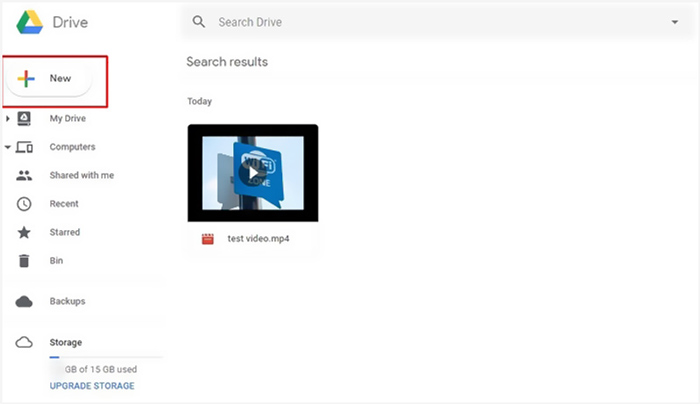
Napominjemo da vam je za reprodukciju MP4 datoteka na Chromebooku putem Google diska potrebna dobra mrežna veza.
Dio 2. Instalirajte VLC za OS Chrome za reprodukciju MP4 na Chromebooku
Osim gore navedene metode, na svoj Chromebook možeš instalirati i medijski reproduktor treće strane za reprodukciju MP4 datoteka. Budući da Chromebook radi na Chrome OS‑u, možda nemaš mnogo dobrih opcija za reproduktore. Srećom, popularni VLC Media Player nudi verziju za Chrome OS koja ti omogućuje uživanje u svim vrstama video i audio datoteka na Chromebooku. Na njega se možeš osloniti kako bi bez problema reproducirao MP4 na Chromebooku.
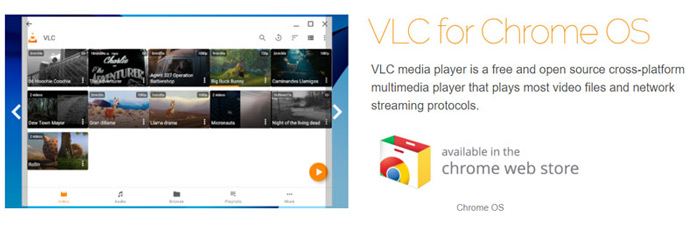
Otvorite Chrome Web Store na svom Chromebooku i potražite VLC. Kada pronađete VLC for Chrome OS, slijedite upute za instalaciju. Zatim možete reproducirati MP4 datoteke na Chromebooku pomoću VLC‑a. U velikoj mjeri podržava većinu medijskih datoteka, mrežne streamove i DVD‑ove. Osim MP4, VLC za Chrome OS može reproducirati i MOV, MKV, AVI, OGG, TS, M2TS, AAC, MP3, FLAC i druge formate.
Dio 3. Pretvorba video formata za MP4 reprodukciju na Chromebooku
MP4 je spremnik datoteka za video i audio kodeke. Chromebook podržava samo MP4 video koji je kodiran sa H.264 ili MPEG-4 kompresijskim kodekom. Dakle, kada želite reproducirati MP4 na Chromebooku, trebali biste transkodirati MP4 u format koji podržava Chromebook. Osim MP4, Chromebook također podržava videozapise u 3GP, WebM, MOV i AVI s određenim kodekom.
Da biste pretvorili MP4 u format koji Chromebook podržava, možete se osloniti na profesionalni pretvarač videozapisa za Chromebook, Video Converter Ultimate. Ima posebnu kategoriju za Chromebook kako biste MP4 izravno pretvorili u format koji Chromebook podržava. Što je još važnije, može pretvarati video bez gubitka kvalitete.
- • Pretvorite MP4 video u datoteku koju podržava Chromebook bez gubitka kvalitete.
- • Pretvorite 8K/5K/4K, 1080p/720p HD i SD video u više od 500 formata kao što su MOV, MP4, AVI, FLV, MP3 i više.
- • Snažne značajke uređivanja, dodavanje filtara i raznih efekata te poboljšanje kvalitete.
- • Podržava hardversko ubrzanje bez presedana i optimizaciju višejezgrenog procesora.
Korak 1. Najprije besplatno instalirajte ovaj pretvarač MP4 u format za Chromebook na svoje računalo. Kompatibilan je i s Windows 10/8/7 računalima i s Macom.
Besplatno preuzimanjeZa Windows 7 ili novijiSigurno preuzimanje
Besplatno preuzimanjeZa MacOS 10.7 ili novijiSigurno preuzimanje
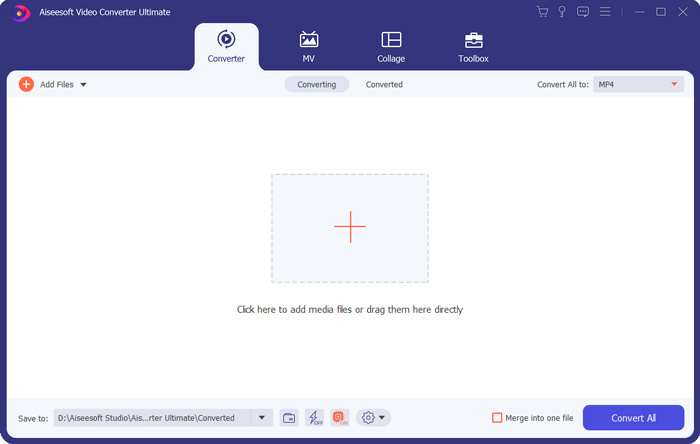
Korak 2. Pokrenite ga i provjerite koristite li značajku Converter. Zatim kliknite veliki znak + ili gumb Add Files za uvoz svoje MP4 datoteke. Možete dodati i pretvoriti jedan ili više videozapisa odjednom.
Korak 3. Kliknite ikonu format s desne strane uvezenog videozapisa. Na padajućem popisu odaberite odgovarajući izlazni format. Ovdje možete kliknuti karticu Device kako biste pronašli format koji Chromebook podržava.
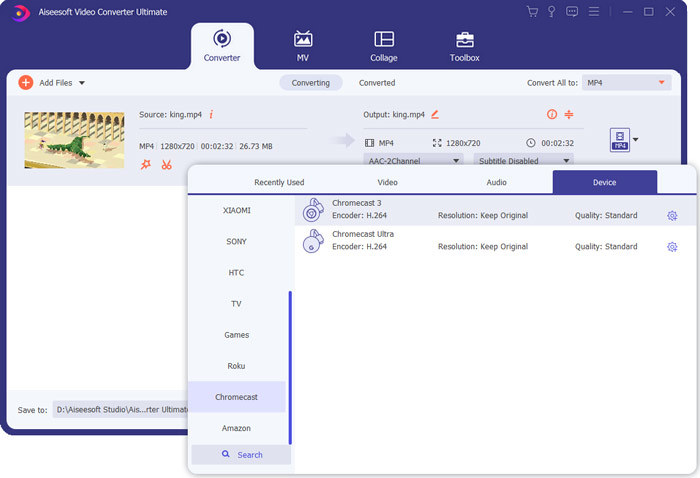
Korak 4. Prije konačne konverzije možete upotrijebiti različite značajke uređivanja za obradu videozapisa, poboljšanje njegove kvalitete i prilagodbu izlaznih efekata. Nakon svih tih radnji jednostavno možete kliknuti gumb Convert All kako biste započeli pretvaranje MP4 datoteka za Chromebook.
U samo nekoliko klikova možete lako pretvoriti video u datoteku koju podržava Chromebook. Zatim ga možete prenijeti na svoj Chromebook za reprodukciju.
Dio 4. Česta pitanja o reprodukciji MP4-a na Chromebooku
Pitanje 1. Koji se video formati reproduciraju na Chromebooku?
Chromebook može podržavati mnoge vrste datoteka, vanjske uređaje i sustave za pohranu u oblaku. Za video formate može reproducirati MP4, MOV, M4V, MKV, OGG, 3GP, OGM, WebM, WAV, AVI i još mnogo toga.
Pitanje 2. Zašto ne mogu koristiti Google Play na Chromebooku?
Možete upotrebljavati Google Play na Chromebooku. Ali prvo morate omogućiti ovu značajku. Možete otvoriti Postavke na Chromebooku, odabrati odjeljak Trgovina Google Play, a zatim uključiti značajku. Nakon toga možete normalno upotrebljavati Google Play na Chromebooku.
Pitanje 3. Kako omogućiti flash player u Chromeu?
Kada želite koristiti flash player na Google Chromeu, možete kliknuti ikonu brave na lijevoj strani adresne trake. Kliknite okvir Flash, a zatim odaberite gumb Dopusti. Kliknite Ponovno učitaj da biste spremili promjenu. Na taj način možete koristiti flash player u Chromeu.
Zaključak
Ne možete reproducirati MP4 na Chromebooku? Nakon čitanja ovog članka možete dobiti 3 korisna savjeta za rješavanje problema. Za dodatna pitanja o tome kako reproducirati MP4 na Chromebooku, možete nam ostaviti poruku.
-
 Vodič za otvaranje i pretvaranje ARF datoteka s WebEx ARF Playerom
 Evo detaljnih koraka za korištenje WebEx ARF Player-a. Možete s lakoćom reproducirati i pretvoriti WebEx ARF datoteke na Windows i Mac računalu. Štoviše, iskustvo reprodukcije možete poboljšati i s 3. ARF uređajem.
-
 Nabavite svoj najbolji MP4 uređaj za reprodukciju MP4 datoteka s visokom vizualnom kvalitetom
 Pročitajte i nabavite svoj najbolji MP4 uređaj iz preporuka 10 najnovijeg softvera MP4 video uređaja. Možete reproducirati MP4 video datoteke na sustavima Windows i Mac bez zastoja.
-
 AVI VS MP4 - Razlike i sličnosti između AVI i MP4 formata - FVC
 Koji je bolji video format, AVI ili MP4? Ako želite detaljnu usporedbu, možete provjeriti ovaj članak o AVI VS MP4. Možete znati razlike i sličnosti između AVI i MP4 u mnogim aspektima.
