


 Video Converter Ultimate
 Snimač zaslona
 Video popravak
Opsežan vodič za izvoz iMoviea u MP4
iMovie je jedan od najčešće korištenih i najpopularnijih alata za uređivanje videa koje je Apple razvio za korisnike Maca, iPhonea i iPada. Ovaj alat ima dobar skup funkcija za uređivanje koje bi svaki urednik poželio. No s druge strane, postoji jedna stvar s kojom se korisnici pomalo muče. Videozapisi iz ovog alata izvoze se u MOV format. Ovaj zadani format može nametnuti ograničenja kada je riječ o kompatibilnosti s drugim uređajima i platformama. Zbog toga većina korisnika mora pretvarati MOV datoteke u neki drugi globalno prepoznat format poput MP4 kako bi ih mogli reproducirati na drugim video‑playerima. Ako i vi tražite načine kako izvesti iMovie u MP4, pročitajte ovaj članak do kraja.

Dio 1: Kako izvesti iMovie u MP4 na Macu
Kada je riječ o izvozu videozapisa iz iMoviea, postoji mnogo izlaznih formata za odabir. Samo što smo navikli na njegov zadani MOV format. Uz to, obično nailazimo na probleme s kompatibilnošću kada reproduciramo videozapis izvezen iz njega. Dakle, učenje kako izvesti iMovie u MP4 postaje stvar jer je ovaj format naširoko korišten i većinom ga podržavaju svi digitalni uređaji i uređaji za reprodukciju medija. Za izvoz iMoviea u MP4 na Macu, slijedite korake u nastavku:
Korak 1. Najprije pokrenite iMovie na svom Macu.
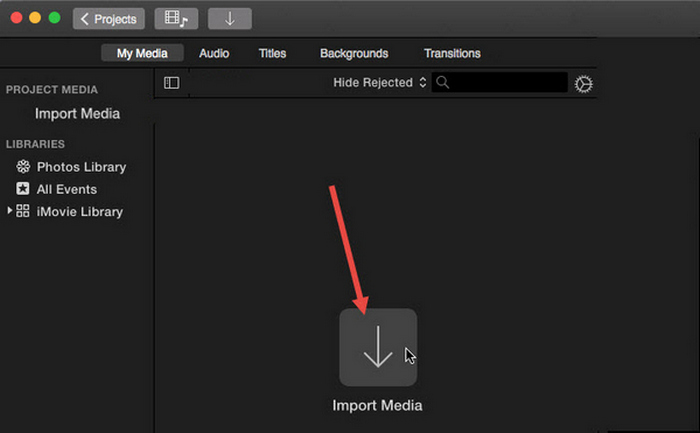
Korak 2. Zatim uvezite svoj video u softver klikom na gumb Import Media (Uvezi medije).
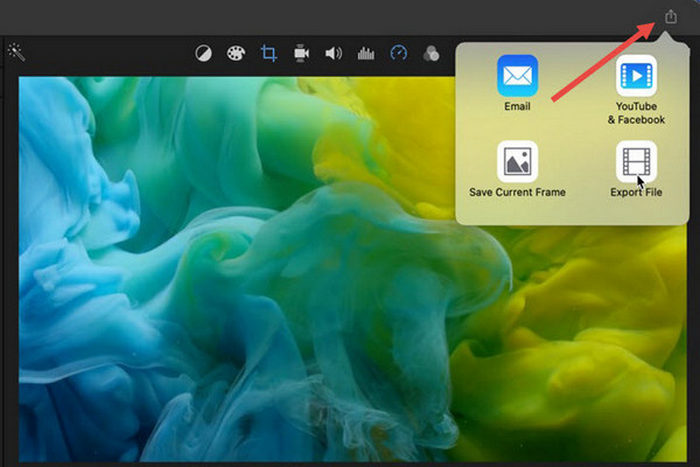
Korak 3. Sada, na gornjoj alatnoj traci, kliknite na gumb File (Datoteka), idite na Share (Dijeli), zatim na File (Datoteka), ili u prozoru pregleda kliknite ikonu Share (Dijeli) i potom u skočnom dijalogu odaberite opciju File (Datoteka).
Korak 4. U novom skočnom prozoru za datoteku odaberite Video and Audio (Video i audio) kao izlazni format te prema potrebi prilagodite rezoluciju, kvalitetu i ostale parametre.
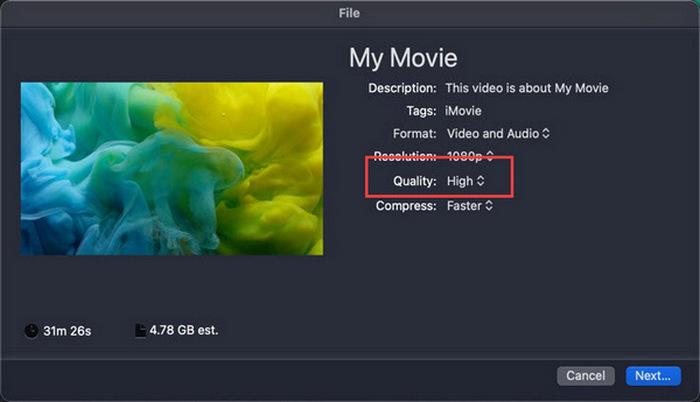
Napomena: Nemojte odabrati opciju kvalitete ProRes ako želite izvesti videodatoteku u MP4 formatu, jer će se tako spremiti u MOV formatu.
Korak 5. Na kraju kliknite gumb Next (Dalje) i imenujte iMovie MP4 datoteku koju ćete izvesti. Ne zaboravite odabrati izlazni direktorij i kliknuti Next (Dalje) da biste je spremili kao MP4.
Zaista postoji način za izvoz iMoviea u MP4 izravno s Maca. Međutim, postupak bi se mogao činiti pomalo kompliciranim, posebno kada se radi o zadanom formatu datoteke prilikom spremanja videozapisa.
Ako želite koristiti iMovie na Windowsu, nemojte propustiti ovaj post.
2. dio: Kako popraviti iMovie Export koji ne radi [uobičajeno rješenje]
Postoji nekoliko razloga zašto iMovie izvoz možda ne radi ispravno. Ispod su neka rješenja i alternative za rješavanje problema iMovie izvoza koji ne radi:
Rješenje 1: Provjera prostora za pohranu
Jedan čest uzrok problema s izvozom iMoviea je nedovoljno prostora na disku na vašem Macu. Ako naiđete na probleme s izvozom videozapisa, prvo provjerite dostupnost pohrane.
Za macOS Ventura ili noviji: Otvorite Apple izbornik, odaberite Postavke sustava (System Preferences), kliknite Općenito (General), a zatim na desnoj strani odaberite Pohrana (Storage).
Za starije verzije macOS‑a: Otvorite Apple izbornik, zatim kliknite na About This Mac (O ovom Macu) i idite na Storage (Pohrana).
Zatim, ako vašem Macu ponestaje prostora za pohranu, razmislite o brisanju nepotrebnih datoteka ili aplikacija kako biste oslobodili prostor. Nakon što to učinite, vratite se u iMovie i ponovno pokušajte izvoz.
Rješenje 2: Dvaput provjerite naziv datoteke
Ako iMovie ne uspije izvesti video nakon nekoliko pokušaja izvoza, bitno je pregledati naziv datoteke u izlaznim postavkama kako biste bili sigurni da ne sadrži nikakve posebne znakove poput crtice, kose crte, zareza itd. Obično iMovie ne podržava posebne znakove u imenovanju datoteke.
Rješenje 3: Ponovno pokrenite iMovie
Ako se problem i dalje pojavljuje, pokušajte ponovno pokrenuti aplikaciju i ponovno izvesti video. Ne zaboravite najprije spremiti svoj trenutačni projekt. Da biste potpuno zatvorili iMovie, kliknite ikonu aplikacije i odaberite opciju Quit (Zatvori). Nakon toga ponovno pokrenite iMovie, otvorite projekt i provjerite može li sada izvoziti videozapise. Također pokušajte ponovno pokrenuti Mac kako biste otklonili problem.
Rješenje 4: Ažurirajte iMovie
Zastarjela verzija iMovieja često uzrokuje neuspjeh izvoza zbog bugova i problema u sustavu koji nisu ažurirani. Da biste ažurirali iMovie, otvorite App Store, kliknite na Updates (Ažuriranja) na lijevoj strani i provjerite postoje li dostupna ažuriranja za iMovie, zatim kliknite na njega.
Rješenje 5: Ponovno instalirajte iMovie
Ako druga rješenja ne uspiju ukloniti problem s izvozom, razmislite o ponovnoj instalaciji iMovieja. Da biste deinstalirali iMovie s Maca, otvorite Launchpad i pritisnite tipku Option, kliknite i držite iMovie, zatim kliknite gumb X pokraj aplikacije i kliknite Delete (Izbriši) za potvrdu. Potom otvorite App Store kako biste ponovno preuzeli i instalirali iMovie.
Bonus: Kako popraviti iMovie Export koji ne radi [alternativni način]
Ako vam nijedno od rješenja ne pomogne, vrijeme je da iskušate ovaj alternativni način rješavanja problema s neuspjelim izvozom u iMovieju. FVC Video Converter Ultimate poznat je po svojim sveobuhvatnim mogućnostima konverzije, koje korisnicima omogućuju pretvaranje videa u bilo koji željeni format. No osim toga, ima i druge funkcije poput MV‑a, koji je osmišljen za korisnike koji žele uređivati videozapise. Kao i u iMovieju, dovoljno je jednostavno uvesti datoteke koje želite uređivati, zatim iskoristiti funkcije uređivanja, poput obrezivanja i rotiranja isječaka, dodavanja efekata i filtara, kao i postavljanja glazbene pozadine kako bi video bio zanimljiviji i više. Nakon toga izvezite datoteku u MP4.
Štoviše, ovaj alat podržava HD/4K/8K rezolucije, osiguravajući vrhunsku kvalitetu ispisa. A najbolji dio? Djeluje brzinom munje, dovršavajući pretvorbe 120 puta brže od drugih metoda.
Korak 1. Najprije na svom Windows ili Mac računalu preuzmite i instalirajte FVC Video Converter Ultimate.
Besplatno preuzimanjeZa Windows 7 ili novijiSigurno preuzimanje
Besplatno preuzimanjeZa MacOS 10.7 ili novijiSigurno preuzimanje
Korak 2. Nakon toga, kada se nađete na sučelju alata, idite na karticu MV.

Korak 3. Sada kliknite gumb Add File (Dodaj datoteku) da biste dodali datoteke koje želite pretvoriti u MP4.

Korak 4. Da biste dodali, uredili i izrezali svoj MP4 video, kliknite gumb na gornjem dijelu gumba Add File (Dodaj datoteku). Osim toga, možete dodati temu svojem videu tako da odaberete neku od unaprijed postavljenih tema na kartici Theme (Tema) iznad.

Korak 5. Kako biste dodatno poboljšali MP4 datoteku koju uređujete, možete joj dodati filtre i efekte klikom na ikonu Edit (Uredi) ispod. Također možete dodati vodeni žig kako biste datoteku personalizirali.

Korak 6. Kada završite, kliknite gumb Export (Izvoz), gdje možete promijeniti format u MP4 te promijeniti broj sličica u sekundi, rezoluciju i kvalitetu.

Korak 7. Na kraju, da biste spremili svoju datoteku, kliknite gumb Start Export (Započni izvoz).
Uz FVC Video Converter Ultimate, ne morate brinuti o tome kako pretvoriti svoje iMovie u MP4 datoteke kada se izvoze u MOV formatu. Također, to je izvrsna alternativa kad god naiđete na problem izvoza s iMovieom, budući da je to alat s punim značajkama. Možete imati sve što vam je potrebno, posebno o pretvaranju datoteka iz jednog formata u drugi.
Dio 3: Kako izvesti iMovie u MP4 na iPad/iPhone
Za one koji koriste iOS ili iPadOS i žele izvesti i pretvoriti iMovie u MP4 na svom iPhoneu ili iPadu, evo kako izvesti iMovie u MP4 na iPad/iPhone.
Korak 1. Najprije na svom iPhoneu ili iPadu otvorite aplikaciju iMovie.
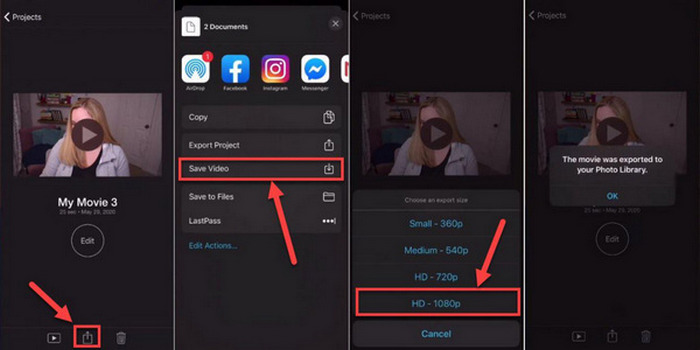
Korak 2. Zatim na kartici Projects (Projekti) odaberite projekt koji želite izvesti u MP4.
Korak 3. Zatim dodirnite gumb Share (Dijeli) i odaberite Export Project (Izvezi projekt).
Korak 4. Na kraju odaberite Save Video (Spremi video), zatim odaberite veličinu izvoza te pretvorite i spremite iMovie u MP4 na svom iPhoneu ili iPadu.
Prilikom izvoza i pretvaranja iMoviea u MP4 izravno na vašem iPhoneu ili iPadu, ne zaboravite provjeriti imate li dovoljno prostora za pohranu na svom uređaju za smještaj izvezene MP4 datoteke jer to dovodi do problema s izvozom.
Dio 4: Često postavljana pitanja o izvozu iMoviea u MP4
Zašto moja iMovie video datoteka nije kompatibilna s QuickTimeom?
Datoteke iMovie možda neće biti kompatibilne s QuickTimeom zbog razlika u kodecima ili formatima datoteka. QuickTime podržava ograničen raspon video kodeka i vrsta datoteka, tako da ako vaša iMovie datoteka koristi kodek ili format koji QuickTime ne podržava, može doći do problema s kompatibilnošću. Da biste to riješili, pokušajte izvesti svoj iMovie projekt u drugom formatu ili kodeku koji je kompatibilan s QuickTimeom.
Koliko dugo traje izvoz iMoviea?
Obično je potrebno 1,5 do 2 puta duže od vremena reprodukcije projekta za renderiranje i kodiranje tijekom procesa izvoza. Čimbenici poput složenosti projekta, razlučivosti videozapisa i procesorske snage vašeg uređaja mogu utjecati na vrijeme izvoza. Osim toga, izvoz većih ili složenijih projekata može trajati dulje od izvoza manjih ili jednostavnijih.
Izvoz iMoviea u MP4 utječe na kvalitetu mojih videozapisa?
Izvoz iMoviea u MP4 ne bi trebao značajno utjecati na kvalitetu vaših videozapisa sve dok odaberete odgovarajuće postavke izvoza. Međutim, ključno je osigurati da odaberete željenu razlučivost, bitrate i postavke kompresije kako biste održali kvalitetu videozapisa koje želite izvesti.
Zaključak
Učiti kako izvesti iMovie u MP4 važno je kako biste osigurali kompatibilnost i svestranost pri dijeljenju svojih video projekata na raznim uređajima i platformama. Ako naiđete na bilo kakve probleme tijekom procesa izvoza u iMovieju, svakako isprobajte uobičajena rješenja opisana ovdje. Započnite s izvozom svojih iMovie projekata u MP4 već danas uz pomoć ovog vodiča.
-
 Najbolji načini korištenja iMoviea u snimanju usporenih videozapisa [riješeno]
 Jeste li ikada koristili iMovie za pretvaranje videozapisa normalne brzine u usporeni? Ovo je prilika da saznate više o tome.
-
 Kako sinkronizirati audio i video u iMovie na iPhoneu i Macu
 Imate li problema jer se zvuk i video ne sinkroniziraju na iPhoneu i Macu? Dakle, nastavimo s time kako koristiti iMovie čitajući ovaj članak.
-
 Kako dodati vodeni žig videu u iMovie na Macu [All Embracing]
 Želite li znati tajne dodavanja vodenog žiga videu u iMovieu? Nemojte nikome prolijevati čaj i naučite to čitajući ovaj članak.
