


 Video Converter Ultimate
 Snimač zaslona
 Video popravak
Od 50 MB do 5 MB - Kako komprimirati MP4 datoteku u sekundi
Nakon što snimite nekoliko videozapisa, možda ih želite prenijeti u Instagram priču ili podijeliti s prijateljima. Međutim, većina platformi društvenih medija ima ograničenje veličine datoteke za prijenose. Dakle, kad MP4 video pošaljete putem WhatsAppa ili dodate MP4 privitak u svoju e-poštu, možda će vam se dogoditi da su preveliki za prijenos.
Dakle, da biste riješili ovaj problem, trebate komprimirati MP4 datoteke, odnosno, pomoći svojim videozapisima da „smršave“.
Sljedeći članak vodit će vas kako smanjiti veličinu MP4 videozapisa bez ugrožavanja kvalitete prikaza.

Dio 1. Kako komprimirati MP4 videozapise na mreži i besplatno
Ako tražite besplatni mrežni MP4 kompresor bez registracije ili skrivenih naknada, možete isprobati FVC Free Video Compressor, koji vam omogućuje da svaki 4K, HD ili SD videozapis smanjite na manju datoteku bez vodnog žiga. I za razliku od drugih besplatnih kompresora, možete komprimirati koliko god MP4 videozapisa želite, besplatno, bez ograničenja veličine datoteke ili duljine videa.
Štoviše, jer je ovaj kompresor mrežni proizvod, savršeno funkcionira na sustavima Windows, Mac i Linux. Možete ga lako koristiti na mreži putem preglednika, sve dok ste povezani s Internetom.
Da biste brzo savladali ovaj alat za sažimanje, slijedite korake u nastavku.
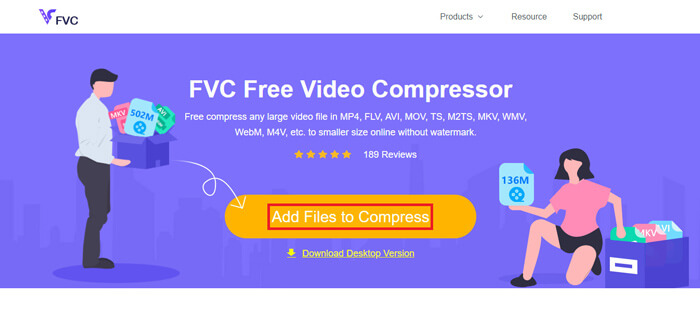
Korak 1. Otvorite FVC Free Video Compressor u pregledniku i kliknite Add Files to Compress kako biste pokrenuli pokretač (launcher). Ako alat koristite prvi put, preuzmite pokretač unaprijed.
Korak 2. Nakon instalacije odaberite MP4 datoteku(e) koje želite komprimirati. Prilagodite veličinu videa, format, rezoluciju i bitrate prema svojim potrebama.
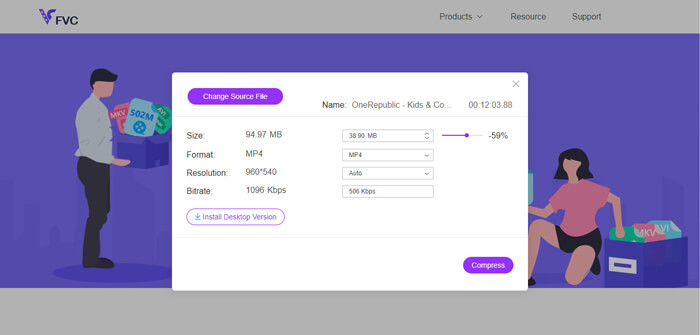
Korak 3. Kliknite Compress da biste započeli kompresiju.
Dio 2. Kako komprimirati MP4 koristeći offline freeware
Ako vaša mreža nije toliko stabilna, radije odaberite komprimiranje videozapisa offline na radnoj površini, čime se izbjegava utjecaj statusa mreže.
Video Converter Ultimate je višenamjenski besplatni program za komprimiranje, pretvaranje i uređivanje video i audio datoteka na vašem računalu. Podržava više od 1000 formata, a na raspolaganju imate 10 opcija izlazne rezolucije. Možete preimenovati video prije kompresije kako biste ga lakše razlikovali od ostalih MP4 datoteka. Potpuno novi Video Converter Ultimate sadrži velik broj korisnih alata za uređivanje i mnogo sjajnih funkcija, kao što su uređivač metapodataka, GIF maker, 3D maker, poboljšivač videa itd.
Besplatno preuzimanjeZa Windows 7 ili novijiSigurno preuzimanje
Besplatno preuzimanjeZa MacOS 10.7 ili novijiSigurno preuzimanje
Korak 1. Pokrenite Video Converter Ultimate na svom računalu.
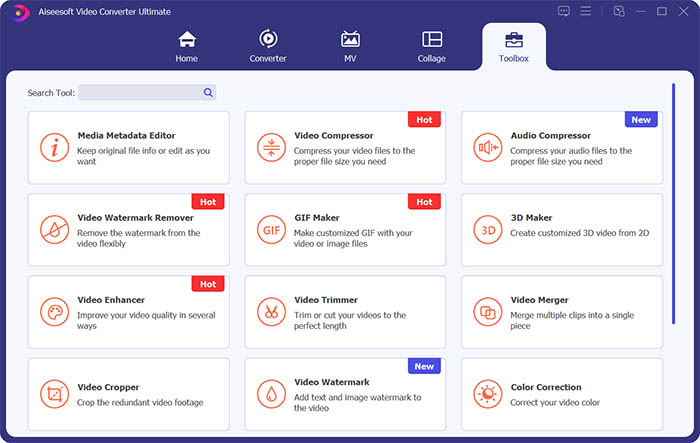
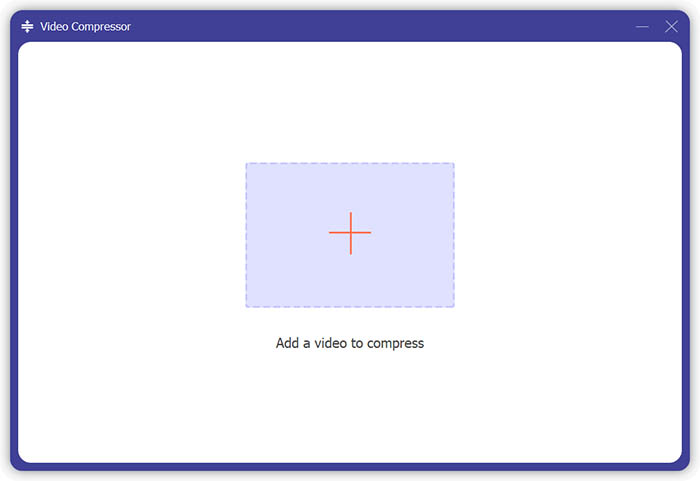
Korak 2. Kliknite Toolbox. Pronađite Video Compressor u odjeljku Toolbox. Kliknite ikonu + za dodavanje videa koji želite komprimirati.
Korak 3. Možete prilagoditi veličinu, naziv, format, rezoluciju i bitrate izlazne datoteke.
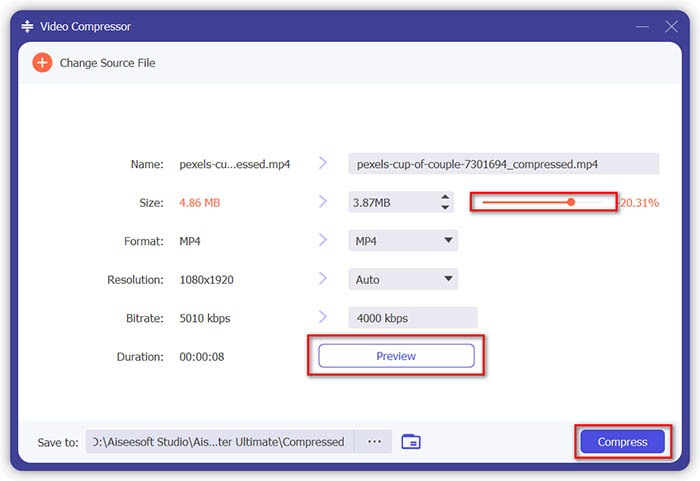
Korak 4. Kliknite gumb Compress i pričekajte da dobijete svoj MP4 video.
Dio 3. Kako komprimirati MP4 datoteke ručnom kočnicom
HandBrake je također besplatan alat za kompresiju videozapisa koji vam može pomoći smanjiti veličinu MP4 datoteke.
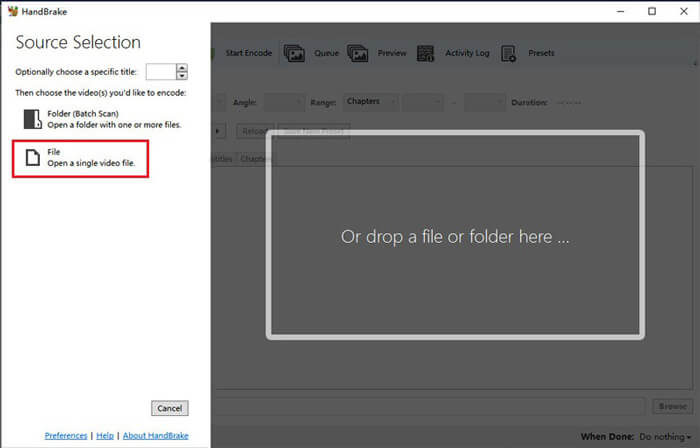
Korak 1. Preuzmite i instalirajte HandBrake na svoje računalo. Zatim ga otvorite i kliknite File s lijeve strane. Odaberite datoteku koju želite komprimirati.
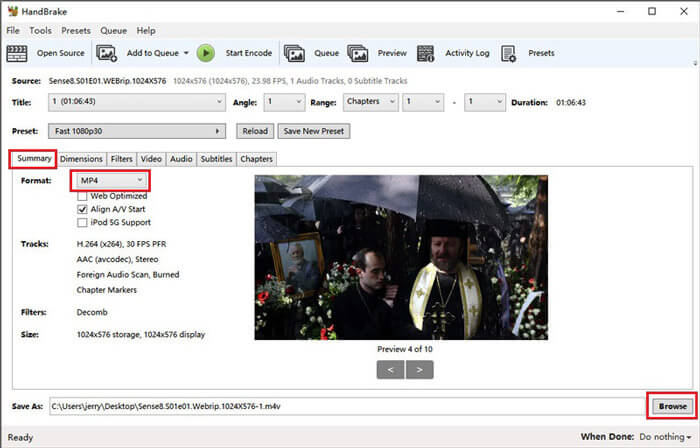
Korak 2. Promijenite mjesto spremanja komprimiranog videa klikom na Browse. Možete i preimenovati video. Zatim odaberite MP4 kao izlazni format.
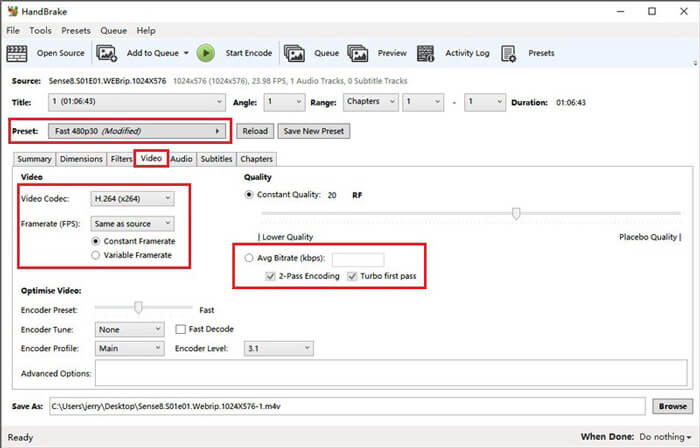
Korak 3. Za Preset iznad, Fast 480p30 bit će u redu. Idite na karticu Video i provjerite je li video kodek H.264 (x264). Odaberite broj sličica u sekundi (framerate) ovisno o izvornom videu. Ako ne znate što odabrati, jednostavno izaberite Same as source. Označite Constant Framerate radi bolje kompatibilnosti. Unesite Average Bitrate (kbps) za video (između 5 000 i 10 000).
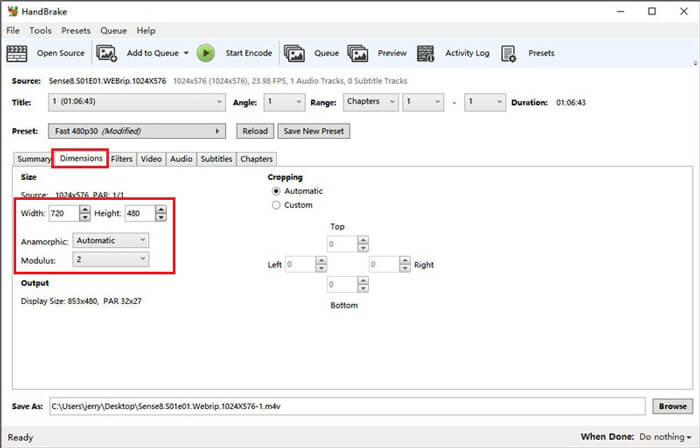
Korak 4. Kliknite Dimensions i promijenite veličinu kadra ili rezoluciju videa. Postavite Anamorphic na None, a Modulus na 2. Zatim označite Keep Aspect Ratio. Ako je potrebno, možete upotrijebiti strelicu dolje na Width za smanjenje širine.
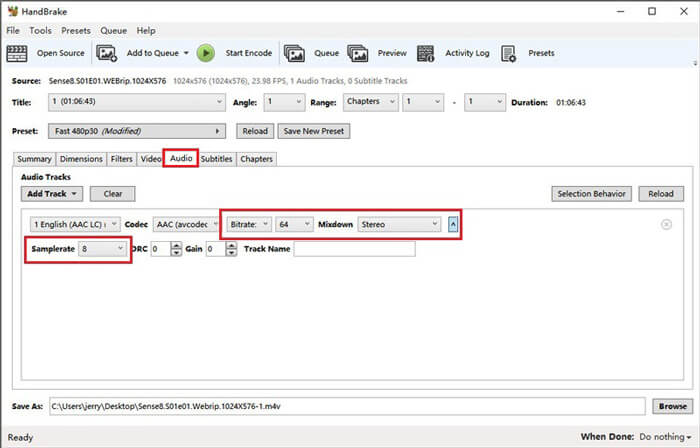
Korak 5. Odaberite karticu Audio i otvorite skriveni izbornik postavki. Odaberite 8 za Samplerate i Stereo za Mixdown.
Korak 6. Kliknite gumb Start Encode da biste započeli kompresiju.
Za početnike zapravo ne preporučujemo upotrebu ručne kočnice jer je teško razumjeti i prilagoditi parametre. I stvarno treba puno vremena da se dobije komprimirana datoteka.
Dio 4. Česta pitanja o MP4 komprimiranju
1. Može li ffmpeg komprimirati MP4?
Da, možete upotrijebiti sljedeći niz znakova za komprimiranje MP4 datoteke:
$ ffmpeg -i input.mp4 -vcodec h264 -acodec mp2 output.mp4
No neki bi mogli primijetiti da se veličina čak i poveća umjesto da se smanji kada je video već dovoljno mali.
2. Može li HandBrake izvesti WMV, MOV i FLV?
HandBrake vam omogućuje da komprimirate videozapise samo u formate MP4(.M4V) i MKV, što znači da ne može izvoziti datoteke u druge formate, kao što su WMV, MOV, FLV, AVI itd. Ako koristite HandBrake za dobivanje komprimiranih videa, tada trebate sami pretvoriti MP4 u WMV ili druge formate.
3. Gubi li komprimiranje MP4 videozapisa kvalitetu?
Prilikom komprimiranja MP4 videozapisa s pune veličine na manju kvalitetom se nužno nešto gubi, manje ili više. Međutim, s profesionalnim video kompresorima kao što su FVC Free Video Compressor i Video Converter Ultimate, možete u najvećoj mogućoj mjeri zadržati izvornu kvalitetu slike. Također, korištenje dobrog MP4 playera za reprodukciju MP4 datoteka može vam pomoći da dobijete visokokvalitetni prikaz.
Zaključak
Do sada smo vam predstavili 3 metode kako komprimirati MP4 na manju veličinu. Ako ne volite instalirati previše softvera na svoje računalo, možete isprobati FVC Free Video Compressor, koji je online i besplatan za korištenje. No ako vam je potreban moćan video procesor, Video Converter Ultimate je vaš najbolji izbor. Nadamo se da vam je ovaj članak bio koristan i ne zaboravite nam ostaviti poruku s vašim mišljenjima.
-
 Kako pretvoriti MP4 u WMV za Mac / Windows
 Ovaj post dijeli kako pretvoriti MP4 video u WMV format na Macu ili Windowsu. Također ćemo vam ponuditi nekoliko opcija, uključujući softver za stolna računala i mrežne pretvarače putem weba. Jeste li spremni znati najbolje alate za pretvorbu MP4 u WMV?
-
 Kako pretvoriti vaše MP4 video datoteke u animirane GIF slike bez gubitka kvalitete
 Tražite li najbolji način za pretvaranje MP4 videozapisa u animirane GIF-ove? Evo detaljnog vodiča za to u Photoshopu, programu Windows Movie Maker, mrežnom video pretvaraču i mnogim drugim.
-
 MOV VS MP4 - Koji je bolji
 MOV VS MP4, koji je bolji? Ovaj post govori o razlici između MP4 i MOV, tako da možete dobiti bolji izbor za korištenje za svoje video datoteke.
