


 Video Converter Ultimate
 Snimač zaslona
 Video popravak
Kako komprimirati video na mreži pomoću 3 značajna alata
Jedan od izazova snimanja dugog videa visoke rezolucije na mobilnom uređaju javlja se kada ga trebate prenijeti drugima putem interneta. To je zato što računi na društvenim mrežama imaju ograničenje veličine datoteka koje mogu primiti. Zato mnogima na pamet pada samo jedno rješenje: izrezati ili skratiti video. Od danas se korisnici više ne moraju brinuti o snimanju dugih videa zahvaljujući dolje navedenim internetskim kompresorima videa.

Dio 1. 3 načina komprimiranja videa na mreži
1. FVC video kompresor na mreži
FVC Video Compressor Online krajnji je izbor za korisnike koji traže bezbrižno iskustvo kompresije videa. Otkrijte nenadmašnu jednostavnost ovog mrežnog alata, koja ga čini posebnim u odnosu na druge online kompresore videa. Pomicanjem klizača slijeva nadesno možete bez napora odrediti razinu kompresije koju želite za svoje datoteke. Štoviše, ovaj izniman internetski kompresor videa daje vam slobodu da odaberete točan format koji savršeno odgovara željenom ishodu vašeg videa. Možete iskusiti svestranost i praktičnost različitih formata, uključujući popularne MP4, MOV, MKV, AVI, WMV i mnoge druge. Uz širok izbor, moći ćete uživati u svojim medijima u formatu koji vam najviše odgovara. Osim toga, imate izvrsnu mogućnost poboljšati rezoluciju i bitrate svoje datoteke.
Pros
- Korisnici mogu iskusiti lakoću i jednostavnost korisničkog sučelja.
- Omogućuje besprijekornu video kompresiju bez vodenih žigova.
- Omogućuje korisnicima odabir optimalne brzine prijenosa i razlučivosti za svoje video datoteke.
- Bez napora pretvara njihove videozapise u široku lepezu formata.
Protiv
- Proces kompresije ovisi o brzini interneta.
Korak 1: Kada dođete do glavnog sučelja FVC Free Video Compressor alata, kliknite gumb Add Files to Compress i preuzmite pokretač programa. Nakon što završite instalaciju, ponovno kliknite isti gumb i dodajte video koji želite komprimirati.
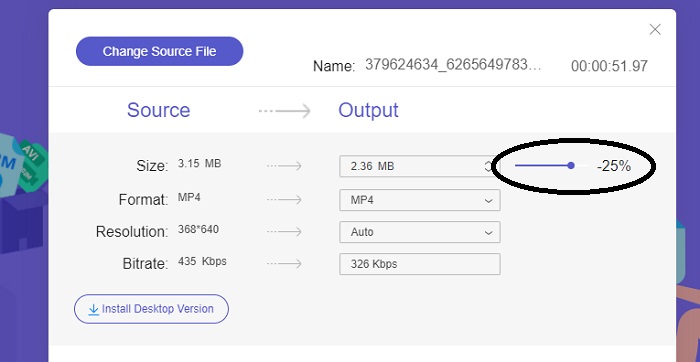
Korak 2: Da biste započeli kompresiju videa, nakon dodavanja pomaknite klizač (Slider bar) zdesna nalijevo. Format svog videa možete promijeniti odabirom jednog od dostupnih formata.
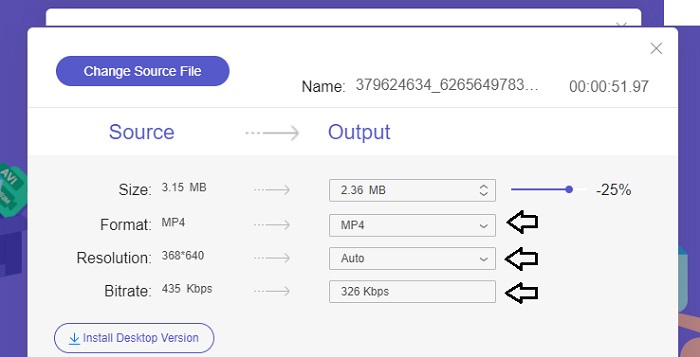
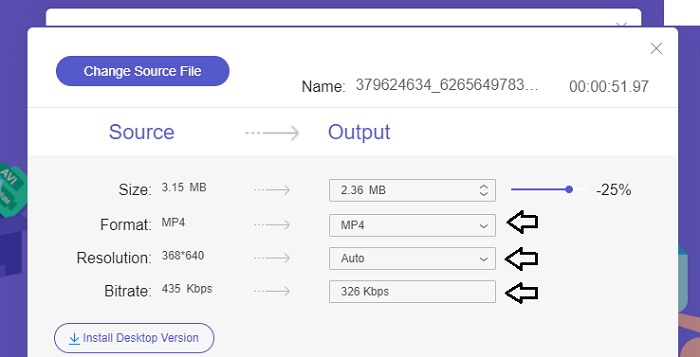
Osim toga, možete prilagoditi Bitrate i Resolution svog videa odabirom između ponuđenih opcija.
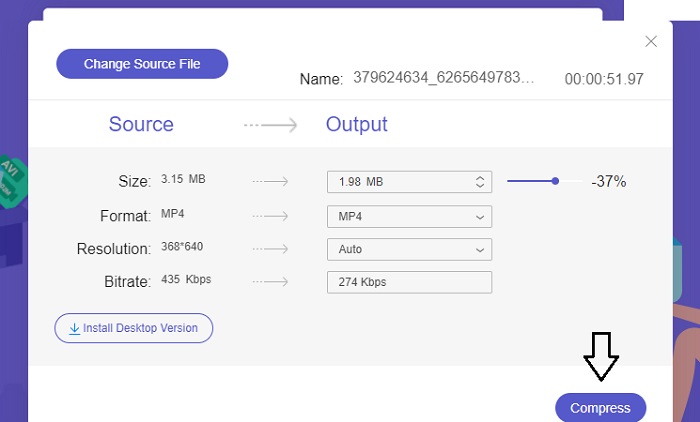
Korak 3: Kada napravite sve potrebne izmjene, možete spremiti svoj video klikom na gumb Compress. Zatim odaberite mapu u koju želite spremiti izlazni video. I to je sve!
2. FreeConvert
FreeConvert je online alat za komprimiranje videozapisa jednostavan za korištenje. Korisnici mogu ciljati određene aspekte kao što su veličina datoteke, kvaliteta videa, razlučivost ili bitrate za kompresiju. Proces kompresije je brz i jednostavan, sastoji se od samo nekoliko jednostavnih koraka koje je lako slijediti. Međutim, budući da je ovaj alat dostupan isključivo na mreži, korisnici će zahtijevati znatnu propusnost za prijenos i preuzimanje. Besplatna verzija FreeConverta ima određena ograničenja u veličini datoteka i broju datoteka koje se mogu pretvoriti mjesečno.
Pros
- Sučelje je prilagođeno početnicima.
- Ima veliku brzinu preuzimanja.
Protiv
- Za komprimiranje velikih datoteka korisnici moraju platiti premium račun.
- Besplatna verzija ima dnevni limit za pretvorbe.
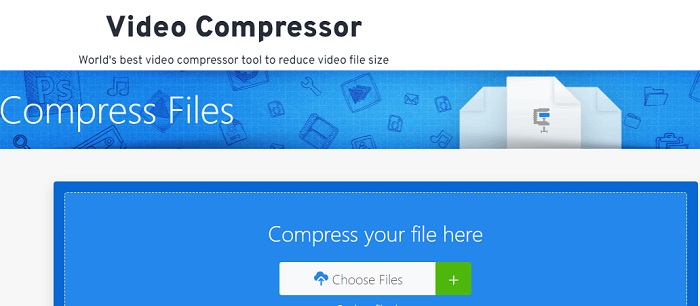
Korak 1: U tražilicu upišite FreeConvert Video Compressor. Kada dođete na glavno sučelje, dodirnite gumb Choose Files kako biste učitali video koji želite komprimirati.
Korak 2: Nakon učitavanja videa, kliknite gumb Compress i strpljivo pričekajte da se proces dovrši.
Korak 3: Da biste spremili komprimirani video, dodirnite gumb Download i odaberite željenu mapu u kojoj ga želite pohraniti.
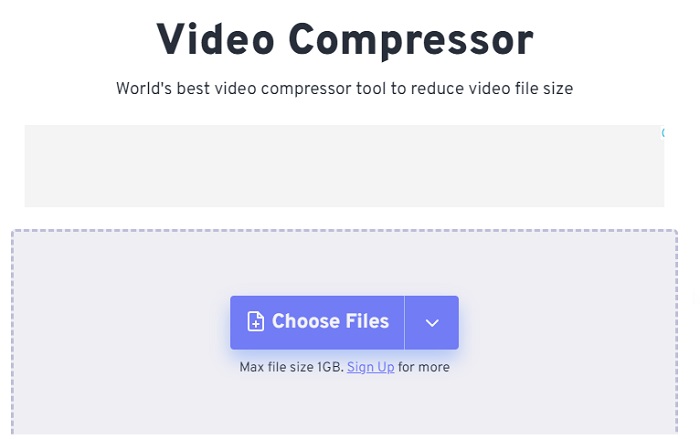
3. Zamzar
Zamzar je praktičan mrežni alat koji vam omogućuje besplatno pretvaranje i komprimiranje datoteka. Može mu se pristupiti na bilo kojem računalu s internetskom vezom. Ovaj online reduktor veličine videozapisa omogućuje korisnicima, bilo da su početnici ili profesionalci, komprimiranje svojih video zapisa brzo i bez napora. Softver ima sposobnost podržavanja različitih vrsta datoteka. Međutim, važno je napomenuti da besplatna verzija ograničava samo dvije kompresije ili pretvorbe unutar razdoblja od 24 sata.
Pros
- U slučaju bilo kakvih tehničkih problema, dostupna je podrška putem e-pošte.
- Datoteke se čuvaju najviše 24 sata.
- Navigacija je vrlo jednostavna za korištenje.
Protiv
- U besplatnoj verziji korisnici su ograničeni na najviše dvije datoteke unutar 24 sata.
- Za pristup datotekama većim od 400 MB potrebna je nadogradnja na premium verziju.
Korak 1: Za početak idite na glavnu stranicu usluge Zamzar, gdje ćete vidjeti cijelo sučelje. Da biste dodali video s radne površine, kliknite gumb Choose Files.
Korak 2: Nakon što učitate video, morat ćete pričekati nekoliko sekundi da se proces kompresije dovrši i da se status ažurira.
Korak 3: Na kraju možete preuzeti komprimiranu datoteku na svoj desktop.
Dio 2. Najbolji izvanmrežni video kompresor
Ako želite softver koji objedinjuje funkcije kompresije, konverzije i uređivanja videa, razmislite o prelasku na Video Converter Ultimate. Ovaj softver nudi cjelovito rješenje koje uključuje osnovne značajke uređivanja, pretvaranja i komprimiranja videa. Osim toga, pruža napredne funkcije koje korisnicima omogućuju stvaranje visokokvalitetnih, profesionalnih videa bez napora. Nudi širok raspon snažnih mogućnosti. Rješenje uključuje i alat koji korisnicima omogućuje učinkovito stvaranje dojmljivih videa u kraćem vremenu. Pretvaranje videa ovim alatom jednostavan je postupak u tri koraka.
Korak 1: Da biste koristili ovaj moćan softver za kompresiju videa, preuzmite ga i instalirajte na svoje računalo. Zatim pokrenite program kako biste počeli koristiti njegove značajke.
Besplatno preuzimanjeZa Windows 7 ili novijiSigurno preuzimanje
Free DownloadZa macOS 10.7 ili novijiSigurno preuzimanje
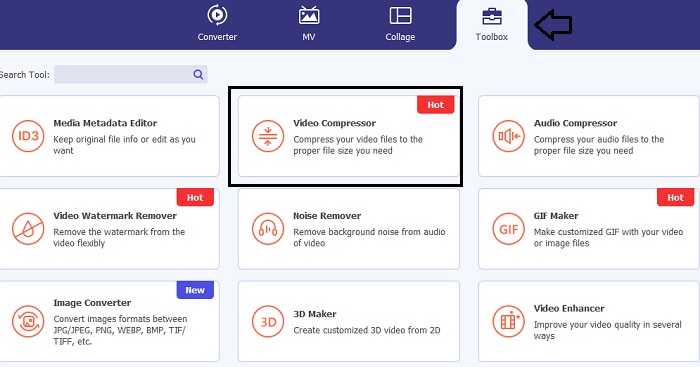
Korak 2: Za početak idite na odjeljak Toolbox i kliknite opciju Video Compressor. Nakon toga možete učitati svoj video.
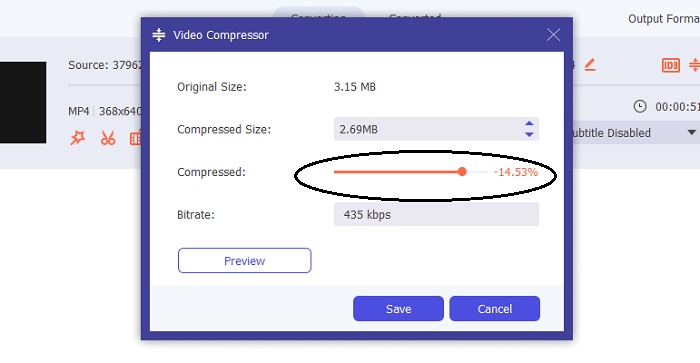
Kada uđete u postavke Video Compressor alata, pomičite Slider dok ne postignete željenu veličinu. Zatim kliknite gumb Save kako biste primijenili promjene.
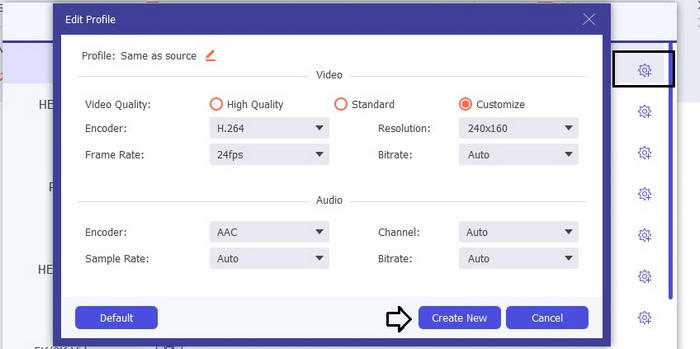
Za odabir odgovarajućeg formata videa kliknite opciju Profile i iz padajućeg popisa odaberite jedan od dostupnih formata. Također možete prilagoditi postavke kao što su Encoder, Resolution, Bitrate i različite audio postavke. Ne zaboravite kliknuti gumb Create New kako biste potvrdili te postavke.
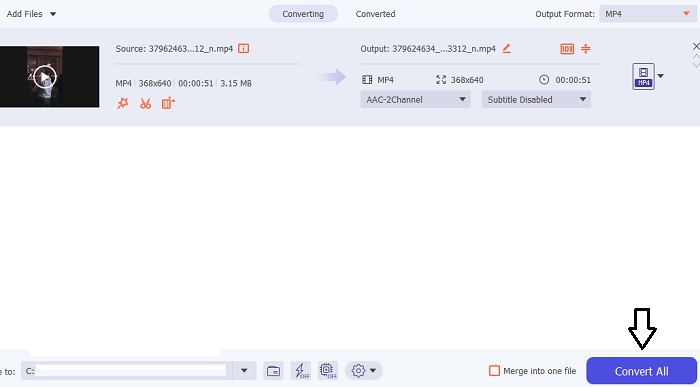
Korak 3: Da biste započeli kompresiju videa, kliknite gumb Compress.
Daljnje čitanje:
Kako učinkovito komprimirati video za web bez gubitka kvalitete
Komprimira li Google Drive videozapise? Saznajte ovdje
Dio 3. Često postavljana pitanja o Video Compressor Online
Kako mogu smanjiti veličinu videa u MB?
Držite nisku rezoluciju slike i broj sličica kad god je to moguće. Da biste smanjili veličinu vaše datoteke u MB, razmislite o smanjenju brzine prijenosa i razlučivosti vašeg videozapisa. Ali imajte na umu da je kvaliteta također ugrožena kako smanjujete MB.
Kako mogu smanjiti veličinu videozapisa bez gubitka kvalitete?
Dostupne su brojne metode za smanjenje veličine video datoteke bez žrtvovanja njezine kvalitete. Svoj video možete poboljšati upotrebom video kompresora, skraćivanjem njegove duljine, podešavanjem brzine prijenosa ili pretvaranjem u format prikladan za web.
Smanjuje li smanjenje veličine videozapisa kvalitetu?
Zapamtite da će komprimiranje vašeg videozapisa utjecati na njegovu kvalitetu. Stoga je ključno imati na raspolaganju odgovarajući alat. Možete koristiti Video Converter Ultimate ili FVC Video Compressor Online.
Zaključak
Postoji mnoštvo metoda za kompresiju videa, uključujući korištenje internetskih alata za smanjenje veličine videodatoteka. Ako želite biti sigurni da kvaliteta vaših videozapisa ostane netaknuta i nakon kompresije, svakako isprobajte Video Converter Ultimate.
-
 Kako komprimirati MP4 video u manju veličinu
 MP4 video je prevelik za prijenos? Želite smanjiti veličinu videozapisa? Evo 3 učinkovita načina za sažimanje MP4 datoteke u manju veličinu bez ograničenja.
-
 Vodič za komprimiranje videozapisa za e-poštu na iPhoneu / Androidu / mreži
 Ne možete poslati videozapis prevelikom e-poštom? Ako imate ovaj problem, ovdje možete pronaći izvodljive načine komprimiranja videozapisa za e-poštu. Ovaj će vam članak detaljno pokazati kako besplatno smanjiti velike video datoteke.
-
 2 načina komprimiranja videozapisa za YouTube
 YouTube videozapisi su veliki i sporo se prenose? Samo komprimirajte veličinu video datoteke u manju za YouTube na dva načina na mreži i na računalu.
