


 Video Converter Ultimate
 Snimač zaslona
 Video popravak
Naučite kako pravilno sinkronizirati audio i video na iMovie uz navedene korake
Zar nije jako iritantno gledati video u kojem se zvuk i slika ne podudaraju? To se mnogima od nas često događa. Zato, ako naiđeš na ovaj problem na Macu, važno ga je riješiti uz pomoć iMovieja. Također, ne moraš brinuti jer ti neće trebati sat vremena da naučiš kako uskladiti zvuk i sliku u iMovieju. Trebat će ti samo 4 minute da pročitaš ovaj članak i manje od 3 minute da sve odradiš. Ako si spreman učiniti da ti se zvuk i video ponovno podudaraju, krenimo na to kako koristiti iMovie na iPhoneu i Macu.

Dio 1. Kako sinkronizirati audio i video u iMovie na iOS-u
S iPhoneom možeš napraviti gotovo sve kao i na Macu. Dobar primjer je iMovie, iako sučelje iMovieja na iPhoneu nije isto kao na Macu. Ipak, i bez Maca možeš postići da ti se zvuk i video usklade. Dakle, ako želiš znati kako uskladiti zvuk i sliku na iPhoneu u iMovieju, slijedi navedene korake.
Korak 1. Potraži iMovie u App Storeu i preuzmi ga na svoj iPhone. Nakon što je alat instaliran, dotakni ga da bi ga otvorio.
Korak 2. Zatim dodirni gumb + kako bi dodao video pa pritisni Movie. Pronađi video koji želiš uskladiti pa klikni Create Movie.
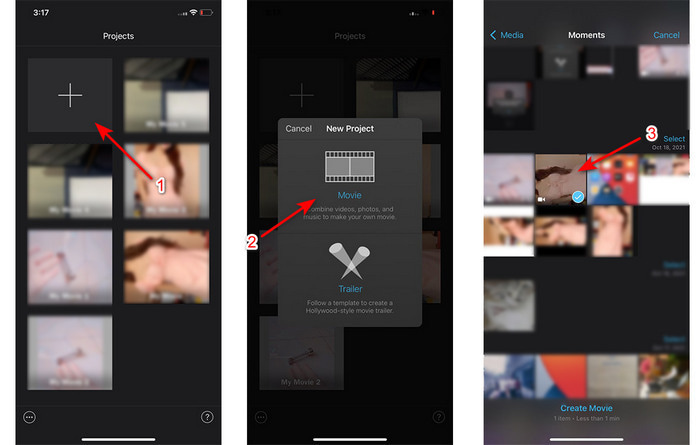
Zatim ponovno klikni znak + kako bi pronašao isti video, ali ćemo ovaj put dodati samo zvuk. Kada pronađeš video, dodirni tri točkice i klikni Audio Only.
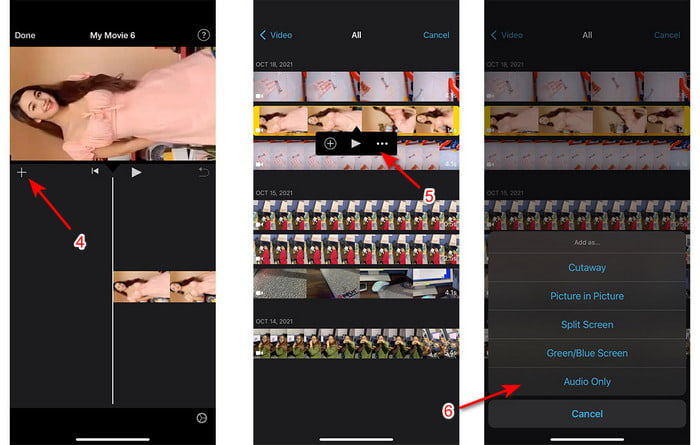
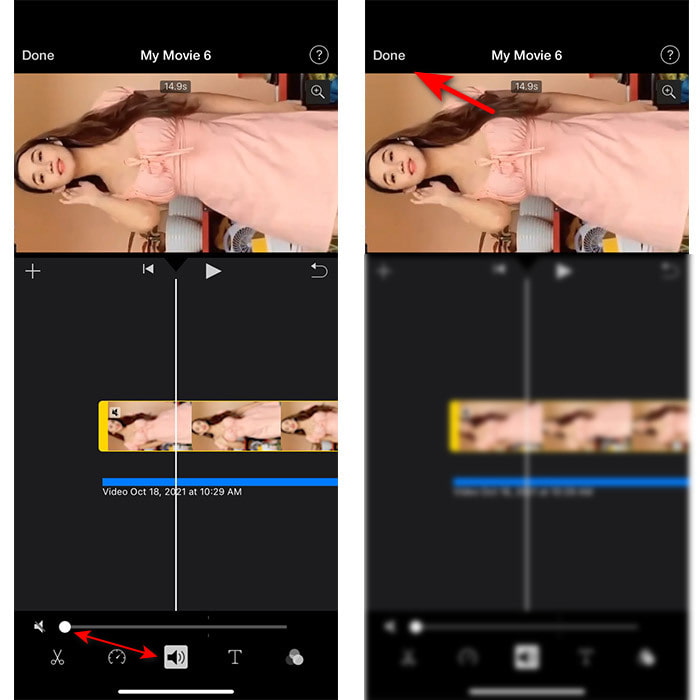
Korak 3. Dodirni video na vremenskoj traci i klikni ikonu zvučnika, a zatim postavi zvuk na nulu. Potom prilagodi zvučnu datoteku tako da se uskladi s videom. Na kraju pritisni Done kako bi spremio uređivanje koje si napravio.
Dio 2. Kako sinkronizirati audio i video u iMovie na Macu
Ako želiš iskusiti sve napredne mogućnosti uređivanja koje iMovie nudi, koristi Mac. Ovaj je softver vrlo elegantan i odlično radi na Macu. Dakle, ako želiš uskladiti zvuk i video, ovdje to možeš vrlo jednostavno napraviti. Ipak, iMovie je na Macu malo teže koristiti nego na iPhoneu. Zato, ako želiš znati kako uskladiti zvuk s videom u iMovieju na Macu, prepiši ova 3 jednostavna koraka.
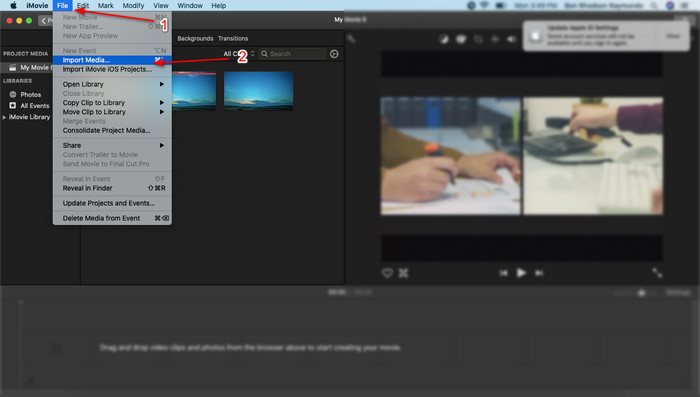
Korak 1. Pronađi iMovie u Finderu i pokreni ga. Nakon što se alat pokrene, klikni File, zatim Import Media. Odaberi datoteku u mapi i klikni Import Selected.
Korak 2. Povuci datoteku na Timeline, prvo video, a zatim na isti način i zvuk.
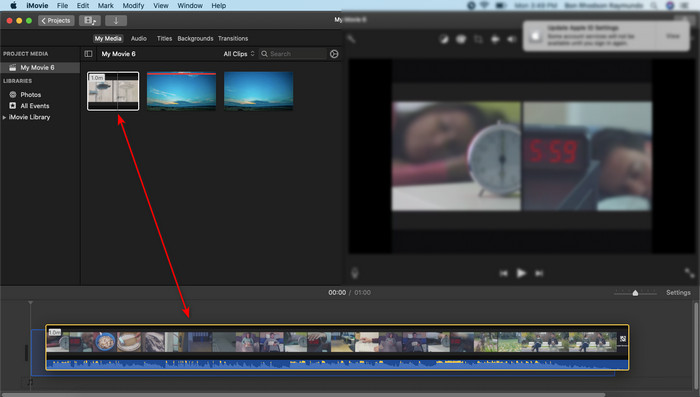
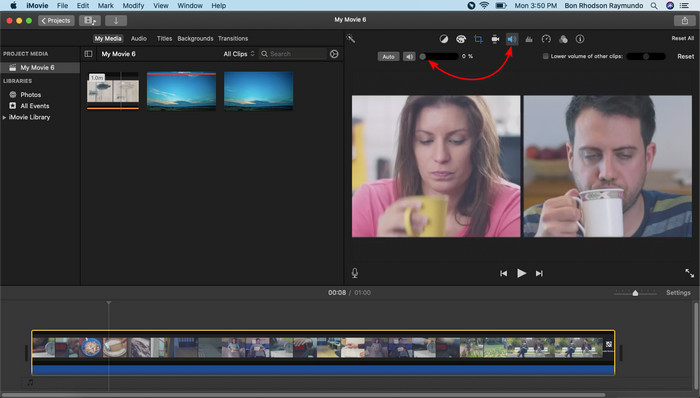
Klikni video datoteku i pritisni gumb Speaker kako bi uklonio ugrađeni zvuk iz videa.
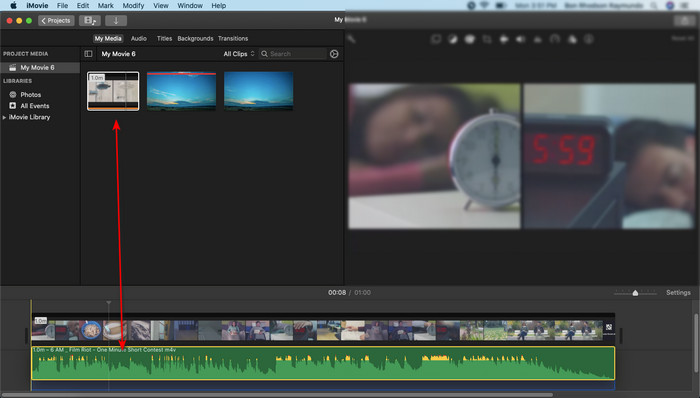
Dodajte istu datoteku, ali sada u zvuk, a zatim prilagodite zvuk kako bi se sinkronizirao s videom.
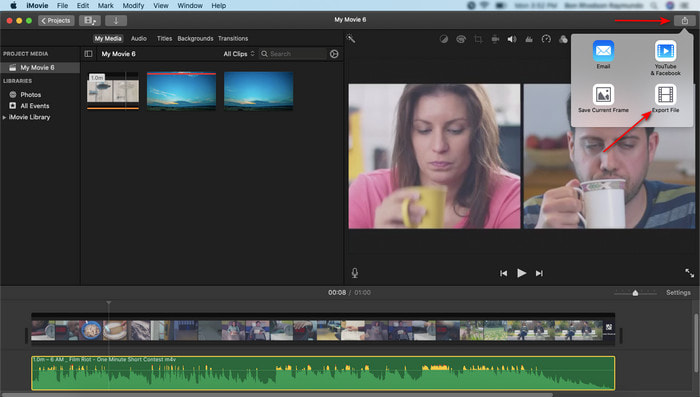
Korak 3. Kako bi spremio video na disk, klikni gumb share i zatim Export File.
Dio 3. Kako sinkronizirati audio i video pomoću Windows Phenomenal Editora
Ako nemaš Mac ili iPhone, i dalje možeš učinkovito i još jednostavnije uskladiti zvuk i video uz Video Converter Ultimate. Ovaj izvanredni softver bolji je od iMovieja i dostupan je na svim platformama osim na mobilnim telefonima. Bilo da si početnik ili profesionalac, s njim možeš učiniti svoj video impresivnim i izazvati wow-efekt kod gledatelja. Stoga, ako želiš naučiti kako uskladiti zvuk i sliku u alternativi za iMovie, slijedi detaljne korake koje je autor pripremio upravo za tebe i krenimo dalje.
Koraci kako uskladiti zvuk i video u sustavu Windows pomoću Video Converter Ultimatea:
Korak 1. Prije nego što počneš koristiti alat, najprije ga moraš preuzeti. Zatim ga instaliraj i klikni Finish kako bi nastavio.
Besplatno preuzimanjeZa Windows 7 ili novijiSigurno preuzimanje
Besplatno preuzimanjeZa MacOS 10.7 ili novijiSigurno preuzimanje
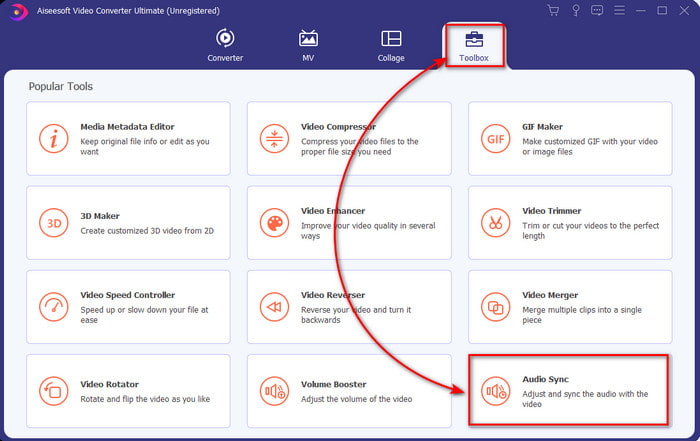
Korak 2. Nakon instalacije vrijeme je da pokreneš alat. Zatim idi u Toolbox i klikni Audio Sync.
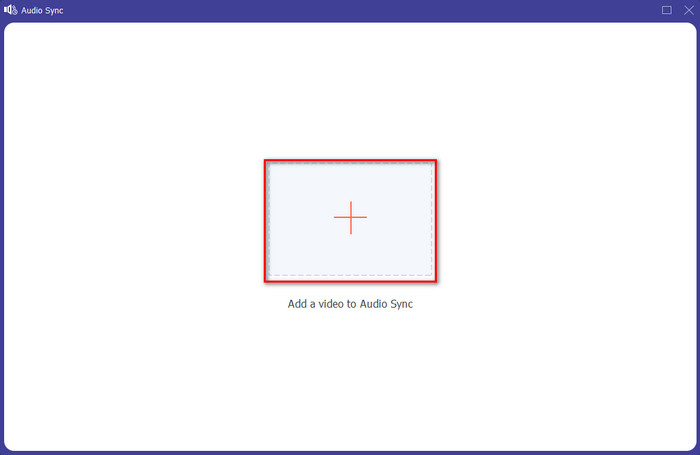
Korak 3. Za dodavanje neuslađenog zvuka klikni gumb +, odaberi datoteku u mapi, a zatim klikni Open.
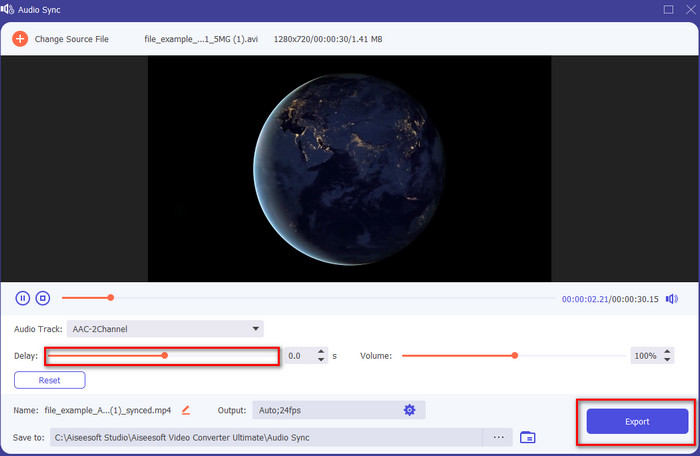
Korak 4. Podesi klizač kašnjenja kako bi se podudarao s videom. Kada završiš s prilagodbom zvuka uz video, klikni gumb Export kako bi pokrenuo obradu.
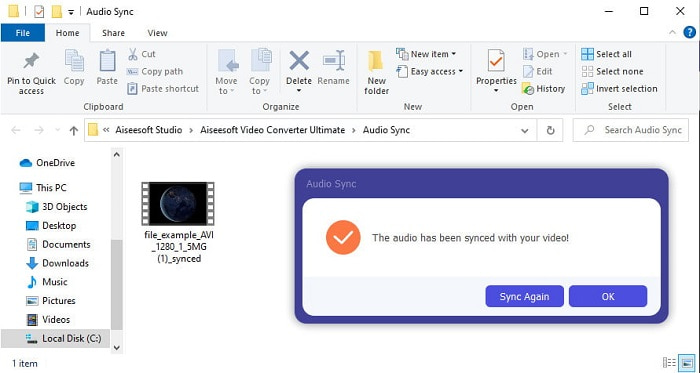
Korak 5. Kada je gotovo, na zaslonu će se pojaviti mapa sa usklađenom datotekom. Klikni datoteku i uživaj u videu i zvuku koji su u potpunom skladu.
Dio 4. Često postavljana pitanja o sinkronizaciji zvuka i videa u iMovieu
Mogu li koristiti iMovie u sustavu Windows?
Nažalost, iMovie ne možeš preuzeti na Windows. No možeš pronaći drugu alternativu koja radi jednako kao i iMovie ili čak bolje, poput ovih 5 sličnih video urednika kao iMovie.
Zašto AVI nije podržan na iMovieu?
AVI nije podržan u iMovieju zbog složene strukture tog formata. Zato je najbolji način da urediš AVI video taj da ga pretvoriš u MOV datoteku. Ako nemaš ideju kako pretvoriti AVI u MOV, pročitaj ovaj članak kako bi dobio uvid.
Ima li izvezena datoteka na iMovie vodeni žig?
Svaki projekt koji izvezete na iMovie nema vodeni žig do danas. Iako je alat besplatan na Apple uređajima, vodeni žigovi nisu uključeni u konačni rezultat. Međutim, tamo možete dodati vlastiti vodeni žig ako želite da ima.
Mogu li koristiti iMovie za snimanje videozapisa s uključenom kamerom?
Zapravo, i s iMoviejem možeš jednostavno snimati ekran. Ako želiš saznati kako, klikni ovu poveznicu da nastaviš.
Zaključak
Sada nam je jasno da možeš koristiti i iPhone i Mac kako bi uskladio svoj video i zvuk uz pomoć iMovieja. Iako sučelje alata i neke funkcije nisu dostupne na iPhoneu, i dalje ga možeš lako koristiti bez posebnog stručnog znanja. Međutim, ako želiš lakši način, koristi Video Converter Ultimate. Umjesto kompliciranih prilagodbi, ovim softverom možeš sve odraditi u samo nekoliko klikova. Dakle, ovo je tvoj sretan dan, jer ako slijediš korake kako uskladiti zvuk i sliku u Ultimate Converteru, jamčimo ti uspjeh.
-
 Uvezite i pretvorite AVI u podržani format iMovie [2021]
 Imate problem jer ne možete uvesti svoju AVI datoteku na iMovie? Ako ste pročitali ovaj članak, onda ste već odabrali pravi lijek za ovaj problem.
-
 Konkretni vodič - Kako spojiti dvije audio pjesme u smjelosti
 Audacity uživa reputaciju uređivanja zvuka. Preuzeli ste Audacity, ali ne znate kako spojiti audio zapise u Audacity? Ovaj će vam post reći kako spojiti pjesme u Audacity.
-
 Kako izrezati MP4 datoteku bez gubitka kvalitete videa [2021]
 Naučite kako izrezati MP4 uz jednostavne korake samo za vas. Stoga, nastavite s tempom jer vam predstavljamo najbolje od najboljih alata za izrezivanje koje možete koristiti.
