


 Video Converter Ultimate
 Screen Recorder
 Videó javítás
 Biztonságos letöltés
MP4 konvertálása WMV formátumba Mac / Windows rendszerre
Mielőtt bemutatnánk a javasolt MP4–WMV átalakítók listáját, engedd meg, hogy feltegyek néhány kérdést a videoformátumokról.
Ahhoz, hogy digitális videóadatokat tároljunk egy számítógépen, videóra tervezett fájlformátumot kell használnunk. Szóval, milyen videoformátumokat ismersz? MP4? WMV? FLV? AVI? Nos, ezek valóban gyakran használt videoformátumok digitális videók tárolására. De elgondolkodtál már azon, miért létezik ennyi videófájl-formátum? Mi a különbség az MP4 és a WMV között?
Általában az MP4 kompatibilis szinte minden típusú eszközzel a piacon, ami azt jelenti, hogy az MP4-et bárhol lejátszhatja, még a számítógép vagy a telefon alapértelmezett videolejátszóján is. Ha azonban Windows-eszközöket használ, úgy gondolom, hogy a WMV jobban szolgálhatja Önt. Nem csak azért, mert a Microsoft fejlesztette, hanem azért is, mert a HQ videót egy kis lemezterületen tudja menteni.
Ma tehát meg fogod tanulni, hogyan lehet MP4 fájlt WMV-re konvertálni az általunk ajánlott, legjobb videókonverterekkel.

1. rész: Hogyan lehet konvertálni az MP4-et WMV Online-ba ingyen
A klasszikus asztali szoftverek telepítése mellett manapság a webalapú konverterek használata is lehetőség. Bár egyszerű, sok online konverter kissé lassú az átalakítás során. Egyesek korlátozzák a feltöltött fájlok méretét és mennyiségét, és nem tudják garantálni a kimenő videók minőségét.
Ezért most bemutatjuk a FVC Free Online Video Convertert, egy ingyenes, gyors és hatékony videókonvertert, amely veszteségmentesen segít egy csomó videó vagy hangfájl átalakításában.
Mint sokoldalú ingyenes online MP4–WMV átalakító, a FVC Video Converter szinte minden videoformátumot támogat. Nagy MP4 fájlokat konvertálhatsz oda-vissza MKV, MOV, WMV, AVI, TS stb. formátumokba. Emellett igény szerint szerkesztheted is a videódat. Gyerekjáték a videó bitrátáját, mintavételezési frekvenciáját, képkockasebességét, felbontását és hangerejét módosítani a FVC felületén. És az átalakítás után nem kerül vízjel a videódra.
Most attól tarthat, hogy mindezen funkciók mellett nehéz lehet megérteni, hogyan kell működtetni ezt a konvertert. Valójában az igazság teljesen ellentétes. Csak néhány lépésre van szükség, hogy elsajátítsa ezt az MP4-et WMV-átalakítóvá.
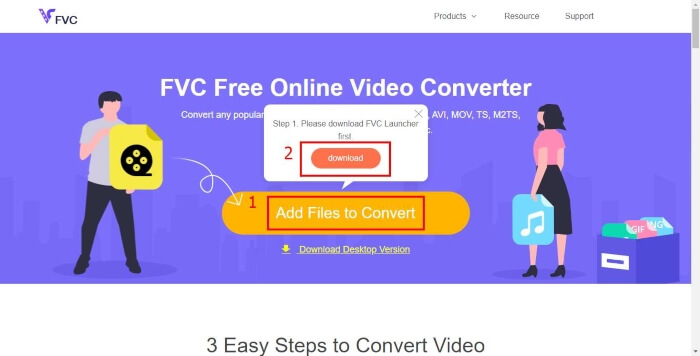
1. lépés. Kattints ide, hogy megnyisd a FVC Free Online Video Converter oldalát. Ezután kattints az Add Files to Convert gombra, hogy először letöltsd a FVC Launchert.
Töltse le az asztali verziót a fájlok kötegelt konvertálásához.
2. lépés. A launcher telepítése után felugrik az Open File ablak. Keresd meg azt az MP4 fájlt, amelyet át szeretnél alakítani.
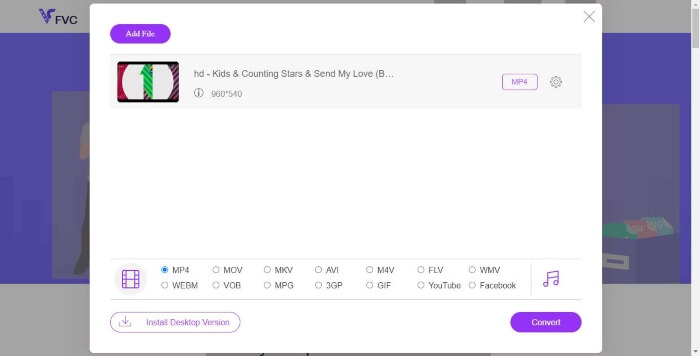
3. lépés. Az átalakítási oldalon válaszd ki kimeneti formátumnak a WMV-t. Ha módosítani szeretnéd a videó paramétereit, nyisd meg a Beállítások ablakot a Setting ikonra kattintva. Ezután kattints a Convert gombra, és válaszd ki a célmappát az átalakított videó számára.
2. rész Konvertálja az MP4-et WMV-be asztali szoftverrel
1. RealPlayer
A RealPlayer 1995 óta az egyik legnépszerűbb médialejátszóvá vált. Nemcsak a videók, zenék és képek egyszerű kezelésében segít, hanem videók többféle formátumra való átalakításában és más mobil eszközökre történő átvitelében is.
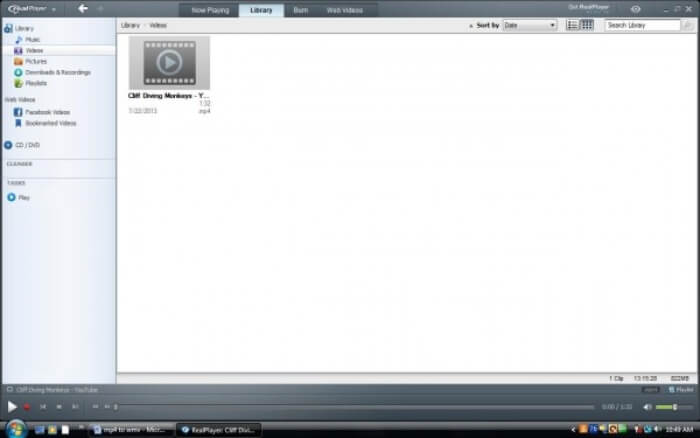
1. lépés. Ha a RealPlayer már telepítve van a számítógépedre, mentsd el az MP4 fájlt a RealPlayer könyvtárába (library). A RealPlayer indítása után válaszd a Library menüpontot. Keresd meg a fájlodat a Video listában.
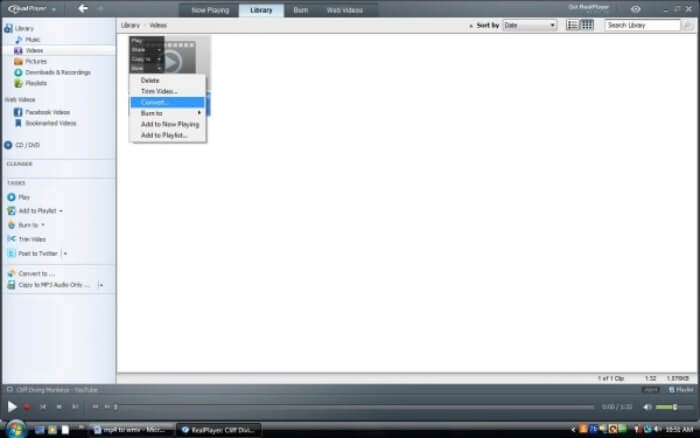
2. lépés. Kattints a fájlra, majd a felugró menüben válaszd a More lehetőséget. Ezután kattints a Convert opcióra.
3. lépés. Válaszd a WMV formátumot a Select a Device menüből, majd kattints az OK gombra. Ezután kattints a Start gombra. Néhány másodpercen belül a videód már a RealPlayer könyvtárában lesz.
2. VLC Media Player
A VLC egy nyílt forráskódú, többplatformos lejátszó, amely számos formátumú videót képes lejátszani. Emellett sok népszerű formátumba történő fájlkonvertálást is támogat. Kövesd az alábbi lépéseket, hogy MP4-ből WMV fájlt exportálj.
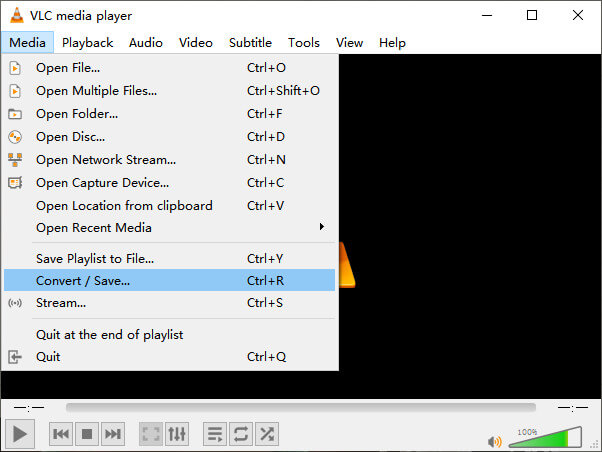
1. lépés. Nyisd meg a VLC Media Playert, és kattints a Convert / Save opcióra a Media menüben.
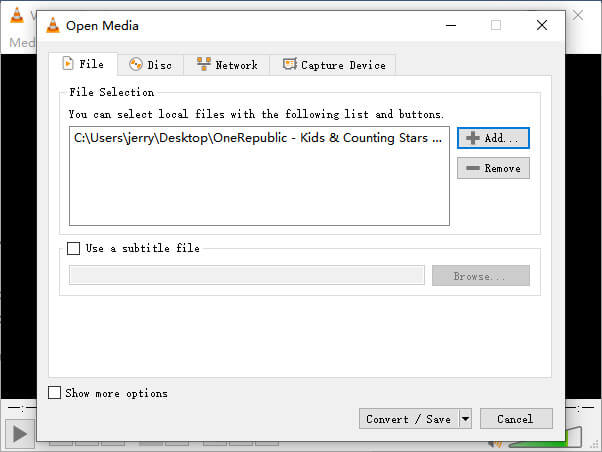
2. lépés. Add hozzá a fájlt a VLC-hez. Ezután kattints ismét a Convert / Save gombra.
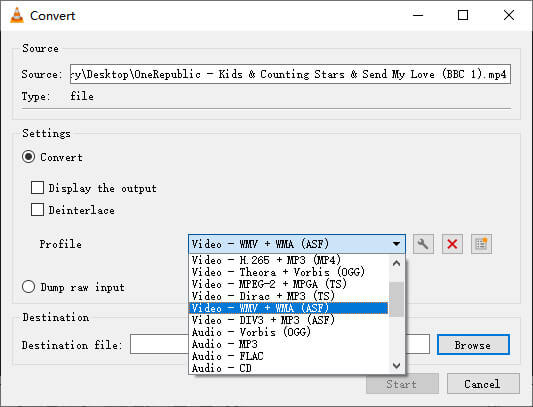
3. lépés. Keresd meg a WMV-t a Profile listában, és válassz egy mappát a kimeneti fájl mentési helyeként. Ezután kattints a Start gombra.
MP4 vs. WMV
A Moving Picture Experts Group (MPEG) által 2001-ben kiadott MP4 formátum segíthet a videó-, hang-, felirat- és képadatok külön-külön sávokba mentésében. Az MPEG-4 Part 14 rövidítése. Ráadásul ez az egyik legnépszerűbb formátum a streaming és a videók megosztására.
A Microsoft által gyártott WMV a 2000-es években az egyik leggyakoribb videóformátum volt. Megtekinthető az interneten, és lejátszható különféle Windows médialejátszókkal. És ez a Windows Media Player alapértelmezett videofájl-formátuma is. De a közelmúltban más formátumok is átvették.
3. rész: Gyakran ismételt kérdések az MP4-ről WMV-konvertálásra
1. A kézifék képes átalakítani az MP4-et WMV-re?
A kutatás alapján sajnos a legújabb Handbrake nem tud MP4-et WMV-re konvertálni. Igaz, hogy a Handbrake a legtöbb gyakori multimédiafájlt támogatja, de ez csak a bemeneti forrásokra vonatkozik. A kimeneti formátumok lehetőségei a MP4(.M4V) és az MKV.
2. Konvertálhatok ingyenesen 100 MB-nál nagyobb MP4 fájlt WMV formátumba online?
Attól függ. A különböző ingyenes online videókonvertereknek eltérő korlátaik vannak. Néhány konverter, például a FVC Free Online Video Converter lehetővé teszi 100 MB feletti fájlok átalakítását is. Más konverterek viszont ezért már díjat számíthatnak fel.
3. Konvertálhatja a Windows Media Player az MP4-et WMV -vé?
Windows Media Playerrel nem tudsz MP4 fájlt WMV-re konvertálni. Ennek oka, hogy ez csak egy lejátszó, nem pedig konverter. Ha MP4-et szeretnél WMV-re átalakítani, egy hatékony videókonvertert kell használnod.
4. Lejátszhatok WMV fájlt Mac-en?
A Mac beépített videotooljai nem tudják lejátszani a WMV fájlokat. De vannak más módok a WMV videók lejátszására MacOS alatt. Átalakíthatod a WMV-t egy olyan formátumba, amelyet a Mac támogat, vagy telepítheted a Windows Media Player for Mac programot a WMV fájlok lejátszásához.
Következtetés
Bár az MP4 és a WMV sok tekintetben hasonló, megvannak a maguk sajátos jellemzői is. Ezért mindig a konkrét helyzetnek megfelelően kell választanod. Remélhetőleg a cikk elolvasása után az MP4–WMV átalakítással kapcsolatos kérdések már nem okoznak gondot. Legközelebb, amikor WMV fájlra lesz szükséged, csak kövesd a fenti útmutatót, és könnyedén átalakíthatod a fájlt.
-
 Hogyan lehet átalakítani az MP4 videofájlokat animált GIF képekké minőségromlás nélkül
 Az MP4 videó animált GIF formátumba alakításának legjobb módját keresi? Itt van egy részletes útmutató a Photoshop, a Windows Movie Maker, az online videó konverter és így tovább elvégzéséhez.
-
 Hogyan lehet konvertálni FLV videofájljait MP4-re, fillér fizetése nélkül
 Ez az útmutató négy ingyenes módszert oszt meg az FLV videofájlok MP4 formátumba konvertálására Windows 10/8/7 / XP és Mac OS X rendszereken, így bármilyen eszközön élvezheti a videókat.
-
 Hogyan lehet a MOV-ot konvertálni MP4-re a minőség romlása nélkül
 Szeretné konvertálni a MOV (Apple QuickTime Movie) fájlokat MP4-be? Ez a bejegyzés 4 ingyenes módszert oszt meg a MOV videofájlok MP4 formátumba konvertálására Windows 10/8/7 / XP és Mac OS X rendszereken.

