


 Video Converter Ultimate
 Screen Recorder
 Videó javítás
 Biztonságos letöltés
WTV to MP4 Converter: Hogyan lehet konvertálni a WTV-t MP4-be
A WTV-t, mint a DVR-MS formátum utódját a Microsoft fejlesztette ki a Windows Media Center által rögzített TV-tartalmak tárolására. Az MPEG-2 és MPEG-4 szabvány, valamint az MPEG-1 Layer II vagy Dolby Digital AC-3 kódolásával a WTV-t kevés szoftver támogatja, mint például az FFMPEG, a Windows Media Center, a CyberLink PowerDVD 12, a Nero 12, a HandBrake, a CCextractor stb.

If you want to watch or share WTV files conveniently, you had better convert WTV to MP4, the most popular format for almost any device.
We’ve searched the Internet in a quest for WTV to MP4 converter and found the top 2 free WTV to MP4 converters to turn WTV to MP4.
1. rész: Ingyenes Video Converter - Konvertálja a WTV-t MP4 Online-ba
Well, it is very easy to convert WTV to MP4. The easiest way to change WTV to MP4 is to finish it online. Free Online Video Converter is the freeware to convert WTV to MP4 and other mainstream video and audio formats. This free online tool is compatible with Windows 10/8/7 and Mac OS X 10.7 or above, and you can easily transcode WTV to MP4 within steps.
A folyamat egyszerűsítéséhez kövesse az útmutatót:
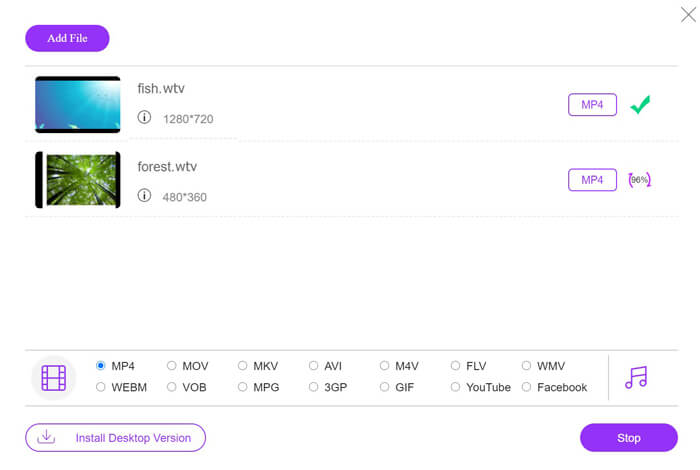
1. Click Add Files to Convert button to upload WTV files from PC.
2. Select MP4 from the checkbox.
3. Click Convert to convert and download WTV files automatically.
Most itt vagyunk, hogy bemutassuk, hogyan lehet a WTV-t MP4-re konvertálni.
Step 1. Add WTV files
Open this free online WTV to MP4 converter via your browser. Click Add Files to Convert button, and a pop-up window prompts to tell you to download and install the launcher. Just download it and the open-source window will appear after the successful installation. Then you can select the WTV recordings on your computer for uploading. This freeware supports batch conversion and you can add more than one WTV files online.

Step 2. Select MP4
Tick the checkbox of MP4 on the bottom, where you can find various output options like MKV, AVI, M4V, FLV, VOB, GIF, YouTube, Facebook, MP3, AAC, WMA, WAV, FLAC, etc.
In addition, you can click the Settings icon next to the output MP4 pane to adjust the encoder, frame rate, resolution, bitrates, and other parameters.

Step 3. Convert WTV to MP4
After everything is done, click the Convert button and a window appears that requires you to select the destination to store the converted MP4 files. Choose the destination and return to this free online converter, click Convert again to start converting and downloading the MP4 files automatically. You can see the conversion progress percentage directly.
2. rész: HandBrake - A WTV konvertálása MP4-re PC / Mac-en
A WTV MP4-re konvertálásának másik ingyenes módja a HandBrake használata. A HandBrake az a néhány szoftver, amely képes WTV fájlokat olvasni. Ezenkívül átkódolhatja a WTV-t MP4 / MKV formátumba a Windows és Mac számítógépeken.
A HandBrake a nyílt forráskódú asztali szoftver, ezért először töltse le ezt az ingyenes átalakítót a számítógépére.
Ismét a WTV MP4-re konvertálásának egyszerű lépései a HandBrake-ben a következők:
1. Adja hozzá a WTF fájlokat vagy az egész mappát a HandBrake-be.
2. Egyéni MP4 profil a HandBrake-ben.
2. A WTV előnézete és konvertálása MP4-re.
Itt található az átfogó útmutató a WTV MP4-re történő átállításához a HandBrake-ben.
Step 1. Add WTV files into HandBrake
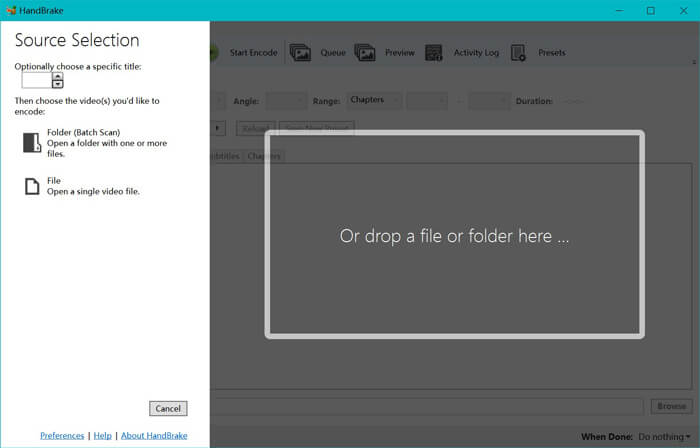
Once you have installed HandBrake on your computer, HandBrake will present the open-source dialog by default. Here you can click Folder or File to select the WTV files or folder into main window. Alternatively, you can also drag and drop the WTV files into this software.
Step 2. Select MP4 format
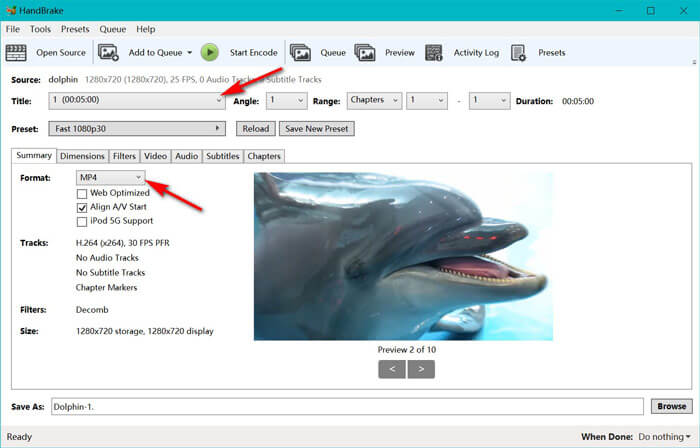
Once you have loaded the WTV files, you can select the exact WTF file from the Title drop-down option. Then select MP4 in the tab of Summary as the output for the selected WTV file. Besides, HandBrake allows you to adjust the dimensions, filters, video codec/quality, audio track, etc. Not only MP4, it can also convert other formats like AVI, MOV, M2TS, etc., to MKV.
Step 3. Preview and convert WTV to MP4
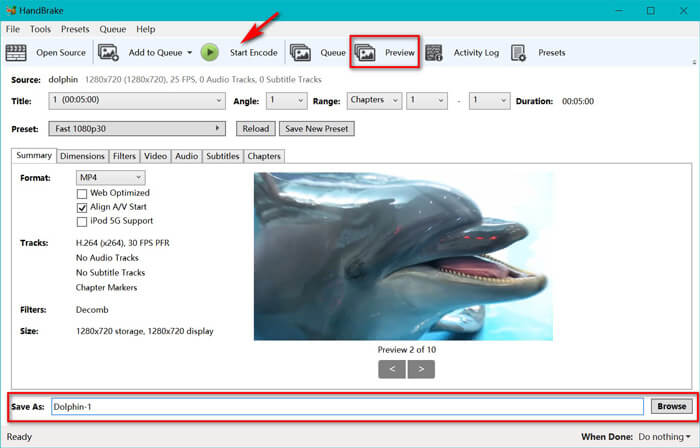
HandBrake’s Preview on the toolbar feature allows you to see what your new MP4 video will look before encoding it. After all your settings are just right, give the name of the converted MP4 files and select the location of your new videos by clicking the Browse button at the bottom. Finally, just click Start Encode button on the toolbar to convert WTV to MP4.
3. rész: A WTV és az MP4 közötti gyakran ismételt kérdések
Miért menti a HandBrake az MP4-et M4V-ként?
MP4 fájlok esetén a HandBrake automatikusan elvégzi az MP4 fájlokat az M4V kiterjesztés használatával, ha az AC3 audio és SRT feliratokat választja, vagy fejezetjelzőkkel rendelkezik az MP4 fájl testreszabásához. De az .m4v kiterjesztést közvetlenül .mp4-re változtathatja.
Lejátszhatja a VLC lejátszó WTV fájlokat?
A VLC nem tudja közvetlenül lejátszani a WTV fájlokat. Telepítse a K-Lite kódcsomagot a WTV kódcsomag telepítéséhez, majd a WTV fájlokat VLC-n játssza le.
Konvertálhatom a védett WTV fájlokat?
Igen tudsz. Azonban csak az MCEBuddy támogatja a védett kereskedelmi WTF fájlok szerkesztését és konvertálását. Ezt a szoftvert használja a védett WTV fájlok másolásához és konvertálásához.
Következtetés
A Windows Media Center által rögzített WTV fájlok kényelmes használatához először a WTV-t kell MP4-re konvertálni. Ez a bejegyzés 2 ingyenes módszert oszt meg a WTV konvertálásához MP4 formátumba online az ingyenes online videó konverter és a HandBrake segítségével. Az ingyenes Online Video Converter segítségével konvertálhatja a WTV-t MP4-be és más népszerű formátumba, míg a HandBrake korlátozott kimeneti formátum-beállításokkal több szabályozást biztosít a szerkesztéshez.
Melyik utat részesíti előnyben?
Vagy talán van egy jobb WTV to MP4 konvertered?
Akárhogy is, szeretnék tőled hallani. Tehát, folytassa, és hagyjon egy megjegyzést az alábbiakban.
-
 Hogyan lehet átalakítani az MXF-et MP4-be az ingyenes átalakító segítségével
 Ez a bejegyzés a részletes útmutató az MXF átalakításához MP4-re a számítógépen. 4 ingyenes MXF-MP4 konvertert kaphat, amelyek egyszerű lépésekben átkódolják a kamerát MXF-ről MP4-re.
-
 A legjobb 3 lehetőség az MP4 konvertálására MOV-ra
 Hogyan lehet átalakítani MP4-et MOV-ra Mac-en? Van-e szabad módszer az MP4 átalakítására MOV-ra minőségromlás nélkül? Ez a bejegyzés 3 egyszerű módszert mutat be, amelyek segítenek a videó konvertálásában MP4-ből MOV-ba Mac, Windows PC-n és online.
-
 Az M2TS konvertálása WMV formátumba Windows / Mac / Online rendszeren (teljesen ingyenes a használat)
 Íme 3 egyszerű módszer az M2TS átalakítására WMV videókká. Gyorsan megváltoztathatja a videó formátumot M2TS-ről WMV-re ingyen Windows, Mac és online kapcsolaton. A kötegelt átalakítás támogatott.
