


 Video Converter Ultimate
 Screen Recorder
 Videó javítás
Átfogó útmutató az AMV WMV-vé konvertálásához lépésekkel [Megoldva]
Want to enjoy watching AMV video files on your Windows or use it for online streaming? If so, you must read this article to know how to convert AMV to WMV, improve the quality, and make it compatible. In this list, you will learn the software you can use to convert your AMV files. So without further ado, you must now fasten your seatbelt and learn a lot more about AMV and WMV format.

1. rész AMV konvertálása WMV-vé az FVC Video Converter Ultimate segítségével
FVC Video Converter Ultimate is our first choice for converting AMV to WMV because it allows you to transcode media and device-specific formats. And more, it is capable of converting not only one, two, or three files simultaneously but more. Furthermore, this converter is dedicated to its users to provide nothing but greatness on their conversion. Want to know why? Then read the key features below.

FVC Video Converter Ultimate
4 355 888+ letöltés- Segíthet az AMV-n WMV, AVI, FLV, SWF, MP4, AVI konvertálási problémáiban.
- Támogatja az ultragyors konvertálást a formátum még gyorsabb konvertálásához.
- Szerkessze AMV-videóit az eszköz által biztosított egyedi szerkesztési funkciókkal.
- Segít, hogy néhány kattintással szakértő legyen.
- Minden platformot támogat, mint például a Windows és a macOS.
Ingyenes letöltés Windows 7 vagy újabb rendszerre Biztonságos letöltés
Ingyenes letöltés macOS 10.7 vagy újabb rendszerre Biztonságos letöltés
Csodálkozik az eszköz tulajdonságain? Ha igen, olvassuk el az AMV fájlok konvertálásának eljárását, és másoljuk át a lépéseket a sikeres átalakításhoz.
Step 1. Download the FVC Video Converter Ultimate on your computer drive by clicking the download button presented below. Proceed on clicking the installer to install and press Start Now to launch the tool.
Ingyenes letöltés Windows 7 vagy újabb rendszerre Biztonságos letöltés
Ingyenes letöltés macOS 10.7 vagy újabb rendszerre Biztonságos letöltés
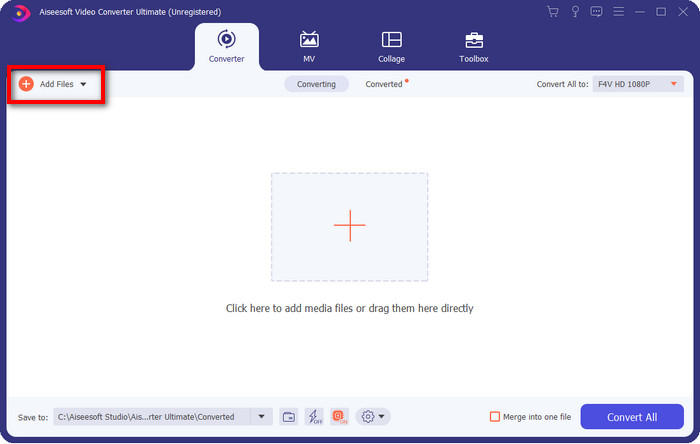
Step 2. After launching the software, you can add one or more files by clicking the Add Files option. The computer folder will show on your screen, select the AMV file, and press Open to upload it.
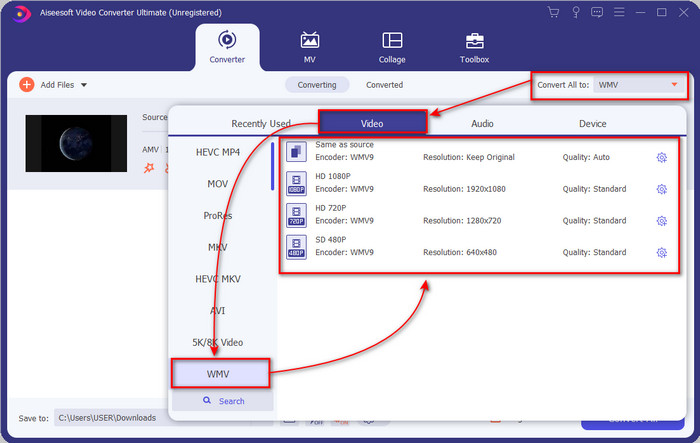
Step 3. By clicking the Convert All to option, a format list will show. Find the WMV format and choose the resolution, encoder, and quality you want to have.
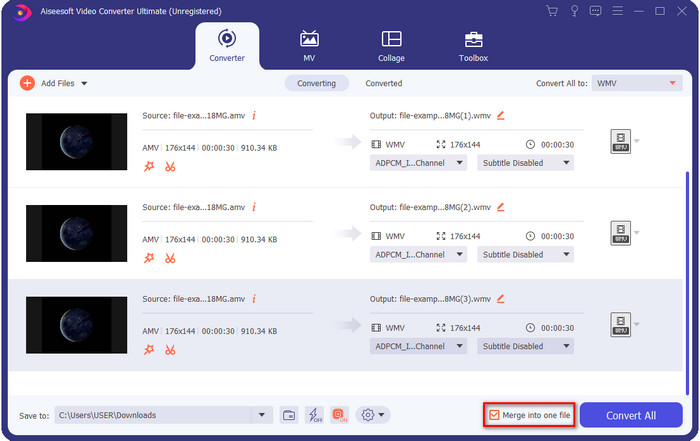
Optional. Want to make your AMV files into one WMV format? Then it would help if you ticked the box saying merge into one file.
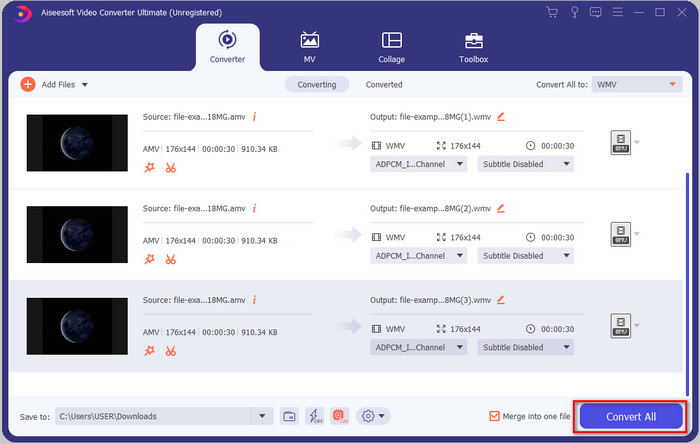
Step 4. Press the Convert All for the process of converting to start. After the process, a folder will display on your screen with the converted WMV file.
2. rész AMV konvertálása WMV Online-ra
Don't you want to download an offline converter because you don't have enough storage to download one? Then use the FVC Free Online Video Converter. Because you will not need to download the full converter; instead, you will need the launcher, but it is tiny and won't affect your computer storage. Moreover, this web converter converts AMV to WMV, adjusting the resolution. However, converting the file will depend on the speed of your internet. Do you have an internet connection? Then you must try to use this and experience online conversion.
Step 1. Hit this link to open the main website of the converter.
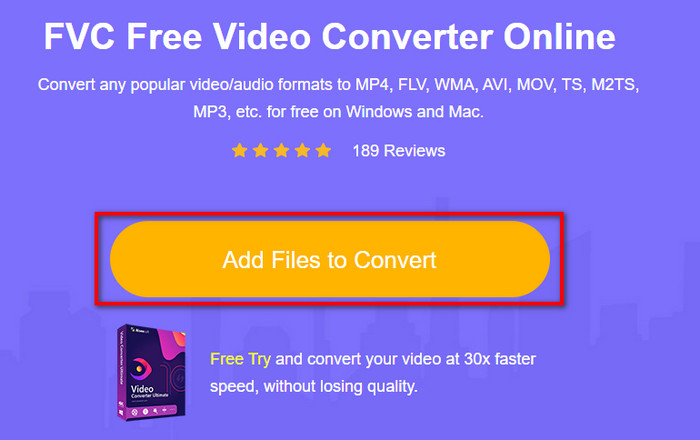
Step 2. By clicking the Add Files to Convert, a folder will show where you can find the AMV file and press Open.
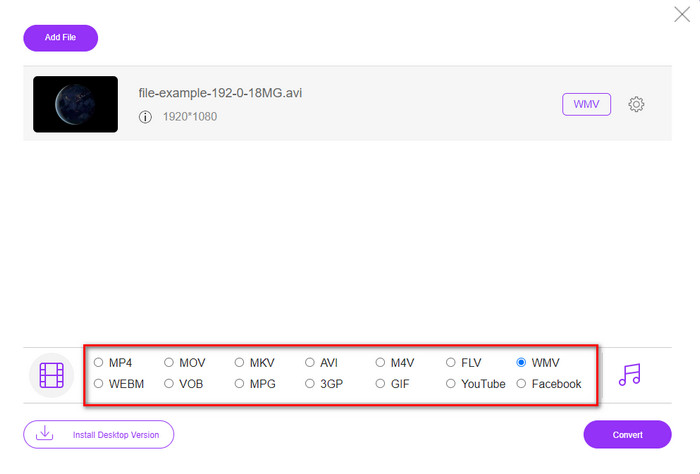
Step 3. Choose the WMV format that will display on the screen.
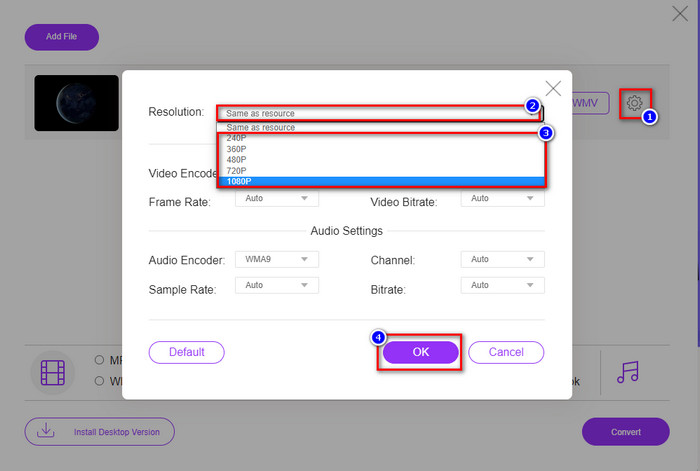
Optional. As we said earlier, you can adjust the resolution here. So now, let's modify the resolution by clicking the gear button. At the upper part, click the drop-down button, and a list of resolutions will show; choose one and press OK to proceed.
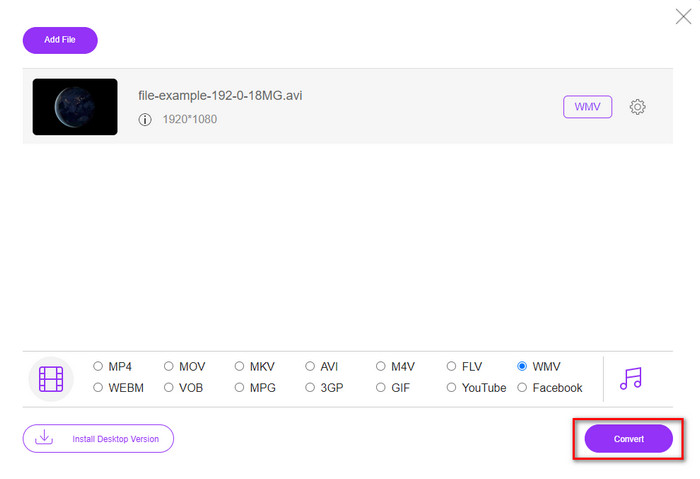
Step 4. So now, if you want to start the conversion, you can click the Convert button, and the process will begin.
3. rész: Mi a különbség az AMV és a WMV között?
Mindenekelőtt ez a két médiakonténer formátumban nyújtott egyedi képességei miatt vált népszerűvé. De ma megvizsgáljuk, hogy magának a formátumnak mik az előnyei és hátrányai. Ezen túlmenően három szempontot fogunk meghatározni azáltal, hogy az AMV-ről és a WMV-ről többet megtudhatunk.
Melyik formátumnak jobb a médiafelbontása?
A két formátum között kétségtelenül jobb a WMV minősége. A WMV-fájlok akár 300 000 pixel felbontású videót is tárolhatnak és streamelhetnek a részletesebb vizuális kimenet érdekében. De beállíthatja az arányt 528x576 képernyőfelbontásra. Az AMV esetében pedig 96x96-tól 320x240-ig terjedhet a minőség, ami elég alacsony a WMV alacsony felbontásához képest. Az egyik oka annak, hogy az AMV kisebb felbontású, mert el kell férnie a kínai médialejátszó képernyőjén.
Melyik formátumnak kisebb a fájlmérete?
Ez a győzelem az AMV-vel jár, mert ez a formátum szuper tömörített. Bár a WMV-nek van kompresszora, az AMV mérete mégis gazdaságosabb, különösen a számítógép meghajtóján, mint a WMV.
Melyik formátum kompatibilis jobban?
We can say that they have different strengths if we talk about compatibility because WMV is for Windows programs only. If you are a Mac user, you can't just use this format and play it on Quicktime or edit it on iMovie. Instead, you will need to convert WMV to MOV to make it compatible. In the case of AMV, this format uses a portable Chinese media player to play this format. But today, you can use a portable media player instead of buying an AMV media player. However, looking for an AMV media player is a pain in the ass because they are numbered players supporting this kind of format and the encoder. We can say that WMV has gained more compatibility than AMV, especially if we transfer the file to Windows.
És most, hogy ismerjük az okot, ebben az esetben a fájlt új formátumba kell konvertálni. Emiatt meg kell tanulnia az AMV-t WMV-vé konvertálni, hogy a médiafájl kompatibilis legyen a Windows szoftverrel.
4. rész. GYIK az AMV és a WMV konvertálásról
Hogyan állíthatom át az AMV-t MOV-ra?
There are a lot of techniques and methods we can search and try on that are available if we query it on the web. But it is hard to choose which tool is better to use to convert AMV to MOV. So, to make it short, click this link and understand how to convert AMV to MOV and make it compatible with macOS.
Használhatok VLC médialejátszót az AMV nézéséhez és lejátszásához?
Absolutely, you can download the VLC media player on your desktop to play your AMV files without needing to download an additional codec. But if you want to know more about the VLC and its alternative, try to read this article by clicking this link.
Miért kell tömöríteni az AMV-t?
We compress our media file and AMV because we need to free some space up on our hardware drive. So want to learn how to compress AMV files? Then click this link.
Következtetés
Ez a két megoldás kiválóságot nyújt az AMV-ről WMV-re való átállás egyszerű és sikeres elvégzéséhez. Ezenkívül ezek a legjobb megoldások, amelyeket az interneten találhatunk. Tehát most az Ön kezében van, hogy válassza ki, melyik konvertert használja az AMV-fájl WMV-vé konvertálásához. A siker eléréséhez a fent megadott FVC-eszközöket kell használnia.
-
 A legjobb módszer az AMV AVI-vé konvertálására [Jóváhagyva]
 Nehéz dolga van az AMV formátumú videofájl AVI formátumba konvertálásával? Íme néhány tipp, amelyeket csak ebben a cikkben találhat meg.
-
 [Bizonyított] 2 módszer az AMV-nek FLV-vé konvertálására offline és online
 Gondolt már arra, hogy kipróbáljon egy konvertert, amellyel AMV fájljait FLV fájlformátumba konvertálja? Az AMV-videók megtekintésével kapcsolatos probléma megoldásához olvassa el ezt a cikket a megfelelő konverterek megismeréséhez.
-
 Ingyenes | 3 legjobb módszer az MP4 konvertálására WMV formátumra minőségromlás nélkül
 Ez a bejegyzés megosztja az MP4 videó konvertálását WMV formátumba Mac vagy Windows rendszeren. Számos lehetőséget kínálunk Önnek, beleértve az asztali szoftvert és a webalapú online konvertereket is. Készen áll a legjobb MP4 - WMV konvertáló eszközök megismerésére?
