


 Video Converter Ultimate
 Screen Recorder
 Videó javítás
 Biztonságos letöltés
Könnyedén távolítsa el az Animotica vízjelet a videókról
Az Animotica egy népszerű Windowsos videoszerkesztő, amelyet mindenki szívesen használ, mert igazán látványos eredményt ad. Felhasználóbarát felülete és funkciói révén akkor is lenyűgöző videókat készíthetsz, ha még kezdő vagy a vágásban – akár olyan profi hatásúakat is, mint amilyeneket a szakemberek készítenek. Nem véletlen, hogy ez az eszköz a Windowsra ajánlott legjobb videoszerkesztők között szerepel. Bármilyen jó is azonban, sok felhasználó mégis problémába ütközik használat közben: a videón maradó vízjel sokak számára komoly gondot jelent. Ahelyett hogy ezen aggódnál, inkább olvasd el ezt a cikket, és tudd meg, hogyan lehet eltávolítani az Animotica-vízjelet. Felkeltettük az érdeklődésed? Akkor olvasd el az alábbi részleteket, hogy megtudd, hogyan teheted ezt meg hatékonyan.

1. rész: Hogyan távolítsuk el a vízjelet az Animotica videóból a 3 módszer segítségével, amelyet tudnia kell
FVC Video Converter Ultimate [legjavasoltabb videó vízjel-eltávolító]
A FVC Video Converter Ultimate kiváló eredményt nyújt a videóidról eltávolítandó vízjel kapcsán. Még ha nem is vagy olyan jó videoszerkesztő, mint mások, ezzel az eszközzel akkor is remek végeredményt érhetsz el, amint kicsit belejössz – nincs ok az aggodalomra, rövid időn belül profi felhasználóvá válhatsz. A teljesítménye össze sem hasonlítható sok más, internetről letölthető vagy online használható vízjel-eltávolítóval. Ha szeretnéd látni, hogyan tüntetheted el az Animotica-videóról a vízjelet ezzel a programmal, kövesd az alább leírt útmutatót.
1. lépés. Először töltsd le a szoftvert az asztali gépedre, és válaszd ki az operációs rendszeredhez megfelelő verziót. Ezután kövesd a telepítési lépéseket, majd nyisd meg az eszközt a folytatáshoz.
Ingyenes letöltés Windows 7 vagy újabb rendszerre Biztonságos letöltés
Ingyenes letöltés macOS 10.7 vagy újabb rendszerre Biztonságos letöltés
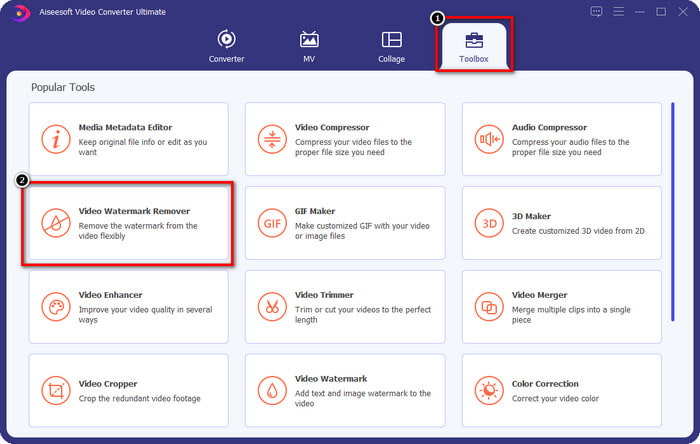
2. lépés. Miután megnyitottad az alkalmazást, menj a Toolbox (Eszköztár) menübe, és nyisd meg a Video Watermark Remover (Videó-vízjel eltávolító) modult. Az Eszköztár alatt további funkciókat is találsz, ezeket később bármikor kipróbálhatod.
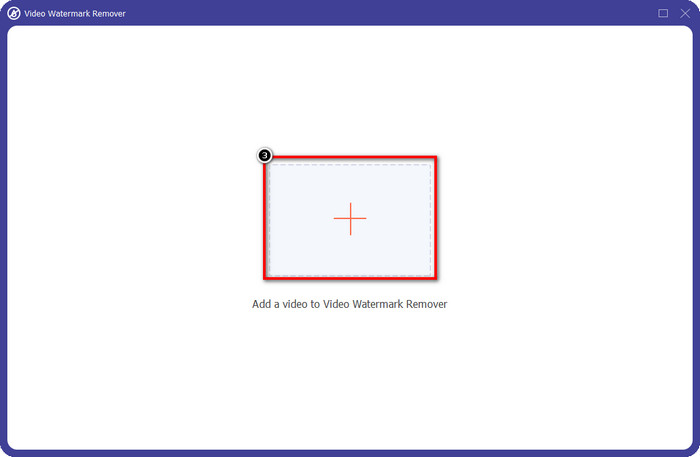
3. lépés. Kattints a + ikonra, hogy feltöltsd az Animoticában szerkesztett videót. Keresd meg a vízjellel exportált videófájlt a megjelenő mappában, majd kattints az Open (Megnyitás) gombra a betöltéshez.
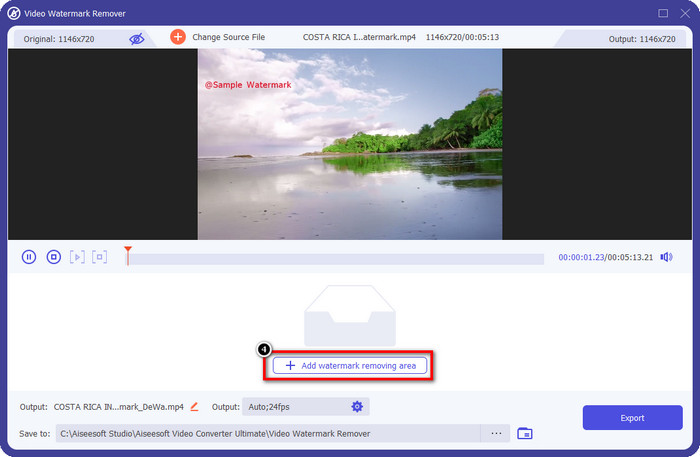
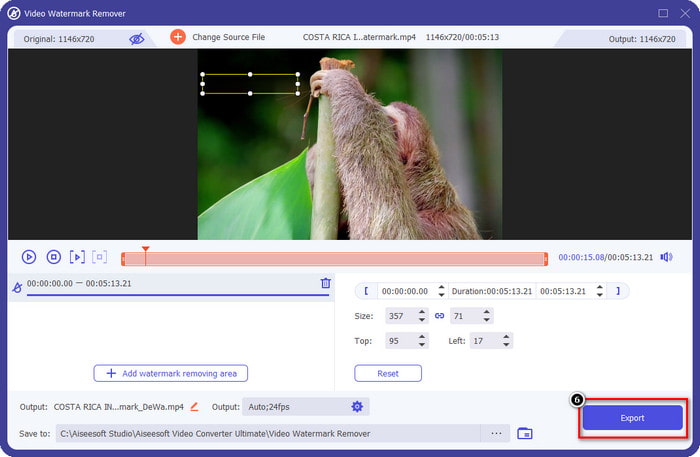
4. lépés. A megjelenő ablakban kattints az Add Watermark Removing Area (Vízjel-eltávolítási terület hozzáadása) gombra; ekkor egy új ablak nyílik meg, ahol körvonalazhatod a vízjelet.
5. lépés. Helyezd a téglalapot a vízjel fölé úgy, hogy teljesen lefedje azt. Ha szükséges, egyszerűen méretezd át a kijelölődoboz méretét, hogy pontosan illeszkedjen a vízjelhez – se túl kicsi, se túl nagy ne legyen.
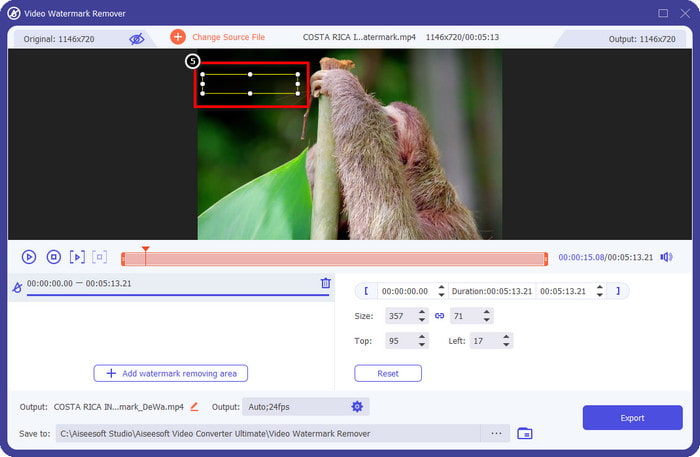
6. lépés. Most már elmentheted az Animotica-videót vízjel nélkül az Export (Exportálás) gombbal, amely a felület jobb alsó sarkához közel található.
Összefüggő:
UkeySoft videó vízjel eltávolító
Ingyenesen letöltheted a UkeySoft Video Watermark Remover eszközt, hogy eltüntesd a vízjelet a videódról. Ez a program Windowsra érhető el, vagyis ha Windows-felhasználó vagy, ingyen letöltheted, és kihasználhatod az előnyeit a vízjel eltávolításához. Akárcsak más vízjel-eltávolítók, ez az eszköz is kiváló minőségű kimenetet biztosít, és az exportálás után sem rontja le a betöltött videó minőségét.
Ha azonban az eszköz hozzáférhető verzióját használja, bizonyos korlátozások visszatarthatják, például nem tölthet fel ide egy videót egy percnél tovább ingyen. Itt található egy teljes útmutató az Animotica vízjel ingyenes eltávolításához.
1. lépés. A szoftver letöltéséhez keresd fel a hivatalos weboldalát, majd kattints a letöltés gombra, hogy telepíthesd Windows rendszerre.
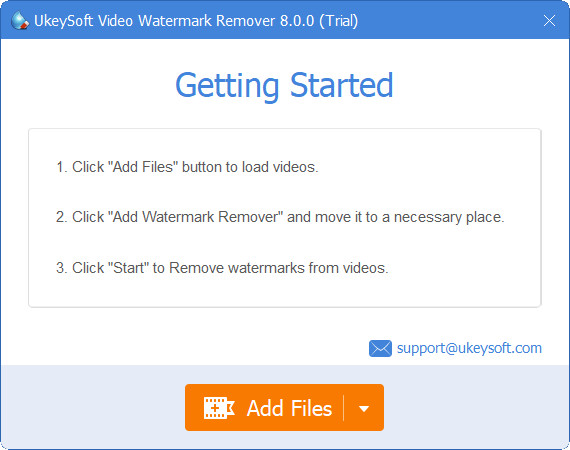
2. lépés. Nyisd meg a vízjel-eltávolítót, majd kattints az Add Files (Fájlok hozzáadása) gombra, hogy betöltsd a vízjellel ellátott videót.
3. lépés. Kattints az Add Watermark Remover (Vízjel-eltávolító hozzáadása) gombra, és helyezd a kijelölődobozzt a vízjelre. Ezután kattints a check (pipa) ikonra a vízjel eltávolításának megkezdéséhez.
4. lépés. Az elvégzett módosítások és az Animotica vízjel nélküli videó mentéséhez kattints a Next (Tovább) gombra.
Apowesoft Watermark Remover Online
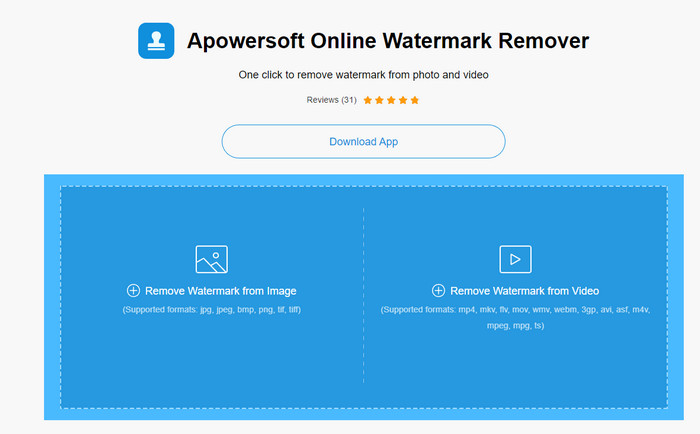
Az Apowersoft Watermark Remover Online egy kifejezetten vízjelek eltávolítására szolgáló online eszköz, amelyet akkor is használhatsz, ha nem szeretnél külön vízjel-eltávolító szoftvert telepíteni az eszközödre. Mivel a böngészőben fut, a kompatibilitása kiemelkedő, és számos különböző operációs rendszeren használható. Noha online eszközről van szó, a teljesítménye mégis felveszi a versenyt sok olyan vízjel-eltávolítóval, amelyet számítógépre lehet telepíteni. Mint minden eszköznek, ennek is vannak hátrányai, például a korlátozottan támogatott videóformátumok, az internetkapcsolattól való függőség és egyéb megszorítások.
De ha ez az eszköz felkeltette a figyelmét, az alábbiakban bemutatunk egy oktatóanyagot az Animotica vízjel gyors eltávolításához a videóban az online eszközzel.
1. lépés. Az online vízjel-eltávolító eléréséhez keresd meg az eszközt a webböngésződben, majd nyisd meg.
2. lépés. Nyomd meg a Remove Watermark From Video (Vízjel eltávolítása videóról) gombot, majd válaszd ki a vízjellel rendelkező videófájlt. Várd meg a feltöltést; ez eltarthat egy ideig, főleg lassú internetkapcsolat esetén.
3. lépés. A videó sikeres feltöltése után helyezd a téglalap alakú kijelölést a vízjel fölé, hogy teljesen lefedd azt a videón.
4. lépés. Miután kijelölted az eltávolítandó vízjelet, kattints az Erase (Törlés) gombra, hogy eltávolítsd a téglalap területén belüli vízjelet.
2. rész. GYIK az Animotica vízjel eltávolításával kapcsolatban
Mennyibe kerül az Animotica Light?
Az Animotica Light ára $6.99. Ennek ára továbbra is a Microsoft Store régiótól függ. Tartalmaz néhány használható kisebb funkciót, amelyek nem szerepelnek az ingyenes verzióban, mint például a teljes HD-kimenet, a vízjel hiánya, az összes átmenet, a korlátlan képkockasebesség és mások.
Kiváló választás az Animotica Pro használata?
Az $15.99 esetében ez az eszköz jó választás kezdőknek, akik olyan alapvető szerkesztést szeretnének végezni, amely rendkívüli szolgáltatásokat és funkciókat kínál, amelyeket élvezhet. A profi verzióval akár 2160 (4k) minőségben is exportálhat videókat 60 FPS-sel, teljes szerkesztési funkciókkal stb.
Miért válik homályossá az Animotica vízjel?
A legtöbb eszköz elhomályosítja a vízjelet a videódon, hogy láthatatlanná váljon. Ha azonban hosszabb ideig nézi, észre fogja venni, hogy olyan maradványokat hagy maga után, amelyek ronthatják a látványt. Tehát használjon olyan vízjeleltávolítót, amely nem homályosítja el a vízjelet az exportálás után, ahogyan azt az FVC Video Converter Ultimate gyártja.
Következtetés
Valójában az ebben a cikkben említett összes eszköznek különböző erősségei és gyengeségei vannak az Animotica vízjel eltávolításában. Mielőtt befejeznénk ezt a cikket, melyik eszközt fogja használni vízjeleltávolítóként? Tegyük fel, hogy még mindig nem döntötte el, hogy mit használjon. Ebben az esetben azt javasoljuk, hogy válassza ki a tökéletes vízjel-eltávolítót, mert ez a leghatékonyabb eszköz a vízjel eltávolítására bármely videóról, és több feladat elvégzésére egyetlen letöltés során. Reméljük, hogy ezzel a cikkel válaszolunk kérdéseire. A fenti oktatóanyag segít eltávolítani a vízjelet a videóról, így jó minőségű videót nézhet vízjel nélkül.
-
 Tanulja meg, hogyan lehet ingyenesen eltávolítani a Movavi vízjelet [Must Have!]
 Ha egy videót vagy képet exportál a Movaviba, akkor vízjel marad, de el lehet távolítani? A vízjel ingyenes eltávolításának megtanításához olvassa el ezt.
-
 3 egyszerű módszer a Fiverr vízjel eltávolítására Windows és Mac rendszeren
 A megfelelő oldalon van, ha olyan alkalmazást keres, amely eltávolíthatja a Fiverr vízjelet. Olvassa el ezt a bejegyzést, hogy megtudja, hogyan távolíthatja el egyszerűen a Fiverr vízjelet.
-
 A Lomotif vízjel eltávolítása ezekkel a fantasztikus eszközökkel
 Szeretnéd megtanulni, hogyan távolíthatod el a Lomotif vízjelet a videódról? Olvassa el ezt a cikket, hogy megismerje a legkiemelkedőbb online és offline eltávolítási módszereket.
