


 Video Converter Ultimate
 Screen Recorder
 Videó javítás
 Biztonságos letöltés
Javítsa a képminőséget ezekkel a gyors és egyszerű módszerekkel
Van homályos vagy alacsony minőségű képed? A legjobb, amit tehetsz, hogy növeled a kép minőségét. Szerencsére számos eszköz segíthet a képminőség javításában. Azonban nem minden számítógépes alkalmazás vagy eszköz rendelkezik a legjobb funkciókkal. Ezért kerestük meg a legnépszerűbb fotójavító programokat online, offline és iPhone-on. Ha meg szeretnéd tudni, hogyan lehet javítani a képminőséget, olvasd el ezt a bejegyzést.

1. rész: Hogyan lehet javítani a képminőséget online
Az online képjavító használata kényelmesebb, mint egy szoftveralkalmazás letöltése a számítógépre. Az online eszköz használatának előnye, hogy szabadon hozzáférhet a weben. Ez a rész bemutatja, hogyan javíthatja képének minőségét a legcsodálatosabb online fotójavító segítségével.
A FVC Free Image Upscaler egy online, ingyenesen használható képjavító, amelyet sokan kedvelnek. Ez az online alkalmazás 2x, 4x, 6x és 8x nagyítás beállítását teszi lehetővé. Emellett támogatja a legelterjedtebb képformátumokat, többek között a PNG, JPG, JPEG és BMP fájlokat. Minden webböngészőben elérheted, így például a Google, a Firefox és a Safari alatt is. Az adataid biztonsága miatt sem kell aggódnod, mert ez az eszköz biztonságosan használható.
Ezen túlmenően erőteljes mesterséges intelligencia technológiával rendelkezik, amely automatikusan felismeri a kép elmosódott részeit. Ezenkívül az FVC Free Image Upscaler javíthatja az elveszett képpontokat, színtextúrákat és további részleteket. Ha ezt a kiváló képfeljavítót szeretné használni, kövesse az alábbi egyszerű útmutatót.
A képminőség online javítása az FVC Free Image Upscaler használatával:
1. lépés. Nyisd meg a böngésződet, és keresd meg a FVC Free Image Upscaler oldalt a keresőmezőben. A megadott linkre kattintva közvetlenül a főoldalra juthatsz.
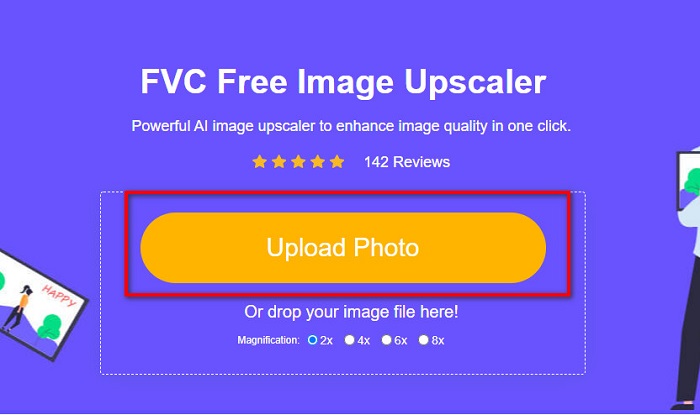
2. lépés. Ezután kattints a fő felületen az Upload Photo (Fotó feltöltése) gombra, és töltsd fel a felnagyítani kívánt képet. Várd meg, amíg a kép feltöltődik, majd lépj a következő lépésre.
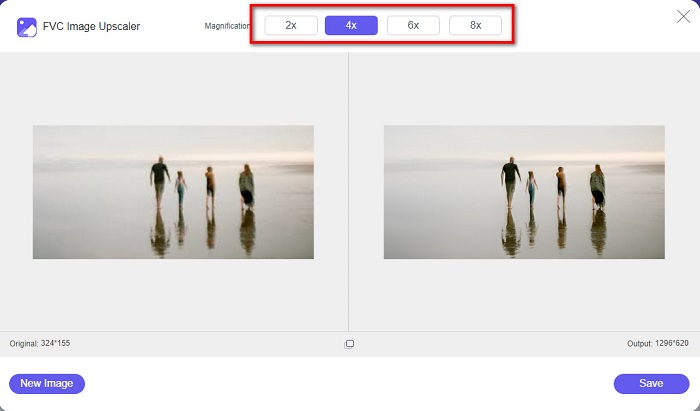
3. lépés. Ezután válaszd ki a képhez használni kívánt Magnification (Nagyítás) értékét. A 2x, 4x, 6x és 8x közül választhatsz.
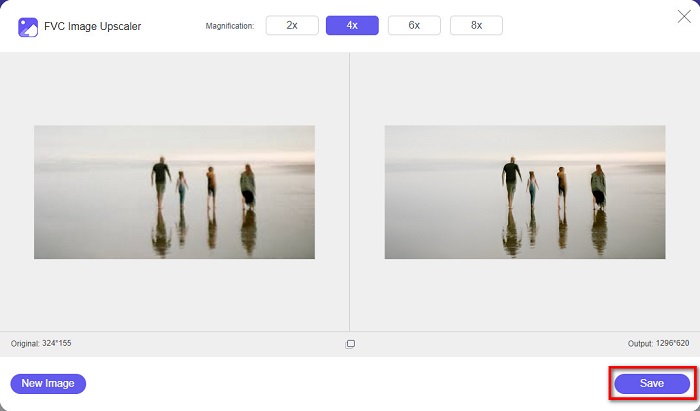
4. lépés. Megtekintheted a kép előnézetét, és ha elégedett vagy vele, kattints a Save (Mentés) gombra, hogy a felnagyított képet elmentsd az eszközödre.
És ez az! Most már jó minőségű nézetben tekintheti meg képét számítógépén.
2. rész: A képminőség javítása a Photoshopban
Megvan, amit keres, ha professzionális eszközt szeretne használni képminőségének javítására. Ez a rész megtanítja Önnek, hogyan javíthatja a fényképek minőségét az Adobe Photoshop használatával.
Az Adobe Photoshop egy professzionális szerkesztőprogram, amellyel javíthatod a képeid minőségét. Az Adobe Photoshop számos szerkesztőeszközt kínál a képek módosításához. Ezenfelül sok profi használja ezt az eszközt, mert rengeteg funkcióval rendelkezik. Ez az alkalmazás kiváló minőségű kimeneteket állít elő, amelyeket más közösségi oldalakon vagy webhelyeken is megoszthatsz. Sőt, az Adobe Photoshop az Adobe cég egyik legjobb alkotása, és szinte minden platformra letölthető. Ezzel a szerkesztőalkalmazással logókat, bannereket, brosúrákat és még sok mást tervezhetsz. Sok felhasználó azonban nem tudja, hogy képek javítására is alkalmas. Ugyanakkor sokak számára nehézkes a használata, mert a szoftver felülete bonyolult, és a letöltése meglehetősen költséges.
A képminőség javításának lépései a Photoshopban:
1. lépés. Először töltsd le az Adobe Photoshop programot a számítógépedre. Kövesd a telepítési folyamatot, majd nyisd meg az alkalmazást.
2. lépés. A fő felületen menj a File > Open (Fájl > Megnyitás) menüpontra, és válaszd ki a javítani kívánt képet.
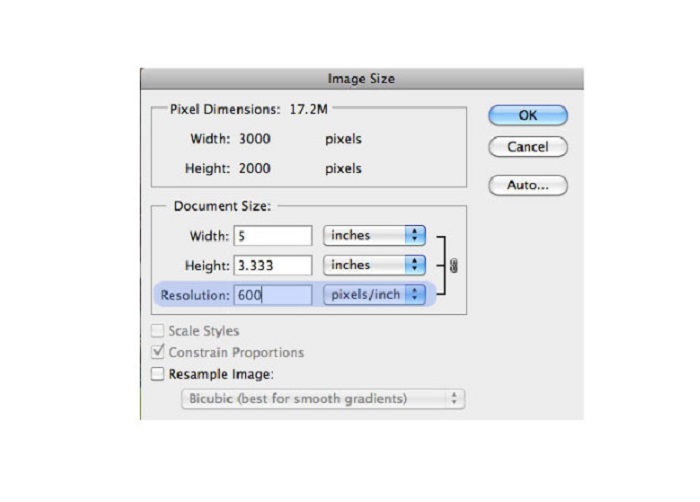
3. lépés. Ezután menj a Image > Image Size (Kép > Képméret) menüpontra. Ekkor felugrik egy párbeszédablak, ahol vedd ki a jelölést a Resample Image (Kép újramintavételezése) négyzetből, hogy csak a felbontás változzon meg. A felbontás mezőbe írd be a kívánt értéket.
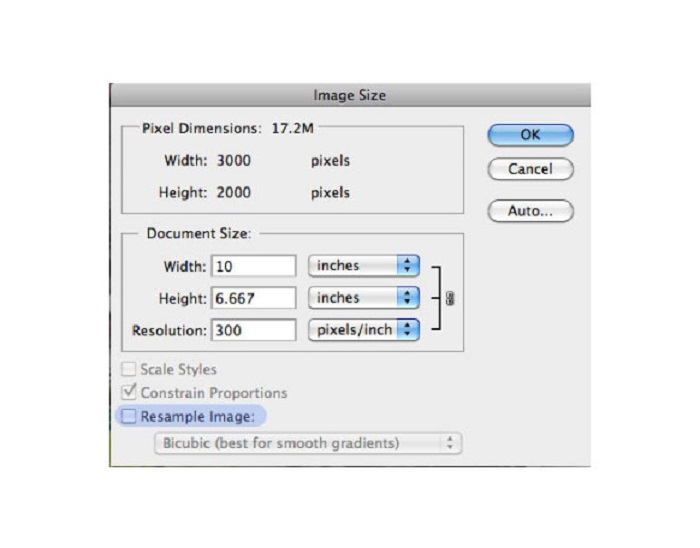
4. lépés. Miután módosítod a Resolution (Felbontás) értékét, a kép Width and Height (Szélesség és Magasság) adatai is megváltoznak. Ezután kattints az OK gombra, hogy elmentsd a képen végrehajtott módosítást. Ezzel a módszerrel alacsony felbontású képeket alakíthatsz át nagy felbontásúvá.
3. rész. Hogyan lehet javítani egy fénykép minőségét az iPhone készüléken
Egyes alkalmazások javíthatják az alacsony minőségű képet, ha Ön iPhone-felhasználó. Bár számos fotójavító alkalmazás elérhető az AppStore-on, mi közülük a leghíresebbet választottuk. Olvassa el ezt a részt, hogy megtudja, hogyan javíthatja a fénykép minőségét iPhone-on.
A Remini az egyik legjobb alkalmazás, amellyel javíthatod az alacsony minőségű képeket. Ez a nagyszerű app egyszerű kezelőfelülettel rendelkezik, így kifejezetten felhasználóbarát. Továbbá AI‑technológiát használ, amely automatikusan felismeri a kép elmosódott részeit. Biztonságosan használható, így a fájljaid is biztonságban vannak. Hátránya, hogy a végeredmény megtekintéséhez és letöltéséhez reklámot kell megnézned, hacsak nem vásárolod meg a teljes verziót, amelynél reklám nélkül töltheted le az eredményt.
A képminőség javítása iPhone-on a Remini alkalmazás segítségével:
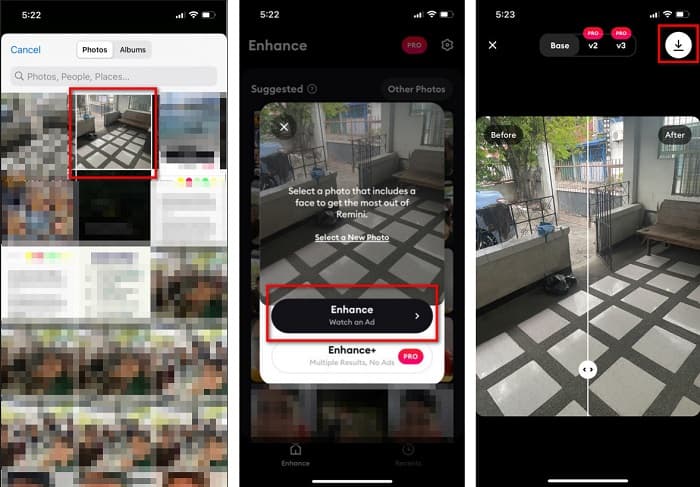
1. lépés. Töltsd le a Remini alkalmazást az App Store‑ból. A letöltés után nyisd meg az appot a telefonodon.
2. lépés. Ezután az alkalmazás fő felületén válaszd ki a felnagyítani kívánt képet.
3. lépés. Ezután érintsd meg az Enhance (Javítás) gombot, hogy növeld a képed minőségét. Ha igénybe veszed az alkalmazás Pro verzióját, nem kell reklámot nézned. Ha nem, a rendszer megköveteli egy reklám megtekintését az eredmény megjelenítéséhez és mentéséhez.
4. lépés. Most már megtekintheted a javított képet. Ezután érintsd meg a Download ikonra a képernyő jobb felső sarkában. És kész is! E néhány egyszerű lépéssel javíthatod a képed minőségét.
4. rész. GYIK a fényképminőség javításával kapcsolatban
Van olyan alkalmazás, amely javíthatja a képminőséget Androidon?
A fényképminőség javítása eszköz az egyik legjobb képminőség-javító alkalmazás a képminőség javítására. A Szépítő hatások kép használata professzionális megjelenést kölcsönöz képének.
Hogyan lehet javítani a fényképek minőségén a Lightroomban?
Az Adobe Lightroom egy másik Adobe‑termék, amellyel növelheted a képed felbontását. Olvasd el az alábbi egyszerű lépéseket, hogy megtudd, hogyan lehet javítani a fotó minőségét a Lightroom programban. 1. Töltsd le az Adobe Lightroom programot a számítógépedre. 2. Ezután nyisd meg a képed a Lightroom‑ban. 3. Kattints a Choose Photo > Enhance (Fotó kiválasztása > Javítás) menüpontra. 4. Ezután válaszd a Super Resolution (Szuper felbontás) lehetőséget, majd kattints az Enhance (Javítás) gombra. 5. Ezt követően láthatod, hogy a Lightroom növeli a képed felbontását, és DNG fájlként menti el.
Befolyásolja-e a fájl méretét, ha felnagyítja a képet?
A nyomtatási felbontás módosítása nem módosítja a kép pixeleinek számát, és nincs hatással a kép méretére.
Következtetés
Mostanra egyszerű javítani a képminőséget, különösen, hogy van egy útmutató, amelyet követhetsz. Számos számítógépes vagy iPhone‑os alkalmazás segíthet a képek felnagyításában. Ha azonban egy ingyenes képnagyítót szeretnél használni, amely automatikusan felnagyítja az elmosódott képet, használd most a FVC Free Image Upscaler eszközt.
-
 5 módszer a B612 vízjel eltávolítására a legjobb eszközökkel
 Szeretné tudni, hogyan távolíthatja el a B612 vízjeleket fotóiról? Ezekkel a kiváló eszközökkel könnyedén eltávolíthatja a B612 vízjelet a képeiről.
-
 Egyszerű lépések a WOW Slider vízjel eltávolításához [Megoldva]
 A WOW Slider egy fantasztikus diavetítés létrehozására szolgáló alkalmazás. Azonban vízjeleket ágyaz be a kimenetébe. Az alábbiakban megtudhatja, hogyan távolíthatja el a WOW Slider vízjelet.
-
 Egyszerű módszerek a lőálló vízjel eltávolítására
 Távolítsa el a Shootproof vízjelet az alábbi egyszerű módszereket követve. Ezekkel a csodálatos vízjeleltávolítókkal könnyedén eltávolíthatja a Shootproof vízjelet a képéről.
