


 Video Converter Ultimate
 Screen Recorder
 Videó javítás
 Biztonságos letöltés
Javítsa az iPhone fényképfelbontását a legjobb módszerekkel, amelyeket tudnia kell [Legújabb]
If you need a mobile device that can capture high-definition images, it is a smart move to pick an iPhone because of its innovative high-end front and back camera. Sorry Android users, we need to face the truth that the camera of the latest iPhone is way better. Most people usually take a snap using iPhone devices, but not all of the images they capture are perfect; some needs adjustment, editing, improvement, or upscaling. If you want to improve your iPhone photo resolution, follow this article as we indicate the information you need to know!

1. rész. Javasolt módszer: Hogyan lehet a fényképfelbontást online növelni a legjobb képfelbontással
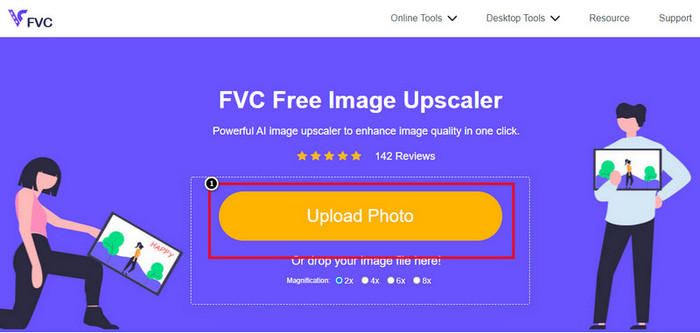
How to change photo resolution on iPhone 13? If this is your problem, you must use the FVC Free Image Upscaler. Everything you upload here, this tool will upscale it immediately with its proudly AI technology. You can sit and relax after you upload the image here because the tool will increase the resolution of the image you upload here. Unlike other software you can use, you wouldn’t need to download an installer here to use it. Also, FVC doesn’t require you to log in to your account here, so you are safe from leaking information, and it doesn’t give you cookies. So, if this tool caught your attention, you can immediately follow the steps we added below to fix the problem.
Step 1. Open the online tool by clicking the name of it above, and a new tab will automatically be opened; this will lead you to the official website.
Step 2. Tick the Upload Photo to insert the image you want to upscale in this tool. After you’ve clicked it, a folder will show on your screen, select the image, and press Open.
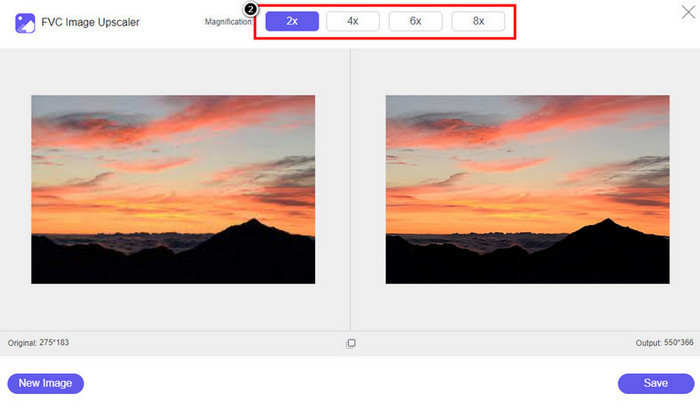
Step 3. Choose what type of Magnification you want to be applied to the enhanced version of the image; you can try them all to see which options make your image better in looks.
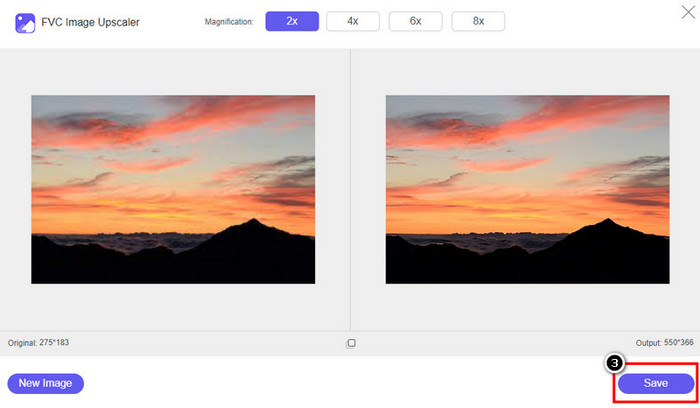
Step 4. Click the Save button to download the software you improve here; This tool will directly save it to your local folder. Check out the upscaled version of the image you edited here.
2. rész: Hogyan változtassuk meg a fényképfelbontást iPhone-on [Improve Your Image Save Easily]
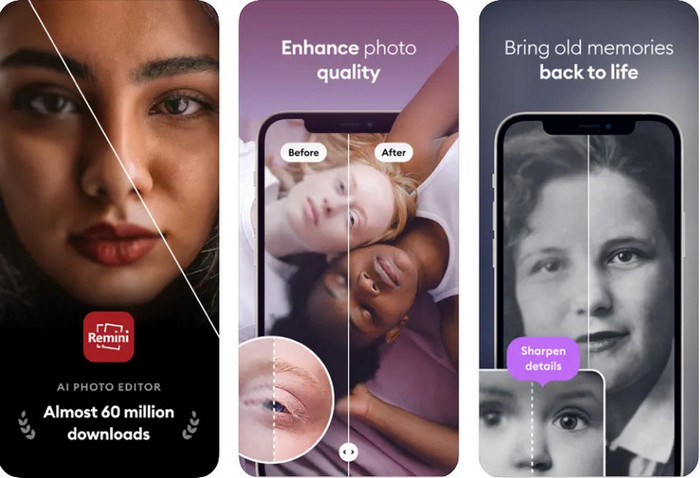
Remini App allows you to change the resolution of pictures iPhone to make them look even better. You can download this app on AppStore once you visit. This app is an all-in-one image editor that can help you enhance and turn black and white images into colorized ones with a single swipe. With this app, you can upscale any images up to 4x with the help of its AI technology. If you want to use this app, then you can copy the step-by-step we add next.
Step 1. Download the app on your iPhone so that you can start using it.
Step 2. Open the app and press Enhance. Select the image you want to improve that is in your Photos.
Step 3. Wait for the processing to enhance the image you upload; you can drag the slider to see the before and after of the image.
Step 4. Now that the processed image is done click the Save button to download the image you enhance.
3. rész: A fényképfelbontás megváltoztatása Androidon [A képek hatékony javítása]
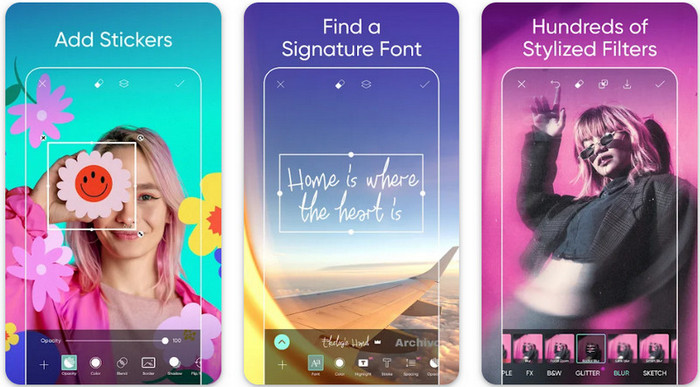
How to change picture resolution on Android? If you want to upgrade the image resolution you capture on your Android; you can try using Picsart. It is a well-known application you can download on your Android to edit images that you have to make them look better. This app is rich in features that you can take advantage of. The enhancement we will teach you isn’t the typical way you think, but it can improve image quality. Follow the detailed information below to know more!
Step 1. Download the app via the Play Store, then launch it. Choose the image you want to improve, then upload it.
Step 2. Go to Effects, click Blur, drag the slider for blur to set it to 5 to 10, and press the check icon to save it.
Step 3. Open the Tools and go to Curve.
Step 4. Adjust the curve by dragging it up and down to make your image resolution look better.
Step 5. Hit the check icon to save the changes you applied to the image by bending the curve, then Export it.
4. rész: Hogyan állítsuk be a kamera beállítását jobb képek készítéséhez! [Tippek és trükkök]
Hogyan lehet növelni egy fénykép felbontását iPhone-on, hogy jobb portrét készítsen? Nem minden funkció jelenik meg az iPhone Kamera alkalmazásában. A képminőség javítása érdekében néhány beállítási lehetőség. Érdekel, hogyan lehet kezelni ezt a problémát? Ezután olvassa el az alább hozzáadott információkat.
Step 1. Go to your Setting and open the Camera App.
Step 2. Click the Formats.
Step 3. Set the final output to Most Compatible, and that is the JPEG. Every time you capture images are in the JPEG extension, which we all know uses lossy image compression with a high-quality image output.
Összefüggő:
How to Fix HEIC Photos Using the Best Tools
Photo Blemish Removers You Must Use to Have Smooth Silky Skin on Images
5. rész. GYIK a fényképfelbontás megváltoztatásáról iPhone készüléken
Mitől romlik a képminőség az iPhone-on?
Számos tényezőt kell mérlegelnie, hogy mi lehet a probléma. Kép rögzítése előtt győződjön meg arról, hogy megtisztította az iPhone lencséjét, és stabil keze van, vagy használhatja a kameraállványt és a magas ISO-értéket mozgó tárgyakhoz. Ha ezt megtette, és továbbra is rossz a minőség, használhatja az ebben a cikkben felsorolt eszközöket.
A képminőség megváltoztatása megnöveli a fájl méretét?
Valójában a képminőség jobb lesz, miután javítja. Ha pixeleket ad hozzá a képhez, annak feljavítása után a javított verzió fájlmérete is megnő.
Könnyű megváltoztatni a fényképfelbontást iPhone-on?
Igen, nincs szükség sok éves tapasztalatra ahhoz, hogy javítsa iPhone-ja fényképfelbontását, ezért ha tudni szeretné, hogyan kell ezt megtenni, lemásolhatja a fent hozzáadott lépéseket és az általunk bemutatott eszközöket, amelyeket használhat.
Következtetés
After all, we now have a clear idea of how to make iPhone photo resolution even better than before with the help of these dedicated apps! We hope that this article help you deal with the problem with different solution on iPhone and Android. Everyone hates bad image quality so we are here to fix it. Follow the steps we add above to finish it in no time successfully!
-
 Alacsony felbontású kép nagy felbontású online konvertálása
 Ha szeretné megtanulni, hogyan alakíthat át alacsony felbontású képeket nagy felbontású képekké online, akkor ez a cikk neked szól. Olvassa el teljesen, hogy megtudja, hogyan.
-
 A legjobb 6 foltos fotóeltávolító, amelyre most szüksége van [2022]
 Szüksége van fotófolteltávolítóra, hogy sima bőre legyen? Ne aggódj többé! Itt bemutatunk különböző eszközöket, amelyek segíthetik az eszközt.
-
 Távolítsa el a StarUML vízjelet a használható ingyenes és fizetős verzió használatával
 Szeretné eltávolítani a StarUML vízjelet a végső kimenetről? Nos, ennek két módja van, és beszéljük meg ezeket itt.
