


 Video Converter Ultimate
 Screen Recorder
 Videó javítás
 Biztonságos letöltés
A Filmora vízjel egyszerű eltávolítása az exportált projektekről/videókról
A Wondershare Filmora egy középszintű videószerkesztő, amellyel finomhangolhatja az éppen futó projektet. Annak ellenére, hogy egy közepes szintű szerkesztő, átfogó funkciókkal rendelkezik, amelyeket szívesen használna, például effektusokat, sablonokat, beépülő modulokat stb. Ha kezdő vagy, és szeretné megtapasztalni a problémamentes videószerkesztést, de fanatikus kimenetet produkál kétségtelenül ez a választás lehet az Ön számára.
Felhasználóbarát kialakítása miatt sokan kipróbálták, készítettek vele videót, és az eredmény fantasztikus, viszont a videón rajta marad a termék vízjele. A vízjel eltávolításának egyik módja, ha havidíjas, éves vagy örökös csomagot vásárolsz – de mi van akkor, ha nincs rá pénzed? Itt bemutatjuk, hogyan távolíthatod el a Filmora vízjelet minden exportált videóról.

1. rész: Filmora vízjel eltávolítása a videó átméretezése nélkül
A FVC Video Converter Ultimate egy olyan, letölthető, teljes körű videoszerkesztő, amellyel a videók vízjeleit is szerkesztheted, még 4K felbontás esetén is. Windows- és Mac-felhasználók egyaránt élvezhetik a használatát, nemcsak azért, mert elérhető az operációs rendszerükre, hanem a funkciói és szolgáltatásai miatt is. Lehet, hogy nem ez a ranglisták első helyezett videoszerkesztője, de a vízjel videóról való eltávolításában meglepően erős.
Annak ellenére, hogy meg kell vásárolnia a szoftvert, az árát olcsóbbnak tartjuk, mint a Filmorát. Filmora vízjel eltávolítóra van szüksége? Ez az Ön feladata, és itt vannak a lépések a vízjel-eltávolító hatékony eltávolításához a vízjel vagy bélyegek eltávolításához a videón.
1. lépés. Töltsd le a program hivatalos verzióját az alább elhelyezett letöltés gombra kattintva. Telepítsd, indítsd el a szoftvert, és egy tetszetős grafikus felület jelenik meg a képernyőn.
Ingyenes letöltés Windows 7 vagy újabb rendszerre Biztonságos letöltés
Ingyenes letöltés macOS 10.7 vagy újabb rendszerre Biztonságos letöltés
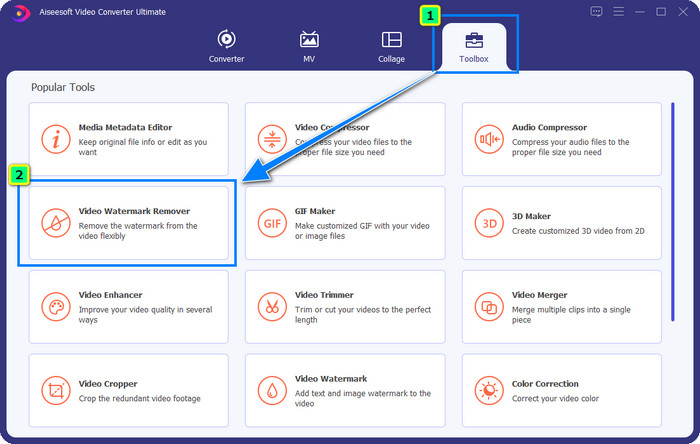
2. lépés. Miután megnyitottad a szerkesztőt, négy opciót látsz a szoftverben. A vízjel eltávolításához nyisd meg a Toolbox menüt. Válaszd a Video Watermark Remover opciót, amely a Toolbox menü alatt található.
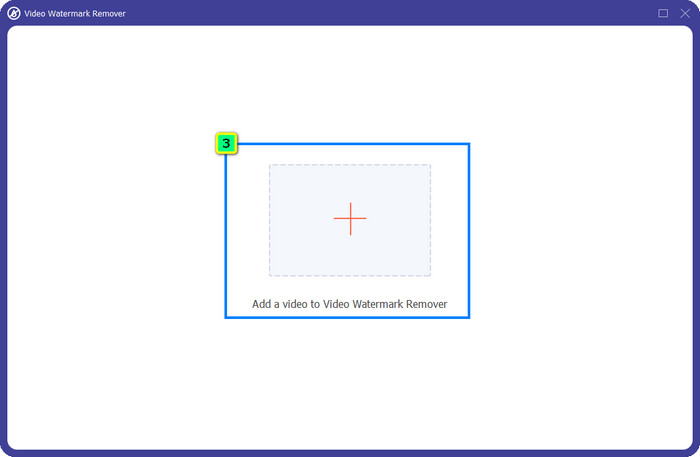
3. lépés. Miután rákattintottál, egy új ablak jelenik meg a képernyőn. Középen kattints a plusz ikonra, és add hozzá azt a fájlt, amelyről el szeretnéd távolítani a Wondershare Filmora vízjelét.
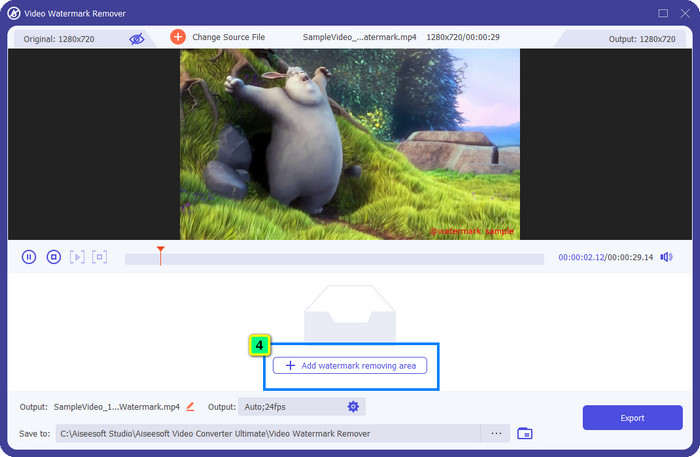
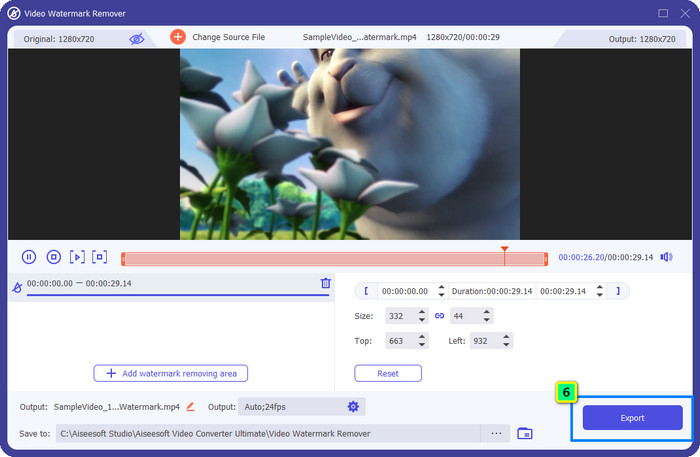
4. lépés. Ezután kattints az Add Watermark Removing Area gombra, hogy elkezdd használni az eszköz vízjel-eltávolító funkcióját.
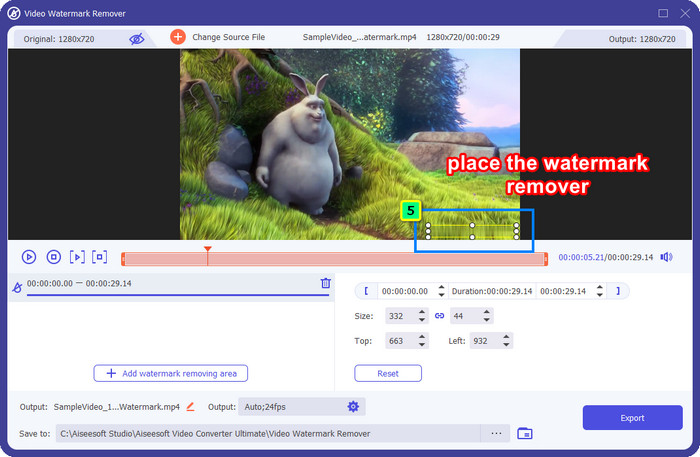
5. lépés. Most annyi a dolgod, hogy ráhelyezed a dobozt a vízjelre, és meggyőződsz arról, hogy az eltávolítani kívánt vízjel teljes egészében a dobozon belül van. Ha nem így lenne, a doboz méretét a széleken lévő pontok húzásával módosíthatod.
6. lépés. A videódhoz kötött vízjel eltávolításához kattints az Export gombra, és a végső kimenet néhány másodpercen belül elkészül – ilyen egyszerű.
2. rész: Filmora vízjel eltávolítása a vízjel kivágásával
Mivel az elsőként bemutatott vízjel-eltávolító hatékony, előfordulhat, hogy egy másik megközelítésre is szükséged van a Filmora videoszerkesztő vízjelének eltávolításához, mégpedig a körülvágásra (croppolásra). A FVC Video Converter Ultimate egy MI-alapú videókivágó eszközt kínál, amellyel át tudod méretezni a videót, és eltávolíthatod a rajta lévő vízjelet. Bár ez a módszer kevesebb lépést igényel, mint a vízjel-eltávolító, mégis inkább egy lehetőségnek, és nem első választásnak tekinthető. Miért? Mert megvágja a kép képarányát és a videó egyes részeit is levágja.
Mindazonáltal, ha ki akarja próbálni használni, akkor ezt is megkaphatja, ha a tökéletes eszköz a készülékén van.
Ingyenes letöltés Windows 7 vagy újabb rendszerre Biztonságos letöltés
Ingyenes letöltés macOS 10.7 vagy újabb rendszerre Biztonságos letöltés
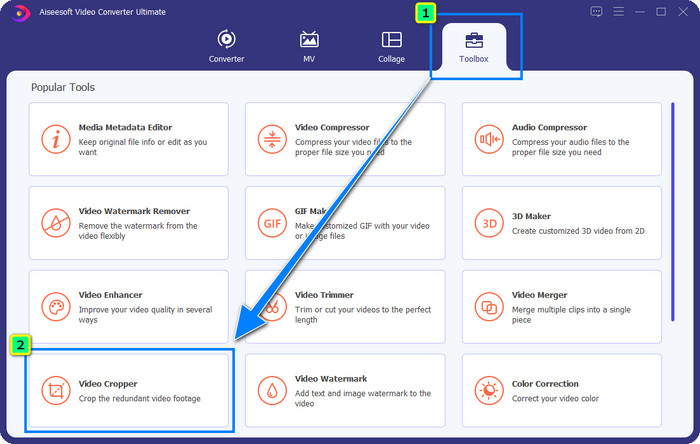
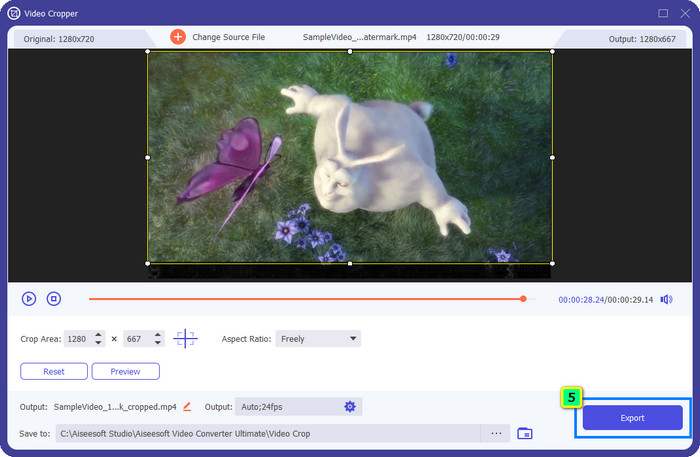
1. lépés. A szoftver letöltése után kattints a Toolbox menüpontra, és keresd meg a Video Cropper eszközt.
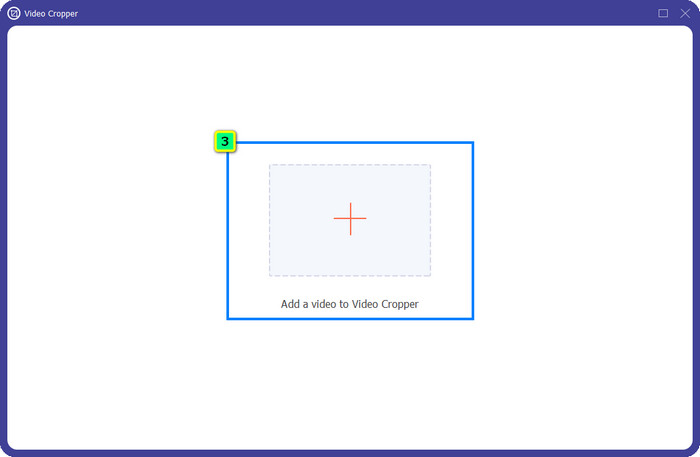
2. lépés. Add hozzá az itt körülvágni kívánt videót a plusz ikonra kattintva.
3. lépés. A keretet a pontok húzásával módosíthatod az igényeidnek megfelelően.
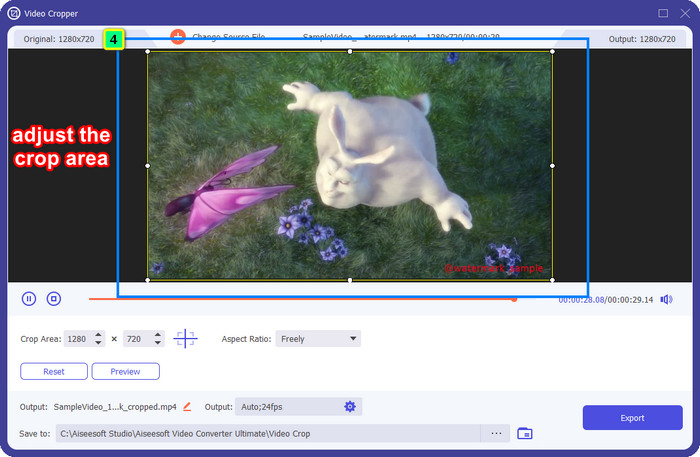
4. lépés. Ha elégedett vagy a kivágott verzióval, kattints az Export gombra, és az MI automatikusan körülvágja a videót.
3. rész: Hogyan távolítsuk el a Filmora vízjelet online ingyen
Hogyan lehet eltávolítani a Filmora logót szoftverletöltés nélkül? Kipróbálhatod a Video Watermark Remover Online eszközt. Ez egy online megoldás azok számára, akiknek gyorsan kell vízjelet eltávolítaniuk a videóról, anélkül hogy bármilyen szoftvert letöltenének. Rugalmas megoldásként említjük ebben a cikkben, mert a készülékeden lévő különböző webböngészőkből is elérheted.
Mivel online eszközről van szó, vannak bizonyos korlátozások, például, hogy hányszor távolíthatja el a vízjelet, a videobeviteli formátumok kis tartománya és a feldolgozási sebesség. De ha ezek nem bánják, elkezdheti követni a lépéseket.

1. lépés. Nyisd meg a kedvenc webböngésződet, keresd meg a nevét, majd kattints a találatok között a nevére, hogy közvetlenül a vízjel-eltávolító főoldalára juss.
2. lépés. Kattints a feltöltés ikonra, vagy húzd és ejtsd be a vízjellel ellátott videófájlt.
3. lépés. Várd meg, amíg az eszköz feldolgozza a videót, mivel közben beazonosítja a vízjelet. Ezután nyomd meg a Remove Watermark gombot.
4. rész. GYIK a Filmora logó eltávolításával kapcsolatban
Hogyan lehet eltávolítani a vízjelet a Filmoráról?
A vízjel Filmoráról való eltávolításának hivatalos módja havi, éves vagy örökös csomag vásárlása. Így minden alkalommal, amikor exportálja az itt létrehozott projektet, ne hagyjon vízjelet a végső kimeneten. Használhat különböző ingyenes regisztrációs kódokat, amelyek elérhetők az interneten, ha nem szeretne előfizetést vásárolni.
Biztonságos a Wondershare Filmora feltört verziójának letöltése?
Nem, nem az! Nem javasoljuk ennek a szoftvernek a harmadik fél webhelyéről való letöltését, mivel egyes webhelyek elérése nem biztonságos, és a feltört verziójuk rosszindulatú programokat hozhat a számítógépére. Kerülje a rosszindulatú harmadik felek webhelyeinek elérését és az onnan való letöltést, hogy megelőzze a helyrehozhatatlan károkat.
Melyik a legjobb alternatív videószerkesztő a Filmora számára?
Windows-felhasználók számára érdemes elolvasni az ebben a cikkben található információkat, mert bemutatjuk az 5 legjobb Windows-videoszerkesztőt, amelyeket letölthetsz vagy használhatsz az operációs rendszereden, és amelyek jobban vagy hasonlóan működnek, mint a Filmora. Ha viszont Mac készüléket használsz, megtudhatod, melyek a Wondershare Filmora legjobb Mac-videoszerkesztő alternatívái, amelyek a legjobban működnek macOS-en.
Következtetés
Minden benne van! Ebben a cikkben a Filmora vízjel eltávolításával kapcsolatos információk találhatók. Tehát mi a véleménye az általunk hozzáadott eszközökről? Annak ellenére, hogy nincs tapasztalata a vízjel eltávolításával kapcsolatban, követheti az oktatóanyagokat az egyes hozzáadott eszközökön. Ma már előfizetés megvásárlása nélkül élvezheti a Filmorán létrehozott projekt megtekintését. Oszd meg ezt a cikket másokkal is, hogy segíthessünk nekik! A megosztás törődés!
-
 Hogyan távolítsuk el könnyedén a vízjelet a Wondershare DVD Creator alkalmazásból
 Ez a cikk információkat tartalmaz a vízjel eltávolításáról a Wondershare DVD Creator alkalmazásból. Ahhoz, hogy minden szükséges információt megkapjon, ezt feltétlenül el kell olvasnia.
-
 Tanulja meg, hogyan lehet ingyenesen eltávolítani a Movavi vízjelet [Must Have!]
 Ha egy videót vagy képet exportál a Movaviba, akkor vízjel marad, de el lehet távolítani? A vízjel ingyenes eltávolításának megtanításához olvassa el ezt.
-
 3 egyszerű módszer a Fiverr vízjel eltávolítására Windows és Mac rendszeren
 A megfelelő oldalon van, ha olyan alkalmazást keres, amely eltávolíthatja a Fiverr vízjelet. Olvassa el ezt a bejegyzést, hogy megtudja, hogyan távolíthatja el egyszerűen a Fiverr vízjelet.
