


 Video Converter Ultimate
 Screen Recorder
 Videó javítás
 Biztonságos letöltés
Képek átméretezése az Illustratorban a számítógépén
Számos bonyolult szerkesztési mód terjedt el, különösen a profi fotószerkesztő alkalmazások, például az Adobe Illustrator megjelenésével. Ezekkel az erőteljes szerkesztőprogramokkal azonban továbbra is elvégezhet egyszerű módosításokat is. Például használhatja az Adobe Photoshopot, ha a képe méretét szeretné megváltoztatni. És tudta? Az Illustratorban két módszerrel is átméretezheti a képét. Az egyik, hogy manuálisan nagyítja vagy kicsinyíti a képet, a másik pedig, hogy beírja a kívánt numerikus értékeket a fotóhoz. Ebben az útmutatóban bemutatjuk ezt a két módszert, vagyis hogyan lehet képeket átméretezni az Illustratorban.

1. rész: Képek átméretezése az Illustratorban
Az Adobe Illustrator a szakemberek által leggyakrabban használt képszerkesztő szoftver. Ez az alkalmazás lehetővé teszi kivételes kimenetek létrehozását a kifinomult digitális rajzeszközök segítségével. Tökéletes vektor alapú illusztrációk, ikonok, tipográfia, logók és egyebek készítésére. Ezenkívül fejlett színopciókkal rendelkezik a színpaletták, színátmenetes színsémák létrehozásához és a különböző színek keveréséhez a lenyűgöző képkimenet érdekében.
Az Adobe Illustratorral sok mindent megtehet. Az említett szolgáltatások csak néhány az Illustrator által kínált számos szolgáltatás közül. És ha azt kérdezi, hogy az Adobe Illustrator képes-e átméretezni a képet, akkor a válasz igen. Folyamatosan olvassa el ezt a részt, hogy megtudja, hogyan kell átméretezni a képeket az Illustratorban.
Kép átméretezése az Illustratorban az Image Scaler segítségével
1. lépés. Először is le kell töltenie az Adobe Illustratort a számítógépére. Miután letöltötte és telepítette az alkalmazást, indítsa el az eszközén. Ezután nyissa meg a képét Illustratorban a File > Open (Fájl > Megnyitás) menüpontra navigálva. A képét úgy is beillesztheti, hogy kimásolja, majd beilleszti egy már megnyitott rajztáblára (artboard).
2. lépés. Ezután kattintson a Selection Tool (Kijelölő eszközre) (Cmd V a billentyűzeten), és kattintson a képre a kijelöléséhez. A kijelölés után fogantyúk jelennek meg a kép sarkaiban. Ezek a fogantyúk apró fehér négyzeteknek látszanak kék körvonallal. Ezekkel a fogantyúkkal átméretezheti/nagyíthatja-kicsinyítheti, elforgathatja és megnyírhatja (shear) a képét.
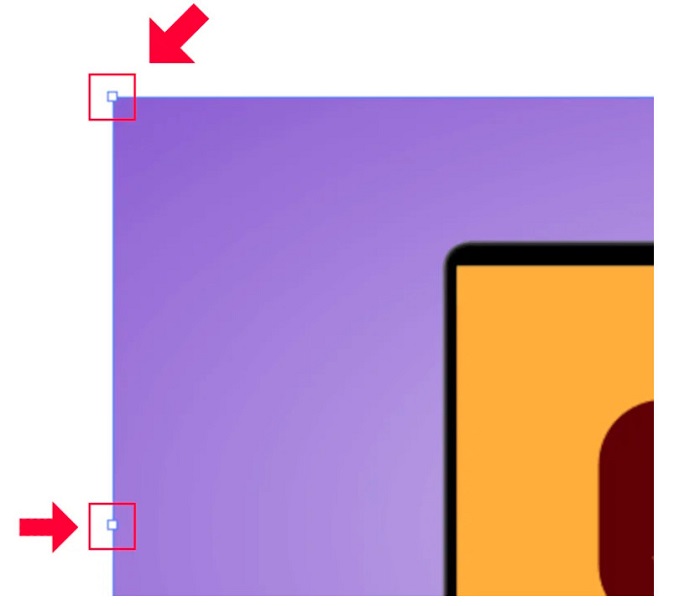
3. lépés. Ha méretezéssel szeretné átméretezni a képét, tartsa lenyomva és húzza bármelyik fogantyút a kívánt méretre. A kép oldalarányát (aspect ratio) is rögzítheti, ha lenyomva tartja a Shift billentyűt, miközben mozgatja a kurzort.
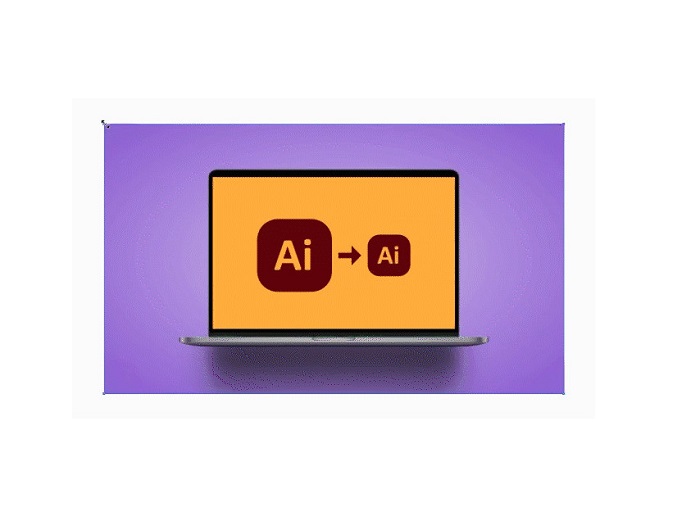
Miután átméretezte a képet saját ízlése szerint, most elengedheti a fogantyúkra kattintva.
Az Adobe Illustrator használata a kép átméretezésére a számértékek módosításával
Most megtanítjuk, hogyan méretezheti át a fényképet úgy, hogy számértékeket ad meg az Átalakítás menüben, ahelyett, hogy manuálisan méretezné a képet a Kijelölő eszközzel.
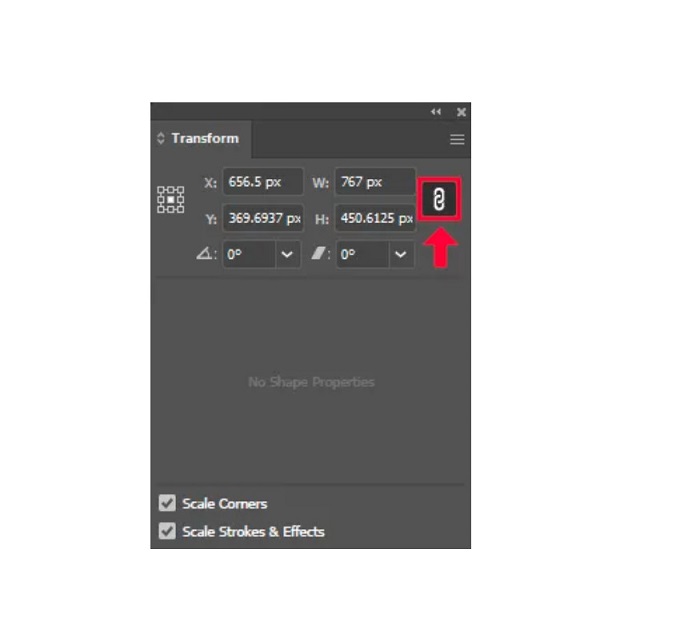
1. lépés. Miután megnyílt az Adobe Illustrator az eszközén, nyissa meg a Transform menüt a Windows > Transform (Ablak > Transzformálás) menüpontra kattintva. Ezt a menüt a billentyűzeten a Shift + F8 megnyomásával is előhívhatja. Így néz ki a Transform menü.
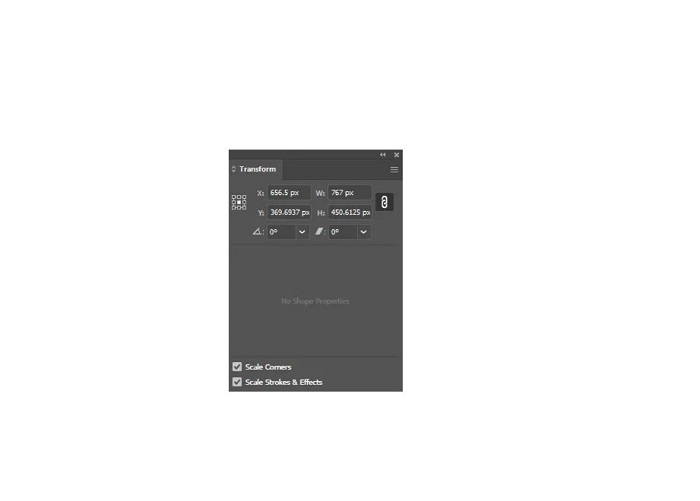
A Transform menü lehetővé teszi, hogy megváltoztassa az objektum helyét az X és Y tengelyhez viszonyítva. Ezen a menün keresztül numerikus értékek megadásával elforgathatja, megnyírhatja (shear) és átméretezheti a képét is.
2. lépés. Ezután válassza ki a képét, amelyet éppen átméretez, a Selection Tool használatával. Majd állítsa be a szélességet és a magasságot a Transform menüben úgy, hogy a számokat módosítja a fotóhoz kívánt méretnek megfelelően. A W betű jelzi a szélességet (width), a H pedig a kép magasságát (height).
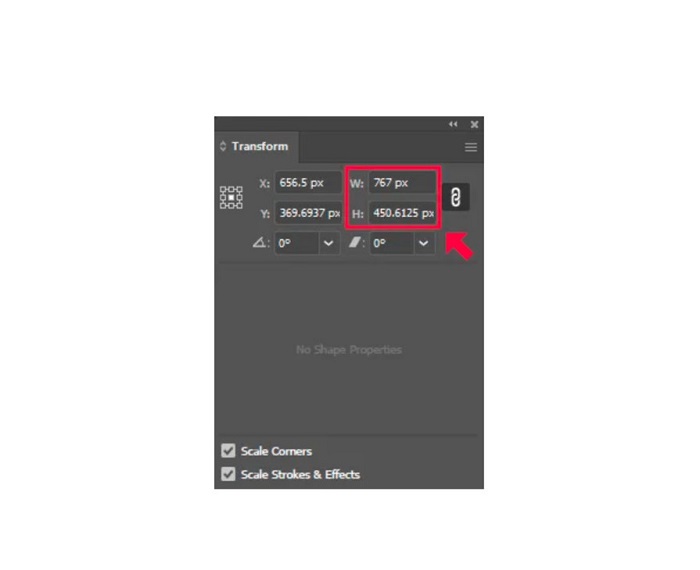
3. lépés. Hasznos, ha rögzíti a fotó oldalarányát is, mégpedig a magasság és a szélesség melletti Lánc (Chain) ikonra kattintva. Ha kiválasztja a Lánc opciót, és megváltoztatja a kép magasságát, a szélesség automatikusan követi.
Tip. A kép alapértelmezett mértékegységét is megváltoztathatja. Az Illustrator alapértelmezett mértékegysége a pixel (px). A mértékegységet az alábbi módon változtathatja meg:
◆ centiméter (cm)
◆ Milliméter (mm)
◆ hüvelyk (in)
◆ Százalékok (%)
A kép mértékegységének módosításához írja be a mértékegységet a megadott szám után. Miután megváltoztatta a kép numerikus értékét és mértékegységét, nyomja meg az Enter billentyűt a billentyűzeten.
Most exportálni fogjuk a képet. Jelölje ki a képét a Selection Tool segítségével, kattintson rá a jobb gombbal, majd válassza az Export Selection (Kijelölés exportálása) opciót.
Miután kiválasztotta az Export Selection opciót, megjelenik az Export for Screens (Exportálás képernyőkhöz) menü. Ez a menü lehetővé teszi, hogy az átméretezett képét használható formátumban mentse el.
A bélyegkép alatt előnézetben láthatja a kimenetet, és megváltoztathatja a fájl nevét a kívánt névre. Ezután az Export panelen kattintson a mappát ábrázoló ikonra, hogy böngésszen a kimenet mentési helyéhez. Ügyeljen arra is, hogy a Scale mező 1x értékre legyen állítva. Ezután válassza ki a kimeneti formátumot. Ajánlott PNG vagy JPG formátumot használni.
Végül kattintson az Export Asset gombra a kimenet mentéséhez.
Elképesztő, igaz? Az Adobe Illustrator segítségével kedved szerint szerkesztheted a képeket. Ez a rész a válasz arra is, ha azt keresi, hogyan lehet átméretezni a képeket az Illusztrátorban torzítás nélkül. Ez az alkalmazás azonban nem egy felhasználóbarát eszköz, mert nincs könnyen használható felülete. Ezért, ha egy könnyen használható alkalmazás segítségével szeretné átméretezni/felnagyítani a képet, olvassa el alaposan a következő részt.
2. rész. Online alternatíva az Illustratorhoz
Az Adobe Illustrator egy offline eszköz, és nem ingyenes. Tehát, ha egy fantasztikus képátméretezőt szeretne használni, amely ingyenes, és amely segít javítani a képét, kövesse az alábbiakban bemutatott útmutatót.
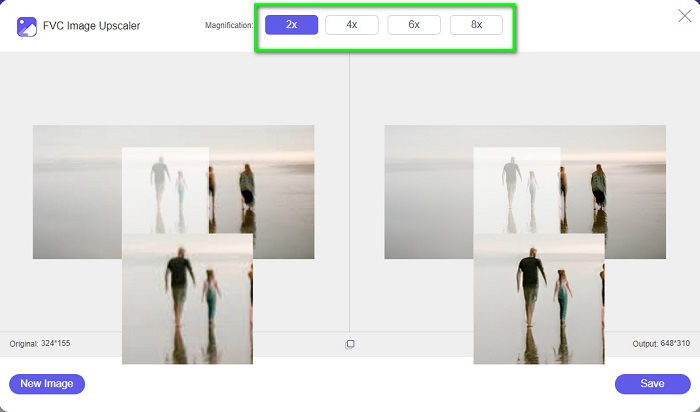
A FVC Free Image Upscaler egy online kép nagyító eszköz, amely segít a gyenge minőségű fotók feljavításában. Ez az online eszköz 2x, 4x, 6x és 8x nagyítással tudja javítani a képét. Emellett AI-t (mesterséges intelligenciát) használ, amely automatikusan felismeri a kép gyenge minőségű részeit, majd javítja azokat. Minden képformátumot támogat, többek között a JPEG, JPG, PNG és BMP formátumokat. Továbbá biztonságosan használható és teljesen ingyenes. Egyszerű felhasználói felületének köszönhetően könnyedén átméretezheti/nagyíthatja a képét.
Kép átméretezése az FVC Free Image Upscaler használatával:
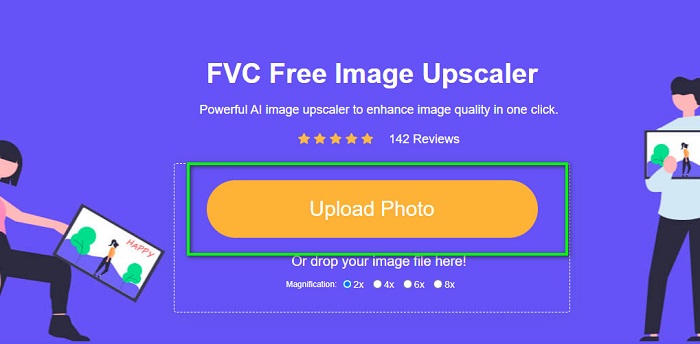
1. lépés. Keresse meg a FVC Free Image Upscaler eszközt a böngészőjében, vagy kattintson erre a linkre, hogy közvetlenül a főoldalára jusson. A szoftver fő felületén kattintson az Upload Photo (Fotó feltöltése) gombra az alkalmazás indításához az eszközén.
2. lépés. Ezután kattintson ismét az Upload Photo gombra, hogy importálja a nagyítani kívánt képet.
3. lépés. Miután a fotója feltöltődött, válassza ki a kívánt nagyítási előbeállítást. A következő értékek közül választhat: 2x, 4x, 6x és 8x.
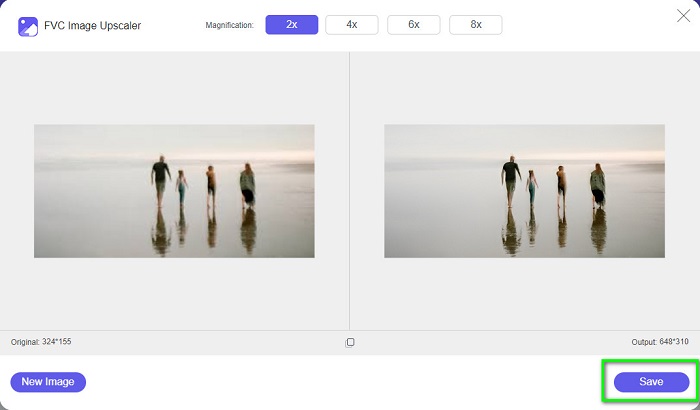
4. lépés. Végül kattintson a Save gombra, hogy elmentse a kimenetet az eszközére.
Kapcsolódik:
Hogyan használjuk a GIMP-et képek átméretezésére: lépésről lépésre
Hogyan méretezzünk át fotót Facebookra [Gyors és egyszerű lépések]
3. rész. GYIK a kép átméretezéséről az Illustratorban
Miért nem méretezi át az Adobe Illustrator a képeket?
Az Illustratorban nem lehet átméretezni a képet, mert a határolókeret valószínűleg nincs aktiválva. A határolókeret bekapcsolásához válassza a Nézet > Határolókeret megjelenítése menüpontot. Aktiválásával átméretezheti a képet az Illustratorban.
Átméretezhetek egy képet az Illustratorban minőségromlás nélkül?
Igen. Van mód a kép átméretezésére az Adobe Illustrator segítségével. Ha azonban a méretezővel átméretez egy képet, az a legtöbb esetben hatással lesz a kép minőségére.
Ingyenes az Adobe Illustrator?
Nem. Az Adobe Illustrator nem ingyenes. Mielőtt használná ezt a hatékony képszerkesztő alkalmazást, meg kell vásárolnia havi $20.99 áron.
Következtetés
A bemutatott módszerek követésével megtanulta, hogyan lehet képeket átméretezni az Illustratorban. Lehet, hogy sok lépést igényel, de megéri használni és kipróbálni. Az Adobe Illustrator problémája, hogy nem ingyenes, és a felülete összetett. Ha tehát kényelmesebb és ingyenes kép-átméretezőt szeretne, használja a FVC Free Image Upscaler eszközt.
-
 Kép átméretezése – Adobe Kép átméretezése [Online és Offline]
 Ha Adobe átméretező képet keres, akkor mi megtaláljuk a megoldást. Tekintse meg alaposan ezt a bejegyzést, hogy megtudja, hogyan lehet átméretezni a képeket az Adobe segítségével számítógépén.
-
 A legjobb Photo Resizer alkalmazás online, offline, Android és iPhone-on
 Melyek a legjobb fényképátméretező alkalmazások? Kattintson az oldalra, hogy megismerje az öt leghatékonyabb fényképátméretező alkalmazást, amellyel javíthatja vagy átméretezheti a fájlt
-
 A legjobb 7 képpontjavító az összes használandó webböngészőhöz
 Ha meg szeretné tudni a legjobban használható pixeljavítókat, jobb, ha megnézi ezt a bejegyzést. Ez a cikk felsorolja a hét legjobb fotópixel-javítót az összes webböngészőhöz.
