


 Video Converter Ultimate
 Screen Recorder
 Videó javítás
2 egyszerű módszer az MKV fájlok tömörítésére a minőség romlása nélkül
Szeretnéd csökkenteni egy MKV fájl méretét anélkül, hogy romlana a videó minősége? Van egyszerű, lehetőleg ingyenes módja az MKV fájlok tömörítésének?
Az MKV fájl jó minőségű videót és hangot biztosít, de általában nagy a fájlmérete. Ha fel szeretnél tölteni és megosztani egy MKV videót, gyakran szükség van a tömörítésére. A kérdés az, hogy hogyan lehet MKV fájlokat tömöríteni minőségromlás nélkül?

Valójában rengeteg videótömörítő létezik a piacon, köztük ingyenes online eszközök is, amelyek segítenek csökkenteni MKV videóid fájlméretét. Ebben a bejegyzésben 2 egyszerű módszert mutatunk be az MKV tömörítésére.
1. rész: Hogyan lehet ingyenesen tömöríteni az MKV fájlokat
Amint már említettük, számos ingyenes online videótömörítő vagy -szerkesztő segíthet az MKV tömörítésében és a fájlméret csökkentésében. Elsőként egy népszerű online Free Video Compressor eszközt ajánlunk, amellyel elvégezheted a feladatot.
Ezt az ingyenes online MKV fájltömörítőt kifejezetten a videotömörítéshez tervezték. Nagyon támogatja szinte az összes videó formátumot, beleértve az MKV, MP4, MOV, FLV, AVI és egyebeket. Képes csökkenteni a 4K, HD vagy SD videofájlok méretét a minőség romlása nélkül. Ráadásul ez az MKV tömörítő eszköz kötegelt tömörítési funkcióval rendelkezik, amely biztosítja a videó tömörítés gyorsabb befejezését.
1. lépés. Nyisd meg a böngésződet, és látogasd meg ennek az MKV fájltömörítőnek a hivatalos webhelyét. Kompatibilis minden gyakran használt böngészővel, például a Google Chrome, IE, Firefox, Safari és másokkal.
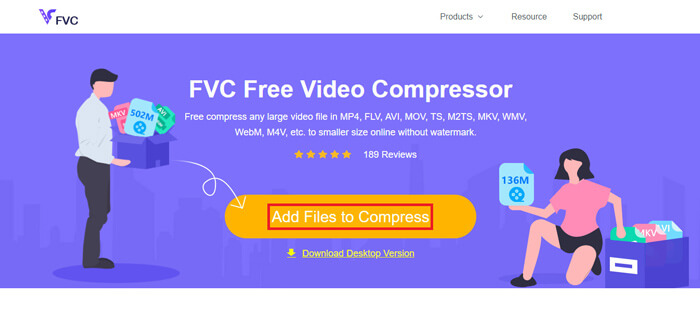
2. lépés. Kattints az Add Files to Compress (Fájlok hozzáadása tömörítéshez) gombra, hogy letölts és telepíts egy kis méretű indítóprogramot az MKV tömörítéséhez.
3. lépés. Válaszd ki és add hozzá a tömöríteni kívánt MKV fájlt. Ezután a jobb felső sarokban láthatod az MKV fájl méretét és a videó hosszát.
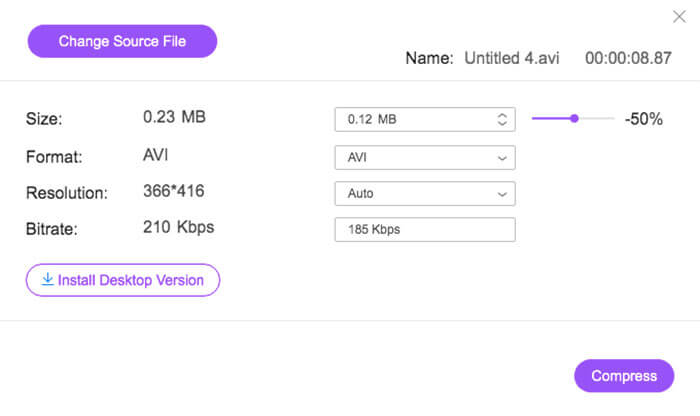
4. lépés. Lehetőséged van módosítani az MKV videó felbontását, képkockasebességét és bitrátáját. Emellett kiválaszthatsz egy megfelelő kimeneti formátumot a tömörített videóhoz. Miután mindezzel végeztél, kattints a Compress (Tömörítés) gombra az MKV tömörítésének megkezdéséhez.
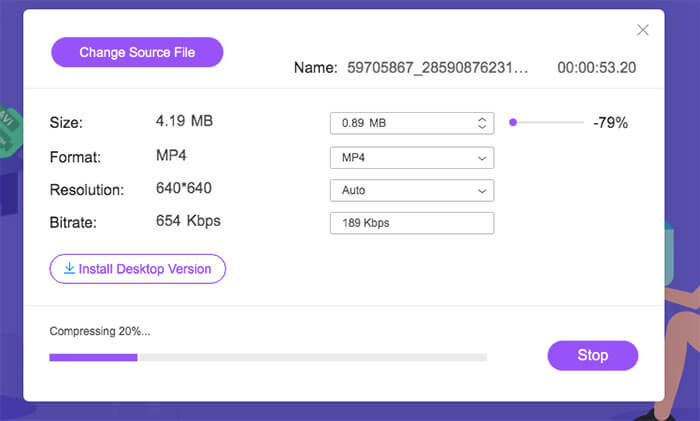
Néhány kattintással kényelmesen tömöríthet egy MKV fájlt a fájlméret csökkentése érdekében. Ennél is fontosabb, hogy a tömörített videóba nem kerül vízjel. Tudnia kell, hogy a legtöbb online videokompresszor vízjelet illeszt a kimeneti fájlba.
2. rész: Az MKV fájlok tömörítésének professzionális módja
A fenti módszerrel könnyedén, ingyenesen tömöríthetsz MKV fájlt online. Ha azonban túlságosan lecsökkented az MKV videódat, nagy valószínűséggel gyenge minőségű tömörített fájlt kapsz. Valójában választhatod azt is, hogy a felesleges részeket vágod le, így minőségvesztés nélkül csökkented a fájlméretet. Ehhez egy hatékony videókonvertáló és -szerkesztő eszközt, a Video Converter Ultimate programot mutatjuk be, amellyel minőségromlás nélkül tömörítheted MKV fájljaidat.
A Video Converter Ultimate-et kifejezetten különféle videókonvertálási és -szerkesztési feladatokra tervezték. Képes a videókat megvágni, és csak a hasznos részeket elmenteni. Sőt, rendelkezik egy Video Compressor funkcióval is az MKV fájlok tömörítéséhez.
Ingyenes letöltés Windows 7 vagy újabb rendszerre Biztonságos letöltés
Ingyenes letöltés macOS 10.7 vagy újabb rendszerre Biztonságos letöltés
1. lépés. Kattints duplán a fenti letöltés gombra, hogy ingyen telepítsd és elindítsd ezt az MKV fájltömörítő szoftvert a számítógépeden. Ez a videótömörítő lehetővé teszi MKV fájlok tömörítését Windows PC-n és Macen egyaránt.
2. lépés. Miután beléptél a főablakba, kattints a Toolbox (Eszköztár) fülre, majd válaszd a Video Compressor (Videótömörítő) funkciót.
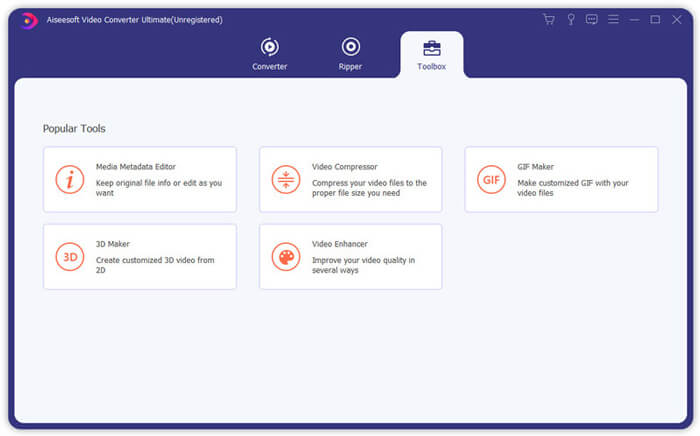
3. lépés. Kattints a + ikonra, és importálj egy tömöríteni kívánt MKV fájlt.
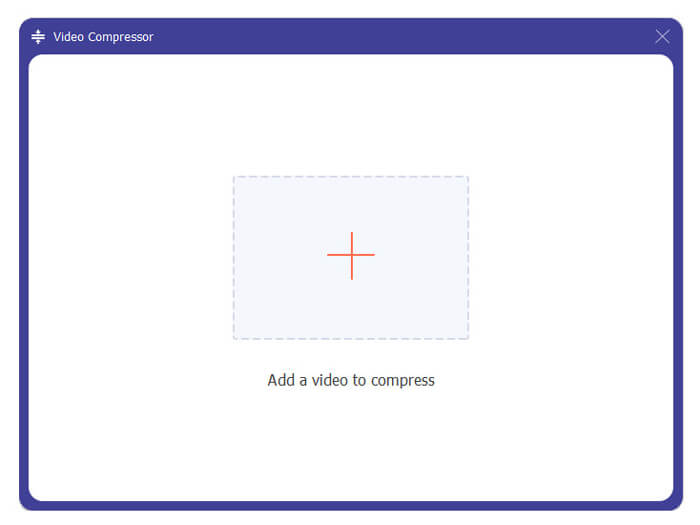
Most könnyedén csökkentheti az MKV fájl méretét az igényeinek megfelelően. Ebben a lépésben tetszés szerint egyéni videofelbontást, bitrátát, időtartamot és fájlnevet is beállíthat. Ezenkívül kiválaszthat egy megfelelő kimeneti formátumot a tömörített videó számára.
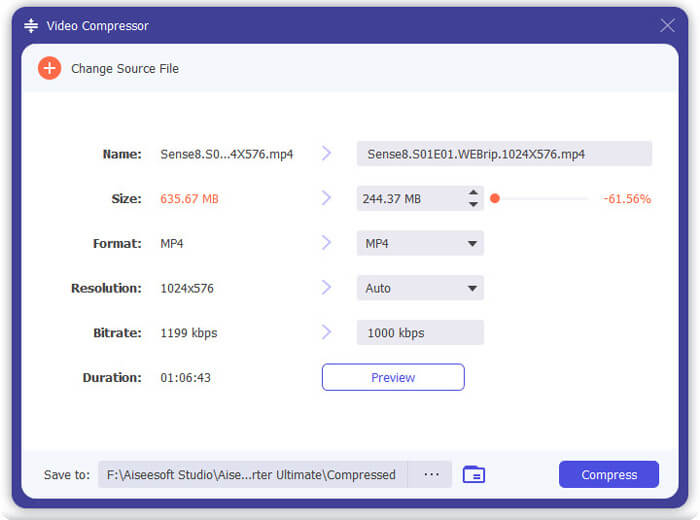
4. lépés. Kattints a Compress (Tömörítés) gombra, hogy MKV videódat kisebb fájllá tömörítsd.
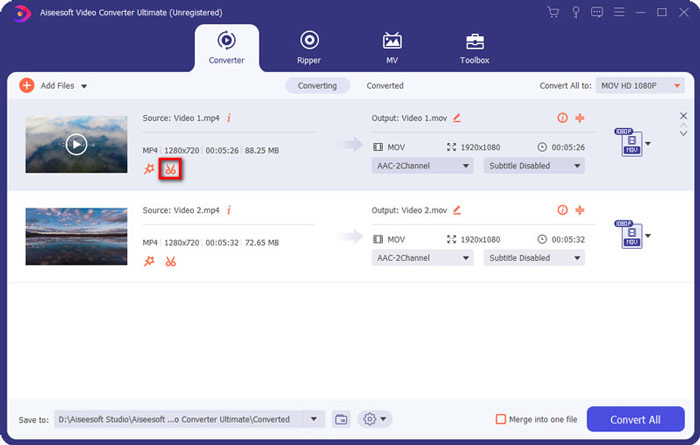
5. lépés. Ha a vágás funkcióval szeretnéd csökkenteni az MKV fájlméretet, térj vissza a főablakba, és válaszd a Converter (Konvertáló) opciót. Az MKV videó importálása után kattints a Cut (Vágás) ikonra a felesleges részek eltávolításához.
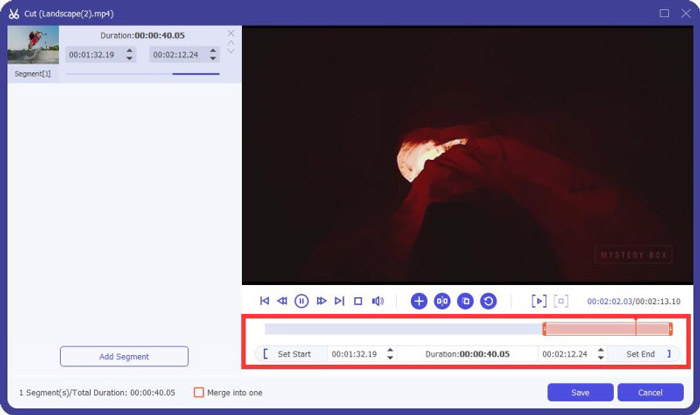
6. lépés. A csúszkát húzva az idővonalon, vagy a kezdési és befejezési idő közvetlen megadásával vághatod meg az MKV fájlt. Ezután kattints a Save (Mentés) gombra a művelet megerősítéséhez.
Ezt követően visszakerülsz a főablakba. Itt a Convert All (Összes konvertálása) gombra kattintva kimentheted az MKV videót. Ez az MKV fájlok tömörítésére szolgáló szoftver beépített médialejátszóval rendelkezik, amelynek segítségével közvetlenül megtekintheted a tömörítés eredményét.
Akár e-mailhez, akár WhatsApphoz tömörítesz videót, ebben a programban könnyedén megteheted.
3. rész: Gyakran feltett kérdések az MKV fájl tömörítéséről
1. kérdés: Hogyan lehet tömöríteni a videót a minőség romlása nélkül?
A fájl méretének csökkentése érdekében kivághatja a videót. Ezzel tömörítheti a videókat minőségromlás nélkül. Ha egy ingyenes online vagy professzionális videokompresszort választ, a videó mindenképpen elveszíti a kép vagy a hang minőségét. De lehet, hogy nem veszi észre a minőség romlását.
2. kérdés. Hogyan lehet átalakítani egy MKV fájlt MP4-re?
Egy MKV fájl MP4 videóvá való ingyenes konvertálásához megbízható Free Online Video Converter eszközre támaszkodhatsz. Ez lehetővé teszi az MKV–MP4 és más video/audio formátumok közötti átalakítást is, egyszerűen.
3. kérdés. Miért olyan nagyok az MKV fájlok?
Az MKV egy olyan konténer formátum, amely jobb kodeket és nagyobb tömörítési arányt használt. Az MKV fájlok általában a Blu-Rays-ból származnak, és nagyobb felbontásúak.
Következtetés
A cikk elolvasása után 2 egyszerű módszert ismersz meg az MKV fájlok tömörítésére. Az ajánlott videótömörítőkkel kényelmesen csökkentheted MKV fájljaid videóméretét. Ha ismersz jobb megoldást az MKV tömörítésére, oszd meg a hozzászólások között a többi olvasóval.
-
 Oktató videó tömörítésére az e-mailhez iPhone / Android / Online rendszeren
 Nem küldhet túl nagy videót e-mailben? Ha ez a probléma merül fel, itt működőképes módon tömörítheti a videókat e-mailben. Ez a cikk bemutatja, hogyan lehet részletesen csökkenteni a nagy videofájlokat.
-
 Bemutató a GIF tömörítésére és a fájlméret kiváló minőségű csökkentésére
 Itt van 2 egyszerű módszer a GIF tömörítésére a számítógépen vagy a mobiltelefonon. Használhatja az FVC Free Online Video Compressor és a Photoshop alkalmazásokat, amelyek különböző szempontokból csökkentik a GIF fájlméretet.
-
 2 módszer az AVCHD videók ingyenes kis fájlméretbe tömörítésére
 Az AVCHD videofájlok tömörítéséhez 2 egyszerű módszert szerezhet be. Online és offline videokompresszorokkal csökkentheti az AVCHD videó méretét a számítógépén.
