


 Video Converter Ultimate
 Screen Recorder
 Videó javítás
 Biztonságos letöltés
Az EPS konvertálása JPG- és PNG-fájllá [Részletes oktatóanyagok]
Professzionális és kiváló minőségű képek nyomtatásához egy vektorfájlra, úgynevezett EPS-fájlra van szükség. Teljes neve Encapsulated PostScript. Ennek eredményeképpen kevésbé ismert, mint a széles körben használt formátumok, például a JPG, PNG és GIF. Ha azt szeretné, hogy a tervei online, a nagyközönség számára is láthatók legyenek, az EPS-fájlt JPG-formátumba kell konvertálnia. Emellett egyes programok nem támogatják az EPS-fájlokat, ami kellemetlenséget okoz a felhasználóknak. Ezért az EPS más formátumokba, például JPG- vagy PNG-fájlokba való átalakítása a legjobb megoldás az Ön számára. Ez az útmutató tökéletes Önnek, ha az EPS formátumot más formátumokká, például JPG- vagy PNG-fájlokká szeretné konvertálni. Olvassa el ezt a cikket, és tudjon meg többet az EPS JPG-vé és PNG-vé alakításáról.

1. rész. Hasonlítsa össze az EPS-t, a JPG-t és a PNG-t
| Fájlformátum | EPS | JPG / JPEG | PNG |
| Fájlkiterjesztés | .eps | .jpg | .png |
| Teljes név | Tokozott PostScript | Közös Fényképészeti Szakértői Csoport | Hordozható hálózati grafika |
| Által kifejlesztett | John Warnock és Chuck Geschke | Közös Fényképészeti Szakértői Csoport | PNG Fejlesztési Csoport |
| Leírás | A beágyazott PostScript fájlok .eps kiterjesztéssel rendelkeznek, és az úgynevezett EPS fájlokat. Ezenkívül bittérképes adatokat is tartalmaz, amelyek egyedi szín- és méretkódolást tartanak fenn. Ez azt jelenti, hogy az EPS-fájlok tökéletesek a nagy felbontású képek méretezéséhez. | A felhasználók széles körben használják JPG fájlokat. Képekhez és webgrafikákhoz alkalmazzák. JPEG vagy JPG fájloknak is nevezik. A JPG képfájl formátum volt a leghatékonyabb képtömörítésre. | 1995-től kezdődően a PNG A képformátum a Portable Network Graphics rövidítése. Egy Oliver Fromme nevű informatikus készítette el a PING formátumot. Később azonban PNG-re változott. |
| Tömörítés | Veszteségmentes | Vesztes | Veszteségmentes |
| Kapcsolódó programok/böngészők | Adobe Illustrator, Adobe Photoshop, EPS Viewer, GIMP, Google Drive | IrfanView, Paint, Adobe Photoshop, GIMP, Microsoft, FastStone Image Viewer, Google Chrome, Internet Explorer | FastStone Image Viewer, Adobe Photoshop, GIMP, Microsoft, Paint, Google Chrome, Internet Explorer |
2. rész. Az EPS online JPG és PNG formátumú konvertálásának legegyszerűbb módjai
Hogyan lehet az EPS-t JPG/PNG-re konvertálni az FVC Free Image Converter segítségével
Az EPS fájlformátum nem népszerű bizonyos eszközökben, ezért nehézkes a konvertálása. Szerencsére az EPS-t JPG- vagy PNG-formátumba alakíthatja a FVC Free Image Converterrel. Ez az online eszköz számos bemeneti formátumot támogat, többek között az EPS, JPG, PNG, GIF, BMP és további formátumokat. Így bármilyen kívánt képet feltölthet. Emellett az EPS JPG/PNG formátumba konvertálása egyszerű. Az FVC Free Image Converter egyszerű módszereket kínál a képek átalakítására, ami kezdők számára is megfelelő. Továbbá az átalakító kötegelt konvertálási funkcióval rendelkezik: akár 40 képet is átalakíthat egyetlen kattintással. A képkonvertálót minden böngészőből elérheti, például a Google, Firefox, Explorer és más böngészőkből. Végül, a képek átalakítása után nem jelennek meg rajtuk felesleges elemek, például vízjelek, logók, szövegek és egyebek.
EPS konvertálása JPG-formátumba
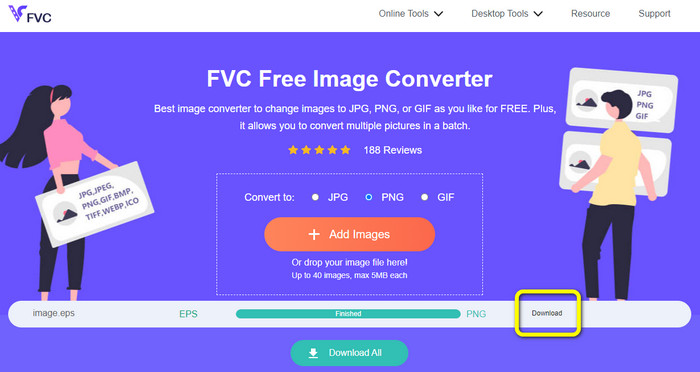
1. lépés. Nyissa meg a böngészőjét, és keresse fel az FVC Free Image Converter weboldalt. Válassza a JPG formátumot a Konvertálás ide opciónál.
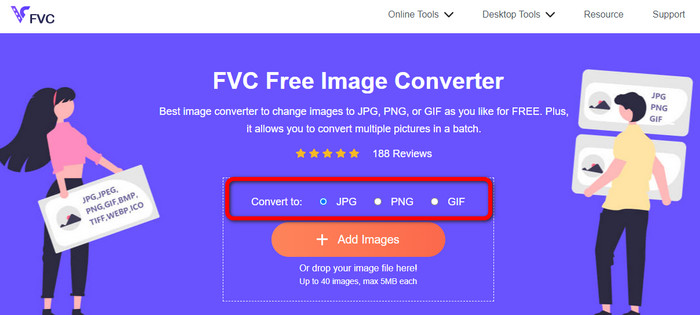
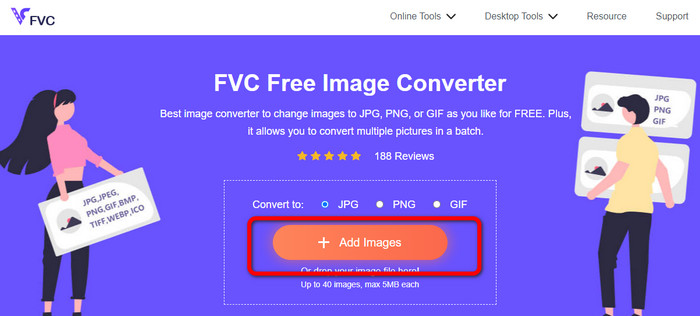
2. lépés. Kattintson az Add Images (Képek hozzáadása) gombra az EPS-képfájl feltöltéséhez. Nyissa meg a képet a számítógépe mappájából. Ha kötegelt konvertálási folyamatot szeretne, több fájlt is hozzáadhat.
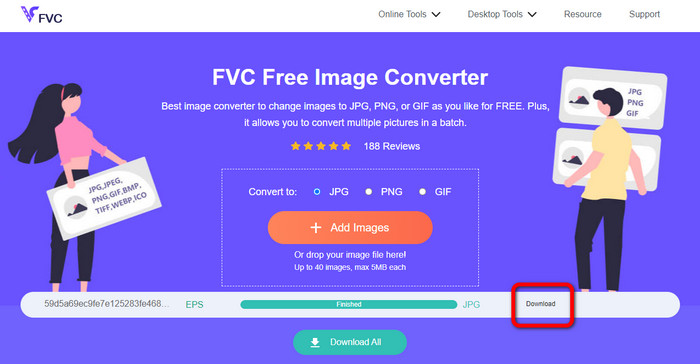
3. lépés. A konvertálási folyamat után kattintson a Download (Letöltés) gombra. Így elmentheti az átalakított képeket a számítógépére.
EPS konvertálása PNG-formátumba
1. lépés. Válassza a PNG fájlformátumot kimeneti formátumként.
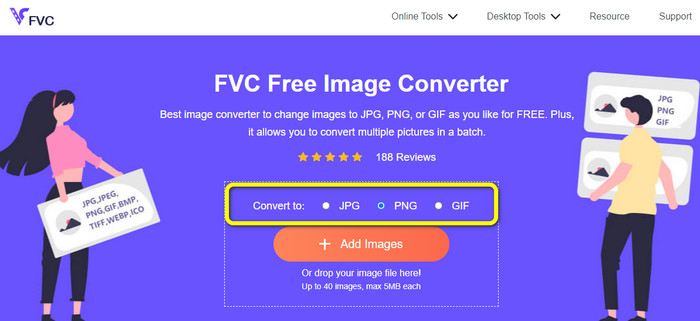
2. lépés. Kattintson az Add Images (Képek hozzáadása) gombra az EPS-képfájl feltöltéséhez. Nyissa meg az EPS-fájlt a számítógépe mappájából. A kép feltöltésének másik módja, ha a képfájlt egyszerűen behúzza a mezőbe.
3. lépés. Mentse el az átalakított képet a Download (Letöltés) gombra kattintva. Nyissa meg az átalakított képet a számítógépéről.
Hogyan lehet EPS-t konvertálni JPG/PNG-re az Aspose-on
A Aspose egy másik hasznos online eszköz az EPS JPG- vagy PNG-formátumba konvertálásához. Ehhez az eszközhöz nincs szükség asztali programok telepítésére. Bármi online konvertálható bármilyen operációs rendszerről – beleértve a Windows, Linux, macOS és Android rendszereket. Az Aspose nem igényel regisztrációt, így azonnal elkezdheti a konvertálási folyamatot. Sok képet szintén ingyen tud konvertálni; ehhez nincs szükség előfizetési díjra. A JPG és PNG mellett támogatja többek között a TIFF, BMP, DIB, GIF, SVG, WEBP és más képformátumokat is. Az is növeli a biztonságot, hogy ez az eszköz 24 óra elteltével törli a feltöltött képeit a magánszféra védelme érdekében. Mivel azonban online eszközről van szó, szüksége lesz internetkapcsolatra. Emellett előfordul, hogy a program nem működik megfelelően. A konvertálási folyamat ráadásul túl lassú, és nem támogatja a kötegelt konvertálást.
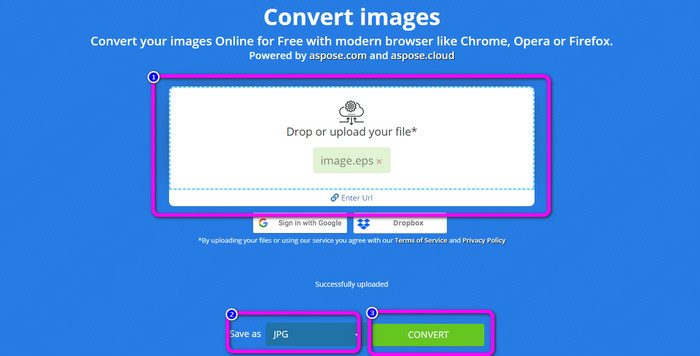
1. lépés. Látogasson el az Aspose hivatalos weboldalára. Kattintson a Drop or Upload your file (Fájl húzása vagy feltöltése) gombra. A számítógépéről nyissa meg azt az EPS-képet, amelyet konvertálni szeretne. A másik lehetőség, hogy az EPS-fájlt egyszerűen behúzza a fehér mezőbe.
2. lépés. Lépjen a Save as (Mentés másként) opcióhoz, és válassza a JPG vagy PNG fájlt kimeneti formátumként.
3. lépés. Indítsa el a konvertálási folyamatot a Convert (Konvertálás) gombra kattintva. Ezután mentse el az átalakított képet.
3. rész. A legjobb módszerek az EPS offline konvertálására JPG és PNG formátumba
Hogyan lehet az EPS-t JPG/PNG-re konvertálni a Video Converter Ultimate segítségével
Offline módszert találni az EPS JPG/PNG formátumba konvertálására nem könnyű – amíg rá nem talál a Video Converter Ultimate programra. Ez a szoftver lehetővé teszi, hogy az EPS-képfájlt JPG/PNG formátumba alakítsa. Emellett kötegelt konvertálási funkcióval is rendelkezik, így több képet is átalakíthat egyetlen kattintással. Az átalakító egyszerű felépítésű, ezért könnyen átlátható és használható. Letölthető Mac és Windows operációs rendszerekre is, így kényelmesen hozzáférhet. Továbbá a képek konvertálása közben a beállítások között módosíthatja a képminőséget, hogy javítson a megjelenésen. Használja az alábbi egyszerű útmutatót, hogy megtanulja, hogyan alakíthatja az EPS-fájlokat JPG- és PNG-formátummá.
1. lépés. Töltse le a Video Converter Ultimate programot Windows vagy Mac számítógépére. Hogy egyszerűbben beszerezze a konvertálót, kattintson az alábbi Download (Letöltés) gombra. Két gomb található alul, az egyik a Windows-, a másik a Mac-verzióhoz.
Ingyenes letöltés Windows 7 vagy újabb rendszerre Biztonságos letöltés
Ingyenes letöltés macOS 10.7 vagy újabb rendszerre Biztonságos letöltés
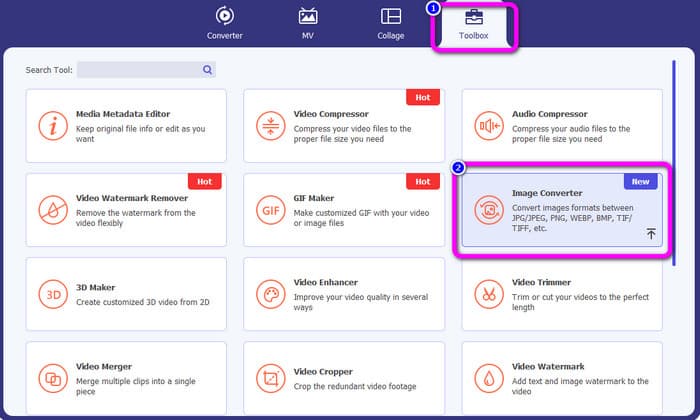
2. lépés. A program elindítása után lépjen a Toolbox (Eszköztár) panelre. Ezután válassza az Image Converter (Képkonvertáló) eszközt.
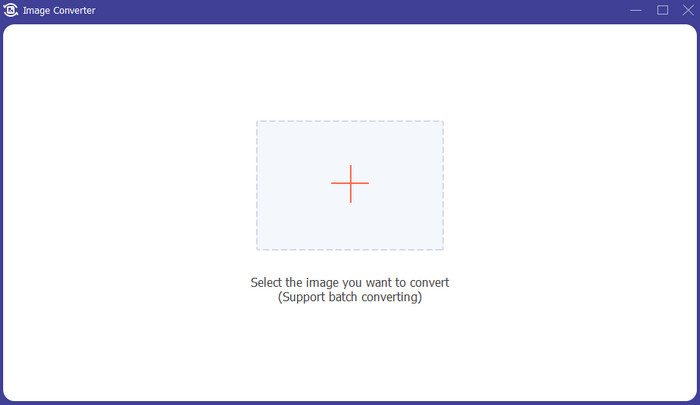
3. lépés. Kattintson a Plus (Plusz) gombra az EPS-képfájl hozzáadásához. A képfájlt a mezőbe is behúzhatja. Ezenkívül több képet is hozzáadhat a kötegelt konvertáláshoz.
4. lépés. Lépjen a formátumbeállításokhoz, és válassza a JPG/PNG formátumot.
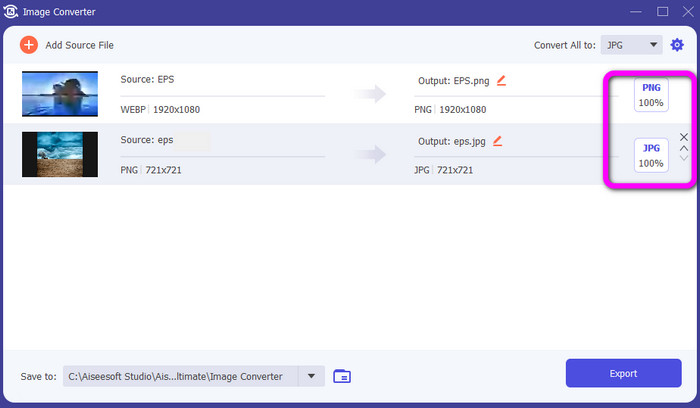
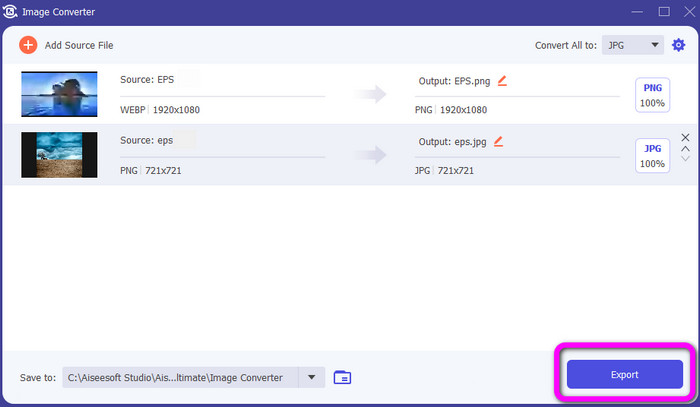
5. lépés. Miután kiválasztotta a kívánt kimeneti formátumot, kattintson az Export (Exportálás) gombra. Várja meg az exportálási folyamatot, majd megnyithatja az átalakított képeket az asztaláról.
4. rész. GYIK az EPS JPG és PNG formátumba konvertálásával kapcsolatban
1. Miért használnak az emberek EPS fájlokat?
Az emberek az EPS képfájl formátumot használják, mert az képes kicsinyíteni és felnagyítani a képeket a minőség romlása nélkül.
2. Meg tudom nyitni az EPS-t Photoshopban?
Igen tudsz. A kép azonban raszteres lesz. Ez azt jelenti, hogy szerkesztésre zárolva lesz.
3. Minden EPS fájl szerkeszthető?
Igen. Ha szerkeszteni szeretné az EPS képfájlokat, használhatja az Illustratort.
Következtetés
Mostanra már képet kapott arról, mik az EPS, JPG és PNG formátumok. Emellett a cikk három egyszerű módszert mutatott be az EPS JPG-vé és PNG-vé alakítására. Ha a képfájljait szeretné konvertálni, használja az FVC Free Image Converter eszközt. Ez az online konvertáló lehetővé teszi, hogy képeit egyszerűen és gyorsan alakítsa át.
-
 Hasznos módszerek a TIFF egyszerű konvertálásához JPG/PNG formátumba
 Ne hagyja ki ezeket a kiváló módszereket a TIF JPG/PNG formátumokká alakítására. Ez a bejegyzés megadja a szükséges információkat, amelyeket tudnia kell. Ez magában foglalja a különbségeiket.
-
 A BMP konvertálásának legegyszerűbb módjai JPG és PNG formátumokká
 Ismerje meg a legjobb módszereket a BMP konvertálására JPG vagy PNG formátumba kiváló konverterek segítségével. Azt is felfedezheti, hogy mi a különbség a BMP, JPG és PNG fájlformátumok között.
-
 Teljes részletek a JPEG és a JPG és a PNG közötti különbségekről
 Ez a bejegyzés elegendő információt nyújt a JPEG és a JPG és a PNG közötti különbségekről. Ezenkívül megtanulja, hogyan konvertálhat képeket ezekre a fájlokra.
