


 Video Converter Ultimate
 Screen Recorder
 Videó javítás
 Biztonságos letöltés
Lépésről lépésre oktatóanyagok a GIF JPG formátumba konvertálásához
A GIF a legnépszerűbb fájlformátum, amelyet eltúlzott érzelmek – például mémek – küldésére használunk. Animációt és állóképeket is tartalmazhat, de nem minden platform támogatja a GIF formátumot. Előfordulhat, hogy meg szeretnél osztani egy GIF‑képet, mert vicces, de nem tudod elküldeni, mivel az általad használt program vagy böngésző nem támogatja ezt a formátumot. Ez bizony frusztráló. Ha a képet problémák nélkül szeretnéd elküldeni, érdemes a GIF‑képet más formátumba, például JPG‑be konvertálni. Mivel a JPG formátum nagyon elterjedt, gyakorlatilag minden böngészőben és programban használható. Szerencsére ebből a cikkből különböző eljárásokat ismerhetsz meg arra, hogyan tudsz képátalakítók segítségével GIF‑et JPG‑vé konvertálni. Ha tehát a jövőben nem akarsz ugyanebbe a problémába ütközni, olvasd el a cikket, és kezdd el átalakítani a képeidet.

1. rész. GIF kontra JPG/JPEG
| Fájlformátum | GIF | JPG / JPEG |
| Fájlnév kiterjesztés | .gif | .jpg / .jpeg |
| Által kifejlesztett | Compuserve | Közös Fényképészeti Szakértői Csoport |
| Mime típus | kép/gif | kép/jpeg |
| Leírás | GIF az internet kedvenc fájlformátuma, mert képes animálni képeket. A GIF-fájlok bittérképes fényképeket használnak, és legfeljebb 8 képpont/bit méretűek. Ezenkívül 256 színt tesz lehetővé 24 bites RGB színtérben. Nem minden GIF-kép animált. | JPG formátum, amely manapság népszerű fájlformátum. Célja a képek tömörítése a letöltési és feltöltési idő csökkentése érdekében. Minden program hozzáférhet ehhez a formátumhoz. Ezzel szükségtelenné válik annak mérlegelése, hogyan lehet megnyitni ezt a fájlt különböző programokon és böngészőkön. |
| Kapcsolódó programok / böngészők | Adobe Photoshop Corel Draw Corel PaintShop Pro Vászon Google Chrome internet böngésző Microsoft Edge | Festék Adobe Photoshop Fotók Program IrfanView Fényképnéző internet böngésző Mozilla Firefox Google Chrome |
2. rész. Egyszerű módszerek a GIF-ek online JPG formátumba konvertálására
Hogyan lehet GIF-et konvertálni JPG-be az FVC Free Image Converter segítségével
A FVC Free Image Converter a legjobb online képkonvertáló a GIF JPG‑vé alakításához. Egyszerű lépéseivel gyorsan átalakíthatod a GIF fájlformátumot JPG‑re. Így ez az online eszköz a kezdők számára is kiváló. Az FVC Free Image Converter kötegelt konvertálási lehetőséget is kínál, vagyis több fotót is átalakíthatsz egyetlen művelettel. Az eszköz nem ad semmilyen zavaró elemet az átalakított és elmentett képekhez, így azokat tisztán, átláthatóan láthatod. Ráadásul a konvertálás közben semmilyen hirdetés nem jelenik meg a képernyőn, így figyelemelterelés nélkül dolgozhatsz. Kezdd el használni az alábbi egyszerű útmutatót, hogy a GIF‑et JPG képpé konvertáld.
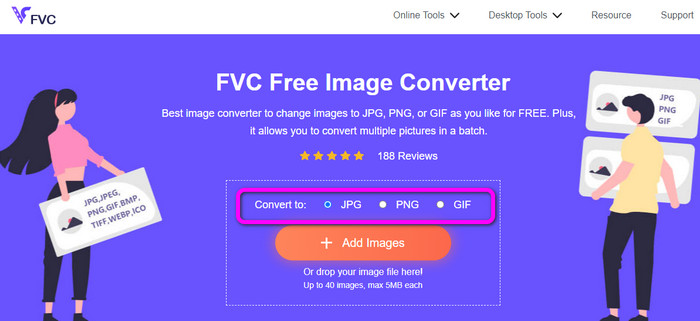
1. lépés. Látogass el az FVC Free Image Converter fő weboldalára. Bármilyen számítógépes böngészőt használhatsz az online konverter eléréséhez. Ezután kattints a JPG formátumra a Convert to (Konvertálás erre) opció alatt.
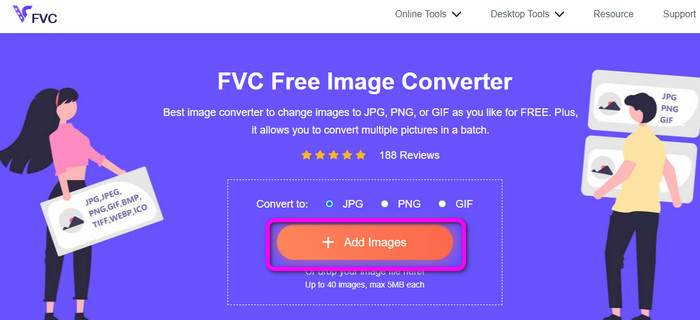
2. lépés. Kattints az Add Images (Képek hozzáadása) gombra. Amikor megjelenik a mappa az oldalon, nyisd meg a konvertálni kívánt GIF‑képet. Megnyithatod a számítógép mappáját is, majd húzd át vagy ejtsd a képfájlt a mezőre. Legfeljebb 40 képet tölthetsz fel, ha több fájlt szeretnél konvertálni.
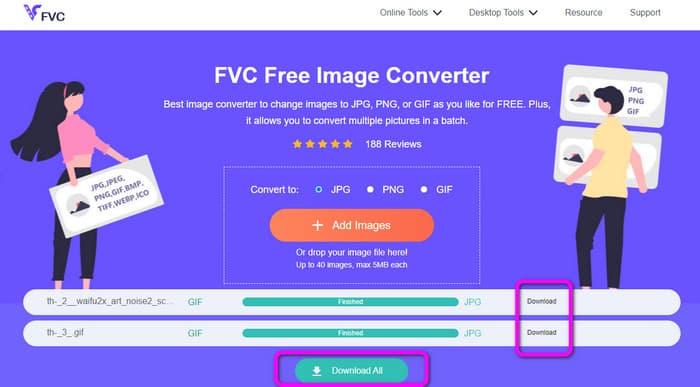
3. lépés. Az eszköz azonnal megkezdi a képek konvertálását a feltöltés után. Amikor a konvertálás befejeződött, kattints a Download All (Összes letöltése) gombra. Ha viszont egyenként szeretnéd menteni a képeket, kattints az oldalt található Download (Letöltés) gombra. Ezt az eszközt arra is használhatod, hogy WebP‑t GIF‑fé konvertálj.
Hogyan lehet GIF-et konvertálni JPG-be az Online Convert segítségével
Egy másik hasznos online eszköz a GIF JPG‑vé alakításához az Online Convert. Ezzel az online eszközzel különböző fájlokat konvertálhatsz, többek között JPG, PNG, GIF, TIFF, BMP és más formátumokat. A konvertálási folyamat gyors, és a használata is egyszerű, ami különösen előnyös a nem profi felhasználók számára. Emellett az Online Convert kötegelt konvertálást is kínál, vagyis egynél több képet is beilleszthetsz átalakításra. A programmal videókat, hangfájlokat, dokumentumokat és egyebeket is megbízhatóan konvertálhatsz. Az online képkonvertáló szinte minden böngészőben elérhető, például a Firefox, Chrome, Explorer és mások alatt. Hátránya, hogy kötegelt konvertáláskor egyszerre csak három képet tölthetsz fel; ha ennél több képet szeretnél egy időben feltölteni, a fizetős verzióra kell váltanod.
1. lépés. Nyisd meg böngésződdel az Online Convert weboldalát. Kattints a Choose Files (Fájlok kiválasztása) gombra az oldalon, hogy feltöltsd a GIF‑képet. A fájlt a zöld mezőre is ráhúzhatod.
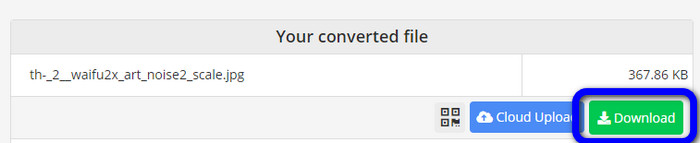
2. lépés. A GIF‑kép feltöltése után kattints a Start (Indítás) gombra. A gombra kattintva megkezdődik a konvertálási folyamat. Ezután kattints a Download (Letöltés) gombra, hogy elmentsd a konvertált képet a számítógépedre.
3. rész: Hogyan konvertálhatunk GIF-et gyorsan JPG-be offline módban
A Video Converter Ultimate programot is használhatod GIF JPG‑vé alakítására. Ez az offline program kiváló konvertálási módszert kínál, és intuitív felülettel rendelkezik, ami a nem profi felhasználók számára is alkalmassá teszi. A Video Converter Ultimate kötegelt konvertálást is nyújt, vagyis egyetlen kattintással több képet is átalakíthatsz. Emellett gyors konvertálási folyamatot biztosít, így nagy mennyiségű fájlt is gyorsan feldolgozhatsz. Számos képformátumot támogat, többek között a JPG, PNG, BMP, GIF, TIFF és egyéb formátumokat. A konvertálás mellett a kimeneti beállításoknál a fotó minőségét is módosíthatod, így az igényeidnek megfelelően alakíthatod a képminőséget. Végül a Video Converter Ultimate Windowsra és Macre egyaránt elérhető, ami kényelmessé teszi a használatát.
1. lépés. Töltsd le a Video Converter Ultimate programot az asztali gépedre. Lent két Download (Letöltés) gomb található. Ha Windows‑t használsz, kattints a Windows‑verzióra, ha pedig Mac számítógépet használsz, a Mac‑verzióra. A telepítés után indítsd el a programot.
Ingyenes letöltés Windows 7 vagy újabb rendszerre Biztonságos letöltés
Ingyenes letöltés macOS 10.7 vagy újabb rendszerre Biztonságos letöltés
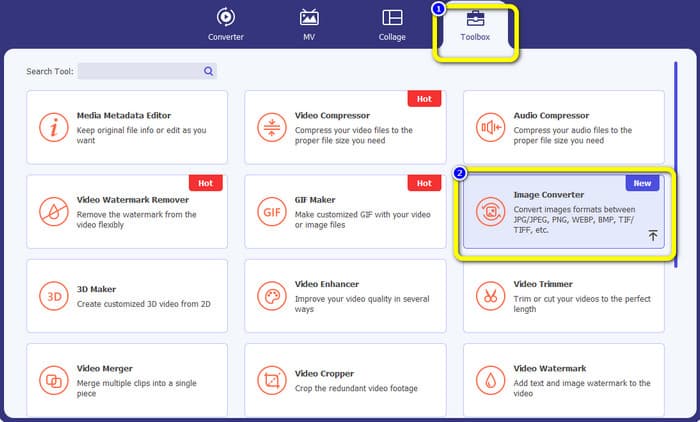
2. lépés. A felső felületen kattints a Toolbox (Eszköztár) panelre. Ezután válaszd ki az Image Converter (Képkonvertáló) eszközt. Egy újabb felület fog megjelenni a képernyőn.
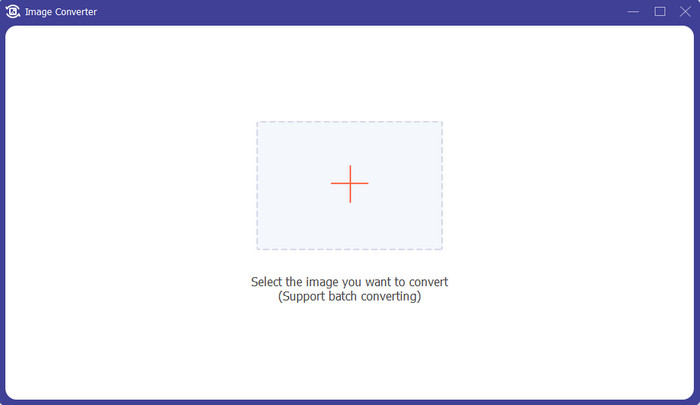
3. lépés. Kattints a középen lévő Plusz jelre. Amikor megnyílik a fájlmappa, válaszd ki és nyisd meg a GIF formátumú fájlt. További fájlokat is hozzáadhatsz, mivel a program kötegelt konvertálási funkciót kínál.
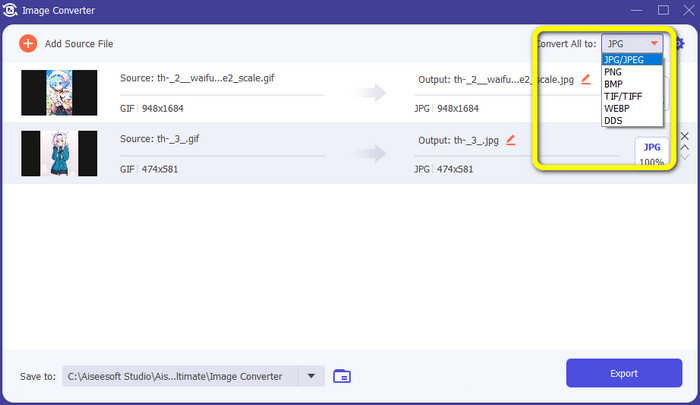
4. lépés. Menj a felület jobb oldalára, és keresd meg a formátumbeállításokat. Válaszd a JPG formátumot kimeneti formátumként.
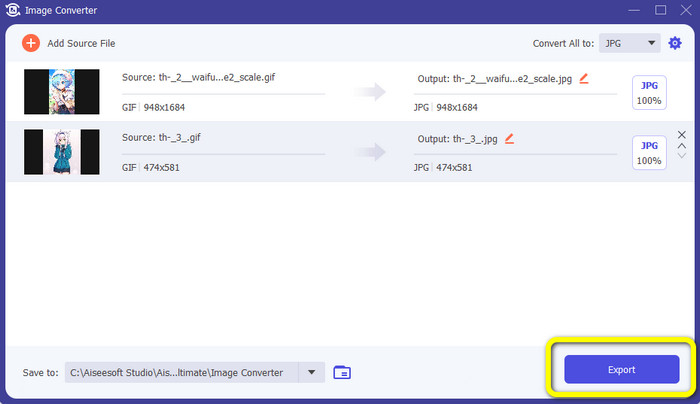
5. lépés. Miután kiválasztottad a JPG formátumot, kattints az Export (Exportálás) gombra. A folyamat befejeztével a kimeneti mappádban már meg is nyithatod az átalakított képeket.
4. rész GIF konvertálása JPG formátumba Androidon és iPhone-on
Ha iPhone‑on vagy Android‑os eszközön szeretnél GIF‑eket JPG‑vé konvertálni, használd a File Converter alkalmazást. Ez az app egyszerű módot kínál különféle fájlok JPG formátumba alakítására. A File Converter ráadásul ingyenesen letölthető, és elérhető a Google Play Áruházban és az App Store‑ban is. A telepítés azonban elég lassú lehet, és néhány beállítás nehezen érthető. Végül pedig az alkalmazás csak internetkapcsolattal működik igazán jól.
1. lépés. Lépj be a Google Play Áruházba vagy az App Store‑ba. Töltsd le a File Converter alkalmazást, majd indítsd el.
2. lépés. A felületen válaszd az Image Converter (Képkonvertáló) opciót. Ezután állítsd be a JPG formátumot kimeneti formátumként.
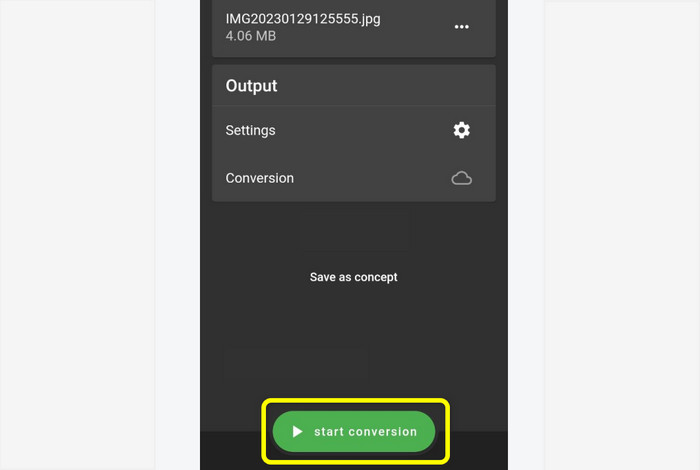
3. lépés. Kattints a File (Fájl) opcióra, hogy beilleszd a konvertálni kívánt GIF‑képet. Ezután kattints a Start Conversion (Konvertálás indítása) gombra. A folyamat végén elmentheted a képet a Galériádba.
5. rész. GYIK a GIF JPG formátumba konvertálásával kapcsolatban
1. Lehet szerkeszteni egy GIF fájlt?
Teljes mértékben igen. Ha szerkeszteni szeretné a GIF-képfájlt, használhat egy offline eszközt, például a Video Converter Ultimate-et. Különféle szerkesztőeszközökkel rendelkezik, amelyeket használhat, mint például az elforgatás, a vágás, a szűrők hozzáadása stb.
2. Hogyan menthetem el az iPhone fényképeit JPG formátumban?
Alapértelmezés szerint az iPhone‑nal készített fotók HEIC formátumban kerülnek mentésre. A legtöbb eszköz azonban nem ismeri fel ezt a fájlformátumot. A fotókat úgy mentheted el más formátumban, hogy módosítod az iPhone beállításait. Lépj a Settings > Camera (Beállítások > Kamera) menübe. Ezután koppints a Format (Formátum) opcióra. A formátumbeállításoknál válaszd a Most Compatible (Leginkább kompatibilis) lehetőséget, így a fotóid JPG‑ként lesznek elmentve.
3. Hogyan lehet GIF-et JPG-vé konvertálni a Photoshopban?
Indítsd el a Photoshopot a számítógépeden. Ezután menj a File (Fájl) menübe, és kattints az Open (Megnyitás) opcióra, hogy hozzáadd a GIF fájlt a programhoz. Ezt követően a program szerkesztőeszközeivel javíthatsz a fotón. Ha a képet JPG formátumban szeretnéd elmenteni, menj a File > Save as (Fájl > Mentés másként) menüpontra. Ezután a formátumbeállításoknál válaszd ki a JPG formátumot.
Következtetés
Ha minden böngészőben és programban szeretnél fotókat megosztani, jó döntés GIF‑jeidet JPG‑vé konvertálni. Ezért ez a cikk a legegyszerűbb módot kínálja, hogy a FVC Free Image Converter segítségével átalakítsd a képfájljaidat.
-
 Ismerje meg a WebP gyors JPG formátumba konvertálásának legegyszerűbb módjait
 Tanuljunk meg hatékony módszereket a webes képek egyszerű JPG formátumba konvertálására. Ez a cikk kiváló képátalakítókat kínál, amelyekkel képfájlokat konvertálhat.
-
 Kiváló technikák a GIF azonnali M4V formátumba konvertálásához
 Ez az útmutató a leghatékonyabb stratégiákat kínálja a GIF M4V formátumba konvertálására. Ezenkívül bemutatjuk Önnek a két legjobb átalakítót, amelyet kipróbálhat.
-
 Egyszerű utasítások a GIF konvertálásához MKV-vé asztali számítógépen
 Jöjjön el ehhez a cikkhez, ha a legkiválóbb módszereket keresi a GIF MKV fájlformátumokká konvertálására egy kivételes letölthető konverter segítségével.
