


 Video Converter Ultimate
 Screen Recorder
 Videó javítás
 Biztonságos letöltés
Fedezze fel, hogyan lehet átméretezni egy videót Androidon hatékony módszerekkel
Akár közösségimédia‑influenszer vagy, akár csak a legutóbbi utazásodat szeretnéd megosztani barátokkal és családdal, a videók átméretezése rengeteget számít. Nemcsak a fájlméret optimalizálásában segít a könnyebb megosztás érdekében, hanem a nézőid számára is jobb élményt biztosít. Ebben a bejegyzésben megmutatjuk, hogyan lehet videókat átméretezni Androidon – a képarány módosításától kezdve egészen a felbontás megváltoztatásáig. Egyszerű, könnyen követhető útmutatónkkal profi módon méretezheted át a videóidat, és a következő szintre emelheted a tartalmaidat.

1. rész. Oktatóanyag Videók körbevágása Androidon a Samsung Gallery segítségével
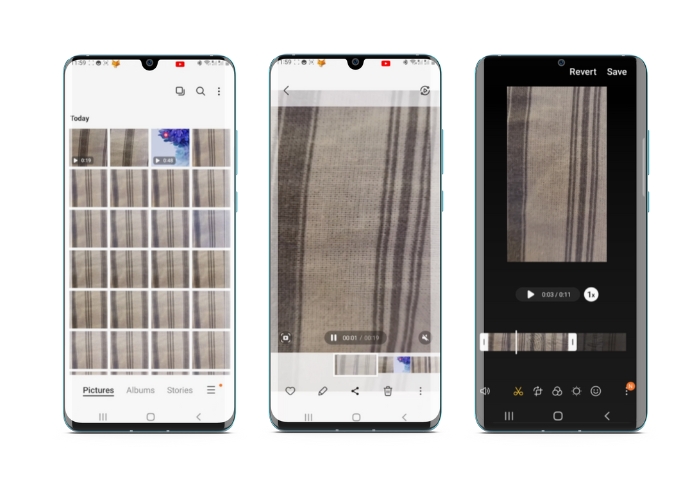
A Samsung Gallery alkalmazás elengedhetetlen a vizuális tartalom kezeléséhez és szerkesztéséhez, ha Samsung készüléke van. Az alkalmazás egyik hasznos funkciója a videók vágásának lehetősége útközben. Lehetővé teszi a felhasználók számára, hogy eltávolítsák a videó nem kívánt részeit, vagy módosítsák a képarányt. A vágás funkció megkönnyíti és intuitív. A Samsung Gallery segítségével egyszerűen hozhat létre és oszthat meg kiváló minőségű videókat, amelyek az Ön igényeire szabottak. Tekintse meg az alábbi lépéseket az Android videószerkesztő vágóeszköz használatához.
1. lépés. Indítsd el a Samsung Galéria alkalmazást az eszközödön, és keresd meg a videót, amelyet meg szeretnél vágni.
2. lépés. Koppints a videóra a megnyitásához, majd koppints alul a képernyőn a Szerkesztés gombra (a ceruza ikonra). A Szerkesztés képernyőn válaszd a Vágás opciót.
3. lépés. Most egy téglalapot látsz a videóra helyezve, a sarkain fogópontokkal. Húzd ezeket a fogópontokat, hogy szükség szerint átméretezd a téglalapot, és így levágd a videót. Koppints a Lejátszás gombra az így levágott videó előnézetéhez.
4. lépés. Ha elégedett vagy az eredménnyel, koppints a Mentés gombra, hogy elmentsd a vágott videót a Galériába.
2. rész. Útmutató, hogyan vághat ki egy videót Androidon a Google Fotókkal
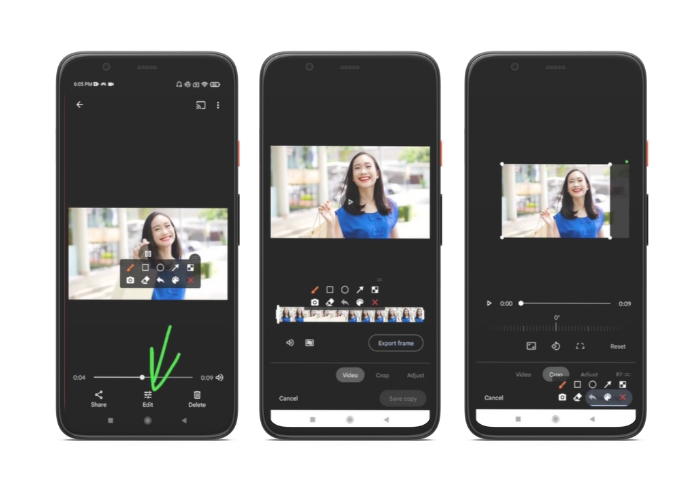
A Google Fotók egy népszerű fotó- és videókezelő alkalmazás az Android-felhasználók számára, és számos funkcióval rendelkezik, amelyek segítségével szerkesztheti és javíthatja vizuális tartalmait. Ennek az eszköznek az egyik nagyszerű tulajdonsága a videók körbevágásának lehetősége, amely lehetővé teszi a nem kívánt részek eltávolítását és a legfontosabb pillanatokra való összpontosítást. Néhány koppintással kivághatja a videókat, így egyszerű és intuitív módon készíthet fényes és professzionális megjelenésű videotartalmat Android-eszközén. Itt lépésről lépésre megmutatjuk, hogyan vághat le videókat a Google Fotókkal.
1. lépés. Indítsd el a Google Képek alkalmazást Android‑készülékeden, és keresd meg a videót, amelyet meg szeretnél vágni. Ezután koppints a képernyő alján található Szerkesztés gombra.
2. lépés. A Szerkesztés képernyőn válaszd a Vágás és forgatás opciót.
3. lépés. Most egy téglalap‑fedvényt látsz a videón, a sarkain fogópontokkal. Használd ezeket a fogópontokat, hogy szükség szerint átméretezd a téglalapot, és így levágd a videót.
4. lépés. Végül koppints a Mentés gombra, hogy elmentsd a videón végzett módosításokat.
3. rész. Útmutató: Videók körbevágása Androidon harmadik féltől származó alkalmazással
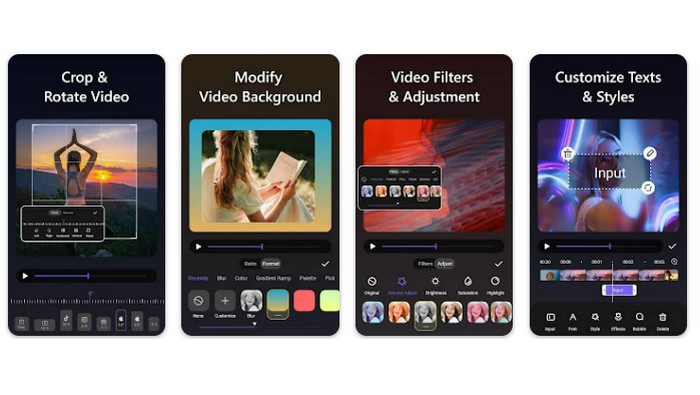
Az egyszerű videókészítés és ‑szerkesztés ma már minden Android‑os készülékkel rendelkező felhasználó számára elérhető, köszönhetően a Vid.fun alkalmazásnak. Ez a program számos módon lehetővé teszi a videók szerkesztését, például zene, szöveg és effektek hozzáadásával, a klipek vágásával és összefűzésével, és még sok egyébbel. Az alábbi lépések követésével megtanulhatod, hogyan lehet videót átméretezni Androidon ezzel a programmal.
1. lépés. Töltsd le a Vid.fun alkalmazást a Google Play Áruházból, majd indíts egy új projektet.
2. lépés. Válaszd ki a készülék galériájából vagy filmtekercséből azt a klipet, amelyet meg szeretnél vágni, és húzd be az idővonalra.
3. lépés. Az idővonalon koppints a kívánt videórészre, majd használd a képernyő alján található Vágás gombot a szegmens módosításához.
4. lépés. A videóra egy téglalap került ráfedésként, amelynek sarkait húzva módosíthatod a kivágást. A videó vágásához egyszerűen fogd meg a sarokfogókat, és húzd őket a kívánt pozícióba. Ha elkészültél, elküldheted a videót szeretteidnek, vagy megoszthatod online.
4. rész. Alkalmazásajánlás
Természetesen a mobilalkalmazások után van egy asztali programajánlatunk is. A FVC Video Converter Ultimate egy átfogó szoftver videóformátumok átalakítására, amely számos szerkesztőeszközt is tartalmaz. Kiemelkedő funkciója a videó képarányának beállítási lehetősége.
Ezzel a programmal könnyedén módosíthatja a videó alakját és méretét a képarány megváltoztatásával. Ha egy videót szeretne megosztani a közösségi médiában meghatározott képarányban, vagy ha csak egy adott képernyőmérethez kell igazítania a videót, az FVC Video Converter Ultimate segít Önnek. Ismerje meg, hogyan vághat ki videókat Androidon a program segítségével.
1. lépés. FVC Video Converter Ultimate letöltése és telepítése
Az alkalmazást az alábbi Ingyenes letöltés gombok egyikére kattintva töltheted le. Miután a program letöltődött, telepítsd, majd indítsd el a számítógépeden.
Ingyenes letöltésWindows 7 vagy újabb rendszerreBiztonságos letöltés
Ingyenes letöltésMacOS 10.7 vagy újabb rendszerhezBiztonságos letöltés
2. lépés. A vágni kívánt videó importálása
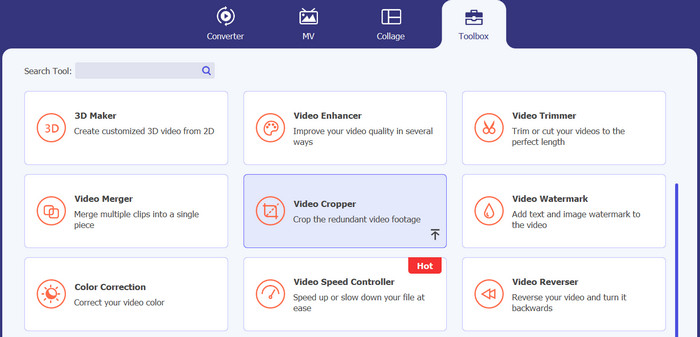
Ezután menj a program felső felületén található Eszköztár (Toolbox) fülre. Válaszd a Video Cropper opciót, majd adj hozzá egy fájlt a plusz jelre kattintva.
3. lépés. A videófájl megvágása
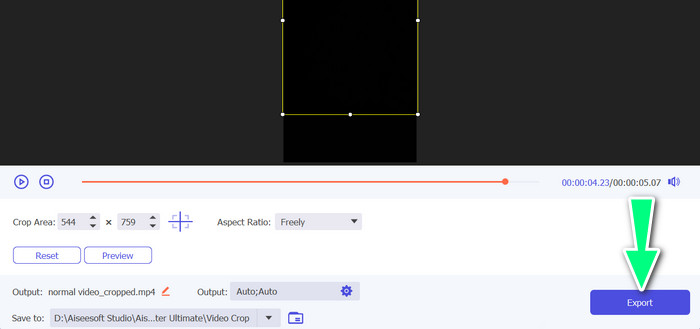
Most levághatja az importált videót. A körbevágási terület csúszkákkal állítsa be a videóból kivágni kívánt területet. A legördülő menüből is kiválaszthat egy adott képarányt. Tekintse meg a kivágott videó előnézetét, hogy megbizonyosodjon arról, hogy a videó kívánt része le van vágva.

4. lépés. A vágott videó exportálása
Végül kattints a jobb alsó sarokban található Export gombra, hogy befejezd a vágási folyamatot, és elmentsd a vágott videót.
5. rész. GYIK a videók körbevágásáról Androidon
Hogyan vághatok le videókat minőségromlás nélkül?
A videók minőségromlás nélküli körbevágásának egyik módja egy olyan videószerkesztő eszköz használata, amely támogatja a roncsolásmentes vágást. Ez azt jelenti, hogy az eredeti videofájl nem módosul, és csak a kivágott rész kerül mentésre új fájlként.
A videó Androidon történő levágása befolyásolja a minőségét vagy a felbontását?
Igen, a videó Androidon történő levágása befolyásolhatja annak minőségét vagy felbontását, mivel a folyamat az eredeti videó egy részének eltávolítását jelenti. Azonban a minőség vagy a felbontás befolyásolásának mértéke számos tényezőtől függ, például a kivágás méretétől, az eredeti videó minőségétől és a videó körbevágásának módjától.
Lehetséges egy videót körbevágni és effektusokat vagy szűrőket hozzáadni egyszerre Androidon?
Igen, Androidon lehetséges egyszerre videót vágni és effekteket vagy szűrőket hozzáadni. A Google Play Áruházban számos olyan videoszerkesztő alkalmazás érhető el, amely a vágás mellett videóeffektusokat és videoszűrő‑opciókat is kínál. Néhány népszerű példa: FVC Video Converter Ultimate, Filmora stb.
Következtetés
Hogyan vágjunk videót Androidon – megtanulása egyszerű folyamat, amelyet különféle alkalmazásokkal és szoftverekkel el lehet végezni. A Samsung Galéria, a Google Fotók és a FVC Video Converter Ultimate csak néhány példa azon eszközökre, amelyek segíthetnek az Android‑os eszközökön tárolt videók vágásában.
-
 Útmutató a nem lejátszott videók javításához Android telefonokon
 Szeretné tudni, hogy mi az oka annak, hogy az Android-eszközén lévő videókat nem lehet lejátszani? És ha igen, van-e mód a probléma önálló megoldására? Folytassa az olvasást, ha többet szeretne megtudni.
-
 A videó felgyorsításának legegyszerűbb módjai Android-eszközein [2023]
 Tudtad, hogy Androidon felgyorsíthatod a videót? Tehát, ha tudni szeretné, hogyan gyorsíthatja fel a videót Android-telefonján, olvassa el ezt az írást.
-
 3 kiváló módszer a videó vágására Androidon
 Android-eszközével szeretné kivágni a videót? Akkor ez a bejegyzés neked szól. Értékes módszerekről fogunk beszélni arról, hogyan rövidíthetünk le egy videót Androidon.
