


 Video Converter Ultimate
 Screen Recorder
 Videó javítás
 Biztonságos letöltés
Hogyan távolítsuk el a háttérképet PPT-ből: Asztali és online
PPT-k készítésekor gyakran sok sablont kell beállítanunk különböző stílusokban, és beillesztenünk az előre elkészített ikonokat vagy képeket. Sok anyagképnek azonban van háttérszíne. Ha túl sok különböző szín van egy oldalon, az zsúfoltnak fog tűnni. Az összes elem véletlenszerűen van egymásra rakva, és nem alkot teljes dizájnt.
Tehát komolyan kell foglalkoznunk vele, és el kell végeznünk a háttérkép eltávolítását a PPT-ben. Maga a PowerPoint két módot is kínál ennek a műveletnek a megvalósítására. Ha azonban egy még látványosabb háttéreltávolító szolgáltatást szeretnél kipróbálni, használhatod a cikkben ajánlott legjobb online eszközöket. Nem szaporítjuk tovább a szót, azonnal nézzük meg, hogyan kell csinálni.

1. rész. Hogyan távolítsuk el a hátteret a PPT-ben
A PowerPointban kézzel is kezelheted a képeket, amikor PPT-t készítesz. A felületén két eszköz található, amelyek segítenek a kép hátterének eltávolításában. Nézzük meg, hogyan teheted ezt meg ebben a két helyzetben.
Háttér eltávolítása az Átlátszó szín beállítása funkcióval
Az első az átlátszó színeffektus hozzáadása a képekhez. Ez a módszer nagyon alkalmas monokróm színű képekhez, és a hatás azonnali.
Így távolíthatod el a fehér hátteret a képről PPT-ben az átlátszó szín funkcióval.
1. lépés. Nyisd meg a PPT-det. Keresd meg azt a képet, amelyet szerkeszteni szeretnél. Jelöld ki, majd válaszd az eszköztáron a Formátum fület.
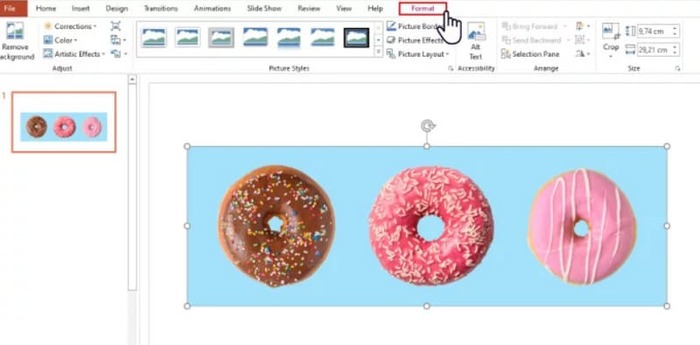
2. lépés. Keresd meg bal felül a Szín lehetőséget. Nyisd le a menüt, és válaszd a Átlátszó szín beállítása funkciót.
3. lépés. A kurzor egy ceruzává változik. Vidd a képed fölé, majd kattints. A képed háttérszíne átlátszóvá válik.
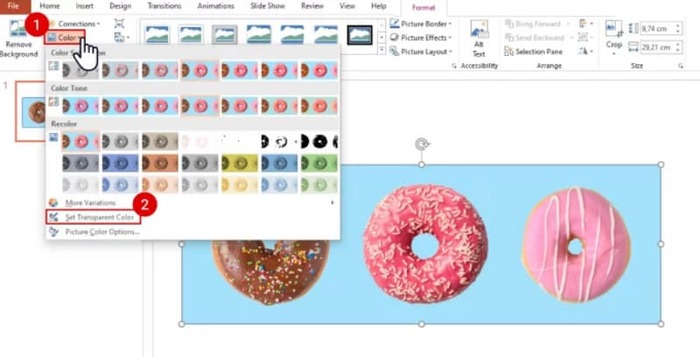
Vegye figyelembe, hogy ez a módszer nem működik árnyékos háttérrel rendelkező képek esetén. Továbbá, ha a képen lévő objektumok színe túl közel van a háttérhez, az Átlátszóság funkció mind a hátteret, mind az objektumokat törölheti.
Háttér eltávolítása a Háttér eltávolítása funkcióval
A PowerPoint oldal bal felső sarkában megjelenik egy Háttér eltávolítása gomb. Kattintson rá, és a PPT Háttér eltávolítása automatikusan felismeri a hátteret, és kiemeli az eltávolítandó részt.
Így távolíthat el egy háttérképet egy PPT diáról a Háttér eltávolítása funkcióval.
1. lépés. Miután beillesztetted a képet a diára, jelöld ki.
2. lépés. Kattints a Képformátum > Háttér eltávolítása menüpontra.
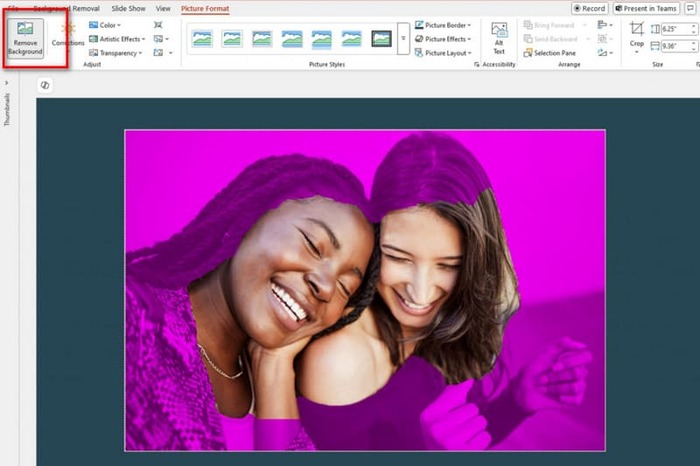
3. lépés. A program futni kezd, és automatikusan érzékeli a hátteret. A háttér lila színnel lesz kiemelve. A keretet kézzel is módosíthatod a Megtartandó területek kijelölése vagy az Eltávolítandó területek kijelölése segítségével.
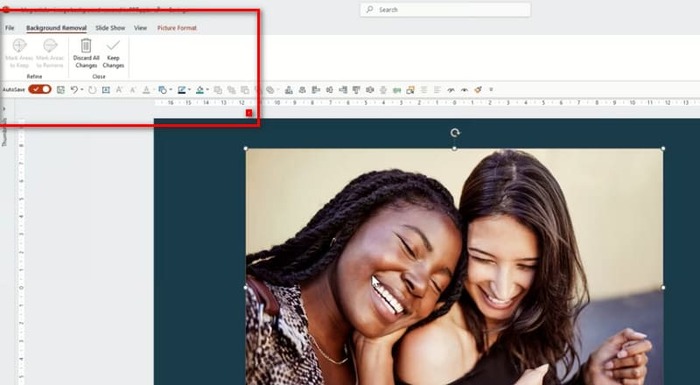
Sajnos gyakori probléma ennél a funkciónál és az Átlátszósági effektusok funkciónál is, hogy mindkettő nagyon gyengén ismeri fel a hátteret, és könnyen előfordulhat, hogy a kép fő elemeit törlik ki. Még akkor is, ha megpróbálod kézzel beállítani, a PowerPoint a végrehajtáskor továbbra is a 'saját feje után megy'. Ha a képed háttere sötét, vagy nem egyszínű, érdemes valamilyen innovatívabb eszközt keresni a háttér eltávolítására vagy hozzáadására a képedhez.
2. rész. Hogyan távolítsuk el a fehér hátteret egy képről online, és töltsük fel a PowerPointba
Ingyenes: FVC háttér eltávolító
A fentiekből láthatjuk, hogy bár a PowerPoint által kínált eszközök egyszerűen használhatók, nem alkalmasak bonyolult hátterű képek feldolgozására. Ha ilyen feladataid vannak, javasoljuk, hogy használd segítségként a FVC Free Background Remover eszközt. Ez számodra teljesen ingyenes. Mindössze annyit kell tenned, hogy feltöltöd a képet a platformra PNG, JPG vagy JPEG formátumban, és a FVC Free Background Remover segítségével még a diaképek hátterét is megváltoztathatod. Töltsd fel a kívánt új hátteret, vagy válassz egy egyszínű hátteret.
Így távolíthatod el a háttérgrafikákat a PPT-ben az FVC Free Background Remover segítségével.
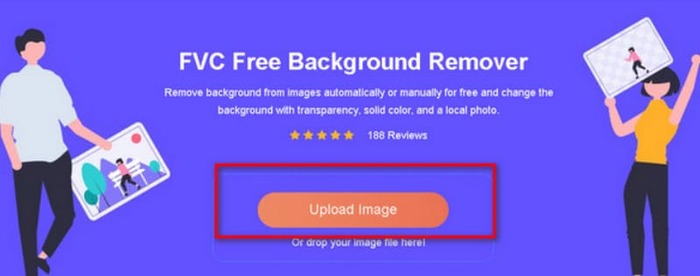
1. lépés. Nyisd meg a böngésződben a FVC Free Background Remover oldalt. Kattints az Upload Image gombra, és add hozzá a képet a diádhoz.
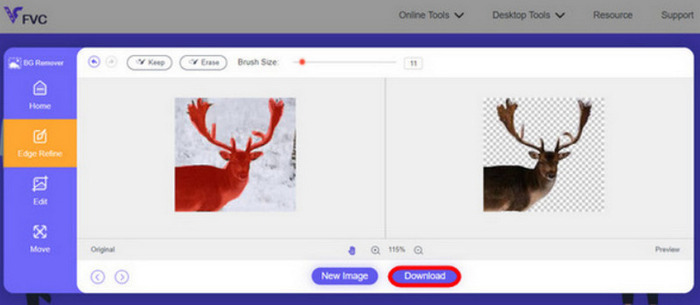
2. lépés. A FVC Free Background Remover betölti a képet, és automatikusan elvégzi a háttér eltávolítását. A folyamat befejezése után szerkesztheted a képet és testre szabhatod a beállításokat.
3. lépés. Végül kattints a Download gombra a szerkesztett videó mentéséhez.
A fenti PPT-háttéreltávolítási módszer elsősorban állóképekre vonatkozik. Ha vízjelek, logók stb. találhatók a képernyőn, nézd meg, hogyan lehet eltávolítani a vízjeleket a fotókról az optimális megjelenés érdekében.
3. rész. Gyakran ismételt kérdések a PPT háttérkép eltávolításával kapcsolatban
Hogyan lehet eltávolítani a fehér hátteret egy képről PPT-ben?
A PowerPointban található a Háttér eltávolítása és az Átlátszó Színeffektus funkciók, amelyek segíthetnek ebben. Azonban fennáll annak a veszélye, hogy ezek tönkreteszik a képernyő integritását. A kép eltávolításához használhatja az FVC Ingyenes Háttér Eltávolítót.
Miért nincs átlátszó szín a PowerPointban?
Először is meg kell győződnie arról, hogy kiválasztotta a célképet. Ha a kép nincs kiválasztva, nem adhat hozzá átlátszó színeffektust.
Mi a teendő, ha a Háttér eltávolítása eszköz nem működik?
Először is ellenőrizd, hogy a képformátumod kompatibilis-e a PowerPointtal, azaz JPG, JPEG vagy PNG. Ha nem, akkor először konvertáld a formátumot. Ez a probléma azért is előfordulhat, mert a PowerPointod nem a legújabb verziójú. Először frissítsd, majd nyisd meg újra a műveletet.
Következtetés
Bár a PowerPoint rendelkezik olyan funkciókkal, amelyekkel a PPT-ben el lehet távolítani a háttérképet, ezek nagyon alapvetőek. Nagyon könnyen tönkretehetik a dián lévő meglévő elemeket. Ha a képed háttere egyszerű vagy fehér színű, akkor a PowerPoint beépített eszközei elegendőek lehetnek. Ha azonban a képen sok részlet található, javasoljuk egy professzionális eszköz használatát, például a FVC Free Background Remover programot. Könnyen kezelhető, és nem igényel további szoftver letöltését.
-
 Útmutató lépésről lépésre a kép hátterének megváltoztatásához 4 módon
 Eszközöket keres a fotók hátterének megváltoztatásához? Ebben a cikkben megismerheti a különféle képszerkesztő eszközöket, amelyek segítségével egyszerűen módosíthatja a képek hátterét.
-
 GIF háttér eltávolítása hatékony és hasznos eszközökkel
 A háttér eltávolítása megfelelő eszköz nélkül frusztráló lehet. Tekintse meg ezt a bejegyzést a GIF-háttér átlátszóvá tételére vonatkozó alkalmazásjavaslatokért.
-
 Hogyan távolítsuk el a hátteret a képről a GIMP segítségével
 Ismerkedjen meg a GIMP-pel és a képek hátterének lépésről lépésre történő eltávolításával. Fedezze fel a hatékony módszereket átlátszó képek létrehozására a GIMP segítségével még ma!
