


 Video Converter Ultimate
 Screen Recorder
 Videó javítás
 Biztonságos letöltés
3 módszer a fényképek egyszerű tömörítésére e-mailben [Útmutató]
Az e-mail nagyszerű platform fotómellékleteket és egyéb szükséges fájlokat tartalmazó üzenetek küldésére. Egyes felhasználók azonban nehézségekbe ütköznek a nagyméretű fényképek küldése során, mivel ezek lassú feltöltési időt, sikertelen kézbesítést vagy az e-mail-szolgáltatók által előírt mellékletméret-korlátozás túllépését eredményezik. E problémák elkerülése érdekében elengedhetetlen a fényképek átméretezése elküldésük előtt.
Ezzel kapcsolatban ebben a cikkben 3 módszert mutatunk be arra, hogy hogyan tömöríts fotókat e‑mailhez, így a fényképmellékletek könnyen elküldhetők és fogadhatók lesznek anélkül, hogy a minőség rovására menne.

1. rész. A fényképek e-mailhez való tömörítésének előnyei
A fényképek tömörítése általában sok előnnyel jár, beleértve az e-mailek használatát is. A következőkben élvezheti a fényképek e-mailben való átméretezését:
• Mivel a képtömörítés a fotó kisebb méretűre igazítását jelenti, tömörített képekkel egy e‑mailben sokkal több fotót tudsz mellékletként elküldeni, mint tömörítetlen esetben.
• Gyakran az e‑mail szolgáltatók korlátozzák a küldhető mellékletek méretét. Ha tömöríted a fotókat e‑mailhez, könnyen a megengedett határon belül maradsz, így az e‑mail gond nélkül kézbesíthető. Ez különösen hasznos, ha e‑mailt több címzettnek küldesz, vagy a fotók mellett más típusú mellékleteket is csatolsz.
• Ha a fotókat tömöríted, az csupán azt jelenti, hogy kevesebb helyet foglalnak, így hatékonyabban használhatod fel az e‑mail tárhelyedet.
• A nagy méretű mellékleteket az e‑mail szerverek néha gyanúsnak jelölik, ami kézbesítési hibákhoz vagy spamként megjelölt üzenetekhez vezethet. A fotók e‑mailhez történő tömörítésével elkerülhetők ezek a problémák, és a mellékletek gond nélkül eljutnak a címzettekhez.
• Bizonyos helyzetekben, amikor a felhasználók mobiltelefonon nézik meg az e‑mailjeiket, a tömörített fotók könnyebben letölthetők és megtekinthetők mobil eszközökön, mint a tömörítetlen képek.
2. rész. Fényképek tömörítése e-mailhez képformátum konvertálásával
Ha tömöríteni szeretné a fényképeket e-mailhez, az első módszer, amelyet megpróbálhat, egy képátalakító eszköz használata. Ezzel a képét olyan formátumba konvertálja, amelyre szüksége van, és az átalakítási folyamat során a fényképet is a kívánt és jobban kezelhető méretre optimalizálja.
A FVC Free Image Converter egy ingyenes konvertáló eszköz, amellyel a felhasználók fotóikat különféle képformátumokba alakíthatják, például JPG, PNG és GIF formátumba. Ha tehát e‑mailben olyan képformátumot küldesz, amely több adatot tartalmaz és ezért nagyobb fájlmérettel jár, nagy hasznát veheted ennek az eszköznek. Emellett akkor is ideális, ha több nagy fájlt szeretnél elküldeni, mivel akár 40 képet is képes egyszerre, kötegelt módon konvertálni. Így használhatod ezt az eszközt a fotók e‑mailhez történő tömörítésére:
1. lépés. Először is keresd meg böngésződben az FVC Free Image Converter oldalt, hogy hozzáférj az online eszközhöz.
2. lépés. Ezután válaszd ki a kívánt kimeneti fájlformátumot a Convert to opcióban. Utána kattints az Add Images gombra, és importáld azokat a képeket, amelyeket konvertálni szeretnél.
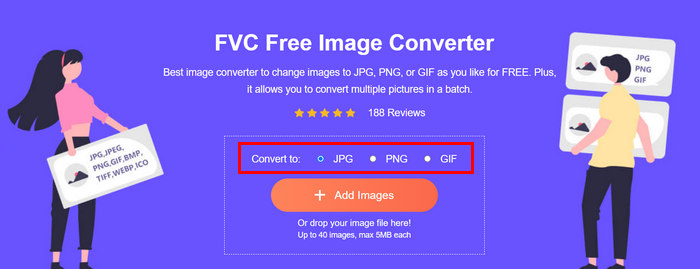
3. lépés. Ha elkészültél, kattints a Download All gombra.
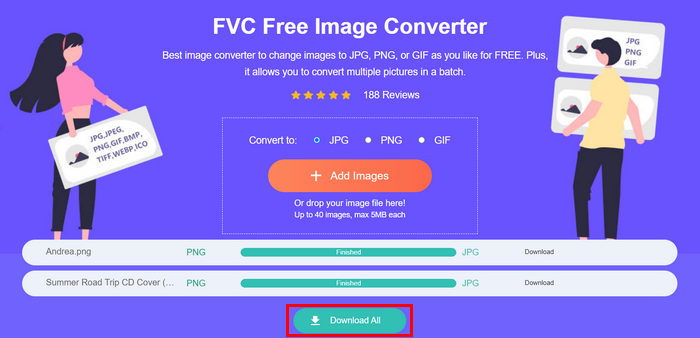 Az FVC Free Image Converter eszközzel garantált, hogy a konvertált fényképeket most tömörítik, és csökkentik a méretüket, ami tökéletes e-mailes használatra.
 3. rész. Fényképek zsugorítása e-mailhez online tömörítő eszközzel
A FVC Free Image Compressor egy ingyenes online tömörítő eszköz, amely leegyszerűsíti a fotók e‑mailhez történő tömörítésének folyamatát. Csak fel kell tölteni vagy be kell importálni a képfájlokat, és az eszköz automatikusan tömöríti azokat. Ha aggódsz a minőségromlás miatt, ez az eszköz a legjobb optimalizálást és fejlett tömörítési algoritmusokat használja. Ez biztosítja, hogy a képek minősége megmaradjon az e‑mailhez történő tömörítés során.
Továbbá, ha köteggel kell tömörítenie egy képet, ez az eszköz lehetővé teszi 40 kép egyidejű tömörítését egyszerre. Végül támogatja a különféle népszerű képformátumokat, például a JPEG, PNG, SVG és animált GIF-eket.
1. lépés. A böngésződben nyisd meg a hivatalos weboldalukat.
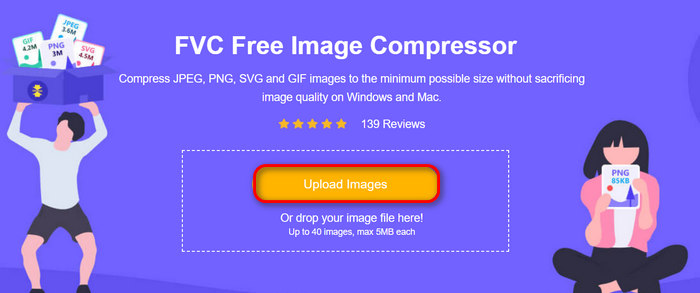
2. lépés. Ezután kattints az Upload Images gombra, hogy importáld azokat a képeket, amelyeket a webes használathoz tömöríteni szeretnél. Vedd figyelembe, hogy ez az eszköz automatikusan tömöríti a fotóidat, miután kijelölted őket és az „Megnyitás” gombra kattintottál.
3. lépés. A képek tömörítése után megtekintheted őket az új, tömörített fájlméret ellenőrzésével. Végül kattints a Download All gombra, hogy elmentsd a képeidet.
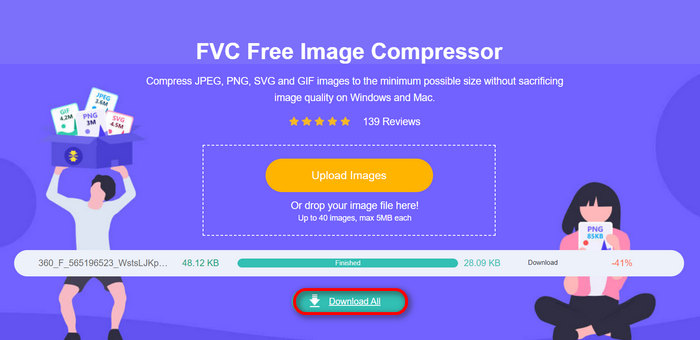
Ez a módszer valóban segíthet a fényképek e-mailhez való tömörítésében anélkül, hogy bonyolult lépések és előfizetési díjak kellenek. Ezenkívül felhasználóbarát és intuitív kezelőfelülete ideális eszközzé teszi bármilyen szintű felhasználó számára. Tehát, ha optimalizálni szeretné fotóit az e-mailek használatára, próbálja ki most ezt a módszert.
4. rész. Az e-mailhez szánt fényképek átméretezése egy megadott méretre
Ha egy megadott méretre szeretné átméretezni az e-mailben elküldött fényképeket, próbálkozzon az IMGonline eszközzel. Ez a képtömörítő eszköz lehetővé teszi a kép átméretezését a választott méretre. Íme, hogyan kell csinálni:
1. lépés. A weboldalukon kattints a Choose File gombra, és add hozzá a fotót, amelyet tömöríteni szeretnél.

2. lépés. Ezután állítsd be a JPEG fájl tömörítésének beállításait. Add meg a kívánt méretet KB‑ban vagy MB‑ban, attól függően, melyiket részesíted előnyben.

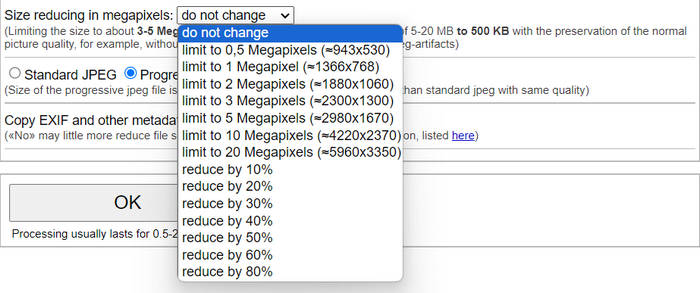
3. lépés. A Size Reducing in Megapixel menüben válaszd ki, milyen mértékben szeretnéd tömöríteni a fotót, illetve milyen határig szeretnéd korlátozni a tömörítést.
4. lépés. Ezután válassz a Standard JPG vagy a Progressive JPG lehetőségek közül.

5. lépés. Ha mindennel elkészültél, kattints az OK gombra.
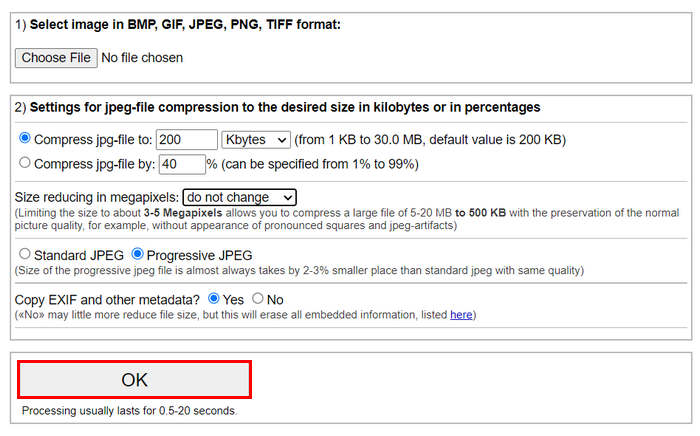
A szabványos JPG és a progresszív JPG közötti választással kapcsolatban ne feledje, hogy a progresszív jpeg fájl mérete mindig 2-3%-vel kisebb helyet foglal el, mint az azonos minőségű szabványos jpeg.
5. rész. GYIK a fényképek e-mailben történő tömörítéséről
Milyen méretre kell átméreteznem a fotóimat az e-mailhez?
Ami az ideális méretet illeti az e-mailben történő fotók küldéséhez, bár nincs korlátozás, általában javasolt a fényképek átméretezése maximum 1024x768 pixelre. Ezenkívül a képméret 1 MB alatti tartása segít elkerülni a mellékletek korlátozásával kapcsolatos problémákat, és megkönnyíti a címzettek számára a képek letöltését és megtekintését.
Hogyan lehet képeket tömöríteni a Gmailhez?
A képek Gmailhez történő tömörítése többféle módszerrel is elvégezhető. Az egyik legegyszerűbb megoldás, ha online tömörítő eszközöket használsz, például az FVC ingyenes képtömörítő eszközét. Használatához csak fel kell töltened a képfájlokat, és az automatikusan tömöríti őket.
Melyik képtípus a legjobb e-mailekhez?
A legjobb képformátumok e‑mailekhez a JPEG és a PNG. A JPEG‑et széles körben használják a jó tömörítési aránya és a fájlméret és minőség közti megfelelő egyensúly miatt, így ideális fényképekhez és sok színt tartalmazó képekhez. A PNG‑t akkor érdemes választani, ha a képnek átlátszóságra van szüksége, vagy ha szöveget, logót, illetve éles kontúrokkal rendelkező grafikát tartalmaz, mivel ez a formátum jobban megőrzi ezeknek az elemeknek a minőségét, bár a fájlméret nagyobb lehet, mint JPEG esetén.
Következtetés
Nagyon fontos tudni, hogyan kell fotókat tömöríteni e‑mailhez, hogy elkerüld a lassú feltöltést, a sikertelen kézbesítést és a mellékletméret‑korlátokba ütközést. Ha követed az ebben a cikkben részletesen bemutatott módszereket, biztosíthatod, hogy a fotómellékletek kezelhető méretűek legyenek, és gyorsan elküldhetők és fogadhatók maradjanak.
mire vársz? Kezdje el e-mail mellékleteinek optimalizálását még ma ezzel a 3 egyszerű módszerrel.
-
 Túlzottan tömörített fotó: Így javíthatja ki őket egyszerűen
 Kíváncsi vagy, mit tegyen, ha a kép túlságosan tömörített? Olvassa el ezt a cikket, és ismerje meg, miért fordul elő ez a képprobléma, és tanuljon meg két módszert a megoldásukra.
-
 Kép átméretezése 100 KB-ra: 3 legjobb módszer a hatékony tömörítéshez
 Olyan eszközt keres, amely segít átméretezni a képet 100 KB-ra? Olvassa el ezt a cikket, és tanuljon meg 3 módszert arra vonatkozóan, hogyan kicsinyítheti a képeket a kívánt fájlméretre.
-
 Képek tömörítése Wordben [Windows és Mac]
 Kíváncsi vagy, hogyan használhatod Word-öt képtömörítésre? Ez az útmutató megtanítja Önnek, hogyan lehet tömöríteni a képeket a Wordben a zökkenőmentes tömörítés érdekében.
