


 Video Converter Ultimate
 Screen Recorder
 Videó javítás
 Biztonságos letöltés
Hogyan lehet konvertálni és feltölteni az FLV videofájlokat a YouTube-ra
“Most töltöttem fel egy .flv kiterjesztésű videófájlt, de egy figyelmeztető üzenetet kaptam, hogy érvénytelen fájlformátum. Hogyan lehet FLV-t feltölteni a YouTube-ra?” Az FLV nemcsak egy fájlkiterjesztés, hanem egy videokonténer is. Ez azt jelenti, hogy egy FLV-videófájl különféle videó- és hangkodekeket tárolhat, és ezek közül néhányat a YouTube nem támogat. Ez a cikk mindent elmond, amit tudnia kell arról, hogyan tölthet fel zökkenőmentesen FLV-t a YouTube-ra.

1. rész: Milyen video- és audiokodekeket támogat a YouTube
A Google szerint a YouTube az adás formátumát, valamint a DVD-kompatibilis MPEG-2 streameket részesíti előnyben .mpg kiterjesztéssel. A YouTube által támogatott kodekek a következők:
- MPEG-2
- Audio kodek: MPEG Layer II vagy Dolby AC-3
- Audio bitráta: 128 kbps vagy jobb
- MPEG-4
- Videokodek: H.264
- Audio kodek: AAC
- Audio bitráta: 128 kbps vagy jobb
Ezenkívül a YouTube csak az MP3 vagy PCM audióval rendelkező WAV-tárolókat, az AAC hanggal rendelkező MOV-ot és az FLAC-audiót támogatja. A YouTube a megfelelő kodekekkel támogatja a WMV, AVI, MOV, MP4 és FLV fájlokat.
Amikor az FLV-ről van szó, a YouTube hozzáfér az Adobe-FLV1 videokodekkel kódolt videókhoz, valamint az MP3 és AAC hangokhoz. Ha az FLV videód tömörítetlen vagy ADPCM hangot tartalmaz, a YouTube nem fogadja el.
Emellett további szabályok vonatkoznak az FLV YouTube-ra történő feltöltésére:
- Ajánlott képkockasebesség: 24–60
- Ajánlott állásfoglalás: 1080p
- Minimális időtartam: 33 másodperc
2. rész: Az FLV konvertálásának legkönnyebb módjai a YouTube-ra
1. út: Konvertálja az FLV-t YouTube-ra asztali számítógépen
Ha hibát tapasztal FLV YouTube-ra való feltöltésekor, az első lépés, hogy keressen egy FLV-konvertert, például a FVC Free FLV Convertert. Ez lehetővé teszi a videó- és hangkodekek, valamint más paraméterek módosítását. Így az FLV-fájlokat a YouTube szabályaihoz igazíthatja. Ezenfelül hardveres gyorsítást és többszálú feldolgozást használ a teljesítmény javítására.
A legjobb FLV Converter for YouTube legfontosabb jellemzői
- 1. Könnyen állíthatja be az FLV videó és audio kodekjeit.
- 2. Batch folyamat korlátlan FLV videók egyszerre.
- 3. Konvertálás közben automatikusan védje a videó minőségét.
Ingyenes letöltésWindows 7 vagy újabb rendszerhezBiztonságos letöltés
Ingyenes letöltésmacOS 10.7 vagy újabb rendszerhezBiztonságos letöltés
Az FLV konvertálása a YouTube-ra asztali számítógépen
1. lépés: FLV-fájlok hozzáadása
Indítsa el a legjobb FLV-átalakítót, miután telepítette a számítógépére. Kattintson a Fájl (ok) menüre a bal felső sarokban, és adja hozzá a YouTube-ra feltölteni kívánt FLV fájlokat.

2. lépés: Kodekek módosítása
Kattintson az Output format melletti legördülő menüre alul, hogy megnyissa a profil ablakot. Írja be, hogy FLV a Search Profile mezőbe, majd nyomja meg az Enter billentyűt a billentyűzetén. Ezután válassza ki az FLV formátumot a megfelelő videó- és hangkodekekkel.
Ha az FLV-videó túl hosszú, célszerűbb klipekre vágni, majd úgy feltölteni a YouTube-ra. Kattintson az Edit menüre a videoszerkesztő ablak megnyitásához.

3. lépés: FLV konvertálása YouTube-hoz
Ezután menjen az aljára, és kattintson az Open Folder gombra. Válasszon ki egy mappát a kimeneti videók mentéséhez. Végül kattintson a Convert gombra az FLV YouTube-ra való azonnali konvertálásának megkezdéséhez.

2. út: Konvertálja az FLV-t YouTube Online-ra
Ha nem szeretne videokonvertáló szoftvert telepíteni a merevlemezére, a FVC Free Online Video Converter jó alternatív megoldás. Ingyenes, mindenféle korlátozás, például vízjel nélkül. Ráadásul nincs fájlméret-korlátja sem. Az alábbi lépések követendők:
1. lépés: Látogasson el a https://www.free-videoconverter.net/free-online-video-converter/ oldalra egy böngészőben, és kattintson az Add Files to Convert gombra az indító letöltéséhez.

2. lépés: Kattintson az Add File gombra több FLV-fájl feltöltéséhez. Ezután nyomja meg a Gear ikont a profil ablak megnyitásához. Itt módosíthatja a Video Encoder és Audio Encoder beállításokat. Kattintson az OK gombra a megerősítéshez.

3. lépés: Válasszon egy YouTube által támogatott formátumot alul, majd kattintson a Convert gombra az FLV YouTube-hoz való konvertálásának elindításához. Ha elkészült, töltse le a kimeneti fájlokat.
Ne hagyja ki:
3. rész: Az FLV feltöltése a YouTube-ra
Konvertálás után most feltöltheti FLV fájljait a YouTube-ra a számítógépén. Itt osztjuk meg a lépéseket, nehogy eltévedj.
1. lépés: Nyissa meg a YouTube kezdőlapját, és jelentkezzen be fiókjába.
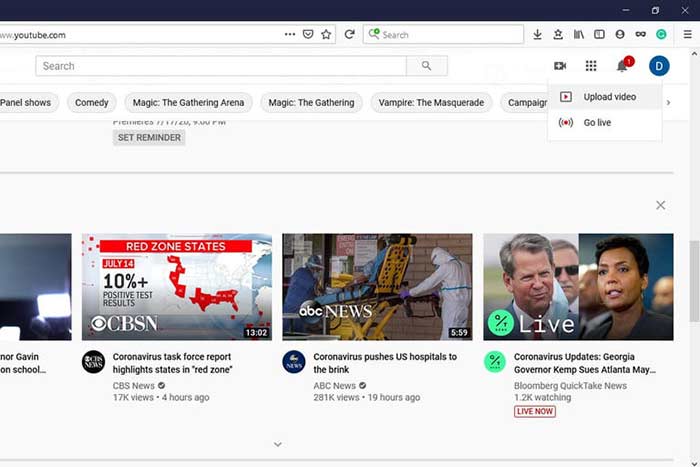
2. lépés: Kattintson a Camcorder ikonra, és válassza az Upload video lehetőséget a feltöltési oldal megnyitásához.
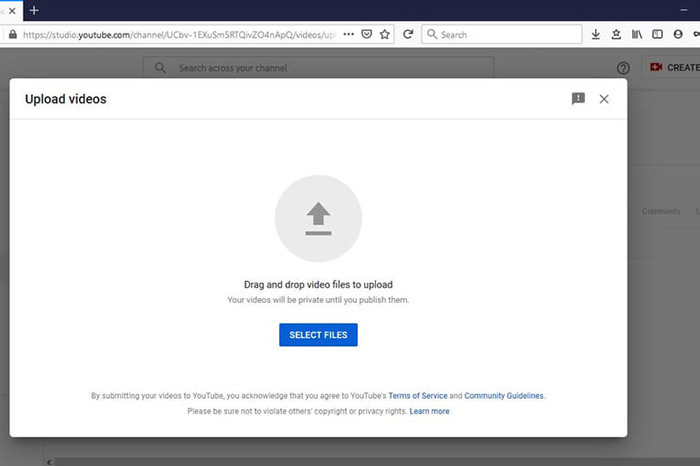
3. lépés: Kattintson a nagy Select Files gombra az oldalon, majd nyissa meg a YouTube-ra szánt konvertált FLV-fájlokat. Vagy húzza át és ejtse be az FLV-fájlokat az oldalra a feltöltéshez.
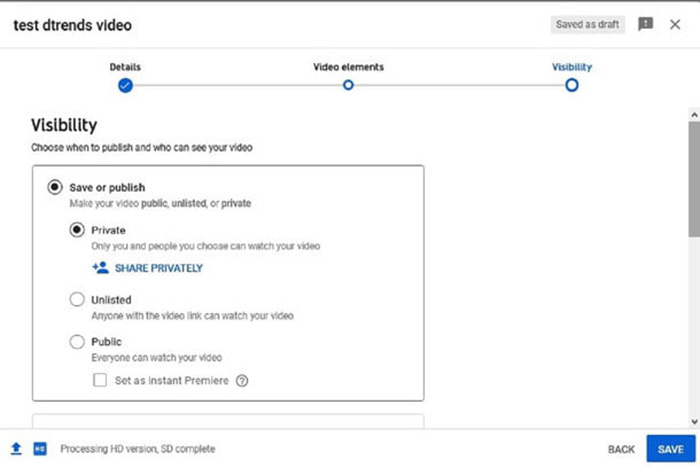
4. lépés: Ezután válassza ki az adatvédelmi beállítást. Alapértelmezés szerint Public, de átállíthatja Private, Schedule vagy Unlisted értékre.
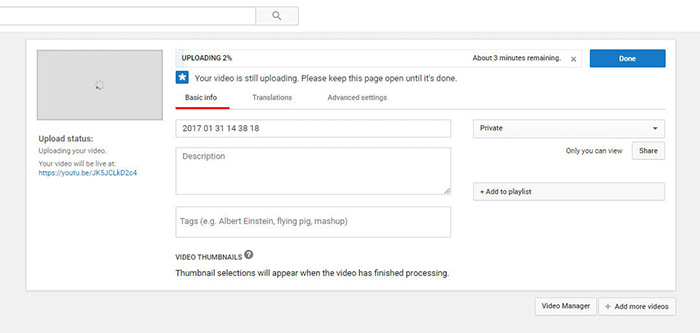
5. lépés: Kattintson a Save vagy Publish gombra a beállítások után. Ekkor átirányítják a Dashboard oldalra. Itt láthatja az FLV-fájlt, amelyet feltöltött YouTube-fiókjába.
4. rész: GYIK az FLV-ről a YouTube-ra
Feltöltheti az FLV-t a YouTube-ra?
Igen és nem. A YouTube támogatja az FLV videó formátumot, de videotárolóként csak támogatott video és audio kodekeket tartalmazó FLV fájlokat tölthet fel; különben kudarc lesz.
Letölthetek YouTube-videókat FLV-ben?
Ha a YouTube-videó felajánlja a letöltés gombot, kattintson rá, és válassza ki az FLV-t kimeneti formátumként.
Melyik videóformátum a legjobb a YouTube számára?
Az MP4 a legjobb videó formátum a YouTube számára. A Google javasolja az MP4 használatát H.256 videokodekkel és AAC audiokodekkel. Ez azért van, mert kiváló minőséget produkál kisebb fájlmérettel. Ezenkívül a MOV, WMV, AVI, FLV és 3GPP is támogatott a YouTube-on.
Következtetés
Ez az útmutató elmondta, hogy a YouTube milyen videoformátumokat fogad el, és hogyan lehet hiba nélkül feltölteni az FLV-t a YouTube-ra. Az FVC Free FLV Converter segíthet az FLV konvertálásában a YouTube-ra, és lehetővé teszi a video- és audiokodek egyszerű beállítását. Ez még nem igényel semmilyen technikai készséget, így a kezdők gyorsan elsajátíthatják. Ha más problémába ütközik, amikor videót tölt fel a YouTube-ra, hagyjon üzenetet a bejegyzés alatt.
-
 Hogyan lehet konvertálni FLV videofájljait MP4-re, fillér fizetése nélkül
 Ez az útmutató négy ingyenes módszert oszt meg az FLV videofájlok MP4 formátumba konvertálására Windows 10/8/7 / XP és Mac OS X rendszereken, így bármilyen eszközön élvezheti a videókat.
-
 Hogyan konvertálhat FLV-videókat MP3 audio fájlokká asztali és online
 Hogyan lehet átalakítani az FLV fájlokat MP3 fájlokká? Mindössze annyit kell tennie, hogy figyelmesen olvassa el ezt a cikket, keresse meg kedvenc módszerét, és kövesse lépésről-lépésre útmutatónkat, hogy megkapja, amit szeretne.
-
 3 ingyenes módszer az FLV konvertálására WAV formátumra
 Hogyan lehet átalakítani az FLV fájlt? Konvertálhatja a VLC a YouTube FLV-t WAV-ra? Ez a bejegyzés 3 ingyenes módszert ismertet az FLV WAV-ba történő átalakítására minőségromlás nélkül.
