


 Video Converter Ultimate
 Screen Recorder
 Videó javítás
 Biztonságos letöltés
Hogyan konvertálhat FLV videofájlokat 3GP formátumba ingyen
Ez a cikk megmutatja a legjobb módszereket, hogyan tudja az FLV-t 3GP-vé konvertálni. Felmérések szerint rengeteg videófájl-formátum létezik a piacon. A fejlesztők ezeket különböző célokra hozták létre. Az FLV például, amely a Flash Video rövidítése, vizuális tartalmak tárolására szolgál, hogy azokat az Adobe Flash Player segítségével lehessen lejátszani az interneten.
A 3GP viszont a harmadik generációs partnerségi projekt által létrehozott multimédiás formátum a sávszélesség és az adatfelhasználás megtakarításához a mobileszközökön. Más szóval jobb, ha konvertálod az FLV-t 3GP-be, és videókat nézel a mobilkészüléken.

1. rész: A legjobb módja az FLV konvertálásának 3GP-re asztali számítógépen
A FVC Free FLV Converter egy nagy teljesítményű videokonverter. Ahogy a neve is mutatja, lehetővé teszi, hogy az FLV-t ingyenesen 3GP formátumba alakítsa. Emellett számos hasznos funkciót kínál, például videó- és hangszerkesztést. Még fontosabb, hogy a felhasználóbarát felületnek köszönhetően gyorsan megtalálja, amit keres.
A legjobb ingyenes FLV átalakító főbb jellemzői
- 1. Konvertálja az FLV videókat bármilyen multimédia formátumra, például 3GP-re.
- 2. Batch egyszerre több videofájlt kezel.
- 3. Át kódolja az FLV fájlokat a mobileszközökön történő lejátszáshoz.
Ingyenes letöltésWindows 7 vagy újabb rendszerhezBiztonságos letöltés
Ingyenes letöltésmacOS 10.7 vagy újabb rendszerhezBiztonságos letöltés
Hogyan lehet konvertálni az FLV-t 3GP-re ingyen
Indítsa el a legjobb ingyenes FLV-konvertert, miután telepítette a gépére. Kompatibilis a Windows 10/8/7 és a Mac OS X rendszerekkel. Kattintson az Add File(s) gombra a fájlmegnyitó ablak megnyitásához. Válassza ki azokat az FLV fájlokat, amelyeket konvertálni szeretne, majd kattintson az Open gombra. Ezután a videók megjelennek a könyvtárterületen.

2. lépés: Kimeneti formátum beállítása
Kattintson az alul található Profile format legördülő menüre, hogy megnyissa a profilablakot. Írja be, hogy 3GP a Search Profile mezőbe, majd nyomja meg az Enter billentyűt a billentyűzetén. Ezután válassza ki a kimeneti formátumot. Ha a videókat mobilkészüléken szeretné lejátszani, válassza ki a gyártót, majd közvetlenül a megfelelő modellt.

3. lépés: FLV konvertálása 3GP-re
Állítson be egy konkrét könyvtárat a kimeneti fájlok tárolására az alsó Open Folder gomb megnyomásával. Végül kattintson a Convert gombra az FLV–3GP konvertálás elindításához. Néhány perccel később megtalálja a 3GP fájlokat a merevlemezén.

2. rész: Az FLV konvertálása 3GP Online-ra
A webes videókonvertáló alkalmazások egy másik népszerű módját jelentik az FLV ingyenes 3GP-vé alakításának. A legtöbbjüknek azonban számos hátránya van, például fájlméret-korlát, vízjel, biztonsági problémák és egyebek. Szerencsére az FVC Free Online Video Converter segíthet megoldani ezeket. Teljesen ingyenes, mindenféle korlátozás nélkül. A kimeneti minőség kiváló.
1. lépés: Látogasson el a https://www.free-videoconverter.net/free-online-video-converter/ oldalra egy böngészőben, és kattintson az Add Files to Convert gombra az indító letöltéséhez. Nem fog helyet foglalni a számítógépe helyi tárhelyén.
Töltse le az asztali verziót a fájlok kötegelt konvertálásához.
2. lépés: Kattintson az Add File menüre, és töltse fel azokat az FLV fájlokat, amelyeket konvertálni szeretne. A webalkalmazás lehetővé teszi, hogy egyszerre több videót is kötegben konvertáljon.
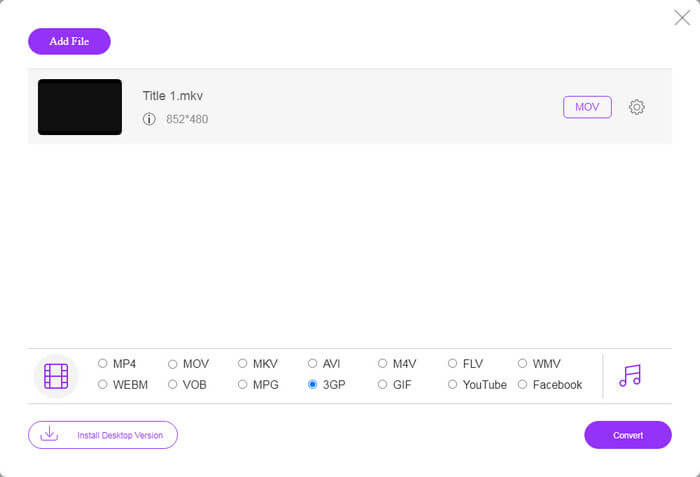
3. lépés: Menjen az oldal aljára, és válassza a 3GP formátumot a profil szekcióban. Kattintson a Convert gombra az FLV–3GP online konvertálásának elindításához. Ha a hálózata gyorsan működik, a folyamat néhány másodperc alatt befejeződik. Ezután töltse le a 3GP fájlokat a merevlemezére.
Ne hagyd ki:
3. rész: Az FLV konvertálása 3GP-re VLC-vel
Néha az ingyenes szoftver ugyanolyan hatékony, mint a professzionális szoftver. A VLC például egy népszerű nyílt forráskódú médialejátszó. Ingyenesen képes FLV-t 3GP-re konvertálni Windows, Mac és Linux rendszereken. Természetesen a költség nyilvánvaló, például nehezen használható. Ezért megosztjuk az alábbi lépéseket:
1. lépés: Futtassa a ingyenes FLV–3GP konvertert a számítógépén. Először telepítenie kell. A hivatalos weboldal biztonságos telepítőt biztosít.
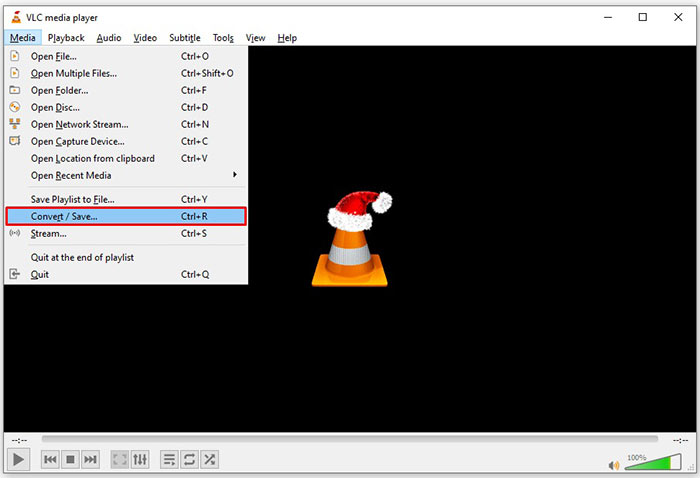
2. lépés: Menjen a felső menüsorban található Media menüpontra, és válassza a Convert/Save lehetőséget. Ekkor felugrik a médiamegnyitó ablak.
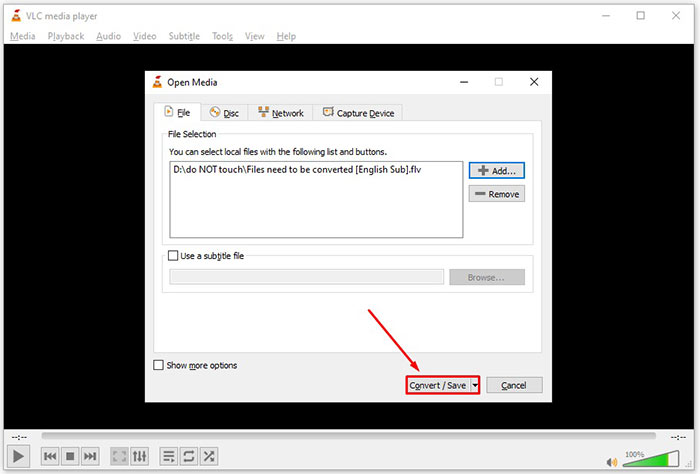
3. lépés: Kattintson az Add gombra, keresse meg a konvertálni kívánt FLV fájlt, jelölje ki, majd kattintson az Open gombra. Ezután nyomja meg a Convert/Save gombot a következő ablakra lépéshez.
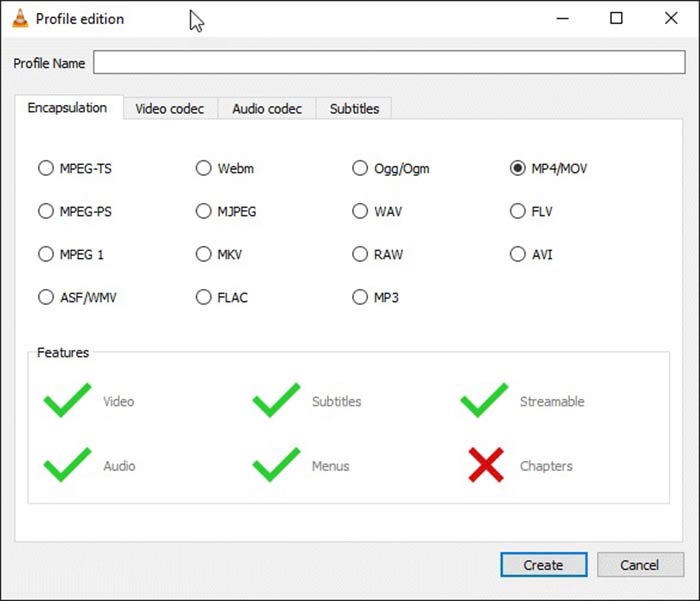
4. lépés: Nyissa le a Profile melletti legördülő listát, és válassza a 3GP-t vagy a hozzá kapcsolódó videóformátumot. Ha módosítani szeretné a videokodeket vagy más paramétereket, kattintson a legördülő lista melletti Profile Edit gombra, és adja hozzá a 3GP-t.
5. lépés: Kattintson a Browse gombra, és válasszon ki egy konkrét mappát a kimeneti 3GP fájl mentéséhez a Destination szakaszban.
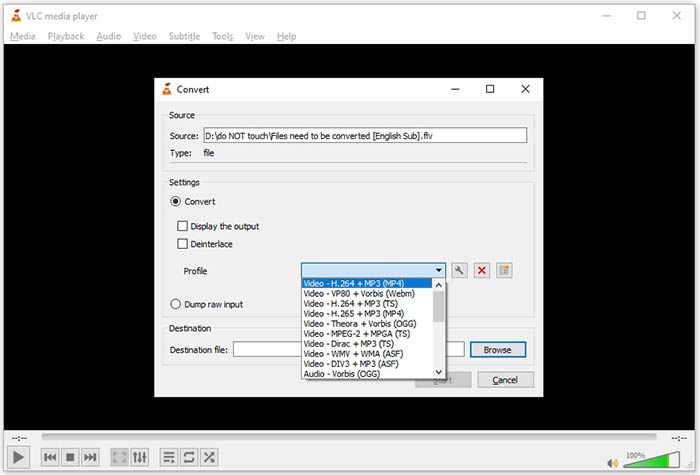
6. lépés: Amint a Start gombra kattint, a VLC elindítja az FLV–3GP konvertálást.
Egy pillanatra van szükség az átalakítás befejezéséhez, mivel a VLC elvégzi a munkát az eredeti videó rögzítésével. Ez azt jelenti, hogy a folyamat mindaddig tölt, amíg az FLV videód hossza nem lesz.
FLV vs. 3GP
Az Adobe Flash Player az FLV-t használta videotartalom, például filmek és tévéműsorok továbbítására. Manapság az Adobe már nem fejleszti a lejátszót, és biztonsági okokból azt javasolja a felhasználóknak, hogy távolítsák el. Azonban továbbra is használhatja az FLV formátumot sok nem Adobe/Macromedia programban.
A 3rd Generation Partnership Project (3GPP) létrehozta a 3GP/3GPP formátumot multimédiás konténer formátumként. Valójában az ISO médiafájl formátumon alapul. Gyakran használjuk a 3G mobiltelefonok között és online továbbított videó/audio streamek mentésére.
4. rész: Gyakran feltett kérdések az FLV átalakításáról 3GP-re
Rontja az FLV átalakítását 3GP -vé a videó minőségét?
Általánosságban elmondható, hogy a videokonvertálás elveszíti a minőségét. Ugyanakkor egy nagy teljesítményű videokonverter program képes megoldani ezt a problémát és optimalizálni a videó minőségét a fejlett technológia segítségével.
Mennyi ideig tart átalakítani egy FLV videót?
Számos tényező határozza meg, például a videó hossza, a használt videokonvertáló szoftver, a hardver teljesítménye és egyebek. Ha webes videokonvertert használ, az internetkapcsolata elengedhetetlen elem.
Miért nem játszik az FLV az iPhone -mon?
Az iPhone támogatja a MOV-ot, az MP4, az ASF és az AVI részét. Ezért nem tudja közvetlenül megnyitni az FLV-t iPhone-on. Vannak azonban módok az FLV mobileszközökön történő megtekintésére. Ha az FLV fájlját internetes szolgáltatások, például a Google Drive tárolja, a beépített médialejátszó elérhető. Ráadásul használhat másik médialejátszót is, például a VLC-t.
Következtetés
Ez az útmutató három ingyenes módszert ismertetett az FLV videofájlok 3GP formátumba konvertálásához számítógépen vagy online. Ha FLV-videók mobileszközökön történő megtekintésére készül, akkor jobb, ha 3GP-re vagy más mobilbarát videó formátumra konvertálja az FVC Free FLV Converter segítségével. Nem csak egyszerűen használható, de meg is tudja védeni a videó minőségét. Több kérdés? Kérjük, hagyjon egy üzenetet alább.
-
 Hogyan lehet konvertálni FLV videofájljait MP4-re, fillér fizetése nélkül
 Ez az útmutató négy ingyenes módszert oszt meg az FLV videofájlok MP4 formátumba konvertálására Windows 10/8/7 / XP és Mac OS X rendszereken, így bármilyen eszközön élvezheti a videókat.
-
 Hogyan konvertálhat FLV-videókat MP3 audio fájlokká asztali és online
 Hogyan lehet átalakítani az FLV fájlokat MP3 fájlokká? Mindössze annyit kell tennie, hogy figyelmesen olvassa el ezt a cikket, keresse meg kedvenc módszerét, és kövesse lépésről-lépésre útmutatónkat, hogy megkapja, amit szeretne.
-
 Az FLV konvertálásának 3 legjobb módja MOV-vá
 Hogyan lehet FLV-t MOV-ra konvertálni? Hogyan alakíthatom át az FLV-t MOV-vé Macen? Van valami ingyenes módja az FLV-nek MOV-ra konvertálni online? Ez a bejegyzés 3 FLV to MOV konvertert oszt meg az FLV fájlok MOV formátumra cseréjéhez.

